display TOYOTA TACOMA 2011 (in English) Owner's Manual
[x] Cancel search | Manufacturer: TOYOTA, Model Year: 2011, Model line: TACOMA, Model: TOYOTA TACOMA 2011Pages: 548, PDF Size: 9.84 MB
Page 267 of 548
267
3-2. Using the audio system
3
Interior and exterior features
Optimal use of the audio system
Using the AUDIO CONTROL function■ Changing sound quality modes
Pressing selects the mode to be changed in the following
order.
BAS MID
* TRE FA D BAL ASL
*:JBL brand audio system
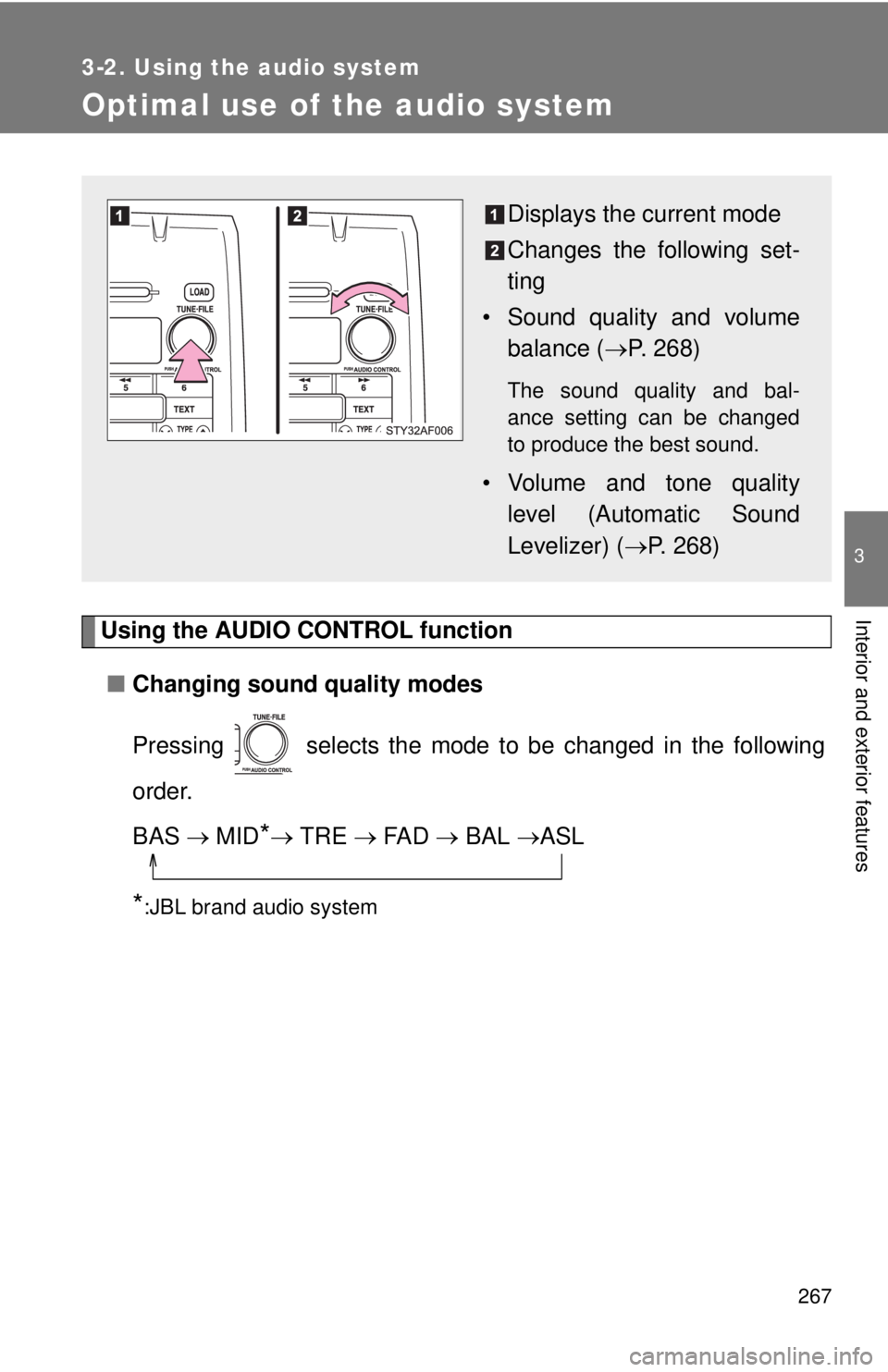
Displays the current mode
Changes the following set-
ting
• Sound quality and volume balance ( P. 268)
The sound quality and bal-
ance setting can be changed
to produce the best sound.
• Volume and tone quality
level (Automatic Sound
Levelizer) ( P. 268)
Page 268 of 548
268 3-2. Using the audio system
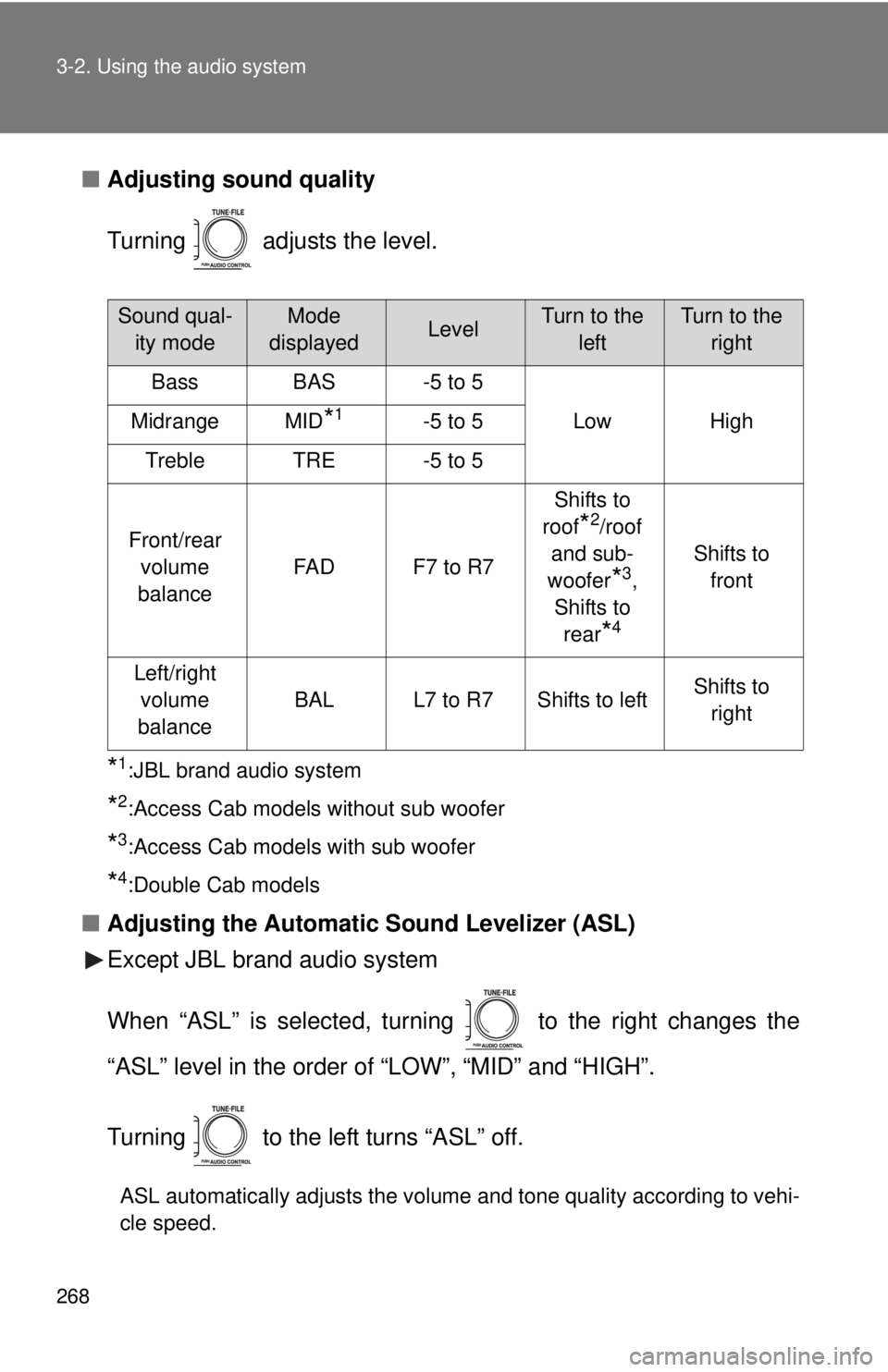
■Adjusting sound quality
Turning adjusts the level.
*1:JBL brand audio system
*2:Access Cab models without sub woofer
*3:Access Cab models with sub woofer
*4:Double Cab models
■Adjusting the Automatic Sound Levelizer (ASL)
Except JBL brand audio system
When “ASL” is selected, turning to the right changes the
“ASL” level in the order of “LOW”, “MID” and “HIGH”.
Turning to the left turns “ASL” off.
ASL automatically adjusts the volume and tone quality according to vehi-
cle speed.
Sound qual-
ity modeMode
displayedLevelTurn to the leftTurn to the right
BassBAS-5 to 5
LowHighMidrangeMID*1-5 to 5
TrebleTRE-5 to 5
Front/rear volume
balance
FA DF7 to R7
Shifts to
roof
*2/roof
and sub-
woofer
*3,
Shifts to rear
*4
Shifts to front
Left/right volume
balance
BALL7 to R7Shifts to leftShifts to right
Page 277 of 548
277
3-3. Using the hand
s-free phone system (for cellular phone)
3
Interior and exterior features
■Conditions under which th e system will not operate
● If using a cellular phone that does not support Bluetooth
®
●If the cellular phone is switched off
● If you are outside service range
● If the cellular phone is not connected
● If the cellular phone’s battery is low
■ Bluetooth
® antenna
The antenna is built into the display. If the cellular phone is behind the seat
or in the console box, or touching or covered by metal objects, connection
status may deteriorate.
■ Signal status
This display may not correspond exactly with the cellular phone itself.
■ About Bluetooth
®
■Compatible models
Compatible with HFP (Hands Free Profile) Ver. 1.0 and OPP (Object Push
Profile) Ver. 1.1.
If your cellular phone does not support HFP, you cannot enter the Blue-
tooth
® phone. If your cellular phone supports OPP alone, you cannot use
the Bluetooth® phone.
Bluetooth is a registered trademark of
Bluetooth SIG, Inc.
Page 280 of 548
280
3-3. Using the hands-free phone system (for cellular phone)
Using the hands-free phone system
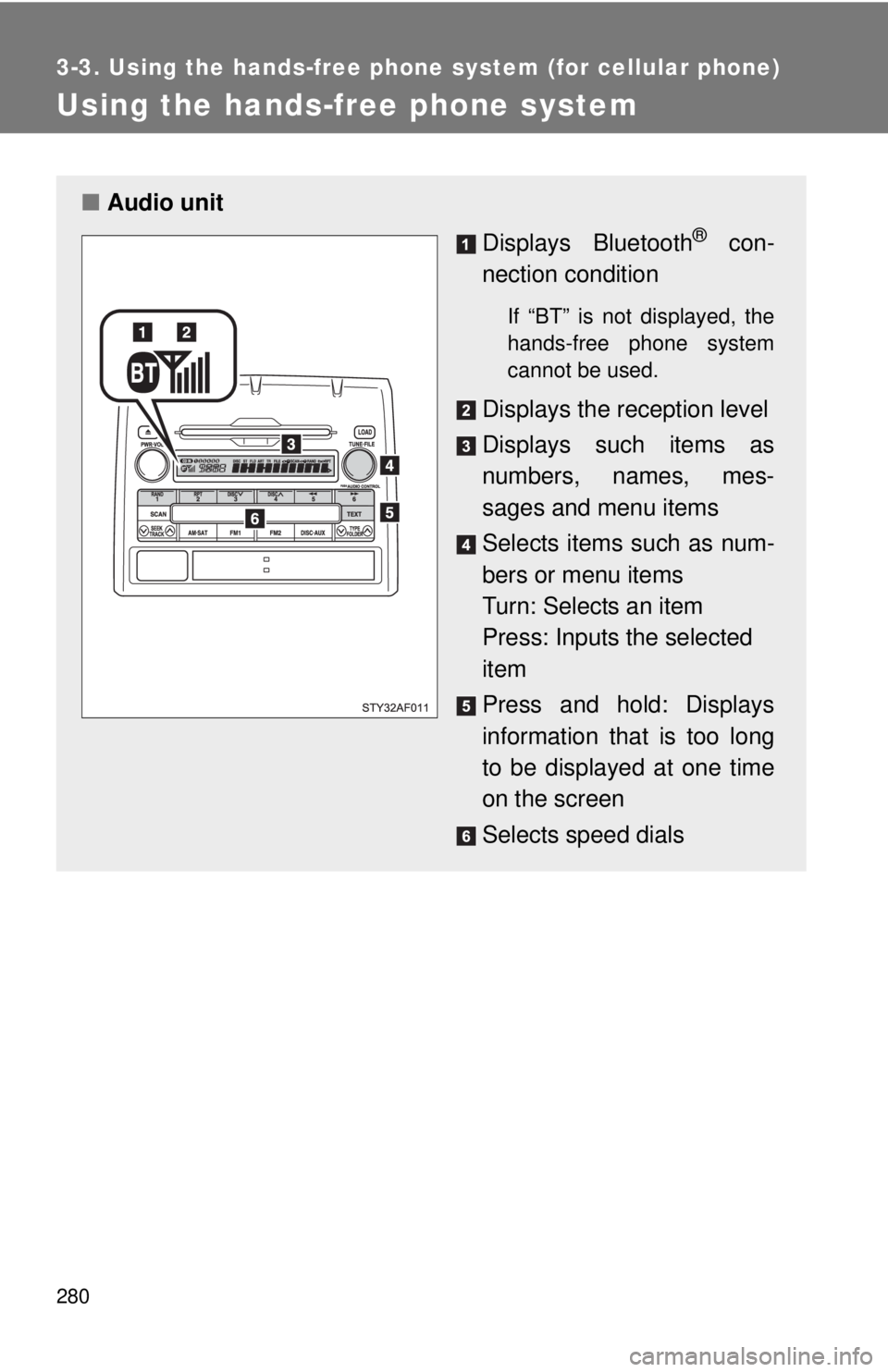
■Audio unit
Displays Bluetooth
® con-
nection condition
If “BT” is not displayed, the
hands-free phone system
cannot be used.
Displays the reception level
Displays such items as
numbers, names, mes-
sages and menu items
Selects items such as num-
bers or menu items
Turn: Selects an item
Press: Inputs the selected
item
Press and hold: Displays
information that is too long
to be displayed at one time
on the screen
Selects speed dials
Page 282 of 548
282 3-3. Using the hands-free phone system (for cellular phone)
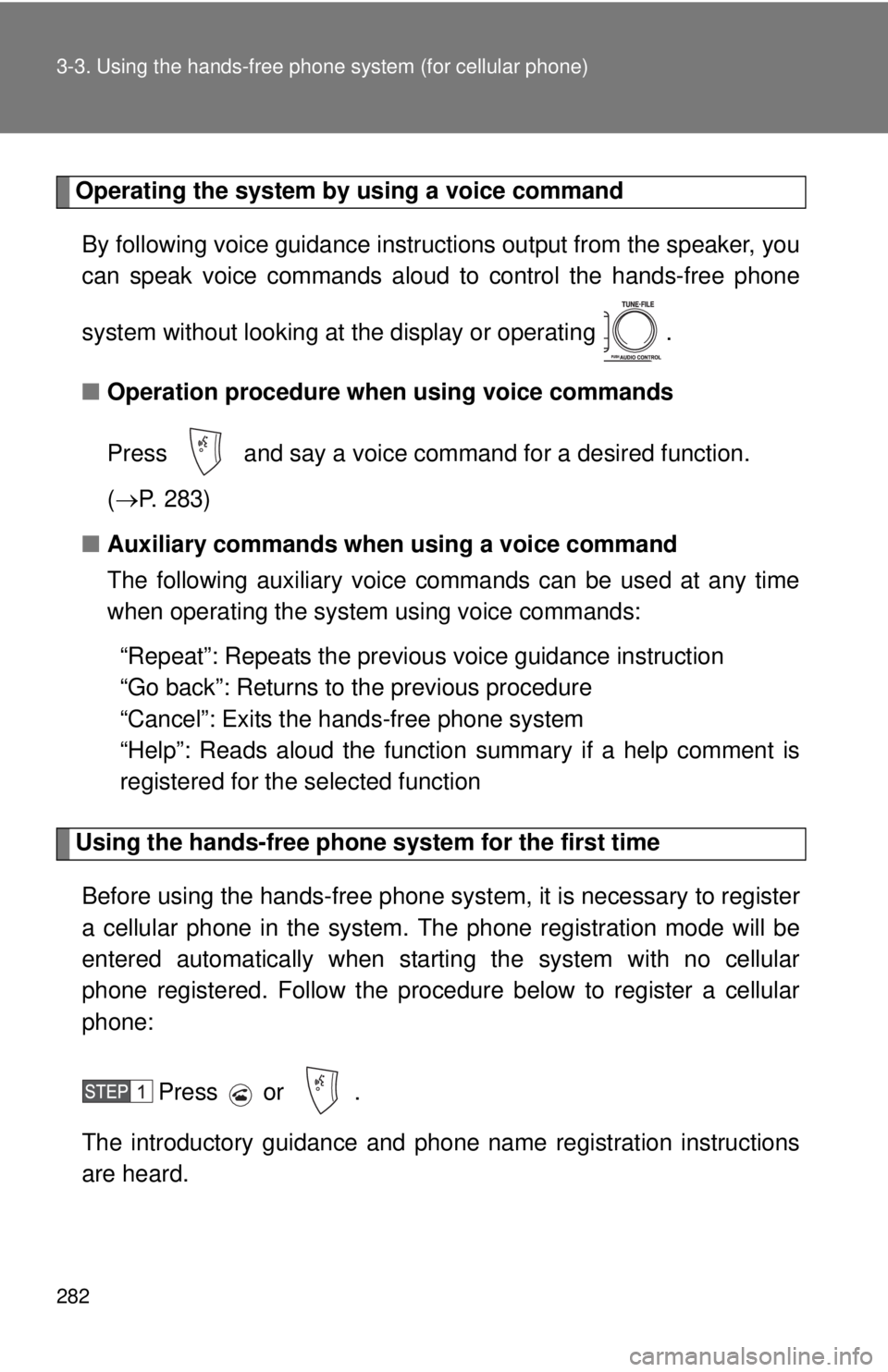
Operating the system by using a voice command
By following voice guidance instruct ions output from the speaker, you
can speak voice commands aloud to control the hands-free phone
system without looking at the display or operating .
■ Operation procedure when using voice commands
Press and say a voice command for a desired function.
( P. 283)
■ Auxiliary commands when using a voice command
The following auxiliary voice commands can be used at any time
when operating the system using voice commands:
“Repeat”: Repeats the previous voice guidance instruction
“Go back”: Returns to the previous procedure
“Cancel”: Exits the hands-free phone system
“Help”: Reads aloud the function summary if a help comment is
registered for the selected function
Using the hands-free phone system for the first time
Before using the hands-free phone system, it is necessary to register
a cellular phone in the system. Th e phone registration mode will be
entered automatically when starting the system with no cellular
phone registered. Follow the procedure below to register a cellular
phone:
Press or .
The introductory guidance and phone name registration instructions
are heard.
Page 283 of 548
283
3-3. Using the hand
s-free phone system (for cellular phone)
3
Interior and exterior features
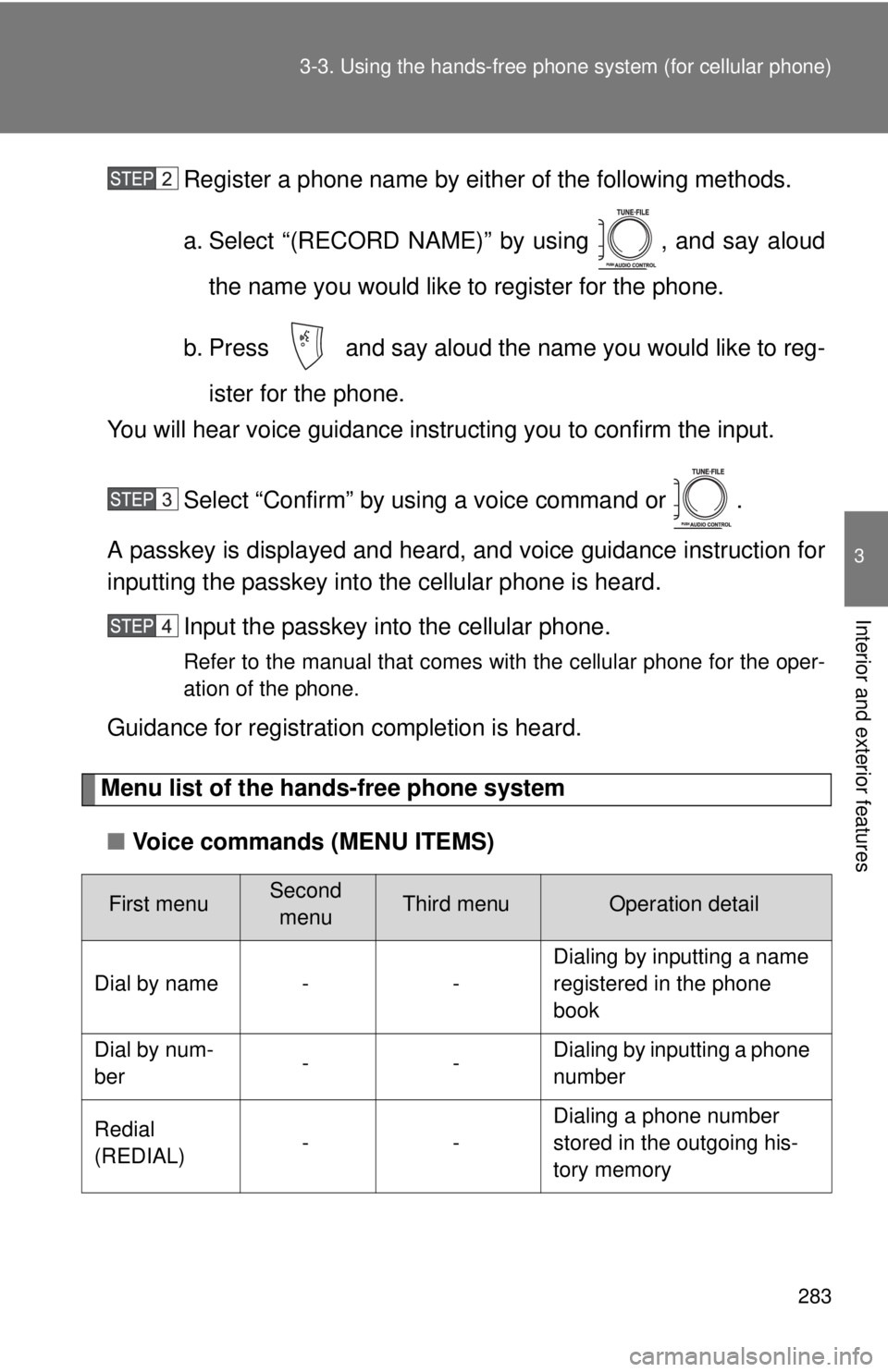
Register a phone name by either of the following methods.
a. Select “(RECORD NAME)” by using , and say aloud
the name you would like to register for the phone.
b. Press and say aloud the name you would like to reg- ister for the phone.
You will hear voice guidance instru cting you to confirm the input.
Select “Confirm” by using a voice command or .
A passkey is displayed and heard, and voice guidance instruction for
inputting the passkey into the cellular phone is heard.
Input the passkey into the cellular phone.
Refer to the manual that comes with the cellular phone for the oper-
ation of the phone.
Guidance for registration completion is heard.
Menu list of the hands-free phone system
■ Voice commands (MENU ITEMS)
First menuSecond
menuThird menuOperation detail
Dial by name - - Dialing by inputting a name
registered in the phone
book
Dial by num-
ber -- Dialing by inputting a phone
number
Redial
(REDIAL) -- Dialing a phone number
stored in the outgoing his-
tory memory
Page 291 of 548
291
3-3. Using the hand
s-free phone system (for cellular phone)
3
Interior and exterior features
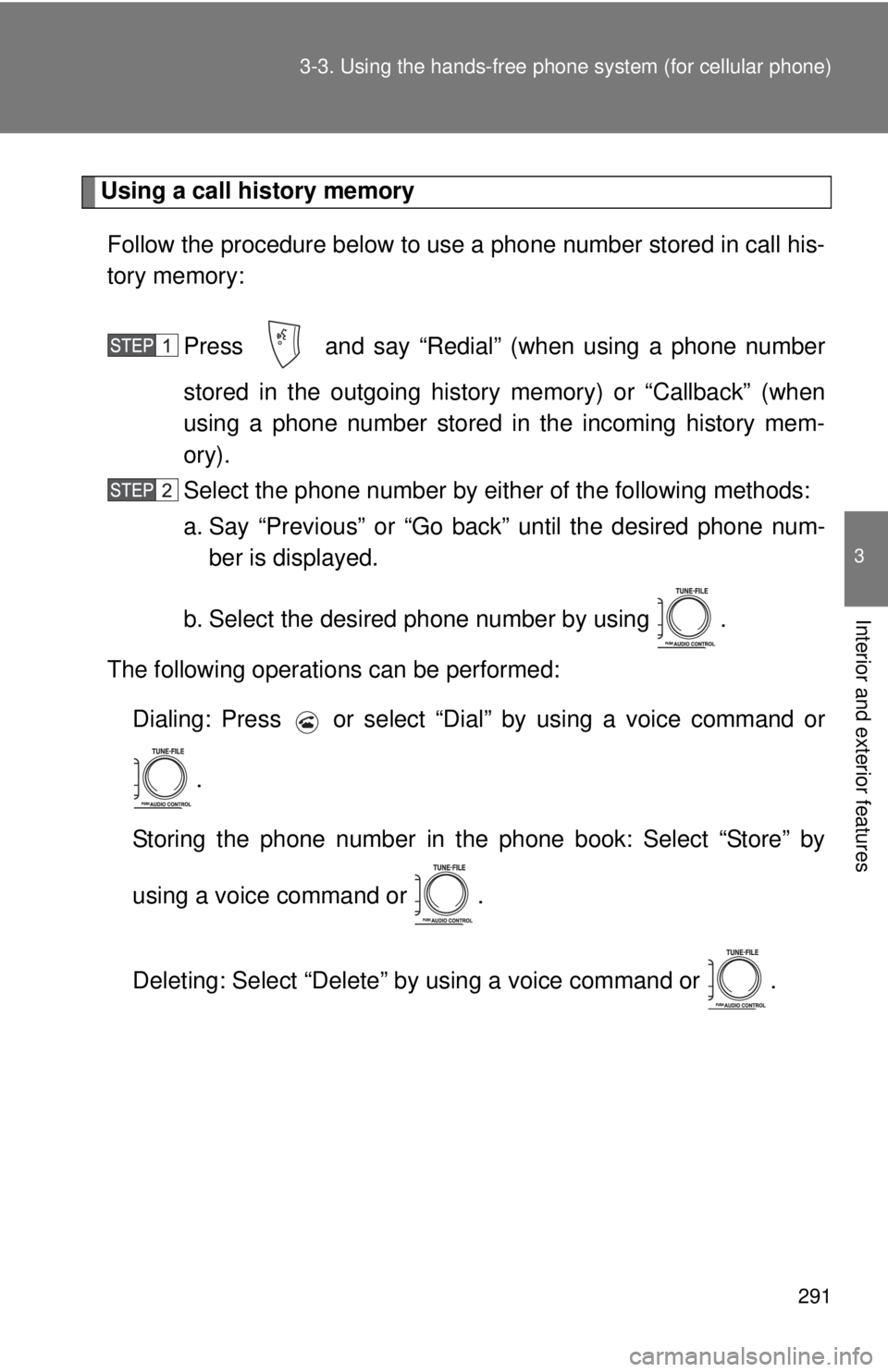
Using a call history memory
Follow the procedure below to use a phone number stored in call his-
tory memory:
Press and say “Redial” (when using a phone number
stored in the outgoing history memory) or “Callback” (when
using a phone number stored in the incoming history mem-
ory).
Select the phone number by eit her of the following methods:
a. Say “Previous” or “Go back” until the desired phone num- ber is displayed.
b. Select the desired phone number by using .
The following operations can be performed: Dialing: Press or select “Dial” by using a voice command or
.
Storing the phone number in the phone book: Select “Store” by
using a voice command or .
Deleting: Select “Delete” by using a voice command or .
Page 302 of 548
302 3-3. Using the hands-free phone system (for cellular phone)
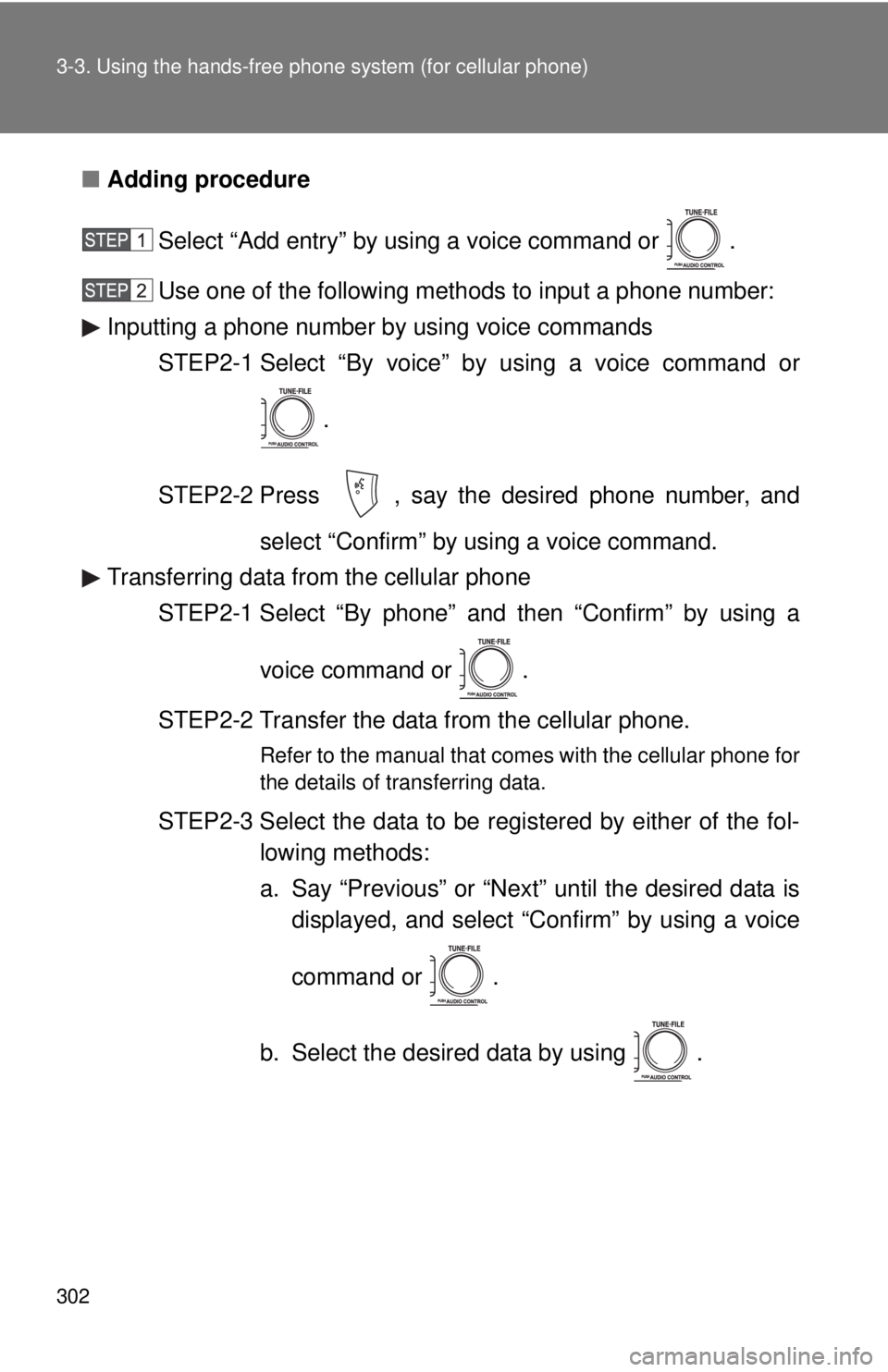
■Adding procedure
Select “Add entry” by using a voice command or .
Use one of the following met hods to input a phone number:
Inputting a phone number by using voice commands
STEP2-1 Select “By voice” by using a voice command or
.
STEP2-2 Press , say the desired phone number, and select “Confirm” by using a voice command.
Transferring data from the cellular phone STEP2-1 Select “By phone” and then “Confirm” by using a
voice command or .
STEP2-2 Transfer the data from the cellular phone.
Refer to the manual that comes with the cellular phone for
the details of transferring data.
STEP2-3 Select the data to be registered by either of the fol- lowing methods:
a. Say “Previous” or “Next” until the desired data isdisplayed, and select “Confirm” by using a voice
command or .
b. Select the desired data by using .
Page 303 of 548
303
3-3. Using the hand
s-free phone system (for cellular phone)
3
Interior and exterior features
Selecting a phone number from outgoing or incoming history mem-
ory
STEP2-1 Select “Call history” by using a voice command or
.
STEP2-2 Select “Outgoing” or “Incoming” by using a voice
command or .
STEP2-3 Select the data to be registered by either of the fol- lowing methods:
a. Say “Previous” or “Go back” until the desireddata is displayed, and select “Confirm” by using
a voice command or .
b. Select the desired data by using .
Inputting a phone number by using
STEP2-1 Select “(MANUAL INPUT)” by using .
STEP2-2 Input a phone number by using , and press
once again.
Input the phone number one digit at a time.
Page 321 of 548
321
3-6. Other interior features
3
Interior and exterior features
Clock
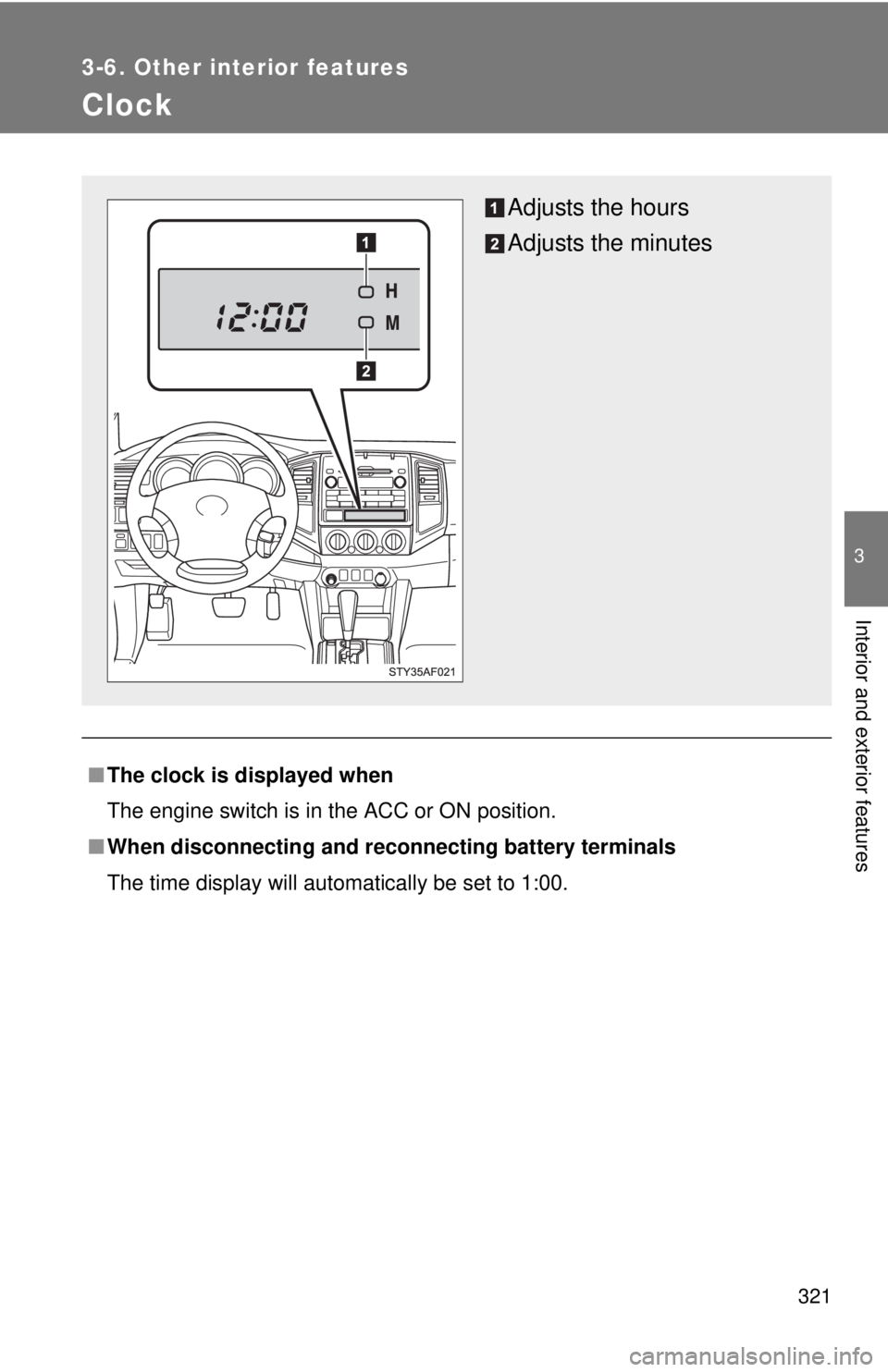
■The clock is displayed when
The engine switch is in the ACC or ON position.
■ When disconnecting and reco nnecting battery terminals
The time display will automatically be set to 1:00.
Adjusts the hours
Adjusts the minutes