fuel VOLVO S60 INSCRIPTION 2016 Owner´s Manual
[x] Cancel search | Manufacturer: VOLVO, Model Year: 2016, Model line: S60 INSCRIPTION, Model: VOLVO S60 INSCRIPTION 2016Pages: 344, PDF Size: 7.24 MB
Page 103 of 344
03 Instruments and controls
03
101
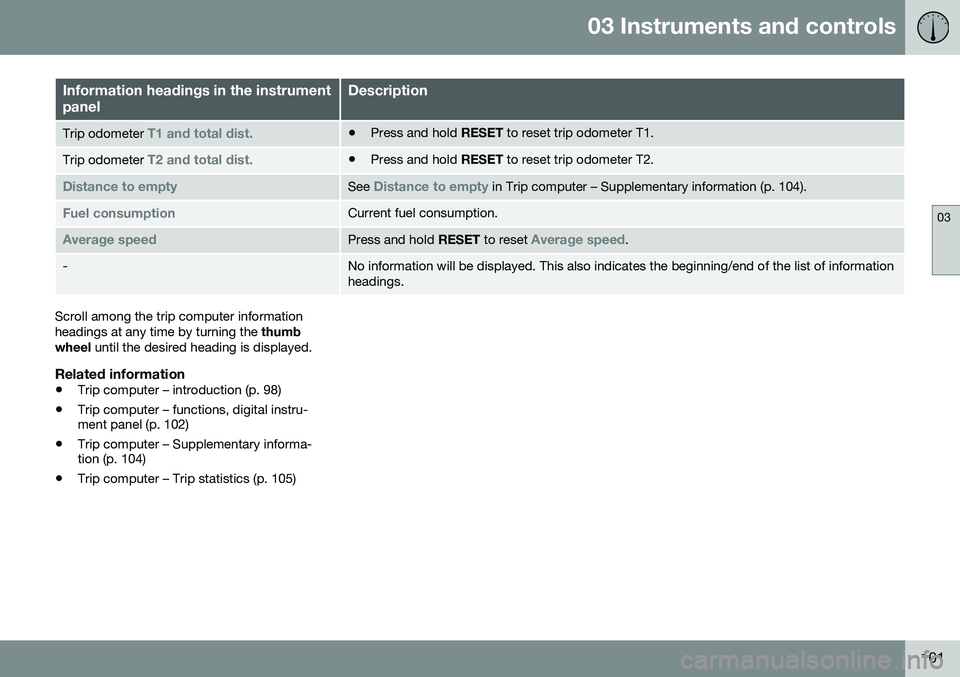
Information headings in the instrument panelDescription
Trip odometer T1 and total dist.•Press and hold
RESET to reset trip odometer T1.
Trip odometer T2 and total dist.•Press and hold
RESET to reset trip odometer T2.
Distance to emptySee Distance to empty in Trip computer – Supplementary information (p. 104).
Fuel consumptionCurrent fuel consumption.
Average speedPress and hold RESET to reset Average speed.
-No information will be displayed. This also indicates the beginning/end of the list of information headings.
Scroll among the trip computer information headings at any time by turning the thumb
wheel until the desired heading is displayed.
Related information
•Trip computer – introduction (p. 98)
• Trip computer – functions, digital instru- ment panel (p. 102)
• Trip computer – Supplementary informa-tion (p. 104)
• Trip computer – Trip statistics (p. 105)
Page 104 of 344
03 Instruments and controls
03
102* Option/accessory, for more information, see Introduction.
Trip computer – functions, digital instrument panel
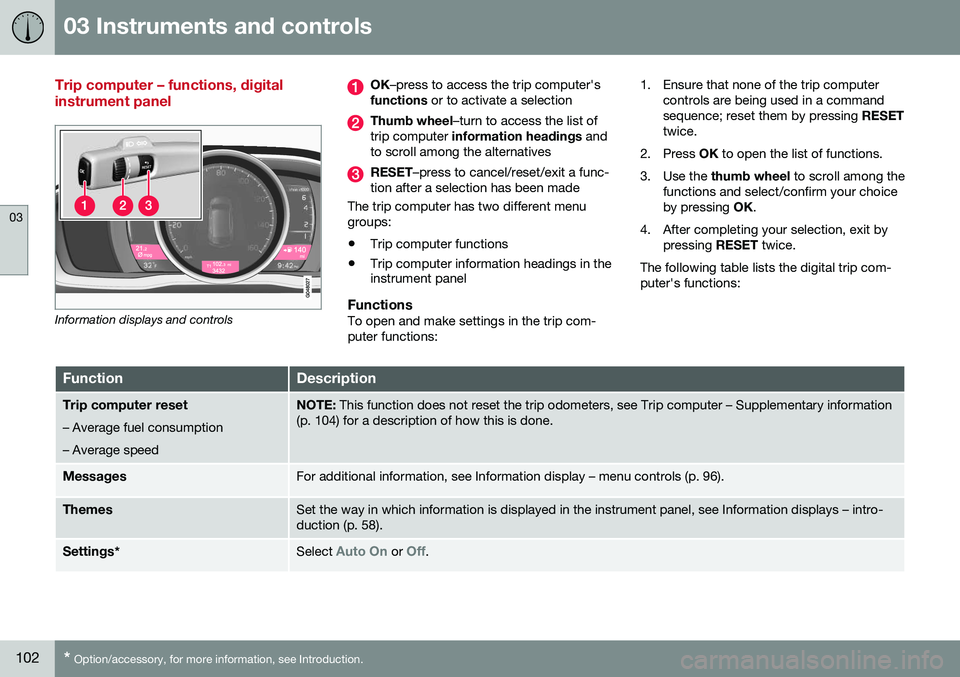
Information displays and controls
OK –press to access the trip computer's
functions or to activate a selection
Thumb wheel –turn to access the list of
trip computer information headings and
to scroll among the alternatives
RESET –press to cancel/reset/exit a func-
tion after a selection has been made
The trip computer has two different menu groups:
• Trip computer functions
• Trip computer information headings in the instrument panel
FunctionsTo open and make settings in the trip com- puter functions: 1. Ensure that none of the trip computer
controls are being used in a commandsequence; reset them by pressing RESET
twice.
2. Press OK to open the list of functions.
3. Use the thumb wheel to scroll among the
functions and select/confirm your choiceby pressing OK.
4. After completing your selection, exit by pressing RESET twice.
The following table lists the digital trip com-puter's functions:
FunctionDescription
Trip computer reset
– Average fuel consumption – Average speedNOTE: This function does not reset the trip odometers, see Trip computer – Supplementary information
(p. 104) for a description of how this is done.
MessagesFor additional information, see Information display – menu controls (p. 96).
ThemesSet the way in which information is displayed in the instrument panel, see Information displays – intro- duction (p. 58).
Settings *Select Auto On or Off.
Page 105 of 344
03 Instruments and controls
03
103
FunctionDescription
Contrast mode/Color modeAdjust the instrument panel's contrast and color.
Service statusShows the number of months and mileage until the next scheduled service.
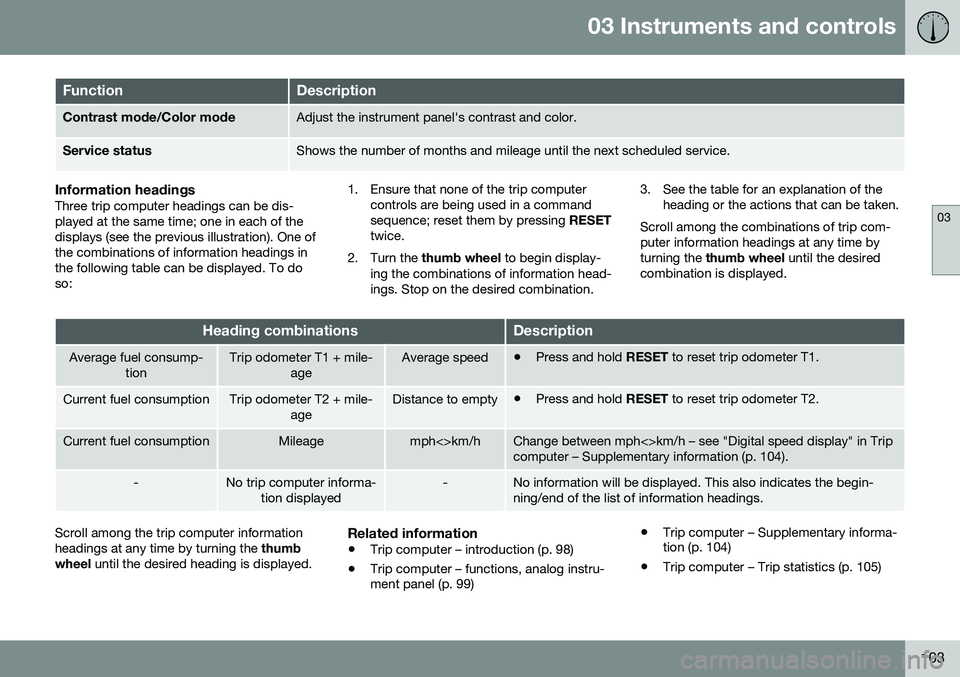
Information headingsThree trip computer headings can be dis- played at the same time; one in each of thedisplays (see the previous illustration). One ofthe combinations of information headings inthe following table can be displayed. To doso: 1. Ensure that none of the trip computer
controls are being used in a commandsequence; reset them by pressing RESET
twice.
2. Turn the thumb wheel to begin display-
ing the combinations of information head-ings. Stop on the desired combination. 3. See the table for an explanation of the
heading or the actions that can be taken.
Scroll among the combinations of trip com-puter information headings at any time byturning the thumb wheel until the desired
combination is displayed.
Heading combinationsDescription
Average fuel consump- tionTrip odometer T1 + mile- ageAverage speed•Press and hold
RESET to reset trip odometer T1.
Current fuel consumptionTrip odometer T2 + mile-
ageDistance to empty•Press and hold
RESET to reset trip odometer T2.
Current fuel consumptionMileagemph<>km/hChange between mph<>km/h – see "Digital speed display" in Trip computer – Supplementary information (p. 104).
-No trip computer informa-
tion displayed-No information will be displayed. This also indicates the begin- ning/end of the list of information headings.
Scroll among the trip computer information headings at any time by turning the thumb
wheel until the desired heading is displayed.Related information
•Trip computer – introduction (p. 98)
• Trip computer – functions, analog instru- ment panel (p. 99) •
Trip computer – Supplementary informa-tion (p. 104)
• Trip computer – Trip statistics (p. 105)
Page 106 of 344
03 Instruments and controls
03
104* Option/accessory, for more information, see Introduction.
Trip computer – Supplementary information
General information for both Analog and Digi- tal trip computer functions.
Average fuel consumptionFuel consumption since the last time thisfunction was reset.
Average speedThe vehicle's average speed since the lasttime this function was reset.
Current fuel consumptionCurrent fuel consumption is calculatedapproximately once a second. When the vehi-cle is moving at low speed, fuel consumptionis displayed per unit of time. At higherspeeds, it is displayed in terms of distance. Miles or kilometers can be displayed, see the heading "Changing units".
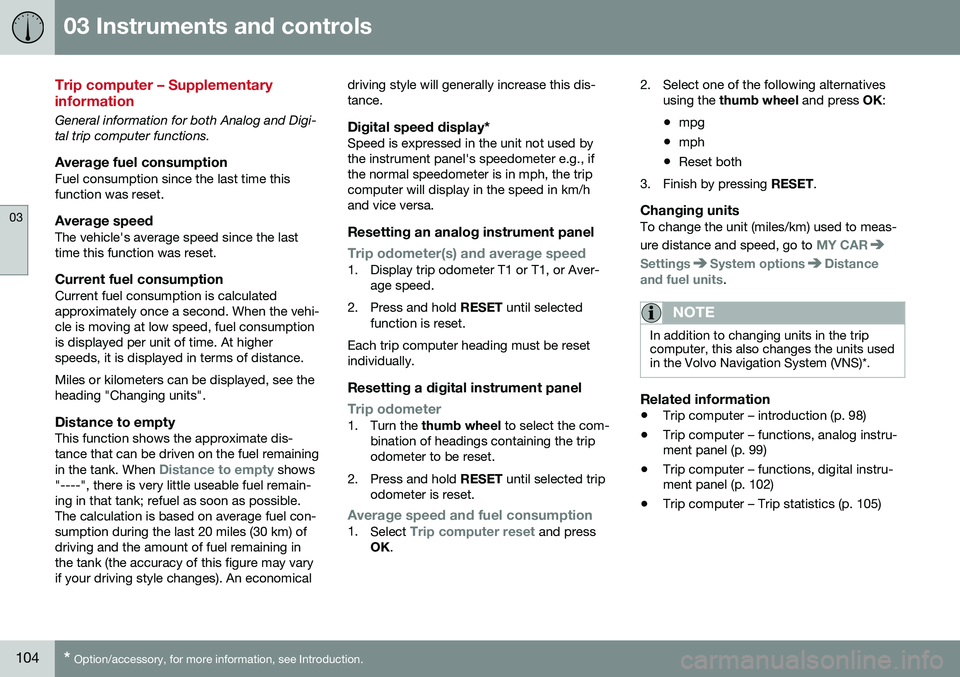
Distance to emptyThis function shows the approximate dis-tance that can be driven on the fuel remaining in the tank. When
Distance to empty shows
"----", there is very little useable fuel remain- ing in that tank; refuel as soon as possible.The calculation is based on average fuel con-sumption during the last 20 miles (30 km) ofdriving and the amount of fuel remaining inthe tank (the accuracy of this figure may varyif your driving style changes). An economical driving style will generally increase this dis-tance.
Digital speed display*Speed is expressed in the unit not used bythe instrument panel's speedometer e.g., ifthe normal speedometer is in mph, the tripcomputer will display in the speed in km/hand vice versa.
Resetting an analog instrument panel
Trip odometer(s) and average speed1. Display trip odometer T1 or T1, or Aver-
age speed.
2. Press and hold RESET until selected
function is reset.
Each trip computer heading must be reset individually.
Resetting a digital instrument panel
Trip odometer1. Turn the thumb wheel to select the com-
bination of headings containing the trip odometer to be reset.
2. Press and hold RESET until selected trip
odometer is reset.
Average speed and fuel consumption1. Select Trip computer reset and press
OK . 2. Select one of the following alternatives
using the thumb wheel and press OK:
• mpg
• mph
• Reset both
3. Finish by pressing RESET.
Changing unitsTo change the unit (miles/km) used to meas- ure distance and speed, go to
MY CAR
SettingsSystem optionsDistance
and fuel units.
NOTE
In addition to changing units in the trip computer, this also changes the units usedin the Volvo Navigation System (VNS)*.
Related information
• Trip computer – introduction (p. 98)
• Trip computer – functions, analog instru- ment panel (p. 99)
• Trip computer – functions, digital instru-ment panel (p. 102)
• Trip computer – Trip statistics (p. 105)
Page 107 of 344
03 Instruments and controls
03
* Option/accessory, for more information, see Introduction.105
Trip computer – Trip statistics
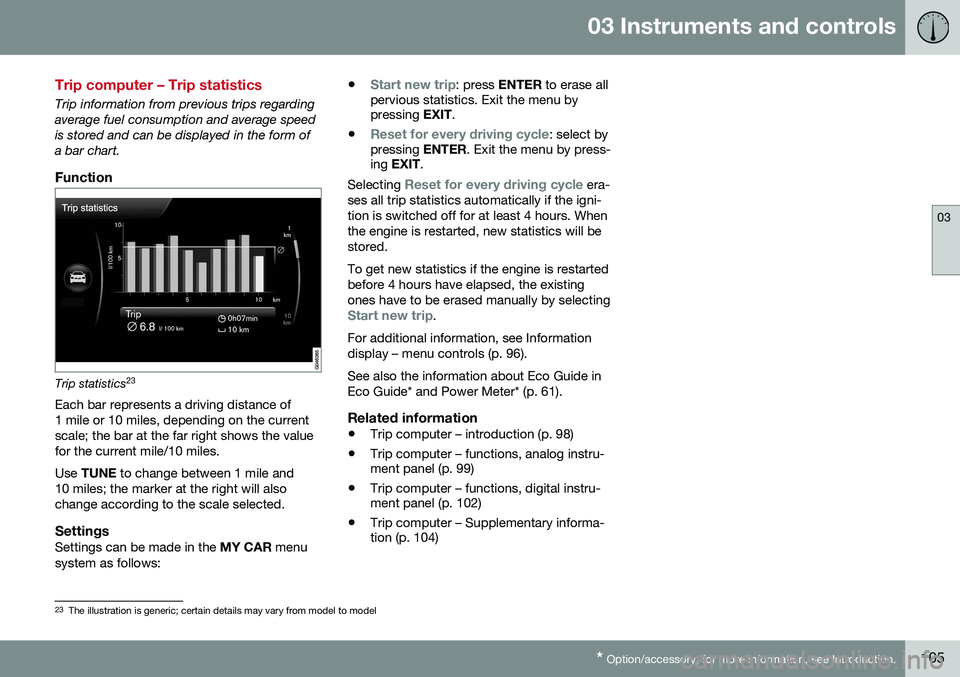
Trip information from previous trips regarding average fuel consumption and average speedis stored and can be displayed in the form ofa bar chart.
Function
Trip statistics 23
Each bar represents a driving distance of 1 mile or 10 miles, depending on the currentscale; the bar at the far right shows the valuefor the current mile/10 miles. Use TUNE to change between 1 mile and
10 miles; the marker at the right will also change according to the scale selected.
SettingsSettings can be made in the MY CAR menu
system as follows: •
Start new trip: press
ENTER to erase all
pervious statistics. Exit the menu by pressing EXIT.
•
Reset for every driving cycle: select by
pressing ENTER. Exit the menu by press-
ing EXIT .
Selecting
Reset for every driving cycle era-
ses all trip statistics automatically if the igni- tion is switched off for at least 4 hours. Whenthe engine is restarted, new statistics will bestored. To get new statistics if the engine is restarted before 4 hours have elapsed, the existingones have to be erased manually by selecting
Start new trip.
For additional information, see Information display – menu controls (p. 96). See also the information about Eco Guide in Eco Guide* and Power Meter* (p. 61).
Related information
• Trip computer – introduction (p. 98)
• Trip computer – functions, analog instru- ment panel (p. 99)
• Trip computer – functions, digital instru-ment panel (p. 102)
• Trip computer – Supplementary informa-tion (p. 104)
23
The illustration is generic; certain details may vary from model to model
Page 122 of 344
05 Loading and storage
05
120
Glove compartment
The glove compartment provides a lockable storage compartment for small items. The owner's manual and maps can be kept here. There are also holders for pens and fuelcards. The glove compartment can be lockedmanually with the key blade, see Locking/unlocking – glove compartment (p. 136).
Related information
•Storage spaces (p. 119)
Vanity mirror
The vanity mirrors are located on the upper side of the sun visors. The light comes on automatically when the cover is lifted.
Related information
•Storage spaces (p. 119)
• Bulbs – vanity mirror lighting (p. 293)
Loading – general
The load carrying capacity of your vehicle is determined by factors such as the number ofpassengers, the amount of cargo, the weightof any accessories that may be installed, etc. To increase loading space, the rear seat backrests can be folded down, see Rearseats – folding backrest (p. 74).
• Unstable loads can be secured to the load anchoring eyelets with straps or weblashings to help keep them from shifting.
• Stop the engine and apply the parkingbrake when loading or unloading longobjects. The gear selector can beknocked out of position by long loads,which could set the vehicle in motion.
Related information
•
Load anchoring eyelets (p. 121)
• Loading – roof load carriers (p. 121)
Page 123 of 344
05 Loading and storage
05
121
Loading – roof load carriers
Using load carriersLoad carriers are available as Volvo accesso- ries. Observe the following points when inuse:
• To avoid damaging your vehicle and to achieve maximum safety when driving,we recommend using the load carriersthat Volvo has developed especially foryour vehicle.
• Volvo-approved removable roof racks aredesigned to carry the maximum allowableroof load for this vehicle: 220 lbs (100 kg).For non-Volvo roof racks, check the man-ufacturer's weight limits for the rack.
• Never exceed the rack manufacturer'sweigh limits and never exceed the maxi-mum rated roof load of 220 lbs (100 kg).
• Avoid single-point loads. Distribute loadsevenly.
• Place heavier cargo at the bottom of theload.
• Secure the cargo correctly with appropri-ate tie-down equipment.
• Check periodically that the load carriersand load are properly secured.
• Remember that the vehicle's center ofgravity and handling change when youcarry a load on the roof. •
The vehicle's wind resistance and fuelconsumption will increase with the size ofthe load.
• Drive smoothly. Avoid rapid starts, fastcornering and hard braking.
Related information
•Loading – general (p. 120)
• Load anchoring eyelets (p. 121)
Load anchoring eyelets
WARNING
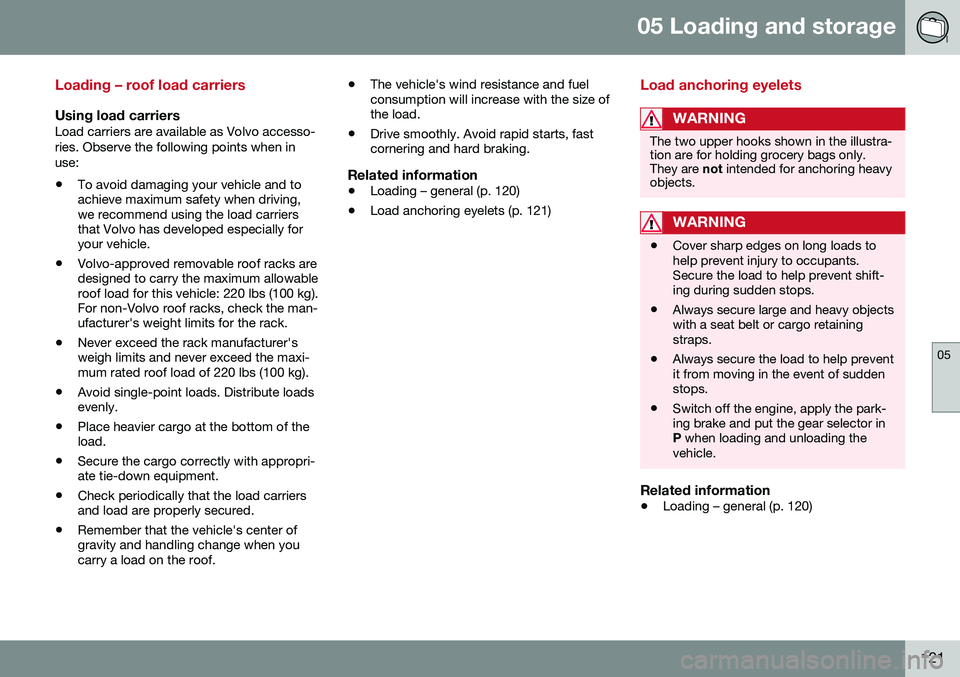
The two upper hooks shown in the illustra- tion are for holding grocery bags only.They are
not intended for anchoring heavy
objects.
WARNING
• Cover sharp edges on long loads to help prevent injury to occupants.Secure the load to help prevent shift-ing during sudden stops.
• Always secure large and heavy objectswith a seat belt or cargo retainingstraps.
• Always secure the load to help preventit from moving in the event of suddenstops.
• Switch off the engine, apply the park-ing brake and put the gear selector inP
when loading and unloading the
vehicle.
Related information
• Loading – general (p. 120)
Page 216 of 344
08 Starting and driving
08
214* Option/accessory, for more information, see Introduction.
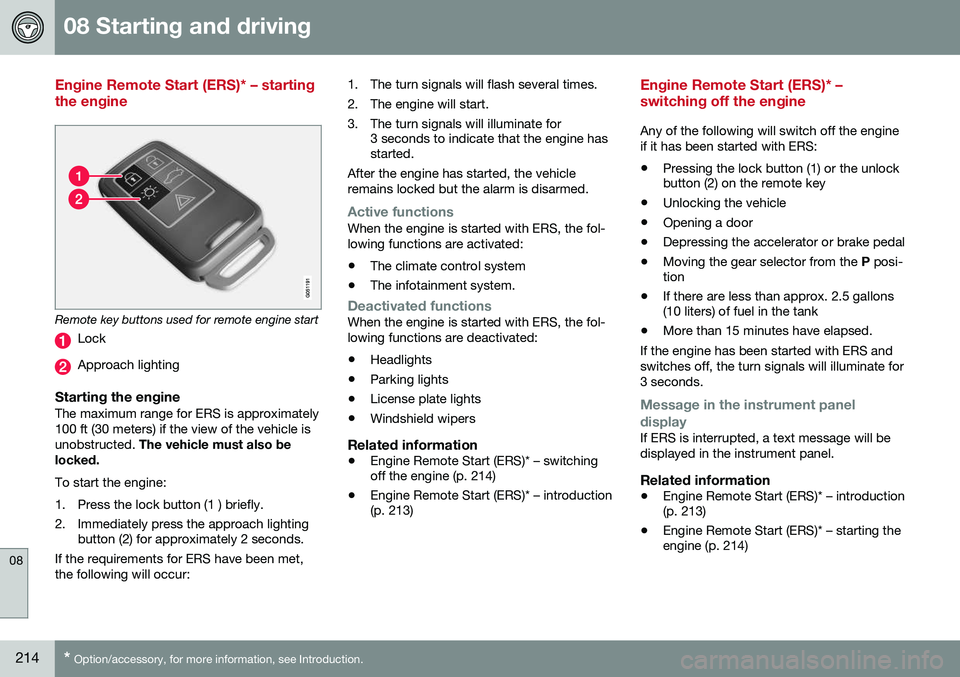
Engine Remote Start (ERS)* – starting the engine
Remote key buttons used for remote engine start
Lock
Approach lighting
Starting the engineThe maximum range for ERS is approximately 100 ft (30 meters) if the view of the vehicle isunobstructed. The vehicle must also be
locked. To start the engine:
1. Press the lock button (1 ) briefly.
2. Immediately press the approach lighting button (2) for approximately 2 seconds.
If the requirements for ERS have been met, the following will occur: 1. The turn signals will flash several times.
2. The engine will start.
3. The turn signals will illuminate for
3 seconds to indicate that the engine has started.
After the engine has started, the vehicle remains locked but the alarm is disarmed.
Active functionsWhen the engine is started with ERS, the fol- lowing functions are activated: • The climate control system
• The infotainment system.
Deactivated functionsWhen the engine is started with ERS, the fol- lowing functions are deactivated: •Headlights
• Parking lights
• License plate lights
• Windshield wipers
Related information
•
Engine Remote Start (ERS)* – switching off the engine (p. 214)
• Engine Remote Start (ERS)* – introduction(p. 213)
Engine Remote Start (ERS)* – switching off the engine
Any of the following will switch off the engine if it has been started with ERS:
• Pressing the lock button (1) or the unlock button (2) on the remote key
• Unlocking the vehicle
• Opening a door
• Depressing the accelerator or brake pedal
• Moving the gear selector from the
P posi-
tion
• If there are less than approx. 2.5 gallons(10 liters) of fuel in the tank
• More than 15 minutes have elapsed.
If the engine has been started with ERS and switches off, the turn signals will illuminate for3 seconds.
Message in the instrument panel
display
If ERS is interrupted, a text message will be displayed in the instrument panel.
Related information
• Engine Remote Start (ERS)* – introduction (p. 213)
• Engine Remote Start (ERS)* – starting theengine (p. 214)
Page 217 of 344
08 Starting and driving
08
215
Jump starting
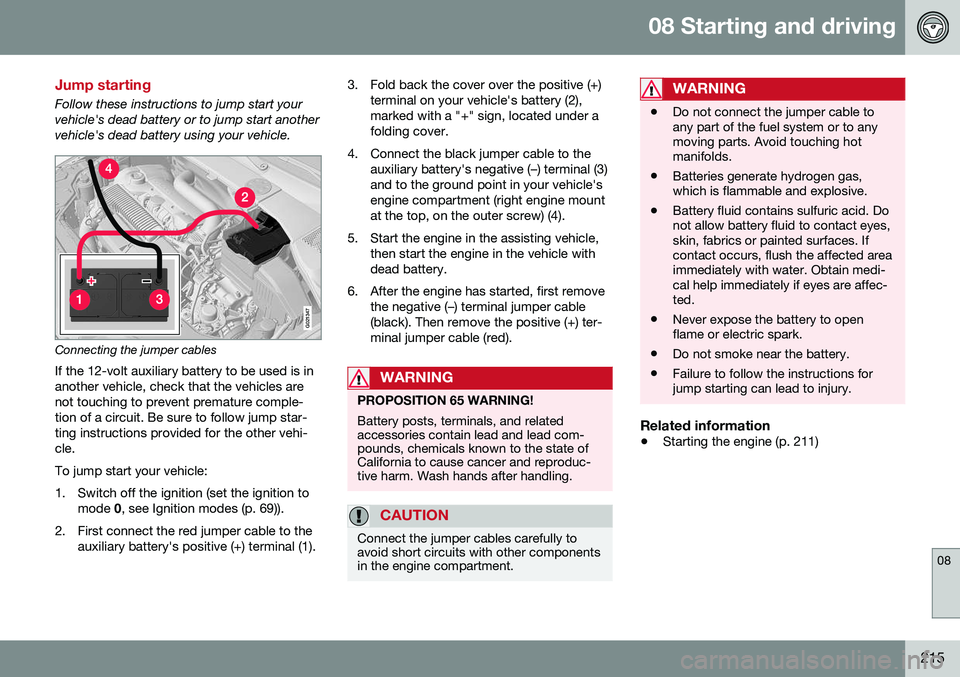
Follow these instructions to jump start your vehicle's dead battery or to jump start anothervehicle's dead battery using your vehicle.
G021347
Connecting the jumper cablesIf the 12-volt auxiliary battery to be used is in another vehicle, check that the vehicles arenot touching to prevent premature comple-tion of a circuit. Be sure to follow jump star-ting instructions provided for the other vehi-cle. To jump start your vehicle:
1. Switch off the ignition (set the ignition to mode 0, see Ignition modes (p. 69)).
2. First connect the red jumper cable to the auxiliary battery's positive (+) terminal (1). 3. Fold back the cover over the positive (+)
terminal on your vehicle's battery (2), marked with a "+" sign, located under afolding cover.
4. Connect the black jumper cable to the auxiliary battery's negative (–) terminal (3)and to the ground point in your vehicle'sengine compartment (right engine mountat the top, on the outer screw) (4).
5. Start the engine in the assisting vehicle, then start the engine in the vehicle withdead battery.
6. After the engine has started, first remove the negative (–) terminal jumper cable(black). Then remove the positive (+) ter-minal jumper cable (red).
WARNING
PROPOSITION 65 WARNING! Battery posts, terminals, and related accessories contain lead and lead com-pounds, chemicals known to the state ofCalifornia to cause cancer and reproduc-tive harm. Wash hands after handling.
CAUTION
Connect the jumper cables carefully to avoid short circuits with other componentsin the engine compartment.
WARNING
•Do not connect the jumper cable to any part of the fuel system or to anymoving parts. Avoid touching hotmanifolds.
• Batteries generate hydrogen gas,which is flammable and explosive.
• Battery fluid contains sulfuric acid. Donot allow battery fluid to contact eyes,skin, fabrics or painted surfaces. Ifcontact occurs, flush the affected areaimmediately with water. Obtain medi-cal help immediately if eyes are affec-ted.
• Never expose the battery to openflame or electric spark.
• Do not smoke near the battery.
• Failure to follow the instructions forjump starting can lead to injury.
Related information
•
Starting the engine (p. 211)
Page 218 of 344
08 Starting and driving
08
216
Transmission – general information
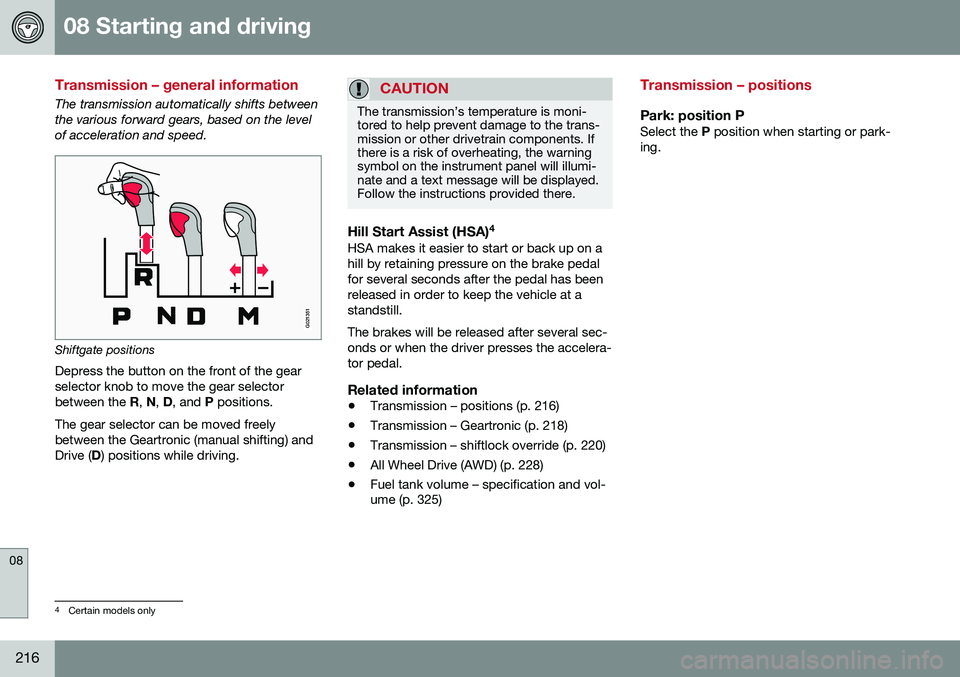
The transmission automatically shifts between the various forward gears, based on the levelof acceleration and speed.
G021351
Shiftgate positions
Depress the button on the front of the gear selector knob to move the gear selectorbetween the R, N , D , and P positions.
The gear selector can be moved freelybetween the Geartronic (manual shifting) andDrive ( D) positions while driving.
CAUTION
The transmission’s temperature is moni- tored to help prevent damage to the trans-mission or other drivetrain components. Ifthere is a risk of overheating, the warningsymbol on the instrument panel will illumi-nate and a text message will be displayed.Follow the instructions provided there.
Hill Start Assist (HSA) 4HSA makes it easier to start or back up on a hill by retaining pressure on the brake pedalfor several seconds after the pedal has beenreleased in order to keep the vehicle at astandstill. The brakes will be released after several sec- onds or when the driver presses the accelera-tor pedal.
Related information
•
Transmission – positions (p. 216)
• Transmission – Geartronic (p. 218)
• Transmission – shiftlock override (p. 220)
• All Wheel Drive (AWD) (p. 228)
• Fuel tank volume – specification and vol- ume (p. 325)
Transmission – positions
Park: position PSelect the
P position when starting or park-
ing.
4 Certain models only