ad blue VOLVO S90 2020 Quick Guide
[x] Cancel search | Manufacturer: VOLVO, Model Year: 2020, Model line: S90, Model: VOLVO S90 2020Pages: 643, PDF Size: 13.68 MB
Page 12 of 643
10
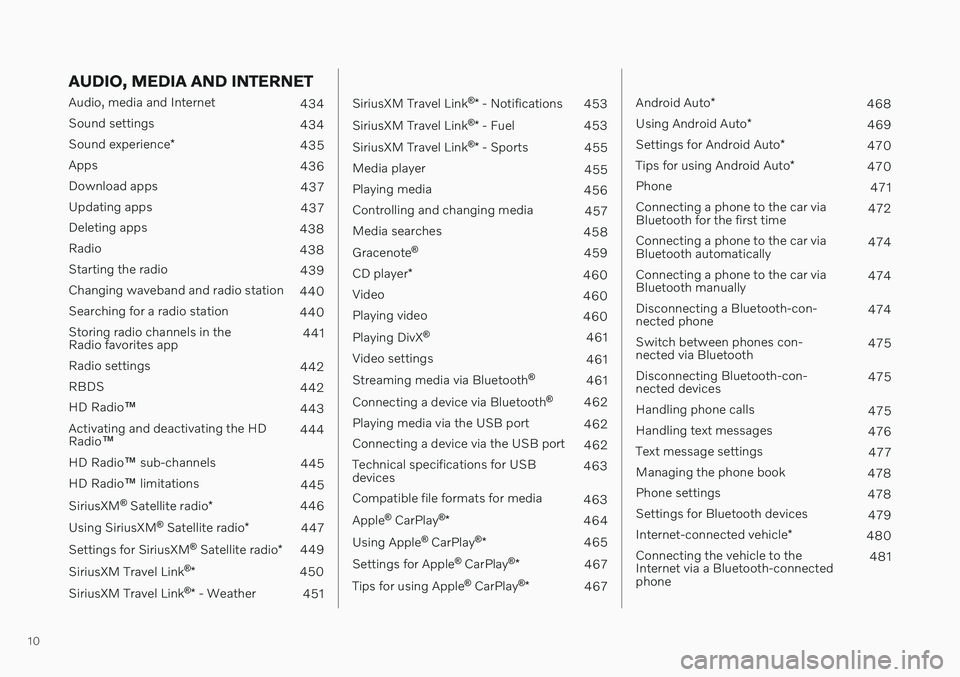
AUDIO, MEDIA AND INTERNET
Audio, media and Internet434
Sound settings 434
Sound experience *
435
Apps 436
Download apps 437
Updating apps 437
Deleting apps 438
Radio 438
Starting the radio 439
Changing waveband and radio station 440
Searching for a radio station 440
Storing radio channels in the Radio favorites app 441
Radio settings 442
RBDS 442
HD Radio ™
443
Activating and deactivating the HDRadio ™ 444
HD Radio ™ sub-channels
445
HD Radio ™ limitations
445
SiriusXM ®
Satellite radio *
446
Using SiriusXM ®
Satellite radio *
447
Settings for SiriusXM ®
Satellite radio *
449
SiriusXM Travel Link ®
* 450
SiriusXM Travel Link ®
* - Weather
451
SiriusXM Travel Link ®
* - Notifications
453
SiriusXM Travel Link ®
* - Fuel
453
SiriusXM Travel Link ®
* - Sports
455
Media player 455
Playing media 456
Controlling and changing media 457
Media searches 458
Gracenote ®
459
CD player *
460
Video 460
Playing video 460
Playing DivX ®
461
Video settings 461
Streaming media via Bluetooth ®
461
Connecting a device via Bluetooth ®
462
Playing media via the USB port 462
Connecting a device via the USB port 462
Technical specifications for USB devices 463
Compatible file formats for media 463
Apple ®
CarPlay ®
* 464
Using Apple ®
CarPlay ®
* 465
Settings for Apple ®
CarPlay ®
* 467
Tips for using Apple ®
CarPlay ®
* 467
Android Auto *
468
Using Android Auto *
469
Settings for Android Auto *
470
Tips for using Android Auto *
470
Phone 471
Connecting a phone to the car via Bluetooth for the first time 472
Connecting a phone to the car viaBluetooth automatically 474
Connecting a phone to the car viaBluetooth manually 474
Disconnecting a Bluetooth-con-nected phone 474
Switch between phones con-nected via Bluetooth 475
Disconnecting Bluetooth-con-nected devices 475
Handling phone calls 475
Handling text messages 476
Text message settings 477
Managing the phone book 478
Phone settings 478
Settings for Bluetooth devices 479
Internet-connected vehicle *
480
Connecting the vehicle to theInternet via a Bluetooth-connectedphone 481
Page 24 of 643

||
OWNER'S INFORMATION
* Option/accessory.
22
Option/accessoryIn addition to standard equipment, the Owner's Manual also describes options (fac-tory-installed equipment) and certain accesso-ries (extra retrofitted equipment). All, at the time of publication known, options and accessories are marked with an asterisk: * .
The equipment described in the Owner's Man- ual is not available in all vehicles. Vehicles maybe equipped differently depending on marketrequirements and national or local laws andregulations. For more information on which equipment is standard and which is an option or accessory,please contact your Volvo retailer.
DecalsThere are various types of decals affixed in thevehicle to communicate important informationin a clear manner. The importance of thesedecals is explained as follows, in descendingorder of importance.
Risk of injury
Black ISO symbols on a yellow warning field, white text/image on a black message field.Used to indicate potential danger. Ignoring awarning of this type could result in seriousinjury or death.
Risk of damage
White ISO symbols and white text/image on a black or blue warning field and message field.Used to indicate potential danger. Ignoring awarning of this type could result in damage.
Information
White ISO symbols and white text/image on a black message field.
NOTE
The decals shown in the Owner's Manual do not claim to be exact reproductions ofthose found in the vehicle. The purpose isto show approximately how they look andabout where they are located. The informa-tion that applies for your vehicle in particu-lar is found on the decal on the vehicle.
Page 94 of 643
||
DISPLAYS AND VOICE CONTROL
92
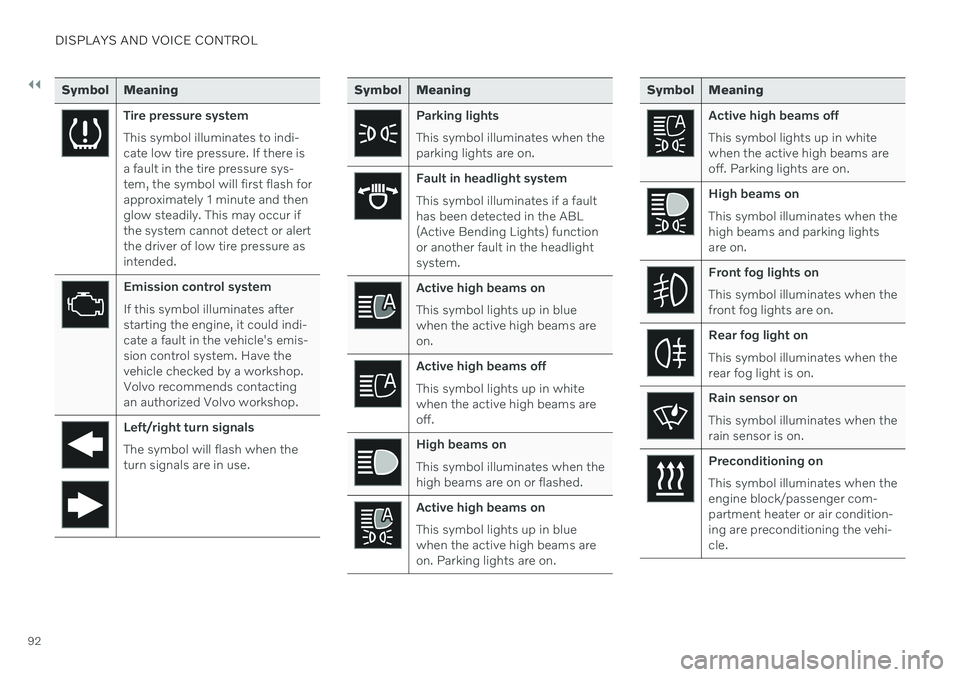
Symbol Meaning
Tire pressure system This symbol illuminates to indi- cate low tire pressure. If there isa fault in the tire pressure sys-tem, the symbol will first flash forapproximately 1 minute and thenglow steadily. This may occur ifthe system cannot detect or alertthe driver of low tire pressure asintended.
Emission control system If this symbol illuminates after starting the engine, it could indi-cate a fault in the vehicle's emis-sion control system. Have thevehicle checked by a workshop.Volvo recommends contactingan authorized Volvo workshop.
Left/right turn signals The symbol will flash when the turn signals are in use.
Symbol Meaning
Parking lights This symbol illuminates when the parking lights are on.
Fault in headlight system This symbol illuminates if a fault has been detected in the ABL(Active Bending Lights) functionor another fault in the headlightsystem.
Active high beams on This symbol lights up in blue when the active high beams areon.
Active high beams off This symbol lights up in white when the active high beams areoff.
High beams on This symbol illuminates when the high beams are on or flashed.
Active high beams on This symbol lights up in blue when the active high beams areon. Parking lights are on.
Symbol Meaning
Active high beams off This symbol lights up in white when the active high beams areoff. Parking lights are on.
High beams on This symbol illuminates when the high beams and parking lightsare on.
Front fog lights on This symbol illuminates when the front fog lights are on.
Rear fog light on This symbol illuminates when the rear fog light is on.
Rain sensor on This symbol illuminates when the rain sensor is on.
Preconditioning on This symbol illuminates when the engine block/passenger com-partment heater or air condition-ing are preconditioning the vehi-cle.
Page 123 of 643
DISPLAYS AND VOICE CONTROL
}}
121
Moving apps and buttons in the center display The apps and buttons for vehicle functions can be moved and organized in the App andFunction views.
1. Swipe from right to left12
to access App
view or swipe from left to right 12
to access
Function view.
2. Press and hold an app or button. > The app or button will change size andbecome slightly transparent. It can then be moved.
3. Drag the app or button to an available position in the view.
A maximum of 48 rows can be used to posi-tion apps or buttons. To move an app or but-ton outside the visible view, drag it to the bot-tom of the view. New rows will be added andthe app or button can be placed in one of these. Apps or buttons placed below the view's nor- mal display will not be visible on the screen. Swipe the screen to scroll up or down in the view to display information outside the view.
NOTE
Hide the apps that are rarely or never used by moving them far down, outside of thevisible view. This makes it easier to find theapps used more frequently.
NOTE
Apps and vehicle function buttons cannot be situated at spots already in use.
Related information
Function view in the center display (p. 119)
Apps (p. 436)
Handling the center display (p. 109)
Symbols in the center display status bar
Overview of symbols displayed in the center display status bar.
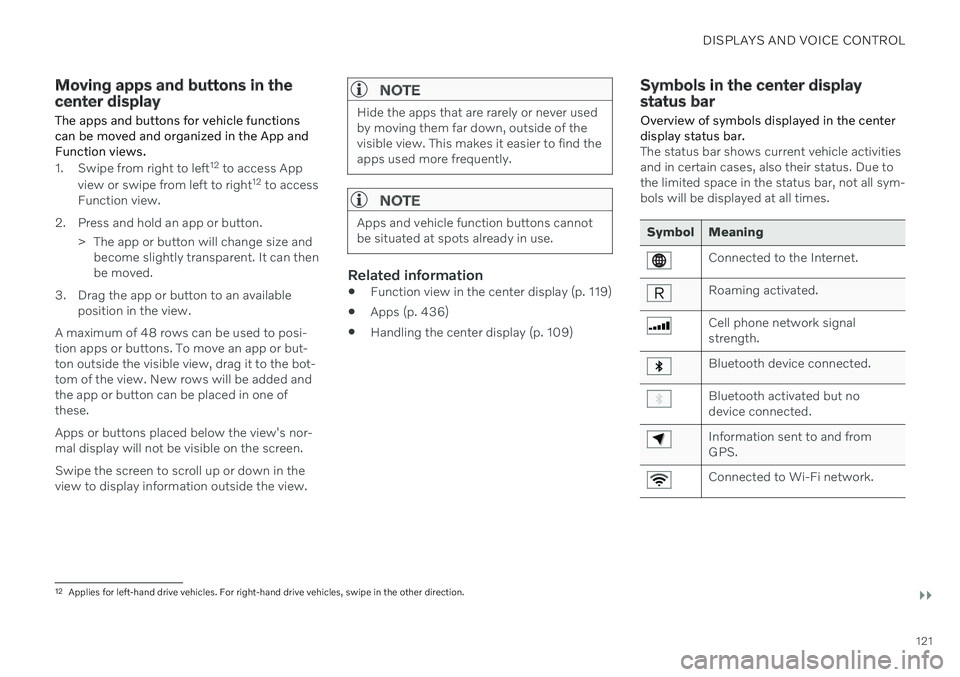
The status bar shows current vehicle activities and in certain cases, also their status. Due tothe limited space in the status bar, not all sym-bols will be displayed at all times.
Symbol Meaning
Connected to the Internet.
Roaming activated.
Cell phone network signal strength.
Bluetooth device connected.
Bluetooth activated but no device connected.
Information sent to and from GPS.
Connected to Wi-Fi network.
12 Applies for left-hand drive vehicles. For right-hand drive vehicles, swipe in the other direction.
Page 134 of 643
DISPLAYS AND VOICE CONTROL
* Option/accessory.
132
Table of settings in the center display
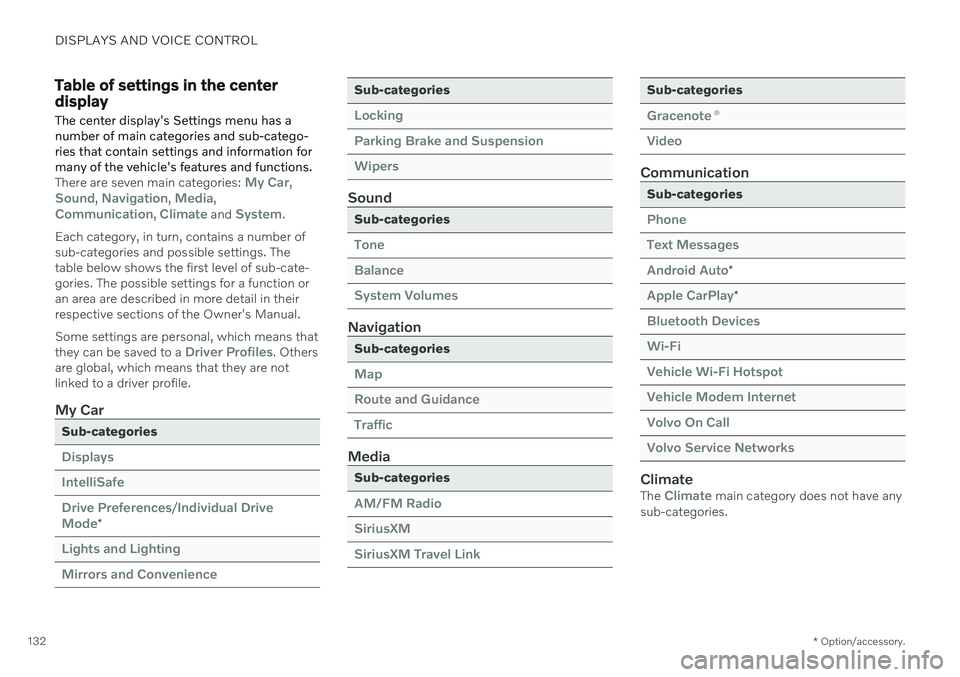
The center display's Settings menu has a number of main categories and sub-catego-ries that contain settings and information formany of the vehicle's features and functions.
There are seven main categories: My Car,Sound, Navigation, Media,Communication, Climate and System.
Each category, in turn, contains a number of sub-categories and possible settings. Thetable below shows the first level of sub-cate-gories. The possible settings for a function oran area are described in more detail in theirrespective sections of the Owner's Manual. Some settings are personal, which means that they can be saved to a
Driver Profiles. Others
are global, which means that they are not linked to a driver profile.
My Car
Sub-categories
Displays IntelliSafeDrive Preferences
/Individual Drive
Mode*
Lights and Lighting Mirrors and Convenience
Sub-categories
Locking Parking Brake and SuspensionWipers
Sound
Sub-categories
Tone BalanceSystem Volumes
Navigation
Sub-categories
Map Route and GuidanceTraffic
Media
Sub-categories
AM/FM Radio SiriusXMSiriusXM Travel Link
Sub-categories
Gracenote ®
Video
Communication
Sub-categories
Phone Text MessagesAndroid Auto
*
Apple CarPlay*
Bluetooth Devices Wi-FiVehicle Wi-Fi Hotspot Vehicle Modem Internet Volvo On Call Volvo Service Networks
ClimateThe Climate main category does not have any
sub-categories.
Page 144 of 643
||
DISPLAYS AND VOICE CONTROL
* Option/accessory.
142
Calibrating the horizontal positionIf the windshield or display unit has been replaced, the head-up display's horizontalposition may need to be calibrated. Calibrationmeans that the projected image is rotatedclockwise or counterclockwise. 1.
Tap
Settings in the center display's Top
view.
2. Select
My CarDisplaysHead-Up
Display Options
Head-Up Display
Calibration.
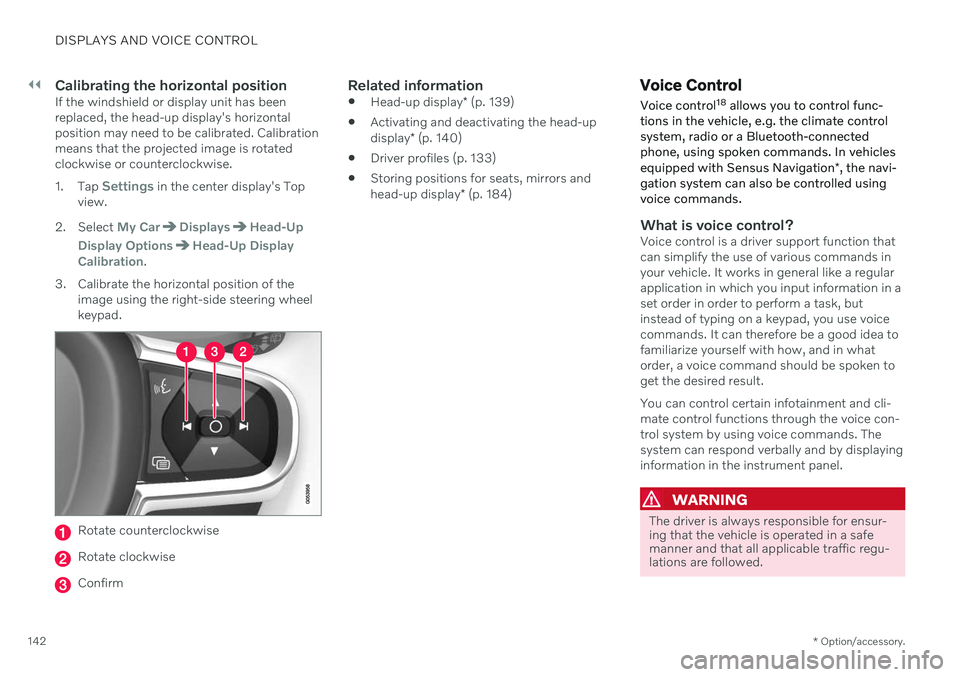
3. Calibrate the horizontal position of the image using the right-side steering wheel keypad.
Rotate counterclockwise
Rotate clockwise
Confirm
Related information
Head-up display
* (p. 139)
Activating and deactivating the head-up display
* (p. 140)
Driver profiles (p. 133)
Storing positions for seats, mirrors andhead-up display
* (p. 184)
Voice Control
Voice control 18
allows you to control func-
tions in the vehicle, e.g. the climate control system, radio or a Bluetooth-connectedphone, using spoken commands. In vehicles equipped with Sensus Navigation *, the navi-
gation system can also be controlled using voice commands.
What is voice control?Voice control is a driver support function that can simplify the use of various commands inyour vehicle. It works in general like a regularapplication in which you input information in aset order in order to perform a task, butinstead of typing on a keypad, you use voicecommands. It can therefore be a good idea tofamiliarize yourself with how, and in whatorder, a voice command should be spoken toget the desired result. You can control certain infotainment and cli- mate control functions through the voice con-trol system by using voice commands. Thesystem can respond verbally and by displayinginformation in the instrument panel.
WARNING
The driver is always responsible for ensur- ing that the vehicle is operated in a safemanner and that all applicable traffic regu-lations are followed.
Page 147 of 643
DISPLAYS AND VOICE CONTROL
}}
* Option/accessory.145
Voice control for cellular phones 21
Call a contact in the phone book, have a text message read aloud or dictate short mes-sages using voice commands to a Bluetooth-connected phone.
To access a contact in the phone book, the voice command must contain the contactinformation entered in the phone book. If a contact, e.g.
Robyn Smith, has several phone
numbers listed in the phone book, a number category such as
home or cellular can also be
specified, i.e. "Call Robyn Smith cellular".
Tap
and say one of the following com-
mands: "
Call [contact]" - call the selected con-
tact from the phone book.
"
Call [phone number]" - call a phone
number.
"
Recent calls" - display the list of recent
calls.
"
Read message" - read a text message
aloud. If there are several messages, select the message to read aloud.
"
Message to [contact]" – the user is
prompted to dictate a short message. The message will then be read aloud and theuser can choose to send or re-dictate themessage. The vehicle must be connectedto the Internet to access this function.
Related information
Voice Control (p. 142)
Use voice recognition (p. 143)
Voice control for radio and media (p. 145)
Climate control system voice commands(p. 198)
Voice control settings (p. 146)
Internet-connected vehicle
* (p. 480)Voice control for radio and media 22
Voice commands for the radio and media players are shown below.
Tap and say one of the following com-
mands: "
Media" - initiates a dialog for media and
radio and displays examples of com- mands.
"
Play [artist]" - plays music by the
selected artist.
"
Play [song title]" - plays the selected
song.
"
Play [song title] from [album]" - plays
the selected song from the selected album.
"
Play [radio station]" - starts the
selected radio station.
"
Tune to [frequency]" - tunes to the
selected radio frequency in the currently active waveband. If no radio source isactive, the FM band will be started asdefault.
"
Tune to [frequency] [waveband]" -
tunes to the selected radio frequency on the selected waveband.
"
Radio" - starts FM radio.
"
Radio FM" - starts FM radio.
21
Certain markets only.
Page 148 of 643
||
DISPLAYS AND VOICE CONTROL
* Option/accessory.
146
"
Radio AM" - starts AM radio.
"
SiriusXM" - starts SiriusXM radio
*
"
CD" - starts playback from CD
*.
"
USB" - starts playback from USB.
"
iPod" - starts playback from iPod.
"
Bluetooth" - starts playback from a
Bluetooth-connected media source.
"
Similar music" - plays music from a
USB-connected device with music similar to that currently playing.
Related information
Voice Control (p. 142)
Use voice recognition (p. 143)
Voice control for cellular phones (p. 145)
Climate control system voice commands(p. 198)
Voice control settings (p. 146)
Voice control settings 23
Settings for the voice control system are made here.
SettingsSystemVoice Control
Settings can be personalized in the following areas:
Repeat Voice Command
Gender
Speech Rate
Sound settingsSelect sound settings under:
SettingsSoundSystem VolumesVoice Control
Language settingsThe voice control system is not available for all languages. The languages available for voice commands are indicated by the
icon in
the list of languages. Changing the language here will also change the language in the menus, messages andhelp texts.
SettingsSystemSystem Languages
and Units
System Language
Related information
Voice Control (p. 142)
Use voice recognition (p. 143)
Voice control for cellular phones (p. 145)
Climate control system voice commands (p. 198)
Voice control for radio and media (p. 145)
Sound settings (p. 434)
Changing system language (p. 129)
22
Certain markets only.
23 Certain markets only.
Page 155 of 643
LIGHTING
153
Active high beam
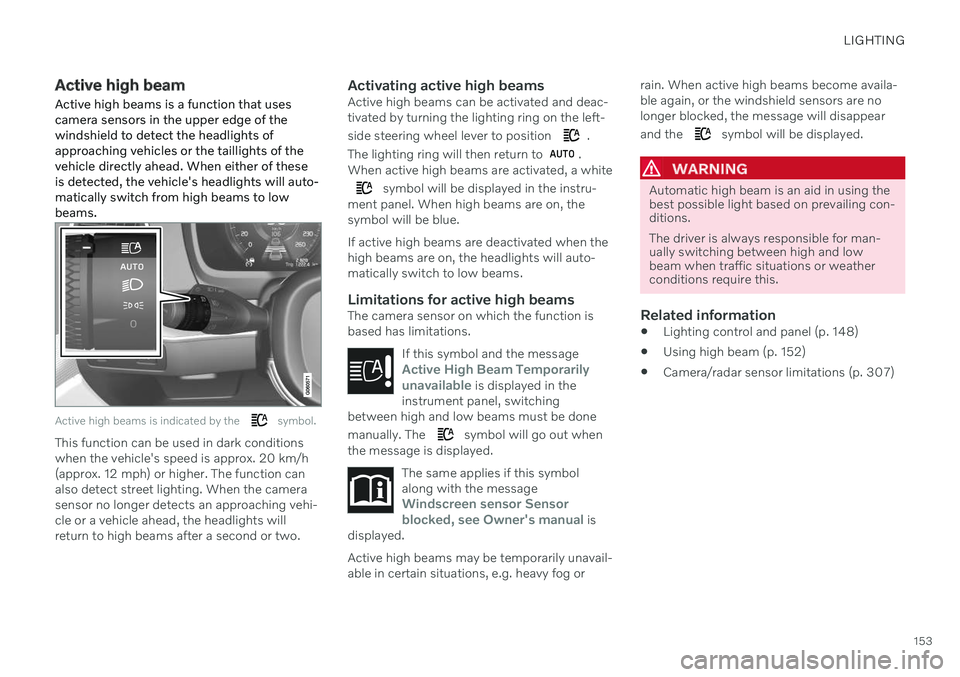
Active high beams is a function that uses camera sensors in the upper edge of thewindshield to detect the headlights ofapproaching vehicles or the taillights of thevehicle directly ahead. When either of theseis detected, the vehicle's headlights will auto-matically switch from high beams to lowbeams.
Active high beams is indicated by the symbol.
This function can be used in dark conditions when the vehicle's speed is approx. 20 km/h(approx. 12 mph) or higher. The function canalso detect street lighting. When the camerasensor no longer detects an approaching vehi-cle or a vehicle ahead, the headlights willreturn to high beams after a second or two.
Activating active high beamsActive high beams can be activated and deac-tivated by turning the lighting ring on the left- side steering wheel lever to position
.
The lighting ring will then return to
.
When active high beams are activated, a white
symbol will be displayed in the instru-
ment panel. When high beams are on, the symbol will be blue. If active high beams are deactivated when the high beams are on, the headlights will auto-matically switch to low beams.
Limitations for active high beamsThe camera sensor on which the function isbased has limitations.
If this symbol and the message
Active High Beam Temporarily
unavailable is displayed in the
instrument panel, switching
between high and low beams must be done manually. The
symbol will go out when
the message is displayed.
The same applies if this symbol along with the message
Windscreen sensor Sensor
blocked, see Owner's manual is
displayed.
Active high beams may be temporarily unavail- able in certain situations, e.g. heavy fog or rain. When active high beams become availa-ble again, or the windshield sensors are nolonger blocked, the message will disappear and the
symbol will be displayed.
WARNING
Automatic high beam is an aid in using the best possible light based on prevailing con-ditions. The driver is always responsible for man- ually switching between high and lowbeam when traffic situations or weatherconditions require this.
Related information
Lighting control and panel (p. 148)
Using high beam (p. 152)
Camera/radar sensor limitations (p. 307)
Page 201 of 643

CLIMATE CONTROL
* Option/accessory.199
Air quality The materials used in the passenger compart- ment and air filtering system have beenselected to ensure a high level of air quality inthe passenger compartment.
Materials used in the passenger compartment
The materials in the passenger compartment are designed to be pleasant and comfortable,even for people with asthma or allergies. The materials have been developed and tested to reduce dust in the passenger compartmentand make it easier to keep clean. The mats in both the passenger compartment and trunk can be easily removed for cleaning. Use Volvo-recommended cleaning agents and car care products to clean the interior.
Air filtering systemsIn addition to the passenger compartment airfilter, the vehicle is also equipped with otherair cleaning systems that help you maintainhigh air quality in the passenger compartment.
Related information
Climate (p. 196)
Clean Zone
* (p. 199)
Clean Zone Interior Package
* (p. 200)
Interior Air Quality System
* (p. 200)
Passenger compartment air filter (p. 201)
Clean Zone
*
The Clean Zone function monitors the condi- tions affecting good air quality in the passen-ger compartment and indicates whether theyare fulfilled or not.
The indicator is shown in the center dis- play's Climate view.
The indicator is shown in the climate bar when Climate view is not open.
If the conditions are not met, the text
Clean
Zone will be shown in white. When all the
conditions are met, the text will change to blue. The same indicator will also be shown in the climate panel on the rear side of the tunnelconsole. The following conditions must be met:
All doors and trunk lid are closed.
All side windows and panoramic roof areclosed.
The Interior Air Quality System
* is acti-
vated.
The blower is activated.
Air recirculation is deactivated.
NOTE
Clean Zone does not indicate that the air quality is good, but only that the conditionsfor good air quality have been met.
Related information
Air quality (p. 199)
Clean Zone Interior Package
* (p. 200)
Interior Air Quality System
* (p. 200)
Passenger compartment air filter (p. 201)