change time VOLVO V90 2017 User Guide
[x] Cancel search | Manufacturer: VOLVO, Model Year: 2017, Model line: V90, Model: VOLVO V90 2017Pages: 594, PDF Size: 15.07 MB
Page 165 of 594
INSTRUMENTS AND CONTROLS
}}
* Option/accessory.163
mended that the programming for the buttons is deleted when the car is sold; see the section "Programming HomeLink
®
".
Related information
• Programming HomeLink ®
* (p. 163)
Programming HomeLink ®
*32
Instructions for programming HomeLink ®
.
Programming HomeLink ®
NOTE
In certain vehicles the ignition must be switched on or in "accessory position" before HomeLink
®
can be programmed or used.
Preferably fit new batteries in the remote con-trol that will be replaced by HomeLink ®
for
faster programming and improved transmis-sion of the radio signal. The HomeLink ®
but-
tons should be reset before programming,see the heading "Resetting the HomeLink ®
buttons". When the reset is complete,HomeLink ®
is set in "learn mode" and ready
for programming.
1. Press the 33
button on HomeLink ®
you want
to program. The indicator lamp 33
on
HomeLink ®
should flash yellow once per
second. It is not necessary to hold the button depressed. 2. Aim the remote control towards the
HomeLink ®
button to be programmed and
hold it 2-8 cm from the button. Do not obstruct the indicator lamp on HomeLink ®
.
Note: Some remote controls can program
HomeLink ®
better at a distance of
15-20 cm. Bear this in mind if you encounter problems during programming.
3. Press and hold the button on the original remote control to be programmed on HomeLink ®
and keep an eye on the indicator
lamp. Do not release the button until the indicator lamp has switched from flashingyellow once per second to either flashinggreen 10 times per second or illuminating ina constant green glow. The button on theremote control can be released once theindicator lamp flashes or illuminates in green. Note: For some receivers, programming step
3 may need to be replaced with the instruc- tions in step 4.
4. Press and release the button on the original remote control every other second until theindicator lamp has changed from flashingyellow once per second to either flashinggreen 10 times per second or illuminating ina constant green glow.
32Applies to certain markets.
33 See section "HomeLink ®
*" for the location of buttons and indicator lamp.
Page 168 of 594
||
INSTRUMENTS AND CONTROLS
166•
Mileage
• Driving time
• Average speed
• Average fuel consumption.
The values apply from the trip meter's latest reset.
OdometerThe odometer records the car's total mileage.This value cannot be reset to zero.
Instantaneous fuel consumptionThis gauge shows the fuel consumption that thecar has at the moment. The value is updatedapproximately every second.
Distance to empty tankThe trip computer calculates the remaining mile-age with the fuel available in the tank. The calculation is based on the average fuel con- sumption over the last 30 km and the remainingdriveable fuel quantity. No guaranteed range remains when the gauge shows "----". In which case, refuel as soon aspossible.
NOTE
There may be a slight deviation if the driving style has been changed.
An economic driving style generally results in a longer driving distance.
Tourist - alternative speedometerThe alternative digital speedometer makes it eas-ier to drive in countries where speed limit signsare in a different unit than that shown in the car'sinstruments. The digital speed is then shown in the opposite unit to that shown in the analogue speedometer.If the analogue speedometer is graduated in mph , the digital speedometer shows the corres-
ponding speed in km/h and vice versa.
Related information
•Show trip data in the driver display (p. 166)
• Show trip statistics in the centre display (p. 168)
Show trip data in the driver display
The trip computer's recorded and calculated val- ues can be shown in the driver display.
The values are saved in a trip computer app. Via the app menu, you can choose which informationis shown on the driver display.
Page 170 of 594
||
INSTRUMENTS AND CONTROLS
* Option/accessory.
168
NOTE
In addition to in the trip computer, these units are also changed in Volvo's navigation sys- tem *.
Related information
• Trip computer (p. 165)
• Show trip statistics in the centre display (p. 168)
• Using the application menu in the driver dis-play (p. 105)
Show trip statistics in the centre display Trip statistics from the trip computer are dis- played graphically in the centre display and pro-vide an overview that facilitates more fuel-effi-cient driving.
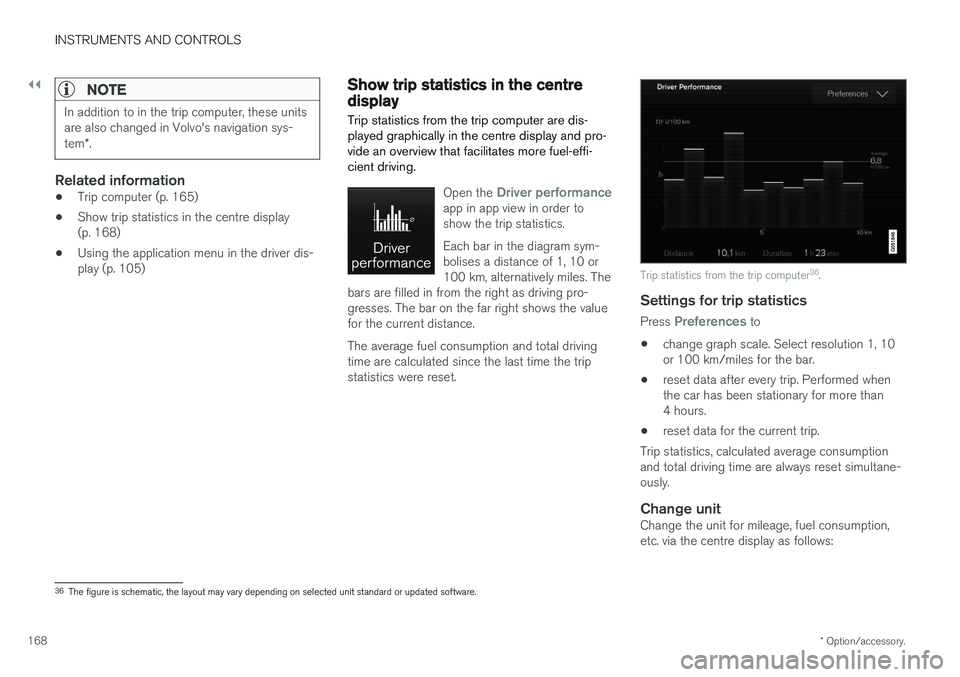
Open the Driver performanceapp in app view in order to show the trip statistics. Each bar in the diagram sym- bolises a distance of 1, 10 or100 km, alternatively miles. The
bars are filled in from the right as driving pro-gresses. The bar on the far right shows the valuefor the current distance. The average fuel consumption and total driving time are calculated since the last time the tripstatistics were reset.
Trip statistics from the trip computer 36
.
Settings for trip statistics
Press Preferences to
• change graph scale. Select resolution 1, 10 or 100 km/miles for the bar.
• reset data after every trip. Performed whenthe car has been stationary for more than4 hours.
• reset data for the current trip.
Trip statistics, calculated average consumptionand total driving time are always reset simultane-ously.
Change unitChange the unit for mileage, fuel consumption,etc. via the centre display as follows:
36 The figure is schematic, the layout may vary depending on selected unit standard or updated software.
Page 174 of 594
||
INSTRUMENTS AND CONTROLS
172
Related information
•Settings view (p. 169)
• Changing system settings in the settings view (p. 172)
Changing system settings in the settings view The
System category in the settings view col-
lects general settings and information for car systems, such as language and units.
The system settings under Driver Profile, Date
and Time, Keyboard Layouts, Voice Control,Software Updates, Factory reset, Factory
Reset and Services are described in the corres-
ponding section of the owner's manual.
Changing system language1. Press Settings in the top view in the centre
display.
2. Press
SystemSystem Language.
3. Select system language. Languages that support voice recognition have a voice recog- nition symbol.
> The language in the driver display, centredisplay and head-up display is changed.
Changing system units
Changing length and volume units
1. Press Settings in the top view in the centre
display.
2. Press
SystemUnitsUnits of
Measurement. 3. Select from the following unit standards:
•
Metric - kilometres, litres and degrees
Celsius.
•
Imperial - miles, gallons and degrees
Celsius.
•
US - miles, gallons and degrees Fahren-
heit.
> The units in the driver display, centre dis- play and head-up display are changed.
See storage information1. Press Settings in the top view in the centre
display.
2. Press
SystemStorage.
> Storage information for the car's hard disk is shown, including total capacity, available capacity and how much space installedapplications are using.
See the car's vehicle identification number
1. Press Settings in the top view in the centre
display.
2. Press
SystemVehicle Identification
Number.
> The car's vehicle identification number (VIN 37
) is shown.
37 Vehicle Identification Number.
Page 176 of 594
INSTRUMENTS AND CONTROLS
174
Driver profiles
Many of the settings made in the car can be adapted according to the driver's personal pref-erences and can be saved in one or more driverprofiles.
The personal settings are automatically saved in the active driver profile. Each key can be linked toa driver profile. When the linked key is used, thecar is adapted to the settings of that specificdriver profile.
What settings are saved in the driver profiles?
Many of the settings made in the car will be auto-matically saved in the active driver profile if theprofile is not locked; see the section "Editing adriver profile". Settings made in the car are eitherpersonal or global. Only personal settings aresaved in driver profiles. Settings that can be saved in a driver profile include, amongst other things, screens, mirrors,front seats, navigation, audio and media system,language and voice control. Some settings, referred to as global settings, can be changed but are not saved to a specific driverprofile. Changes to global settings affect all pro-files.
Global settings
The global settings and parameters are not changed when changing between driver profiles. They remain the same regardless of which driverprofile is active. Keyboard layout settings are an example of global settings. If driver profile X is used to addadditional languages to the keyboard, theseremain available for use even if driver profile Y isused. The keyboard layout settings are not savedto a specific driver profile - the settings areglobal.
Personal preferences
If driver profile X was used to e.g. set centre dis- play brightness, driver profile Y is not affected bythis setting. It has been saved to driver profile X -the brightness setting is a personal setting. Refer to the section "Categories in the settings view" for more information on which settings arepersonal and which are global.
Related information
•
Editing a driver profile (p. 175)
• Categories in the settings view (p. 170)
• Selecting driver profile (p. 174)
Selecting driver profile
The last used driver profile is the one selected when the car is unlocked. It is possible tochange to another driver profile after the car hasbeen unlocked.
When the centre display has been started, the selected driver profile is shown at the top of thescreen. The driver profile last used is the one thatwill be active next time the car is unlocked. How-ever, if the remote control key has been linked toa driver profile then this is what is selected whenthe car is started. See "Linking remote controlkey to driver profile". There are two options for changing to another driver profile. Option 1:
1. Tap on the name of the driver profile shown in the top of the centre display when the dis- play has been started.
> A list of selectable driver profiles is shown.
2. Select the driver profile required. 3. Press
Confirm.
> The driver profile is selected and the sys- tem loads the settings for the new driver profile.
Option 2:
1. Drag down the top view in the centre display.
Page 187 of 594
CLIMATE CONTROL
}}
* Option/accessory.185
Passenger compartment filter All air entering the car's passenger compartment is cleaned with a filter.
Replacing the passenger compartment
filter
To maintain high climate system performance, the filter must be changed at regular intervals.Follow the Volvo Service Programme for the rec-ommended replacement intervals. If the car isused in a severely contaminated environment, itmay be necessary to replace the filter more often.
NOTE
There are different types of passenger com- partment filter. Make sure that the correct fil-ter is fitted.
Related information
• Air quality (p. 184)
• Clean Zone Interior Package
* (p. 185)
• Interior Air Quality System
* (p. 185)
• Volvo service programme (p. 506)
Clean Zone Interior Package
*
Clean Zone Interior Package (CZIP) comprises a series of modifications that keep the passen-ger compartment even clearer from allergy andasthma-inducing substances.
The following is included:
• An enhanced fan function that means that the fan starts when the car is unlocked withthe remote control key. The fan fills the pas-senger compartment with fresh air. The func-tion starts when required and is disengagedautomatically after a time or when one of thepassenger compartment doors is opened.The amount of time the fan runs is reducedgradually due to reduced need up until thecar is 4 years old.
• The fully automatic air quality system InteriorAir Quality System (IAQS).
Related information
•
Air quality (p. 184)
• Passenger compartment filter (p. 185)
• Interior Air Quality System
* (p. 185)
Interior Air Quality System *
Interior Air Quality System (IAQS) is a fully auto- matic air quality system that separates gasesand particles to reduce the levels of odours andcontaminants in the passenger compartment.
IAQS is a part of the Clean Zone Interior Package (CZIP) and cleans the air in the passen-ger compartment from contaminants such as par-ticles, hydrocarbons, nitrous oxides and ground-level ozone. If the air quality sensor senses that the outside air is contaminated, the air intake is closed andair recirculation is activated.
NOTE
The air quality sensor must always be enabled to ensure the best air in the passenger com-partment. In a cold climate recirculation is limited so as to prevent misting. In the event of misting, the defrost functions for windscreen, side windows and rear win-dow should be used.
Activating/deactivating the air quality sensor
It is possible to set whether the air quality sensor should be activated/deactivated.
Page 208 of 594
||
CLIMATE CONTROL
* Option/accessory.
206 2. Repeatedly press the button for heated
steering wheel in order to change between the four levels:
Off, High, Medium and Low.
> The level changes and the button shows the set level.
Activating/deactivating automatic start of heated steering wheel
It is possible to set whether automatic start of heated steering wheel should be activated/deac-tivated when the engine is started. With auto-matic start activated, heating will start in theevent of low ambient temperature. 1. Press
Settings in the top view in the centre
display.
2. Press
Climate.
3. Under
Auto Steering Wheel Heating
Level, select Off,Low,Medium or High in
order to activate/deactivate the automatic starting of steering wheel heating and toselect the level.
Related information
• Climate controls (p. 186)
• Climate controls in the centre display(p. 187)
• Steering wheel (p. 131)
Parking climate
*
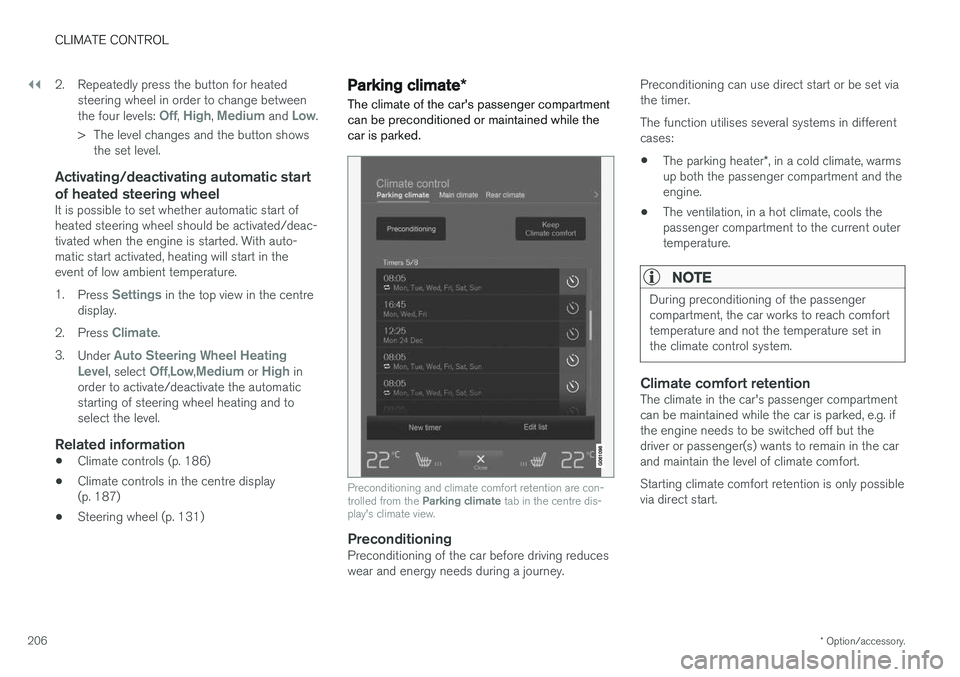
The climate of the car's passenger compartment can be preconditioned or maintained while thecar is parked.
Preconditioning and climate comfort retention are con- trolled from the Parking climate tab in the centre dis-
play's climate view.
PreconditioningPreconditioning of the car before driving reduces wear and energy needs during a journey. Preconditioning can use direct start or be set viathe timer. The function utilises several systems in different cases: •
The parking heater
*, in a cold climate, warms
up both the passenger compartment and the engine.
• The ventilation, in a hot climate, cools thepassenger compartment to the current outertemperature.
NOTE
During preconditioning of the passenger compartment, the car works to reach comforttemperature and not the temperature set inthe climate control system.
Climate comfort retentionThe climate in the car's passenger compartment can be maintained while the car is parked, e.g. ifthe engine needs to be switched off but thedriver or passenger(s) wants to remain in the carand maintain the level of climate comfort. Starting climate comfort retention is only possible via direct start.
Page 274 of 594
DRIVER SUPPORT
* Option/accessory.
272
Speed-dependent steering force Speed related power steering causes the steer- ing wheel force to increase with the speed of thecar in order to give the driver enhanced sensitiv-ity.
On motorways the steering feels firmer. When parking and at low speed steering is light andrequires only a slight effort.
NOTE
In certain situations the power steering may become too hot and then needs to be tempo-rarily cooled - during this time the powersteering operates with reduced power andturning the steering wheel may then be per-ceived to be slightly heavier. In parallel with the temporarily reduced steer- ing assistance, the driver display shows amessage.
Change the steering force level *To select the steering force level, go to the "Drive modes" section and see the description at thealternative INDIVIDUAL under the heading"Selectable drive modes". For the car models without a drive mode control with its INDIVIDUAL option, the selection ofsteering force is instead made via the centre dis-play's top view and the following search path:
SettingsMy CarDrive ModesSteering force
Selection of steering force is not accessible while turning is in progress.
Related information
•Drive modes
* (p. 400)
Roll Stability Control Roll Stability Control (RSC) is a stabiliser sys- tem that minimises the risk of overturning, forexample during sudden evasive manoeuvres or ifthe car skids.
The RSC system registers if and how much the car's lateral inclination changes. This informationis used to calculate the risk of the car overturn-ing. If the car is at risk, its electronic stability con-trol system engages, the engine torque isreduced and one or more wheels are braked untilthe car has regained its stability.
WARNING
Under normal driving conditions, the RSC sys- tem improves the car's road safety, but thismust not be taken as a reason to increasespeed. Always follow the normal precautionsfor safe driving.
Related information
• Electronic stability control (p. 273)
• Safety (p. 56)
Page 294 of 594

||
DRIVER SUPPORT
292
Overview
Controls
Buttons and symbols for functions5
.
Increases stored speed or reactivates the adaptive cruise control and resumes storedspeed and time interval
Activate the adaptive cruise control and store the current speed or deactivate the adaptivecruise control
Reduces stored speed
Increases the time interval to vehicles ahead
Reduces the time interval to vehicles ahead
Target vehicle indicator: ACC has detected and is following a target vehicle at the presettime interval
Symbol for time interval to vehicles ahead
In cars equipped with the adaptive cruise control option, the driver can change between CC andACC - see "Change between Cruise control andadaptive cruise control".
Driver display
Indication of speeds 5
.
Stored speed
Speed of vehicle ahead.
Current speed of your car.
To see different combinations of symbols depending on traffic situation - see the heading "Symbols and messages for the adaptive cruisecontrol".
Collision risk warning
Audio and symbol for collision warning
5
Acoustic warning signal in the event of a risk of collision
Warning signal in the event of a risk of colli- sion
Distance measurement with the camera and radar unit
Adaptive Cruise Control uses approx. 40% of thecapacity of the foot brake. If the car needs to bebraked more heavily than the adaptive cruisecontrol is capable of and the driver does notbrake, the warning lamp and acoustic warning are
5 NOTE: The illustration is schematic - details may vary depending on car model.
Page 295 of 594
DRIVER SUPPORT
* Option/accessory.293
activated to alert the driver that immediate inter- vention is required.
WARNING
The adaptive cruise control only warns of vehicles which its radar unit has detected -hence a warning may not be given, or it maybe given with a certain delay. Do not wait for awarning without braking when so required.
Head-up display
*
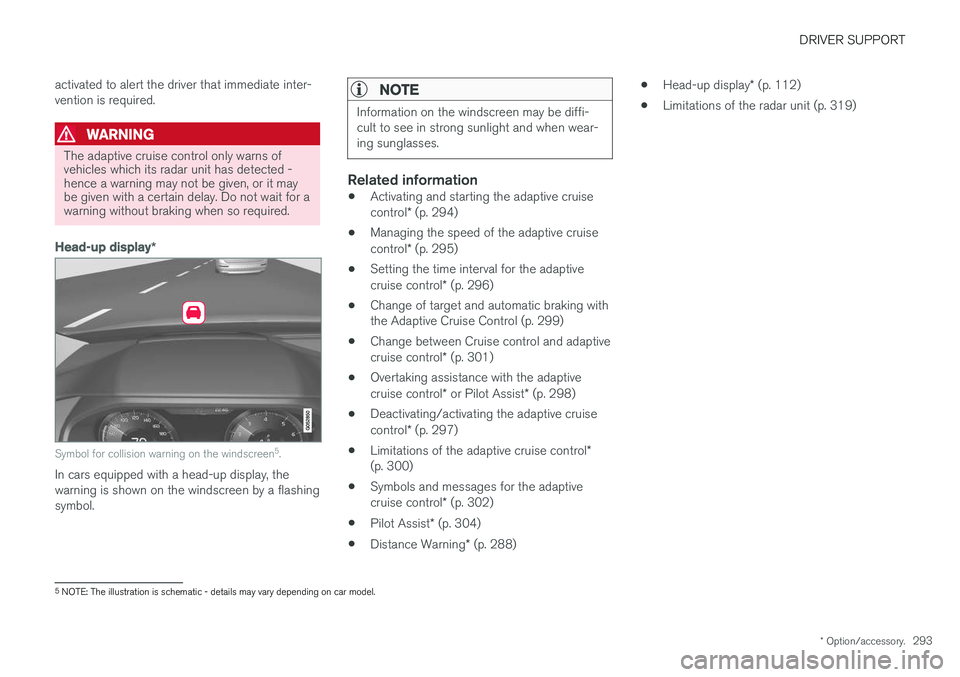
Symbol for collision warning on the windscreen 5
.
In cars equipped with a head-up display, the warning is shown on the windscreen by a flashingsymbol.
NOTE
Information on the windscreen may be diffi- cult to see in strong sunlight and when wear-ing sunglasses.
Related information
• Activating and starting the adaptive cruise control
* (p. 294)
• Managing the speed of the adaptive cruisecontrol
* (p. 295)
• Setting the time interval for the adaptivecruise control
* (p. 296)
• Change of target and automatic braking with the Adaptive Cruise Control (p. 299)
• Change between Cruise control and adaptive cruise control
* (p. 301)
• Overtaking assistance with the adaptivecruise control
* or Pilot Assist * (p. 298)
• Deactivating/activating the adaptive cruisecontrol
* (p. 297)
• Limitations of the adaptive cruise control
*
(p. 300)
• Symbols and messages for the adaptivecruise control
* (p. 302)
• Pilot Assist
* (p. 304)
• Distance Warning
* (p. 288) •
Head-up display
* (p. 112)
• Limitations of the radar unit (p. 319)
5
NOTE: The illustration is schematic - details may vary depending on car model.