deactivate VOLVO XC60 2016 Owner´s Manual
[x] Cancel search | Manufacturer: VOLVO, Model Year: 2016, Model line: XC60, Model: VOLVO XC60 2016Pages: 398, PDF Size: 9.98 MB
Page 182 of 398
07 Driver support
07
180* Option/accessory, for more information, see Introduction.
Road Sign Information (RSI) – operation
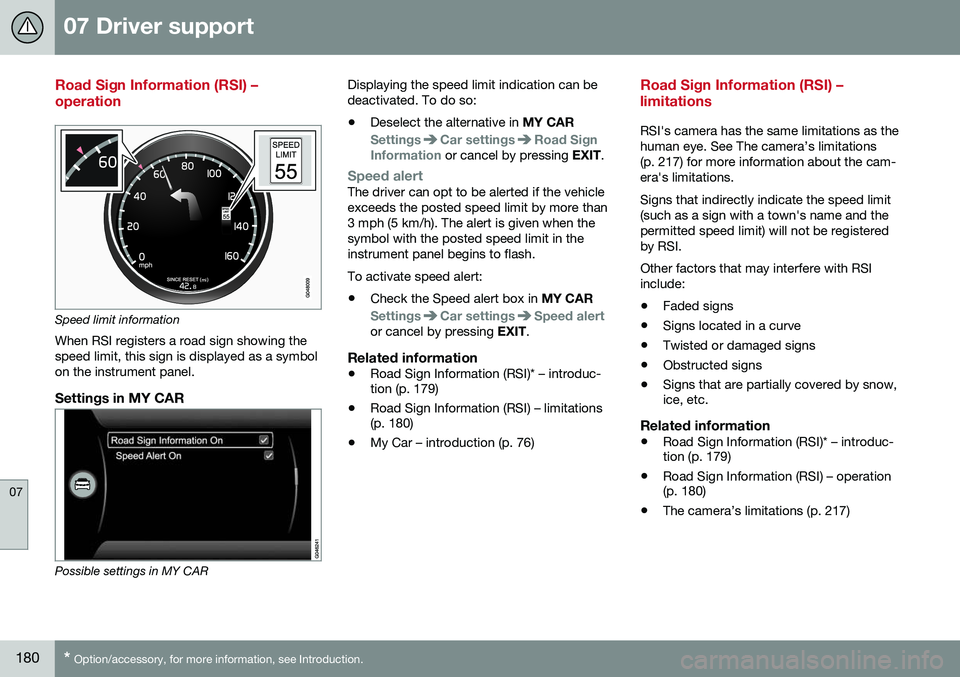
Speed limit information
When RSI registers a road sign showing the speed limit, this sign is displayed as a symbolon the instrument panel.
Settings in MY CAR
Possible settings in MY CAR Displaying the speed limit indication can be deactivated. To do so:
• Deselect the alternative in
MY CAR
SettingsCar settingsRoad Sign
Information or cancel by pressing EXIT.
Speed alertThe driver can opt to be alerted if the vehicle exceeds the posted speed limit by more than3 mph (5 km/h). The alert is given when thesymbol with the posted speed limit in theinstrument panel begins to flash. To activate speed alert:
• Check the Speed alert box in
MY CAR
SettingsCar settingsSpeed alertor cancel by pressing EXIT.
Related information
•Road Sign Information (RSI)* – introduc- tion (p. 179)
• Road Sign Information (RSI) – limitations(p. 180)
• My Car – introduction (p. 76)
Road Sign Information (RSI) – limitations
RSI's camera has the same limitations as the human eye. See The camera’s limitations(p. 217) for more information about the cam-era's limitations. Signs that indirectly indicate the speed limit (such as a sign with a town's name and thepermitted speed limit) will not be registeredby RSI. Other factors that may interfere with RSI include:
• Faded signs
• Signs located in a curve
• Twisted or damaged signs
• Obstructed signs
• Signs that are partially covered by snow, ice, etc.
Related information
•Road Sign Information (RSI)* – introduc-tion (p. 179)
• Road Sign Information (RSI) – operation(p. 180)
• The camera’s limitations (p. 217)
Page 185 of 398
07 Driver support
07
}}
183
Toggling between ACC and CC (standard Cruise Control)
Adaptive Cruise Control (ACC) helps the driver maintain a safe distance/time interval tothe vehicle ahead.
Switching from ACC to CCThis may be useful if, for example, the radarsensor is obstructed in some way. SeeAdaptive Cruise Control – limitations (p. 193)for additional information.
• Press and hold the
button; the symbol
in the instrument panel will switch from
to .
> This activates the standard cruise control function (see Cruise control (CC) – intro- duction (p. 181)).
WARNING
Switching from ACC to CC means that:
• Your vehicle will
no longer automati-
cally maintain a set distance to a vehi- cle ahead.
• Only the set speed will be maintainedand the driver will have to apply thebrakes when needed.
Switching from CC to ACC
Switch off cruise control by pressing once
or twice as needed according to the instruc- tions in the previous section "Turning ACC off completely." The next time the system isswitched on, ACC will be reactivated.
Related information
•
Adaptive Cruise Control – introduction (p. 184)
• Adaptive Cruise Control – function(p. 185)
Cruise control (CC) – deactivating
Cruise control is designed to assist the driver by maintaining a set speed. It is primarilyintended for use on long straight roads insteady traffic, such as on highways and othermain roads.
Automatic deactivationThe cruise control is automatically deacti-vated
temporarily if one of the following
occurs: • If the speed drops below approximately 20 mph (30 km/h).
• When the brake pedal is depressed.
• If the gear selector is moved to positionN
.
• During wheel spin or wheel lock-up.
• If the vehicle's speed is increased byusing the accelerator pedal for more than1 minute.
• Engine speed (rpm) is too high or too low.
The currently set speed will be saved in the system's memory.
Temporary deactivationThe driver can temporarily deactivate thecruise control by pressing 0. The saved
speed is shown in brackets in the informationdisplay.
Page 186 of 398
||
07 Driver support
07
184
Resume set speedIf the cruise control has been deactivated temporarily, it can be reactivated by pressing
. The vehicle's speed returns to the most
recently set speed.
WARNING
There may be a significant increase in speed after the
button has been
pressed.
DeactivationThe Cruise control is disengaged by pressing
or by switching off the engine. The set
speed is cleared.
WARNING
Cruise control should not be used in heavy traffic or when driving on wet or slipperyroads. Cruise control may not maintain setspeed on steep downgrades.
Related information
• Cruise control (CC) – introduction (p. 181)
• Cruise control (CC) – engaging and set- ting speed (p. 181)
Adaptive Cruise Control – introduction
ACC is an optional system designed to assist the driver by maintaining a set speed or a settime interval to the vehicle ahead. It is primar-ily intended for use on long straight roads insteady traffic, such as on highways and othermain roads. When the driver has set the desired speed and the time interval to the vehicle ahead,ACC functions as follows:
• If there are no other vehicles in the lane ahead of you, your vehicle will travel atthe set speed.
• If ACC's radar sensor detects a slowermoving vehicle in the lane ahead, the sys-tem will adapt your vehicle's speed tohelp maintain the set time interval to thevehicle ahead. When there are no longerslower moving vehicles ahead, your vehi-cle will accelerate to resume the setspeed.
If ACC is switched off completely or in standby mode and your vehicle comes tooclose to another vehicle ahead, the driver willbe warned by the Distance Alert system (seeDistance Alert – introduction (p. 198)).WARNING
• Adaptive Cruise Control cannot cover all driving situations and traffic,weather and road conditions. The"Function" section provides informa-tion about limitations that the drivermust be aware of before using thisfeature.
• This system is designed to be a sup-plementary driving aid. It is not, how-ever, intended to replace the driver'sattention and judgement. The driver isresponsible for maintaining a safe dis-tance and speed and must intervene ifAdaptive Cruise Control does notmaintain a suitable speed or suitabledistance to the vehicle ahead.
• Maintenance of ACC components mayonly be performed by a trained andqualified Volvo technician.
Page 190 of 398
07 Driver support
07
188
Adaptive Cruise Control – setting speed
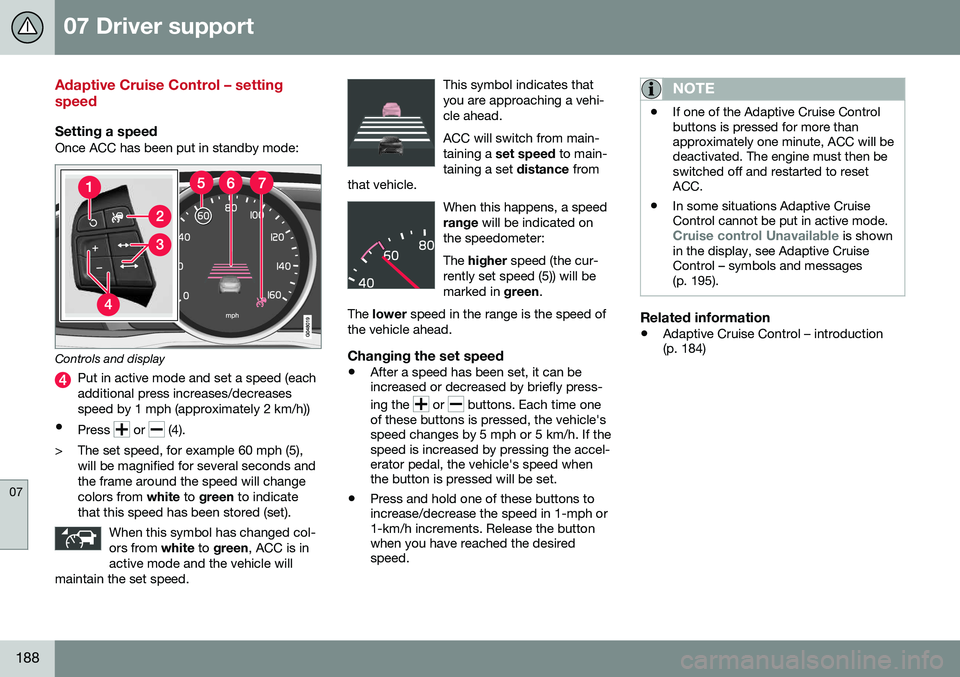
Setting a speedOnce ACC has been put in standby mode:
Controls and display
Put in active mode and set a speed (each additional press increases/decreasesspeed by 1 mph (approximately 2 km/h))
• Press
or (4).
> The set speed, for example 60 mph (5), will be magnified for several seconds and the frame around the speed will changecolors from white to green to indicate
that this speed has been stored (set).
When this symbol has changed col-ors from white to green , ACC is in
active mode and the vehicle will
maintain the set speed.
This symbol indicates that you are approaching a vehi-cle ahead. ACC will switch from main- taining a set speed to main-
taining a set distance from
that vehicle.
When this happens, a speed range will be indicated on
the speedometer: The higher speed (the cur-
rently set speed (5)) will be marked in green.
The lower speed in the range is the speed of
the vehicle ahead.
Changing the set speed
• After a speed has been set, it can be increased or decreased by briefly press- ing the
or buttons. Each time one
of these buttons is pressed, the vehicle's speed changes by 5 mph or 5 km/h. If thespeed is increased by pressing the accel-erator pedal, the vehicle's speed whenthe button is pressed will be set.
• Press and hold one of these buttons toincrease/decrease the speed in 1-mph or1-km/h increments. Release the buttonwhen you have reached the desiredspeed.
NOTE
•If one of the Adaptive Cruise Control buttons is pressed for more thanapproximately one minute, ACC will bedeactivated. The engine must then beswitched off and restarted to resetACC.
• In some situations Adaptive CruiseControl cannot be put in active mode.
Cruise control Unavailable is shown
in the display, see Adaptive Cruise Control – symbols and messages(p. 195).
Related information
• Adaptive Cruise Control – introduction (p. 184)
Page 191 of 398
07 Driver support
07
}}
189
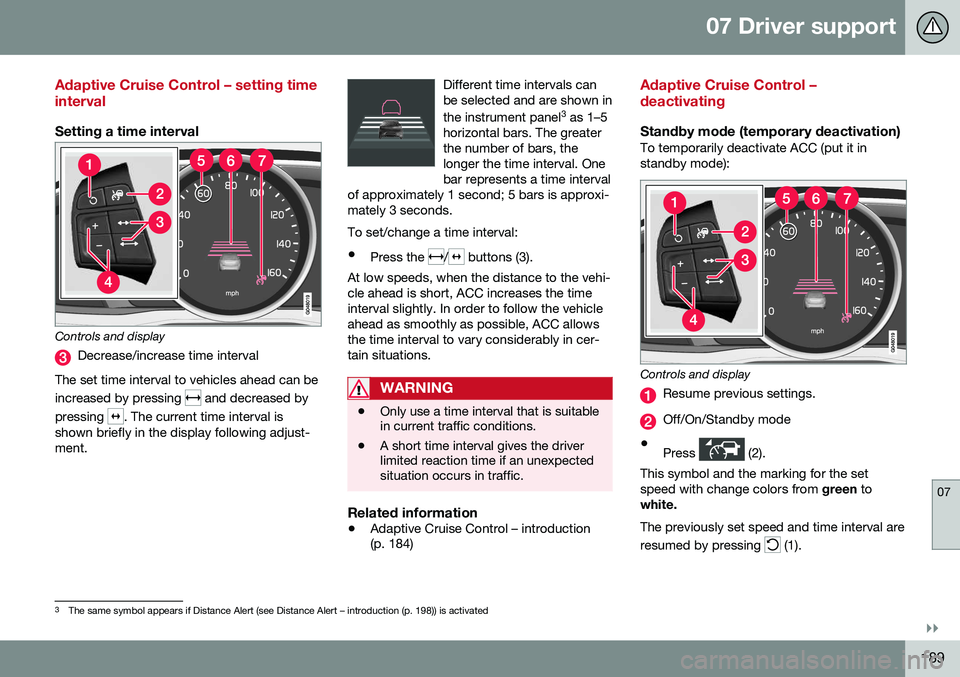
Adaptive Cruise Control – setting time interval
Setting a time interval
Controls and display
Decrease/increase time interval
The set time interval to vehicles ahead can be increased by pressing
and decreased by
pressing
. The current time interval is
shown briefly in the display following adjust- ment. Different time intervals canbe selected and are shown in the instrument panel
3
as 1–5
horizontal bars. The greater the number of bars, thelonger the time interval. Onebar represents a time interval
of approximately 1 second; 5 bars is approxi-mately 3 seconds.
To set/change a time interval:
• Press the
/ buttons (3).
At low speeds, when the distance to the vehi- cle ahead is short, ACC increases the timeinterval slightly. In order to follow the vehicleahead as smoothly as possible, ACC allowsthe time interval to vary considerably in cer-tain situations.
WARNING
• Only use a time interval that is suitable in current traffic conditions.
• A short time interval gives the driverlimited reaction time if an unexpectedsituation occurs in traffic.
Related information
•
Adaptive Cruise Control – introduction (p. 184)
Adaptive Cruise Control – deactivating
Standby mode (temporary deactivation)To temporarily deactivate ACC (put it in standby mode):
Controls and display
Resume previous settings.
Off/On/Standby mode
• Press
(2).
This symbol and the marking for the set speed with change colors from green to
white. The previously set speed and time interval are resumed by pressing
(1).
3 The same symbol appears if Distance Alert (see Distance Alert – introduction (p. 198)) is activated
Page 192 of 398
||
07 Driver support
07
190
WARNING
The vehicle may accelerate quickly after
has been pressed if its current speed is
considerably lower than the set speed.
Standby mode due to action by the driver
ACC is temporarily deactivated and put in standby mode:
• if the brakes are applied
• if the gear selector is moved to
N
• if the driver drives faster than the set speed for more than
1 minute.
In this happens, the driver will have to regu- late the vehicle's speed.
NOTE
If the accelerator pedal is only depressed for a short time, such as when passinganother vehicle, ACC is deactivated tem-porarily and is reactivated when the pedalis released.
Automatic standby modeACC is linked to other systems such as the stability system. If this system is not function-ing properly, ACC will switch off automati-cally. In the event of automatic deactivation, an audible signal will sound and the message
Cruise control Cancelled is shown in the
instrument panel. The driver must then inter- vene and adapt the vehicle's speed to thesurrounding traffic and regulate the distanceto the vehicle ahead. An automatic switch to standby mode may be caused if:
• engine speed (rpm) is too high/low
• The driver's door is opened
• The driver unbuckles his/her seat belt
• the vehicle's speed goes below 18 mph (30 km/h)
• the wheels lose traction
• brake temperature is high
• the radar sensor is obstructed by, forexample, wet snow or rain.
Resuming the set speedIf ACC is in standby mode, it can be reactiva- ted by pressing the
button on the steering
wheel keypad. The vehicle will return to the most recently set speed.
WARNING
The vehicle may accelerate quickly after
has been pressed if its current speed is
considerably lower than the set speed.
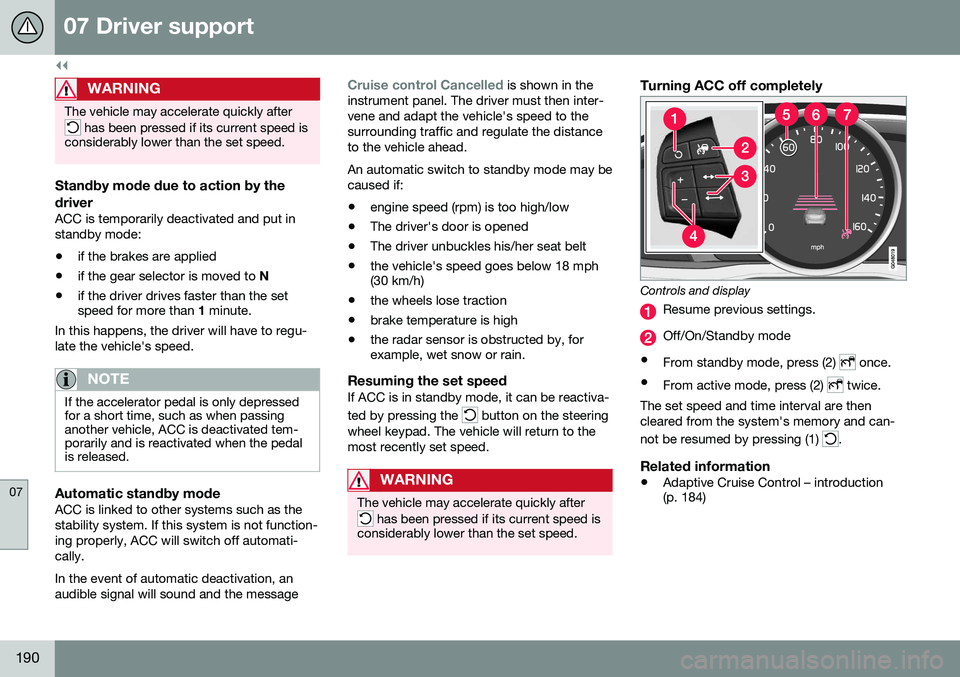
Turning ACC off completely
Controls and display
Resume previous settings.
Off/On/Standby mode
• From standby mode, press (2)
once.
• From active mode, press (2)
twice.
The set speed and time interval are then cleared from the system's memory and can- not be resumed by pressing (1)
.
Related information
• Adaptive Cruise Control – introduction (p. 184)
Page 214 of 398
07 Driver support
07
212* Option/accessory, for more information, see Introduction.
Collision warning* – operation
Settings are made by pressing MY CAR on
the center console control panel and using the menus displayed.
Activating/deactivating both warning
signals
To switch the system's audible and visual
signals on or off at the same time, press MY
CAR on the center console control panel and
go to
SettingsCar settingsDriver
support systems
Collision Warning. If
Pedestrian and Cyclist Detection with Full Auto Brake is on, the system will perform aself-test each time the engine is started bybriefly illuminating the warning light. See MyCar – introduction (p. 76) for a description ofthe menu system. When the engine is switched on, the system setting that was being used when it wasswitched off will be the default setting.
NOTE
The auto-brake and pedestrian/cyclist detection features are always on, even ifthe audible and visual warning signalshave been deactivated.
Activating/deactivating the audible warning signal only
The audible warning signal can be activated/ deactivated by pressing MY CAR on the cen- ter console control panel and going to
SettingsCar settingsDriver support
systems
Warning sound if risk of
collision.
Setting a warning distanceThis setting determines the distance at which the visual and audible warnings are triggered. Select
Long, Normal or Short by pressing
MY CAR on the center console control panel
and going to
SettingsCar settings
Driver support systemsCollision
Warning
Warning distance.
The warning distance determines the level of sensitivity used by the system. The warning distance
Long provides an earlier warning.
Begin by using Long and if the system gives
too many warnings, try changing to Normal.
WARNING
• The setting Short should only be used
in situations where traffic is light and moving at low speeds.
• Pedestrian and Cyclist Detection withFull Auto Brake alerts the driver to therisk of a collision but this function can-not reduce the driver’s reaction time.
• For the system to be as effective aspossible, it is recommended that Dis-tance Alert be set to 4 or 5, see Dis-tance Alert – operation (p. 198).
NOTE
•When Adaptive Cruise Control is used, the warning light and signal will beused by that function, even if thewarnings provided by Pedestrian andCyclist Detection with Full Auto Brakehave been deactivated by the driver.
• In situations where traffic is moving atconsiderably different speeds, or if thevehicle ahead brakes suddenly, warn-ings may be considered to be late, even if the setting
Long has been
selected.
Checking settingsThe current system settings can be checked by pressing MY CAR on the center console
control panel and going to
SettingsCar
settings
Driver support systemsCollision Warning.
Related information
• Collision warning – introduction (p. 209)
• Collision warning* – function (p. 211)
• Collision warning* – Pedestrian detection (p. 214)
• Collision warning* – Cyclist detection(p. 213)
• Collision warning* – limitations (p. 215)
• The camera’s limitations (p. 217)
Page 215 of 398
07 Driver support
07
}}
* Option/accessory, for more information, see Introduction.213
•
Collision warning – symbols and mes- sages (p. 220)
• Collision warning – troubleshooting(p. 218)
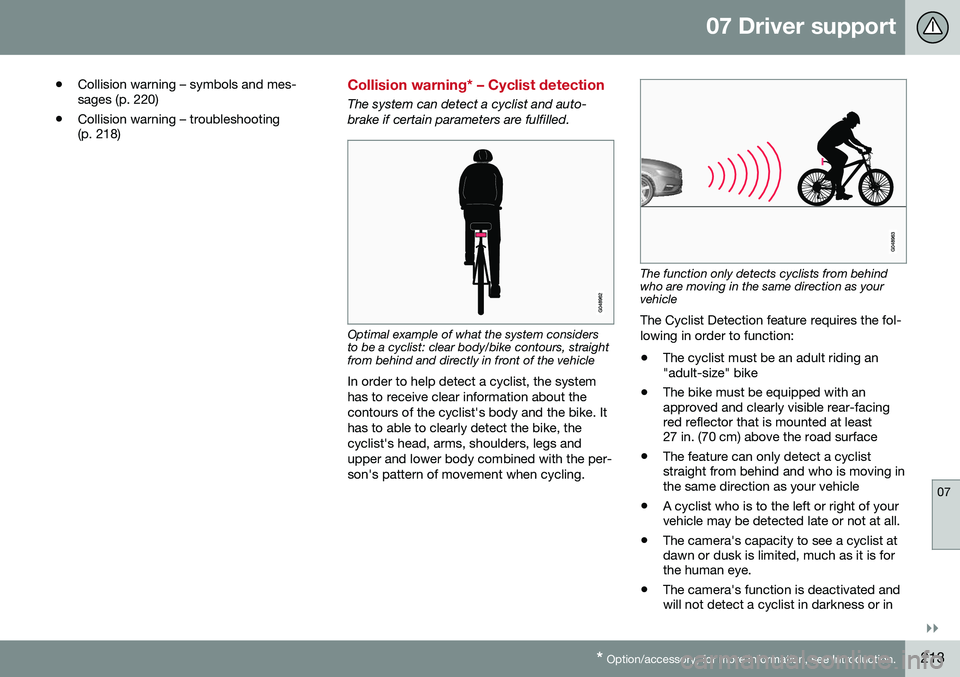
Collision warning* – Cyclist detection
The system can detect a cyclist and auto- brake if certain parameters are fulfilled.
Optimal example of what the system considers to be a cyclist: clear body/bike contours, straightfrom behind and directly in front of the vehicle
In order to help detect a cyclist, the system has to receive clear information about thecontours of the cyclist's body and the bike. Ithas to able to clearly detect the bike, thecyclist's head, arms, shoulders, legs andupper and lower body combined with the per-son's pattern of movement when cycling.
The function only detects cyclists from behind who are moving in the same direction as yourvehicle
The Cyclist Detection feature requires the fol- lowing in order to function: • The cyclist must be an adult riding an "adult-size" bike
• The bike must be equipped with anapproved and clearly visible rear-facingred reflector that is mounted at least27 in. (70 cm) above the road surface
• The feature can only detect a cycliststraight from behind and who is moving inthe same direction as your vehicle
• A cyclist who is to the left or right of yourvehicle may be detected late or not at all.
• The camera's capacity to see a cyclist atdawn or dusk is limited, much as it is forthe human eye.
• The camera's function is deactivated andwill not detect a cyclist in darkness or in
Page 217 of 398
07 Driver support
07
}}
* Option/accessory, for more information, see Introduction.215
entire body and the person must be at least 32 in. (80 cm) tall.
• The system cannot detect a pedestriancarrying a large object.
• The camera's capacity to see a pedes-trian at dawn or dusk is limited, much asit is for the human eye.
• The camera's function is deactivated andwill not detect a pedestrian in darkness orin tunnels, even if there is street lighting inthe area.
WARNING
• Pedestrian and Cyclist Detection with Full Auto Brake is designed to be asupplementary driving aid. It is not,however, intended to replace the driv-er's attention and judgement. Thedriver is always responsible for operat-ing the vehicle in a safe manner.
• The system cannot detect all pedes-trians in all situations, such as in dark-ness/at night and cannot detect parti-ally hidden pedestrians, people whoare less than approx. 32 in. (80 cm)tall, or people wearing clothing thatobscures the contours of their bodies.
Related information
•
Collision warning – introduction (p. 209)
• Collision warning* – function (p. 211)
• Collision warning* – operation (p. 212) •
Collision warning* – Cyclist detection (p. 213)
• Collision warning* – limitations (p. 215)
• Collision warning – troubleshooting(p. 218)
• Collision warning – symbols and mes-sages (p. 220)
Collision warning* – limitations
Strong sunlight, reflections, extreme light contrasts, the use of sunglasses, or if thedriver is not looking straight ahead may makethe visual warning signal in the windshield dif-ficult to see. For this reason, always activatethe audible warning signal. Slippery driving conditions increase braking distance, which can reduce the system'scapacity to avoid a collision. In these condi-tions, the ABS and stability systems providethe best possible braking effect while helpingto maintain stability.
NOTE
The visual warning signal may be tempo- rarily disengaged in the event of high pas-senger compartment temperature due tostrong sunlight, etc. If this occurs, theaudible warning signal will be used, even ifit has been deactivated in the menu sys-tem.
Page 219 of 398
07 Driver support
07
* Option/accessory, for more information, see Introduction.217
The camera’s limitations
The camera has the same limitations as the human eye. The camera is used by Pedestrian and Cyclist Detection with Full Auto Brake Collision warn-ing – introduction (p. 209), Active High Beams(Active high beams (AHB)* (p. 90)), Road SignInformation (Road Sign Information (RSI)* –introduction (p. 179)) and Driver Alert System(Driver Alert System (p. 222)) with LaneDeparture Warning or Lane Keeping Aid.
NOTE
• To help protect the camera in very hot conditions, it may be temporarilyswitched off for approximately 15minutes after the engine has beenstarted.
• Keep the section of the windshield infront of the camera clean and free ofice, snow, or condensation.
WARNING
•
The camera has the same type of limi- tations as the human eye, i.e., it can-not see as well in heavy snowfall orrain, thick fog or in heavy blowing dustor snow. In such conditions, systemsdepending on the camera may experi-ence greatly reduced functionality ormay be temporarily deactivated.
• Never place any objects, decals, etc.,on the windshield in front of the cam-era. This could reduce or block thecamera’s function, and could causeone or more of the systems that utilizethe camera to stop functioning.
• Strong sunlight, reflections from theroad surface, ice or snow covering theroad, a dirty road surface, or unclearlane marker lines may drasticallyreduce the camera’s capacity todetect the side of a lane, a pedestrian,a cyclist or another vehicle.
Related information
•
Collision warning – introduction (p. 209)
• Collision warning* – function (p. 211)
• Collision warning* – operation (p. 212)
• Collision warning* – Pedestrian detection (p. 214)
• Collision warning* – Cyclist detection(p. 213)
• Collision warning* – limitations (p. 215) •
Collision warning – troubleshooting(p. 218)
• Collision warning – symbols and mes-sages (p. 220)
• Road Sign Information (RSI)* – introduc-tion (p. 179)
• Driver Alert System (p. 222)
• Active high beams (AHB)* (p. 90)