instrument panel VOLVO XC90 2015 Owners Manual
[x] Cancel search | Manufacturer: VOLVO, Model Year: 2015, Model line: XC90, Model: VOLVO XC90 2015Pages: 570, PDF Size: 12.44 MB
Page 5 of 570

3
Starting or moving a vehicle in safety mode82
Safety systems 83
Airbag system 83
Driver/passenger side airbags 84
Inflatable curtains 87
Side impact airbags 88
Rollover protection system 89
Whiplash protection system 89
INSTRUMENTS AND CONTROLS
Trip computer92
Displaying trip computer information 92
Displaying trip statistics 94
HomeLink ®
Wireless Control System *94
Programming the HomeLink ®
Wire-
less Control System * 95
Instruments and controls 98
Adjusting the power door mirrors 100
Laminated panoramic roof *
101
Operating the laminated panoramic roof *
102
Power windows 104
Operating the power windows 104
Rearview mirror 105
Using sun shades 106
Settings view 106
Categories in Settings view 107
Changing system settings in Set- tings view 109
Linking a remote key to a driver profile 110
Changing settings in apps 111
Resetting the settings view 111
Resetting user data when the vehiclechanges owners 112
Driver profiles 112
Editing a driver profile 114
Importing/exporting a driver profile from/to a USB flash drive115
Ambient temperature sensor 116
Clock 116
Head-up display (HUD) *
117
Voice control 120
Using voice commands 121
Voice control for cell phones 121
Voice control for radio and media 122
Climate system voice commands 122
Navigation system voice commands 124
Voice control settings 125
Indicator symbols in the instrument panel 126
Instrument panel 128
Instrument panel App menu 129
Instrument panel licenses 130
Warning symbols in the instrument panel 134
Compass 136
Calibrating the compass 137
Lighting panel and controls 138
Low beam headlights 139
Daytime Running Lights (DRL) 140
High and low beam headlights 140
Active Bending Lights *
142
Page 6 of 570

4
Front fog lights*
143
Brake lights 143
Rear fog lights 144
Hazard warning flashers 144
Parking lights 145
Approach lighting 145
Home safe lighting 146
Passenger compartment lighting 146
Using turn signals 148
Messages in the instrument panel and center display 149
Handling messages in the instru-ment panel and center display 151
Handling messages stored from theinstrument panel and center display 152
Using the instrument panel App menu 153
Using the windshield wipers 154
Activating/deactivating the rain sensor 155
Windshield and headlight washers 156
Tailgate window wiper and washer 157
Steering wheel 157
Adjusting the steering wheel 159
Seats 159
Manually operated front seats 160
Power front seats *
161
Adjusting power front seats *
161
Adjusting the passenger's seat from the driver's seat * 162
Using the power seat memory function *
162
Multifunctional front seats *
163
Operating multifunctional front seats *
164
Adjusting function settings in themultifunctional front seats *165
Rear seats 166
Easy access to and from the driver seat 167
Adjusting the second row head restraints 167
Adjusting the second row backrest tilt 169
Folding the second row backrests 170
Moving the second row seats for- ward/rearward 171
Getting into and out of the third rowof seats 172
Folding the third row * backrests
172
CLIMATE
Climate control system
176
Perceived temperature 176
Climate system sensors 177
Air quality 177
Clean Zone Interior Package (CZIP) *
178
Interior Air Quality System (IAQS) *
178
Passenger compartment air filter 179
Automatic climate control 179
Climate system controls 180
Climate system controls in the center display 180
Rear climate system controls on thetunnel console 182
Setting the blower speed 183
Setting the temperature 184
Turning recirculation on and off 186
Defrosting windows and mirrors 187
Turning steering wheel heating * on
and off 189
Air conditioning 190
Turning seat heating * on and off
191
Turning front seat ventilation * on and off
193
Air distribution 194
Opening/closing/directing air vents 194
Adjusting air distribution 195
Page 11 of 570

9
NAVIGATION*
Sensus Navigation
428
Buttons and information on the map 428
Common navigation system features 429
Getting started with Sensus Navigation 432
Quick guidance to a destination 432
Navigation displays and controls 433
Entering a destination 435
Setting a destination by tapping the map 435
Setting a destination by entering the text of your choice 436
Setting a destination using Recent/Favorites/Library 438
Using a point of interest (POI) as adestination 440
Setting a destination by entering anaddress 441
Saving a destination with Send to Car 441
Viewing the itinerary and alternate routes 442
Guidance points in the itinerary 444
POIs along the route 445
Traffic problems along the route 445
Information cards on the map 446
Choosing a detour 447
Traffic information 448
Navigation in the instrument panel 448
Sensus Navigation settings 449
Map settings450
Route settings 452
Traffic information settings 454
Guidance settings 455
System settings 456
Map updates with MapCare 456
Remote map updates 457
Map updates from a computer with a USB flash drive 458
Navigation license agreements 460
Copyright 462
Sensus Navigation troubleshooting 462
WHEELS AND TIRES
Tires466
Tire sidewall designations 467
Wheel (rim) designations 469
Tire terminology 469
Tire direction of rotation 470
Tread wear indicator 471
Loading specifications 471
Uniform Tire Quality Grading 472
Snow tires and chains 473
Checking tire inflation pressure 473
Changing tires 475
Tools in the cargo compartment 475
Jack 476
Spare tire 476
Wheel bolts 477
Removing a wheel 478
Installing a wheel 479
Tire Pressure Monitoring System (TPMS) 480
Checking inflation pressure 482
Reinflating tires equipped with the Tire Pressure Monitoring System (TPMS) 483
Calibrating the Tire PressureMonitoring System (TPMS) 484
Tire Pressure Monitoring Systemtype approval 484
Page 13 of 570

11
HOTSPOTS
Centerdisplay – App view548
Centerdisplay – Car functions view 548
Instrument panel 548
Driver's door panel 549
Engine compartment 549
Exterior 549
Center display and tunnel consol 551
Interior rearview mirror 552
Interior 552
Remote key 554
Trunk 554
INDEX
Index 555
Page 21 of 570
INTRODUCTION
* Option/accessory, for more information, see Introduction.19
Head-up-display*
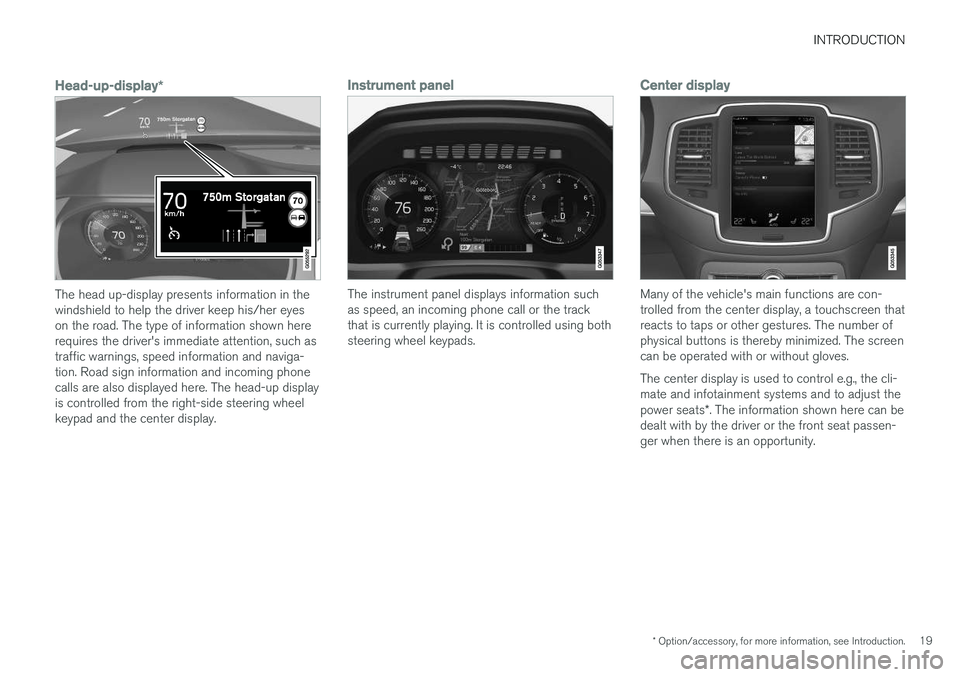
The head up-display presents information in the windshield to help the driver keep his/her eyeson the road. The type of information shown hererequires the driver's immediate attention, such astraffic warnings, speed information and naviga-tion. Road sign information and incoming phonecalls are also displayed here. The head-up displayis controlled from the right-side steering wheelkeypad and the center display.
Instrument panel
The instrument panel displays information such as speed, an incoming phone call or the trackthat is currently playing. It is controlled using bothsteering wheel keypads.
Center display
Many of the vehicle's main functions are con- trolled from the center display, a touchscreen thatreacts to taps or other gestures. The number ofphysical buttons is thereby minimized. The screencan be operated with or without gloves. The center display is used to control e.g., the cli- mate and infotainment systems and to adjust the power seats*. The information shown here can be
dealt with by the driver or the front seat passen- ger when there is an opportunity.
Page 22 of 570
INTRODUCTION
* Option/accessory, for more information, see Introduction.
20
Voice control systemThe voice control system ena- bles the driver to operate cer-tain vehicle functions withoutremoving his/her hands fromthe steering wheel and itunderstands natural speech.Use voice commands to e.g.,
play a track on the infotainment system, make aphone call, raise the passenger compartmenttemperature or to read a text message.
For additional information about all of the func- tions/system, see the respective articles in theon-board owner's manual or the printed supple-ment.
Related information
• Using the center display (p. 46)
• Center display overview (p. 29)
• Navigating in the center display's views (p. 39)
• Head-up display (HUD)
* (p. 117)
• Instrument panel (p. 128)
• Voice control (p. 120)
Page 32 of 570

INTRODUCTION
* Option/accessory, for more information, see Introduction.
30
Function view: vehicle functions can be acti- vated/deactivated by tapping. Certain func-tions are called "trigger functions", which open settings windows, e.g.,
Camera and
parking functions. Settings for the head-up display * are also started from Function view
but the actual interaction is controlled from the steering wheel keypad buttons and theinstrument panel.
Home view: the initial view shown when the center display is started.
App (Application) view: shows apps that have been downloaded (third-party apps) as well as ones for integrated functions such as
FM
radio. Tap an icon to open the app.
Status bar: vehicle activities are shown at the top of the screen. Network/connection infor-mation is shown on the left side of the bar.Media-related information, the clock andinformation about background activities areshown to the right.
Top view: pull down the tab to open Top view. From here, you can access Settings,Owner's manual, Driver Profile and stored
messages.
Navigation: leads to map navigation. Tap the sub-view to expand it.
Media: the most recently used media-related apps. Tap the sub-view to expand it.
Phone: used to access phone-related func- tions. Tap the sub-view to expand it.
The extra sub-view: the most recently used apps/vehicle functions that do not belong inany of the other sub-views are listed here.Tap the sub-view to expand it.
Climate bar: information and direct access to settings such as temperature, seat heating *
and blower speed. Tap the symbol at the center of the Climate bar to open Climateview for additional settings.
Related information
• Using the center display (p. 46)
• Function view buttons (p. 37)
• Symbols in the center display status bar (p. 44)
• Settings view (p. 106)
• Media player (p. 393)
• Phone (p. 387)
• Climate system controls in the center display(p. 180)
• Cleaning the center display (p. 529)
Page 46 of 570
INTRODUCTION
44
Symbols in the center display status bar
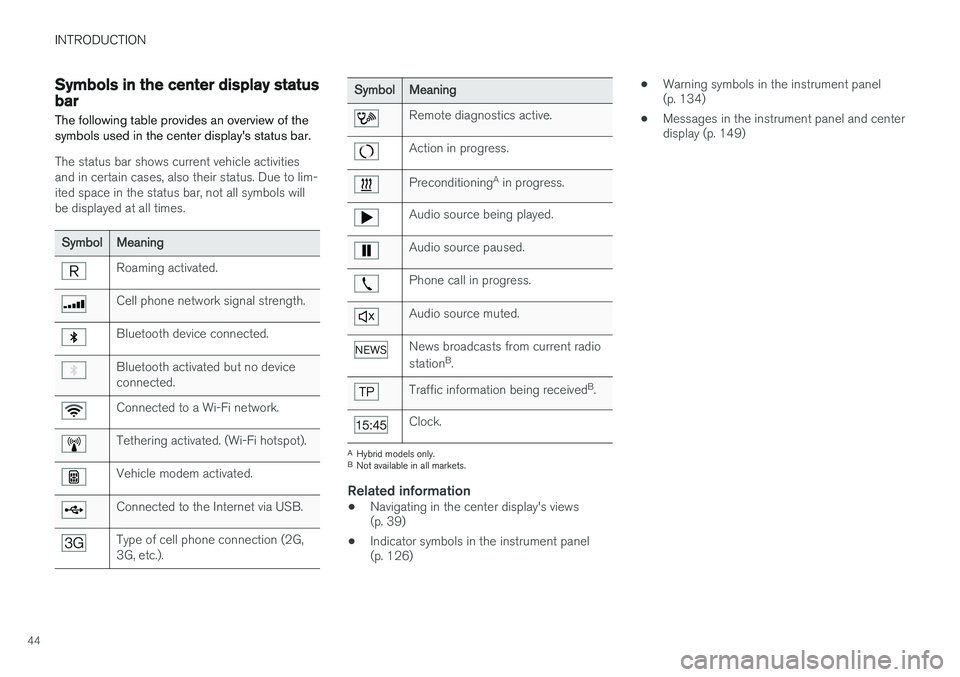
The following table provides an overview of the symbols used in the center display's status bar.
The status bar shows current vehicle activities and in certain cases, also their status. Due to lim-ited space in the status bar, not all symbols willbe displayed at all times.
SymbolMeaning
Roaming activated.
Cell phone network signal strength.
Bluetooth device connected.
Bluetooth activated but no device connected.
Connected to a Wi-Fi network.
Tethering activated. (Wi-Fi hotspot).
Vehicle modem activated.
Connected to the Internet via USB.
Type of cell phone connection (2G, 3G, etc.).
SymbolMeaning
Remote diagnostics active.
Action in progress.
Preconditioning A
in progress.
Audio source being played.
Audio source paused.
Phone call in progress.
Audio source muted.
News broadcasts from current radio station B
.
Traffic information being received B
.
Clock.
A Hybrid models only.
B Not available in all markets.
Related information
• Navigating in the center display's views (p. 39)
• Indicator symbols in the instrument panel(p. 126) •
Warning symbols in the instrument panel(p. 134)
• Messages in the instrument panel and centerdisplay (p. 149)
Page 58 of 570
SAFETY
56
General safety information The vehicle is equipped with a number of safety systems for the driver and passengers.
Warning symbol in the instrument panelThe warning symbol in the instrument panel illuminates when the ignition is in mode II or higher. It will go out after
approx. 6 seconds if no faults are
detected in the airbag system.
WARNING
• If the SRS warning light stays on after the engine has started or if it illuminateswhile you are driving, have the vehicleinspected by a trained and qualified Volvoservice technician as soon as possible.
• Never try to repair any component or partof the SRS yourself. Any interference inthe system could cause malfunction andserious injury. All work on these systemsshould be performed by a trained andqualified Volvo service technician.
Related information
• Safety during pregnancy (p. 62)
• Seat belts (p. 58)
• Safety systems (p. 83)
• Airbag system (p. 83)
Occupant safety Safety is Volvo's cornerstone.
Volvo's concern for safetyOur concern for safety dates back to 1927 when the first Volvo rolled off the production line.Three-point seat belts (a Volvo invention), safetycages, and energy-absorbing impact zones weredesigned into Volvo vehicles long before it wasfashionable or required by government regulation. We will not compromise our commitment to safety. We continue to seek out new safety fea-tures and to refine those already in our vehicles.You can help. We would appreciate hearing yoursuggestions about improving automobile safety.We also want to know if you ever have a safetyconcern with your vehicle. Call us in the U.S. at:1-800-458-1552 or in Canada at:1-800-663-8255.
Occupant safety remindersHow safely you drive doesn't depend on how old you are but rather on:
• How well you see.
• Your ability to concentrate.
• How quickly you make decisions under stress to avoid an accident.
The following suggestions are intended to help you cope with the ever changing traffic environ-ment. •
Never drink and drive.
• If you are taking any medication, consult your physician about its potential effects on yourdriving abilities.
• Take a driver-retraining course.
• Have your eyes checked regularly.
• Keep your windshield and headlights clean.
• Replace wiper blades when they start toleave streaks.
• Take into account the traffic, road, andweather conditions, particularly with regard tostopping distance.
• Never send text messages while driving.
• Refrain from using or minimize the use of acell phone while driving.
Related information
• Recall information (p. 58)
• Reporting safety defects (p. 57)
Page 63 of 570
SAFETY
61
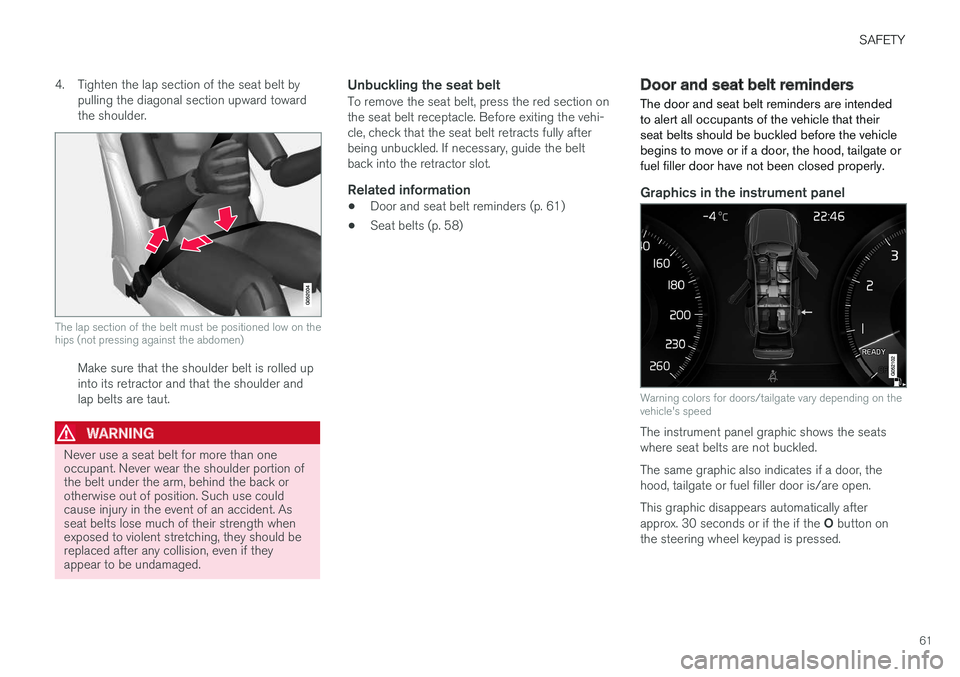
4. Tighten the lap section of the seat belt by
pulling the diagonal section upward toward the shoulder.
The lap section of the belt must be positioned low on the hips (not pressing against the abdomen)
Make sure that the shoulder belt is rolled up into its retractor and that the shoulder andlap belts are taut.
WARNING
Never use a seat belt for more than one occupant. Never wear the shoulder portion ofthe belt under the arm, behind the back orotherwise out of position. Such use couldcause injury in the event of an accident. Asseat belts lose much of their strength whenexposed to violent stretching, they should bereplaced after any collision, even if theyappear to be undamaged.
Unbuckling the seat beltTo remove the seat belt, press the red section on the seat belt receptacle. Before exiting the vehi-cle, check that the seat belt retracts fully afterbeing unbuckled. If necessary, guide the beltback into the retractor slot.
Related information
• Door and seat belt reminders (p. 61)
• Seat belts (p. 58)
Door and seat belt reminders
The door and seat belt reminders are intended to alert all occupants of the vehicle that theirseat belts should be buckled before the vehiclebegins to move or if a door, the hood, tailgate orfuel filler door have not been closed properly.
Graphics in the instrument panel
Warning colors for doors/tailgate vary depending on the vehicle's speed
The instrument panel graphic shows the seats where seat belts are not buckled. The same graphic also indicates if a door, the hood, tailgate or fuel filler door is/are open. This graphic disappears automatically after approx. 30 seconds or if the if the O button on
the steering wheel keypad is pressed.