service Abarth 500 2017 Owner handbook (in English)
[x] Cancel search | Manufacturer: ABARTH, Model Year: 2017, Model line: 500, Model: Abarth 500 2017Pages: 192, PDF Size: 6.46 MB
Page 149 of 192

PRESCRIPTIONS FOR HANDLING THE VEHICLE AT THE END OF
ITS LIFE
(for markets where provided)
FCA has been committed for many years to safeguarding the environment through the constant improvement of its production
processes and manufacturing products that are increasingly "eco-compatible". To grant customers the best possible service
in terms of respecting environmental laws and in response to European Directive 2000/53/EC governing vehicles at the end of
their life, FCA is offering its customers the chance to hand over their vehicle at the end of its life without incurring any additional
costs. The European Directive sets out that when the vehicle is handed over, the last keeper or owner should not incur any
expenses as a result of it having a zero or negative market value
To hand your vehicle over at the end of its life without extra cost, contact one of our dealerships if you are purchasing another
vehicle or an FCA-authorised collection and scrapping centre. These centres have been carefully chosen to offer high quality
service for the collection, treatment and recycling of vehicles at their end of life, respecting the surrounding environment.
You can find further information on these collection and scrapping centres either from an FCA dealership or by calling the
number in the Warranty Booklet or by consulting the websites of the various FCA brands.
147
Page 157 of 192
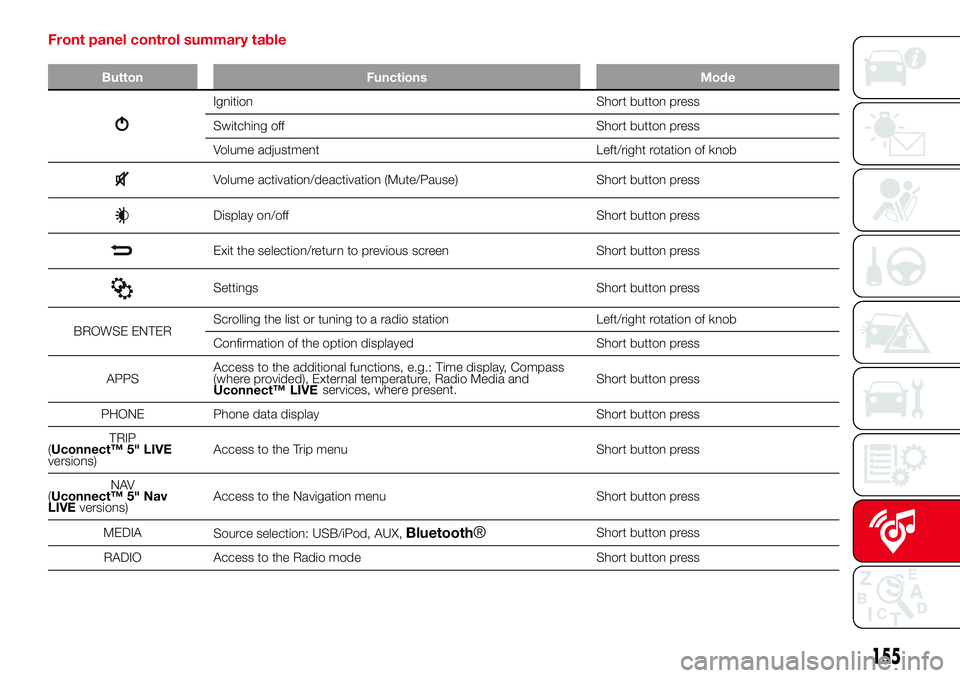
Front panel control summary table
Button Functions Mode
Ignition Short button press
Switching off Short button press
Volume adjustment Left/right rotation of knob
Volume activation/deactivation (Mute/Pause) Short button press
Display on/off Short button press
Exit the selection/return to previous screen Short button press
Settings Short button press
BROWSE ENTERScrolling the list or tuning to a radio station Left/right rotation of knob
Confirmation of the option displayed Short button press
APPSAccess to the additional functions, e.g.: Time display, Compass
(where provided), External temperature, Radio Media and
Uconnect™ LIVEShort button press
PHONE Phone data display Short button press
TRIP
(Uconnect™ 5" LIVE
versions)Access to the Trip menu Short button press
NAV
(Uconnect™ 5" Nav
LIVEversions)Access to the Navigation menu Short button press
MEDIA
Source selection: USB/iPod, AUX,
Bluetooth®Short button press
RADIO Access to the Radio mode Short button press
155
services, where present.
Page 162 of 192
Making a phone call
The operations described below can
only be accessed if supported by
the mobile phone in use.
For all functions available, refer to the
mobile phone owner's handbook.
A call can be made by:
selecting theicon (mobile
phone phonebook);
selecting “Recent Calls”;
selecting theicon;
pressing the “Redial” button.
Text message reader
The system can read the messages
received by the mobile phone.
To use this function the mobile phone
must support the SMS exchange
function throughBluetooth®.
If this function is not supported by the
phone, the corresponding
button is
deactivated (greyed out).
When a text message is received, the
display will show a screen where the
options “Listen”, “Call” or “Ignore” can
be selected.
Press the
button to access the list
of SMS messages received by the
mobile phone (the list displays a
maximum of 60 messages received).Browsing SMS messages
(where provided)
Using the steering wheel commands,
you can view and manage the last
10 SMS messages received on the
instrument panel. To use this function
the mobile phone must support the
SMS exchange function throughBlu-
etooth®.
Select “Phone” on the instrument panel
menu and then select “SMS reader”
using the arrow keys on the steering
wheel controls.
The ‘SMS reader’ submenu allows the
last 10 SMS messages to be displayed.
WARNING Some mobile phones may
not take the SMS delivery confirmation
settings into account when interfacing
withUconnect™. If an SMS message
is sent viaUconnect™, the user could
face an additional cost, without any
warning, due to the SMS delivery
confirmation request sent by the phone.
For any problems related to the above,
contact your telephone service provider.
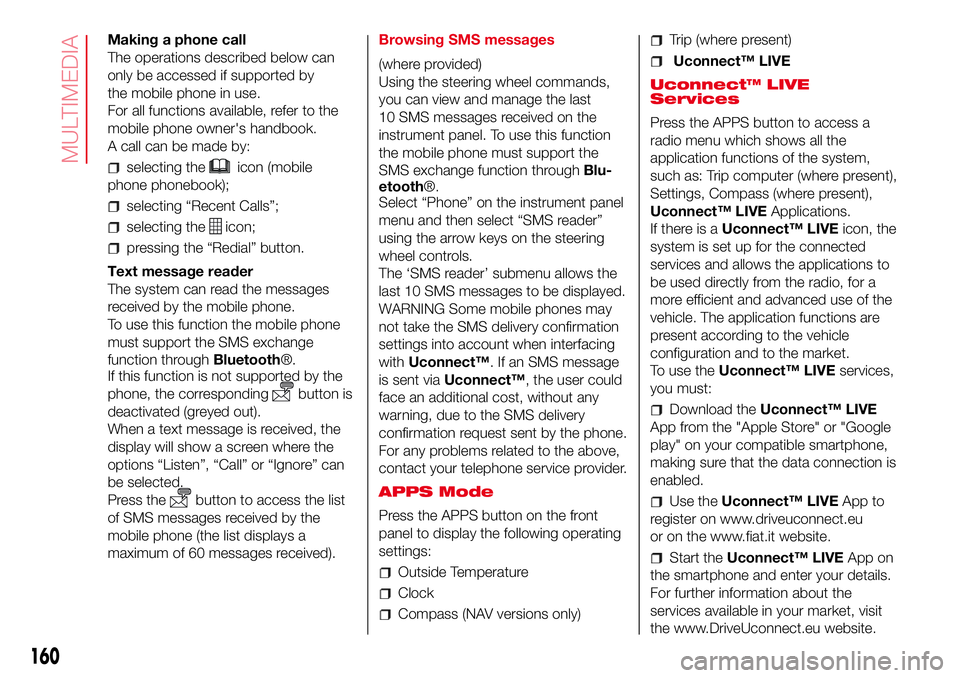
APPS Mode
Press the APPS button on the front
panel to display the following operating
settings:
Outside Temperature
Clock
Compass (NAV versions only)
Trip (where present)
Uconnect™ LIVE
Uconnect™ LIVE
Services
Press the APPS button to access a
radio menu which shows all the
application functions of the system,
such as: Trip computer (where present),
Settings, Compass (where present),
Uconnect™ LIVEApplications.
If there is aUconnect™ LIVEicon, the
system is set up for the connected
services and allows the applications to
be used directly from the radio, for a
more efficient and advanced use of the
vehicle. The application functions are
present according to the vehicle
configuration and to the market.
To use theUconnect™ LIVEservices,
you must:
Download theUconnect™ LIVE
App from the "Apple Store" or "Google
play" on your compatible smartphone,
making sure that the data connection is
enabled.
Use theUconnect™ LIVEApp to
register on www.driveuconnect.eu
or on the www.fiat.it website.
Start theUconnect™ LIVEApp on
the smartphone and enter your details.
For further information about the
services available in your market, visit
the www.DriveUconnect.eu website.
160
MULTIMEDIA
Page 163 of 192
First access to the vehicle
Once you have launched the
Uconnect™ LIVEApp and entered
your details, you have to pair theBlu-
etooth® with your smartphone and the
radio, as described in the "Pairing a
mobile phone" chapter, to access the
Uconnect™LIVE services in your
vehicle.
The list of supported mobile phones is
available on www.driveuconnect.eu.
When pairing is complete, the
connected services can be accessed
by pressing theUconnect™ LIVEicon
on the radio.
When the activation process is
complete, a message will inform the
user. If a personal profile is necessary
for the services, your accounts can
be connected through theUconnect™
LIVEApp, or in your personal area on
www.driveuconnect.eu.
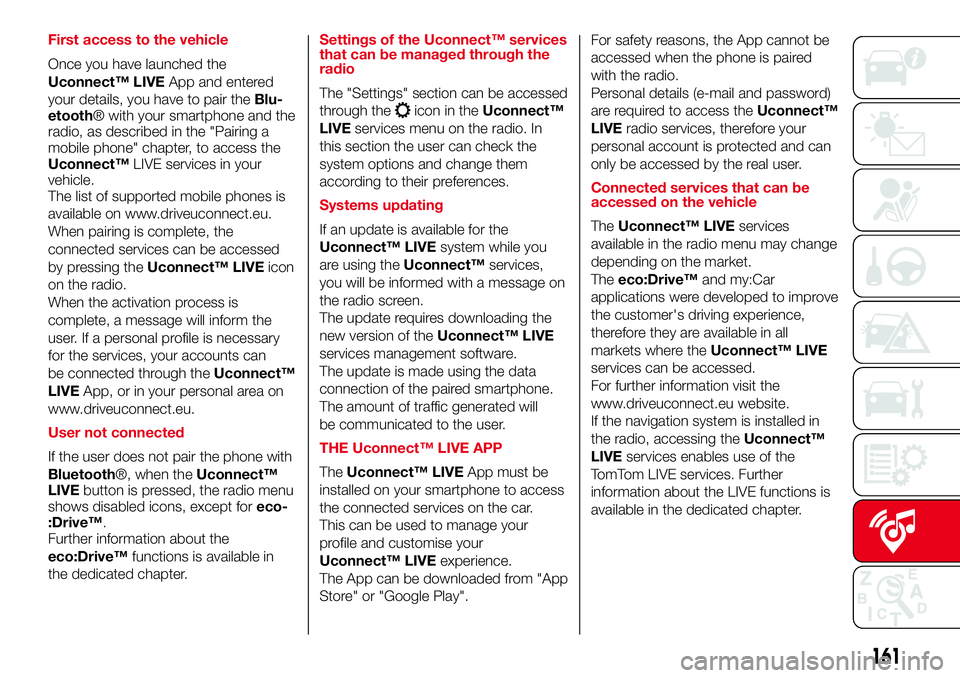
User not connected
If the user does not pair the phone with
Bluetooth®, when theUconnect™
LIVEbutton is pressed, the radio menu
shows disabled icons, except foreco-
:Drive™.
Further information about the
eco:Drive™functions is available in
the dedicated chapter.Settings of the Uconnect™ services
that can be managed through the
radio
The "Settings" section can be accessed
through the
icon in theUconnect™
LIVEservices menu on the radio. In
this section the user can check the
system options and change them
according to their preferences.
Systems updating
If an update is available for the
Uconnect™ LIVEsystem while you
are using theUconnect™services,
you will be informed with a message on
the radio screen.
The update requires downloading the
new version of theUconnect™ LIVE
services management software.
The update is made using the data
connection of the paired smartphone.
The amount of traffic generated will
be communicated to the user.
THE Uconnect™ LIVE APP
TheUconnect™ LIVEApp must be
installed on your smartphone to access
the connected services on the car.
This can be used to manage your
profile and customise your
Uconnect™ LIVEexperience.
The App can be downloaded from "App
Store" or "Google Play".For safety reasons, the App cannot be
accessed when the phone is paired
with the radio.
Personal details (e-mail and password)
are required to access theUconnect™
LIVEradio services, therefore your
personal account is protected and can
only be accessed by the real user.
Connected services that can be
accessed on the vehicle
TheUconnect™ LIVEservices
available in the radio menu may change
depending on the market.
Theeco:Drive™and my:Car
applications were developed to improve
the customer's driving experience,
therefore they are available in all
markets where theUconnect™ LIVE
services can be accessed.
For further information visit the
www.driveuconnect.eu website.
If the navigation system is installed in
the radio, accessing theUconnect™
LIVEservices enables use of the
TomTom LIVE services. Further
information about the LIVE functions is
available in the dedicated chapter.
161
Page 171 of 192
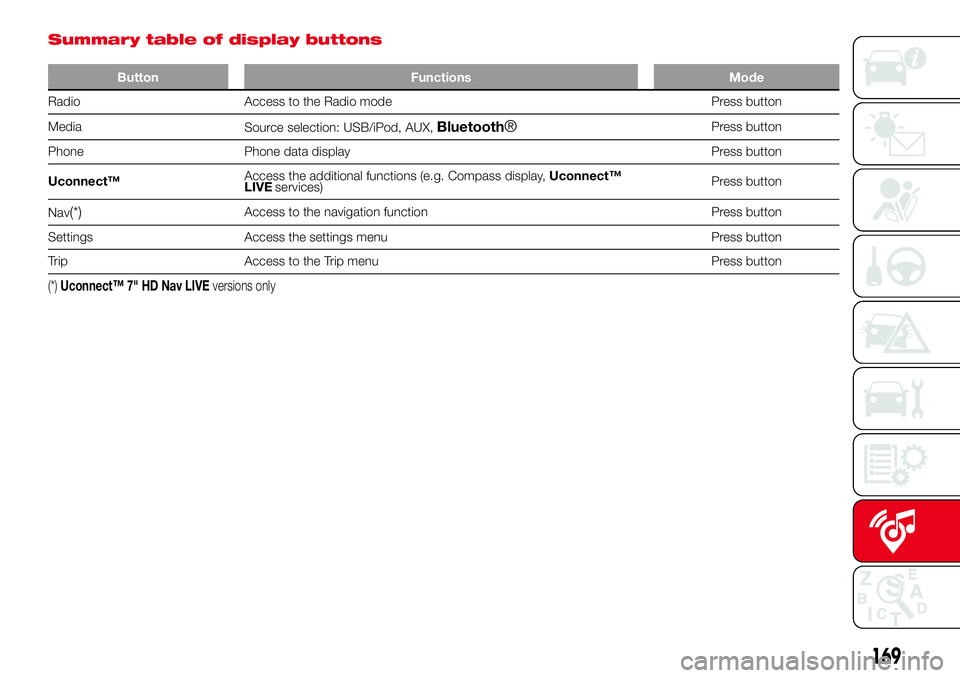
Summary table of display buttons
Button Functions Mode
Radio Access to the Radio mode Press button
Media
Source selection: USB/iPod, AUX,
Bluetooth®Press button
Phone Phone data display Press button
Uconnect™Access the additional functions (e.g. Compass display,Uconnect™
LIVEPress button
Nav
(*)Access to the navigation function Press button
Settings Access the settings menu Press button
Trip Access to the Trip menu Press button
(*)Uconnect™ 7" HD Nav LIVEversions only
169
services)
Page 178 of 192
when the pairing procedure is
completed successfully, a screen is
displayed: answer "Yes" to the question
to pair the mobile phone as favourite
(the mobile phone will have priority over
all other mobile phones to be paired
subsequently). If no other devices are
paired, the system will consider the first
associated device as favourite.
NOTE After updating the phone
software, for proper operation, it is
recommended to remove the phone
from the list of devices linked to the
radio, delete the previous system
pairing also from the list ofBluetooth®
devices on the phone and make a new
pairing.
MAKING A PHONE CALL
The operations described below can
only be accessed if supported by
the mobile phone in use. For all
functions available, refer to the mobile
phone owner's handbook.
A call can be made by:
selecting "Phonebook";
selecting "Recent";
selecting "Dial";
selecting "Redial".FAVOURITES
You can add a number or a contact (if
already in Contacts) to the favourite
list during a call by pressing one of the
five "Empty" graphic buttons on the
upper part of the display. The favourites
can also be managed by using the
Phone Book options.
TEXT MESSAGE READER
The system can read the messages
received by the mobile phone.
To use this function the mobile phone
must support the SMS exchange
function throughBluetooth®.
If this function is not supported by the
phone, the corresponding "Text" button
is deactivated (greyed out). When a
text message is received, the display
will show a screen where the options
"Read", "Show", "Call" or "Ignore" can
be selected.
Press the "Text" graphic button to
access the list of text messages
received by the mobile phone (the list
displays a maximum of 60 messages
received).DO NOT DISTURB FUNCTION
By pressing the "Do not disturb"
graphic button the user will not receive
notifications in case of incoming calls
or text messages. The user can reply
with a default or customised message
by means of the settings.
SIRI EYES FREE
(available only with iPhone 4S and
subsequent versions and compatible
iOS versions)
After having paired the Siri enabled
device toUconnect™, hold the
button on the steering wheel
pressed and then release it.
After the double beep, you can start
interacting with Siri, to listen to music,
get directions, read text messages
and more.
Uconnect™ LIVE
SERVICES
Press theUconnect™button to
access theUconnect™ LIVE
applications.
The services available depend on the
car configuration and the market.
To use theUconnect™ LIVEservices,
you need to download theUconnect™
LIVEapp from Google Play or Apple
Store and register using the app or on
www.DriveUconnect.eu.
176
MULTIMEDIA
Page 179 of 192
First access to the vehicle
Once you have launched the
Uconnect™ LIVEApp and entered
your details, you have to pair theBlu-
etooth® with your smartphone and the
radio, as described in the "Pairing a
mobile phone" chapter, to access the
Uconnect™ LIVEservices in your
vehicle.
When pairing is complete, the
connected services can be accessed
by pressing theUconnect™ LIVEicon
on the radio.
Before you can use the connected
services, you must first do theBlu-
etooth® pairing, then complete the
activation procedure by following the
instructions that appear in theUcon-
nect™ LIVEapp.
Uconnect™ LIVE services setup
using the radio
In theUconnect™ LIVEradio menu
the "Settings" section can be accessed
by pressing the
icon. In this section
the user can check the system options
and change them according to their
preferences.
System updates
If an update for theUconnect™ LIVE
system is available while the
Uconnect™ LIVEservices are being
used, the user will be informed with
a message on the radio screen.Abarth Telemetry
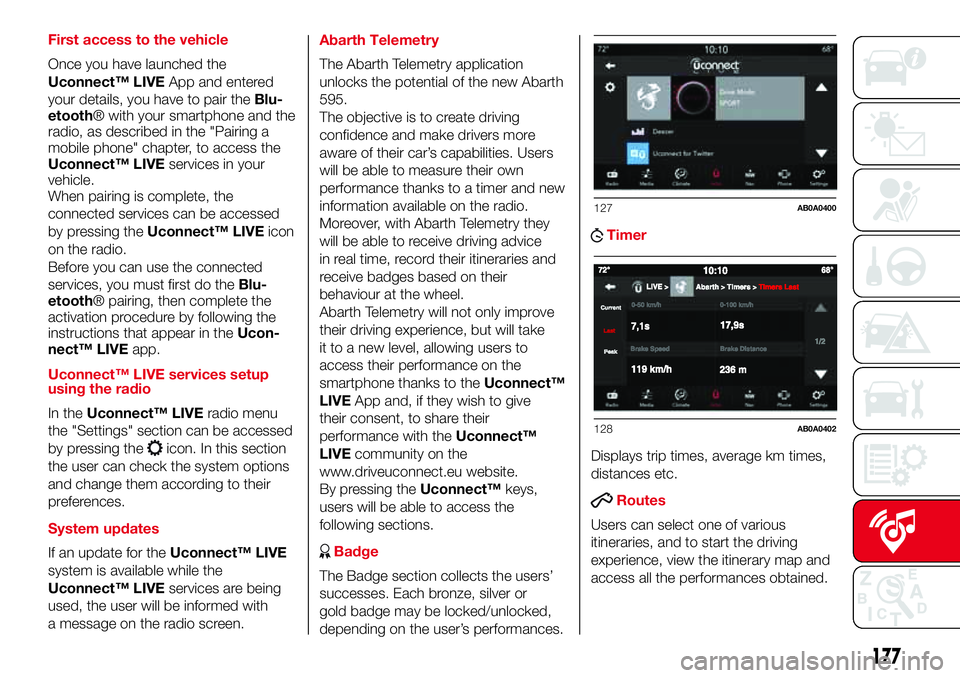
The Abarth Telemetry application
unlocks the potential of the new Abarth
595.
The objective is to create driving
confidence and make drivers more
aware of their car’s capabilities. Users
will be able to measure their own
performance thanks to a timer and new
information available on the radio.
Moreover, with Abarth Telemetry they
will be able to receive driving advice
in real time, record their itineraries and
receive badges based on their
behaviour at the wheel.
Abarth Telemetry will not only improve
their driving experience, but will take
it to a new level, allowing users to
access their performance on the
smartphone thanks to theUconnect™
LIVEApp and, if they wish to give
their consent, to share their
performance with theUconnect™
LIVEcommunity on the
www.driveuconnect.eu website.
By pressing theUconnect™keys,
users will be able to access the
following sections.
Badge
The Badge section collects the users’
successes. Each bronze, silver or
gold badge may be locked/unlocked,
depending on the user’s performances.
Timer
Displays trip times, average km times,
distances etc.
Routes
Users can select one of various
itineraries, and to start the driving
experience, view the itinerary map and
access all the performances obtained.
127AB0A0400
128AB0A0402
177
Page 180 of 192
Moreover, after selecting the route,
users can access their best
performances and their sessions. Tips
and useful information are available
while driving.
ABMy itineraries
Users can create customised itineraries
or select an itinerary from those that
they have created previously. They can
also record the GPS tracking from
the starting point“A”tothe
destination“B“.After recording the
A-B tracking, the GPS coordinates will
be used to create a customised
itinerary that may be reused by the user
in the future.
Settings
Through the settings, users can select
the measurement units and do a
backup.
Recording and transferring trip data
The trip data can be stored in the
system memory and made available
outside the car thanks to the
Uconnect™ LIVEApp. This allows
users to view the collected data later,
showing the overall trip data analysis.
Further information is available at
www.driveuconnect.eu.For full access to the service’s
functionality, users must allow their data
to be recorded on-board the car. The
following icon
is the user’s
geo-location indicator. Through
Uconnect™ LIVEsmartphone App,
users can choose to enable detection
of their location and to share their
data with the community.
my:Car
my:Car allows you to keep the "health"
of your vehicle always under control.
my:Car can detect malfunction in real
time and inform the user about the
expiry of the servicing interval. Press
the "my:Car" button to interact with the
application.
The display will show a screen with the
"care:Index" section, which provides
all the detailed information about the
status of the vehicle. Press the "Active
warnings" button to show (if present)
the details of the vehicle's faults which
caused a warning light to switch on.
SETTINGS
Press the “Settings” button on the
display to show the main “Settings”
menu.
Note
The menu items displayed vary
according to the versions.The menu includes the following items:
Language;
Display;
Units;
Voice commands;
Time & Date;
Lights;
Doors & Locks;
Engine Off Options;
Audio;
Phone/Bluetooth®;
Radio Setup;
Restore default settings;
Clear personal data.
NAVIGATION (Uconnect™
7" HD Nav LIVE only)
Press the "Nav" button to show the
navigation map on the display.
NOTE: The navigation system volume
can only be adjusted during navigation
when the system provides voice
indications.
Main navigation menu
In the navigation view, tap the "Main
menu" button to open the menu:
Select the "Search" button to search
for an address, a place or a point of
interest, then plan a route to the
location.
178
MULTIMEDIA
Page 181 of 192

Select the "Current trip" button to
delete or edit the planned route.
Select the "My places" button to
create a collection of useful or preferred
addresses. The following items are
always available in "My places": “Home”
and “Recent destinations”.
Select the "Parking" button to
search for car parks.
Select the "Weather" or "Speed
Camera Warning" button to receive
information on the weather or warnings
about speed camera locations.
NOTE The "Weather" and "Speed
Camera Warnings" functions are only
active if TomTom Services are activated.
Otherwise, the button will appear
greyed out (and the function will not be
available).
Select the "Petrol Station" button to
search for petrol stations.
Select the "TomTom Services"
button to view the activation state of
the following services (subscription
needed): “Traffic”, “Speed cameras”,
“Weather”, “Online search”.
Select this button to open the
"Settings" menu;
Select this graphic button to
open the "Help" menu. The
"Help" menu contains
information on the Uconnect
system, for example the
map version, the serial
number of the device and the
legal notices.
Select this button to return to
the navigation view.
Select this button to
activate/deactivate voice
instructions. Select off to no
longer hear voice instructions.
You will still receive
information such as traffic
information and warning
sounds.Tip:you can
deactivate the warning
sounds by selecting
“Settings”, then “Sounds and
warnings”.
Select this button to
increase/decrease the screen
brightness and display the
map in brighter/darker
colours. When driving at night
or in unlit tunnels, watching
the screen is more
comfortable and less
distracting for the driver if the
map uses darker colours.
Tip:the device will
automatically switch between
day and night view depending
on the time of day. To
deactivate this function, select
“Appearance” in the
“Settings” menu and deselect
the option "Switch to night
colours" when it is dark.
VOICE COMMANDS
NOTE For languages not supported by
the system, voice commands are not
available.
To use the voice commands, press the
button on the steering wheel and say
the command you want to activate out
loud.
Global
The following voice commands can be
given after pressing the
button on
the steering wheel:
Help
179
Page 186 of 192

Mopar Vehicle Protectionoffers a series of service contracts that are designed to give all our customers the
pleasure of driving their vehicle without any hitch's and concerns.
Our product portfolio consists of a wide and flexible range of extended warranty and maintenance plans
endorsed by FCA. Each with a series of different coverage tiers, in terms of durability and mileage, built to
accommodate you’re driving needs.
Service contracts are made by experts that know every part of your vehicle, and commit themselves
to maintain it in tip top conditions. Our knowledge and passion is tailored around designing
products that promises all our drivers “worry-free driving”.
Only with Mopar Vehicle Protection you are ensured that all service operations are performed
by highly qualified and specialized technicians in authorized FCA repair facilities, using the right tools,
equipment and only original parts, all over Europe.
Check which Service Contract plans are available on your market today and choose the
Service Contract that suits your driving habits best.
Ask your local dealer for further information.
MAINTAIN YOUR VEHICLE IN
TIP TOP CONDITIONS WITH