buttons Acura ILX 2013 User Guide
[x] Cancel search | Manufacturer: ACURA, Model Year: 2013, Model line: ILX, Model: Acura ILX 2013Pages: 351, PDF Size: 8.21 MB
Page 154 of 351
153
uuAudio System Basic OperationuPlaying the XM® Radio
*
Continued
Features
Playing the XM® Radio
*
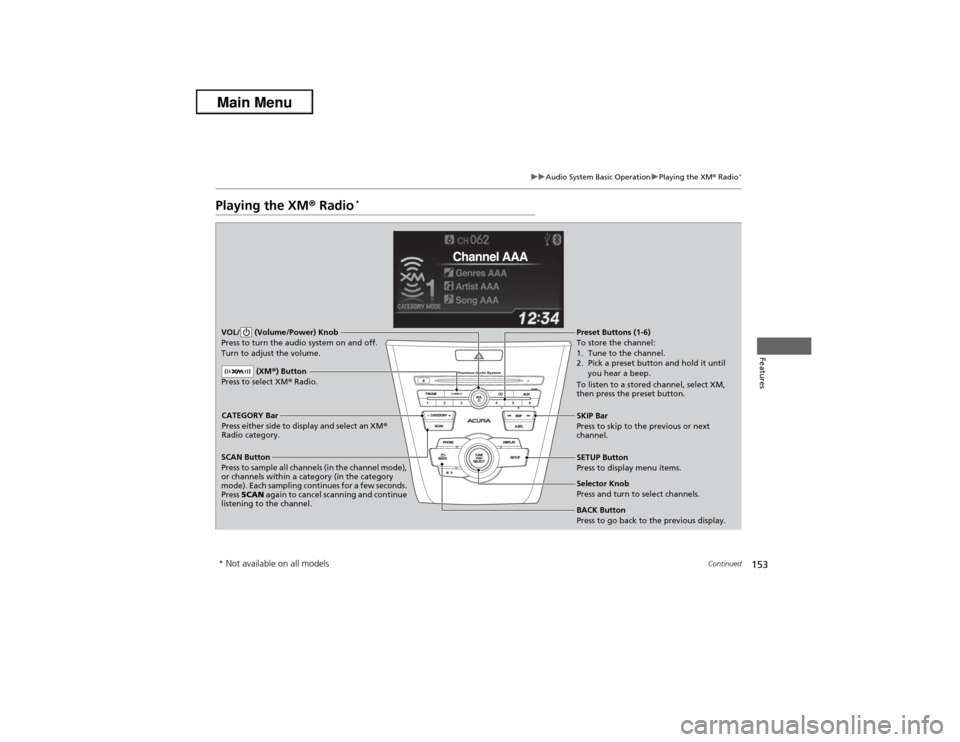
SCAN Button
Press to sample all channels (in the channel mode),
or channels within a category (in the category
mode). Each sampling continues for a few seconds.
Press SCAN again to cancel scanning and continue
listening to the channel. VOL/ (Volume/Power) Knob
Press to turn the audio system on and off.
Turn to adjust the volume.
SETUP Button
Press to display menu items.
Selector Knob
Press and turn to select channels. CATEGORY Bar
Press either side to display and select an XM®
Radio category.SKIP Bar
Press to skip to the previous or next
channel.
(XM®) Button
Press to select XM® Radio.
Preset Buttons (1-6)
To store the channel:
1. Tune to the channel.
2. Pick a preset button and hold it until
you hear a beep.
To listen to a stored channel, select XM,
then press the preset button.BACK Button
Press to go back to the previous display.
* Not available on all models
Page 155 of 351
uuAudio System Basic OperationuPlaying the XM® Radio
*
154Features
1.Press the button to select the XM® radio band (XM1 or XM2).
2.Press the SETUP button, rotate to select XM Mode, and press . Rotate
to select Channel Mode or Category Mode, then press .
3.Select a channel using the TUNE ( ), SKIP, CATEGORY, SCAN, or Preset
buttons.
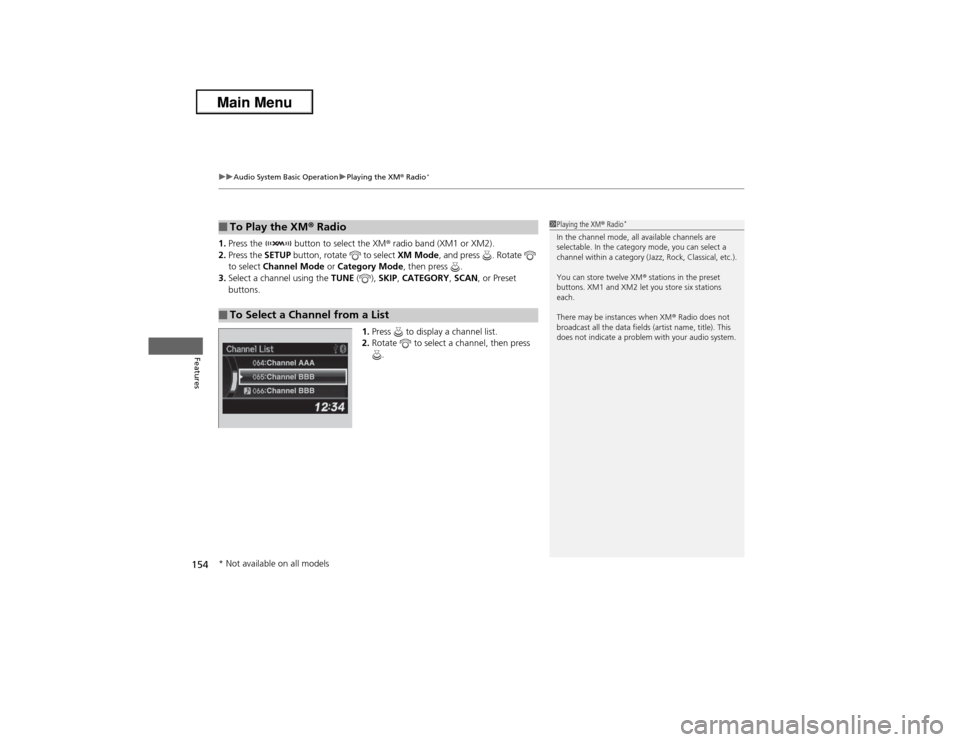
1.Press to display a channel list.
2.Rotate to select a channel, then press
.■To Play the XM® Radio■To Select a Channel from a List
1Playing the XM® Radio
*
In the channel mode, all available channels are
selectable. In the category mode, you can select a
channel within a category (Jazz, Rock, Classical, etc.).
You can store twelve XM® stations in the preset
buttons. XM1 and XM2 let you store six stations
each.
There may be instances when XM® Radio does not
broadcast all the data fields (artist name, title). This
does not indicate a problem with your audio system.
* Not available on all models
Page 178 of 351
177
Continued
Features
HomeLink® Universal Transceiver
*
The HomeLink® Universal Transceiver can be programmed to operate up to three
remote controlled devices around your home, such as garage doors, lighting, or
home security systems.
Refer to the safety information that comes with your garage door opener to test that
the safety features are functioning properly. If you do not have the safety
information, contact the manufacturer.
Before programming HomeLink, make sure that people and objects are out of the
way of the garage or gate to prevent potential injury or damage.
When programming a garage door opener, park just outside the garage door’s
path.Training HomeLink
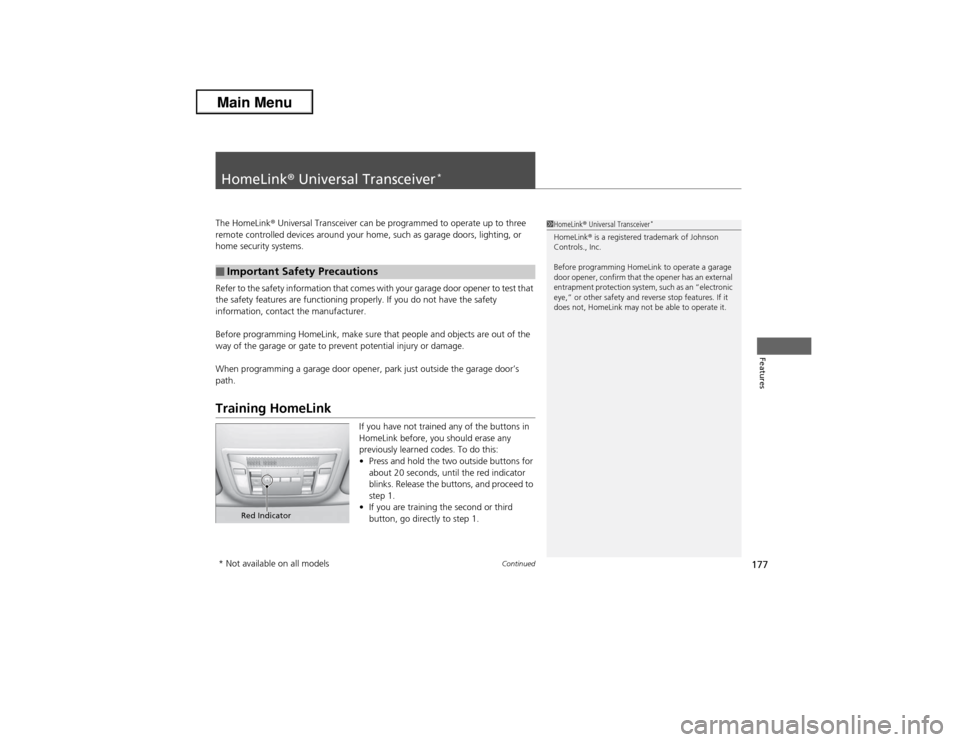
If you have not trained any of the buttons in
HomeLink before, you should erase any
previously learned codes. To do this:
•Press and hold the two outside buttons for
about 20 seconds, until the red indicator
blinks. Release the buttons, and proceed to
step 1.
•If you are training the second or third
button, go directly to step 1.
■Important Safety Precautions
1HomeLink® Universal Transceiver
*
HomeLink® is a registered trademark of Johnson
Controls., Inc.
Before programming HomeLink to operate a garage
door opener, confirm that the opener has an external
entrapment protection system, such as an “electronic
eye,” or other safety and reverse stop features. If it
does not, HomeLink may not be able to operate it.
Red Indicator
* Not available on all models
Page 179 of 351
uuHomeLink® Universal Transceiver
*uTraining HomeLink
178Features
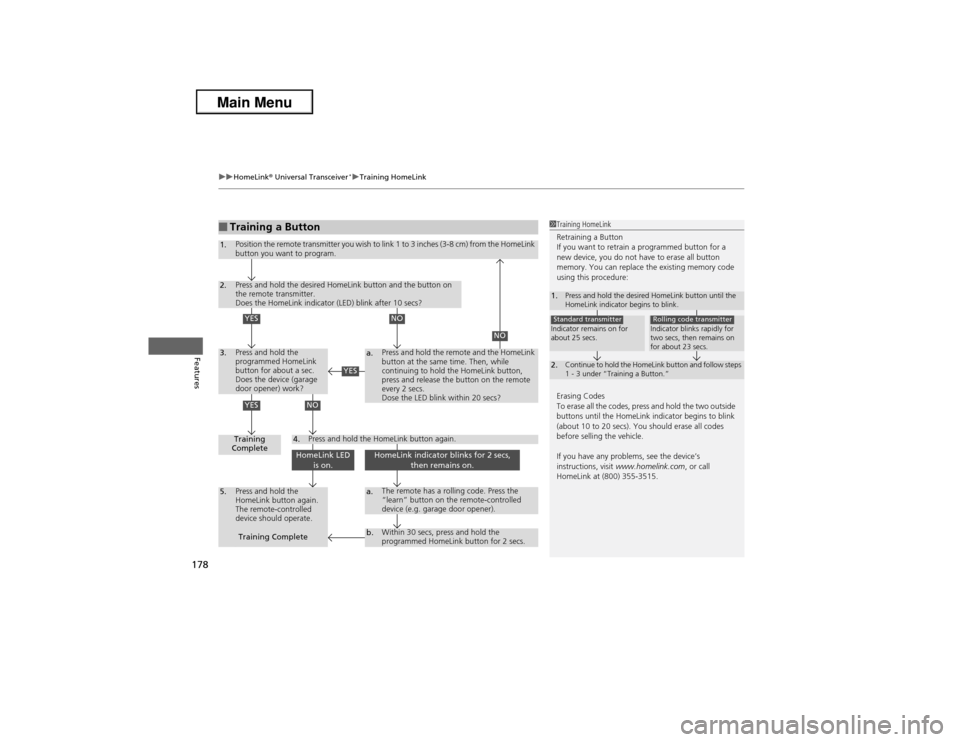
■Training a Button
1Training HomeLink
Retraining a Button
If you want to retrain a programmed button for a
new device, you do not have to erase all button
memory. You can replace the existing memory code
using this procedure:
Erasing Codes
To erase all the codes, press and hold the two outside
buttons until the HomeLink indicator begins to blink
(about 10 to 20 secs). You should erase all codes
before selling the vehicle.
If you have any problems, see the device’s
instructions, visit www.homelink.com, or call
HomeLink at (800) 355-3515.1.
Press and hold the desired HomeLink button until the
HomeLink indicator begins to blink.
2.
Continue to hold the HomeLink button and follow steps
1 - 3 under “Training a Button.”
Indicator remains on for
about 25 secs.Standard transmitter
Indicator blinks rapidly for
two secs, then remains on
for about 23 secs.Rolling code transmitter
1.
Position the remote transmitter you wish to link 1 to 3 inches (3-8 cm) from the HomeLink
button you want to program.
2.3.
Press and hold the desired HomeLink button and the button on
the remote transmitter.
Does the HomeLink indicator (LED) blink after 10 secs?Press and hold the
programmed HomeLink
button for about a sec.
Does the device (garage
door opener) work?
a.
4.
5.
a.b.
Training
CompletePress and hold the
HomeLink button again.
The remote-controlled
device should operate.
The remote has a rolling code. Press the
“learn” button on the remote-controlled
device (e.g. garage door opener).Within 30 secs, press and hold the
programmed HomeLink button for 2 secs.
Press and hold the HomeLink button again.
Training Complete
Press and hold the remote and the HomeLink
button at the same time. Then, while
continuing to hold the HomeLink button,
press and release the button on the remote
every 2 secs.
Dose the LED blink within 20 secs?
HomeLink LED
is on.
HomeLink indicator blinks for 2 secs,
then remains on.
YES
NO
NO
YES
YES
NO
Page 180 of 351
179
Continued
Features
Bluetooth® HandsFreeLink®For models with the navigation system, see Navigation System Manual for how to
operate the Bluetooth® HandsFreeLink®.
Bluetooth® HandsFreeLink® (HFL) allows you to place and receive phone calls using
your vehicle's audio system, without handling your cell phone.Using HFL
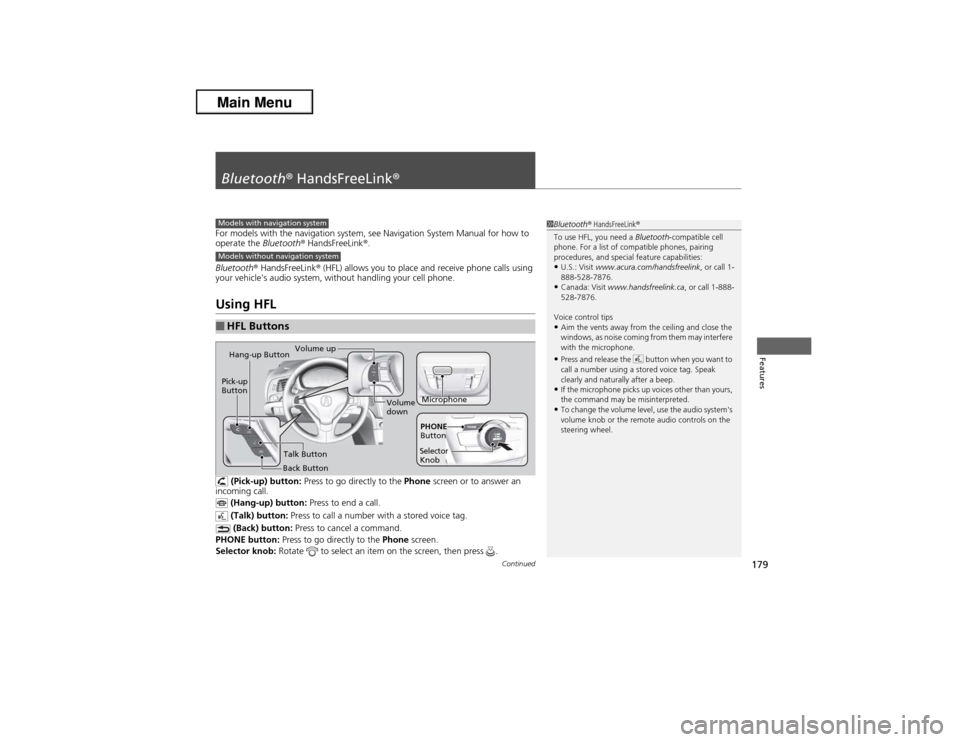
(Pick-up) button: Press to go directly to the Phone screen or to answer an
incoming call.
(Hang-up) button: Press to end a call.
(Talk) button: Press to call a number with a stored voice tag.
(Back) button: Press to cancel a command.
PHONE button: Press to go directly to the Phone screen.
Selector knob: Rotate to select an item on the screen, then press .
■HFL Buttons
1Bluetooth® HandsFreeLink®
To use HFL, you need a Bluetooth-compatible cell
phone. For a list of compatible phones, pairing
procedures, and special feature capabilities:•U.S.: Visit www.acura.com/handsfreelink, or call 1-
888-528-7876.•Canada: Visit www.handsfreelink.ca, or call 1-888-
528-7876.
Voice control tips•Aim the vents away from the ceiling and close the
windows, as noise coming from them may interfere
with the microphone.•Press and release the button when you want to
call a number using a stored voice tag. Speak
clearly and naturally after a beep.•If the microphone picks up voices other than yours,
the command may be misinterpreted.•To change the volume level, use the audio system's
volume knob or the remote audio controls on the
steering wheel.
Models with navigation systemModels without navigation system
Microphone Pick-up
Button
Selector
KnobPHONE
Button
Hang-up Button
Volume up
Volume
down
Back ButtonTalk Button
Page 197 of 351
uuBluetooth® HandsFreeLink®uHFL Menus
196Features
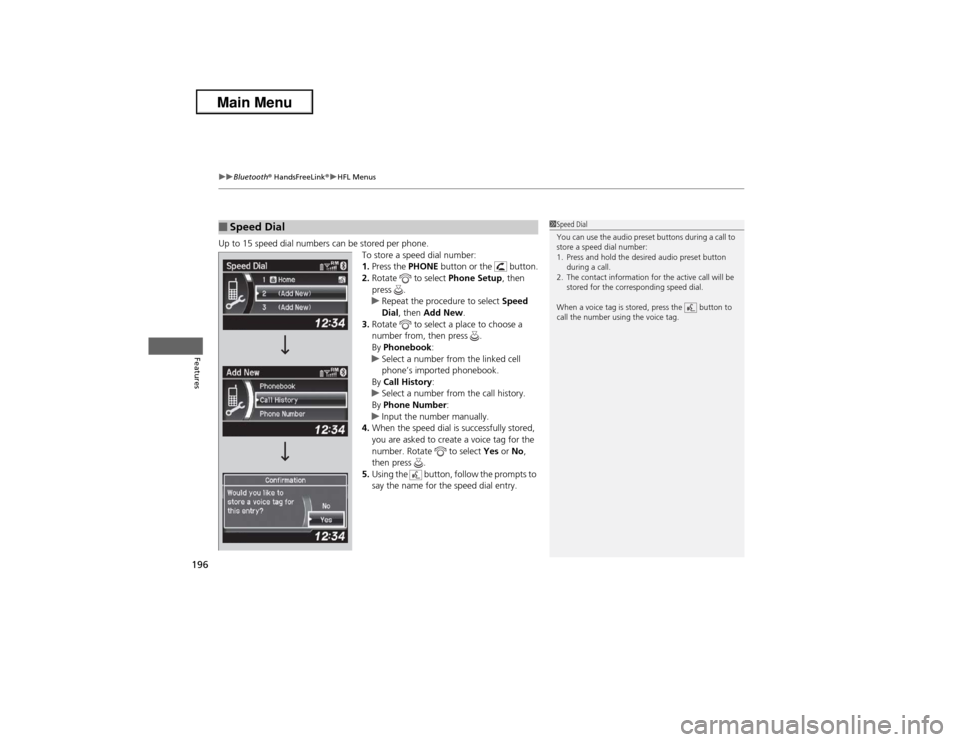
Up to 15 speed dial numbers can be stored per phone.
To store a speed dial number:
1.Press the PHONE button or the button.
2.Rotate to select Phone Setup, then
press .
uRepeat the procedure to select Speed
Dial, then Add New.
3.Rotate to select a place to choose a
number from, then press .
By Phonebook:
uSelect a number from the linked cell
phone’s imported phonebook.
By Call History:
uSelect a number from the call history.
By Phone Number:
uInput the number manually.
4.When the speed dial is successfully stored,
you are asked to create a voice tag for the
number. Rotate to select Yes or No,
then press .
5.Using the button, follow the prompts to
say the name for the speed dial entry.■Speed Dial
1Speed Dial
You can use the audio preset buttons during a call to
store a speed dial number:
1. Press and hold the desired audio preset button
during a call.
2. The contact information for the active call will be
stored for the corresponding speed dial.
When a voice tag is stored, press the button to
call the number using the voice tag.
Page 201 of 351
uuBluetooth® HandsFreeLink®uHFL Menus
200Features
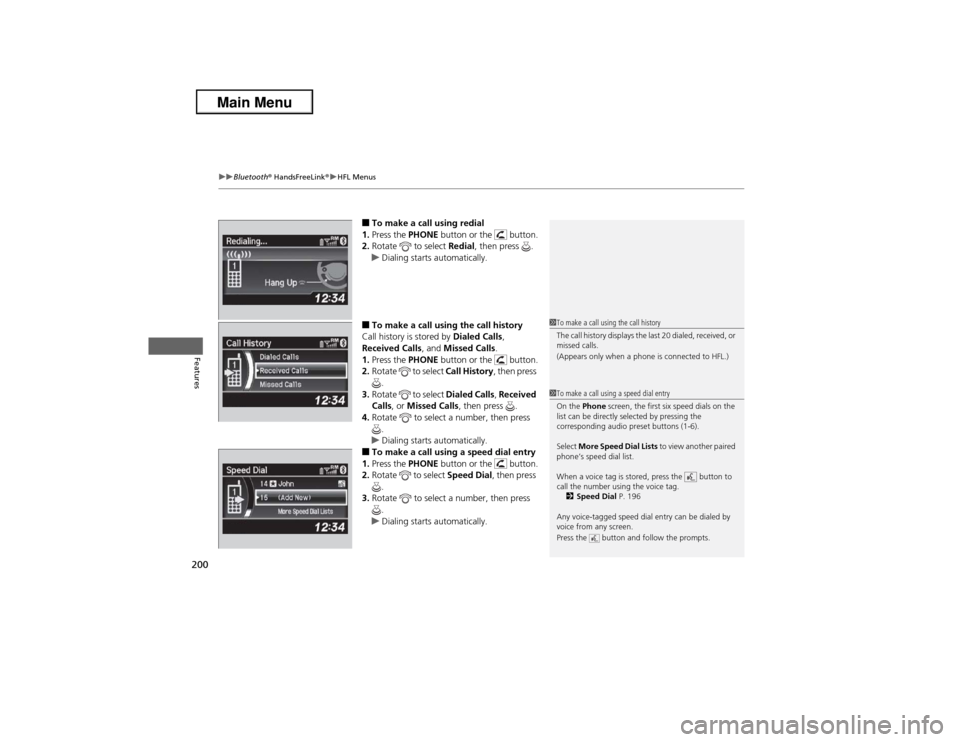
■To make a call using redial
1.Press the PHONE button or the button.
2.Rotate to select Redial, then press .
uDialing starts automatically.■To make a call using the call history
Call history is stored by Dialed Calls,
Received Calls, and Missed Calls.
1.Press the PHONE button or the button.
2.Rotate to select Call History, then press
.
3.Rotate to select Dialed Calls, Received
Calls, or Missed Calls, then press .
4.Rotate to select a number, then press
.
uDialing starts automatically.■To make a call using a speed dial entry
1.Press the PHONE button or the button.
2.Rotate to select Speed Dial, then press
.
3.Rotate to select a number, then press
.
uDialing starts automatically.
1To make a call using the call history
The call history displays the last 20 dialed, received, or
missed calls.
(Appears only when a phone is connected to HFL.)1To make a call using a speed dial entry
On the Phone screen, the first six speed dials on the
list can be directly selected by pressing the
corresponding audio preset buttons (1-6).
Select More Speed Dial Lists to view another paired
phone’s speed dial list.
When a voice tag is stored, press the button to
call the number using the voice tag.
2Speed Dial P. 196
Any voice-tagged speed dial entry can be dialed by
voice from any screen.
Press the button and follow the prompts.
Page 232 of 351
231
uuWhen DrivinguCruise Control
Driving
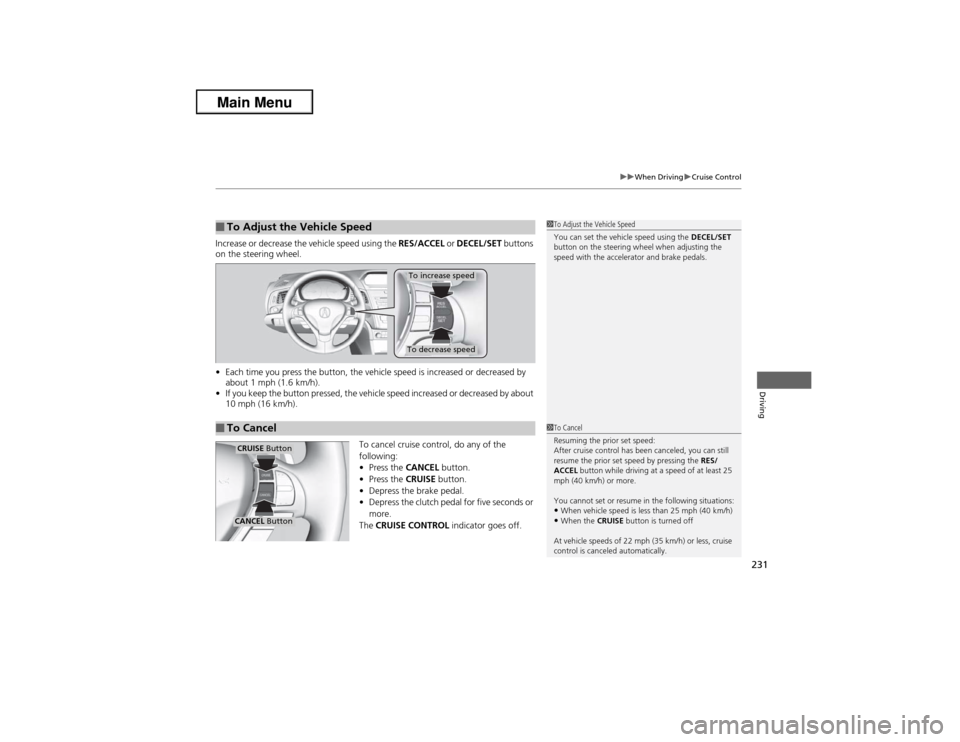
Increase or decrease the vehicle speed using the RES/ACCEL or DECEL/SET buttons
on the steering wheel.
•Each time you press the button, the vehicle speed is increased or decreased by
about 1 mph (1.6 km/h).
•If you keep the button pressed, the vehicle speed increased or decreased by about
10 mph (16 km/h).
To cancel cruise control, do any of the
following:
•Press the CANCEL button.
•Press the CRUISE button.
•Depress the brake pedal.
•Depress the clutch pedal for five seconds or
more.
The CRUISE CONTROL indicator goes off.■To Adjust the Vehicle Speed
1To Adjust the Vehicle Speed
You can set the vehicle speed using the DECEL/SET
button on the steering wheel when adjusting the
speed with the accelerator and brake pedals.
■To Cancel
To decrease speedTo increase speed
1To Cancel
Resuming the prior set speed:
After cruise control has been canceled, you can still
resume the prior set speed by pressing the RES/
ACCEL button while driving at a speed of at least 25
mph (40 km/h) or more.
You cannot set or resume in the following situations:•When vehicle speed is less than 25 mph (40 km/h)•When the CRUISE button is turned off
At vehicle speeds of 22 mph (35 km/h) or less, cruise
control is canceled automatically.
CRUISE ButtonCANCEL Button
Page 313 of 351
312
uuEngine Does Not StartuIf the Keyless Access Remote Battery is Weak
Handling the Unexpected
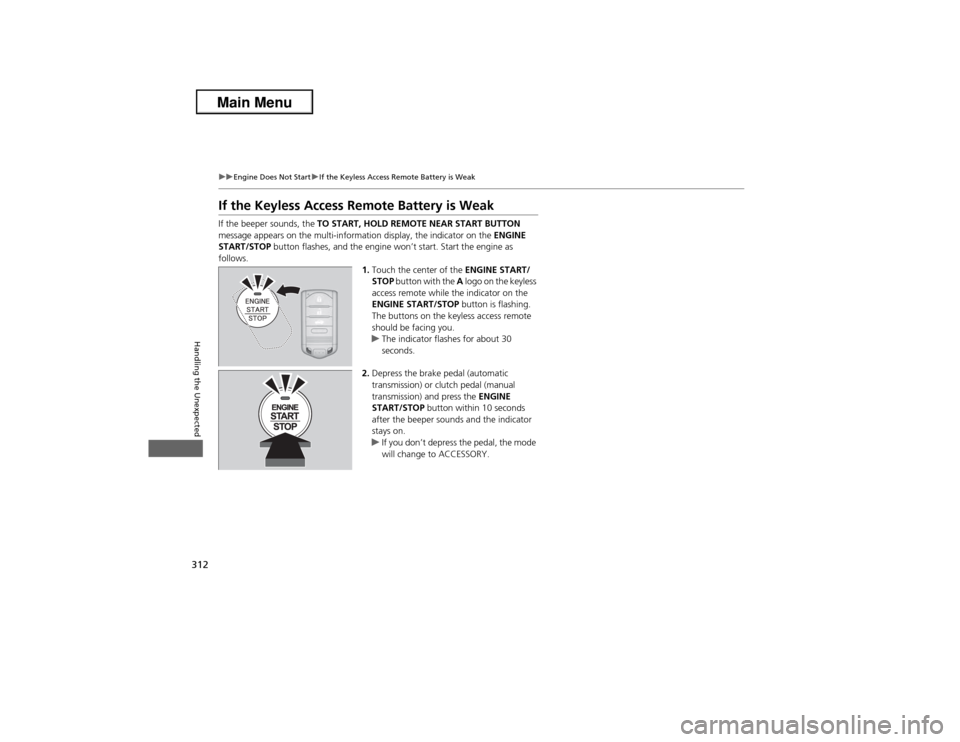
If the Keyless Access Remote Battery is WeakIf the beeper sounds, the TO START, HOLD REMOTE NEAR START BUTTON
message appears on the multi-information display, the indicator on the ENGINE
START/STOP button flashes, and the engine won’t start. Start the engine as
follows.
1.Touch the center of the ENGINE START/
STOP button with the A logo on the keyless
access remote while the indicator on the
ENGINE START/STOP button is flashing.
The buttons on the keyless access remote
should be facing you.
uThe indicator flashes for about 30
seconds.
2.Depress the brake pedal (automatic
transmission) or clutch pedal (manual
transmission) and press the ENGINE
START/STOP button within 10 seconds
after the beeper sounds and the indicator
stays on.
uIf you don’t depress the pedal, the mode
will change to ACCESSORY.
Page 347 of 351

346Index
HHalogen Bulbs................................... 274, 276
Handling the Unexpected........................ 303
HandsFreeLink® (HFL)............................... 179
Automatic Import of Cellular Phonebook and
Call History ............................................ 195
Automatic Transferring ............................ 193
Caller’s ID Information ............................. 193
HFL Buttons ............................................. 179
HFL Menus .............................................. 181
HFL Status Display.................................... 180
Making a Call .......................................... 198
Options During a Call .............................. 202
Phone Setup ............................................ 186
Receiving a Call ....................................... 201
Speed Dial ............................................... 196
Text Message................................... 191, 203
To Clear the System ................................. 194
To Create a Security PIN........................... 192
Hazard Warning Button............................... 2
Head Restraints......................................... 126
Headlights................................................. 114
Aiming .................................................... 274
Automatic Operation ............................... 115
Dimming ......................................... 114, 117
Operating ................................................ 114
Heaters (Seat)............................................ 135
HFL (HandsFreeLink®)............................... 179
High-Beam Indicator.................................. 70
Hill Start Assist System.............................. 219
HomeLink® Universal Transceiver............ 177
IIdentification Numbers............................ 334
Engine and Transmission ......................... 334
Vehicle Identification ............................... 334
Illumination Control................................. 119
Knob ....................................................... 119
Immobilizer System.................................. 106
Indicator.................................................... 71
Indicators.................................................... 64
ABS (Anti-lock Brake System)..................... 67
Charging System ............................... 65, 320
CRUISE CONTROL ............................. 72, 230
CRUISE MAIN .................................... 72, 229
Door and Trunk Open ......................... 25, 69
EPS (Electric Power Steering)
System ............................................ 68, 322
Fog Light ................................................... 70
High-Beam ................................................ 70
Immobilizer System ................................... 71
Keyless Access System ............................... 72
Lights On .................................................. 70
Low Fuel ................................................... 67
Low Oil Pressure ................................ 64, 320
Low Tire Pressure/TPMS ............. 69, 234, 235
Maintenance Minder ............................... 251
Malfunction Indicator Lamp............... 65, 321
Parking Brake and Brake System ........ 64, 322
Seat Belt Reminder .............................. 27, 66
Security System Alarm ............................... 72
Shift Lever Position .................................... 65
Side Airbag Off ................................... 46, 71Supplemental Restraint System ........... 44, 67
System Message ....................................... 70
Transmission ............................................. 66
Turn Signal ............................................... 70
VSA® (Vehicle Stability Assist)
System ............................................ 68, 232
VSA® OFF.......................................... 68, 233
Information.............................................. 329
Information Buttons............................ 79, 83
Instant Fuel Economy................................ 81
Instrument Panel........................................ 63
Brightness Control .................................. 119
Interior Lights........................................... 131
Interior Rearview Mirror......................... 121
Internet Radio.......................................... 161
iPhone®..................................................... 176
iPod®......................................................... 158
JJack (Wheel Nut Wrench)........................ 308
Jump Starting........................................... 314KKey Number Tag........................................ 94
Keyless Access System................................ 96
Keyless Lockout Prevention....................... 98
Keys............................................................. 93
Lockout Prevention ................................... 98
Number Tag.............................................. 94