phone Acura ILX 2015 Owner's Guide
[x] Cancel search | Manufacturer: ACURA, Model Year: 2015, Model line: ILX, Model: Acura ILX 2015Pages: 353, PDF Size: 16.19 MB
Page 189 of 353

188
uuBluetooth ® HandsFreeLink ®u HFL Menus
Features
6. Make sure your phone is in search or
discoverable mode, then press .
u HFL automatically searches for a
Bluetooth device.
7. When your phone appears on the list, select
it by pressing .
u If your phone doesn’t appear, select
Phone Not Found? and search for
Bluetooth devices using your phone.
From your phone, select
HandsFreeLink .
8. HFL gives you a four-digit pairing code to
input on your phone.
When your phone prompts you, input the
four-digit pairing code.
9. You will receive a notifi cation on the screen
if pairing is successful.
15 ACURA ILX-31TX66200.book 188 ページ 2014年3月27日 木曜日 午前10時34分
Page 190 of 353

Continued189
uuBluetooth ® HandsFreeLink ®u HFL Menus
Features
■To change the pairing code setting
1. Press the PHONE button or the button.
2. Rotate to select Phone Setup, then
press .
3. Rotate to select Connection, then press
.
4. Rotate to select Pairing Code, then
press .
5. Rotate to select Fixed or Random , then
press .1 To change the pairing code setting
The default pair ing code is 0000 until you change the
setting.
To create your own, select Fixed, and delete the
current code, then enter a new one.
For a randomly generated pa iring code each time you
pair a phone , select Random .
15 ACURA ILX-31TX66200.book 189 ページ 2014年3月27日 木曜日 午前10時34分
Page 191 of 353

190
uuBluetooth ® HandsFreeLink ®u HFL Menus
Features
■To delete a paired phone
1. Press the PHONE button or the button.
2. Rotate to select Phone Setup, then
press .
u Repeat the procedure to select
Connection, then Delete a Phone.
3. Rotate to select a phone you want to
delete, then press .
4. You will receive a confirmation message on
the screen. Rotate to select Yes, then
press .
u You will receive a notification on the
screen if it is successful.
15 ACURA ILX-31TX66200.book 190 ページ 2014年3月27日 木曜日 午前10時34分
Page 192 of 353
Continued191
uuBluetooth ® HandsFreeLink ®u HFL Menus
Features
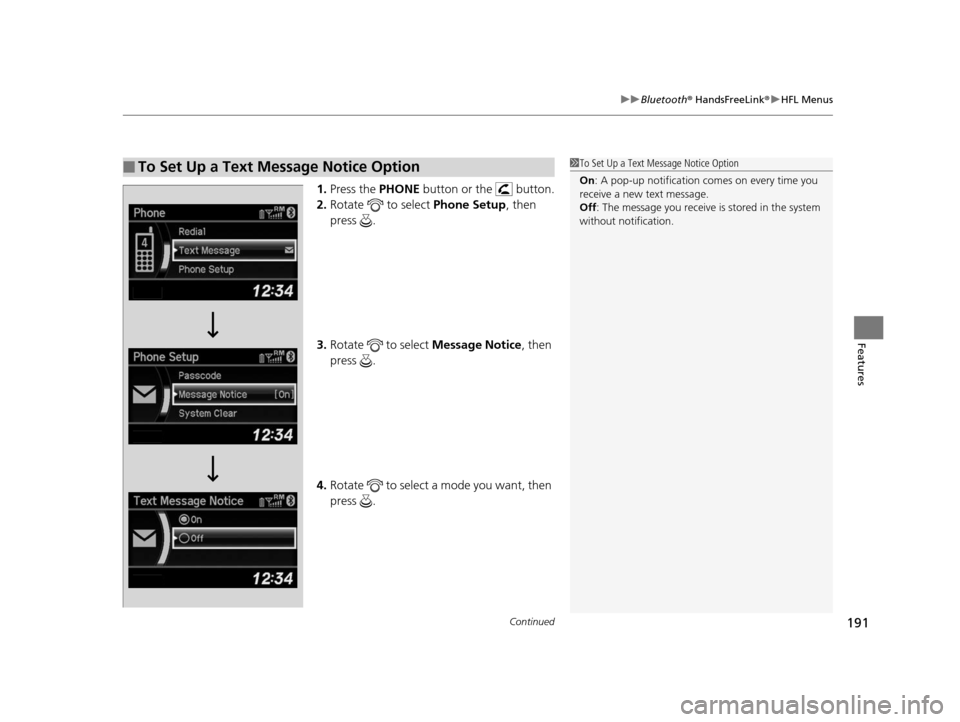
1. Press the PHONE button or the button.
2. Rotate to select Phone Setup, then
press .
3. Rotate to select Message Notice, then
press .
4. Rotate to select a mode you want, then
press .
■To Set Up a Text Message Notice Option1To Set Up a Text Message Notice Option
On : A pop-up notification co mes on every time you
receive a new text message.
Off : The message you receive is stored in the system
without not ification.
15 ACURA ILX-31TX66200.book 191 ページ 2014年3月27日 木曜日 午前10時34分
Page 193 of 353
uuBluetooth ® HandsFreeLink ®u HFL Menus
192
Features
You can protect each of the six cell phones with a security PIN.
1.Press the PHONE button or the button.
2. Rotate to select Phone Setup, then
press .
u Repeat the procedure to select
Passcode .
3. Select a phone you want to add a security
PIN to.
u Rotate to select a phone you want to
add a security PIN to, then press .
4. You will receive a confirmation message on
the screen.
u Rotate to select Yes, then press .
5. Enter a new four-digit number.
u Rotate to select, then press . Press
to delete. Press to enter the
security PIN.
6. Re-enter the four-digit number.
u The screen returns to the screen in step
2.
■To Create a Security PIN1 To Create a Security PIN
In the phone is already secu rity PIN protected, you
need to enter the current security PIN before clearing
the PIN or creating a new one.
15 ACURA ILX-31TX66200.book 192 ページ 2014年3月27日 木曜日 午前10時34分
Page 194 of 353
Continued193
uuBluetooth ® HandsFreeLink ®u HFL Menus
Features
If you get into the vehicle while you are on the phone, the call can be automatically
transferred to HFL.
1.Press the PHONE button or the button.
2. Rotate to select Phone Setup, then
press .
u Repeat the procedure to select Auto
Transfer .
3. Rotate to select On, then press .
4. You will receive a notifi cation on the screen
if the change is successful.
You can select a caller’s information to be displayed when you have an incoming
call. 1.Press the PHONE button or the button.
2. Rotate to select Phone Setup, then
press .
u Repeat the procedure to select Caller ID
Info .
3. Rotate to select a mode you want, then
press .
4. You will receive a notifi cation on the screen
if the change is successful.
■Automatic Transferring
■Caller’s ID Information1 Caller’s ID Information
Name Priority mode: A caller’s name is displayed if it
is stored in the phonebook.
Number Priority mode: A caller’s phone number is
displayed.
15 ACURA ILX-31TX66200.book 193 ページ 2014年3月27日 木曜日 午前10時34分
Page 195 of 353
194
uuBluetooth ® HandsFreeLink ®u HFL Menus
Features
Security codes, paired phones, all stored voice tags, all speed dial entries, and all
imported phonebook data are erased. 1.Press the PHONE button or the button.
2. Rotate to select Phone Setup, then
press .
u Repeat the procedure to select System
Clear .
3. Rotate to select Yes, then press .
4. You will receive a notification message on
the screen. Rotate to select Yes, then
press .
5. You will receive a confirmation message on
the screen. Press to finish.
■To Clear the System
15 ACURA ILX-31TX66200.book 194 ページ 2014年3月27日 木曜日 午前10時34分
Page 196 of 353
Continued195
uuBluetooth ® HandsFreeLink ®u HFL Menus
Features
When your phone is paired, the contents of its phonebook and call history are
automatically imported to HFL.
■Automatic Import of Cellular Phonebook and Call History1Automatic Import of Cellular Phonebook and Call History
When you select a person from the list in the cellular
phonebook, you can see up to three category icons.
The icons indicate what types of numbers are stored
for that name.
On some phones, it may not be possible to import the
category icons to HFL.
The phonebook is updated after every connection.
Call history is updated after every connection or call.
Pref
Home
Mobile
Work
Pager Car
Fax
Message Other
Voice
15 ACURA ILX-31TX66200.book 195 ページ 2014年3月27日 木曜日 午前10時34分
Page 197 of 353
uuBluetooth ® HandsFreeLink ®u HFL Menus
196
Features
Up to 15 speed dial numbers can be stored per phone.
To store a speed dial number:
1.Press the PHONE button or the button.
2. Rotate to select Phone Setup, then
press .
u Repeat the procedure to select Speed
Dial , then Add New .
3. Rotate to select a place to choose a
number from, then press .
By Phonebook :
u Select a number from the linked cell
phone’s imported phonebook.
By Call History :
u Select a number from the call history.
By Phone Number :
u Input the number manually.
4. When the speed dial is successfully stored,
you are asked to create a voice tag for the
number. Rotate to select Yes or No,
then press .
5. Using the button, fo llow the prompts to
say the name for the speed dial entry.
■Speed Dial1 Speed Dial
You can use the audio preset buttons during a call to
store a speed dial number:
1. Press and hold the desired audio preset button
during a call.
2. The contact information for the active call will be
stored for the corresponding speed dial.
When a voice tag is stored, press the button to
call the number using the voice tag.
15 ACURA ILX-31TX66200.book 196 ページ 2014年3月27日 木曜日 午前10時34分
Page 198 of 353
Continued197
uuBluetooth ® HandsFreeLink ®u HFL Menus
Features
■To add a voice tag to a stored speed
dial number
1. Press the PHONE button or the button.
2. Rotate to select Phone Setup, then
press .
u Repeat the procedure to select Speed
Dial .
3. Select an existing speed dial entry.
4. Rotate to select Store Voice Tag, then
press .
5. Using the button, follow the prompts to
complete the voice tag.
■To delete a voice tag
1. Press the PHONE button or the button.
2. Rotate to select Phone Setup, then
press .
u Repeat the procedure to select Speed
Dial .
3. Select an existing speed dial entry.
4. Rotate to select Delete Voice Tag,
then press .
u You will receive a confirmation message
on the screen. Rotate to select Yes,
then press .
1 Speed Dial
Avoid using duplicate voice tag.
Avoid using “home” as a voice tag.
It is easier for HFL to re cognize a longer name. For
example, use “John Smit h” instead of “John.”
15 ACURA ILX-31TX66200.book 197 ページ 2014年3月27日 木曜日 午前10時34分