ECO mode Acura ILX 2016 User Guide
[x] Cancel search | Manufacturer: ACURA, Model Year: 2016, Model line: ILX, Model: Acura ILX 2016Pages: 78, PDF Size: 20.92 MB
Page 36 of 78
| 65
INDEX
VOICE COMMAND INDEX
CLIENT
INFORMATION
SPECIFICATIONS
MAINTENANCE
HANDLING THE UNEXPECTED
DRIVING
NAVIGATION
64 |
AUDIO AND CONNECTIVITY
TABLE OF
CONTENTS
VISUAL INDEX
SAFETY
INFORMATION
INSTRUMENT PANEL
VEHICLE
CONTROLS
AUDIO AND
CONNECTIVITY
BLUETOOTH®
HANDSFREELINK®
ACURALINK®
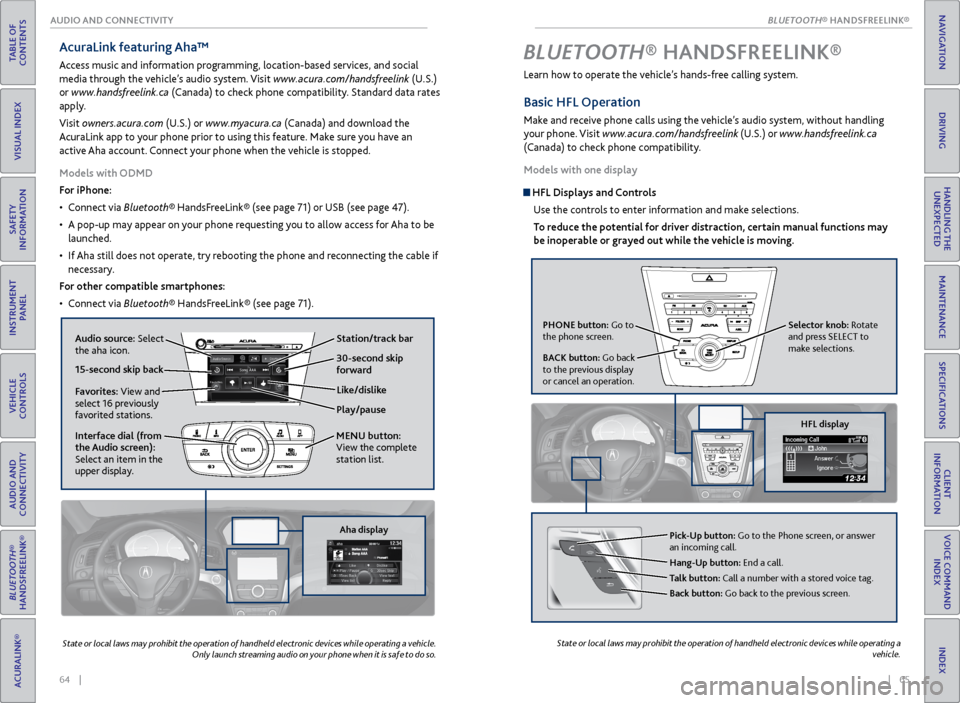
AcuraLink featuring Aha™
Access music and information programming, location-based services, and social
media through the vehicle’s audio system. Visit www.acura.com/handsfreelink (U.S.)
or www.handsfreelink.ca (Canada) to check phone compatibility. Standard data rates
apply.
Visit owners.acura.com (U.S.) or www.myacura.ca (Canada) and download the
AcuraLink app to your phone prior to using this feature. Make sure you have an
active Aha account. Connect your phone when the vehicle is stopped.
Models with ODMD
For iPhone:
• Connect via Bluetooth® HandsFreeLink® (see page 71) or USB (see page 47).
• A pop-up may appear on your phone requesting you to allow access for Aha to be
launched.
• If Aha still does not operate, try rebooting the phone and reconnecting the cable if
necessary.
For other compatible smartphones:
• Connect via Bluetooth® HandsFreeLink® (see page 71).
State or local laws may prohibit the operation of handheld electronic devices while operating a vehicle.
Only launch streaming audio on your phone when it is safe to do so.
Learn how to operate the vehicle’s hands-free calling system.
Basic HFL Operation
Make and receive phone calls using the vehicle’s audio system, without handling
your phone. Visit www.acura.com/handsfreelink (U.S.) or www.handsfreelink.ca
(Canada) to check phone compatibility.
Models with one display
HFL Displays and Controls
Use the controls to enter information and make selections.
To reduce the potential for driver distraction, certain manual functions may
be inoperable or grayed out while the vehicle is moving.
BLUETOOTH® HANDSFREELINK ®
State or local laws may prohibit the operation of handheld electronic devices while operating a
vehicle.
Aha display
Play/pause
Audio source: Select
the aha icon.
Station/track bar
Like/dislike
Favorites: View and
select 16 previously
favorited stations.
Interface dial (from
the Audio screen):
Select an item in the
upper display. MENU button:
View the complete
station list.
15-second skip back30-second skip
forward
HFL display
Pick-Up button: Go to the Phone screen, or answer
an incoming call.
Hang-Up button: End a call.
Talk button: Call a number with a stored voice tag.
Back button: Go back to the previous screen.
PHONE button: Go to
the phone screen.
BACK button: Go back
to the previous display
or cancel an operation.Selector knob: Rotate
and press SELECT to
make selections.
BLUETOOTH® HANDSFREELINK®
BLUETOOTH® HANDSFREELINK®
Page 42 of 78
| 77
INDEX
VOICE COMMAND INDEX
CLIENT
INFORMATION
SPECIFICATIONS
MAINTENANCE
HANDLING THE UNEXPECTED
DRIVING
NAVIGATION
76 |
TABLE OF
CONTENTS
VISUAL INDEX
SAFETY
INFORMATION
INSTRUMENT PANEL
VEHICLE
CONTROLS
AUDIO AND
CONNECTIVITY
BLUETOOTH®
HANDSFREELINK®
ACURALINK®
Models with ODMD
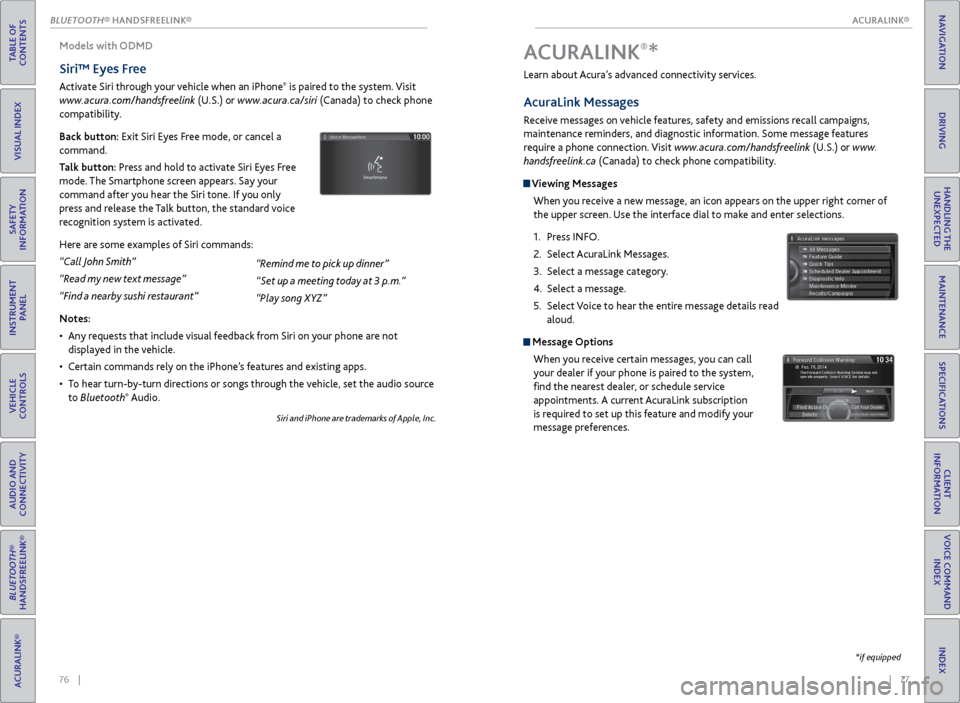
Siri™ Eyes Free
Activate Siri through your vehicle when an iPhone® is paired to the system. Visit
www.acura.com/handsfreelink (U.S.) or www.acura.ca/siri (Canada) to check phone
compatibility.
Back button: Exit Siri Eyes Free mode, or cancel a
command.
Talk button: Press and hold to activate Siri Eyes Free
mode. The Smartphone screen appears. Say your
command after you hear the Siri tone. If you only
press and release the Talk button, the standard voice
recognition system is activated.
Here are some examples of Siri commands:
“Call John Smith”
“Read my new text message”
“Find a nearby sushi restaurant”
Notes:
• Any requests that include visual feedback from Siri on your phone are not
displayed in the vehicle.
• Certain commands rely on the iPhone’s features and existing apps.
• To hear turn-by-turn directions or songs through the vehicle, set the audio source
to Bluetooth
® Audio.
Siri and iPhone are trademarks of Apple, Inc.
“Remind me to pick up dinner”
“Set up a meeting today at 3 p.m.”
“Play song XYZ” Learn about Acura’s advanced connectivity services.
AcuraLink Messages
Receive messages on vehicle features, safety and emissions recall campaigns,
maintenance reminders, and diagnostic information. Some message features
require a phone connection. Visit www.acura.com/handsfreelink (U.S.) or
www.
handsfreelink.ca (Canada) to check phone compatibility.
Viewing Messages
When you receive a new message, an icon appears on the upper right corner of
the upper screen. Use the interface dial to make and enter selections.
1. Press INFO.
2. Select AcuraLink Messages.
3. Select a message category.
4. Select a message.
5. Select Voice to hear the entire message details read
aloud.
Message Options
When you receive certain messages, you can call
your dealer if your phone is paired to the system,
find the nearest dealer, or schedule service
appointments. A current AcuraLink subscription
is required to set up this feature and modify your
message preferences.
A CURALINK®*
*if equipped
ACURALINK
Page 45 of 78
82 || 83
NAVIGATION
NAVIGATION
TABLE OF
CONTENTS
INDEX
VISUAL INDEX
VOICE COMMAND INDEX
SAFETY
INFORMATION
CLIENT
INFORMATION
INSTRUMENT PANEL
SPECIFICATIONS
VEHICLE
CONTROLS
MAINTENANCE
AUDIO AND
CONNECTIVITY
HANDLING THE UNEXPECTED
BLUETOOTH®
HANDSFREELINK®
DRIVING
ACURALINK®
NAVIGATION
Entering a Destination
Use several methods to enter a destination.
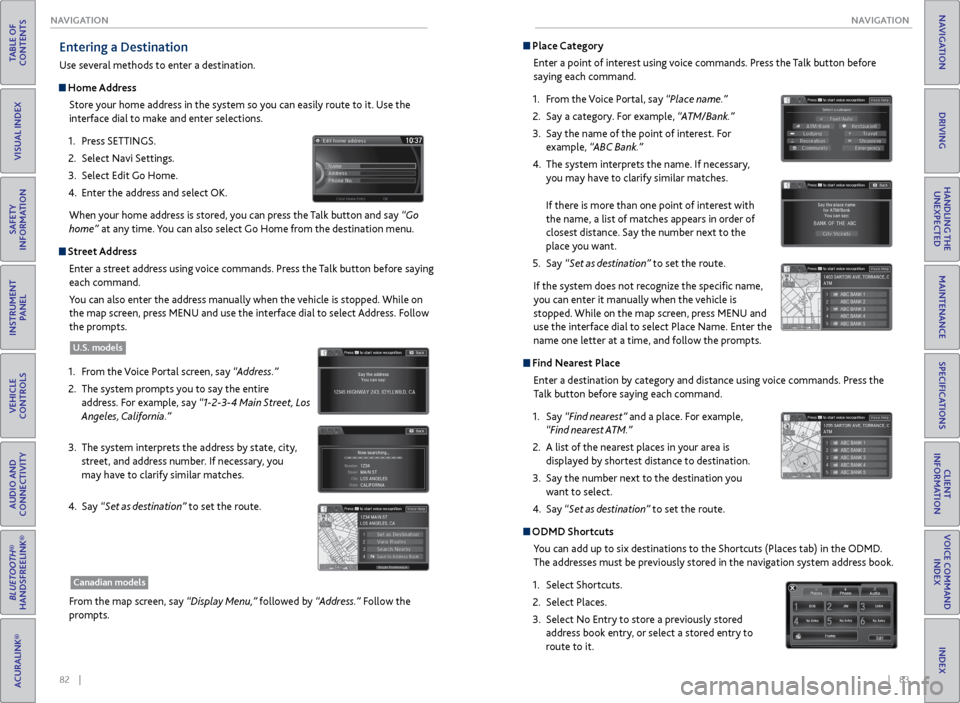
Home Address
Store your home address in the system so you can easily route to it. Use the
interface dial to make and enter selections.
1. Press SETTINGS.
2. Select Navi Settings.
3. Select Edit Go Home.
4. Enter the address and select OK.
When your home address is stored, you can press the Talk button and say “Go
home” at any time. You can also select Go Home from the destination menu.
Street Address
Enter a street address using voice commands. Press the Talk button before saying
each command.
You can also enter the address manually when the vehicle is stopped. While on
the map screen, press MENU and use the interface dial to select Address. Follow
the prompts.
1. From the Voice Portal screen, say “Address.”
2. The system prompts you to say the entire
address. For example, say “1-2-3-4 Main Street, Los
Angeles, California.”
3. The system interprets the address by state, city,
street, and address number. If necessary, you
may have to clarify similar matches.
4. Say “Set as destination” to set the route.
U.S. models
From the map screen, say “Display Menu,” followed by “Address.” Follow the
prompts.
Canadian models
Place Category
Enter a point of interest using voice commands. Press the Talk button before
saying each command.
1. From the Voice Portal, say “Place name.”
2. Say a category. For example, “ATM/Bank.”
3. Say the name of the point of interest. For
example, “ABC Bank.”
4. The system interprets the name. If necessary,
you may have to clarify similar matches.
If there is more than one point of interest with
the name, a list of matches appears in order of
closest distance. Say the number next to the
place you want.
5. Say “Set as destination” to set the route.
If the system does not recognize the specific name,
you can enter it manually when the vehicle is
stopped. While on the map screen, press MENU and
use the interface dial to select Place Name. Enter the
name one letter at a time, and follow the prompts.
Find Nearest Place Enter a destination by category and distance using voice commands. Press the
Talk button before saying each command.
1. Say “Find nearest” and a place. For example,
“Find nearest ATM.”
2. A list of the nearest places in your area is
displayed by shortest distance to destination.
3. Say the number next to the destination you
want to select.
4. Say “Set as destination” to set the route.
ODMD Shortcuts
You can add up to six destinations to the Shortcuts (Places tab) in the ODMD.
The addresses must be previously stored in the navigation system address book.
1. Select Shortcuts.
2. Select Places.
3. Select No Entry to store a previously stored
address book entry, or select a stored entry to
route to it.
Page 50 of 78
92 || 93
DRIVING
DRIVING
TABLE OF
CONTENTS
INDEX
VISUAL INDEX
VOICE COMMAND INDEX
SAFETY
INFORMATION
CLIENT
INFORMATION
INSTRUMENT PANEL
SPECIFICATIONS
VEHICLE
CONTROLS
MAINTENANCE
AUDIO AND
CONNECTIVITY
HANDLING THE UNEXPECTED
BLUETOOTH®
HANDSFREELINK®
DRIVING
ACURALINK®
NAVIGATION
Starting to Drive
The keyless access system allows simple push-button start.
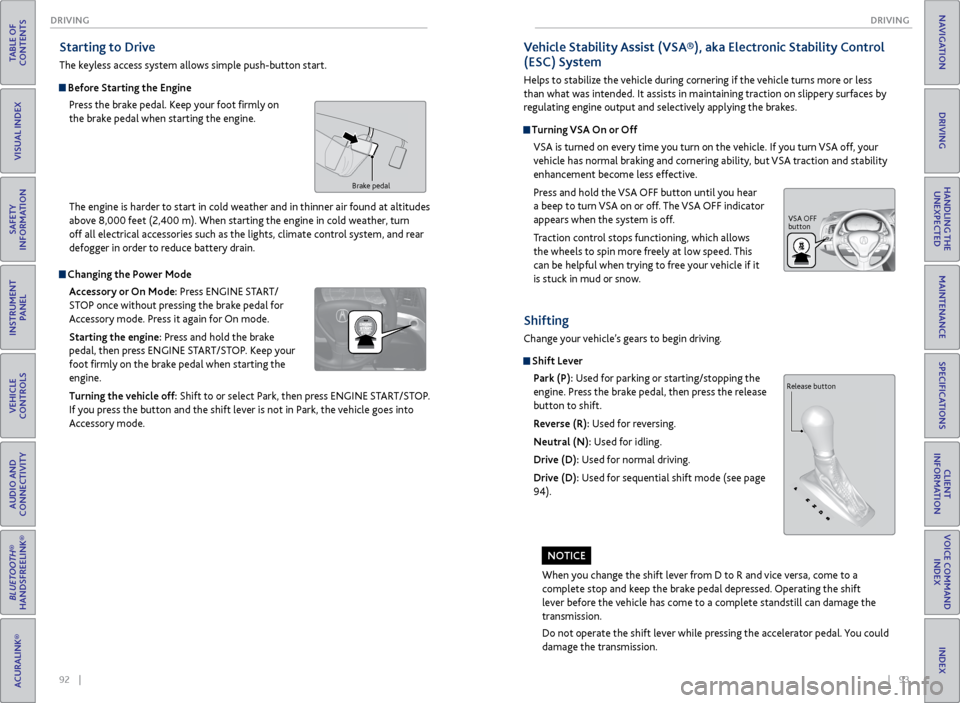
Before Starting the Engine
Press the brake pedal. Keep your foot firmly on
the brake pedal when starting the engine.
Brake pedal
Changing the Power Mode
Accessory or On Mode: Press ENGINE START/
STOP once without pressing the brake pedal for
Accessory mode. Press it again for On mode.
Starting the engine: Press and hold the brake
pedal, then press ENGINE START/STOP. Keep your
foot firmly on the brake pedal when starting the
engine.
Turning the vehicle off: Shift to or select Park, then press ENGINE START/STOP.
If you press the button and the shift lever is not in Park, the vehicle goes into
Accessory mode. The engine is harder to start in cold weather and in thinner air found at altitudes
above 8,000 feet (2,400 m). When starting the engine in cold weather, turn
off all electrical accessories such as the lights, climate control system, and rear
defogger in order to reduce battery drain.
When you change the shift lever from D to R and vice versa, come to a
complete stop and keep the brake pedal depressed. Operating the shift
lever before the vehicle has come to a complete standstill can damage the
transmission.
Do not operate the shift lever while pressing the accelerator pedal. You could
damage the transmission.
NOTICE
Shifting
Change your vehicle’s gears to begin driving.
Shift Lever
Park (P): Used for parking or starting/stopping the
engine. Press the brake pedal, then press the release
button to shift.
Reverse (R): Used for reversing.
Neutral (N): Used for idling.
Drive (D): Used for normal driving.
Drive (D): Used for sequential shift mode (see page
94).
Release button
Vehicle Stability Assist (VSA®), aka Electronic Stability Control
(ESC) System
Helps to stabilize the vehicle during cornering if the vehicle turns more or less
than what was intended. It assists in maintaining traction on slippery surfaces by
regulating engine output and selectively applying the brakes.
Turning VSA On or Off VSA is turned on every time you turn on the vehicle. If you turn VSA off, your
vehicle has normal braking and cornering ability, but VSA traction and stability
enhancement become less effective.
Press and hold the VSA OFF button until you hear
a beep to turn VSA on or off. The VSA OFF indicator
appears when the system is off.
Traction control stops functioning, which allows
the wheels to spin more freely at low speed. This
can be helpful when trying to free your vehicle if it
is stuck in mud or snow.
VSA OFF
button
Page 51 of 78
94 || 95
DRIVING
DRIVING
TABLE OF
CONTENTS
INDEX
VISUAL INDEX
VOICE COMMAND INDEX
SAFETY
INFORMATION
CLIENT
INFORMATION
INSTRUMENT PANEL
SPECIFICATIONS
VEHICLE
CONTROLS
MAINTENANCE
AUDIO AND
CONNECTIVITY
HANDLING THE UNEXPECTED
BLUETOOTH®
HANDSFREELINK®
DRIVING
ACURALINK®
NAVIGATION
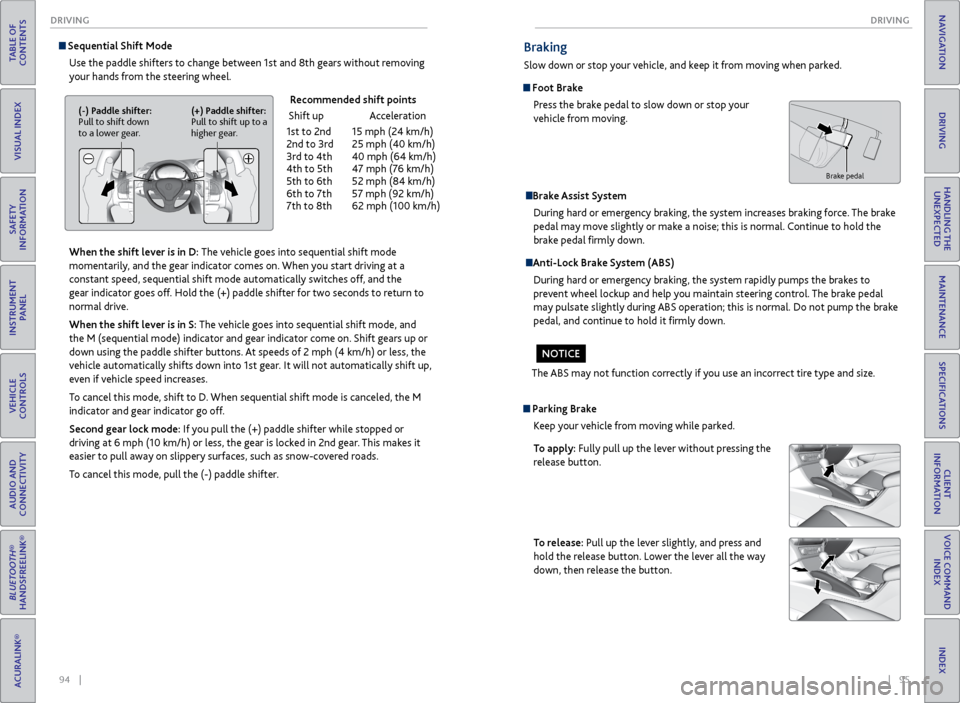
Sequential Shift Mode
Use the paddle shifters to change between 1st and 8th gears without removing
your hands from the steering wheel.
When the shift lever is in D: The vehicle goes into sequential shift mode
momentarily, and the gear indicator comes on. When you start driving at a
constant speed, sequential shift mode automatically switches off, and the
gear indicator goes off. Hold the (+) paddle shifter for two seconds to return to
normal drive.
When the shift lever is in S: The vehicle goes into sequential shift mode, and
the M (sequential mode) indicator and gear indicator come on. Shift gears up or
down using the paddle shifter buttons. At speeds of 2 mph (4 km/h) or less, the
vehicle automatically shifts down into 1st gear. It will not automatically shift up,
even if vehicle speed increases.
To cancel this mode, shift to D. When sequential shift mode is canceled, the M
indicator and gear indicator go off.
Second gear lock mode: If you pull the (+) paddle shifter while stopped or
driving at 6 mph (10 km/h) or less, the gear is locked in 2nd gear. This makes it
easier to pull away on slippery surfaces, such as snow-covered roads.
To cancel this mode, pull the (-) paddle shifter.
Recommended shift points
Shift up Acceleration
1st to 2nd 15 mph (24 km/h)
2nd to 3rd 25 mph (40 km/h)
3rd to 4th 40 mph (64 km/h)
4th to 5th 47 mph (76 km/h)
5th to 6th 52 mph (84 km/h)
6th to 7th 57 mph (92 km/h)
7th to 8th 62 mph (100 km/h)
(-) Paddle shifter:
Pull to shift down
to a lower gear. (+) Paddle shifter:
Pull to shift up to a
higher gear.
Braking
Slow down or stop your vehicle, and keep it from moving when parked.
Foot Brake
Press the brake pedal to slow down or stop your
vehicle from moving.
Brake Assist System During hard or emergency braking, the system increases braking force. The brake
pedal may move slightly or make a noise; this is normal. Continue to hold the
brake pedal firmly down.
Anti-Lock Brake System (ABS)
During hard or emergency braking, the system rapidly pumps the brakes to
prevent wheel lockup and help you maintain steering control. The brake pedal
may pulsate slightly during ABS operation; this is normal. Do not pump the brake
pedal, and continue to hold it firmly down.
The ABS may not function correctly if you use an incorrect tire type and size.
NOTICE
Brake pedal
Parking Brake Keep your vehicle from moving while parked.
To apply: Fully pull up the lever without pressing the
release button.
To release: Pull up the lever slightly, and press and
hold the release button. Lower the lever all the way
down, then release the button.
Page 59 of 78
110 || 111
HANDLING THE UNEXPECTED
HANDLING THE UNEXPECTED
TABLE OF
CONTENTS
INDEX
VISUAL INDEX
VOICE COMMAND INDEX
SAFETY
INFORMATION
CLIENT
INFORMATION
INSTRUMENT PANEL
SPECIFICATIONS
VEHICLE
CONTROLS
MAINTENANCE
AUDIO AND
CONNECTIVITY
HANDLING THE UNEXPECTED
BLUETOOTH®
HANDSFREELINK®
DRIVING
ACURALINK®
NAVIGATION
Emergency Engine Stop
The ENGINE START/STOP button may be used to stop the engine due to an
emergency situation even while driving. If you must stop the engine, choose one of
the following operations:
• Press and hold the ENGINE START/STOP button for
two seconds, or
• Firmly press the ENGINE START/STOP button two
times.
The steering wheel will not lock. The power mode changes to ACCESSORY, unless
the shift lever is in Park, in which case the power mode changes to VEHICLE OFF.
Because turning off the engine also disables the power assist the engine provides to
the steering and braking systems, it will require significantly more physical effort
and time to steer and slow the vehicle. Downshift gears and use both feet on the
brake pedal, if necessary, to slow the vehicle and stop immediately in a safe place.
Do not press the button while driving unless it is absolutely necessary for the
engine to be switched off.
Emergency Towing
Call a professional towing service if you need to tow your vehicle.
Flat bed equipment: The operator loads your vehicle on the back of a truck. This is
the best way to transport your vehicle.
Wheel lift equipment: The tow truck uses two pivoting arms that go under the front
tires and lift them off the ground. The rear tires remain on the ground. This is an
acceptable way to tow your vehicle.
Trying to lift or tow your vehicle by the bumpers will cause serious damage. The
bumpers are not designed to support the vehicle’s weight.
Improper towing such as towing behind a motorhome or other motor vehicle can
damage the transmission.
NOTICE
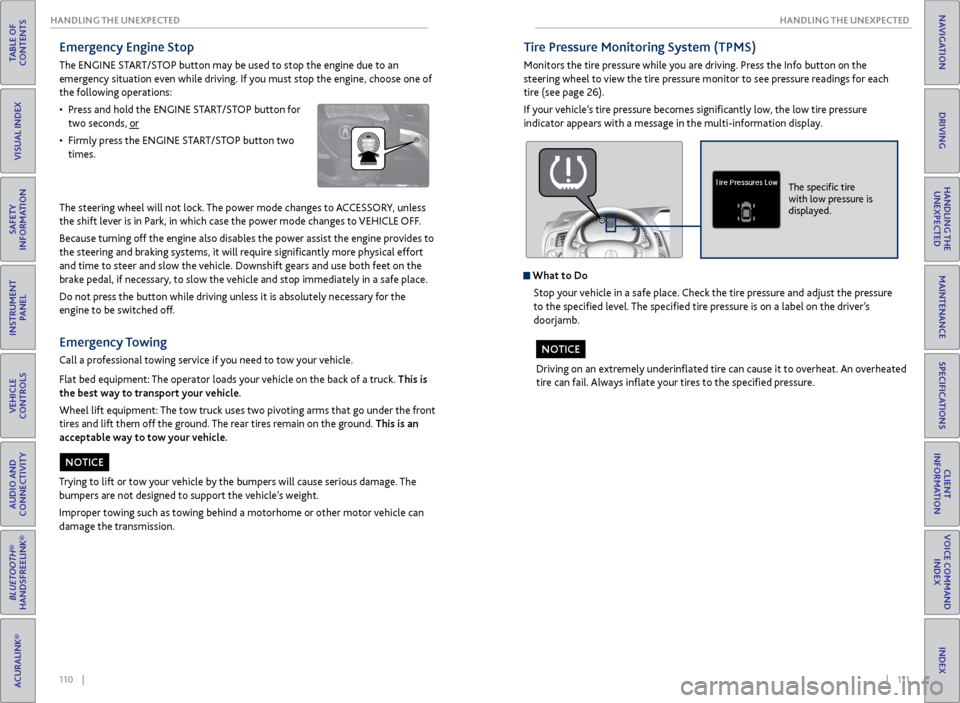
Tire Pressure Monitoring System (TPMS)
Monitors the tire pressure while you are driving. Press the Info button on the
steering wheel to view the tire pressure monitor to see pressure readings for each
tire (see page 26).
If your vehicle’s tire pressure becomes significantly low, the low tire pressure
indicator appears with a message in the multi-information display.
What to Do
Stop your vehicle in a safe place. Check the tire pressure and adjust the pressure
to the specified level. The specified tire pressure is on a label on the driver’s
doorjamb.
Driving on an extremely underinflated tire can cause it to overheat. An overheated
tire can fail. Always inflate your tires to the specified pressure.
NOTICE
The specific tire
with low pressure is
displayed.
Page 64 of 78
120 || 121
MAINTENANCE
MAINTENANCE
TABLE OF
CONTENTS
INDEX
VISUAL INDEX
VOICE COMMAND INDEX
SAFETY
INFORMATION
CLIENT
INFORMATION
INSTRUMENT PANEL
SPECIFICATIONS
VEHICLE
CONTROLS
MAINTENANCE
AUDIO AND
CONNECTIVITY
HANDLING THE UNEXPECTED
BLUETOOTH®
HANDSFREELINK®
DRIVING
ACURALINK®
NAVIGATION
Learn about basic maintenance that you can perform on the vehicle yourself, as
well as information about how to best maintain the vehicle.
Safety Precautions
Some of the most important safety precautions are listed below; however,
we cannot warn you of every conceivable hazard that can arise in performing
maintenance. Only you can decide whether or not you should perform a given task.
Maintenance Safety
• To reduce the possibility of fire or explosion, keep cigarettes, sparks, and flames
away from the battery and all fuel-related parts.
• Never leave rags, towels, or other flammable objects under the hood.
• To clean parts, use a commercially available degreaser or parts cleaner, not
gasoline.
• Wear eye protection and protective clothing when working with the battery or
compressed air.
• Do not run the engine in confined spaces where carbon monoxide gas can
accumulate.
Vehicle Safety
• The vehicle must be in a stationary condition, and parked on level ground with
the parking brake set and the engine off.
• Be aware that hot parts can burn you.
• Be aware that moving parts can injure you.
MAINTENANCE
Improperly maintaining this vehicle or failing to correct a problem before
driving can cause a crash in which you can be seriously hurt or killed.
Always follow the inspection and maintenance recommendations according to
the schedules in this guide.
WARNING
Failure to properly follow maintenance instructions and precautions can cause
you to be seriously hurt or killed.
Always follow the procedures and precautions in this guide.
WARNING
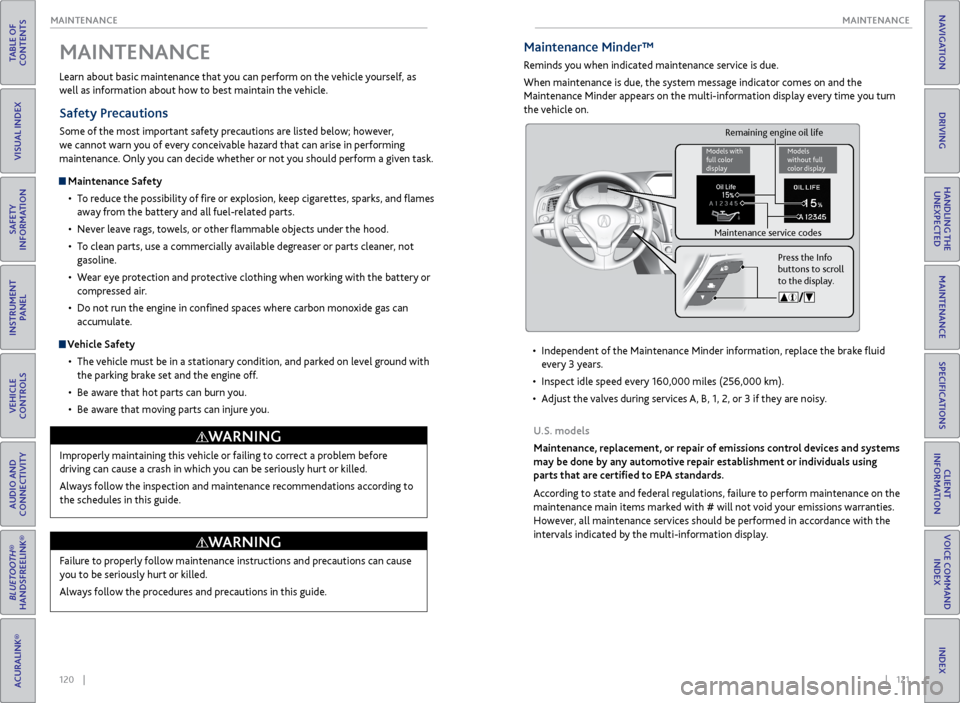
Maintenance Minder™
Reminds you when indicated maintenance service is due.
When maintenance is due, the system message indicator comes on and the
Maintenance Minder appears on the multi-information display every time you turn
the vehicle on.
• Independent of the Maintenance Minder information, replace the brake fluid
every 3 years.
• Inspect idle speed every 160,000 miles (256,000 km).
• Adjust the valves during services A, B, 1, 2, or 3 if they are noisy.
U.S. models
Maintenance, replacement, or repair of emissions control devices and systems
may be done by any automotive repair establishment or individuals using
parts that are certified to EPA standards.
According to state and federal regulations, failure to perform maintenance on the
maintenance main items marked with # will not void your emissions warranties.
However, all maintenance services should be performed in accordance with the
intervals indicated by the multi-information display.
Press the Info
buttons to scroll
to the display.
Remaining engine oil life
Maintenance service codes
Models with
full color
display Models
without full
color display
Page 66 of 78
124 || 125
MAINTENANCE
MAINTENANCE
TABLE OF
CONTENTS
INDEX
VISUAL INDEX
VOICE COMMAND INDEX
SAFETY
INFORMATION
CLIENT
INFORMATION
INSTRUMENT PANEL
SPECIFICATIONS
VEHICLE
CONTROLS
MAINTENANCE
AUDIO AND
CONNECTIVITY
HANDLING THE UNEXPECTED
BLUETOOTH®
HANDSFREELINK®
DRIVING
ACURALINK®
NAVIGATION
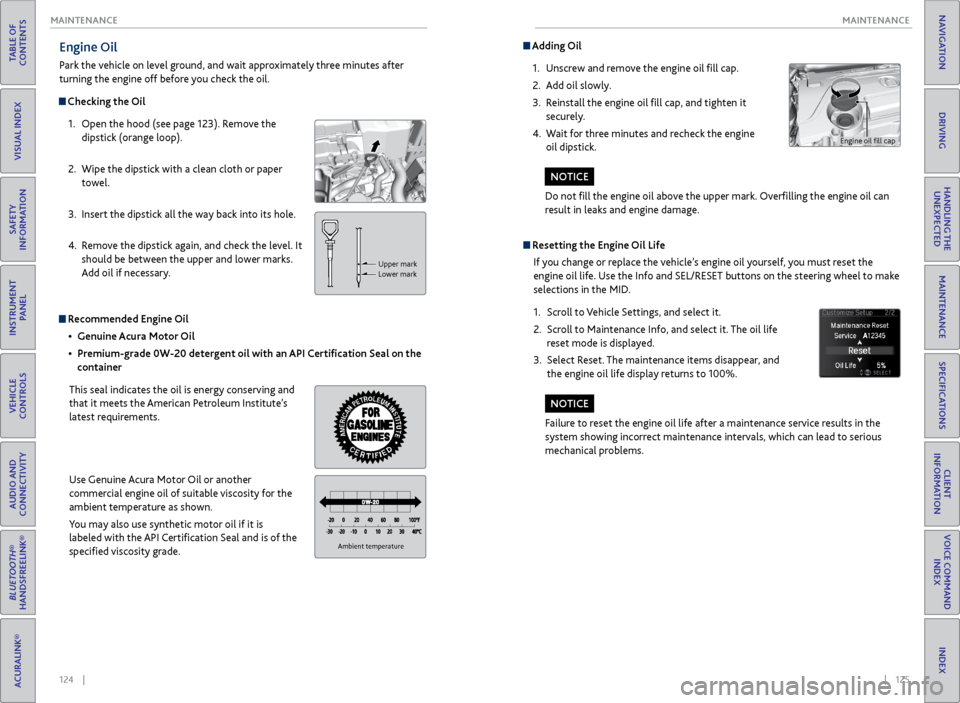
Engine Oil
Park the vehicle on level ground, and wait approximately three minutes after
turning the engine off before you check the oil.
Checking the Oil
1. Open the hood (see page 123). Remove the
dipstick (orange loop).
2. Wipe the dipstick with a clean cloth or paper
towel.
3. Insert the dipstick all the way back into its hole.
4. Remove the dipstick again, and check the level. It
should be between the upper and lower marks.
Add oil if necessary.
Upper mark
Lower mark
Recommended Engine Oil
• Genuine Acura Motor Oil
• Premium-grade 0W-20 detergent oil with an API Certification Seal on the
container
This seal indicates the oil is energy conserving and
that it meets the American Petroleum Institute’s
latest requirements.
Use Genuine Acura Motor Oil or another
commercial engine oil of suitable viscosity for the
ambient temperature as shown.
You may also use synthetic motor oil if it is
labeled with the API Certification Seal and is of the
specified viscosity grade.
Ambient temperatur e
Do not fill the engine oil above the upper mark. Overfilling the engine oil can
result in leaks and engine damage.
NOTICE
Adding Oil
1. Unscrew and remove the engine oil fill cap.
2. Add oil slowly.
3. Reinstall the engine oil fill cap, and tighten it
securely.
4. Wait for three minutes and recheck the engine
oil dipstick.
Resetting the Engine Oil Life
If you change or replace the vehicle’s engine oil yourself, you must reset the
engine oil life. Use the Info and SEL/RESET buttons on the steering wheel to make
selections in the MID.
1. Scroll to Vehicle Settings, and select it.
2. Scroll to Maintenance Info, and select it. The oil life
reset mode is displayed.
3. Select Reset. The maintenance items disappear, and
the engine oil life display returns to 100%.
Failure to reset the engine oil life after a maintenance service results in the
system showing incorrect maintenance intervals, which can lead to serious
mechanical problems.
NOTICE
Engine oil fill cap
Page 67 of 78
126 || 127
MAINTENANCE
MAINTENANCE
TABLE OF
CONTENTS
INDEX
VISUAL INDEX
VOICE COMMAND INDEX
SAFETY
INFORMATION
CLIENT
INFORMATION
INSTRUMENT PANEL
SPECIFICATIONS
VEHICLE
CONTROLS
MAINTENANCE
AUDIO AND
CONNECTIVITY
HANDLING THE UNEXPECTED
BLUETOOTH®
HANDSFREELINK®
DRIVING
ACURALINK®
NAVIGATION
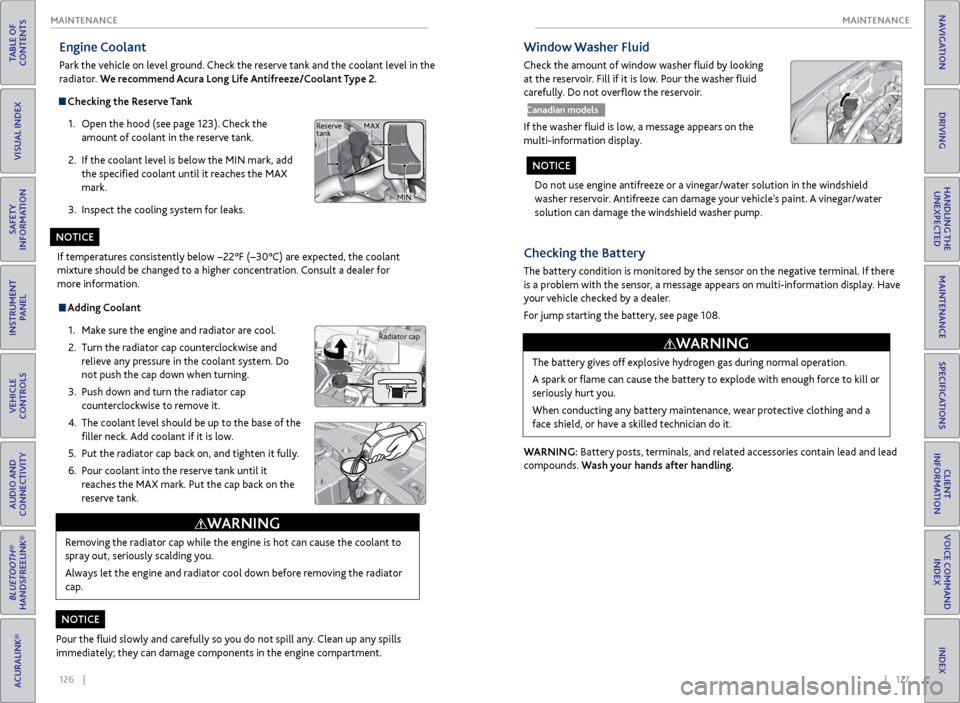
Engine Coolant
Park the vehicle on level ground. Check the reserve tank and the coolant level in the
radiator. We recommend Acura Long Life Antifreeze/Coolant Type 2.
Checking the Reserve Tank
1. Open the hood (see page 123). Check the
amount of coolant in the reserve tank.
2. If the coolant level is below the MIN mark, add
the specified coolant until it reaches the MAX
mark.
3. Inspect the cooling system for leaks.
Adding Coolant
1. Make sure the engine and radiator are cool.
2. Turn the radiator cap counterclockwise and
relieve any pressure in the coolant system. Do
not push the cap down when turning.
3. Push down and turn the radiator cap
counterclockwise to remove it.
4. The coolant level should be up to the base of the
filler neck. Add coolant if it is low.
5. Put the radiator cap back on, and tighten it fully.
6. Pour coolant into the reserve tank until it
reaches the MAX mark. Put the cap back on the
reserve tank.
Removing the radiator cap while the engine is hot can cause the coolant to
spray out, seriously scalding you.
Always let the engine and radiator cool down before removing the radiator
cap.
WARNING
If temperatures consistently below −22°F (−30°C) are expected, the coolant
mixture should be changed to a higher concentration. Consult a dealer for
more information.
NOTICE
Radiator cap
MAX
MIN
Reserve
tank
Pour the fluid slowly and carefully so you do not spill any. Clean up any spills
immediately; they can damage components in the engine compartment.
NOTICE
Do not use engine antifreeze or a vinegar/water solution in the windshield
washer reservoir. Antifreeze can damage your vehicle’s paint. A vinegar/water
solution can damage the windshield washer pump.
NOTICE
Window Washer Fluid
Check the amount of window washer fluid by looking
at the reservoir. Fill if it is low. Pour the washer fluid
carefully. Do not overflow the reservoir.
Canadian models
If the washer fluid is low, a message appears on the
multi-information display.
Checking the
Battery
The battery condition is monitored by the sensor on the negative terminal. If there
is a problem with the sensor, a message appears on multi-information display. Have
your vehicle checked by a dealer.
For jump starting the battery, see page 108.
WARNING: Battery posts, terminals, and related accessories contain lead and lead
compounds. Wash your hands after handling.The battery gives off explosive hydrogen gas during normal operation.
A spark or flame can cause the battery to explode with enough force to kill or
seriously hurt you.
When conducting any battery maintenance, wear protective clothing and a
face shield, or have a skilled technician do it.
WARNING
Page 69 of 78
130 || 131
MAINTENANCE
MAINTENANCE
TABLE OF
CONTENTS
INDEX
VISUAL INDEX
VOICE COMMAND INDEX
SAFETY
INFORMATION
CLIENT
INFORMATION
INSTRUMENT PANEL
SPECIFICATIONS
VEHICLE
CONTROLS
MAINTENANCE
AUDIO AND
CONNECTIVITY
HANDLING THE UNEXPECTED
BLUETOOTH®
HANDSFREELINK®
DRIVING
ACURALINK®
NAVIGATION
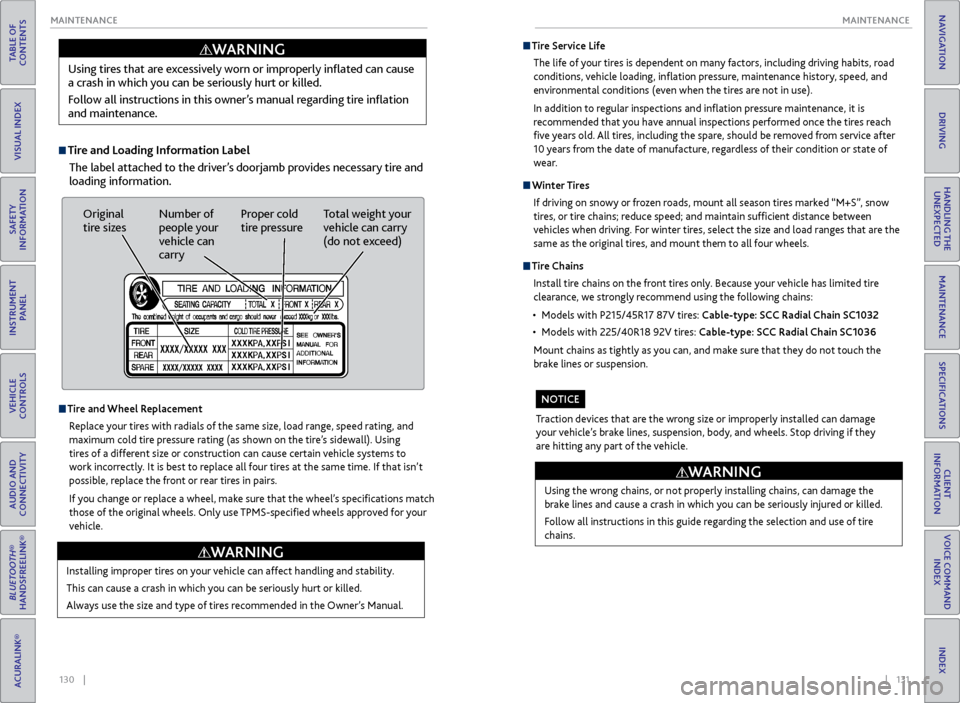
Tire and Loading Information Label
The label attached to the driver’s doorjamb provides necessary tire and
loading information.
Using tires that are excessively worn or improperly inflated can cause
a crash in which you can be seriously hurt or killed.
Follow all instructions in this owner’s manual regarding tire inflation
and maintenance.
WARNING
Original
tire sizes
Number of
people your
vehicle can
carry Proper cold
tire pressure
Total weight your
vehicle can carry
(do not exceed)
Tire and Wheel Replacement
Replace your tires with radials of the same size, load range, speed rating, and
maximum cold tire pressure rating (as shown on the tire’s sidewall). Using
tires of a different size or construction can cause certain vehicle systems to
work incorrectly. It is best to replace all four tires at the same time. If that isn’t
possible, replace the front or rear tires in pairs.
If you change or replace a wheel, make sure that the wheel’s specifications match
those of the original wheels. Only use TPMS-specified wheels approved for your
vehicle.
Installing improper tires on your vehicle can affect handling and stability.
This can cause a crash in which you can be seriously hurt or killed.
Always use the size and type of tires recommended in the Owner’s Manual.
WARNING
Tire Service Life
The life of your tires is dependent on many factors, including driving habits, road
conditions, vehicle loading, inflation pressure, maintenance history, speed, and
environmental conditions (even when the tires are not in use).
In addition to regular inspections and inflation pressure maintenance, it is
recommended that you have annual inspections performed once the tires reach
five years old. All tires, including the spare, should be removed from service after
10 years from the date of manufacture, regardless of their condition or state of
wear.
Winter Tires
If driving on snowy or frozen roads, mount all season tires marked “M+S”, snow
tires, or tire chains; reduce speed; and maintain sufficient distance between
vehicles when driving. For winter tires, select the size and load ranges that are the
same as the original tires, and mount them to all four wheels.
Tire Chains
Install tire chains on the front tires only. Because your vehicle has limited tire
clearance, we strongly recommend using the following chains:
• Models with P215/45R17 87V tires: Cable-type: SCC Radial Chain SC1032
• Models with 225/40R18 92V tires: Cable-type: SCC Radial Chain SC1036
Mount chains as tightly as you can, and make sure that they do not touch the
brake lines or suspension.
Using the wrong chains, or not properly installing chains, can damage the
brake lines and cause a crash in which you can be seriously injured or killed.
Follow all instructions in this guide regarding the selection and use of tire
chains.
WARNING
Traction devices that are the wrong size or improperly installed can damage
your vehicle’s brake lines, suspension, body, and wheels. Stop driving if they
are hitting any part of the vehicle.
NOTICE