steering Acura ILX 2016 User Guide
[x] Cancel search | Manufacturer: ACURA, Model Year: 2016, Model line: ILX, Model: Acura ILX 2016Pages: 78, PDF Size: 20.92 MB
Page 44 of 78
80 || 81
NAVIGATION
NAVIGATION
TABLE OF
CONTENTS
INDEX
VISUAL INDEX
VOICE COMMAND INDEX
SAFETY
INFORMATION
CLIENT
INFORMATION
INSTRUMENT PANEL
SPECIFICATIONS
VEHICLE
CONTROLS
MAINTENANCE
AUDIO AND
CONNECTIVITY
HANDLING THE UNEXPECTED
BLUETOOTH®
HANDSFREELINK®
DRIVING
ACURALINK®
NAVIGATION
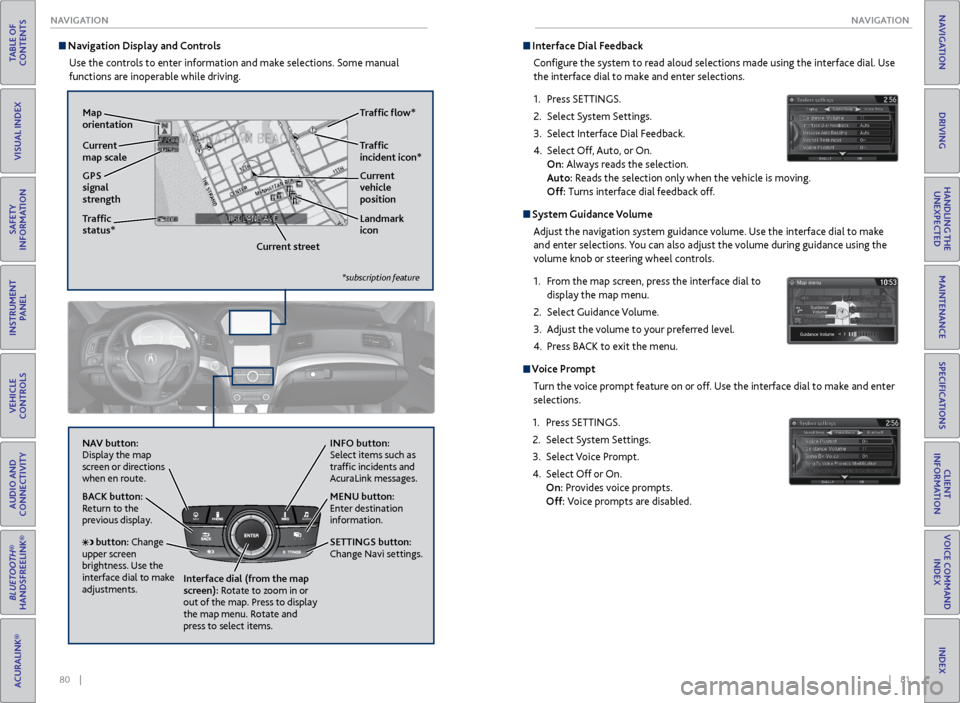
Navigation Display and Controls
Use the controls to enter information and make selections. Some manual
functions are inoperable while driving.
NAVAUDIOAUDIONAV
NAV button:
Display the map
screen or directions
when en route. INFO button:
Select items such as
traffic incidents and
AcuraLink messages.
BACK button:
Return to the
previous display.
SETTINGS button:
Change Navi settings. MENU button:
Enter destination
information.
button: Change
upper screen
brightness. Use the
interface dial to make
adjustments. Interface dial (from the map
screen): Rotate to zoom in or
out of the map. Press to display
the map menu. Rotate and
press to select items.
GPS
signal
strength Traffic
incident icon*
Traffic
status* Traffic flow*
Current
map scale Current
vehicle
position
Map
orientation
Current streetLandmark
icon
*subscription feature
Interface Dial Feedback
Configure the system to read aloud selections made using the interface dial. Use
the interface dial to make and enter selections.
1. Press SETTINGS.
2. Select System Settings.
3. Select Interface Dial Feedback.
4. Select Off, Auto, or On.
On: Always reads the selection.
Auto: Reads the selection only when the vehicle is moving.
Off: Turns interface dial feedback off.
System Guidance Volume
Adjust the navigation system guidance volume. Use the interface dial to make
and enter selections. You can also adjust the volume during guidance using the
volume knob or steering wheel controls.
1. From the map screen, press the interface dial to
display the map menu.
2. Select Guidance Volume.
3. Adjust the volume to your preferred level.
4. Press BACK to exit the menu.
Voice Prompt
Turn the voice prompt feature on or off. Use the interface dial to make and enter
selections.
1. Press SETTINGS.
2. Select System Settings.
3. Select Voice Prompt.
4. Select Off or On.
On: Provides voice prompts.
Off: Voice prompts are disabled.
Page 46 of 78
84 || 85
NAVIGATION
NAVIGATION
TABLE OF
CONTENTS
INDEX
VISUAL INDEX
VOICE COMMAND INDEX
SAFETY
INFORMATION
CLIENT
INFORMATION
INSTRUMENT PANEL
SPECIFICATIONS
VEHICLE
CONTROLS
MAINTENANCE
AUDIO AND
CONNECTIVITY
HANDLING THE UNEXPECTED
BLUETOOTH®
HANDSFREELINK®
DRIVING
ACURALINK®
NAVIGATION
Routing
After a destination is set, you can alter or cancel your route.
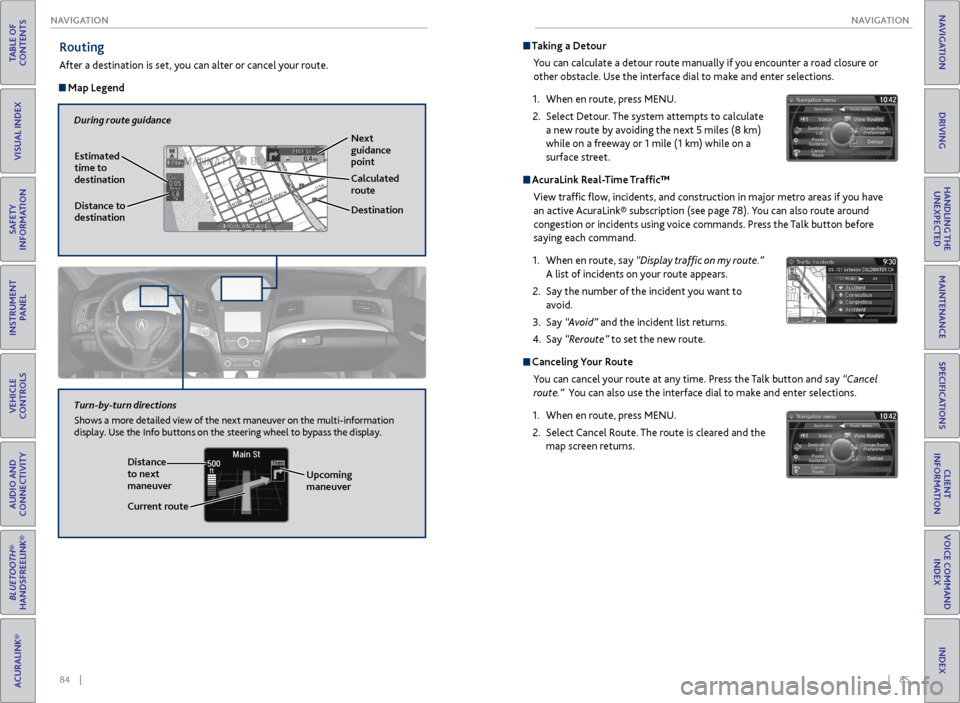
Map Legend
Taking a Detour
You can calculate a detour route manually if you encounter a road closure or
other obstacle. Use the interface dial to make and enter selections.
1. When en route, press MENU.
2. Select Detour. The system attempts to calculate
a new route by avoiding the next 5 miles (8 km)
while on a freeway or 1 mile (1 km) while on a
surface street.
AcuraLink Real-Time Traffic™
View traffic flow, incidents, and construction in major metro areas if you have
an active AcuraLink® subscription (see page 78). You can also route around
congestion or incidents using voice commands. Press the Talk button before
saying each command.
1. When en route, say “Display traffic on my route.”
A list of incidents on your route appears.
2. Say the number of the incident you want to
avoid.
3. Say “Avoid” and the incident list returns.
4. Say “Reroute” to set the new route.
Canceling Your Route
You can cancel your route at any time. Press the Talk button and say “Cancel
route.” You can also use the interface dial to make and enter selections.
1. When en route, press MENU.
2. Select Cancel Route. The route is cleared and the
map screen returns.
During route guidance
Next
guidance
point
Estimated
time to
destination
Distance to
destination Destination
Calculated
route
Distance
to next
maneuver
Turn-by-turn directions
Shows a more detailed view of the next maneuver on the multi-information
display. Use the Info buttons on the steering wheel to bypass the display.
Upcoming
maneuver
Current route
Page 48 of 78
88 || 89
DRIVING
DRIVING
TABLE OF
CONTENTS
INDEX
VISUAL INDEX
VOICE COMMAND INDEX
SAFETY
INFORMATION
CLIENT
INFORMATION
INSTRUMENT PANEL
SPECIFICATIONS
VEHICLE
CONTROLS
MAINTENANCE
AUDIO AND
CONNECTIVITY
HANDLING THE UNEXPECTED
BLUETOOTH®
HANDSFREELINK®
DRIVING
ACURALINK®
NAVIGATION
Learn about preparation for driving, as well as other features.
DRIVING
If the doors are frozen shut, use warm water around the door edges to melt any
ice. Do not try to force them open, as this can damage the rubber trim around
the doors. When done, wipe dry to avoid further freezing.
NOTICE
Interior Checks
• Store or secure all items on board properly.
• Do not pile items higher than the seat height.
• Do not place anything in the front seat footwells. Secure the floor mats.
• If you have any animals on board, do not let them move freely in the vehicle.
• Securely close and lock all doors and the trunk.
• Adjust your seating position, mirrors, and steering wheel properly.
• Make sure items placed on the floor behind the front seats cannot roll under
the seats.
• Everyone in the vehicle must fasten their seat belt.
Make sure that the indicators in the instrument panel come on when you start
the vehicle, and go off soon after.
In addition:
• During the first 600 miles (1,000 km) of operation, avoid sudden acceleration
or full throttle operation so as to not damage the engine or powertrain.
• Avoid hard braking for the first 200 miles (300 km). You should also follow this
when the brake pads are replaced.
Before Driving
Check the following items before you begin driving.
Exterior Checks
• Make sure there are no obstructions on the windows, door mirrors, exterior
lights, or other parts of the vehicle.
• Remove any frost, snow, or ice.
• Make sure the hood is securely closed.
• Heat from the engine and exhaust can ignite flammable materials left under
the hood, causing a fire. If you’ve parked your vehicle for an extended period,
inspect and remove any debris that may have collected, such as dried grass
and leaves that have fallen or have been carried in for use as a nest by a small
animal. Also check under the hood for leftover flammable materials after you
or someone else has performed maintenance on your vehicle.
• Make sure the tires are in good condition.
• Make sure there are no people or objects behind or around the vehicle.
Maximum Load Limit
Carrying too much cargo or improperly storing it can affect your vehicle’s handling,
stability, stopping distance, and tires, and make it unsafe.
Your vehicle is not designed to tow a trailer. Attempting to do so can void your
vehicle warranties.
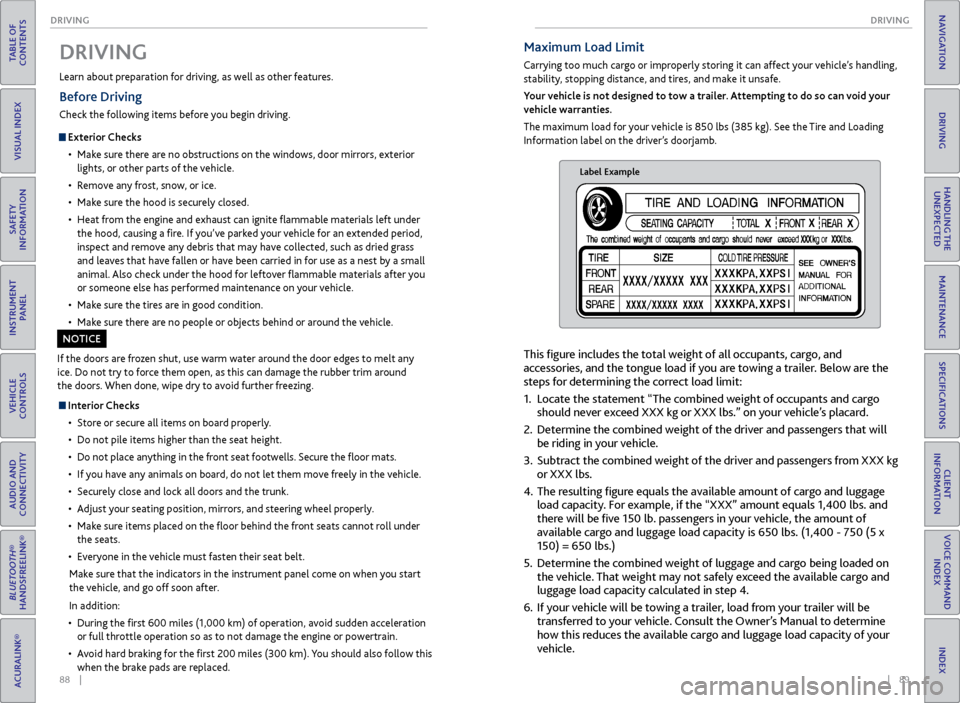
The maximum load for your vehicle is 850 lbs (385 kg). See the Tire and Loading
Information label on the driver’s doorjamb.
Label Example
This figure includes the total weight of all occupants, cargo, and
accessories, and the tongue load if you are towing a trailer. Below are the
steps for determining the correct load limit:
1. Locate the statement “The combined weight of occupants and cargo
should never exceed XXX kg or XXX lbs.” on your vehicle’s placard.
2. Determine the combined weight of the driver and passengers that will
be riding in your vehicle.
3. Subtract the combined weight of the driver and passengers from XXX kg
or XXX lbs.
4. The resulting figure equals the available amount of cargo and luggage
load capacity. For example, if the “XXX” amount equals 1,400 lbs. and
there will be five 150 lb. passengers in your vehicle, the amount of
available cargo and luggage load capacity is 650 lbs. (1,400 - 750 (5 x
150) = 650 lbs.)
5. Determine the combined weight of luggage and cargo being loaded on
the vehicle. That weight may not safely exceed the available cargo and
luggage load capacity calculated in step 4.
6. If your vehicle will be towing a trailer, load from your trailer will be
transferred to your vehicle. Consult the Owner’s Manual to determine
how this reduces the available cargo and luggage load capacity of your
vehicle.
Page 51 of 78
94 || 95
DRIVING
DRIVING
TABLE OF
CONTENTS
INDEX
VISUAL INDEX
VOICE COMMAND INDEX
SAFETY
INFORMATION
CLIENT
INFORMATION
INSTRUMENT PANEL
SPECIFICATIONS
VEHICLE
CONTROLS
MAINTENANCE
AUDIO AND
CONNECTIVITY
HANDLING THE UNEXPECTED
BLUETOOTH®
HANDSFREELINK®
DRIVING
ACURALINK®
NAVIGATION
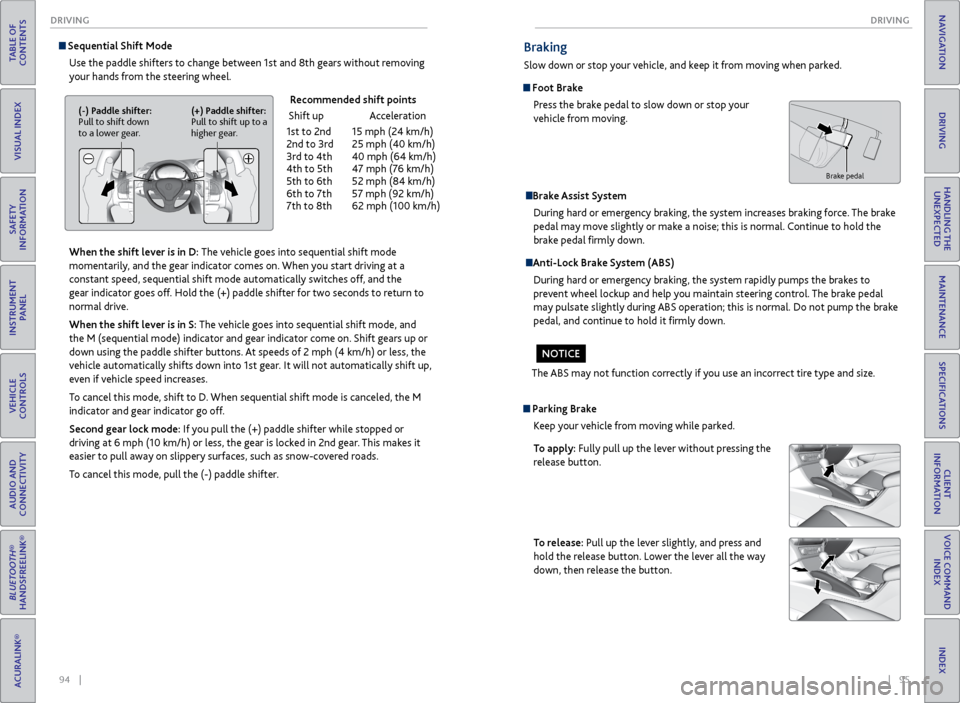
Sequential Shift Mode
Use the paddle shifters to change between 1st and 8th gears without removing
your hands from the steering wheel.
When the shift lever is in D: The vehicle goes into sequential shift mode
momentarily, and the gear indicator comes on. When you start driving at a
constant speed, sequential shift mode automatically switches off, and the
gear indicator goes off. Hold the (+) paddle shifter for two seconds to return to
normal drive.
When the shift lever is in S: The vehicle goes into sequential shift mode, and
the M (sequential mode) indicator and gear indicator come on. Shift gears up or
down using the paddle shifter buttons. At speeds of 2 mph (4 km/h) or less, the
vehicle automatically shifts down into 1st gear. It will not automatically shift up,
even if vehicle speed increases.
To cancel this mode, shift to D. When sequential shift mode is canceled, the M
indicator and gear indicator go off.
Second gear lock mode: If you pull the (+) paddle shifter while stopped or
driving at 6 mph (10 km/h) or less, the gear is locked in 2nd gear. This makes it
easier to pull away on slippery surfaces, such as snow-covered roads.
To cancel this mode, pull the (-) paddle shifter.
Recommended shift points
Shift up Acceleration
1st to 2nd 15 mph (24 km/h)
2nd to 3rd 25 mph (40 km/h)
3rd to 4th 40 mph (64 km/h)
4th to 5th 47 mph (76 km/h)
5th to 6th 52 mph (84 km/h)
6th to 7th 57 mph (92 km/h)
7th to 8th 62 mph (100 km/h)
(-) Paddle shifter:
Pull to shift down
to a lower gear. (+) Paddle shifter:
Pull to shift up to a
higher gear.
Braking
Slow down or stop your vehicle, and keep it from moving when parked.
Foot Brake
Press the brake pedal to slow down or stop your
vehicle from moving.
Brake Assist System During hard or emergency braking, the system increases braking force. The brake
pedal may move slightly or make a noise; this is normal. Continue to hold the
brake pedal firmly down.
Anti-Lock Brake System (ABS)
During hard or emergency braking, the system rapidly pumps the brakes to
prevent wheel lockup and help you maintain steering control. The brake pedal
may pulsate slightly during ABS operation; this is normal. Do not pump the brake
pedal, and continue to hold it firmly down.
The ABS may not function correctly if you use an incorrect tire type and size.
NOTICE
Brake pedal
Parking Brake Keep your vehicle from moving while parked.
To apply: Fully pull up the lever without pressing the
release button.
To release: Pull up the lever slightly, and press and
hold the release button. Lower the lever all the way
down, then release the button.
Page 53 of 78
98 || 99
DRIVING
DRIVING
TABLE OF
CONTENTS
INDEX
VISUAL INDEX
VOICE COMMAND INDEX
SAFETY
INFORMATION
CLIENT
INFORMATION
INSTRUMENT PANEL
SPECIFICATIONS
VEHICLE
CONTROLS
MAINTENANCE
AUDIO AND
CONNECTIVITY
HANDLING THE UNEXPECTED
BLUETOOTH®
HANDSFREELINK®
DRIVING
ACURALINK®
NAVIGATION
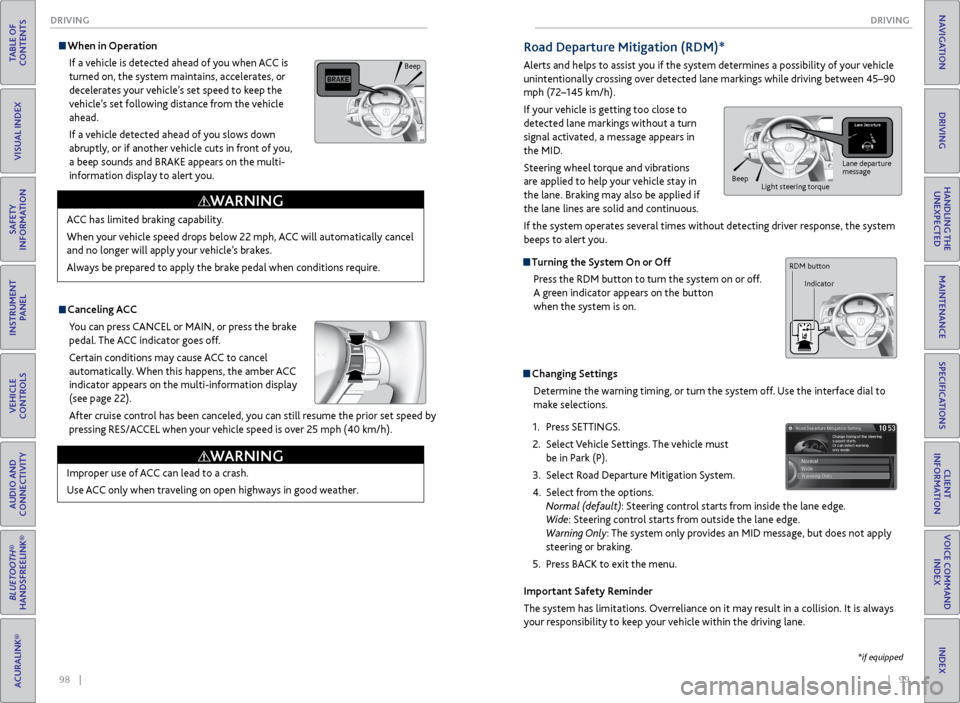
Canceling ACC
You can press CANCEL or MAIN, or press the brake
pedal. The ACC indicator goes off.
Certain conditions may cause ACC to cancel
automatically. When this happens, the amber ACC
indicator appears on the multi-information display
(see page 22).
After cruise control has been canceled, you can still resume the prior set speed by
pressing RES/ACCEL when your vehicle speed is over 25 mph (40 km/h).
When in Operation
If a vehicle is detected ahead of you when ACC is
turned on, the system maintains, accelerates, or
decelerates your vehicle’s set speed to keep the
vehicle’s set following distance from the vehicle
ahead.
If a vehicle detected ahead of you slows down
abruptly, or if another vehicle cuts in front of you,
a beep sounds and BRAKE appears on the multi-
information display to alert you.
Improper use of ACC can lead to a crash.
Use ACC only when traveling on open highways in good weather.
WARNING
ACC has limited braking capability.
When your vehicle speed drops below 22 mph, ACC will automatically cancel
and no longer will apply your vehicle’s brakes.
Always be prepared to apply the brake pedal when conditions require.
WARNING
Beep
Road Departure Mitigation (RDM)*
Alerts and helps to assist you if the system determines a possibility of your vehicle
unintentionally crossing over detected lane markings while driving between 45–90
mph (72–145 km/h).
If your vehicle is getting too close to
detected lane markings without a turn
signal activated, a message appears in
the MID.
Steering wheel torque and vibrations
are applied to help your vehicle stay in
the lane. Braking may also be applied if
the lane lines are solid and continuous.
If the system operates several times without detecting driver response, the system
beeps to alert you.
Turning the System On or Off Press the RDM button to turn the system on or off.
A green indicator appears on the button
when the system is on.
Changing SettingsDetermine the warning timing, or turn the system off. Use the interface dial to
make selections.
1. Press SETTINGS.
2. Select Vehicle Settings. The vehicle must
be in Park (P).
3. Select Road Departure Mitigation System.
4. Select from the options.
Normal (default): Steering control starts from inside the lane edge.
Wide: Steering control starts from outside the lane edge.
Warning Only: The system only provides an MID message, but does not apply
steering or braking.
5. Press BACK to exit the menu.
Important Safety Reminder
The system has limitations. Overreliance on it may result in a collision. It is always
your responsibility to keep your vehicle within the driving lane.
*if equipped
Lane departure
message
Beep
Light steering torque
RDM button
Indicator
Page 54 of 78
100 || 101
DRIVING
DRIVING
TABLE OF
CONTENTS
INDEX
VISUAL INDEX
VOICE COMMAND INDEX
SAFETY
INFORMATION
CLIENT
INFORMATION
INSTRUMENT PANEL
SPECIFICATIONS
VEHICLE
CONTROLS
MAINTENANCE
AUDIO AND
CONNECTIVITY
HANDLING THE UNEXPECTED
BLUETOOTH®
HANDSFREELINK®
DRIVING
ACURALINK®
NAVIGATION
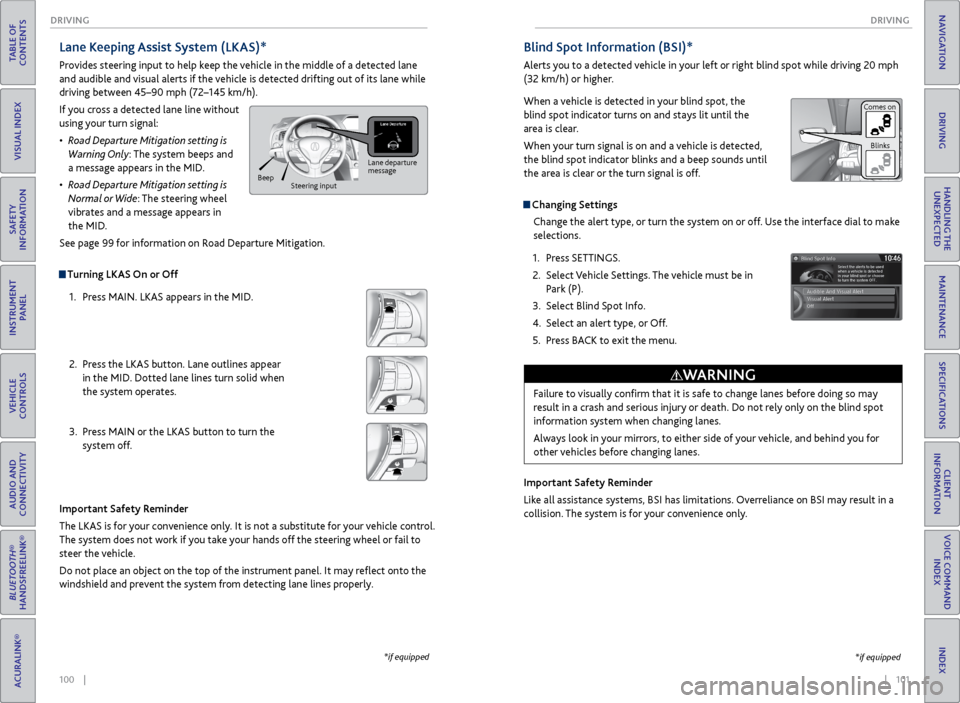
Turning LKAS On or Off
1. Press MAIN. LKAS appears in the MID.
2. Press the LKAS button. Lane outlines appear
in the MID. Dotted lane lines turn solid when
the system operates.
3. Press MAIN or the LKAS button to turn the
system off.
Lane Keeping Assist System (LKAS)*
Provides steering input to help keep the vehicle in the middle of a detected lane
and audible and visual alerts if the vehicle is detected drifting out of its lane while
driving between 45–90 mph (72–145 km/h).
If you cross a detected lane line without
using your turn signal:
• Road Departure Mitigation setting is
Warning Only: The system beeps and
a message appears in the MID.
• Road Departure Mitigation setting is
Normal or Wide: The steering wheel
vibrates and a message appears in
the MID.
See page 99 for information on Road Departure Mitigation.
Important Safety Reminder
The LKAS is for your convenience only. It is not a substitute for your vehicle control.
The system does not work if you take your hands off the steering wheel or fail to
steer the vehicle.
Do not place an object on the top of the instrument panel. It may reflect onto the
windshield and prevent the system from detecting lane lines properly.
Lane departure
message
Beep
Steering input
*if equipped
Blind Spot Information (BSI)*
Alerts you to a detected vehicle in your left or right blind spot while driving 20 mph
(32 km/h) or higher.
When a vehicle is detected in your blind spot, the
blind spot indicator turns on and stays lit until the
area is clear.
When your turn signal is on and a vehicle is detected,
the blind spot indicator blinks and a beep sounds until
the area is clear or the turn signal is off.
Changing Settings
Change the alert type, or turn the system on or off. Use the interface dial to make
selections.
1. Press SETTINGS.
2. Select Vehicle Settings. The vehicle must be in
Park (P).
3. Select Blind Spot Info.
4. Select an alert type, or Off.
5. Press BACK to exit the menu.
Important Safety Reminder
Like all assistance systems, BSI has limitations. Overreliance on BSI may result in a
collision. The system is for your convenience only.
Failure to visually confirm that it is safe to change lanes before doing so may
result in a crash and serious injury or death. Do not rely only on the blind spot
information system when changing lanes.
Always look in your mirrors, to either side of your vehicle, and behind you for
other vehicles before changing lanes.
WARNING
*if equipped
Comes on Blinks
Page 55 of 78
102 || 103
DRIVING
DRIVING
TABLE OF
CONTENTS
INDEX
VISUAL INDEX
VOICE COMMAND INDEX
SAFETY
INFORMATION
CLIENT
INFORMATION
INSTRUMENT PANEL
SPECIFICATIONS
VEHICLE
CONTROLS
MAINTENANCE
AUDIO AND
CONNECTIVITY
HANDLING THE UNEXPECTED
BLUETOOTH®
HANDSFREELINK®
DRIVING
ACURALINK®
NAVIGATION
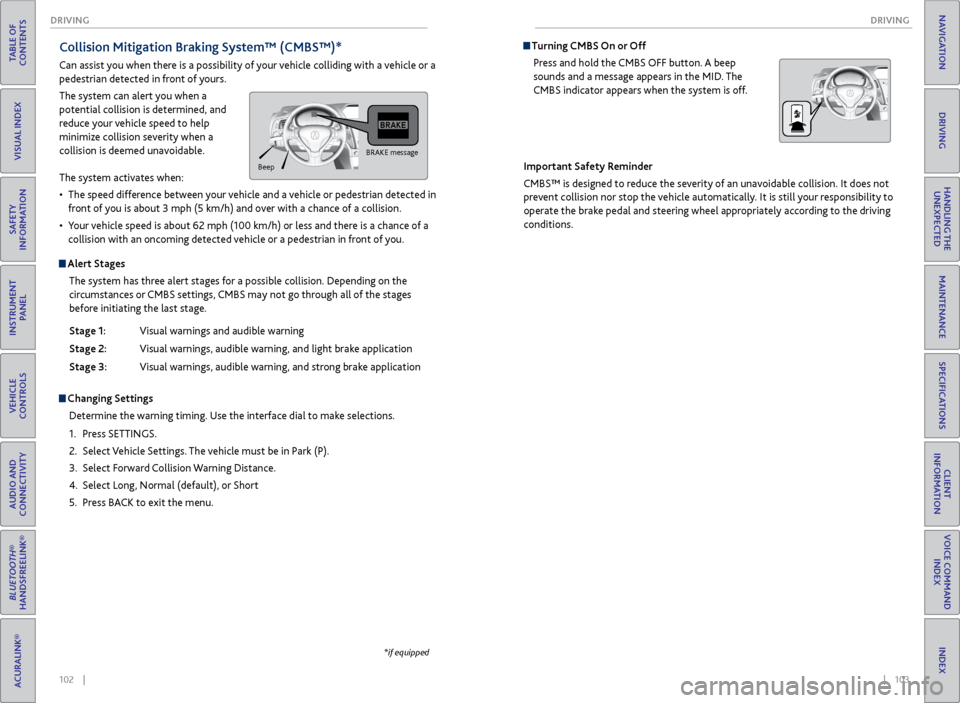
Turning CMBS On or Off
Press and hold the CMBS OFF button. A beep
sounds and a message appears in the MID. The
CMBS indicator appears when the system is off.
Important Safety Reminder
CMBS™ is designed to reduce the severity of an unavoidable collision. It does not
prevent collision nor stop the vehicle automatically. It is still your responsibility to
operate the brake pedal and steering wheel appropriately according to the driving
conditions.Collision Mitigation Braking System™ (CMBS™)*
Can assist you when there is a possibility of your vehicle colliding with a vehicle or a
pedestrian detected in front of yours.
The system can alert you when a
potential collision is determined, and
reduce your vehicle speed to help
minimize collision severity when a
collision is deemed unavoidable.
The system activates when:
• The speed difference between your vehicle and a vehicle or pedestrian detected in
front of you is about 3 mph (5 km/h) and over with a chance of a collision.
• Your vehicle speed is about 62 mph (100 km/h) or less and there is a chance of a
collision with an oncoming detected vehicle or a pedestrian in front of you.
Alert Stages
The system has three alert stages for a possible collision. Depending on the
circumstances or CMBS settings, CMBS may not go through all of the stages
before initiating the last stage.
Stage 1: Visual warnings and audible warning
Stage 2: Visual warnings, audible warning, and light brake application
Stage 3: Visual warnings, audible warning, and strong brake application
Changing Settings
Determine the warning timing. Use the interface dial to make selections.
1. Press SETTINGS.
2. Select Vehicle Settings. The vehicle must be in Park (P).
3. Select Forward Collision Warning Distance.
4. Select Long, Normal (default), or Short
5. Press BACK to exit the menu.
BRAKE message
Beep
*if equipped
Page 56 of 78
104 || 105
DRIVING
DRIVING
TABLE OF
CONTENTS
INDEX
VISUAL INDEX
VOICE COMMAND INDEX
SAFETY
INFORMATION
CLIENT
INFORMATION
INSTRUMENT PANEL
SPECIFICATIONS
VEHICLE
CONTROLS
MAINTENANCE
AUDIO AND
CONNECTIVITY
HANDLING THE UNEXPECTED
BLUETOOTH®
HANDSFREELINK®
DRIVING
ACURALINK®
NAVIGATION
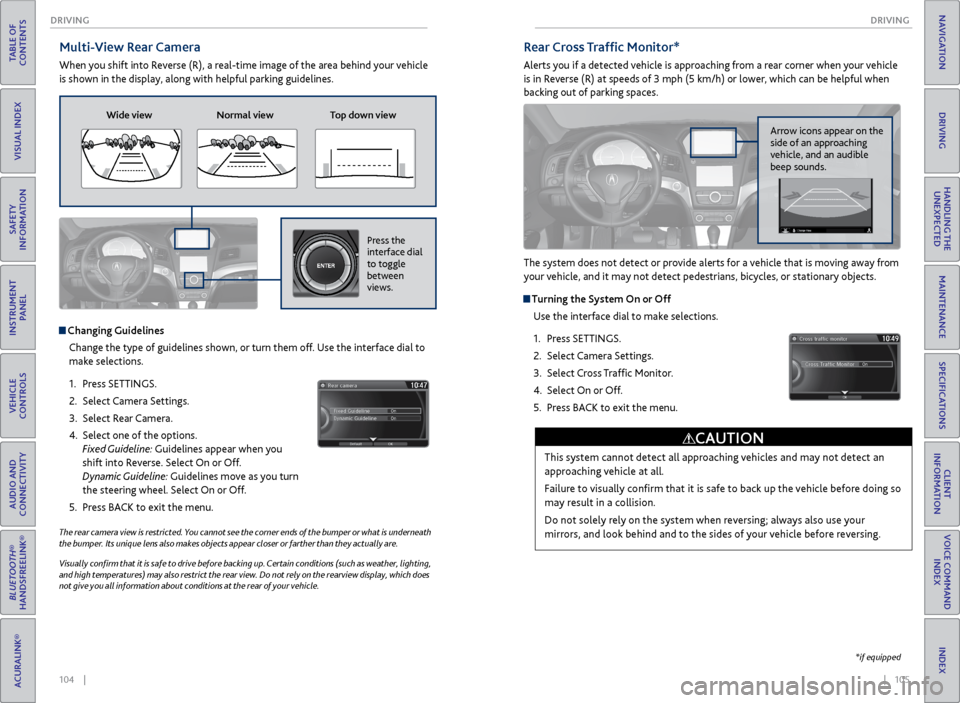
Multi-View Rear Camera
When you shift into Reverse (R), a real-time image of the area behind your vehicle
is shown in the display, along with helpful parking guidelines.
The rear camera view is restricted. You cannot see the corner ends of the bumper or what is underneath
the bumper. Its unique lens also makes objects appear closer or farther than they actually are.
Visually confirm that it is safe to drive before backing up. Certain conditions (such as weather, lighting,
and high temperatures) may also restrict the rear view. Do not rely on the rearview display, which does
not give you all information about conditions at the rear of your vehicle.
Changing Guidelines
Change the type of guidelines shown, or turn them off. Use the interface dial to
make selections.
1. Press SETTINGS.
2. Select Camera Settings.
3. Select Rear Camera.
4. Select one of the options.
Fixed Guideline: Guidelines appear when you
shift into Reverse. Select On or Off.
Dynamic Guideline: Guidelines move as you turn
the steering wheel. Select On or Off.
5. Press BACK to exit the menu.
Wide view Normal view Top down view
Press the
interface dial
to toggle
between
views.NAVAUDIOAUDIONAV
Rear Cross Traffic Monitor*
Alerts you if a detected vehicle is approaching from a rear corner when your vehicle
is in Reverse (R) at speeds of 3 mph (5 km/h) or lower, which can be helpful when
backing out of parking spaces.
The system does not detect or provide alerts for a vehicle that is moving away from
your vehicle, and it may not detect pedestrians, bicycles, or stationary objects.
Turning the System On or Off
Use the interface dial to make selections.
1. Press SETTINGS.
2. Select Camera Settings.
3. Select Cross Traffic Monitor.
4. Select On or Off.
5. Press BACK to exit the menu.
This system cannot detect all approaching vehicles and may not detect an
approaching vehicle at all.
Failure to visually confirm that it is safe to back up the vehicle before doing so
may result in a collision.
Do not solely rely on the system when reversing; always also use your
mirrors, and look behind and to the sides of your vehicle before reversing.
CAUTION
Arrow icons appear on the
side of an approaching
vehicle, and an audible
beep sounds.
*if equipped
Page 59 of 78
110 || 111
HANDLING THE UNEXPECTED
HANDLING THE UNEXPECTED
TABLE OF
CONTENTS
INDEX
VISUAL INDEX
VOICE COMMAND INDEX
SAFETY
INFORMATION
CLIENT
INFORMATION
INSTRUMENT PANEL
SPECIFICATIONS
VEHICLE
CONTROLS
MAINTENANCE
AUDIO AND
CONNECTIVITY
HANDLING THE UNEXPECTED
BLUETOOTH®
HANDSFREELINK®
DRIVING
ACURALINK®
NAVIGATION
Emergency Engine Stop
The ENGINE START/STOP button may be used to stop the engine due to an
emergency situation even while driving. If you must stop the engine, choose one of
the following operations:
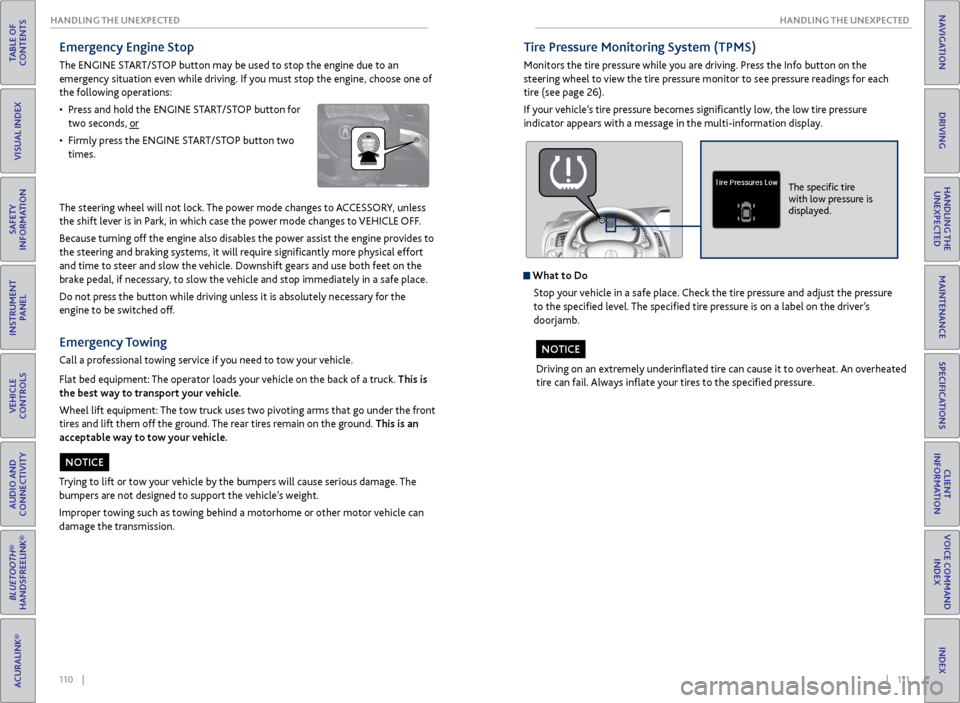
• Press and hold the ENGINE START/STOP button for
two seconds, or
• Firmly press the ENGINE START/STOP button two
times.
The steering wheel will not lock. The power mode changes to ACCESSORY, unless
the shift lever is in Park, in which case the power mode changes to VEHICLE OFF.
Because turning off the engine also disables the power assist the engine provides to
the steering and braking systems, it will require significantly more physical effort
and time to steer and slow the vehicle. Downshift gears and use both feet on the
brake pedal, if necessary, to slow the vehicle and stop immediately in a safe place.
Do not press the button while driving unless it is absolutely necessary for the
engine to be switched off.
Emergency Towing
Call a professional towing service if you need to tow your vehicle.
Flat bed equipment: The operator loads your vehicle on the back of a truck. This is
the best way to transport your vehicle.
Wheel lift equipment: The tow truck uses two pivoting arms that go under the front
tires and lift them off the ground. The rear tires remain on the ground. This is an
acceptable way to tow your vehicle.
Trying to lift or tow your vehicle by the bumpers will cause serious damage. The
bumpers are not designed to support the vehicle’s weight.
Improper towing such as towing behind a motorhome or other motor vehicle can
damage the transmission.
NOTICE
Tire Pressure Monitoring System (TPMS)
Monitors the tire pressure while you are driving. Press the Info button on the
steering wheel to view the tire pressure monitor to see pressure readings for each
tire (see page 26).
If your vehicle’s tire pressure becomes significantly low, the low tire pressure
indicator appears with a message in the multi-information display.
What to Do
Stop your vehicle in a safe place. Check the tire pressure and adjust the pressure
to the specified level. The specified tire pressure is on a label on the driver’s
doorjamb.
Driving on an extremely underinflated tire can cause it to overheat. An overheated
tire can fail. Always inflate your tires to the specified pressure.
NOTICE
The specific tire
with low pressure is
displayed.
Page 61 of 78
114 || 115
HANDLING THE UNEXPECTED
HANDLING THE UNEXPECTED
TABLE OF
CONTENTS
INDEX
VISUAL INDEX
VOICE COMMAND INDEX
SAFETY
INFORMATION
CLIENT
INFORMATION
INSTRUMENT PANEL
SPECIFICATIONS
VEHICLE
CONTROLS
MAINTENANCE
AUDIO AND
CONNECTIVITY
HANDLING THE UNEXPECTED
BLUETOOTH®
HANDSFREELINK®
DRIVING
ACURALINK®
NAVIGATION
Changing a Flat Tire
If a tire goes flat while driving, grasp the steering wheel firmly, and brake gradually
to reduce speed. Stop in a safe place. Replace the flat tire with the compact
spare tire*. Go to a dealer as soon as possible to have the full-size tire repaired or
replaced.
Before Changing the Tire
1. Park the vehicle on a firm, level, non-slippery surface.
2. Put the vehicle in Park (P), and apply the parking brake.
3. Turn on the hazard warning lights and turn the vehicle off.
Getting Ready to Change the Tire
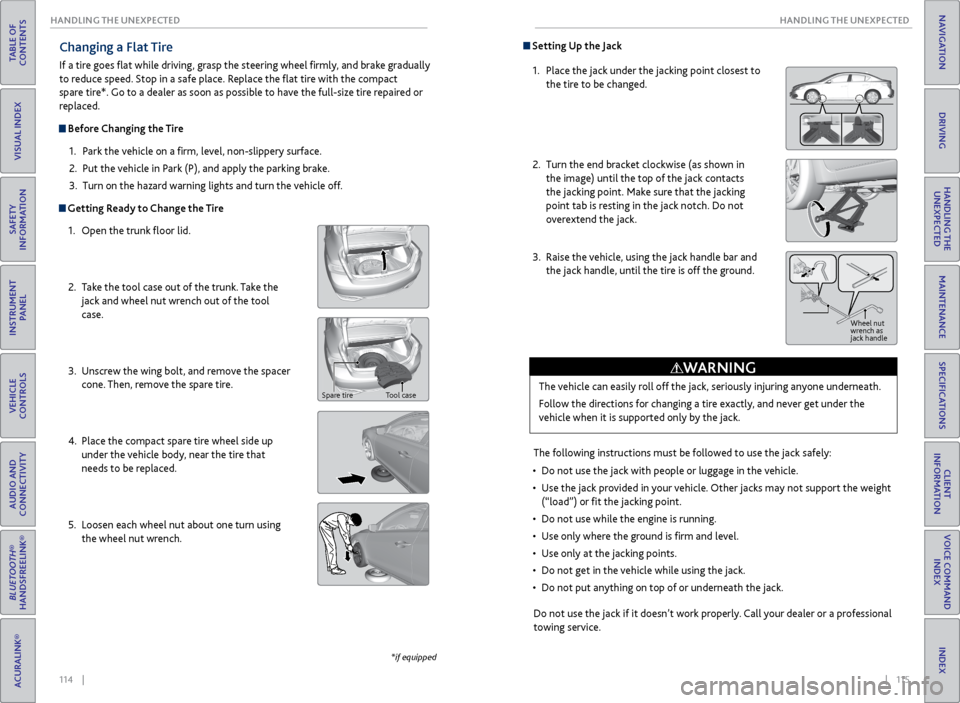
1. Open the trunk floor lid.
2. Take the tool case out of the trunk. Take the
jack and wheel nut wrench out of the tool
case.
3. Unscrew the wing bolt, and remove the spacer
cone. Then, remove the spare tire.
4. Place the compact spare tire wheel side up
under the vehicle body, near the tire that
needs to be replaced.
5. Loosen each wheel nut about one turn using
the wheel nut wrench.
*if equipped
Spare tire Tool case
Setting Up the Jack
1. Place the jack under the jacking point closest to
the tire to be changed.
2. Turn the end bracket clockwise (as shown in
the image) until the top of the jack contacts
the jacking point. Make sure that the jacking
point tab is resting in the jack notch. Do not
overextend the jack.
3. Raise the vehicle, using the jack handle bar and
the jack handle, until the tire is off the ground.
The following instructions must be followed to use the jack safely:
• Do not use the jack with people or luggage in the vehicle.
• Use the jack provided in your vehicle. Other jacks may not support the weight
(“load”) or fit the jacking point.
• Do not use while the engine is running.
• Use only where the ground is firm and level.
• Use only at the jacking points.
• Do not get in the vehicle while using the jack.
• Do not put anything on top of or underneath the jack.
The vehicle can easily roll off the jack, seriously injuring anyone underneath.
Follow the directions for changing a tire exactly, and never get under the
vehicle when it is supported only by the jack.
WARNING
Jack
handle bar
Do not use the jack if it doesn’t work properly. Call your dealer or a professional
towing service.
Wheel nut
wrench as
jack handle