warning Acura ILX 2016 User Guide
[x] Cancel search | Manufacturer: ACURA, Model Year: 2016, Model line: ILX, Model: Acura ILX 2016Pages: 78, PDF Size: 20.92 MB
Page 22 of 78
36 || 37
VEHICLE CONTROLS
VEHICLE CONTROLS
TABLE OF
CONTENTS
INDEX
VISUAL INDEX
VOICE COMMAND INDEX
SAFETY
INFORMATION
CLIENT
INFORMATION
INSTRUMENT PANEL
SPECIFICATIONS
VEHICLE
CONTROLS
MAINTENANCE
AUDIO AND
CONNECTIVITY
HANDLING THE UNEXPECTED
BLUETOOTH®
HANDSFREELINK®
DRIVING
ACURALINK®
NAVIGATION
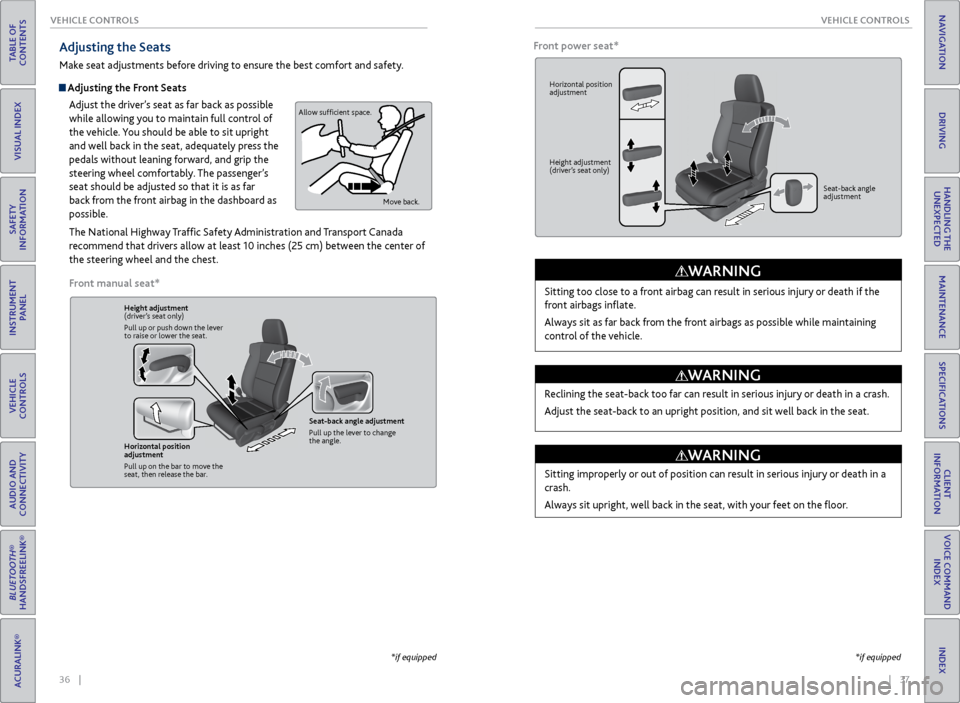
Adjusting the Seats
Make seat adjustments before driving to ensure the best comfort and safety.
Adjusting the Front Seats
Adjust the driver’s seat as far back as possible
while allowing you to maintain full control of
the vehicle. You should be able to sit upright
and well back in the seat, adequately press the
pedals without leaning forward, and grip the
steering wheel comfortably. The passenger’s
seat should be adjusted so that it is as far
back from the front airbag in the dashboard as
possible.
The National Highway Traffic Safety Administration and Transport Canada
recommend that drivers allow at least 10 inches (25 cm) between the center of
the steering wheel and the chest.
Sitting too close to a front airbag can result in serious injury or death if the
front airbags inflate.
Always sit as far back from the front airbags as possible while maintaining
control of the vehicle.
WARNING
Allow sufficient space.
Move back.
Height adjustment
(driver’s seat only)
Pull up or push down the lever
to raise or lower the seat.
Horizontal position
adjustment
Pull up on the bar to move the
seat, then release the bar. Seat-back angle adjustment
Pull up the lever to change
the angle.
Reclining the seat-back too far can result in serious injury or death in a crash.
Adjust the seat-back to an upright position, and sit well back in the seat.
WARNING
*if equipped
Sitting improperly or out of position can result in serious injury or death in a
crash.
Always sit upright, well back in the seat, with your feet on the floor.
WARNING
Front manual seat*
Horizontal position
adjustment
Height adjustment
(driver’s seat only)
Seat-back angle
adjustment
Front power seat*
*if equipped
Page 23 of 78
38 || 39
VEHICLE CONTROLS
VEHICLE CONTROLS
TABLE OF
CONTENTS
INDEX
VISUAL INDEX
VOICE COMMAND INDEX
SAFETY
INFORMATION
CLIENT
INFORMATION
INSTRUMENT PANEL
SPECIFICATIONS
VEHICLE
CONTROLS
MAINTENANCE
AUDIO AND
CONNECTIVITY
HANDLING THE UNEXPECTED
BLUETOOTH®
HANDSFREELINK®
DRIVING
ACURALINK®
NAVIGATION
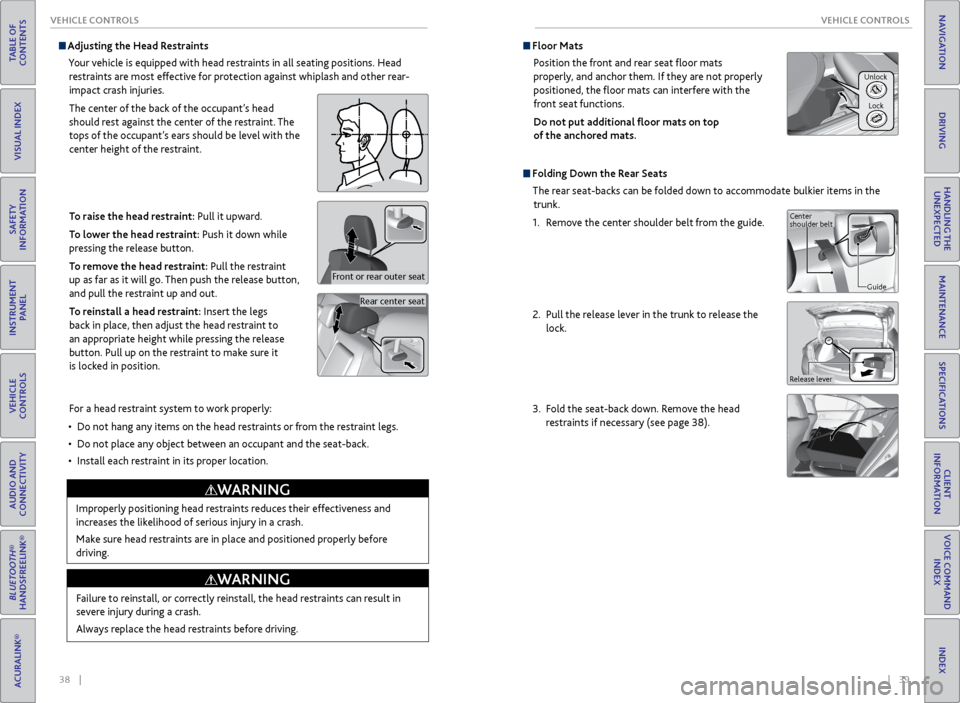
Adjusting the Head Restraints
Your vehicle is equipped with head restraints in all seating positions. Head restraints are most effective for protection against whiplash and other rear-
impact crash injuries.
The center of the back of the occupant’s head
should rest against the center of the restraint. The
tops of the occupant’s ears should be level with the
center height of the restraint.
To raise the head restraint: Pull it upward.
To lower the head restraint: Push it down while
pressing the release button.
To remove the head restraint: Pull the restraint
up as far as it will go. Then push the release button,
and pull the restraint up and out.
To reinstall a head restraint: Insert the legs
back in place, then adjust the head restraint to
an appropriate height while pressing the release
button. Pull up on the restraint to make sure it
is locked in position.
Rear center seat
Front or rear outer seat
For a head restraint system to work properly:
• Do not hang any items on the head restraints or from the restraint legs.
• Do not place any object between an occupant and the seat-back.
• Install each restraint in its proper location.
Improperly positioning head restraints reduces their effectiveness and
increases the likelihood of serious injury in a crash.
Make sure head restraints are in place and positioned properly before
driving.
WARNING
Failure to reinstall, or correctly reinstall, the head restraints can result in
severe injury during a crash.
Always replace the head restraints before driving.
WARNING
Floor Mats Position the front and rear seat floor mats
properly, and anchor them. If they are not properly
positioned, the floor mats can interfere with the
front seat functions.
Do not put additional floor mats on top
of the anchored mats.
Unlock
Lock
Folding Down the Rear SeatsThe rear seat-backs can be folded down to accommodate bulkier items in the trunk.
1. Remove the center shoulder belt from the guide.
2. Pull the release lever in the trunk to release the
lock.
3. Fold the seat-back down. Remove the head
restraints if necessary (see page 38).
Center
shoulder belt
Guide
Release lever
Page 24 of 78
40 || 41
VEHICLE CONTROLS
VEHICLE CONTROLS
TABLE OF
CONTENTS
INDEX
VISUAL INDEX
VOICE COMMAND INDEX
SAFETY
INFORMATION
CLIENT
INFORMATION
INSTRUMENT PANEL
SPECIFICATIONS
VEHICLE
CONTROLS
MAINTENANCE
AUDIO AND
CONNECTIVITY
HANDLING THE UNEXPECTED
BLUETOOTH®
HANDSFREELINK®
DRIVING
ACURALINK®
NAVIGATION
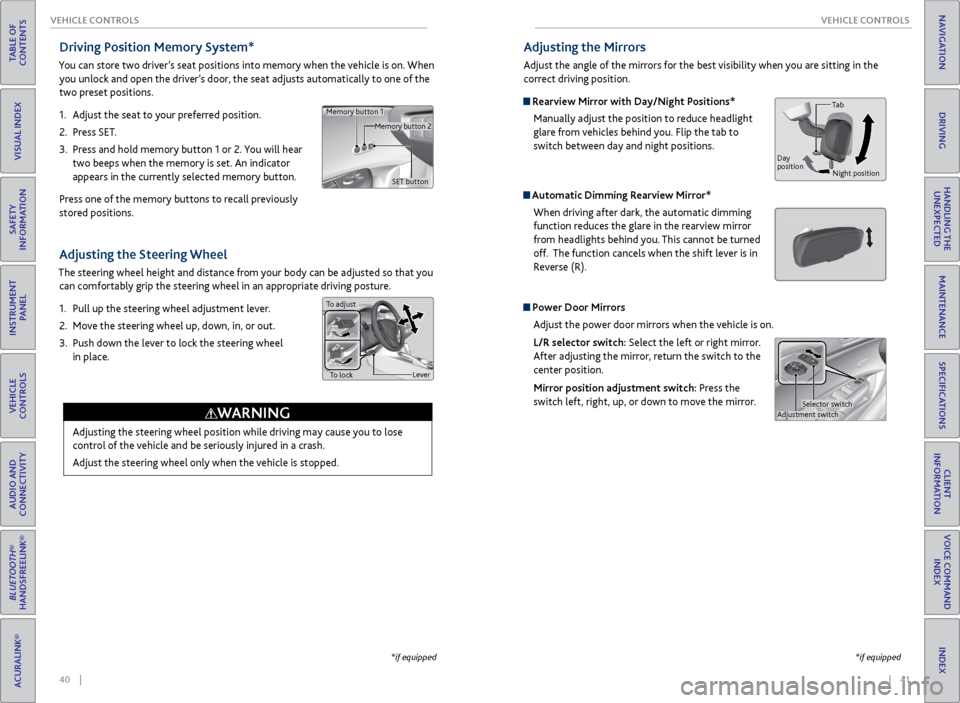
Adjusting the Steering Wheel
The steering wheel height and distance from your body can be adjusted so that you
can comfortably grip the steering wheel in an appropriate driving posture.
1. Pull up the steering wheel adjustment lever.
2. Move the steering wheel up, down, in, or out.
3. Push down the lever to lock the steering wheel
in place.
Lever
To lock
To adjust
Adjusting the steering wheel position while driving may cause you to lose
control of the vehicle and be seriously injured in a crash.
Adjust the steering wheel only when the vehicle is stopped.
WARNING
Driving Position Memory System*
You can store two driver’s seat positions into memory when the vehicle is on. When
you unlock and open the driver’s door, the seat adjusts automatically to one of the
two preset positions.
1. Adjust the seat to your preferred position.
2. Press SET.
3. Press and hold memory button 1 or 2. You will hear
two beeps when the memory is set. An indicator
appears in the currently selected memory button.
Press one of the memory buttons to recall previously
stored positions.
Memory button 1 Memory button 2
SET button
*if equipped
Adjusting the Mirrors
Adjust the angle of the mirrors for the best visibility when you are sitting in the
correct driving position.
Rearview Mirror with Day/Night Positions*
Manually adjust the position to reduce headlight
glare from vehicles behind you. Flip the tab to
switch between day and night positions.
Automatic Dimming Rearview Mirror*When driving after dark, the automatic dimming
function reduces the glare in the rearview mirror
from headlights behind you. This cannot be turned
off. The function cancels when the shift lever is in
Reverse (R).
Power Door MirrorsAdjust the power door mirrors when the vehicle is on.
L/R selector switch: Select the left or right mirror.
After adjusting the mirror, return the switch to the
center position.
Mirror position adjustment switch: Press the
switch left, right, up, or down to move the mirror.
*if equipped
Adjustment switch Selector switch
Tab
Day
position Night position
Page 27 of 78
46 || 47
AUDIO AND CONNECTIVITY
VEHICLE CONTROLS
TABLE OF
CONTENTS
INDEX
VISUAL INDEX
VOICE COMMAND INDEX
SAFETY
INFORMATION
CLIENT
INFORMATION
INSTRUMENT PANEL
SPECIFICATIONS
VEHICLE
CONTROLS
MAINTENANCE
AUDIO AND
CONNECTIVITY
HANDLING THE UNEXPECTED
BLUETOOTH®
HANDSFREELINK®
DRIVING
ACURALINK®
NAVIGATION
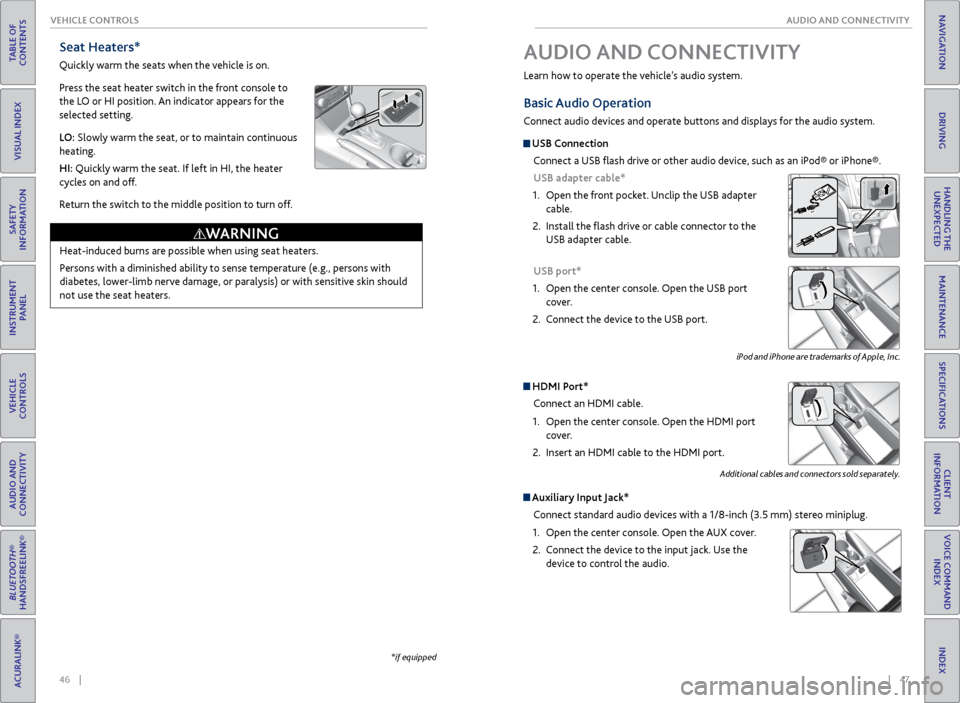
Seat Heaters*
Quickly warm the seats when the vehicle is on.
Press the seat heater switch in the front console to
the LO or HI position. An indicator appears for the
selected setting.
LO: Slowly warm the seat, or to maintain continuous
heating.
HI: Quickly warm the seat. If left in HI, the heater
cycles on and off.
Return the switch to the middle position to turn off.
*if equipped
AUDIO AND CONNECTIVITY
Learn how to operate the vehicle’s audio system.
Basic Audio Operation
Connect audio devices and operate buttons and displays for the audio system.
USB Connection
Connect a USB flash drive or other audio device, such as an iPod® or iPhone®.
USB adapter cable*
1. Open the front pocket. Unclip the USB adapter
cable.
2. Install the flash drive or cable connector to the
USB adapter cable.
USB port*
1. Open the center console. Open the USB port
cover.
2. Connect the device to the USB port.
HDMI Port*
Connect an HDMI cable.
1. Open the center console. Open the HDMI port
cover.
2. Insert an HDMI cable to the HDMI port.
Auxiliary Input Jack*
Connect standard audio devices with a 1/8-inch (3.5 mm) stereo miniplug.
1. Open the center console. Open the AUX cover.
2. Connect the device to the input jack. Use the
device to control the audio.
Heat-induced burns are possible when using seat heaters.
Persons with a diminished ability to sense temperature (e.g., persons with
diabetes, lower-limb nerve damage, or paralysis) or with sensitive skin should
not use the seat heaters.
WARNING
iPod and iPhone are trademarks of Apple, Inc.
Additional cables and connectors sold separately.
Page 43 of 78
| 79
NAVIGATION
INDEX
VOICE COMMAND
INDEX
CLIENT
INFORMATION
SPECIFICATIONS
MAINTENANCE
HANDLING THE UNEXPECTED
DRIVING
NAVIGATION
78 |
TABLE OF
CONTENTS
VISUAL INDEX
SAFETY
INFORMATION
INSTRUMENT PANEL
VEHICLE
CONTROLS
AUDIO AND
CONNECTIVITY
BLUETOOTH®
HANDSFREELINK®
ACURALINK®
Subscription Features
A subscription-based service that provides convenient features, such as collision
notification, emergency assistance, online security, and important messages about
your vehicle. Requires enrollment and privacy agreement. To subscribe or get more
information, contact a dealer or visit owners.acura.com (U.S.) or www.myacura.ca
(Canada).
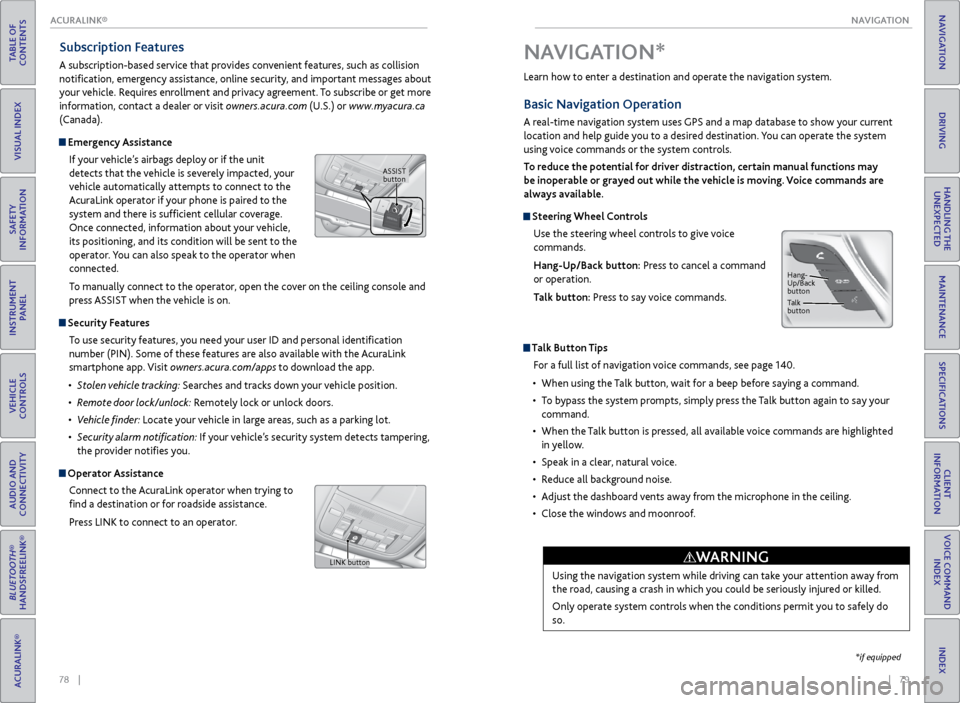
Emergency Assistance
If your vehicle’s airbags deploy or if the unit
detects that the vehicle is severely impacted, your
vehicle automatically attempts to connect to the
AcuraLink operator if your phone is paired to the
system and there is sufficient cellular coverage.
Once connected, information about your vehicle,
its positioning, and its condition will be sent to the
operator. You can also speak to the operator when
connected.
To manually connect to the operator, open the cover on the ceiling console and
press ASSIST when the vehicle is on.
Security Features
To use security features, you need your user ID and personal identification
number (PIN). Some of these features are also available with the AcuraLink
smartphone app. Visit owners.acura.com/apps to download the app.
• Stolen vehicle tracking: Searches and tracks down your vehicle position.
• Remote door lock/unlock: Remotely lock or unlock doors.
• Vehicle finder: Locate your vehicle in large areas, such as a parking lot.
• Security alarm notification: If your vehicle’s security system detects tampering,
the provider notifies you.
Operator Assistance
Connect to the AcuraLink operator when trying to
find a destination or for roadside assistance.
Press LINK to connect to an operator.
ASSIST button
LINK button
Learn how to enter a destination and operate the navigation system.
Basic Navigation Operation
A real-time navigation system uses GPS and a map database to show your current
location and help guide you to a desired destination. You can operate the system
using voice commands or the system controls.
To reduce the potential for driver distraction, certain manual functions may
be inoperable or grayed out while the vehicle is moving. Voice commands are
always available.
Steering Wheel Controls
Use the steering wheel controls to give voice
commands.
Hang-Up/Back button: Press to cancel a command
or operation.
Talk button: Press to say voice commands.
Talk Button Tips
For a full list of navigation voice commands, see page 140.
• When using the Talk button, wait for a beep before saying a command.
• To bypass the system prompts, simply press the Talk button again to say your
command.
• When the Talk button is pressed, all available voice commands are highlighted
in yellow.
• Speak in a clear, natural voice.
• Reduce all background noise.
• Adjust the dashboard vents away from the microphone in the ceiling.
• Close the windows and moonroof.
Using the navigation system while driving can take your attention away from
the road, causing a crash in which you could be seriously injured or killed.
Only operate system controls when the conditions permit you to safely do
so.
WARNING
NAVIGATION*
Hang-
Up/Back
button
Talk
button
*if equipped
ACURALINK
Page 49 of 78
90 || 91
DRIVING
DRIVING
TABLE OF
CONTENTS
INDEX
VISUAL INDEX
VOICE COMMAND INDEX
SAFETY
INFORMATION
CLIENT
INFORMATION
INSTRUMENT PANEL
SPECIFICATIONS
VEHICLE
CONTROLS
MAINTENANCE
AUDIO AND
CONNECTIVITY
HANDLING THE UNEXPECTED
BLUETOOTH®
HANDSFREELINK®
DRIVING
ACURALINK®
NAVIGATION
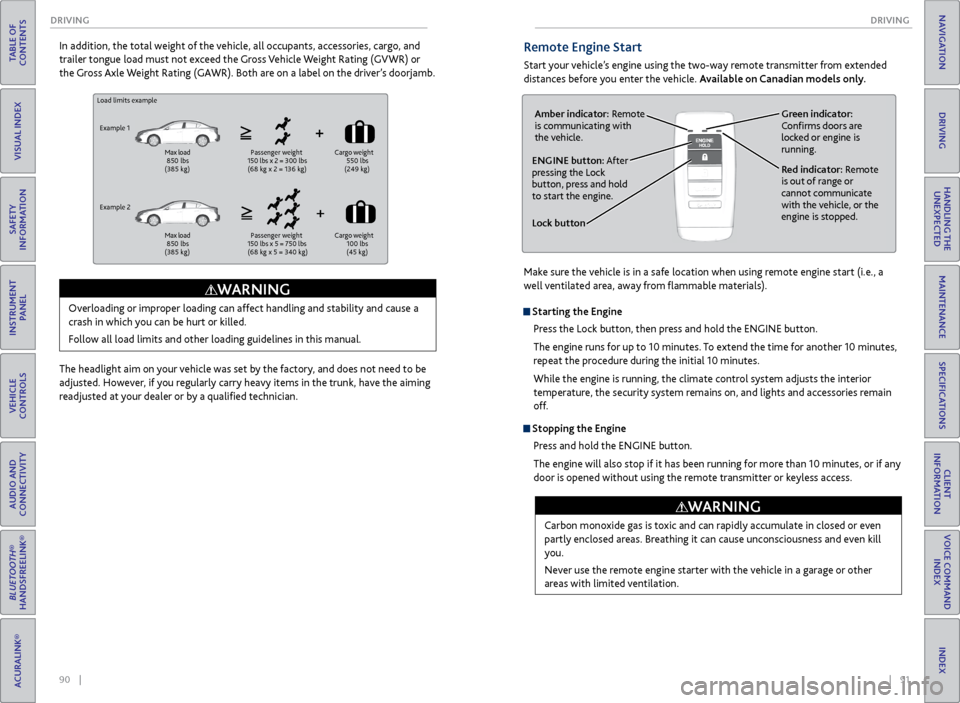
Load limits example
Example 1
Max load
850 lbs
(385 kg) Passenger weight
150 lbs x 2 = 300 lbs
(68 kg x 2 = 136 kg) Cargo
weight
550 lbs
(249 kg)
Example 2
Max load
850 lbs
(385 kg) Passenger weight
150 lbs x 5 = 750 lbs
(68 kg x 5 = 340 kg) Cargo
weight
100 lbs
(45 kg)
Overloading or improper loading can affect handling and stability and cause a
crash in which you can be hurt or killed.
Follow all load limits and other loading guidelines in this manual.
WARNING
In addition, the total weight of the vehicle, all occupants, accessories, cargo, and
trailer tongue load must not exceed the Gross Vehicle Weight Rating (GVWR) or
the Gross Axle Weight Rating (GAWR). Both are on a label on the driver’s doorjamb.
The headlight aim on your vehicle was set by the factory, and does not need to be
adjusted. However, if you regularly carry heavy items in the trunk, have the aiming
readjusted at your dealer or by a qualified technician.Remote Engine Start
Start your vehicle’s engine using the two-way remote transmitter from extended
distances before you enter the vehicle. Available on Canadian models only.
Lock button
ENGINE button: After
pressing the Lock
button, press and hold
to start the engine.Red indicator: Remote
is out of range or
cannot communicate
with the vehicle, or the
engine is stopped.
Amber indicator: Remote
is communicating with
the vehicle.
Green indicator:
Confirms doors are
locked or engine is
running.
Starting the Engine
Press the Lock button, then press and hold the ENGINE button.
The engine runs for up to 10 minutes. To extend the time for another 10 minutes,
repeat the procedure during the initial 10 minutes.
While the engine is running, the climate control system adjusts the interior
temperature, the security system remains on, and lights and accessories remain
off.
Stopping the EnginePress and hold the ENGINE button.
The engine will also stop if it has been running for more than 10 minutes, or if any
door is opened without using the remote transmitter or keyless access.
Carbon monoxide gas is toxic and can rapidly accumulate in closed or even
partly enclosed areas. Breathing it can cause unconsciousness and even kill
you.
Never use the remote engine starter with the vehicle in a garage or other
areas with limited ventilation.
WARNING
Make sure the vehicle is in a safe location when using remote engine start (i.e., a
well ventilated area, away from flammable materials).
Page 52 of 78
96 || 97
DRIVING
DRIVING
TABLE OF
CONTENTS
INDEX
VISUAL INDEX
VOICE COMMAND INDEX
SAFETY
INFORMATION
CLIENT
INFORMATION
INSTRUMENT PANEL
SPECIFICATIONS
VEHICLE
CONTROLS
MAINTENANCE
AUDIO AND
CONNECTIVITY
HANDLING THE UNEXPECTED
BLUETOOTH®
HANDSFREELINK®
DRIVING
ACURALINK®
NAVIGATION
Cruise Control*
Maintain a constant vehicle speed without having to keep your foot on the
accelerator pedal. Use cruise control on freeways or open roads where you can
travel at a constant speed with little acceleration or deceleration.
Improper use of the cruise control can lead to a crash.
Use cruise control only when traveling on open highways in good weather.
WARNING
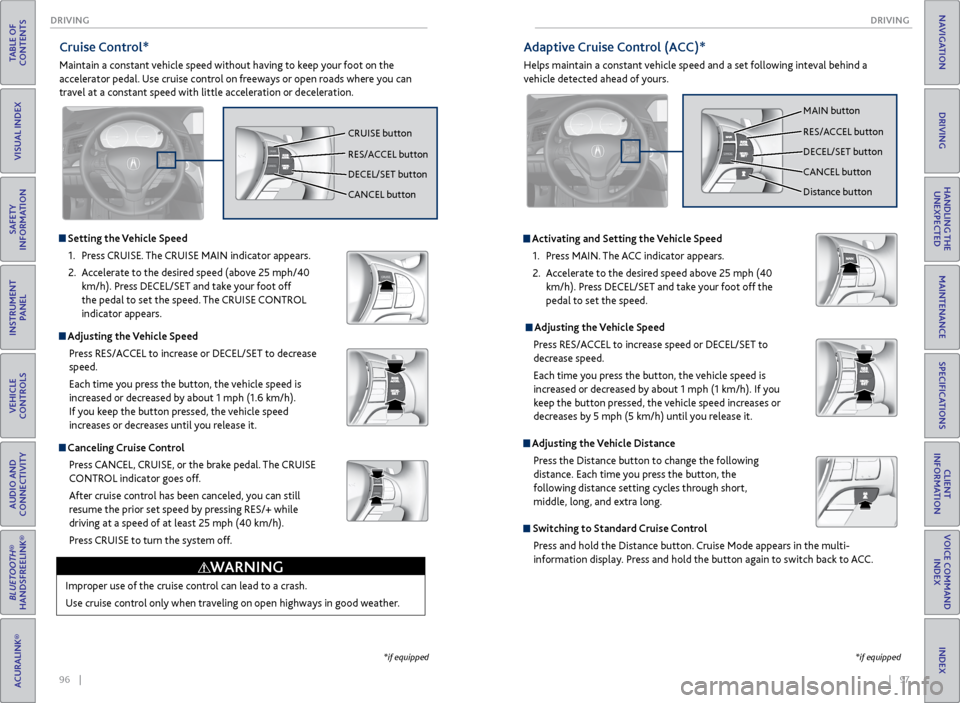
Setting the Vehicle Speed1. Press CRUISE. The CRUISE MAIN indicator appears.
2. Accelerate to the desired speed (above 25 mph/40
km/h). Press DECEL/SET and take your foot off
the pedal to set the speed. The CRUISE CONTROL
indicator appears.
Adjusting the Vehicle Speed
Press RES/ACCEL to increase or DECEL/SET to decrease
speed.
Each time you press the button, the vehicle speed is
increased or decreased by about 1 mph (1.6 km/h).
If you keep the button pressed, the vehicle speed
increases or decreases until you release it.
Canceling Cruise ControlPress CANCEL, CRUISE, or the brake pedal. The CRUISE
CONTROL indicator goes off.
After cruise control has been canceled, you can still
resume the prior set speed by pressing RES/+ while
driving at a speed of at least 25 mph (40 km/h).
Press CRUISE to turn the system off.
CRUISE button
RES/ACCEL button
DECEL/SET button
CANCEL button
*if equipped
Activating and Setting the Vehicle Speed1. Press MAIN. The ACC indicator appears.
2. Accelerate to the desired speed above 25 mph (40
km/h). Press DECEL/SET and take your foot off the
pedal to set the speed.
Adjusting the Vehicle Speed Press RES/ACCEL to increase speed or DECEL/SET to
decrease speed.
Each time you press the button, the vehicle speed is
increased or decreased by about 1 mph (1 km/h). If you
keep the button pressed, the vehicle speed increases or
decreases by 5 mph (5 km/h) until you release it.
Adjusting the Vehicle Distance Press the Distance button to change the following
distance. Each time you press the button, the
following distance setting cycles through short,
middle, long, and extra long.
Switching to Standard Cruise ControlPress and hold the Distance button. Cruise Mode appears in the multi-
information display. Press and hold the button again to switch back to ACC.
Adaptive Cruise Control (ACC)*
Helps maintain a constant vehicle speed and a set following inteval behind a
vehicle detected ahead of yours.
*if equipped
MAIN button
RES/ACCEL button
DECEL/SET button
CANCEL button
Distance button
Page 53 of 78
98 || 99
DRIVING
DRIVING
TABLE OF
CONTENTS
INDEX
VISUAL INDEX
VOICE COMMAND INDEX
SAFETY
INFORMATION
CLIENT
INFORMATION
INSTRUMENT PANEL
SPECIFICATIONS
VEHICLE
CONTROLS
MAINTENANCE
AUDIO AND
CONNECTIVITY
HANDLING THE UNEXPECTED
BLUETOOTH®
HANDSFREELINK®
DRIVING
ACURALINK®
NAVIGATION
Canceling ACC
You can press CANCEL or MAIN, or press the brake
pedal. The ACC indicator goes off.
Certain conditions may cause ACC to cancel
automatically. When this happens, the amber ACC
indicator appears on the multi-information display
(see page 22).
After cruise control has been canceled, you can still resume the prior set speed by
pressing RES/ACCEL when your vehicle speed is over 25 mph (40 km/h).
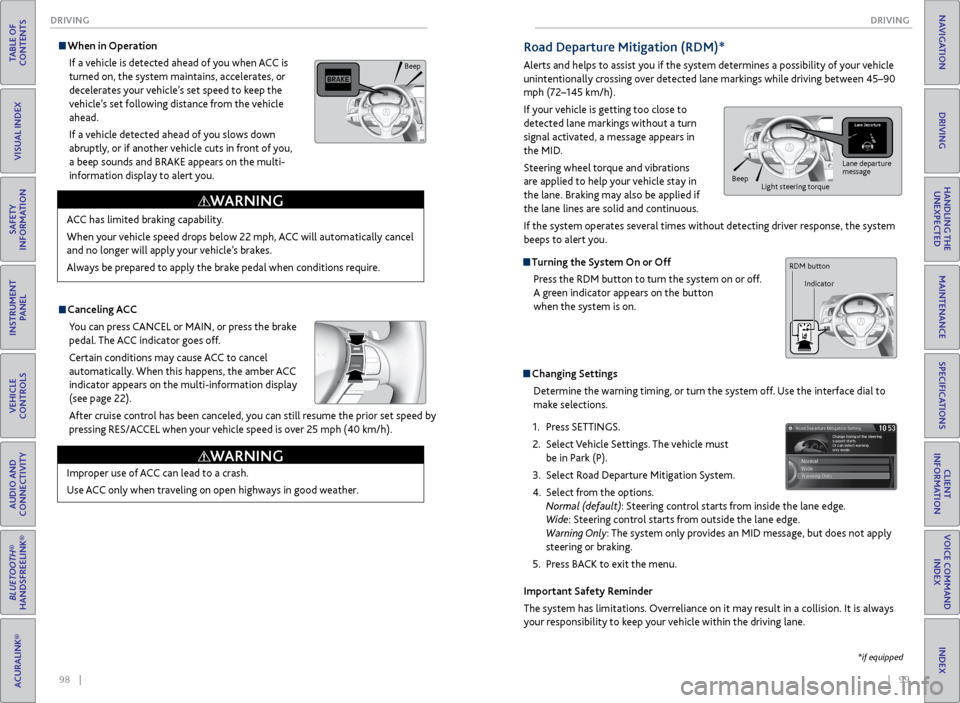
When in Operation
If a vehicle is detected ahead of you when ACC is
turned on, the system maintains, accelerates, or
decelerates your vehicle’s set speed to keep the
vehicle’s set following distance from the vehicle
ahead.
If a vehicle detected ahead of you slows down
abruptly, or if another vehicle cuts in front of you,
a beep sounds and BRAKE appears on the multi-
information display to alert you.
Improper use of ACC can lead to a crash.
Use ACC only when traveling on open highways in good weather.
WARNING
ACC has limited braking capability.
When your vehicle speed drops below 22 mph, ACC will automatically cancel
and no longer will apply your vehicle’s brakes.
Always be prepared to apply the brake pedal when conditions require.
WARNING
Beep
Road Departure Mitigation (RDM)*
Alerts and helps to assist you if the system determines a possibility of your vehicle
unintentionally crossing over detected lane markings while driving between 45–90
mph (72–145 km/h).
If your vehicle is getting too close to
detected lane markings without a turn
signal activated, a message appears in
the MID.
Steering wheel torque and vibrations
are applied to help your vehicle stay in
the lane. Braking may also be applied if
the lane lines are solid and continuous.
If the system operates several times without detecting driver response, the system
beeps to alert you.
Turning the System On or Off Press the RDM button to turn the system on or off.
A green indicator appears on the button
when the system is on.
Changing SettingsDetermine the warning timing, or turn the system off. Use the interface dial to
make selections.
1. Press SETTINGS.
2. Select Vehicle Settings. The vehicle must
be in Park (P).
3. Select Road Departure Mitigation System.
4. Select from the options.
Normal (default): Steering control starts from inside the lane edge.
Wide: Steering control starts from outside the lane edge.
Warning Only: The system only provides an MID message, but does not apply
steering or braking.
5. Press BACK to exit the menu.
Important Safety Reminder
The system has limitations. Overreliance on it may result in a collision. It is always
your responsibility to keep your vehicle within the driving lane.
*if equipped
Lane departure
message
Beep
Light steering torque
RDM button
Indicator
Page 54 of 78
100 || 101
DRIVING
DRIVING
TABLE OF
CONTENTS
INDEX
VISUAL INDEX
VOICE COMMAND INDEX
SAFETY
INFORMATION
CLIENT
INFORMATION
INSTRUMENT PANEL
SPECIFICATIONS
VEHICLE
CONTROLS
MAINTENANCE
AUDIO AND
CONNECTIVITY
HANDLING THE UNEXPECTED
BLUETOOTH®
HANDSFREELINK®
DRIVING
ACURALINK®
NAVIGATION
Turning LKAS On or Off
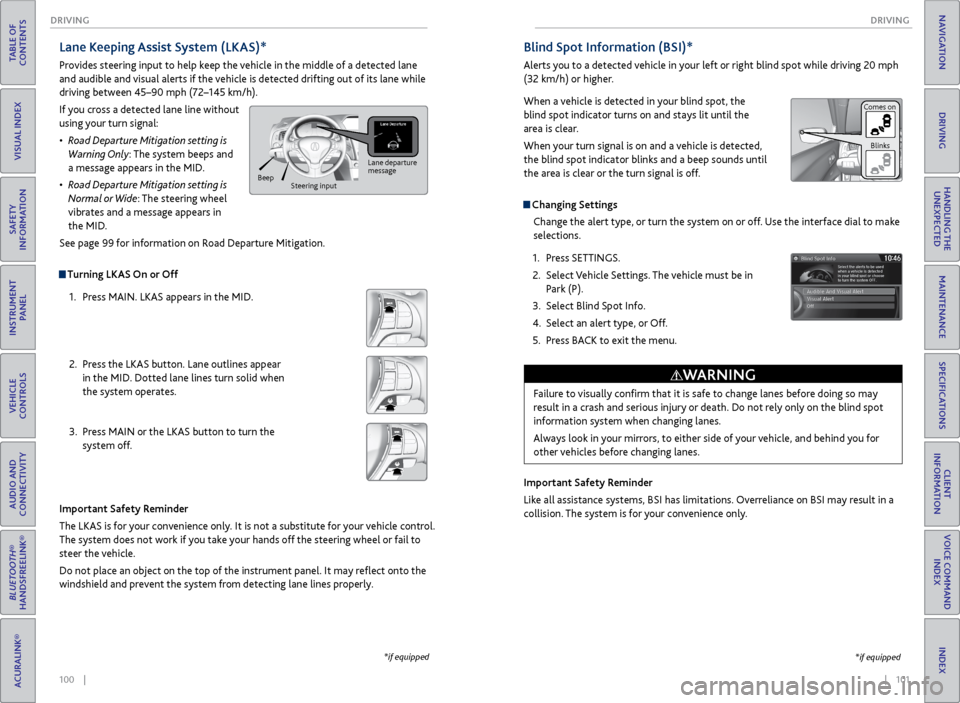
1. Press MAIN. LKAS appears in the MID.
2. Press the LKAS button. Lane outlines appear
in the MID. Dotted lane lines turn solid when
the system operates.
3. Press MAIN or the LKAS button to turn the
system off.
Lane Keeping Assist System (LKAS)*
Provides steering input to help keep the vehicle in the middle of a detected lane
and audible and visual alerts if the vehicle is detected drifting out of its lane while
driving between 45–90 mph (72–145 km/h).
If you cross a detected lane line without
using your turn signal:
• Road Departure Mitigation setting is
Warning Only: The system beeps and
a message appears in the MID.
• Road Departure Mitigation setting is
Normal or Wide: The steering wheel
vibrates and a message appears in
the MID.
See page 99 for information on Road Departure Mitigation.
Important Safety Reminder
The LKAS is for your convenience only. It is not a substitute for your vehicle control.
The system does not work if you take your hands off the steering wheel or fail to
steer the vehicle.
Do not place an object on the top of the instrument panel. It may reflect onto the
windshield and prevent the system from detecting lane lines properly.
Lane departure
message
Beep
Steering input
*if equipped
Blind Spot Information (BSI)*
Alerts you to a detected vehicle in your left or right blind spot while driving 20 mph
(32 km/h) or higher.
When a vehicle is detected in your blind spot, the
blind spot indicator turns on and stays lit until the
area is clear.
When your turn signal is on and a vehicle is detected,
the blind spot indicator blinks and a beep sounds until
the area is clear or the turn signal is off.
Changing Settings
Change the alert type, or turn the system on or off. Use the interface dial to make
selections.
1. Press SETTINGS.
2. Select Vehicle Settings. The vehicle must be in
Park (P).
3. Select Blind Spot Info.
4. Select an alert type, or Off.
5. Press BACK to exit the menu.
Important Safety Reminder
Like all assistance systems, BSI has limitations. Overreliance on BSI may result in a
collision. The system is for your convenience only.
Failure to visually confirm that it is safe to change lanes before doing so may
result in a crash and serious injury or death. Do not rely only on the blind spot
information system when changing lanes.
Always look in your mirrors, to either side of your vehicle, and behind you for
other vehicles before changing lanes.
WARNING
*if equipped
Comes on Blinks
Page 55 of 78
102 || 103
DRIVING
DRIVING
TABLE OF
CONTENTS
INDEX
VISUAL INDEX
VOICE COMMAND INDEX
SAFETY
INFORMATION
CLIENT
INFORMATION
INSTRUMENT PANEL
SPECIFICATIONS
VEHICLE
CONTROLS
MAINTENANCE
AUDIO AND
CONNECTIVITY
HANDLING THE UNEXPECTED
BLUETOOTH®
HANDSFREELINK®
DRIVING
ACURALINK®
NAVIGATION
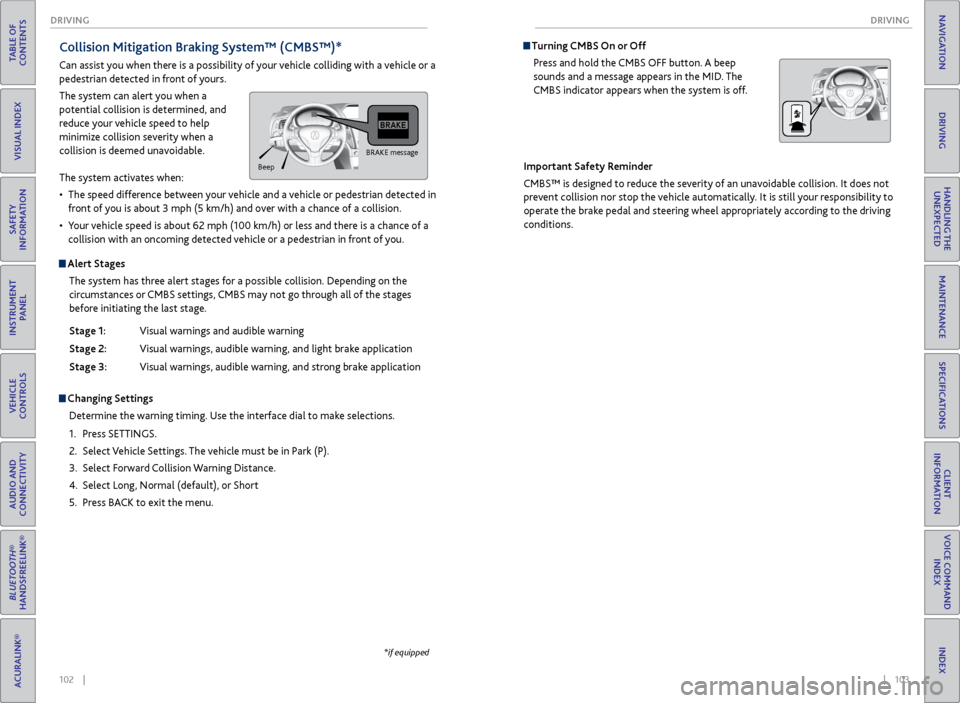
Turning CMBS On or Off
Press and hold the CMBS OFF button. A beep
sounds and a message appears in the MID. The
CMBS indicator appears when the system is off.
Important Safety Reminder
CMBS™ is designed to reduce the severity of an unavoidable collision. It does not
prevent collision nor stop the vehicle automatically. It is still your responsibility to
operate the brake pedal and steering wheel appropriately according to the driving
conditions.Collision Mitigation Braking System™ (CMBS™)*
Can assist you when there is a possibility of your vehicle colliding with a vehicle or a
pedestrian detected in front of yours.
The system can alert you when a
potential collision is determined, and
reduce your vehicle speed to help
minimize collision severity when a
collision is deemed unavoidable.
The system activates when:
• The speed difference between your vehicle and a vehicle or pedestrian detected in
front of you is about 3 mph (5 km/h) and over with a chance of a collision.
• Your vehicle speed is about 62 mph (100 km/h) or less and there is a chance of a
collision with an oncoming detected vehicle or a pedestrian in front of you.
Alert Stages
The system has three alert stages for a possible collision. Depending on the
circumstances or CMBS settings, CMBS may not go through all of the stages
before initiating the last stage.
Stage 1: Visual warnings and audible warning
Stage 2: Visual warnings, audible warning, and light brake application
Stage 3: Visual warnings, audible warning, and strong brake application
Changing Settings
Determine the warning timing. Use the interface dial to make selections.
1. Press SETTINGS.
2. Select Vehicle Settings. The vehicle must be in Park (P).
3. Select Forward Collision Warning Distance.
4. Select Long, Normal (default), or Short
5. Press BACK to exit the menu.
BRAKE message
Beep
*if equipped