buttons Acura ILX 2017 User Guide
[x] Cancel search | Manufacturer: ACURA, Model Year: 2017, Model line: ILX, Model: Acura ILX 2017Pages: 521, PDF Size: 29.65 MB
Page 179 of 521
178
uuAudio System Basic Operation uPlaying AM/FM Radio
Features
Playing AM/FM Radio
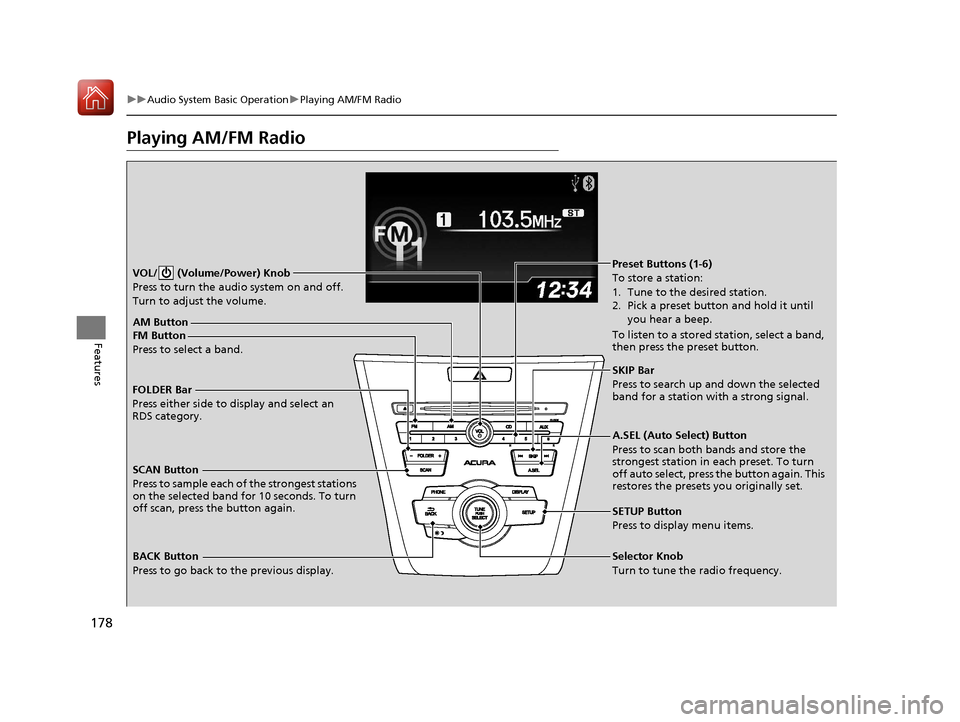
SCAN Button
Press to sample each of the strongest stations
on the selected band for 10 seconds. To turn
off scan, press the button again. VOL/ (Volume/Power) Knob
Press to turn the audi o system on and off.
Turn to adjust the volume.
A.SEL (Auto Select) Button
Press to scan both bands and store the
strongest station in each preset. To turn
off auto select, press the button again. This
restores the presets you originally set.
SETUP Button
Press to display menu items.
Selector Knob
Turn to tune the radio frequency.
FM Button
Press to select a band.AM Button
BACK Button
Press to go back to the previous display.
SKIP Bar
Press to search up and down the selected
band for a station with a strong signal.
Preset Buttons (1-6)
To store a station:
1. Tune to the desired station.
2. Pick a preset button and hold it until
you hear a beep.
To listen to a stored station, select a band,
then press the preset button.
FOLDER Bar
Press either side to display and select an
RDS category.
17 ACURA ILX-31TX66400.book 178 ページ 2016年3月15日 火曜日 午後5時0分
Page 201 of 521
200
uuAudio System Basic Operation uAudio/Information Screen
Features
Audio/Information Screen
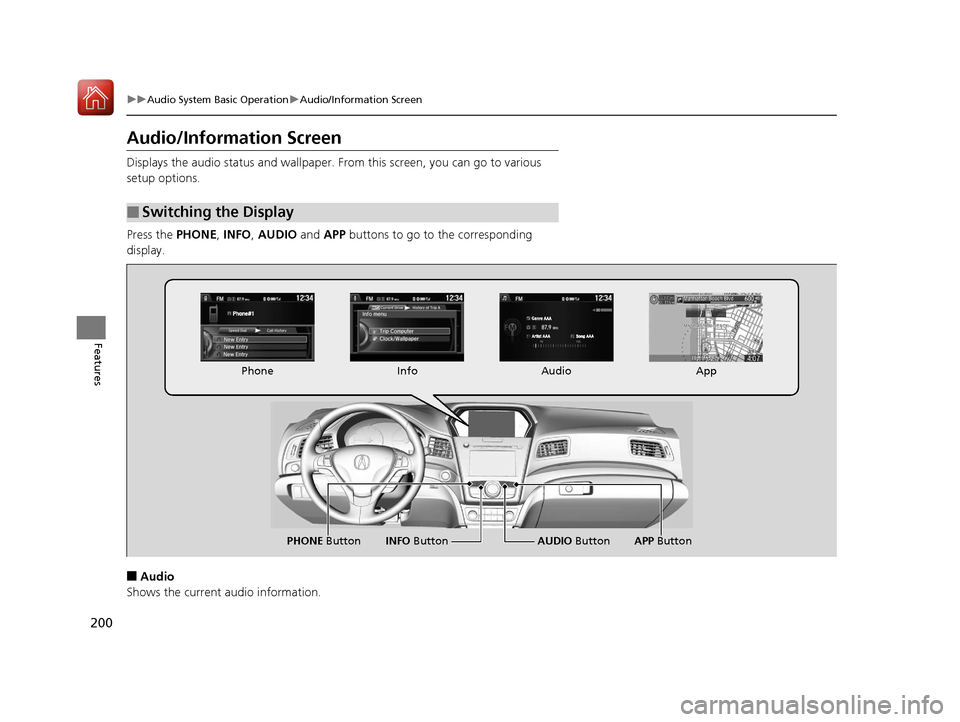
Displays the audio status and wallpaper. From this screen, you can go to various
setup options.
Press the PHONE, INFO , AUDIO and APP buttons to go to the corresponding
display.
■Audio
Shows the current audio information.
■Switching the Display
Audio
Info
Phone
AUDIO Button
PHONE Button INFO ButtonApp
APP Button
17 ACURA ILX-31TX66400.book 200 ページ 2016年3月15日 火曜日 午後5時0分
Page 234 of 521
233
uuAudio System Basic Operation uSmartphone Navi Apps
Features
Smartphone Navi Apps
You can connect an iPhone to the syst em to enable integration between the
AcuraLink navigation app on your phone and the vehicle. This allows you to see the
app on the vehicle display. Use the interface dial and buttons to control the app
when connected to the vehicle.
For more information on the AcuraLink navi gation app, its features and operation,
phone compatibility, connection requ irements, and downloading, visit
acuralink.acura.com .1Smartphone Navi Apps
You must purchase the AcuraLink navigation app.
The required cable kit is so ld separately. See your
dealer for more information.
Not all phones and apps ar e compatible with the
system. The system does not display all the available
apps on smartphone, and so me apps need to be
preinstalled. See your dealer for details.
You need to switch the Bluetooth® connection to
your smartphone if another electronic device is
connected. 2 To pair a cell phone (when a phone has
already been paired to the system) P. 306
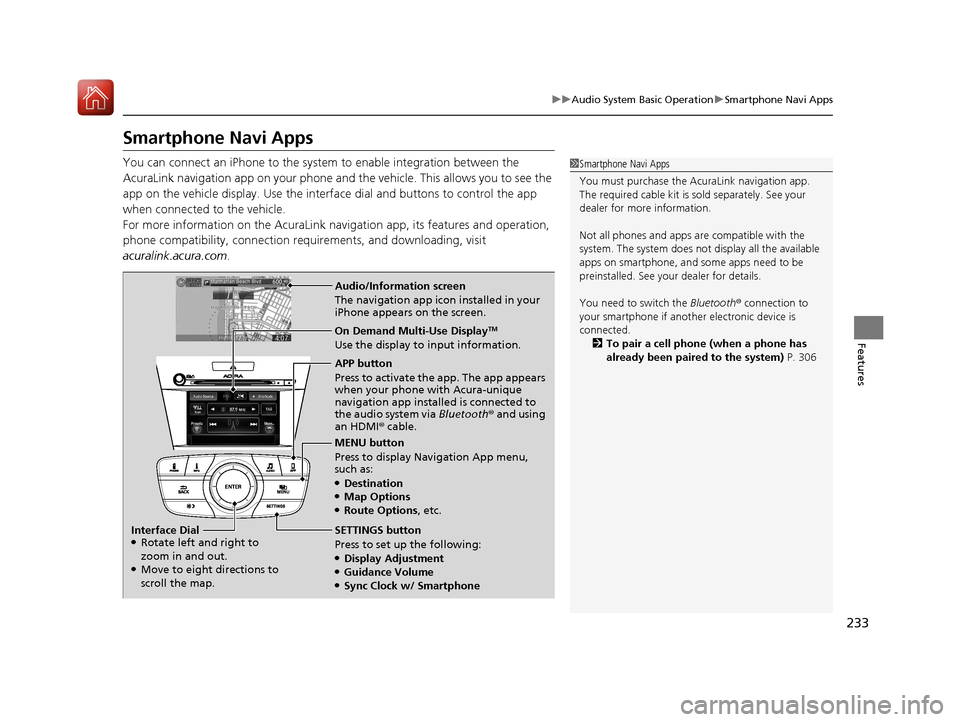
Audio/Information screen
The navigation app icon installed in your
iPhone appears on the screen.
On Demand Multi-Use DisplayTM
Use the display to input information.
APP button
Press to activate the app. The app appears
when your phone with Acura-unique
navigation app installed is connected to
the audio system via Bluetooth® and using
an HDMI® cable.
MENU button
Press to display Navigation App menu,
such as:
●Destination●Map Options●Route Options, etc.
SETTINGS button
Press to set up the following:
●Display Adjustment●Guidance Volume●Sync Clock w/ Smartphone
Interface Dial
●Rotate left and right to
zoom in and out.
●Move to eight directions to
scroll the map.
17 ACURA ILX-31TX66400.book 233 ページ 2016年3月15日 火曜日 午後5時0分
Page 268 of 521
267
uuHomeLink ® Universal Transceiver*u Training HomeLink
Continued
Features
Training HomeLink
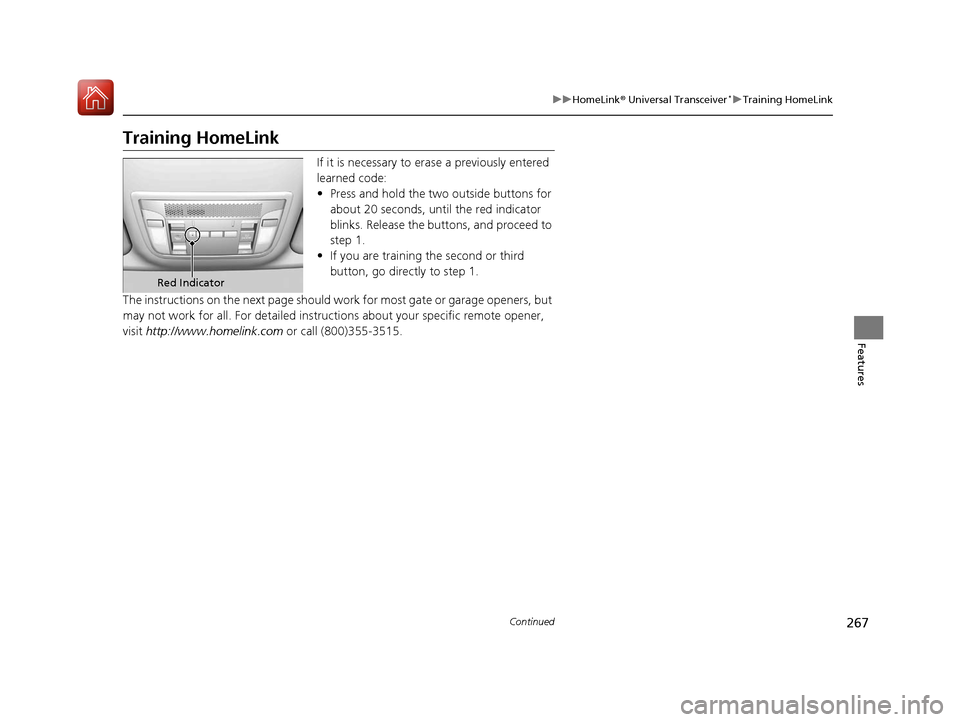
If it is necessary to er ase a previously entered
learned code:
• Press and hold the two outside buttons for
about 20 seconds, until the red indicator
blinks. Release the bu ttons, and proceed to
step 1.
• If you are training the second or third
button, go directly to step 1.
The instructions on the next page should work for most gate or garage openers, but
may not work for all. For detailed instructions about your specific remote opener,
visit http://www.homelink.com or call (800)355-3515.
Red Indicator
17 ACURA ILX-31TX66400.book 267 ページ 2016年3月15日 火曜日 午後5時0分
Page 269 of 521
uuHomeLink ® Universal Transceiver*u Training HomeLink
268
Features
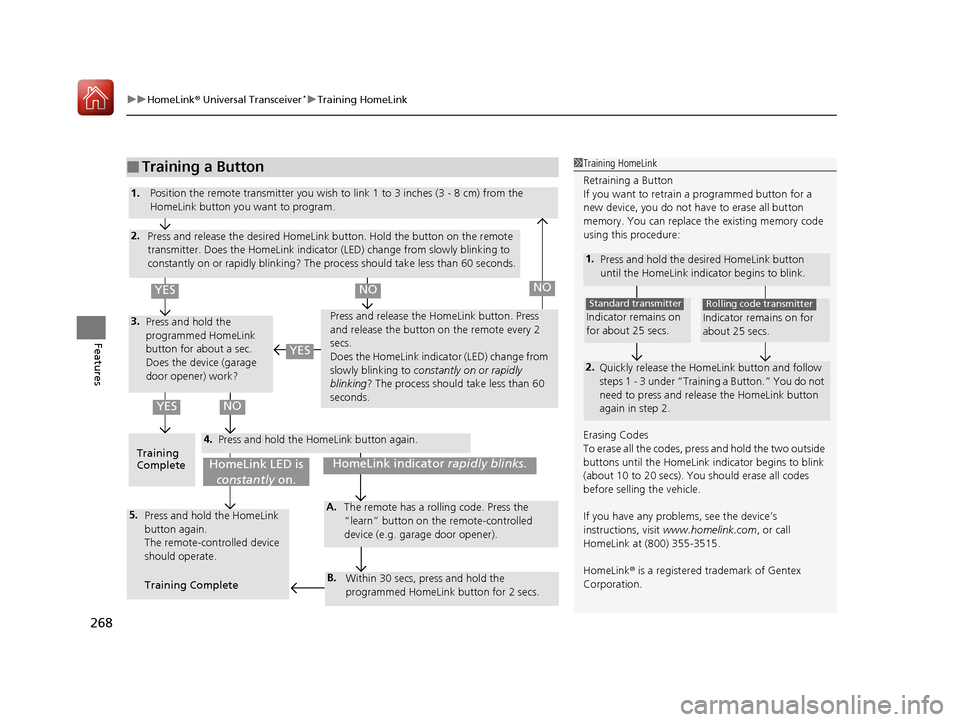
■Training a Button1Training HomeLink
Retraining a Button
If you want to retrain a programmed button for a
new device, you do not ha ve to erase all button
memory. You can replace the existing memory code
using this procedure:
1. Press and hold the desired HomeLink button
until the HomeLink indi cator begins to blink.
2.
Quickly release the Home Link button and follow
steps 1 - 3 under “Training a Button.” You do not
need to press and rele ase the HomeLink button
again in step 2.
Indicator remains on
for about 25 secs.
Standard transmitter
Indicator remains on for
about 25 secs.
Rolling code transmitter
Erasing Codes
To erase all the codes, press and hold the two outside
buttons until the HomeLink i ndicator begins to blink
(about 10 to 20 secs). You should erase all codes
before selling the vehicle.
If you have any problems, see the device’s
instructions, visit www.homelink.com , or call
HomeLink at (800) 355-3515.
HomeLink® is a registered tra demark of Gentex
Corporation.4.
3.
2.
5.A.
B.
1. Position the remote transmitter you wish to link 1 to 3 inches (3 - 8 cm) from the
HomeLink button you want to program.
Press and release the desi red HomeLink button. Hold the button on the remote
transmitter. Does the HomeLink indicato r (LED) change from slowly blinking to
constantly on or rapidly blinking? The pr ocess should take less than 60 seconds.
Press and hold the
programmed HomeLink
button for about a sec.
Does the device (garage
door opener) work? Press and release the Ho
meLink button. Press
and release the button on the remote every 2
secs.
Does the HomeLink indicator (LED) change from
slowly blinking to constantly on or rapidly
blinking ? The process should take less than 60
seconds.
Training
Complete Press and hold the HomeLink button again.
Press and hold the HomeLink
button again.
The remote-controlled device
should operate.
Training Complete The remote has a ro
lling code. Press the
“learn” button on the remote-controlled
device (e.g. garage door opener).
Within 30 secs, press and hold the
programmed HomeLink button for 2 secs.
HomeLink indicator rapidly blinks.HomeLink LED is
constantly on.
YESNO
YES
YESNONO
17 ACURA ILX-31TX66400.book 268 ページ 2016年3月15日 火曜日 午後5時0分
Page 270 of 521
269Continued
Features
Bluetooth® HandsFreeLink ®
Bluetooth® HandsFreeLink ® (HFL) allows you to place and receive phone calls using
your vehicle's audio system, without handling your cell phone.
Using HFL
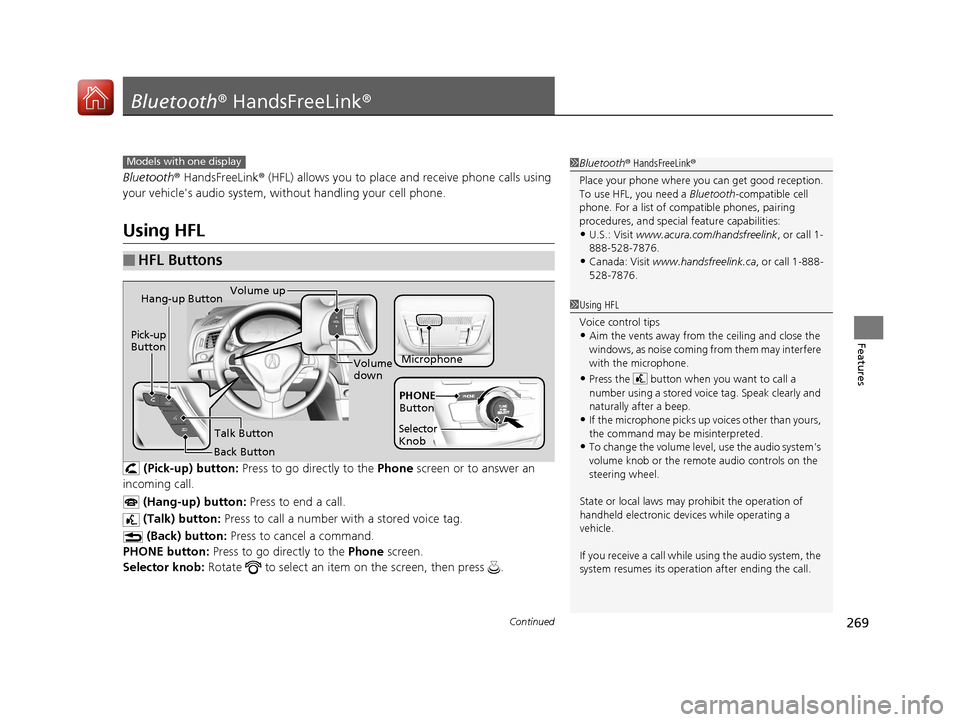
(Pick-up) button: Press to go directly to the Phone screen or to answer an
incoming call.
(Hang-up) button: Press to end a call.
(Talk) button: Press to call a number with a stored voice tag.
(Back) button: Press to cancel a command.
PHONE button: Press to go directly to the Phone screen.
Selector knob: Rotate to select an item on the screen, then press .
■HFL Buttons
1Bluetooth ® HandsFreeLink ®
Place your phone where y ou can get good reception.
To use HFL, you need a Bluetooth-compatible cell
phone. For a list of compatible phones, pairing
procedures, and special feature capabilities:
•U.S.: Visit www.acura.com/handsfreelink , or call 1-
888-528-7876.
•Canada: Visit www.handsfreelink.ca , or call 1-888-
528-7876.
Models with one display
1 Using HFL
Voice control tips
•Aim the vents away from the ceiling and close the
windows, as noise coming fr om them may interfere
with the microphone.
•Press the button when you want to call a
number using a stored voic e tag. Speak clearly and
naturally after a beep.
•If the microphone picks up vo ices other than yours,
the command may be misinterpreted.
•To change the volume level, use the audio system's
volume knob or the remote audio controls on the
steering wheel.
State or local laws may pr ohibit the operation of
handheld electronic devi ces while operating a
vehicle.
If you receive a call while using the audio system, the
system resumes its operati on after ending the call.
Microphone
Pick-up
Button
Selector
KnobPHONE
Button
Hang-up ButtonVolume up
Volume
down
Back Button Talk Button
17 ACURA ILX-31TX66400.book 269 ページ 2016年3月15日 火曜日 午後5時0分
Page 287 of 521
uuBluetooth ® HandsFreeLink ®u HFL Menus
286
Features
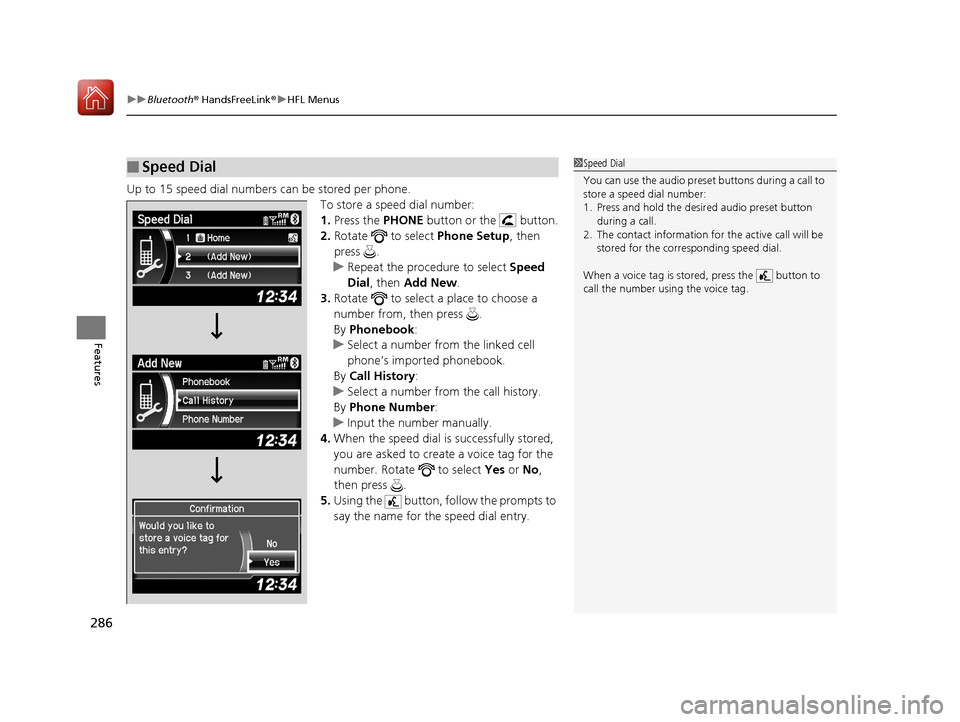
Up to 15 speed dial numbers can be stored per phone.
To store a speed dial number:
1.Press the PHONE button or the button.
2. Rotate to select Phone Setup, then
press .
u Repeat the procedure to select Speed
Dial, then Add New.
3. Rotate to select a place to choose a
number from, then press .
By Phonebook :
u Select a number from the linked cell
phone’s imported phonebook.
By Call History :
u Select a number from the call history.
By Phone Number :
u Input the number manually.
4. When the speed dial is successfully stored,
you are asked to create a voice tag for the
number. Rotate to select Yes or No,
then press .
5. Using the button, fo llow the prompts to
say the name for the speed dial entry.
■Speed Dial1 Speed Dial
You can use the audio preset buttons during a call to
store a speed dial number:
1. Press and hold the desired audio preset button
during a call.
2. The contact information for the active call will be
stored for the corresponding speed dial.
When a voice tag is stored, press the button to
call the number using the voice tag.
17 ACURA ILX-31TX66400.book 286 ページ 2016年3月15日 火曜日 午後5時0分
Page 291 of 521
uuBluetooth ® HandsFreeLink ®u HFL Menus
290
Features
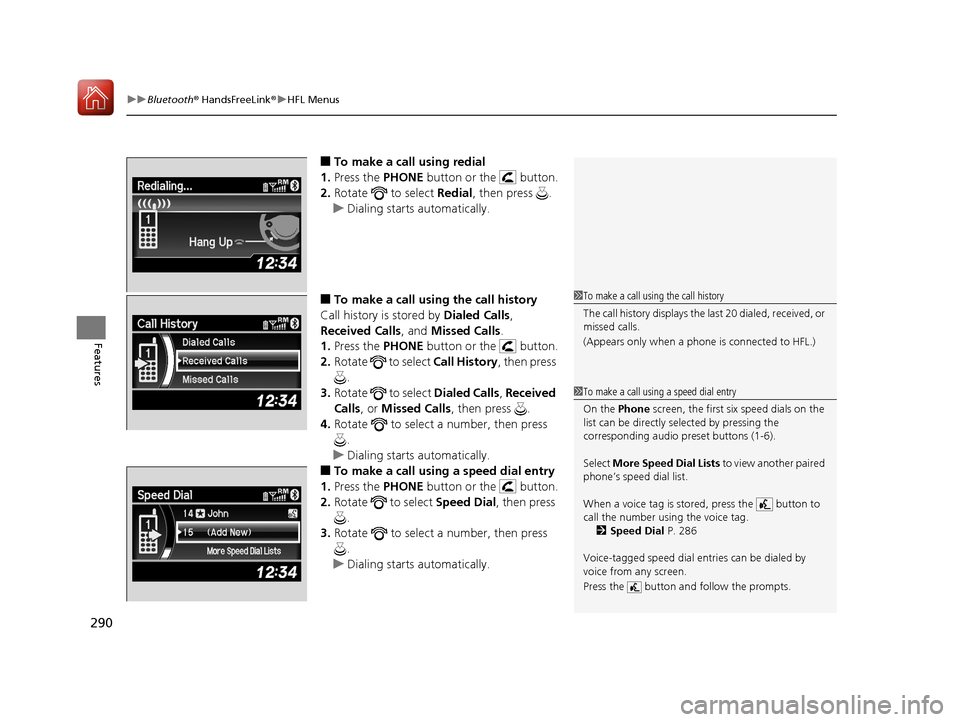
■To make a call using redial
1. Press the PHONE button or the button.
2. Rotate to select Redial, then press .
u Dialing starts automatically.
■To make a call using the call history
Call history is stored by Dialed Calls,
Received Calls , and Missed Calls .
1. Press the PHONE button or the button.
2. Rotate to select Call History, then press
.
3. Rotate to select Dialed Calls , Received
Calls , or Missed Calls, then press .
4. Rotate to select a number, then press
.
u Dialing starts automatically.
■To make a call using a speed dial entry
1. Press the PHONE button or the button.
2. Rotate to select Speed Dial, then press
.
3. Rotate to select a number, then press
.
u Dialing starts automatically.
1To make a call using the call history
The call history disp lays the last 20 dialed, received, or
missed calls.
(Appears only when a phone is connected to HFL.)
1 To make a call using a speed dial entry
On the Phone screen, the first six speed dials on the
list can be directly selected by pressing the
corresponding audio preset buttons (1-6).
Select More Speed Dial Lists to view another paired
phone’s speed dial list.
When a voice tag is stored, press the button to
call the number using the voice tag. 2 Speed Dial P. 286
Voice-tagged speed dial en tries can be dialed by
voice from any screen.
Press the button and follow the prompts.
17 ACURA ILX-31TX66400.book 290 ページ 2016年3月15日 火曜日 午後5時0分
Page 299 of 521
298
Features
Bluetooth® HandsFreeLink ®
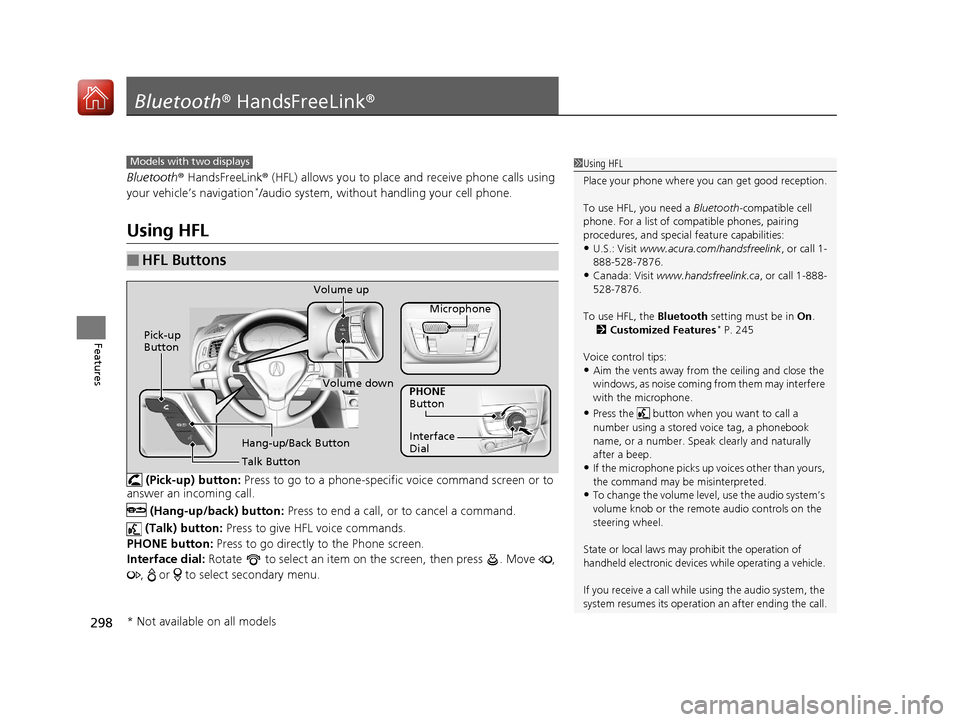
Bluetooth® HandsFreeLink ® (HFL) allows you to place and receive phone calls using
your vehicle’s navigation*/audio system, without handling your cell phone.
Using HFL
(Pick-up) button: Press to go to a phone-specifi c voice command screen or to
answer an in coming call.
(Hang-up/back) button: Press to end a call, or to cancel a command.
(Talk) button: Press to give HFL voice commands.
PHONE button: Press to go directly to the Phone screen.
Interface dial: Rotate to select an item on the screen, then press . Move ,
, or to select secondary menu.
■HFL Buttons
Models with two displays1 Using HFL
Place your phone where y ou can get good reception.
To use HFL, you need a Bluetooth-compatible cell
phone. For a list of compatible phones, pairing
procedures, and special feature capabilities:
•U.S.: Visit www.acura.com/handsfreelink , or call 1-
888-528-7876.
•Canada: Visit www.handsfreelink.ca , or call 1-888-
528-7876.
To use HFL, the Bluetooth setting must be in On.
2 Customized Features
* P. 245
Voice control tips:
•Aim the vents away from the ceiling and close the
windows, as noise coming fr om them may interfere
with the microphone.
•Press the button when you want to call a
number using a stored voice tag, a phonebook
name, or a number. Spe ak clearly and naturally
after a beep.
•If the microphone picks up vo ices other than yours,
the command may be misinterpreted.
•To change the volume level, use the audio system’s
volume knob or the remote audio controls on the
steering wheel.
State or local laws may prohibit the operation of
handheld electronic devices while operating a vehicle.
If you receive a call while using the audio system, the
system resumes its operation an after ending the call.
Talk Button Volume up
Microphone
Hang-up/Back Button
Pick-up
Button
Volume down
Interface
Dial PHONE
Button
* Not available on all models
17 ACURA ILX-31TX66400.book 298 ページ 2016年3月15日 火曜日 午後5時0分
Page 324 of 521
Continued323
uuBluetooth ® HandsFreeLink ®u HFL Menus
Features
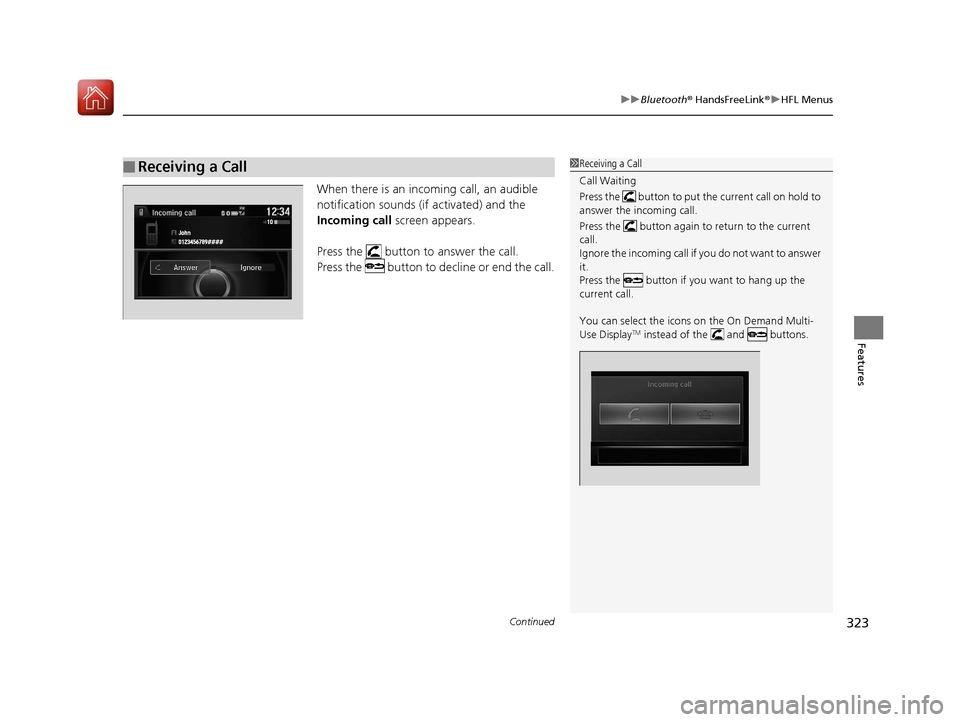
When there is an inco ming call, an audible
notification sounds (if activated) and the
Incoming call screen appears.
Press the button to answer the call.
Press the button to decline or end the call.
■Receiving a Call1 Receiving a Call
Call Waiting
Press the button to put the current call on hold to
answer the incoming call.
Press the button again to return to the current
call.
Ignore the incoming call if you do not want to answer
it.
Press the button if you want to hang up the
current call.
You can select the icons on the On Demand Multi-
Use Display
TM instead of the and buttons.
17 ACURA ILX-31TX66400.book 323 ページ 2016年3月15日 火曜日 午後5時0分