ECU Acura ILX 2017 Owner's Guide
[x] Cancel search | Manufacturer: ACURA, Model Year: 2017, Model line: ILX, Model: Acura ILX 2017Pages: 521, PDF Size: 29.65 MB
Page 258 of 521
257
uuCustomized Features*u
Continued
Features
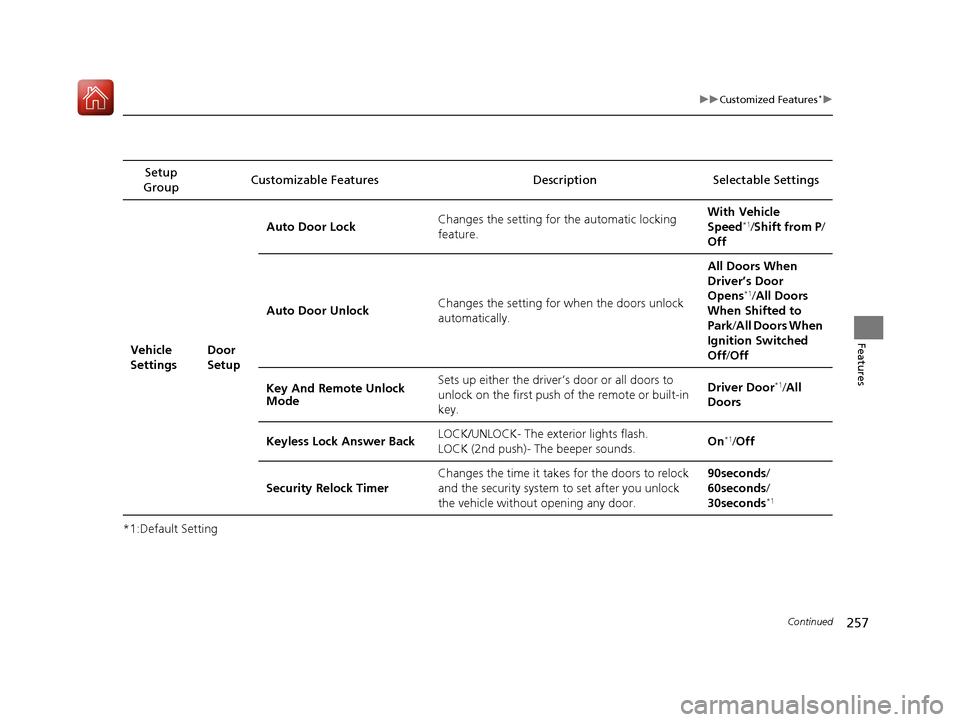
*1:Default SettingSetup
Group Customizable Features Description Selectable Settings
Vehicle
Settings Door
SetupAuto Door Lock
Changes the setting for the automatic locking
feature. With Ve
hicle
Speed
*1/ Shift from P /
Off
Auto Door Unlock Changes the setting for
when the doors unlock
automatically. All Doors When
Driver’s Door
Opens
*1/
All Doors
When Shifted to
Park/ All Doors When
Ignition Switched
Off /Off
Key And Remote Unlock
Mode Sets up either the driver’s door or all doors to
unlock on the first push of the remote or built-in
key. Driver Door
*1/
All
Doors
Keyless Lock Answer Back LOCK/UNLOCK- The exterior lights flash.
LOCK (2nd push)- The beeper sounds.
On
*1/
Off
Security Relock Timer Changes the time it takes for the doors to relock
and the security system to set after you unlock
the vehicle without opening any door. 90seconds
/
60seconds /
30seconds
*1
17 ACURA ILX-31TX66400.book 257 ページ 2016年3月15日 火曜日 午後5時0分
Page 262 of 521
261
uuCustomized Features*u
Continued
Features
*1:Default SettingSetup
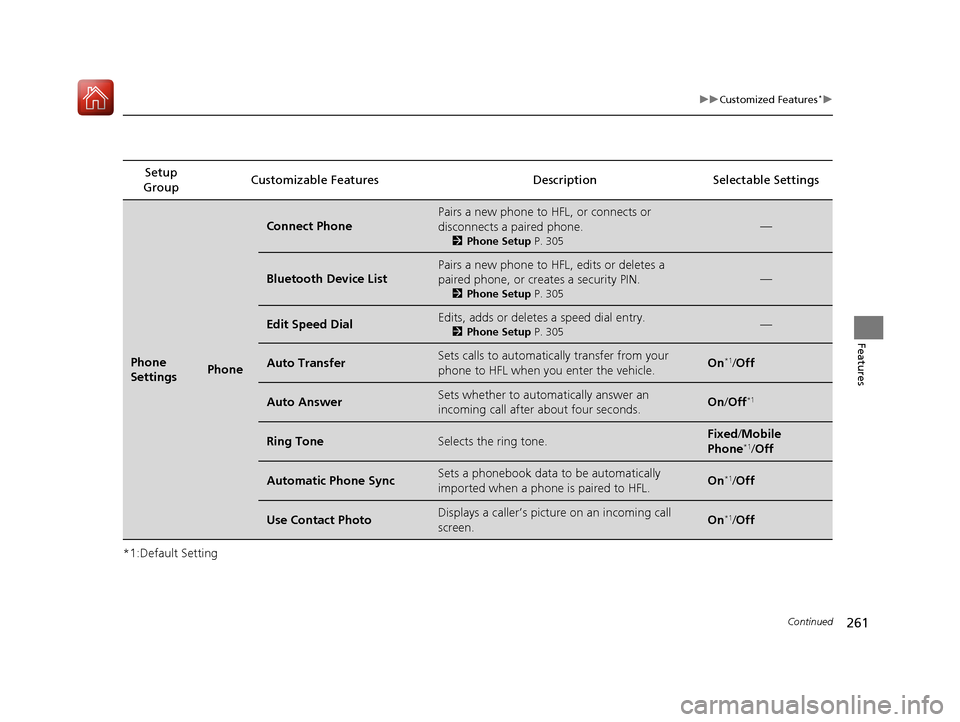
Group Customizable Features Description Selectable Settings
Phone
SettingsPhone
Connect Phone
Pairs a new phone to HFL, or connects or
disconnects a paired phone.
2
Phone Setup P. 305
—
Bluetooth Device List
Pairs a new phone to HFL, edits or deletes a
paired phone, or creates a security PIN.
2Phone Setup P. 305
—
Edit Speed DialEdits, adds or deletes a speed dial entry.
2Phone Setup P. 305—
Auto TransferSets calls to automatically transfer from your
phone to HFL when you enter the vehicle.On*1/Off
Auto AnswerSets whether to automatically answer an
incoming call after about four seconds.On /Off*1
Ring ToneSelects the ring tone.Fixed /Mobile
Phone*1/ Off
Automatic Phone SyncSets a phonebook data to be automatically
imported when a phone is paired to HFL.On*1/Off
Use Contact PhotoDisplays a caller’s picture on an incoming call
screen.On*1/Off
17 ACURA ILX-31TX66400.book 261 ページ 2016年3月15日 火曜日 午後5時0分
Page 267 of 521
266
Features
HomeLink® Universal Transceiver*
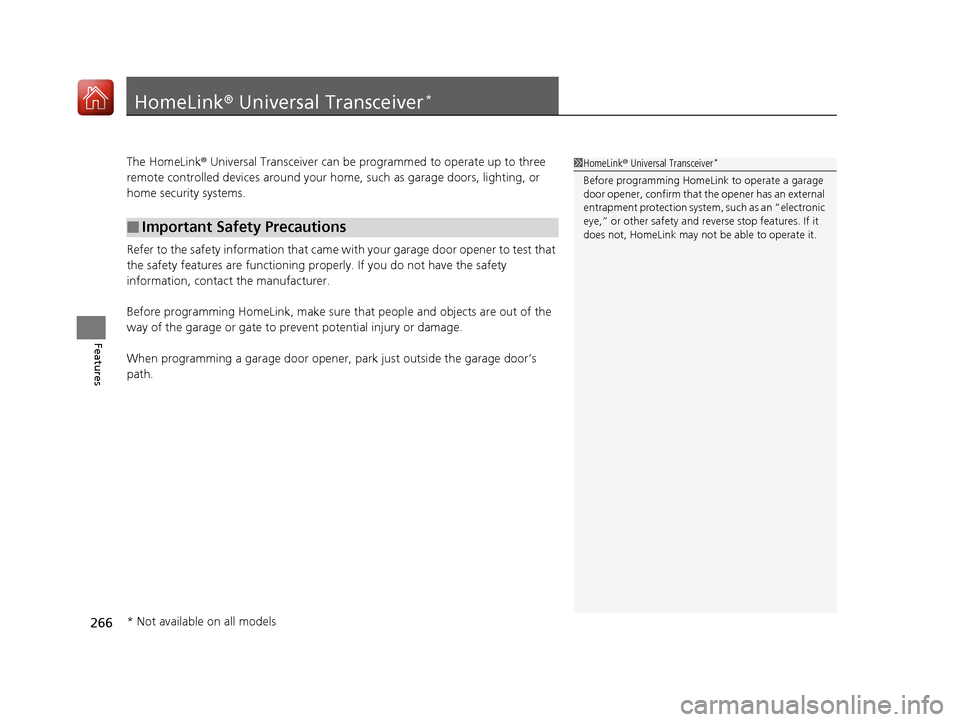
The HomeLink ® Universal Transceiver can be pr ogrammed to operate up to three
remote controlled devices around your home, such as garage doors, lighting, or
home security systems.
Refer to the safety information that came wi th your garage door opener to test that
the safety features are functioning properly. If you do not have the safety
information, contact the manufacturer.
Before programming HomeLink, make sure that people and objects are out of the
way of the garage or gate to prevent potential injury or damage.
When programming a garage door opener, park just outside the garage door’s
path.
■Important Safety Precautions
1 HomeLink ® Universal Transceiver*
Before programming HomeLi nk to operate a garage
door opener, confirm that the opener has an external
entrapment protection system, such as an “electronic
eye,” or other safety and reverse stop features. If it
does not, HomeLink may not be able to operate it.
* Not available on all models
17 ACURA ILX-31TX66400.book 266 ページ 2016年3月15日 火曜日 午後5時0分
Page 276 of 521
275
uuBluetooth ® HandsFreeLink ®u HFL Menus
Continued
Features
*1: Appears only when a phone is connected to HFL.
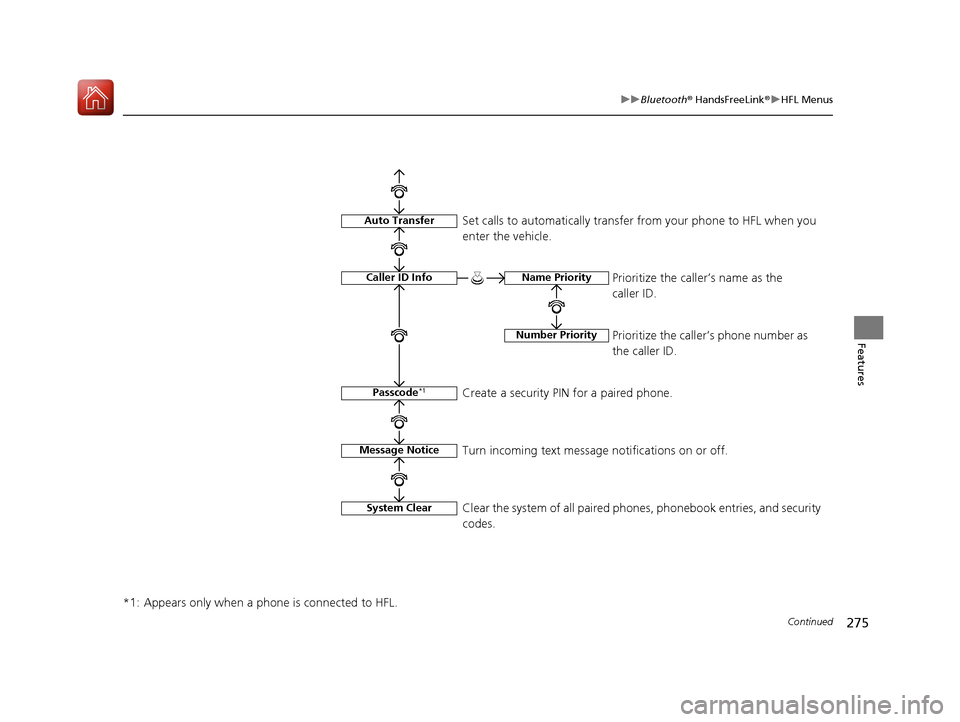
Passcode*1
Auto Transfer
Caller ID InfoName Priority
Number Priority
Message Notice
System Clear
Set calls to automatically transfer from your phone to HFL when you
enter the vehicle.
Prioritize the caller’s name as the
caller ID.
Prioritize the caller’s phone number as
the caller ID.
Create a security PIN for a paired phone.
Turn incoming text message notifications on or off.
Clear the system of all paired phone s, phonebook entries, and security
codes.
17 ACURA ILX-31TX66400.book 275 ページ 2016年3月15日 火曜日 午後5時0分
Page 283 of 521
uuBluetooth ® HandsFreeLink ®u HFL Menus
282
Features
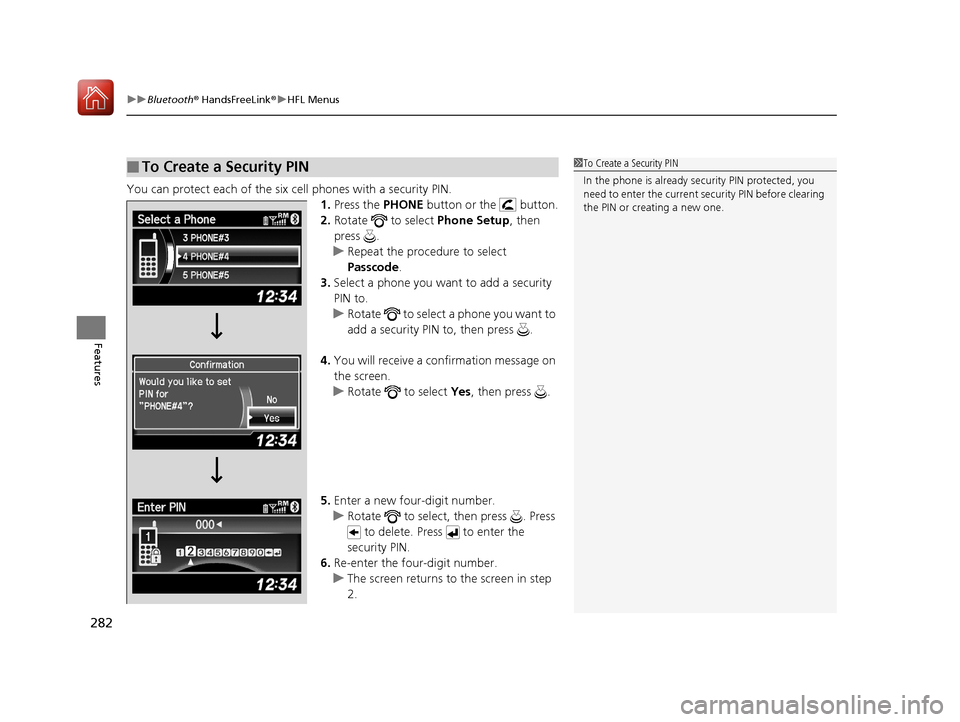
You can protect each of the six cell phones with a security PIN.
1.Press the PHONE button or the button.
2. Rotate to select Phone Setup, then
press .
u Repeat the procedure to select
Passcode .
3. Select a phone you want to add a security
PIN to.
u Rotate to select a phone you want to
add a security PIN to, then press .
4. You will receive a confirmation message on
the screen.
u Rotate to select Yes, then press .
5. Enter a new four-digit number.
u Rotate to select, then press . Press
to delete. Press to enter the
security PIN.
6. Re-enter the four-digit number.
u The screen returns to the screen in step
2.
■To Create a Security PIN1 To Create a Security PIN
In the phone is already secu rity PIN protected, you
need to enter the current security PIN before clearing
the PIN or creating a new one.
17 ACURA ILX-31TX66400.book 282 ページ 2016年3月15日 火曜日 午後5時0分
Page 285 of 521
284
uuBluetooth ® HandsFreeLink ®u HFL Menus
Features
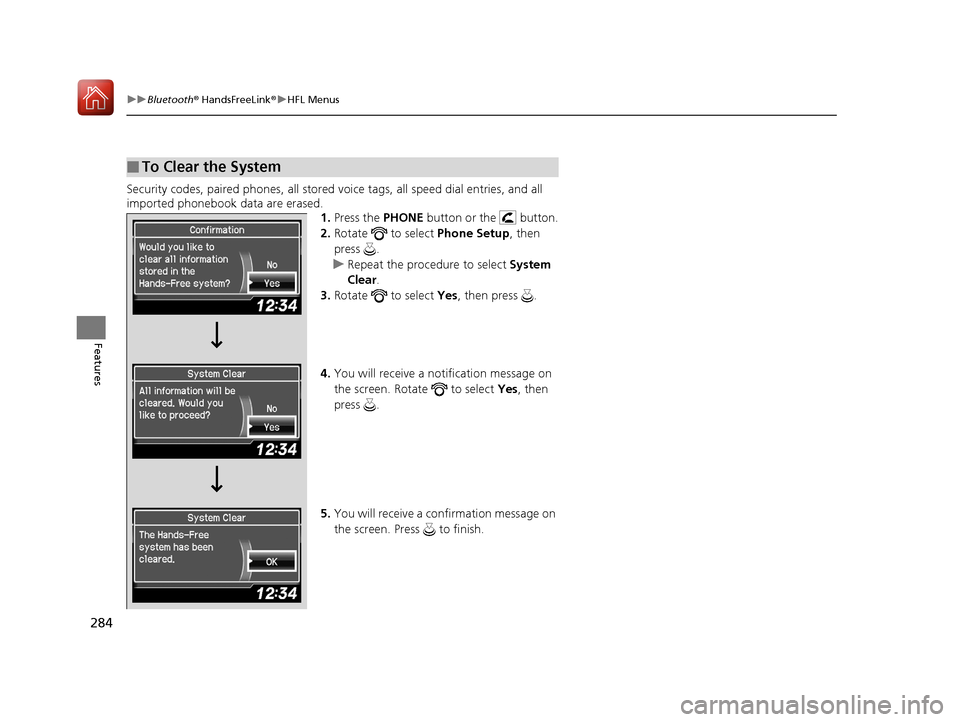
Security codes, paired phones, all stored voice tags, all speed dial entries, and all
imported phonebook data are erased. 1.Press the PHONE button or the button.
2. Rotate to select Phone Setup, then
press .
u Repeat the procedure to select System
Clear .
3. Rotate to select Yes, then press .
4. You will receive a notification message on
the screen. Rotate to select Yes, then
press .
5. You will receive a confirmation message on
the screen. Press to finish.
■To Clear the System
17 ACURA ILX-31TX66400.book 284 ページ 2016年3月15日 火曜日 午後5時0分
Page 301 of 521
300
uuBluetooth ® HandsFreeLink ®u HFL Menus
Features
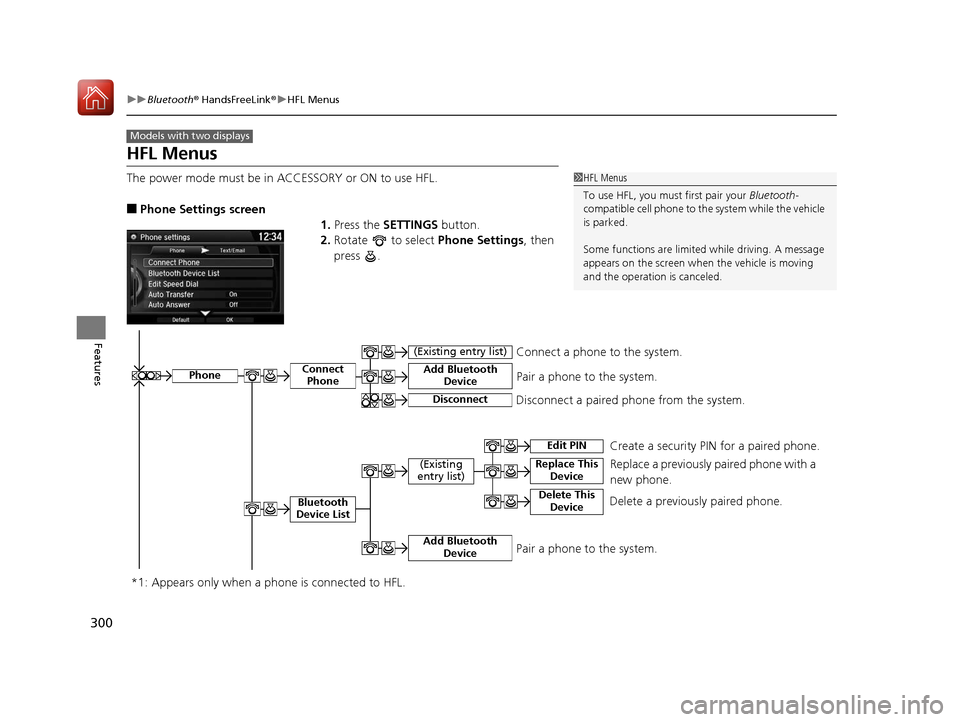
HFL Menus
The power mode must be in ACCESSORY or ON to use HFL.
■Phone Settings screen
1.Press the SETTINGS button.
2. Rotate to select Phone Settings, then
press .
Models with two displays
1 HFL Menus
To use HFL, you must first pair your Bluetooth-
compatible cell phone to th e system while the vehicle
is parked.
Some functions are limited while driving. A message
appears on the screen when the vehicle is moving
and the operation is canceled.
PhoneConnect Phone
Bluetooth
Device List
(Existing
entry list)Replace This Device
Add Bluetooth Device
Disconnect a paired phone from the system.Connect a phone to the system.
*1: Appears only when a pho ne is connected to HFL.Disconnect
(Existing entry list)
Pair a phone to the system.
Edit PIN Create a security PIN for a paired phone.
Replace a previously paired phone with a
new phone.
Delete This DeviceDelete a previously paired phone.
Add Bluetooth DevicePair a phone to the system.
17 ACURA ILX-31TX66400.book 300 ページ 2016年3月15日 火曜日 午後5時0分
Page 309 of 521
uuBluetooth ® HandsFreeLink ®u HFL Menus
308
Features
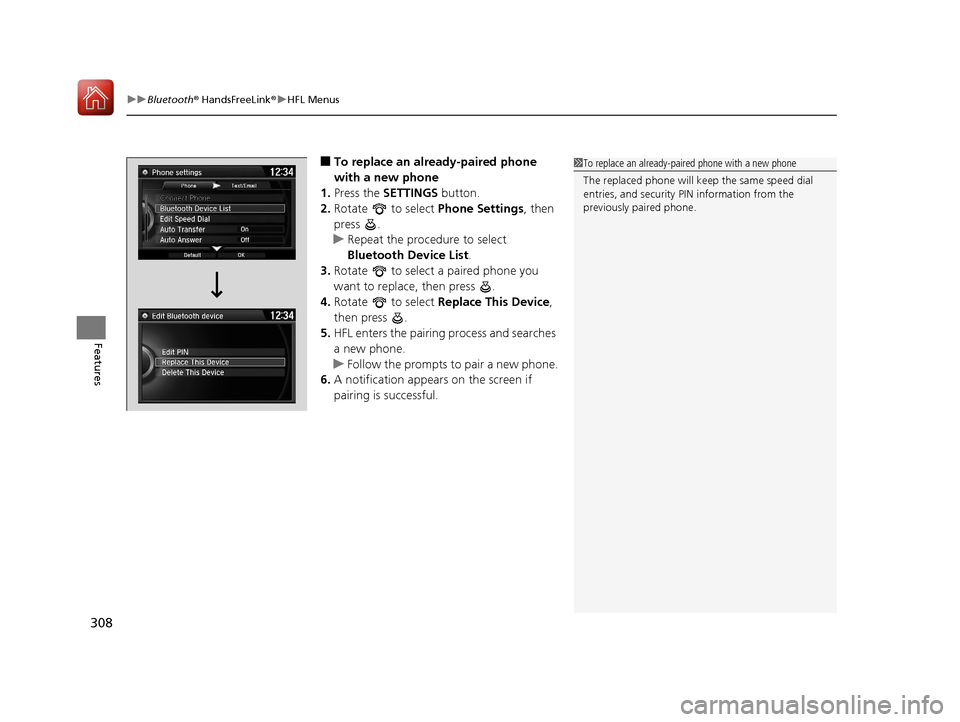
■To replace an already-paired phone
with a new phone
1. Press the SETTINGS button.
2. Rotate to select Phone Settings, then
press .
u Repeat the procedure to select
Bluetooth Device List.
3. Rotate to select a paired phone you
want to replace, then press .
4. Rotate to select Replace This Device,
then press .
5. HFL enters the pairing process and searches
a new phone.
u Follow the prompts to pair a new phone.
6. A notification appears on the screen if
pairing is successful.1To replace an already-pair ed phone with a new phone
The replaced phone will keep the same speed dial
entries, and security PIN information from the
previously paired phone.
17 ACURA ILX-31TX66400.book 308 ページ 2016年3月15日 火曜日 午後5時0分
Page 313 of 521
uuBluetooth ® HandsFreeLink ®u HFL Menus
312
Features
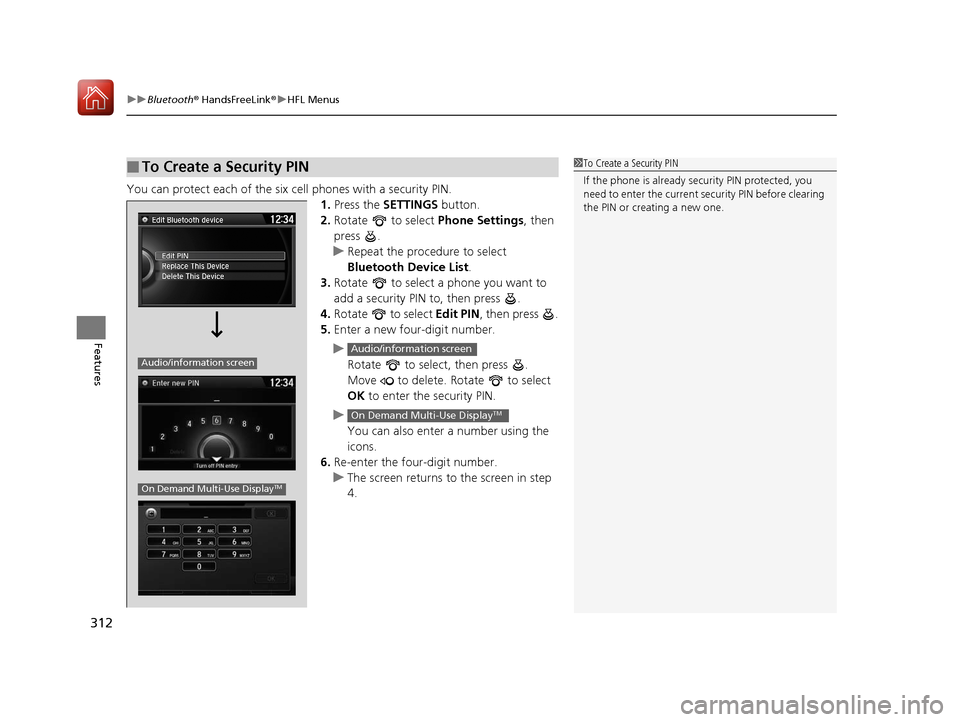
You can protect each of the six cell phones with a security PIN.
1.Press the SETTINGS button.
2. Rotate to select Phone Settings, then
press .
u Repeat the procedure to select
Bluetooth Device List.
3. Rotate to select a phone you want to
add a security PIN to, then press .
4. Rotate to select Edit PIN, then press .
5. Enter a new four-digit number.
u Rotate to select, then press .
Move to delete. Rotate to select
OK to enter the security PIN.
u You can also enter a number using the
icons.
6. Re-enter the four-digit number.
u The screen returns to the screen in step
4.
■To Create a Security PIN1 To Create a Security PIN
If the phone is already secu rity PIN protected, you
need to enter the current security PIN before clearing
the PIN or creating a new one.
Audio/information screen
On Demand Multi-Use DisplayTM
Audio/information screen
On Demand Multi-Use DisplayTM
17 ACURA ILX-31TX66400.book 312 ページ 2016年3月15日 火曜日 午後5時0分
Page 333 of 521
332
Driving
Before Driving
Driving Preparation
Check the following items before you start driving.
• Make sure there are no obstructions on th e windows, door mirrors, exterior
lights, or other parts of the vehicle.
u Remove any frost, snow, or ice.
u Remove any snow on the roof, as this can slip down and obstruct your field of
vision while driving. If frozen solid , remove ice once it has softened.
u When removing ice from around the wheel s, be sure not to damage the wheel
or wheel components.
• Make sure the hood is securely closed.
u If the hood opens while driving, your front view will be blocked.
• Make sure the tires are in good condition.
u Check air pressures, and check for damage and excessive wear.
2Checking and Maintaining Tires P. 442
•Make sure there are no people or ob jects behind or around the vehicle.
u There are blind spots from the inside.
■Exterior Checks1Exterior Checks
NOTICE
When doors are frozen s hut, use warm water around
the door edges to melt any ice. Do not try to force
them open, as this can damage the rubber trim
around the doors. When done, wipe dry to avoid
further freezing.
Do not pour warm water into the key cylinder.
You will be unable to insert the key if the water
freezes in the hole.
Heat from the engine and exhaust can ignite
flammable material s left under the hood, causing a
fire. If you've parked y our vehicle for an extended
period, inspect and remove any debris that may have
collected, such as dried grass and leaves that have
fallen or have been carried in for use as a nest by a
small animal. Also check under the hood for leftover
flammable materials after you or someone else has
performed maintenance on your vehicle.
17 ACURA ILX-31TX66400.book 332 ページ 2016年3月15日 火曜日 午後5時0分