display Acura ILX Hybrid 2013 Repair Manual
[x] Cancel search | Manufacturer: ACURA, Model Year: 2013, Model line: ILX Hybrid, Model: Acura ILX Hybrid 2013Pages: 365, PDF Size: 8.63 MB
Page 185 of 365
184
uuGeneral Information on the Audio SystemuRecommended CDs
Features
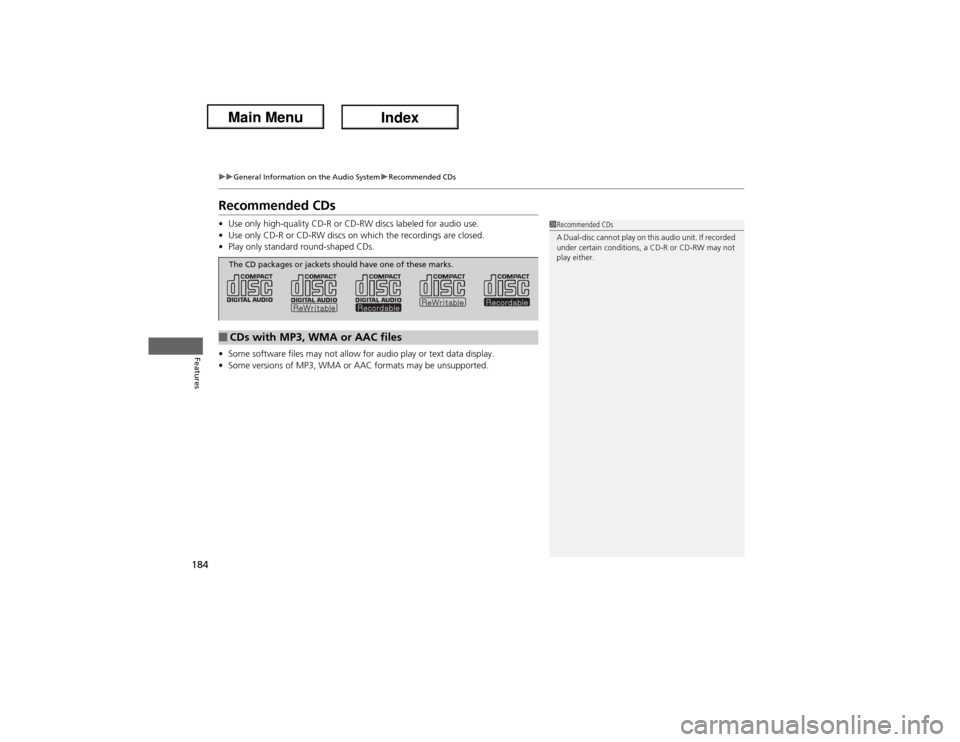
Recommended CDs•Use only high-quality CD-R or CD-RW discs labeled for audio use.
•Use only CD-R or CD-RW discs on which the recordings are closed.
•Play only standard round-shaped CDs.
•Some software files may not allow for audio play or text data display.
•Some versions of MP3, WMA or AAC formats may be unsupported.
1Recommended CDs
A Dual-disc cannot play on this audio unit. If recorded
under certain conditions, a CD-R or CD-RW may not
play either.
■CDs with MP3, WMA or AAC filesThe CD packages or jackets should have one of these marks.
Page 187 of 365
186
uuGeneral Information on the Audio SystemuCompatible iPod®, iPhone®, and USB Flash Drives
Features
Compatible iPod®, iPhone®, and USB Flash Drives•Use a recommended USB flash drive of 256 MB or higher.
•Some digital audio players may not be compatible.
•Some USB flash drives (e.g., a device with security lockout) may not work.
•Some software files may not allow for audio play or text data display.
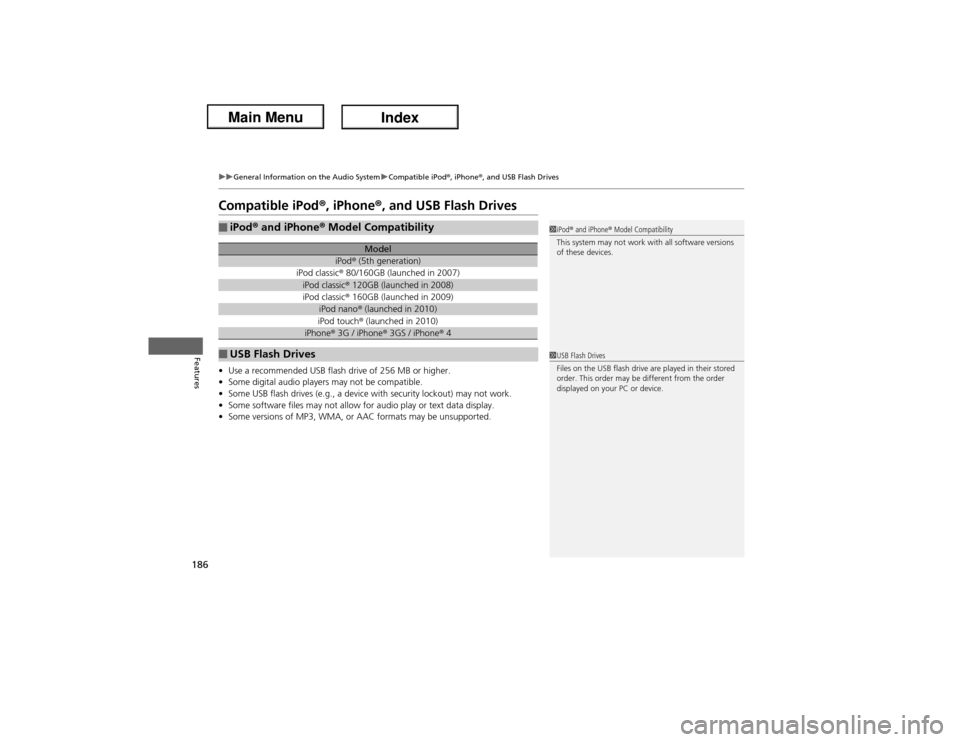
•Some versions of MP3, WMA, or AAC formats may be unsupported.■iPod® and iPhone® Model Compatibility
Model
iPod® (5th generation)
iPod classic® 80/160GB (launched in 2007)iPod classic® 120GB (launched in 2008)iPod classic® 160GB (launched in 2009)
iPod nano® (launched in 2010)iPod touch® (launched in 2010)
iPhone® 3G / iPhone® 3GS / iPhone® 4
■USB Flash Drives
1iPod® and iPhone® Model Compatibility
This system may not work with all software versions
of these devices.1USB Flash Drives
Files on the USB flash drive are played in their stored
order. This order may be different from the order
displayed on your PC or device.
Page 191 of 365
uuBluetooth® HandsFreeLink®uUsing HFL
190Features
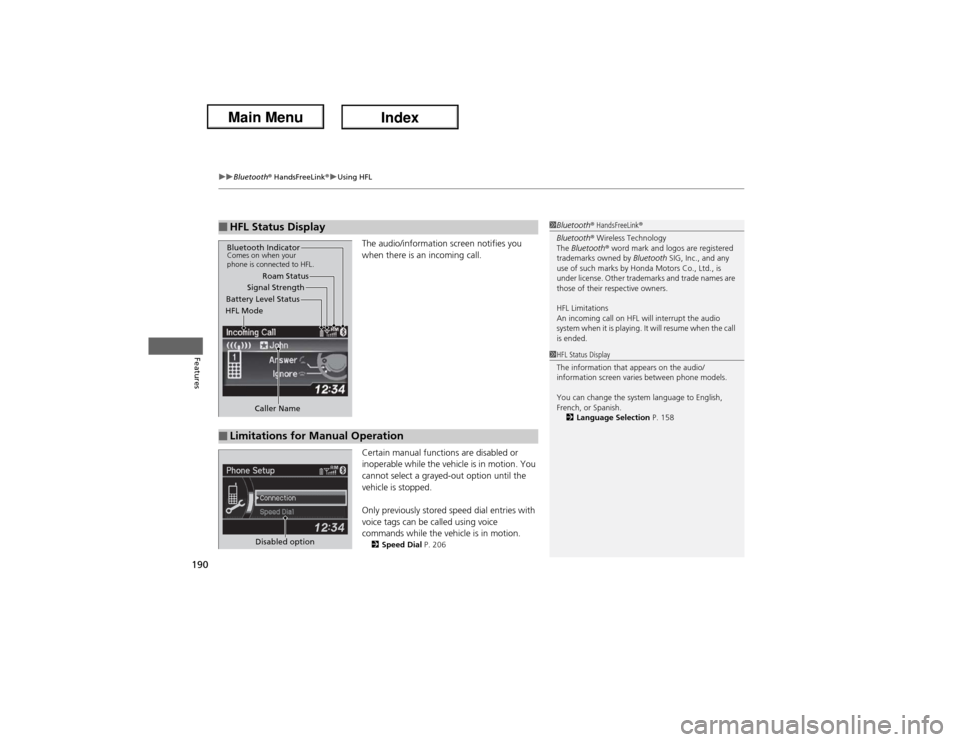
The audio/information screen notifies you
when there is an incoming call.
Certain manual functions are disabled or
inoperable while the vehicle is in motion. You
cannot select a grayed-out option until the
vehicle is stopped.
Only previously stored speed dial entries with
voice tags can be called using voice
commands while the vehicle is in motion.2Speed Dial P. 206
■HFL Status Display
1Bluetooth® HandsFreeLink®
Bluetooth® Wireless Technology
The Bluetooth® word mark and logos are registered
trademarks owned by Bluetooth SIG, Inc., and any
use of such marks by Honda Motors Co., Ltd., is
under license. Other trademarks and trade names are
those of their respective owners.
HFL Limitations
An incoming call on HFL will interrupt the audio
system when it is playing. It will resume when the call
is ended.
Signal Strength
HFL ModeBattery Level StatusRoam Status
Caller Name
Bluetooth IndicatorComes on when your
phone is connected to HFL.■Limitations for Manual Operation
1HFL Status Display
The information that appears on the audio/
information screen varies between phone models.
You can change the system language to English,
French, or Spanish.
2Language Selection P. 158
Disabled option
Page 192 of 365
191
uuBluetooth® HandsFreeLink®uHFL Menus
Continued
Features
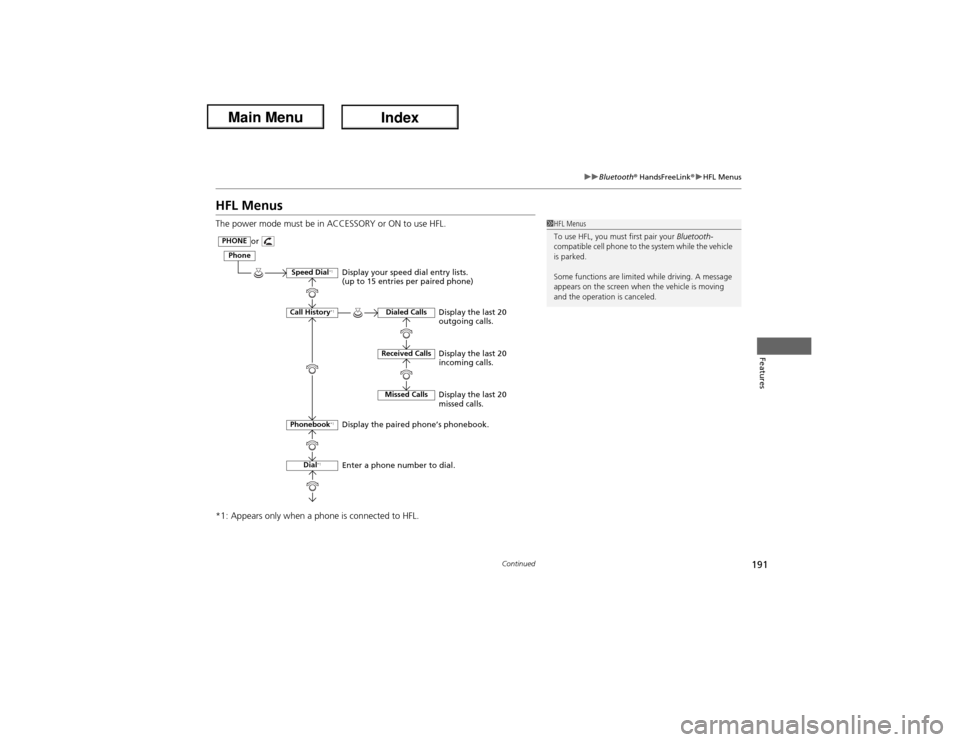
HFL MenusThe power mode must be in ACCESSORY or ON to use HFL.
*1: Appears only when a phone is connected to HFL.
1HFL Menus
To use HFL, you must first pair your Bluetooth-
compatible cell phone to the system while the vehicle
is parked.
Some functions are limited while driving. A message
appears on the screen when the vehicle is moving
and the operation is canceled. or
PHONE
Speed Dial
*1
Call History
*1
Phonebook
*1
Dial
*1
Dialed CallsReceived CallsMissed Calls
Phone
Enter a phone number to dial. Display the paired phone’s phonebook. Display your speed dial entry lists.
(up to 15 entries per paired phone)
Display the last 20
outgoing calls.
Display the last 20
incoming calls.
Display the last 20
missed calls.
Page 193 of 365
192
uuBluetooth® HandsFreeLink®uHFL Menus
Features
*1: Appears only when a phone is connected to HFL.
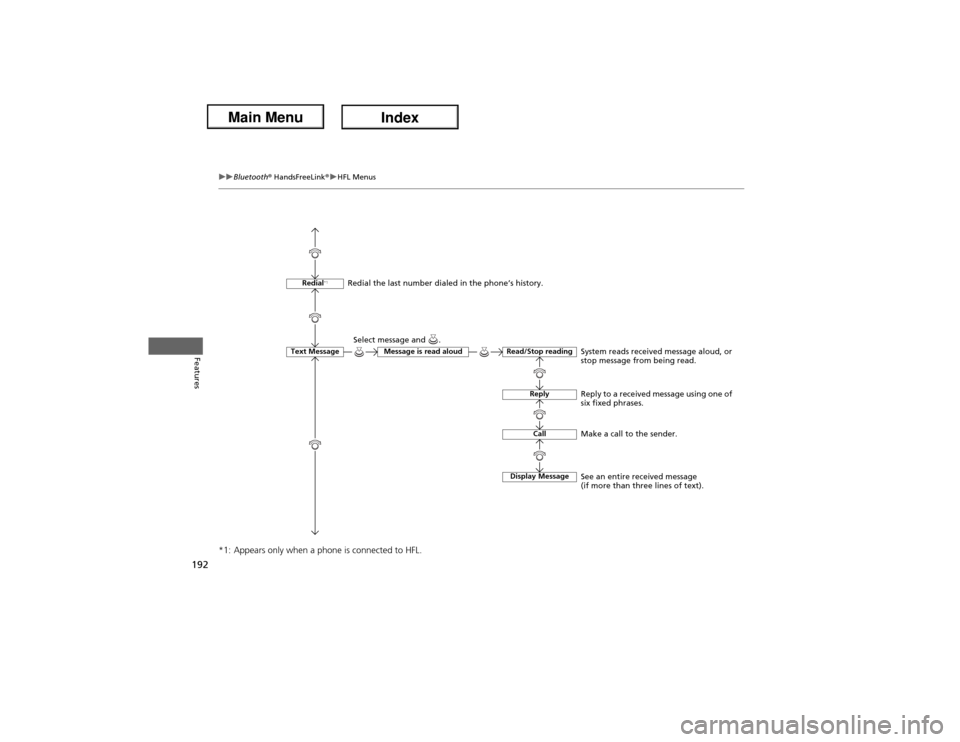
Redial
*1
Text Message
Message is read aloud
Display MessageRead/Stop reading
ReplyCall
Make a call to the sender. Select message and .
Redial the last number dialed in the phone’s history.
System reads received message aloud, or
stop message from being read.
Reply to a received message using one of
six fixed phrases.
See an entire received message
(if more than three lines of text).
Page 197 of 365
uuBluetooth® HandsFreeLink®uHFL Menus
196Features
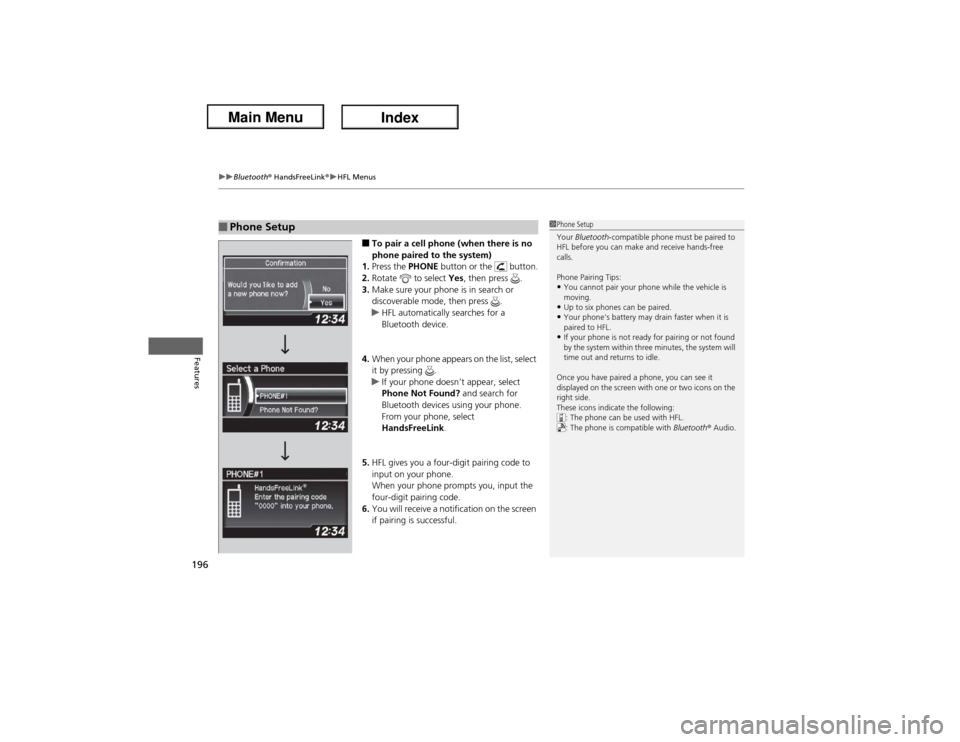
■To pair a cell phone (when there is no
phone paired to the system)
1.Press the PHONE button or the button.
2.Rotate to select Yes, then press .
3.Make sure your phone is in search or
discoverable mode, then press .
uHFL automatically searches for a
Bluetooth device.
4.When your phone appears on the list, select
it by pressing .
uIf your phone doesn’t appear, select
Phone Not Found? and search for
Bluetooth devices using your phone.
From your phone, select
HandsFreeLink.
5.HFL gives you a four-digit pairing code to
input on your phone.
When your phone prompts you, input the
four-digit pairing code.
6.You will receive a notification on the screen
if pairing is successful.
■Phone Setup
1Phone Setup
Your Bluetooth-compatible phone must be paired to
HFL before you can make and receive hands-free
calls.
Phone Pairing Tips:•You cannot pair your phone while the vehicle is
moving.•Up to six phones can be paired.•Your phone's battery may drain faster when it is
paired to HFL.•If your phone is not ready for pairing or not found
by the system within three minutes, the system will
time out and returns to idle.
Once you have paired a phone, you can see it
displayed on the screen with one or two icons on the
right side.
These icons indicate the following:
: The phone can be used with HFL.
: The phone is compatible with Bluetooth® Audio.
Page 204 of 365
Continued
203
uuBluetooth® HandsFreeLink®uHFL Menus
Features
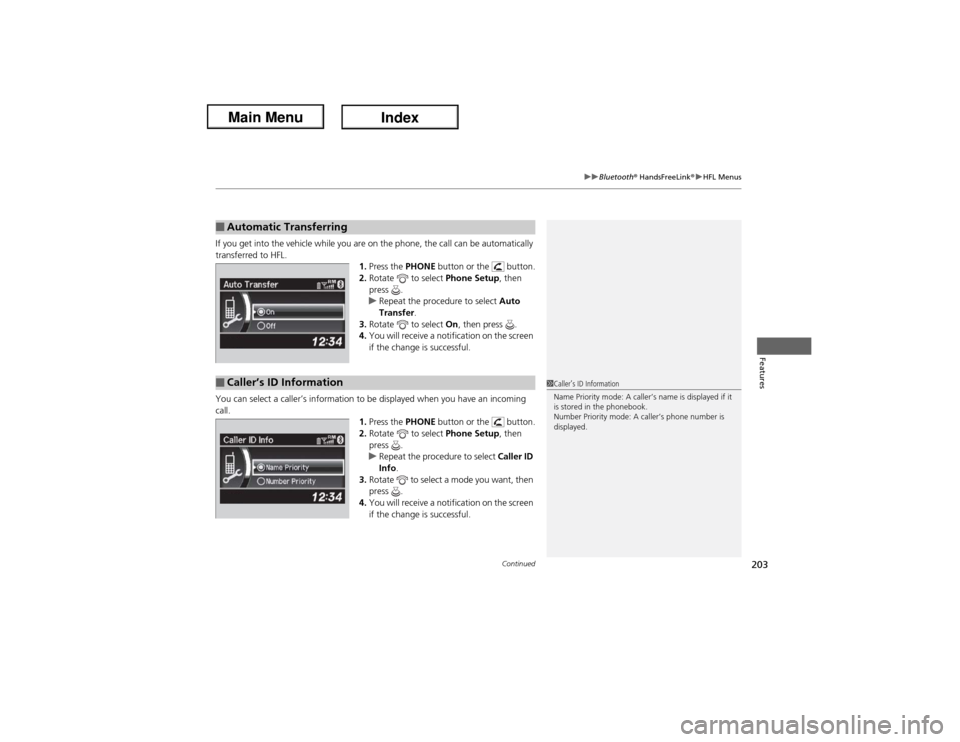
If you get into the vehicle while you are on the phone, the call can be automatically
transferred to HFL.
1.Press the PHONE button or the button.
2.Rotate to select Phone Setup, then
press .
uRepeat the procedure to select Auto
Transfer.
3.Rotate to select On, then press .
4.You will receive a notification on the screen
if the change is successful.
You can select a caller’s information to be displayed when you have an incoming
call.
1.Press the PHONE button or the button.
2.Rotate to select Phone Setup, then
press .
uRepeat the procedure to select Caller ID
Info.
3.Rotate to select a mode you want, then
press .
4.You will receive a notification on the screen
if the change is successful.■Automatic Transferring■Caller’s ID Information
1Caller’s ID Information
Name Priority mode: A caller’s name is displayed if it
is stored in the phonebook.
Number Priority mode: A caller’s phone number is
displayed.
Page 211 of 365
uuBluetooth® HandsFreeLink®uHFL Menus
210Features
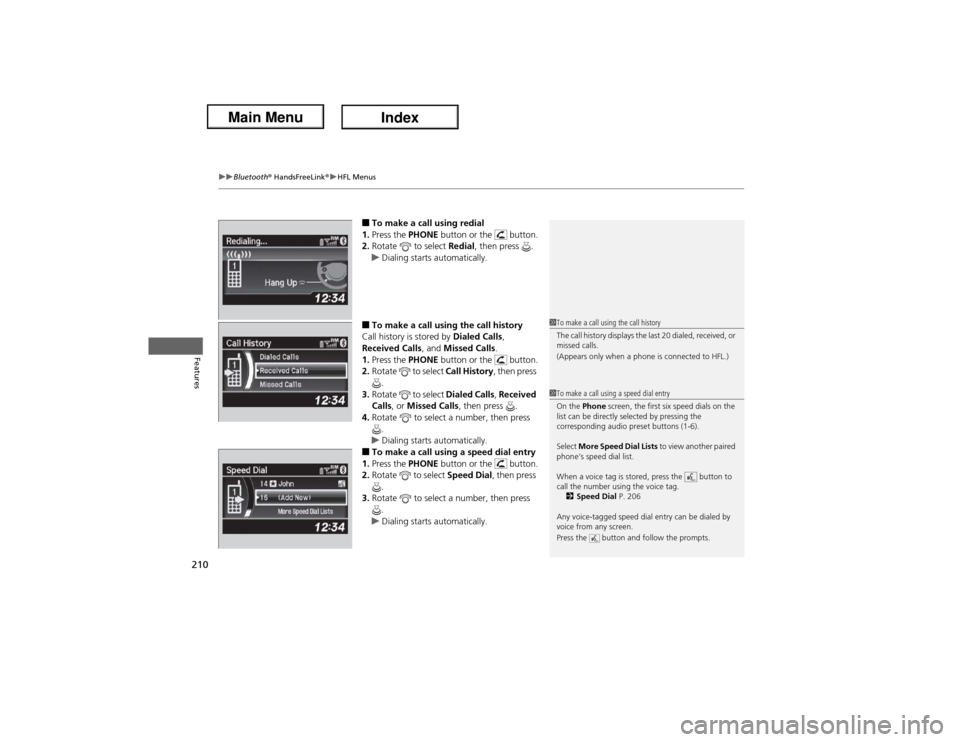
■To make a call using redial
1.Press the PHONE button or the button.
2.Rotate to select Redial, then press .
uDialing starts automatically.■To make a call using the call history
Call history is stored by Dialed Calls,
Received Calls, and Missed Calls.
1.Press the PHONE button or the button.
2.Rotate to select Call History, then press
.
3.Rotate to select Dialed Calls, Received
Calls, or Missed Calls, then press .
4.Rotate to select a number, then press
.
uDialing starts automatically.■To make a call using a speed dial entry
1.Press the PHONE button or the button.
2.Rotate to select Speed Dial, then press
.
3.Rotate to select a number, then press
.
uDialing starts automatically.
1To make a call using the call history
The call history displays the last 20 dialed, received, or
missed calls.
(Appears only when a phone is connected to HFL.)1To make a call using a speed dial entry
On the Phone screen, the first six speed dials on the
list can be directly selected by pressing the
corresponding audio preset buttons (1-6).
Select More Speed Dial Lists to view another paired
phone’s speed dial list.
When a voice tag is stored, press the button to
call the number using the voice tag.
2Speed Dial P. 206
Any voice-tagged speed dial entry can be dialed by
voice from any screen.
Press the button and follow the prompts.
Page 214 of 365
Continued
213
uuBluetooth® HandsFreeLink®uHFL Menus
Features
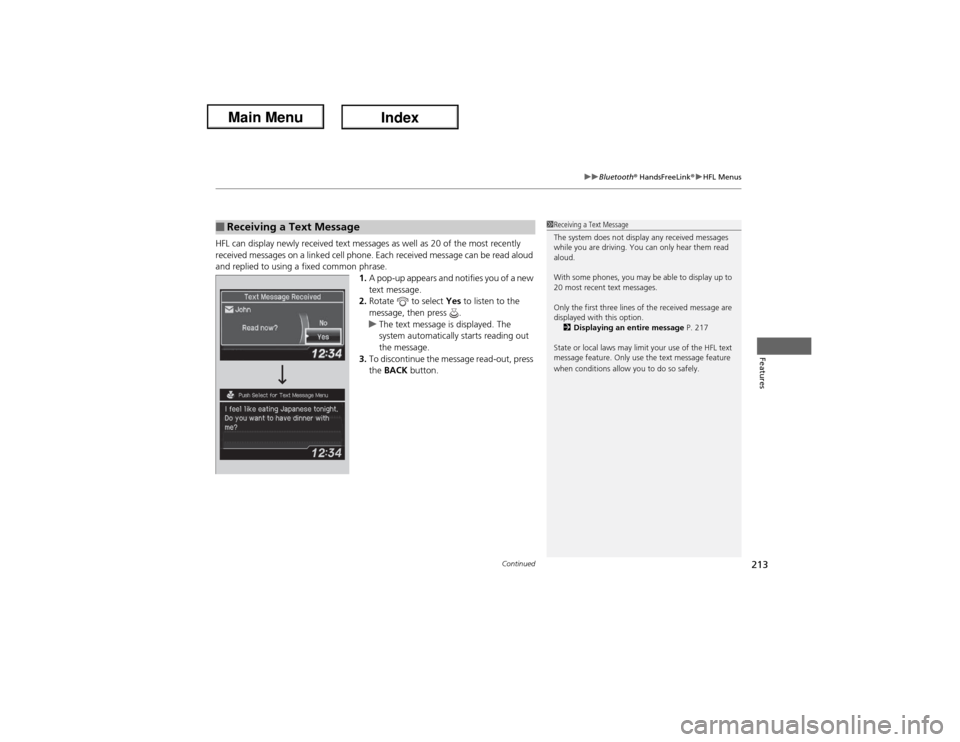
HFL can display newly received text messages as well as 20 of the most recently
received messages on a linked cell phone. Each received message can be read aloud
and replied to using a fixed common phrase.
1.A pop-up appears and notifies you of a new
text message.
2.Rotate to select Yes to listen to the
message, then press .
uThe text message is displayed. The
system automatically starts reading out
the message.
3.To discontinue the message read-out, press
the BACK button.■Receiving a Text Message
1Receiving a Text Message
The system does not display any received messages
while you are driving. You can only hear them read
aloud.
With some phones, you may be able to display up to
20 most recent text messages.
Only the first three lines of the received message are
displayed with this option.
2Displaying an entire message P. 217
State or local laws may limit your use of the HFL text
message feature. Only use the text message feature
when conditions allow you to do so safely.
Page 215 of 365
uuBluetooth® HandsFreeLink®uHFL Menus
214Features
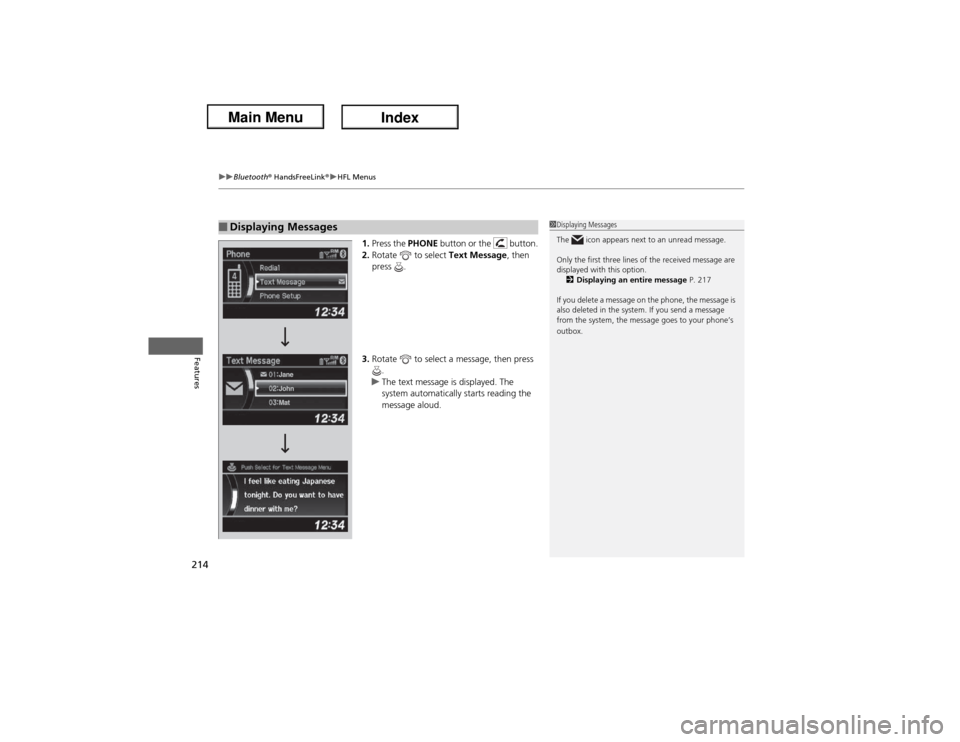
1.Press the PHONE button or the button.
2.Rotate to select Text Message, then
press .
3.Rotate to select a message, then press
.
uThe text message is displayed. The
system automatically starts reading the
message aloud.
■Displaying Messages
1Displaying Messages
The icon appears next to an unread message.
Only the first three lines of the received message are
displayed with this option.
2Displaying an entire message P. 217
If you delete a message on the phone, the message is
also deleted in the system. If you send a message
from the system, the message goes to your phone’s
outbox.