change time Acura ILX Hybrid 2015 User Guide
[x] Cancel search | Manufacturer: ACURA, Model Year: 2015, Model line: ILX Hybrid, Model: Acura ILX Hybrid 2015Pages: 365, PDF Size: 12.67 MB
Page 142 of 365
141Controls
Interior Lights/Interior Convenience ItemsInterior Lights
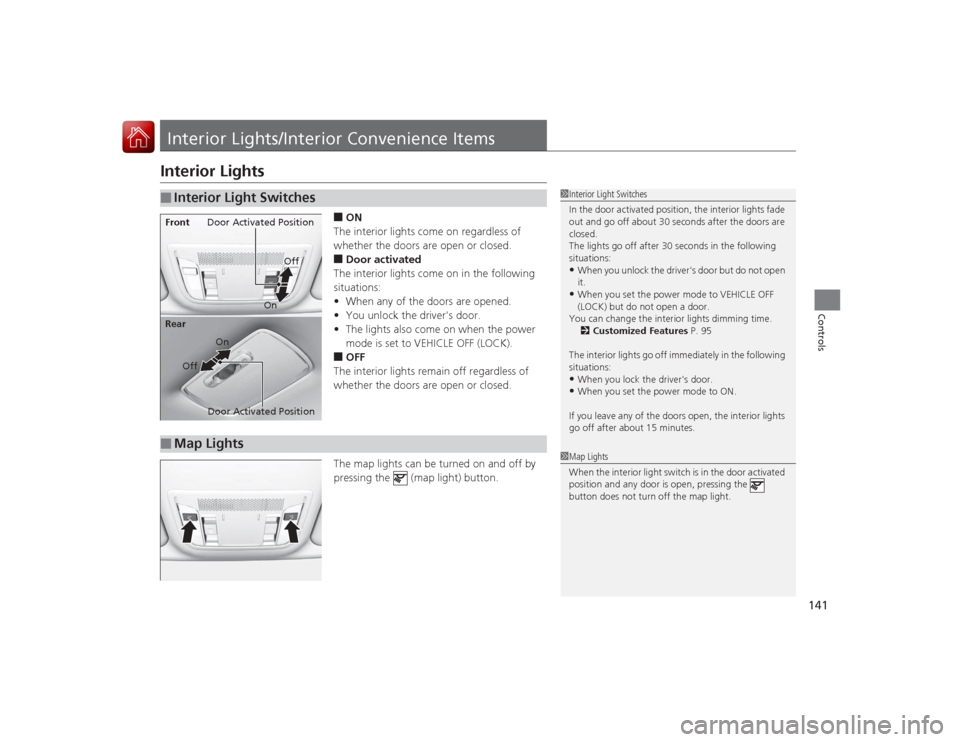
■ON
The interior lights come on regardless of
whether the doors are open or closed.■Door activated
The interior lights come on in the following
situations:
• When any of the doors are opened.
• You unlock the driver's door.
• The lights also come on when the power
mode is set to VEHICLE OFF (LOCK).■OFF
The interior lights remain off regardless of
whether the doors are open or closed.
The map lights can be turned on and off by
pressing the (map light) button.
■
Interior Light Switches
1 Interior Light Switches
In the door activated position, the interior lights fade
out and go off about 30 seconds after the doors are
closed.
The lights go off after 30 seconds in the following
situations:•When you unlock the driver's door but do not open
it.•When you set the power mode to VEHICLE OFF
(LOCK) but do not open a door.
You can change the interior lights dimming time. 2 Customized Features P. 95
The interior lights go off immediately in the following
situations:•When you lock the driver's door.•When you set the power mode to ON.
If you leave any of the doors open, the interior lights
go off after about 15 minutes.
Door Activated Position
Off
Front
Door Activated Position On
Off
RearOn
■
Map Lights
1
Map Lights
When the interior light switch is in the door activated
position and any door is open, pressing the
button does not turn off the map light.
Page 156 of 365
155Features
Audio System Basic OperationTo use the audio system function, the power mode must be in ACCESSORY or ON.Use the selector knob or SETUP button to
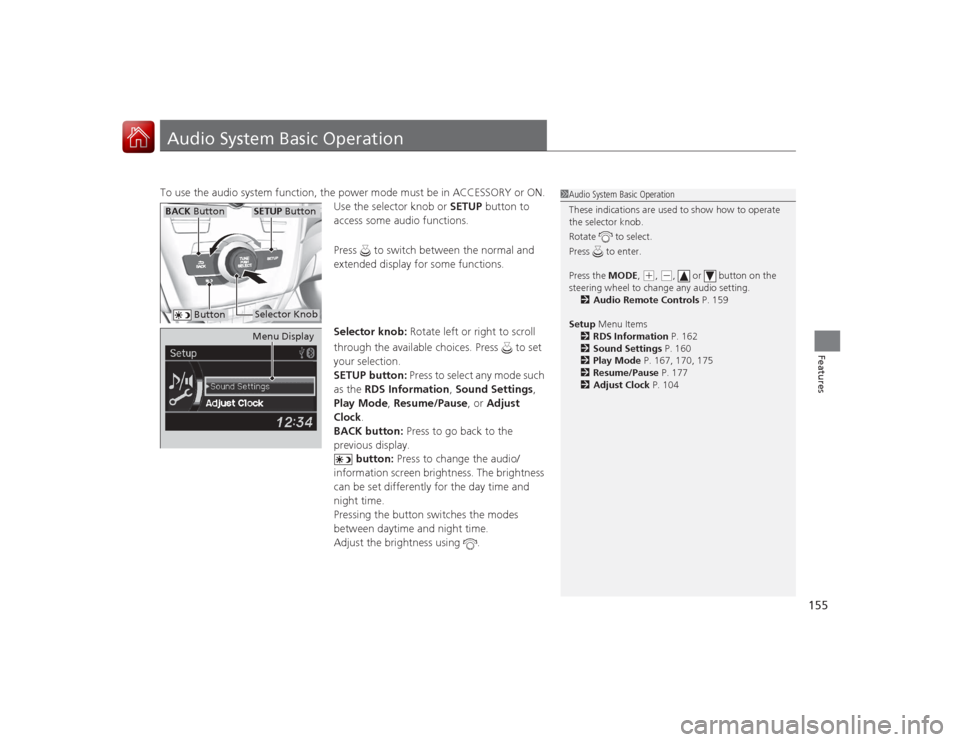
access some audio functions.
Press to switch between the normal and
extended display for some functions.
Selector knob: Rotate left or right to scroll
through the available choices. Press to set
your selection.
SETUP button: Press to select any mode such
as the RDS Information , Sound Settings,
Play Mode , Resume/Pause , or Adjust
Clock .
BACK button: Press to go back to the
previous display. button: Press to change the audio/
information screen brightness. The brightness
can be set differently for the day time and
night time.
Pressing the button switches the modes
between daytime and night time.
Adjust the brightness using .
1 Audio System Basic Operation
These indications are used to show how to operate
the selector knob.
Rotate to select.
Press to enter.
Press the MODE,
(+, (-, or button on the
steering wheel to change any audio setting. 2 Audio Remote Controls P. 159
Setup Menu Items
2 RDS Information P. 162
2 Sound Settings P. 160
2 Play Mode P. 167, 170, 175
2 Resume/Pause P. 177
2 Adjust Clock P. 104
BACK Button
SETUP ButtonSelector Knob
Button
Menu Display
Page 179 of 365
178
uuAudio System Basic Operation uWallpaper Setup
Features
Wallpaper SetupYou can change, store and delete the wallpaper on the audio/information screen.
You can import up to three images, one at a time, for wallpaper from a USB flash
drive.
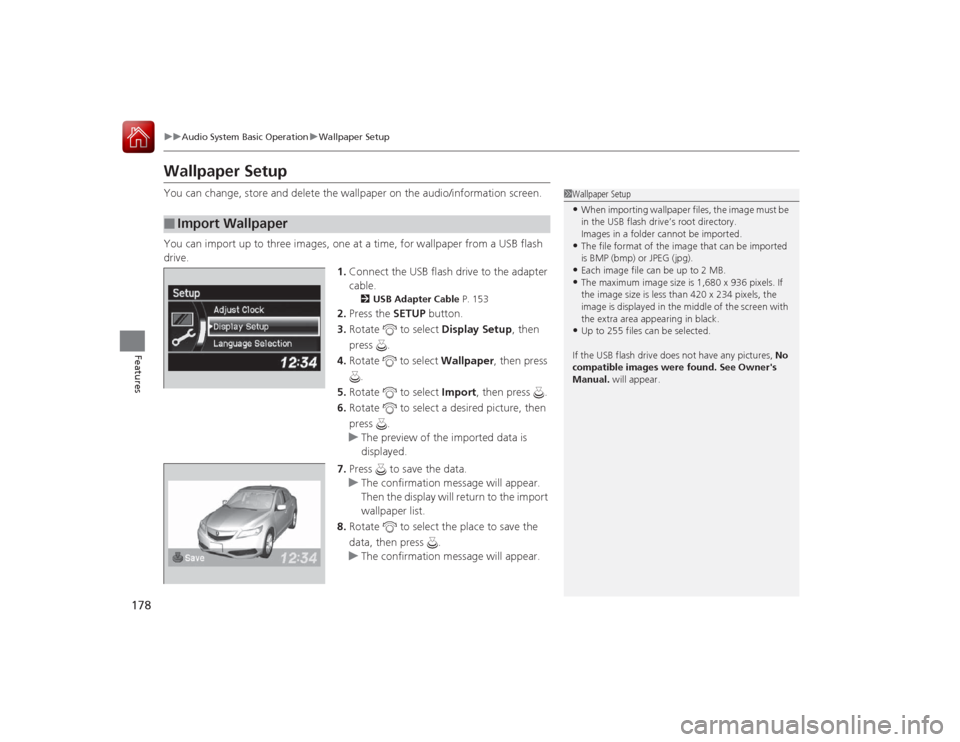
1.Connect the USB flash drive to the adapter
cable.
2 USB Adapter Cable P. 153
2.Press the SETUP button.
3. Rotate to select Display Setup, then
press .
4. Rotate to select Wallpaper, then press
.
5. Rotate to select Import, then press .
6. Rotate to select a desired picture, then
press .
u The preview of the imported data is
displayed.
7. Press to save the data.
u The confirmation message will appear.
Then the display will return to the import
wallpaper list.
8. Rotate to select the place to save the
data, then press .
u The confirmation message will appear.
■
Import Wallpaper
1Wallpaper Setup•When importing wallpaper files, the image must be
in the USB flash drive’s root directory.
Images in a folder cannot be imported.•The file format of the image that can be imported
is BMP (bmp) or JPEG (jpg).•Each image file can be up to 2 MB.•The maximum image size is 1,680 x 936 pixels. If
the image size is less than 420 x 234 pixels, the
image is displayed in the middle of the screen with
the extra area appearing in black.•Up to 255 files can be selected.
If the USB flash drive does not have any pictures, No
compatible images were found. See Owner's
Manual. will appear.
Page 200 of 365
Continued
199
uuBluetooth ® HandsFreeLink ®u HFL Menus
Features
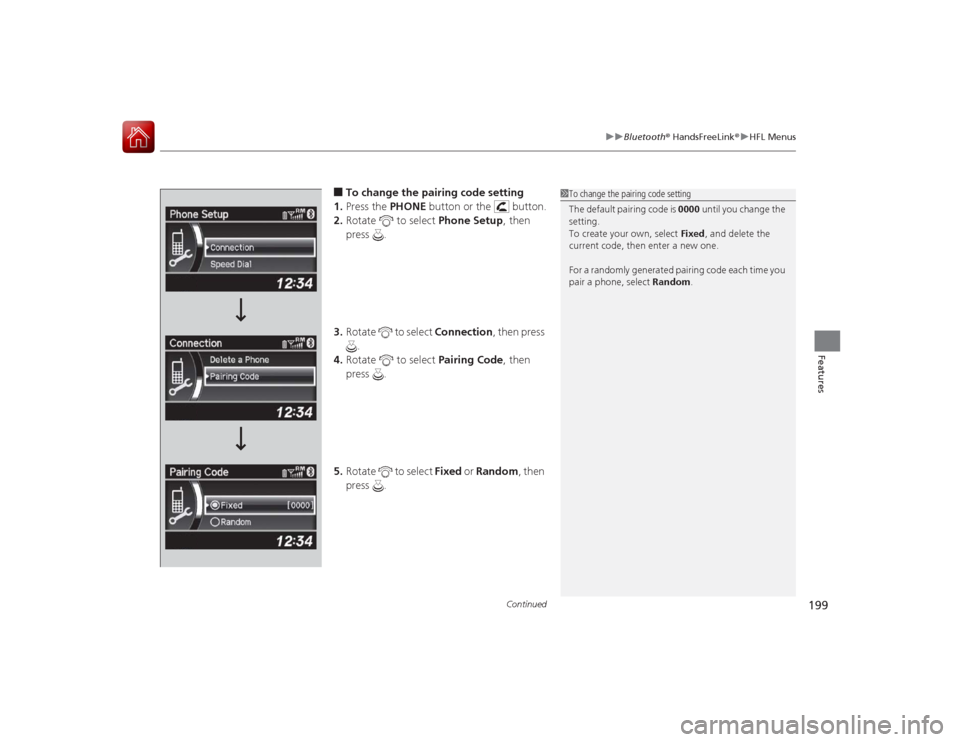
■To change the pairing code setting
1. Press the PHONE button or the button.
2. Rotate to select Phone Setup, then
press .
3. Rotate to select Connection, then press
.
4. Rotate to select Pairing Code, then
press .
5. Rotate to select Fixed or Random , then
press .
1 To change the pairing code setting
The default pairing code is 0000 until you change the
setting.
To create your own, select Fixed, and delete the
current code, then enter a new one.
For a randomly generated pairing code each time you
pair a phone, select Random.
Page 254 of 365
253Driving
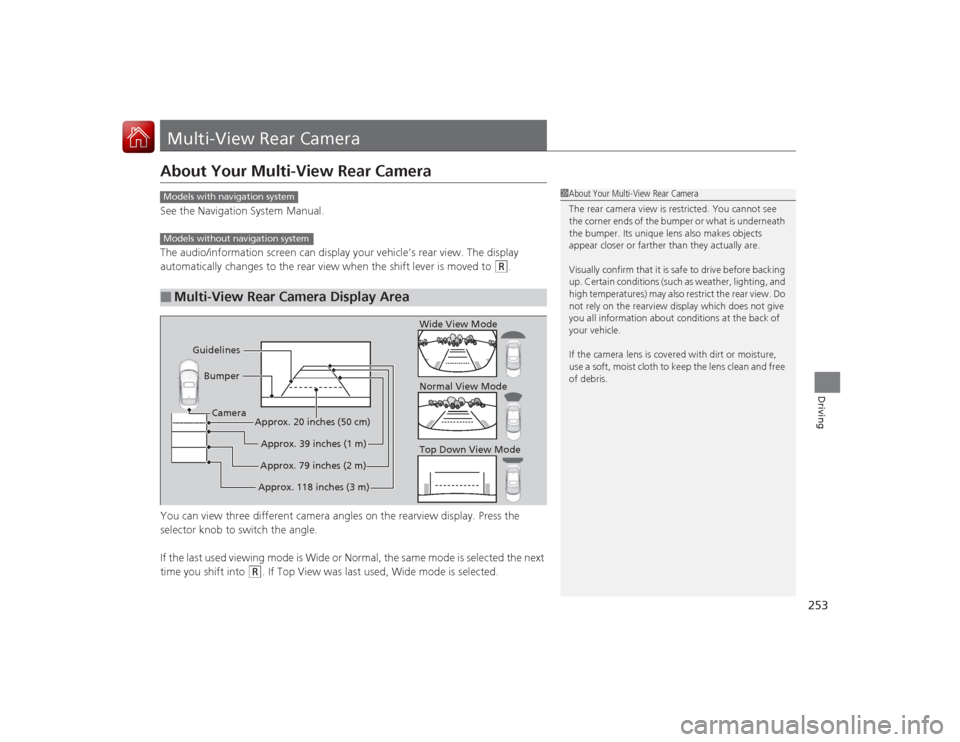
Multi-View Rear CameraAbout Your Multi-View Rear CameraSee the Navigation System Manual.
The audio/information screen can display your vehicle’s rear view. The display
automatically changes to the rear view when the shift lever is moved to
(R
.
You can view three different camera angles on the rearview display. Press the
selector knob to switch the angle.
If the last used viewing mode is Wide or Normal, the same mode is selected the next
time you shift into
(R
. If Top View was last used, Wide mode is selected.
■
Multi-View Rear Camera Display Area
1 About Your Multi-View Rear Camera
The rear camera view is restricted. You cannot see
the corner ends of the bumper or what is underneath
the bumper. Its unique lens also makes objects
appear closer or farther than they actually are.
Visually confirm that it is safe to drive before backing
up. Certain conditions (such as weather, lighting, and
high temperatures) may also restrict the rear view. Do
not rely on the rearview display which does not give
you all information about conditions at the back of
your vehicle.
If the camera lens is covered with dirt or moisture,
use a soft, moist cloth to keep the lens clean and free
of debris.
Models with navigation systemModels without navigation system
Guidelines
Bumper
Camera
Approx. 118 inches (3 m)Approx. 79 inches (2 m)Approx. 39 inches (1 m)
Approx. 20 inches (50 cm)
Top Down View Mode Normal View Mode Wide View Mode
Page 264 of 365
263Maintenance
Maintenance Minder
TM
If the engine oil life is less than 15%, you will see the Maintenance Minder messages
appear on the multi-information display every time you set the power mode to ON.
The messages notify you when to change the engine oil, or when to bring your
vehicle to a dealer for indicated maintenance services.
Page 278 of 365
277
uuMaintenance Under the Hood uEngine Coolant
Continued
Maintenance
Engine CoolantThis coolant is premixed with 50% antifreeze and 50% water. Do not add any
straight antifreeze or water.
We recommend you check the engine coolant level every time you refuel. Check the
reserve tank first. If it is completely empty, also check the coolant level in the
radiator. Add the engine coolant accordingly.
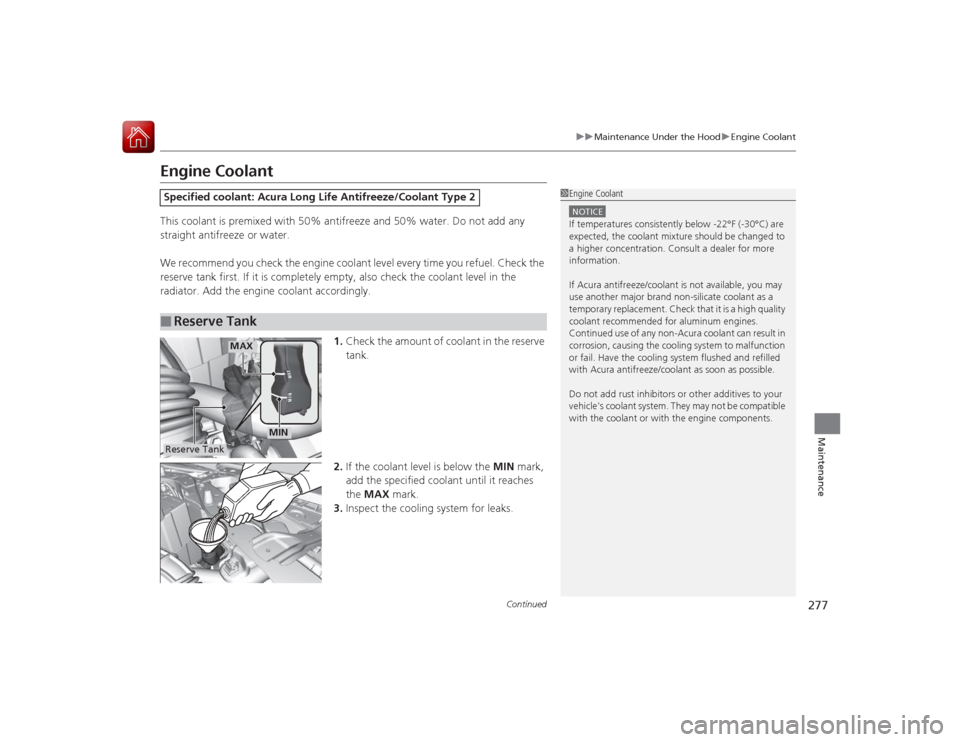
1.Check the amount of coolant in the reserve
tank.
2. If the coolant level is below the MIN mark,
add the specified coolant until it reaches
the MAX mark.
3. Inspect the cooling system for leaks.Specified coolant: Acura Long Life Antifreeze/Coolant Type 2■
Reserve Tank
1Engine CoolantNOTICEIf temperatures consistently below -22°F (-30°C) are
expected, the coolant mixture should be changed to
a higher concentration. Consult a dealer for more
information.
If Acura antifreeze/coolant is not available, you may
use another major brand non-silicate coolant as a
temporary replacement. Check that it is a high quality
coolant recommended for aluminum engines.
Continued use of any non-Acura coolant can result in
corrosion, causing the cooling system to malfunction
or fail. Have the cooling system flushed and refilled
with Acura antifreeze/coolant as soon as possible.
Do not add rust inhibitors or other additives to your
vehicle's coolant system. They may not be compatible
with the coolant or with the engine components.
MAX
MIN
Reserve Tank
Page 332 of 365
331
uuEngine Does Not Start uEmergency Engine Stop
Handling the Unexpected
Emergency Engine StopThe ENGINE START/STOP button may be used to stop the engine due to an
emergency situation even while driving. If you must stop the engine, do either of the
following operations:
• Press and hold the ENGINE START/STOP button about for three seconds.
• Firmly press the ENGINE START/STOP button three times.
The steering wheel will not lock. However, because turning off the engine disables
the power assist the engine provides to the steering and braking systems, it will
require significantly more physical effort and time to steer and slow the vehicle. Use
both feet on the brake pedal to slow down the vehicle and stop immediately in a
safe place.
The power mode is in ACCESSORY when the engine is stopped.
To change the mode to VEHICLE OFF, move the shift lever to
(P
after the vehicle
comes to a complete stop. Then press the ENGINE START/STOP button twice
without depressing the brake pedal.
1 Emergency Engine Stop
Do not press the button while driving unless it is
absolutely necessary for the engine to be switched
off.