apple carplay ACURA INTEGRA 2023 User Guide
[x] Cancel search | Manufacturer: ACURA, Model Year: 2023, Model line: INTEGRA, Model: ACURA INTEGRA 2023Pages: 740, PDF Size: 22.94 MB
Page 255 of 740

Continued253
uuAudio System Basic Operation uApple CarPlay
Features
After you have connected your iPhone to the system via the front USB, use the
following procedure to set up Apple CarPlay. Use of Apple CarPlay will result in the
transmission of certain user and vehicle information (such as vehicle location, speed,
and status) to your iPhone to enhance the Apple CarPlay experience. You will need
to consent to the sharing of this info rmation on the audio/information screen.
■Connecting Apple CarPlay Using the USB Cable to the USB Port
1. Connect the iPhone to the USB port using the USB cable.
2 USB Port(s) P. 227
uThe confirmation screen will be displayed.
2. Select Yes.
u If you do not want to connect Apple CarPlay, select No.
You may change the consent settings under the Smartphone Settings menu.
■Setting Up Apple CarPlay1Setting Up Apple CarPlay
Only initialize Apple CarP lay when you are safely
parked.
When Apple CarPlay first detects your iPhone, you
will need to set up your iPhone. Refer to the
instruction manual that came with your iPhone.
You can use the following procedure to disconnect or
delete the devices conn ecting Apple CarPlay:
Press the MENU button
Select Smartphone Settings Apple CarPlay
Select device
Use of user and vehicle information
The use and handling of user and vehicle information
transmitted to/from your iP hone by Apple CarPlay is
governed by the Apple iOS terms and conditions and
Apple’s Privacy Policy.
■Enabling Apple CarPlay
23 ACURA INTEGRA-313S56000_03.book 253 ページ 2022年3月18日 金曜日 午前11時47分
Page 256 of 740

uuAudio System Basic Operation uApple CarPlay
254
Features
Press the (Talk) button to activate Siri.
(Talk) Button:
Press to activate Siri.
Press again to deactivate Siri.
■Operating Apple CarPlay with Siri1 Operating Apple CarPlay with Siri
Below are examples of questions and commands for
Siri:
•What movies are playing today?
•Call dad at work.•What song is this?
•How’s the weather tomorrow?
•Read my latest email.
For more information, please visit
www.apple.com/ios/siri .
To adjust the guidance volume of Siri, turn the VOL/
AUDIO (Volume/Power) knob while Siri is
activated.
(Talk) Button
23 ACURA INTEGRA-313S56000_03.book 254 ページ 2022年3月18日 金曜日 午前11時47分
Page 257 of 740
255
uuAudio System Basic Operation uAndroid AutoTM
Continued
Features
Android AutoTM
When you connect an Android phone to th e audio system via the USB port, Android
Auto is automatically initiated. When connected via Android Auto, you can use the
audio/information screen to access the Phone, Google Maps (Navigation), and
Google Now functions. When you first use Android Auto, a tutorial will appear on
the screen.
We recommend that you comple te this tutorial while safely parked before using
Android Auto.
2 USB Port(s) P. 227
2 Auto Pairing Connection P. 257
1Android AutoTM
Android Auto is a trademark of Google LLC.
We recommend that you upda te Android OS to the
latest version when using Android Auto.
Bluetooth A2DP cannot be used while your phone is
connected to Android Auto.
To use Android Auto on a smartphone with Android
9.0 (Pie) or earl ier, you need to download the
Android Auto app from Google Play to your
smartphone.
Park in a safe place befo re connecting your Android
phone to Android Auto and when launching any
compatible apps.
To use Android Auto, connect the USB cable to the
USB port.
2 USB Port(s) P. 227
When your Android phone is connected to Android
Auto, it is not possible to use the Bluetooth® Audio.
However, other previously paired phones can stream
audio via Bluetooth ® while Android Auto is
connected. 2 Phone Setup P. 388
Apple CarPlay and Android Auto cannot run at the
same time.
23 ACURA INTEGRA-313S56000_03.book 255 ページ 2022年3月18日 金曜日 午前11時47分
Page 264 of 740
262
uuAudio System Basic Operation uAudio/Information Screen
Features
■General Settings
Enters the customiz ing menu screen.
2Customized Features P. 359
■Wi-Fi Hotspot
Displays the Wi-Fi Hotspot screen.
2 AT&T Hotspot P. 314
■AcuraLink®
Displays the AcuraLink screen.
2 AcuraLink® P. 305
■Apple CarPlay/Android Auto
Displays the Apple CarPlay or Android Auto.
2 Apple CarPlay P. 315
2 Android AutoTM P. 322
■Vehicle Settings
Displays the vehicle settings screen.
2 Customized Features P. 359
23 ACURA INTEGRA-313S56000_03.book 262 ページ 2022年3月18日 金曜日 午前11時47分
Page 282 of 740
280
uuAudio System Basic Operation uAlexa Built-In*
Features
Alexa Built-In*
You can talk to Amazon Alexa through th e audio system. With Alexa, you can:
• Stream music
• Check the weather
• Answer questions
• Control smart home devices
• And more with supported Alexa skills
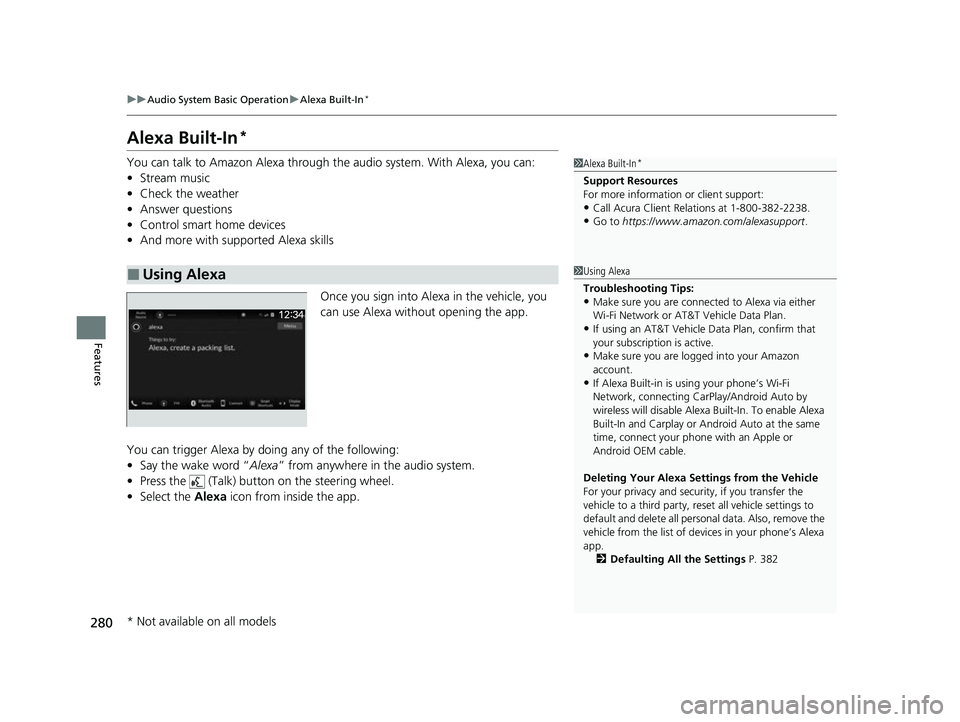
Once you sign into Alexa in the vehicle, you
can use Alexa without opening the app.
You can trigger Alexa by doing any of the following:
• Say the wake word “ Alexa” from anywhere in the audio system.
• Press the (Talk) button on the steering wheel.
• Select the Alexa icon from inside the app.
■Using Alexa
1Alexa Built-In*
Support Resources
For more information or client support:
•Call Acura Client Re lations at 1-800-382-2238.
•Go to https://www.amazon.com/alexasupport .
1Using Alexa
Troubleshooting Tips:
•Make sure you are connect ed to Alexa via either
Wi-Fi Network or AT&T Vehicle Data Plan.
•If using an AT&T Vehicle Data Plan, confirm that
your subscription is active.
•Make sure you are logged into your Amazon
account.
•If Alexa Built-in is using your phone’s Wi-Fi
Network, connecting CarP lay/Android Auto by
wireless will disable Alexa Built-In. To enable Alexa
Built-In and Carplay or A ndroid Auto at the same
time, connect your phone with an Apple or
Android OEM cable.
Deleting Your Alexa Settings from the Vehicle
For your privacy and securi ty, if you transfer the
vehicle to a third party, re set all vehicle settings to
default and delete all personal data. Also, remove the
vehicle from the list of de vices in your phone’s Alexa
app. 2 Defaulting All the Settings P. 382
* Not available on all models
23 ACURA INTEGRA-313S56000_03.book 280 ページ 2022年3月18日 金曜日 午前11時47分
Page 299 of 740

Continued297
uuAudio System Basic Operation uPlaying an iPod
Features
1. Select Browse .
2. Select a search catego ry (e.g., Artists,
Albums, etc.).
3. Continue making selections until you find
the song of your choice.
■How to Select a Song from the Music Search List1Playing an iPod
Available operating functi ons vary on models or
versions. Some functions ma y not be available on the
vehicle’s audio system.
If there is a problem, you may see an error message
on the audio/information screen. 2 iPod/USB Flash Drive P. 328
If you operate the musi c app on your iPhone/iPod
while the phone is connected to the audio system,
you may no longer be able to operate the same app
on the audio/information screen.
Reconnect the devi ce if necessary.
If an iPhone or a smartpho ne is connected via Apple
CarPlay or Android Auto, th e iPod/USB source will be
unavailable and audio files on the phone will be
playable only within Appl e CarPlay or Android Auto.
23 ACURA INTEGRA-313S56000_03.book 297 ページ 2022年3月18日 金曜日 午前11時47分
Page 304 of 740
302
uuAudio System Basic Operation uPlaying Bluetooth ® Audio
Features
Playing Bluetooth ® Audio
Your audio system allows you to listen to music from your Bluetooth-compatible
phone.
This function is available when the phone is paired and connected to the vehicle’s
Bluetooth ® HandsFreeLink ® (HFL) system.
2 Phone Setup P. 408
1Playing Bluetooth ® Audio
Not all Bluetooth-enabled phones with streaming
audio capabilities are compatible with the system.
For a list of compatible phones:
•U.S.: Visit www.handsfreelink.com/Acura ,
or call 1-888-528-7876.
•Canada: For more info rmation on smartphone
compatibility, call 1-855-490-7351.
It may be illegal to pe rform some data device
functions while driving.
Only one phone can be used with HFL at a time.
When there are more than two paired phones in the
vehicle, the system automatically connects to the
prioritized phone. You can a ssign priority to a phone
in the Bluetooth ® device list.
2 Phone Setup P. 408
The connected phone for Bluetooth® Audio can be
different.
If more than one phone is paired to the HFL system,
there may be a delay before the system begins to play.
In some cases, the name of the artist, album, or track
may not appear correctly.
Some functions may not be available on some devices.
If a phone is currently conne cted via Apple CarPlay or
Android Auto, Bluetooth® Audio from that phone is
unavailable. However, a se cond previously paired
phone can stream Bluetooth® Audio by selecting
from the Bluetooth ® device list.
2 Phone Setup P. 408
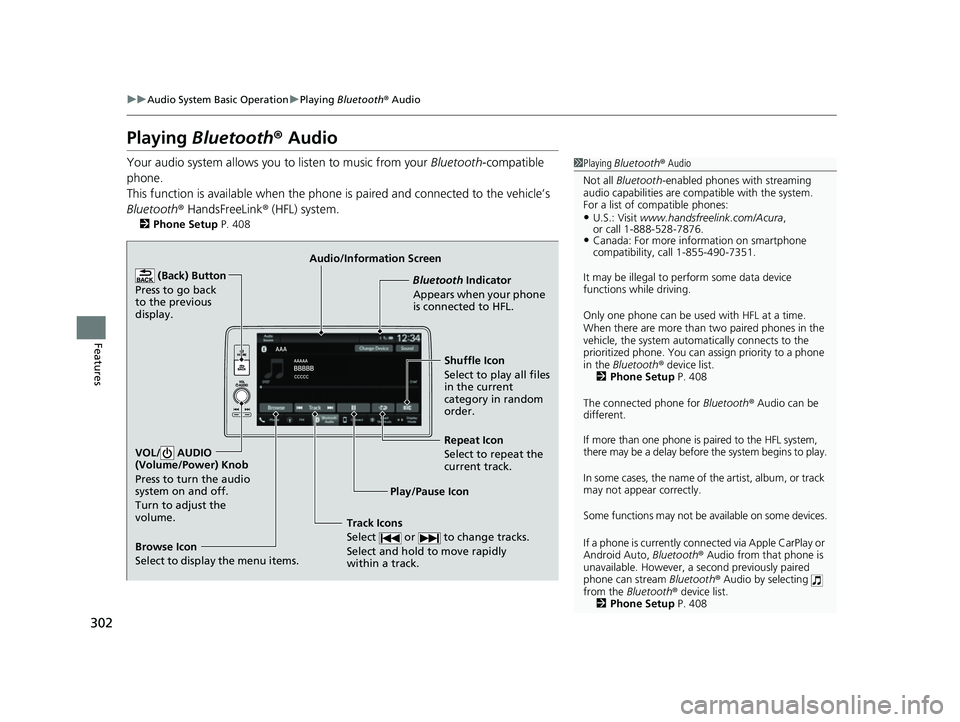
Audio/Information Screen
Browse Icon
Select to display the menu items. Play/Pause IconBluetooth Indica
t
or
Appears when your phone
is connected to HFL.
Track Icons
Select or to change tracks.
Select and hold to move rapidly
within a track.
Repeat Icon
Select to repeat the
current track.
(Back) Button
Press to go back
to the previous
display.VOL/ AUDIO
(Volume/Power) Knob
Press to turn the audio
system on and off.
Turn to adjust the
volume.
Shuffle Icon
Select to play all files
in the current
category in random
order.
23 ACURA INTEGRA-313S56000_03.book 302 ページ 2022年3月18日 金曜日 午前11時47分
Page 312 of 740
uuAudio System Basic Operation uSmart Shortcuts
310
Features
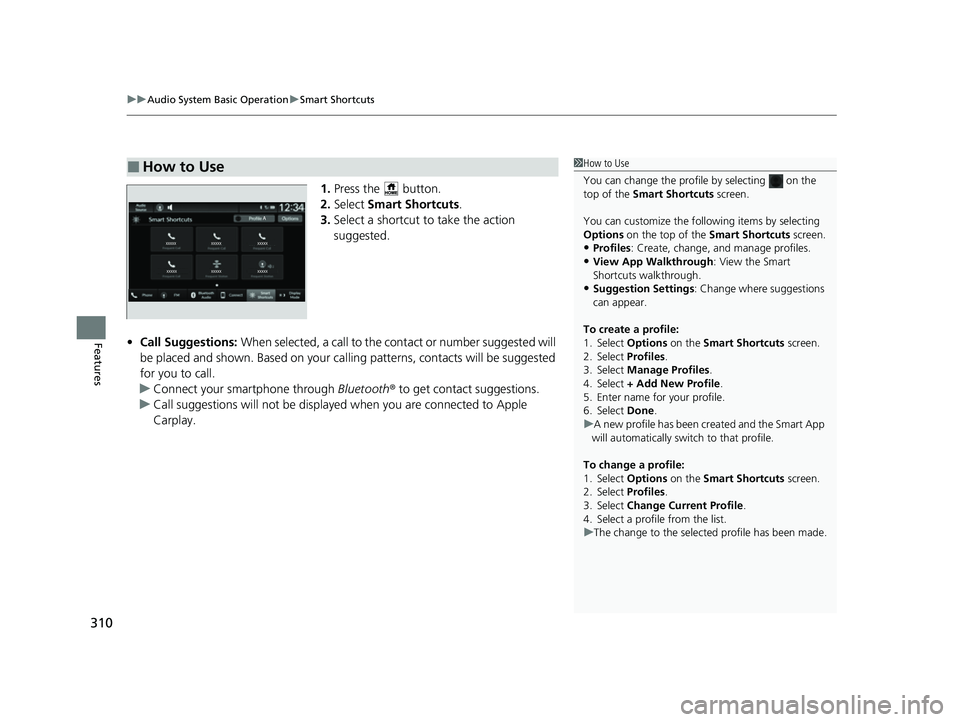
1. Press the button.
2. Select Smart Shortcuts .
3. Select a shortcut to take the action
suggested.
• Call Suggestions: When selected, a call to the c ontact or number suggested will
be placed and shown. Based on your cal ling patterns, contacts will be suggested
for you to call.
u Connect your smartphone through Bluetooth® to get contact suggestions.
u Call suggestions will not be displayed when you are connected to Apple
Carplay.
■How to Use1How to Use
You can change the profile by selecting on the
top of the Smart Shortcuts screen.
You can customize the foll owing items by selecting
Options on the top of the Smart Shortcuts screen.
•Profiles: Create, change, a nd manage profiles.
•View App Walkthrough : View the Smart
Shortcuts walkthrough.
•Suggestion Settings : Change where suggestions
can appear.
To create a profile:
1. Select Options on the Smart Shortcuts screen.
2. Select Profiles .
3. Select Manage Profiles .
4. Select + Add New Profile .
5. Enter name for your profile.
6. Select Done .
u A new profile has been cr eated and the Smart App
will automatically switch to that profile.
To change a profile:
1. Select Options on the Smart Shortcuts screen.
2. Select Profiles .
3. Select Change Current Profile .
4. Select a profile from the list.
u The change to the selected profile has been made.
23 ACURA INTEGRA-313S56000_03.book 310 ページ 2022年3月18日 金曜日 午前11時47分
Page 317 of 740
315
uuAudio System Basic Operation uApple CarPlay
Continued
Features
Apple CarPlay
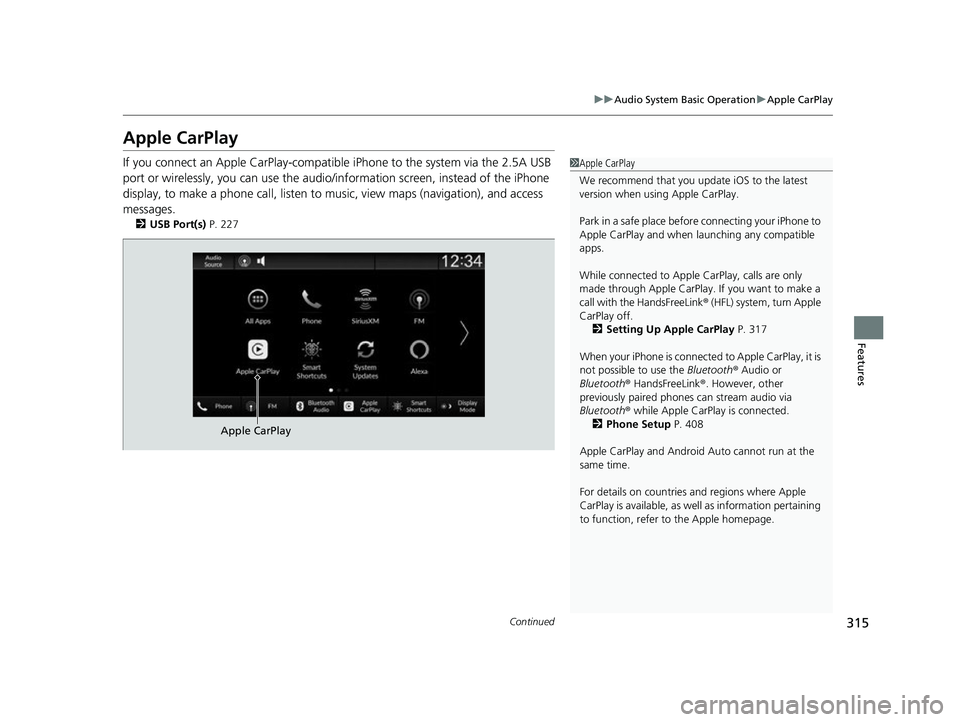
If you connect an Apple CarPlay-compatible iPhone to the system via the 2.5A USB
port or wirelessly, you can use the audio/information screen, instead of the iPhone
display, to make a phone call, listen to music, view maps (navigation), and access
messages.
2 USB Port(s) P. 227
1Apple CarPlay
We recommend that you upda te iOS to the latest
version when usi ng Apple CarPlay.
Park in a safe place before connecting your iPhone to
Apple CarPlay and when launching any compatible
apps.
While connected to Apple CarPlay, calls are only
made through Apple CarPlay. If you want to make a
call with the HandsFreeLink ® (HFL) system, turn Apple
CarPlay off.
2 Setting Up Apple CarPlay P. 317
When your iPhone is connected to Apple CarPlay, it is
not possible to use the Bluetooth® Audio or
Bluetooth ® HandsFreeLink ®. However, other
previously paired phones can stream audio via
Bluetooth ® while Apple CarPlay is connected.
2 Phone Setup P. 408
Apple CarPlay and Android Auto cannot run at the
same time.
For details on c ountries and regions where Apple
CarPlay is available, as well as information pertaining
to function, refer to the Apple homepage.
Apple CarPlay
23 ACURA INTEGRA-313S56000_03.book 315 ページ 2022年3月18日 金曜日 午前11時47分
Page 318 of 740
uuAudio System Basic Operation uApple CarPlay
316
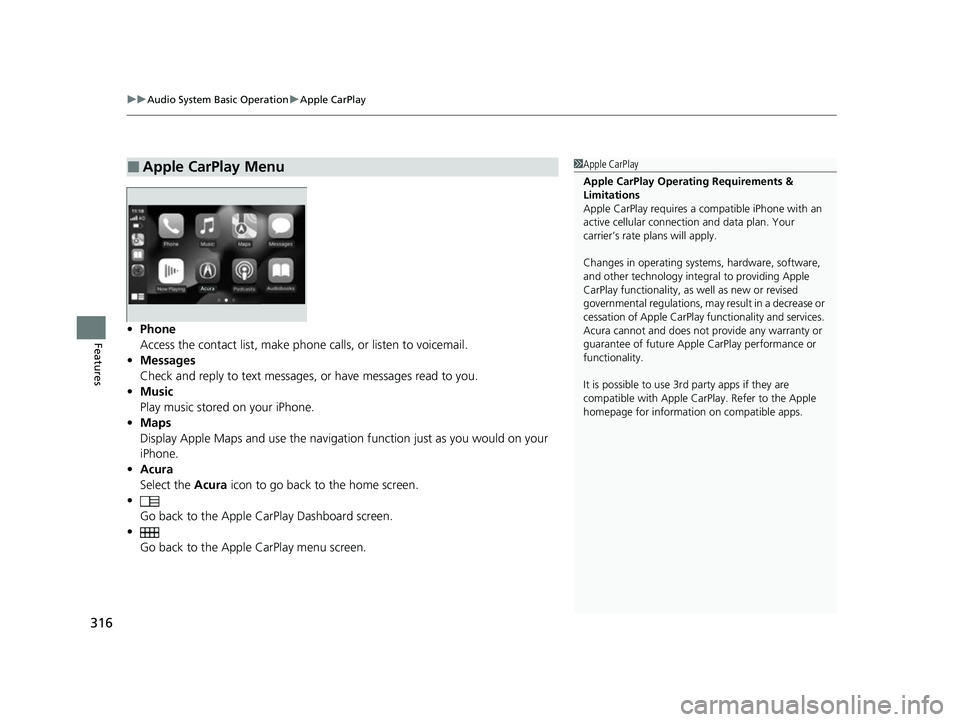
Features• Phone
Access the contact list, make phone calls, or listen to voicemail.
• Messages
Check and reply to text messages, or have messages read to you.
• Music
Play music stored on your iPhone.
• Maps
Display Apple Maps and use the navigation function just as you would on your
iPhone.
• Acura
Select the Acura icon to go back to the home screen.
•
Go back to the Apple CarPlay Dashboard screen.
• Go back to the Apple CarPlay menu screen.
■Apple CarPlay Menu1Apple CarPlay
Apple CarPlay Operating Requirements &
Limitations
Apple CarPlay requi res a compatible iPhone with an
active cellular connecti on and data plan. Your
carrier’s rate plans will apply.
Changes in operating systems, hardware, software,
and other technology integral to providing Apple
CarPlay functionality, as well as new or revised
governmental regulations, may result in a decrease or
cessation of Apple CarPlay functionality and services.
Acura cannot and does not provide any warranty or
guarantee of future Appl e CarPlay performance or
functionality.
It is possible to use 3r d party apps if they are
compatible with Apple CarPlay. Refer to the Apple
homepage for information on compatible apps.
23 ACURA INTEGRA-313S56000_03.book 316 ページ 2022年3月18日 金曜日 午前11時47分