steering wheel ACURA INTEGRA 2023 Owner's Guide
[x] Cancel search | Manufacturer: ACURA, Model Year: 2023, Model line: INTEGRA, Model: ACURA INTEGRA 2023Pages: 740, PDF Size: 22.94 MB
Page 193 of 740

191Continued
Controls
Seats
Front Seats
Adjust the driver’s seat as far back as possible
while allowing you to ma intain full control of
the vehicle. You should be able to sit upright,
well back in the seat and be able to
adequately press the pedals without leaning
forward, and grip the steering wheel
comfortably. The passenger’s seat should be
adjusted in a similar manner, so that it is as far
back from the front airbag in the dashboard
as possible.
■Adjusting the front power seat(s*)
1 Seats
Always make seat adjustments before driving.
1Front Seats
The National Highway Traffic Safety Administration
and Transport Cana da recommend that drivers allow
at least 10 inches (25 cm) between the center of the
steering wheel and the chest.
3WARNING
Sitting too close to a front airbag can result
in serious injury or death if the front
airbags inflate.
Always sit as far back from the front
airbags as possible while maintaining
control of the vehicle.
Move back.
Allow sufficient
space.
■Adjusting the Seat Positions
Horizontal Position
Adjustment
Height Adjustment
(Driver’s seat only)
Seat-back Angle
Adjustment
Driver’s seat is shown.
* Not available on all models
23 ACURA INTEGRA-313S56000_03.book 191 ページ 2022年3月18日 金曜日 午前11時47分
Page 196 of 740

uuSeats uFront Seats
194
Controls
Adjust the driver’s seat-back to a comfortable,
upright position, leaving ample space
between your chest and the airbag cover in
the center of the steering wheel.
The front seat passenger should also adjust
their seat-back to a comfortable, upright
position.
Reclining a seat-back so that the shoulder part of the belt no longer rests against the
occupant’s chest reduces the protective capa bility of the belt. It also increases the
chance of sliding under the belt in a crash and being seriously injured. The farther a
seat-back is reclined, the greater the risk of injury.
■Adjusting the Seat-Backs1 Adjusting the Seat-Backs
Do not put a cushion, or other object, between the
seat-back and your back.
Doing so may interfere with proper seat belt or airbag
operation.
If you cannot get far e nough away from the steering
wheel and still reach th e controls, we recommend
that you investigate whether some type of adaptive
equipment may help.
3WARNING
Reclining the seat-back too far can result in
serious injury or death in a crash.
Adjust the seat-back to an upright position,
and sit well back in the seat.
23 ACURA INTEGRA-313S56000_03.book 194 ページ 2022年3月18日 金曜日 午前11時47分
Page 217 of 740

Continued215
uuInterior Convenience Items uOther Interior Convenience Items
Controls
The power mode must be in ON to use the
heated steering wheel.
Press the button on th e lower side of the
steering wheel.
When a comfortable temperature is reached,
press the button again to turn it off.
The heated steering wheel is turned off every
time you start the engine, even if you turned it
on the last time yo u drove the vehicle.
■Heated Steering Wheel
Canadian models
1Heated Steering Wheel
Do not use the heated st eering wheel continuously
when the engine is off. Under such conditions, the
battery may be weaken ed, making the engine
difficult to start.
23 ACURA INTEGRA-313S56000_03.book 215 ページ 2022年3月18日 金曜日 午前11時47分
Page 228 of 740

226
Features
Audio System
About Your Audio System
The audio system features AM/FM radio and SiriusXM ® Radio service*. It can also
play USB flash drives, iPod, iPhone and Bluetooth® devices.
You can operate the audio system from the buttons and switches on the panel, the
remote controls on the steering wheel, or the icons on the touchscreen interface.1About Your Audio System
SiriusXM ® Radio
* is available on a subscription basis
only. For more information on SiriusXM ® Radio*,
contact a dealer. 2 General Information on the Audio System
P. 330
SiriusXM ® Radio
* is available in the United States and
Canada, except Ha waii, Alaska, and Puerto Rico.
SiriusXM ®
* is a registered tra demark of SiriusXM
Radio, Inc.
State or local laws may prohibit the operation of
handheld electronic devi ces while operating a
vehicle.
Remote Controls iPod
USB Flash Drive
* Not available on all models
23 ACURA INTEGRA-313S56000_03.book 226 ページ 2022年3月18日 金曜日 午前11時47分
Page 236 of 740

234
Features
Audio System Basic Operation
To use the audio system, the power mode must be in ACCESSORY or ON.
Use the selector knob or MENU button to
access some audio functions.
Press to switch between the normal and
extended display fo r some functions.
Selector knob: Rotate left or right to scroll
through the available choices. Press to set
your selection.
MENU button: Press to display the menu
screen. (Back) button: Press to go back to the
previous display.
Models with 7-in. Color Touchscreen1 Audio System Basic Operation
These indications are used to show how to operate
the selector knob.
Rotate to select.
Press to enter.
Menu Items 2 Adjust Clock P. 142
2 Adjusting the Sound P. 235
2 Display Setup P. 236
2 Customized Features P. 351
Press the buttons on the steering wheel to change
any audio setting. 2 Audio Remote Controls P. 230
Touchscreen operation
•Use simple gestures - in cluding touching, swiping
and scrolling - to operate certain audio functions.
•Some items may be grayed out during driving to
reduce the potential for distraction.
•You can select them when the vehicle is stopped.•Wearing gloves may limit or prevent touchscreen
response.
You can change the touchs creen sensitivity setting.
2 Customized Features P. 351
(Back)
Button
Selector Knob
MENU Button
Menu Display
23 ACURA INTEGRA-313S56000_03.book 234 ページ 2022年3月18日 金曜日 午前11時47分
Page 251 of 740
249
uuAudio System Basic Operation uSiri Eyes Free
Features
Siri Eyes Free
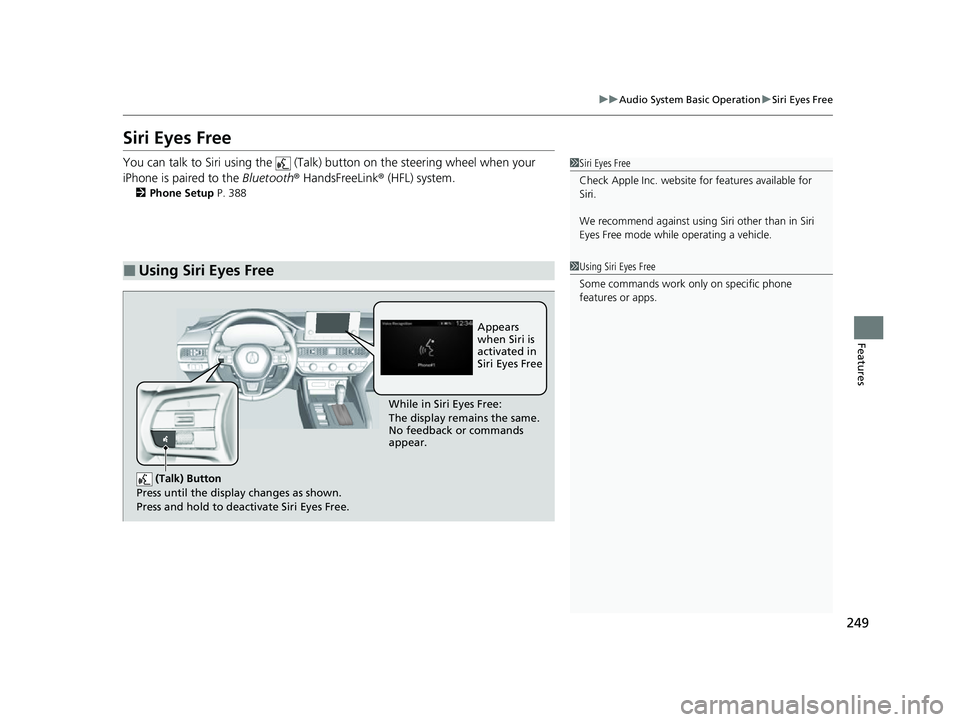
You can talk to Siri using the (Talk) button on the steering wheel when your
iPhone is paired to the Bluetooth® HandsFreeLink ® (HFL) system.
2Phone Setup P. 388
■Using Siri Eyes Free
1Siri Eyes Free
Check Apple Inc. website for features available for
Siri.
We recommend against using Si ri other than in Siri
Eyes Free mode whil e operating a vehicle.
1Using Siri Eyes Free
Some commands work only on specific phone
features or apps.
(Talk) Button
Press until the display changes as shown.
Press and hold to deactivate Siri Eyes Free.
While in Siri Eyes Free:
The display remains the same.
No feedback or commands
appear. Appears
when Siri is
activated in
Siri Eyes Free
23 ACURA INTEGRA-313S56000_03.book 249 ページ 2022年3月18日 金曜日 午前11時47分
Page 252 of 740
250
uuAudio System Basic Operation uSmartphone Voice Recognition
Features
Smartphone Voice Recognition
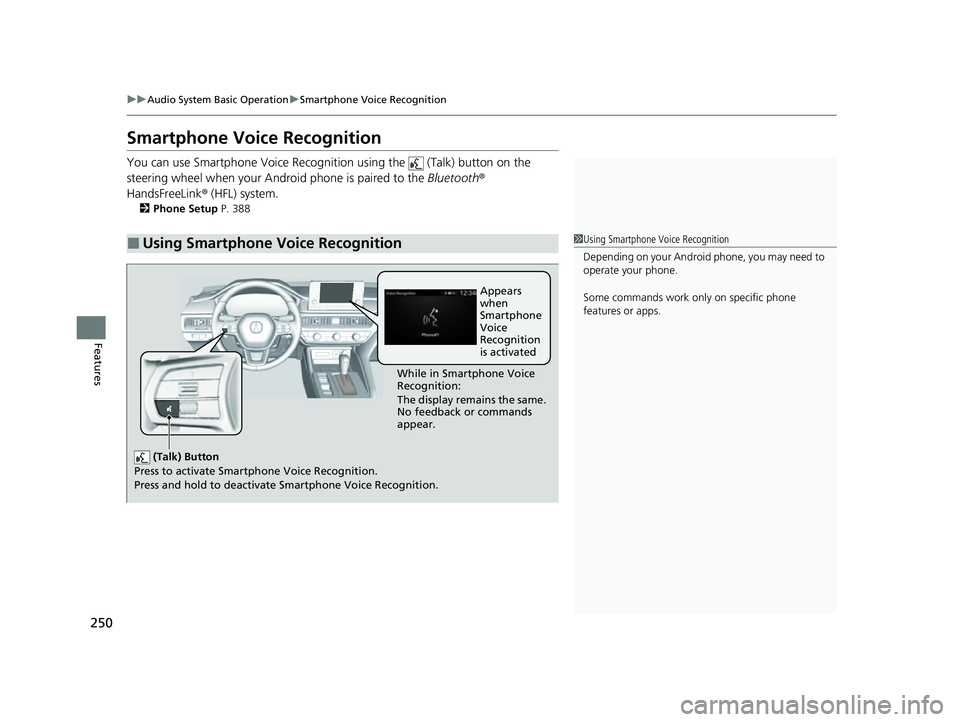
You can use Smartphone Voice Recognitio n using the (Talk) button on the
steering wheel when your Andr oid phone is paired to the Bluetooth®
HandsFreeLink ® (HFL) system.
2Phone Setup P. 388
■Using Smartphone Voice Recognition1Using Smartphone Voice Recognition
Depending on your Android phone, you may need to
operate your phone.
Some commands work only on specific phone
features or apps.
(Talk) Button
Press to activate Smartp hone Voice Recognition.
Press and hold to deactivate Smartphone Voice Recognition.
While in Smartphone Voice
Recognition:
The display remains the same.
No feedback or commands
appear.Appears
when
Smartphone
Voice
Recognition
is activated
23 ACURA INTEGRA-313S56000_03.book 250 ページ 2022年3月18日 金曜日 午前11時47分
Page 282 of 740
280
uuAudio System Basic Operation uAlexa Built-In*
Features
Alexa Built-In*
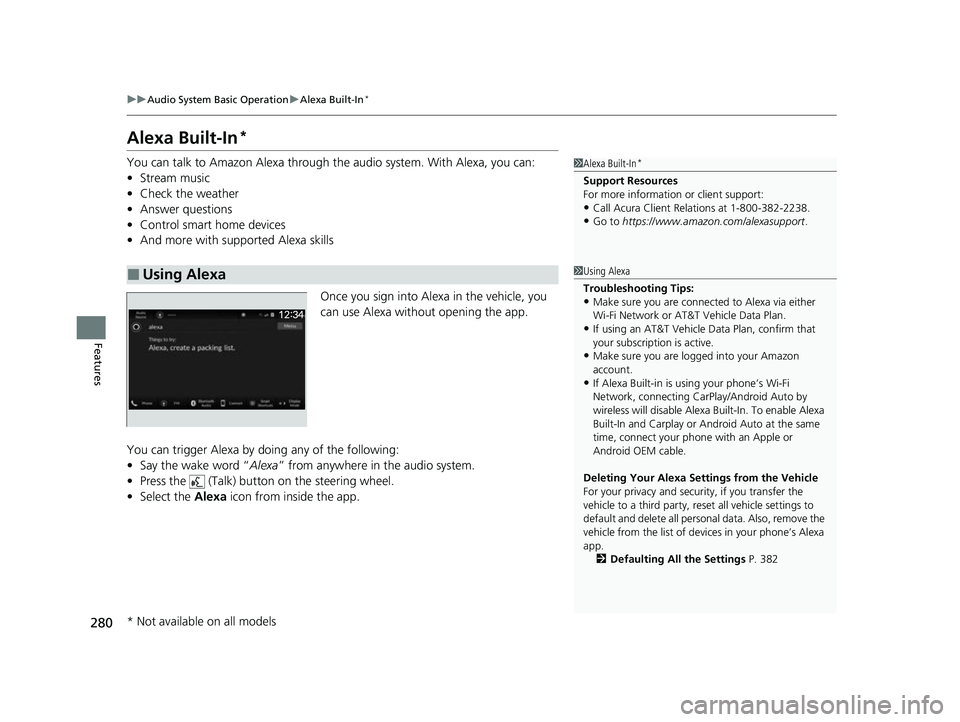
You can talk to Amazon Alexa through th e audio system. With Alexa, you can:
• Stream music
• Check the weather
• Answer questions
• Control smart home devices
• And more with supported Alexa skills
Once you sign into Alexa in the vehicle, you
can use Alexa without opening the app.
You can trigger Alexa by doing any of the following:
• Say the wake word “ Alexa” from anywhere in the audio system.
• Press the (Talk) button on the steering wheel.
• Select the Alexa icon from inside the app.
■Using Alexa
1Alexa Built-In*
Support Resources
For more information or client support:
•Call Acura Client Re lations at 1-800-382-2238.
•Go to https://www.amazon.com/alexasupport .
1Using Alexa
Troubleshooting Tips:
•Make sure you are connect ed to Alexa via either
Wi-Fi Network or AT&T Vehicle Data Plan.
•If using an AT&T Vehicle Data Plan, confirm that
your subscription is active.
•Make sure you are logged into your Amazon
account.
•If Alexa Built-in is using your phone’s Wi-Fi
Network, connecting CarP lay/Android Auto by
wireless will disable Alexa Built-In. To enable Alexa
Built-In and Carplay or A ndroid Auto at the same
time, connect your phone with an Apple or
Android OEM cable.
Deleting Your Alexa Settings from the Vehicle
For your privacy and securi ty, if you transfer the
vehicle to a third party, re set all vehicle settings to
default and delete all personal data. Also, remove the
vehicle from the list of de vices in your phone’s Alexa
app. 2 Defaulting All the Settings P. 382
* Not available on all models
23 ACURA INTEGRA-313S56000_03.book 280 ページ 2022年3月18日 金曜日 午前11時47分
Page 321 of 740
319
uuAudio System Basic Operation uApple CarPlay
Continued
Features
■Connect Apple CarPlay wirelessly on the Bluetooth® device list
1. Press the button.
2. Select General Settings .
3. Select Connections.
4. Select Bluetooth .
5. Select + Connect New Device .
6. Pair the iPhone to the vehicle’s Bluetooth® HandsFreeLink ® (HFL) system.
2 Phone Setup P. 408
7.Check the box on Apple CarPlay.
u If you select Apple CarPlay , you cannot select Audio and Phone .
8. Select Connect .
9. Select Yes.
u If your iPhone asks to accept for connecting Apple CarPlay, accept for
connection. A confirmation message for AcuraLink Assist appears.
10. Select Yes or No.
■Connect Apple CarPlay wirelessly with the steering wheel
1. Press and hold the (Talk) button on the steering wheel.
2. Pair the iPhone to the vehicle’s Bluetooth® HandsFreeLink ® (HFL) system.
2Phone Setup P. 408
3.Check the box on Apple CarPlay.
u If you select Apple CarPlay , you cannot select Audio and Phone .
4. Select Connect .
5. Select Yes.
u If your iPhone asks to accept for connecting Apple CarPlay, accept for
connection. A confirmation message for AcuraLink Assist appears.
6. Select Yes or No .
23 ACURA INTEGRA-313S56000_03.book 319 ページ 2022年3月18日 金曜日 午前11時47分
Page 328 of 740
326
uuAudio System Basic Operation uAndroid AutoTM
Features
■Connect Android Auto wireless ly with the steering wheel
1. Press and hold the (Talk) button on the steering wheel.
2. Pair the Android phone to the vehicle’s Bluetooth® HandsFreeLink ® (HFL) system.
2Phone Setup P. 408
3.Check the box on Android Auto.
u If you select Android Auto , you cannot select Audio and Phone.
4. Select Connect .
5. Select Yes.
u If your Android phone asks to accept for connecting Android Auto, accept for
connection. A confirmation message for AcuraLink Assist appears.
6. Select Yes or No.
■Connect Android Auto wirelessly at start-up (when there is no phone
paired to the system)
1. Set the power mode to ACCESSORY or ON.
2. Select OK.
u If there is no registered device, the Bluetooth® pairing screen will be displayed.
u If you check the box with Do not show this again, this screen will not be
displayed.
3. Pair the Android phone to the vehicle’s Bluetooth® HandsFreeLink ® (HFL) system.
2Phone Setup P. 408
4.Check the box on Android Auto.
u If you select Android Auto , you cannot select Audio and Phone.
5. Select Connect .
6. Select Yes.
u If your Android phone asks to accept for connecting Android Auto, accept for
connection. A confirmation message for AcuraLink Assist appears.
7. Select Yes or No.
23 ACURA INTEGRA-313S56000_03.book 326 ページ 2022年3月18日 金曜日 午前11時47分