radio Acura MDX 2012 Owner's Manual
[x] Cancel search | Manufacturer: ACURA, Model Year: 2012, Model line: MDX, Model: Acura MDX 2012Pages: 621, PDF Size: 11.15 MB
Page 188 of 621
The climate control system in your
vehicle provides a comfortable driving
environment in all weather conditions.
The standard audio system has many
features. This section describes those
features and how to use them.
Your vehicle has an anti-theft audio
system that requires a code number to
enable it.
The security system helps do
discourage vandalism and theft to your
vehicle.
Climate Control System
................
182
Rear Climate Controls
................
187
Audio System
...............................
192
Playing the AM/FM Radio (Models
without navigation system)
.......
193
Playing the XM
®Radio (Models
without navigation system)
.......
197
Playing Discs (Models without
navigation system)
...................
203Disc Changer Error Message
(Models without navigation
system)
................................
211
Audio System (Models with
navigation system)
...................
212
Playing the AM/FM Radio (Models
with navigation system)
............
213
Playing the XM
®Radio (Models
with navigation system)
............
226
Playing a Disc (Models with
navigation system)
...................
235
Disc Player Error Messages
(Models with navigation
system)
................................
246
Protecting Your Discs
...................
247
Playing Hard Disc Drive (HDD)
Audio (Models with navigation
system)
................................
250
Playing an iPod
®(Models with
navigation system)
...................
278
iPod
®Error Messages (Models
with navigation system)
............
286
Playing a USB Flash Memory
Device (Models with navigation
system)
................................
287USB Flash Memory Device Error
Messages (Models with
navigation system)
................
297
Bluetooth
®Audio System (Models
with navigation system)
............
298
AM/FM Radio Reception
..............
303
Remote Audio Controls
.................
305
Auxiliary Input Jack
......................
307
Radio Theft Protection
..................
308
Setting the Clock and Calendar
.....
309
Rear Entertainment System
...........
310
Security System
............................
341
Compass
......................................
342
Cruise Control
..............................
345
Adaptive Cruise Control (ACC)
.....
348
HomeLink
®Universal
Transceiver
..............................
363
Bluetooth
®HandsFreeLink
®
(Models without navigation
system)
................................
365
Bluetooth
®HandsFreeLink
®
(Models with navigation
system)
................................
383
AcuraLink
®(U.S. models only)
......
402
Rearview Mirror with Rearview
Camera Display
........................
417
Features
181
Features
Page 199 of 621
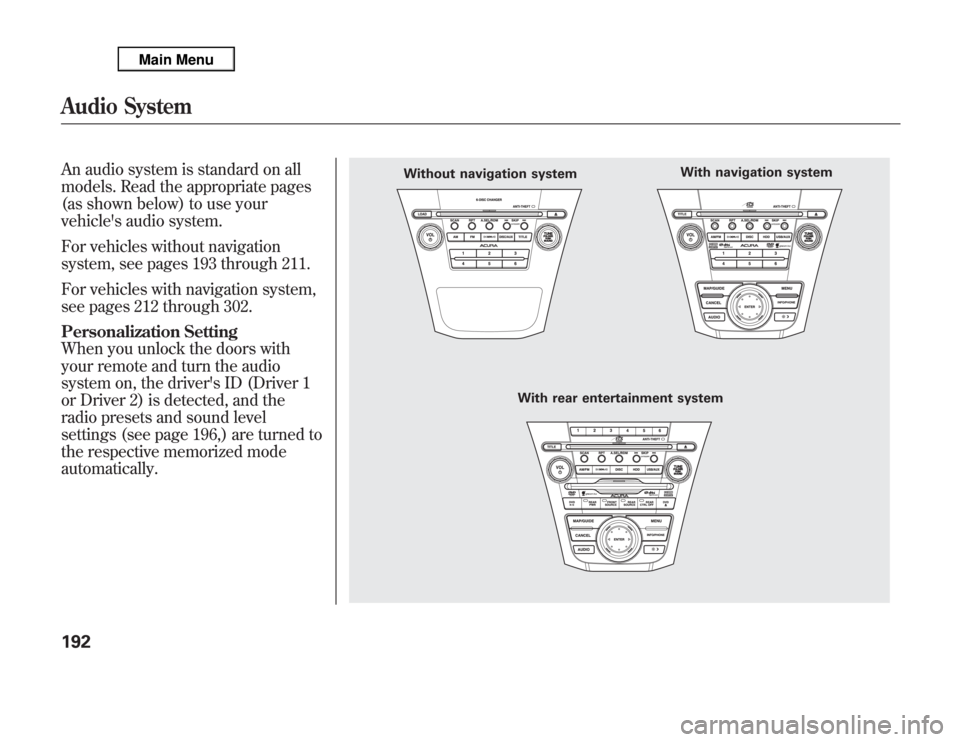
An audio system is standard on all
models. Read the appropriate pages
(as shown below) to use your
vehicle's audio system.
For vehicles without navigation
system, see pages 193 through 211.
For vehicles with navigation system,
see pages 212 through 302.
Personalization Setting
When you unlock the doors with
your remote and turn the audio
system on, the driver's ID (Driver 1
or Driver 2) is detected, and the
radio presets and sound level
settings (see page 196,) are turned to
the respective memorized mode
automatically.
Without navigation system
With rear entertainment systemWith navigation system
Audio System192
Page 200 of 621
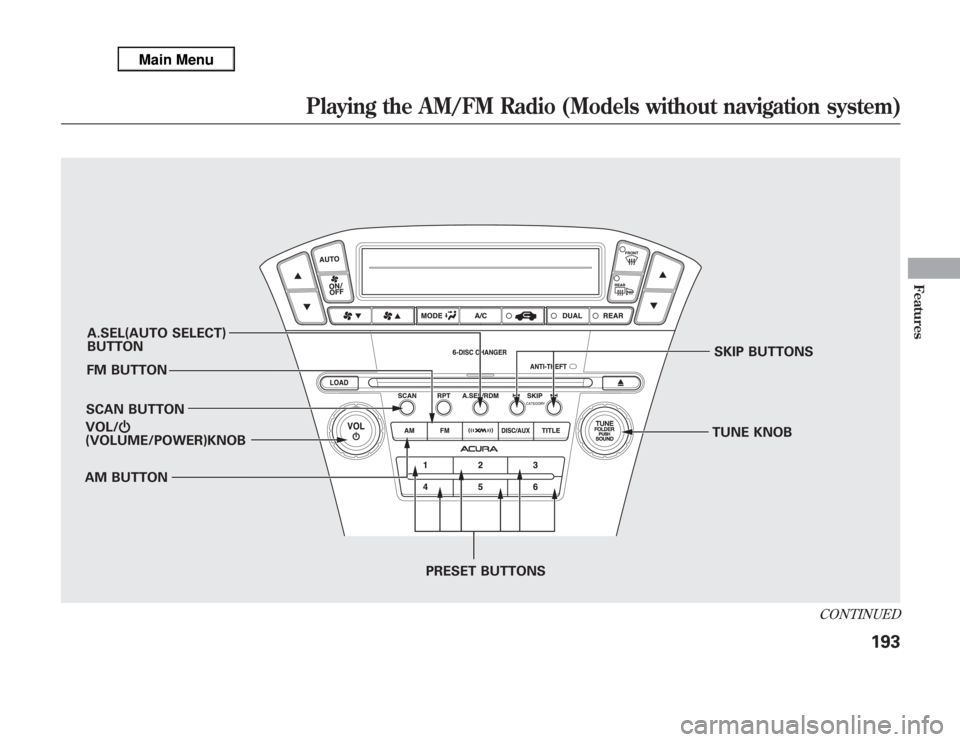
A.SEL(AUTO SELECT)
BUTTON
FM BUTTON
SCAN BUTTON
AM BUTTONSKIP BUTTONS
TUNE KNOB
PRESET BUTTONS VOL/Ⴛ
(VOLUME/POWER)KNOB
CONTINUED
Playing the AM/FM Radio (Models without navigation system)
193
Features
Page 201 of 621
To Play the Radio
The ignition switch must be in the
ACCESSORY (I) or ON (II) position.
Turn the system on by pushing the
VOL/
knob or the AM or FM
button. Adjust the volume by turning
the VOL/
knob.
The band and frequency that the
radio was last tuned to are displayed.
To change bands, press the AM or
FM button. On the FM band, ST will
be displayed if the station is
broadcasting in stereo. Stereo
reproduction in AM is not available.To Select a Station
You can use any of five methods to
find radio stations on the selected
band: tune, skip(seek), scan, the
preset buttons, and auto select.
TUNE-Use the TUNE knob to
tune the radio to a desired frequency.
Turn the knob right to tune to a
higher frequency, or left to tune to a
lower frequency.
SKIP(SEEK)-The skip(seek)
function searches up and down from
the current frequency to find a
station with a strong signal. To
activate it, press and hold the
or
side of the button, then release it.SCAN-The scan function samples
all stations with strong signals on the
selected band. To activate it, press
the SCAN button, then release it.
You will see SCAN in the display.
When the system finds a strong
signal, it will stop and play that
station for about 10 seconds.
If you do nothing, the system will
scan for the next strong station and
play it for 10 seconds. When it plays
a station that you want to listen to,
press the SCAN button again.
Playing the AM/FM Radio (Models without navigation system)194
Page 202 of 621
Preset-Each preset button can
store one frequency on AM and two
frequencies on FM.
1. Select the desired band, AM or
FM. FM1 and FM2 let you store
two frequencies with each preset
button.
2. Use the tune, skip(seek), or scan
function to tune the radio to a
desired station.
3. Pick a preset button, then press
and hold it until you hear a beep.
4. Repeat steps 1 through 3 to store a
total of six stations on AM and
twelve stations on FM.AUTO SELECT-If you are
traveling and can no longer receive
your preset stations, you can use the
auto select feature to find stations in
the local area.
Press the A.SEL button.‘‘A.SEL’’
flashes in the display, and the system
goes into scan mode for several
seconds. It stores the frequencies of
six AM and twelve FM stations in the
preset buttons.
You will see a‘‘0’’displayed after
pressing a preset button if auto select
cannot find a strong station for that
preset button.
If you do not like the stations auto
select has stored, you can store other
frequencies on the preset buttons as
previously described.
To turn off auto select,
press the A.SEL
(auto select) button. This restores
the presets you originally set.
The presets may be lost if your
vehicle's battery goes dead, is
disconnected, or the radio fuse is
removed.
For information on AM/FM radio
frequencies and reception, see page
303.
CONTINUED
Playing the AM/FM Radio (Models without navigation system)
195
Features
Page 203 of 621
Adjusting the Sound
Press the TUNE (SOUND) knob
repeatedly to display the BASS,
TREBLE, FADER, BALANCE,
SUBWOOFER, CENTER, and SVC
(speed-sensitive volume
compensation) settings.
BASS-Adjusts the bass.
TREBLE-Adjusts the treble.
FADER-Adjusts the front-to-back
strength of the sound.
BALANCE-Adjusts the side-to-
side strength of the sound.
SUBWOOFER-Adjusts the
strength of sound from the
subwoofer speaker.
CENTER-Adjusts the strength of
sound from the center speaker.SVC-Adjusts the volume level
based on the vehicle speed.
Each mode is shown in the display as
it changes. Turn the TUNE knob to
adjust the setting to your liking.
When the level reaches the center,
you will see‘‘C’’in the display.
The system will return to the audio
display about 5 seconds after you
stop adjusting a mode.
Speed-sensitive Volume
Compensation (SVC)The SVC mode controls the volume
based on vehicle speed. The faster
you go, the louder the audio volume
becomes. As you slow down, the
audio volume decreases.
The SVC has four modes: SVC OFF,
SVC LOW, SVC MID, and SVC
HIGH. Turn the TUNE knob to
adjust the setting to your liking. If
you feel the sound is too loud,
choose low. If you feel the sound is
too quiet, choose high.Audio System Lighting
You can use the instrument panel
brightness control buttons to adjust
the illumination of the audio system
(see page 133). The audio system
illuminates when the parking lights
are on, even if the radio is off.
Playing the AM/FM Radio (Models without navigation system)196
Page 204 of 621
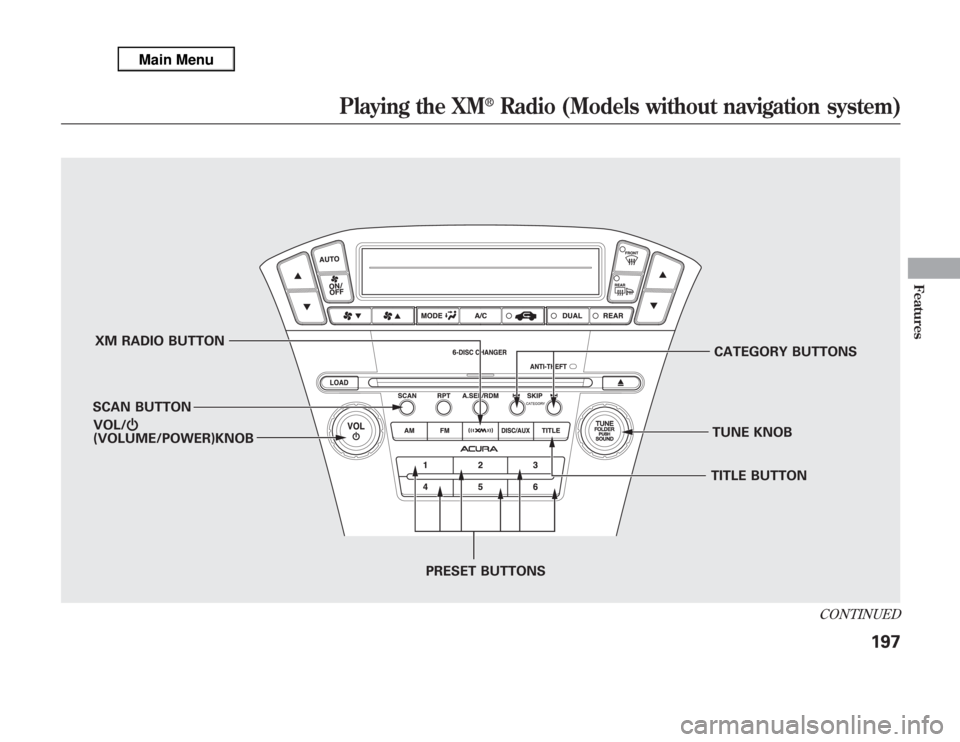
XM RADIO BUTTON
SCAN BUTTONCATEGORY BUTTONS
TUNE KNOB
PRESET BUTTONS VOL/Ⴛ
(VOLUME/POWER)KNOB
TITLE BUTTON
CONTINUED
Playing the XM
®
Radio (Models without navigation system)
197
Features
Page 205 of 621
Your vehicle is capable of receiving
XM
®Radio anywhere in the United
States and Canada, except Hawaii
Alaska, and Puerto Rico.
XM is a registered trademark of
Sirius XM Radio, Inc. and XM
CANADA
®is a registered business
name of Canadian Satellite Radio Inc.
XM Radio receives signals from two
satellites to produce clear, high-
quality digital reception. It offers
many channels in several categories.
Along with a large selection of
different types of music, XM Radio
allows you to view channel and
category selections in the display.Operating the XM Radio
To listen to XM Radio, turn the
ignition switch to the ACCESSORY
(I) or ON (II) position. Push the
VOL/
knob to turn on the audio
system, and press the
button.
The last channel you listened to will
show in the display. Adjust the
volume by turning the VOL/knob.
MODE-To switch between
channel mode and category mode,
press and hold the TITLE button
until the mode changes.
In the channel mode, you can select
all of the available channels. In the
category mode, such as Jazz, Rock,
Classical, etc., you can select all of
the channels within that category.
Each time you press and release the
TITLE button, the display changes in
the following sequence: channel
name, channel number, category,
artist name, and song title.You may experience periods when
XM Radio does not transmit the
artist's name and song title
information. If this happens, there is
nothing wrong with your system.
TUNE-Turn the TUNE knob to
change channel selections. Turn the
knob right for higher numbered
channels and left for lower numbered
channels. In the category mode, you
can only select channels within that
category.
CATEGORY (
or
)-Press
either button to select another
category.
Playing the XM
®
Radio (Models without navigation system)
198
Page 206 of 621
SCAN-The SCAN function gives
you a sampling of all channels while
in the channel mode. In the category
mode, only the stations within that
category are scanned. To activate
scan, press the SCAN button. The
system plays each channel in
numerical order for about 10
seconds, then selects the next
channel. When you hear a channel
you want to continue listening to,
press the button again.
Preset-You can store up to 12
preset channels using the six preset
buttons. Each button stores one
channel from the XM1 band and one
channel from the XM2 band.
To store a channel:
1. Press the
button. Either
XM1 or XM2 will show in the
display.2. Use the TUNE knob, the
CATEGORY buttons, or the SCAN
buttons to tune to a desired
channel.
In category mode, only channels
within that category can be selected.
In channel mode, all channels can be
selected.
3. Pick the preset button you want for
that channel. Press and hold the
button until you hear a beep.
4. Repeat steps 2 and 3 to store the
first six channels.
5. Press the
button again. The
other XM band will show. Store
the next six channels using steps 2
and 3.
Once a channel is stored, simply
press and release the proper preset
button to tune to it.The presets may be lost if your
vehicle's battery goes dead, is
disconnected, or the radio fuse is
removed.
XM Radio Display Messages
‘‘LOADING’’-XM is loading the
audio or program information.
‘‘OFF AIR’’-The channel
currently selected is no longer
broadcasting.
‘‘UPDATING’’-The encryption
code is being updated. Wait until the
encryption code is fully updated.
Channels 0 and 1 should still work
normally.
CONTINUED
Playing the XM
®
Radio (Models without navigation system)
199
Features
Page 207 of 621
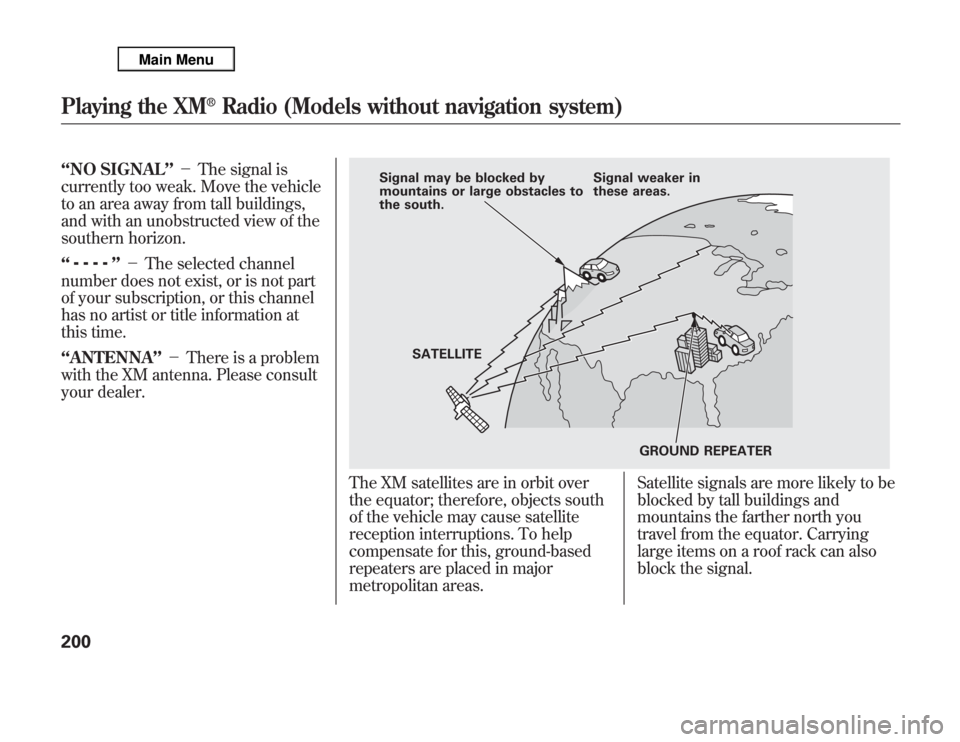
‘‘NO SIGNAL’’-The signal is
currently too weak. Move the vehicle
to an area away from tall buildings,
and with an unobstructed view of the
southern horizon.
‘‘
’’-The selected channel
number does not exist, or is not part
of your subscription, or this channel
has no artist or title information at
this time.
‘‘ANTENNA’’-There is a problem
with the XM antenna. Please consult
your dealer.
The XM satellites are in orbit over
the equator; therefore, objects south
of the vehicle may cause satellite
reception interruptions. To help
compensate for this, ground-based
repeaters are placed in major
metropolitan areas.Satellite signals are more likely to be
blocked by tall buildings and
mountains the farther north you
travel from the equator. Carrying
large items on a roof rack can also
block the signal.
Signal may be blocked by
mountains or large obstacles to
the south.Signal weaker in
these areas.
SATELLITE
GROUND REPEATER
Playing the XM
®
Radio (Models without navigation system)
200