reset Acura MDX 2015 Owner's Guide
[x] Cancel search | Manufacturer: ACURA, Model Year: 2015, Model line: MDX, Model: Acura MDX 2015Pages: 505, PDF Size: 18.62 MB
Page 223 of 505
222
uuAudio System Basic Operation uPlaying SiriusXM ® Radio
Features
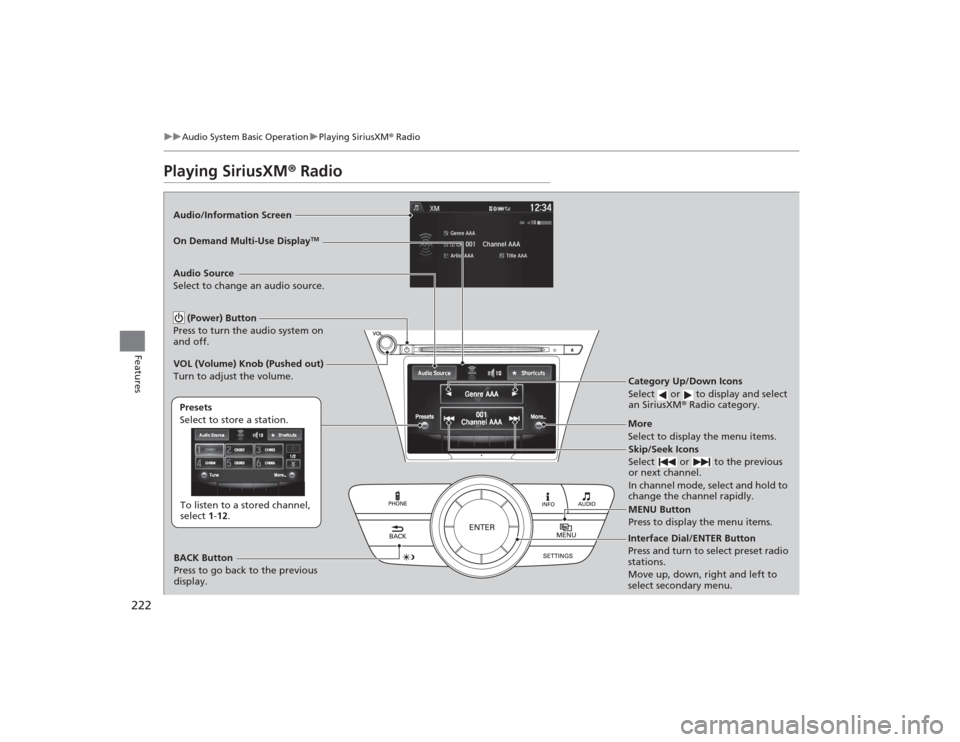
Playing SiriusXM ® RadioAudio/Information Screen
On Demand Multi-Use Display
TM
Category Up/Down Icons
Select or to display and select
an SiriusXM ® Radio category.MENU Button
Press to display the menu items.
(Power) Button
Press to turn the audio system on
and off.Audio Source
Select to change an audio source.To listen to a stored channel,
select 1-12.
Presets
Select to store a station.
Skip/Seek Icons
Select or to the previous
or next channel.
In channel mode, select and hold to
change the channel rapidly.
More
Select to display the menu items.
BACK Button
Press to go back to the previous
display.
VOL (Volume) Knob (Pushed out)
Turn to adjust the volume.Interface Dial/ENTER Button
Press and turn to select preset radio
stations.
Move up, down, right and left to
select secondary menu.
Page 224 of 505
Continued
223
uuAudio System Basic Operation uPlaying SiriusXM ® Radio
Features
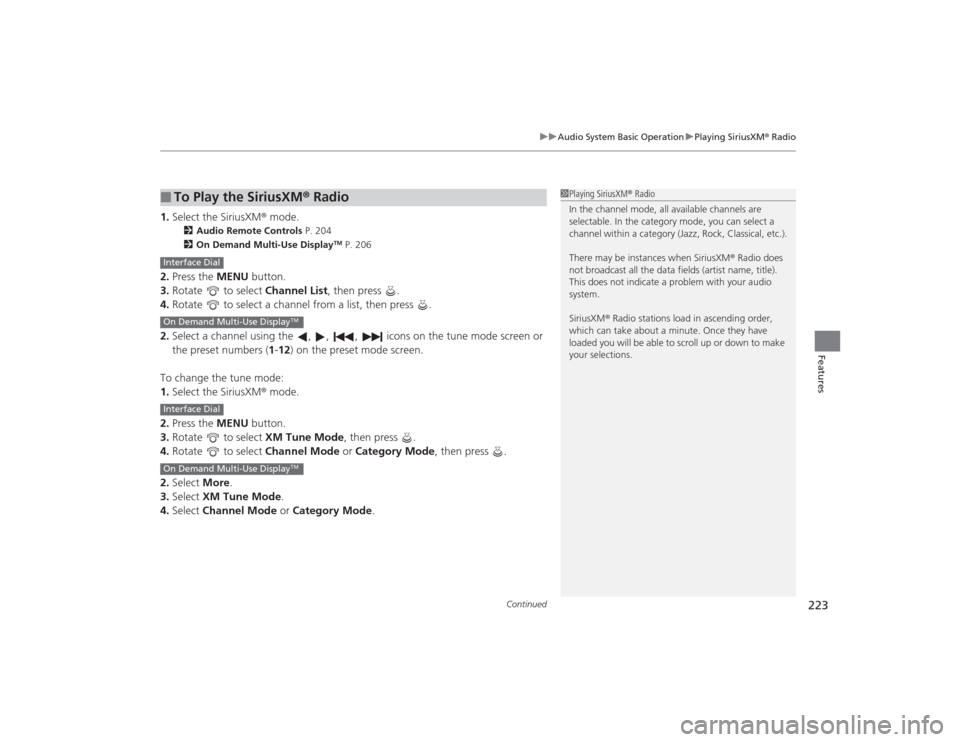
1. Select the SiriusXM® mode.
2 Audio Remote Controls P. 204
2 On Demand Multi-Use Display
TM P. 206
2.Press the MENU button.
3. Rotate to select Channel List, then press .
4. Rotate to select a channel from a list, then press .
2. Select a channel using the , , , icons on the tune mode screen or
the preset numbers ( 1-12) on the preset mode screen.
To change the tune mode:
1. Select the SiriusXM® mode.
2. Press the MENU button.
3. Rotate to select XM Tune Mode, then press .
4. Rotate to select Channel Mode or Category Mode , then press .
2. Select More.
3. Select XM Tune Mode .
4. Select Channel Mode or Category Mode .■
To Play the SiriusXM ® Radio
1 Playing SiriusXM ® Radio
In the channel mode, all availa ble channels are
selectable. In the category mode, you can select a
channel within a category (Jazz, Rock, Classical, etc.).
There may be instances when SiriusXM ® Radio does
not broadcast all the data fields (artist name, title).
This does not indicate a problem with your audio
system.
SiriusXM ® Radio stations load in ascending order,
which can take about a minute. Once they have
loaded you will be able to scroll up or down to make
your selections.
Interface DialOn Demand Multi-Use Display
TM
Interface DialOn Demand Multi-Use Display
TM
Page 225 of 505
uuAudio System Basic Operation uPlaying SiriusXM ® Radio
224Features
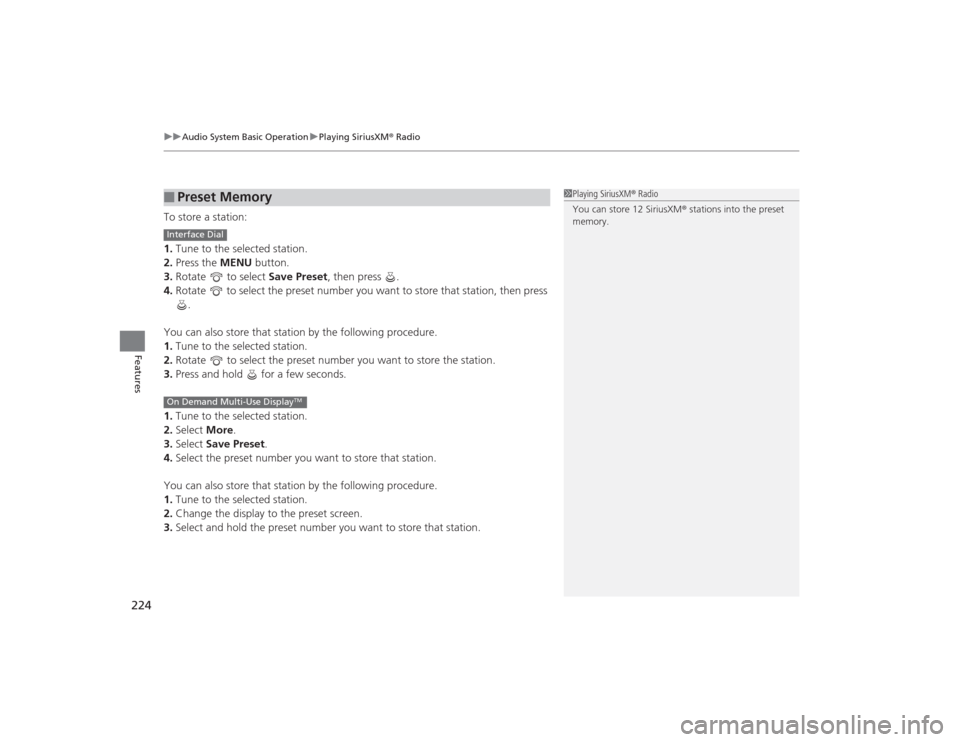
To store a station:
1. Tune to the selected station.
2. Press the MENU button.
3. Rotate to select Save Preset, then press .
4. Rotate to select the preset number you want to store that station, then press \
.
You can also store that station by the following procedure.
1. Tune to the selected station.
2. Rotate to select the preset number you want to store the station.
3. Press and hold for a few seconds.
1. Tune to the selected station.
2. Select More.
3. Select Save Preset .
4. Select the preset number you want to store that station.
You can also store that station by the following procedure.
1. Tune to the selected station.
2. Change the display to the preset screen.
3. Select and hold the preset number you want to store that station.■
Preset Memory
1Playing SiriusXM ® Radio
You can store 12 SiriusXM ® stations into the preset
memory.
Interface DialOn Demand Multi-Use Display
TM
Page 251 of 505
250
uuCustomized Features u
Features
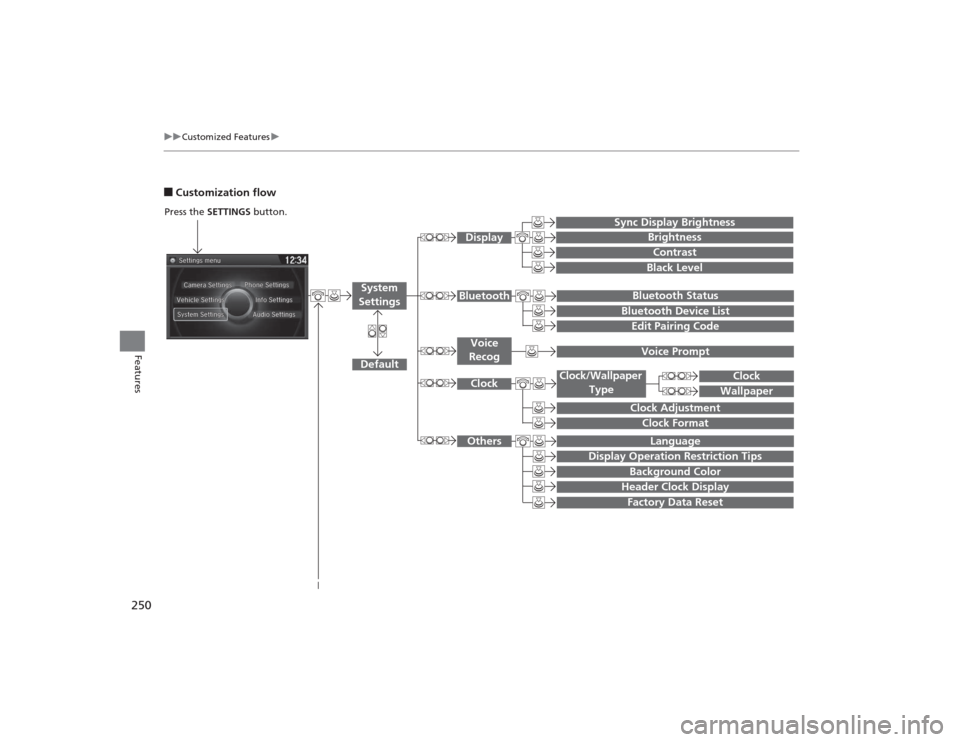
■Customization flowPress the SETTINGS button.
BrightnessContrastBlack Level
Bluetooth StatusBluetooth Device ListEdit Pairing Code
Default
Display
System
Settings
Bluetooth
Sync Display Brightness
Factory Data Reset
Background ColorHeader Clock Display
Clock
Clock AdjustmentClock Format
Clock
Language
Others
Wallpaper
Clock/Wallpaper
Type
Display Operation Restriction Tips
Voice
Recog
Voice Prompt
Page 252 of 505
251
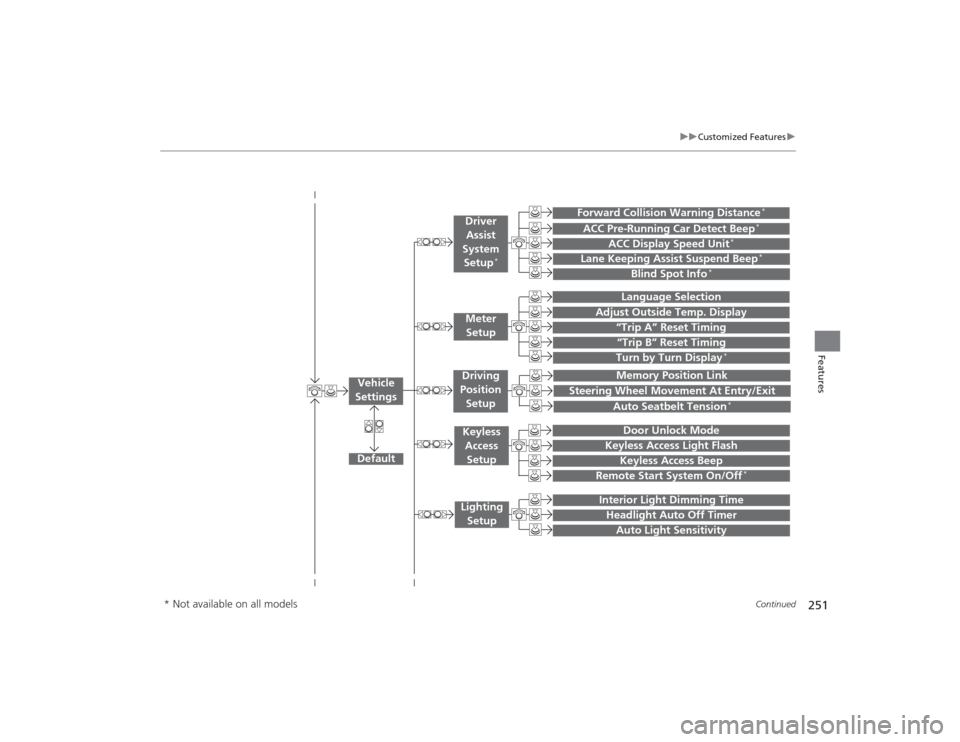
uuCustomized Features u
Continued
Features
“Trip B” Reset TimingTurn by Turn Display
*
Adjust Outside Temp. Display
“Trip A” Reset Timing
Default
Memory Position Link
Keyless Access Light Flash
Keyless Access Beep
Interior Light Dimming TimeHeadlight Auto Off TimerAuto Light Sensitivity
Vehicle
Settings
Meter SetupKeyless Access
SetupLighting Setup
Remote Start System On/Off
*
Steering Wheel Movement At Entry/Exit
Driving
Position Setup
Door Unlock Mode
Lane Keeping Assist Suspend Beep
*
Blind Spot Info
*
ACC Pre-Running Car Detect Beep
*
ACC Display Speed Unit
*
Driver Assist
System Setup
*
Forward Collision Warning Distance
*
Language SelectionAuto Seatbelt Tension
*
* Not available on all models
Page 253 of 505
252
uuCustomized Features u
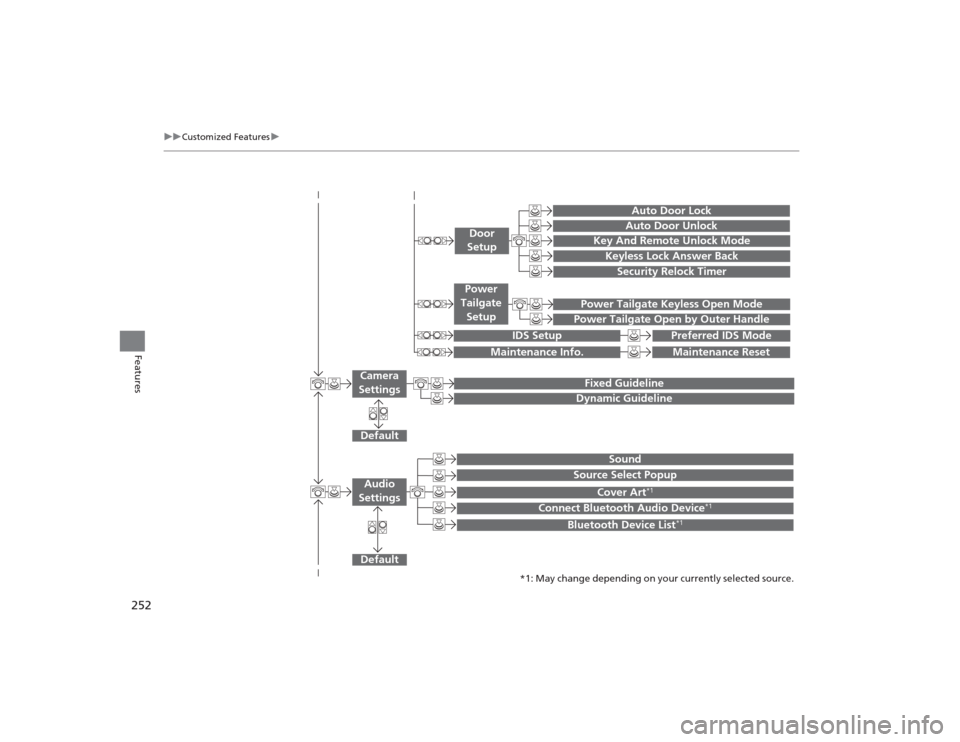
Features
Default
Fixed GuidelineDynamic Guideline
Default
Sound
Source Select Popup
Cover Art
*1
Connect Bluetooth Audio Device
*1
Bluetooth Device List
*1
Audio
Settings
Maintenance Reset
Maintenance Info.
Power Tailgate Keyless Open ModePower Tailgate Open by Outer Handle
Power
Tailgate Setup
Camera
Settings
Preferred IDS Mode
IDS Setup
Key And Remote Unlock ModeKeyless Lock Answer BackSecurity Relock Timer
Auto Door LockAuto Door Unlock
Door
Setup
*1: May change depending on your currently selected source.
Page 257 of 505
256
uuCustomized Features u
Features
*1:Default SettingSetup
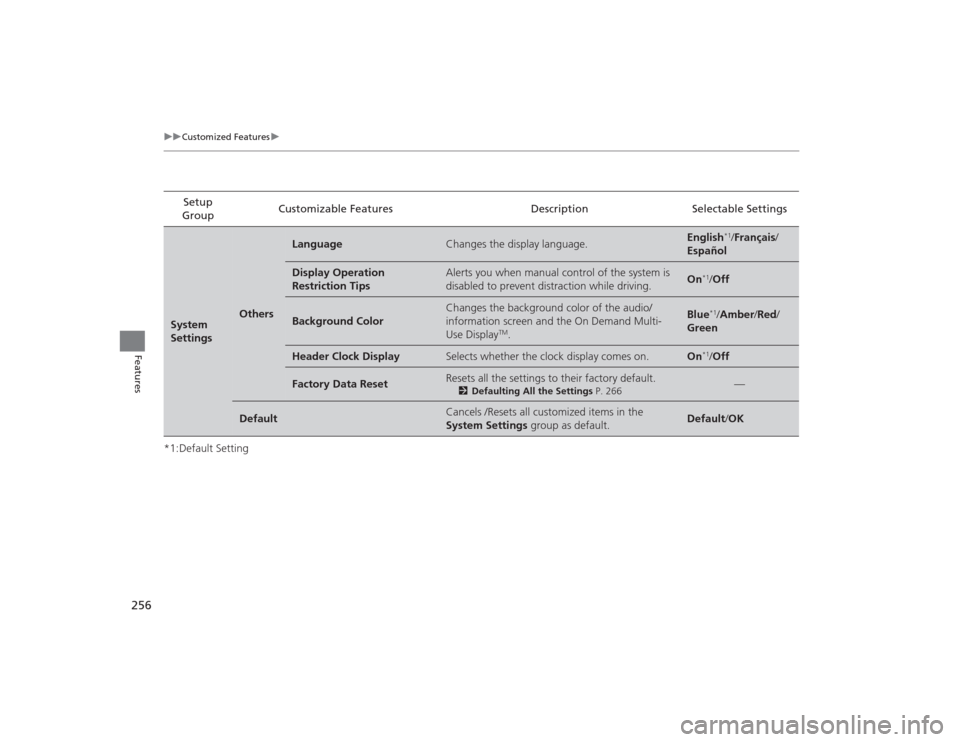
Group Customizable Features Description Selectable SettingsSystem
Settings
Others
Language
Changes the display language.
English
*1/
Français /
Español
Display Operation
Restriction Tips
Alerts you when manual control of the system is
disabled to prevent distraction while driving.
On
*1/ Off
Background Color
Changes the background color of the audio/
information screen and the On Demand Multi-
Use Display
TM.
Blue
*1/Amber /Red/
Green
Header Clock Display
Selects whether the clock display comes on.
On
*1/ Off
Factory Data Reset
Resets all the settings to their factory default.
2 Defaulting All the Settings P. 266
—
Default
Cancels /Resets all customized items in the
System Settings group as default.
Default/OK
Page 259 of 505
258
uuCustomized Features u
Features
*1:Default SettingSetup
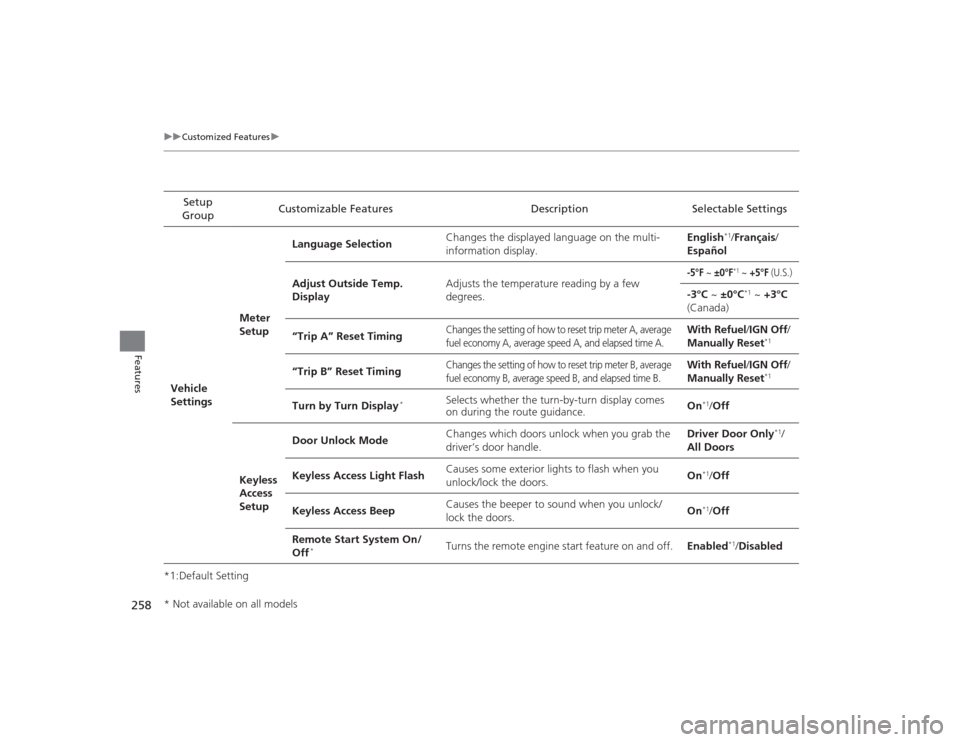
Group Customizable Features Description Selectable SettingsVehicle
SettingsMeter
SetupLanguage Selection
Changes the displayed language on the multi-
information display. English
*1/
Français /
Español
Adjust Outside Temp.
Display Adjusts the temperature reading by a few
degrees.
-5°F
~ ±0°F
*1 ~ +5°F
(U.S.)
-3°C
~ ±0°C
*1 ~ +3°C
(Canada)
“Trip A” Reset Timing
Changes the setting of how to reset trip meter A, average
fuel economy A, average speed A, and elapsed time A.
With Refuel/ IGN Off/
Manually Reset
*1
“Trip B” Reset Timing
Changes the setting of how to reset trip meter B, average
fuel economy B, average speed B, and elapsed time B.
With Refuel/ IGN Off/
Manually Reset
*1
Turn by Turn Display
*
Selects whether the turn-by-turn display comes
on during the route guidance. On
*1/
Off
Keyless
Access
Setup Door Unlock Mode
Changes which doors unlock when you grab the
driver’s door handle. Driver Door Only
*1/
All Doors
Keyless Access Light Flash Causes some exterior lights to flash when you
unlock/lock the doors.
On
*1/
Off
Keyless Access Beep Causes the beeper to sound when you unlock/
lock the doors. On*1/
Off
Remote Start System On/
Off
*
Turns the remote engine start feature on and off. Enabled
*1/Disabled
* Not available on all models
Page 262 of 505
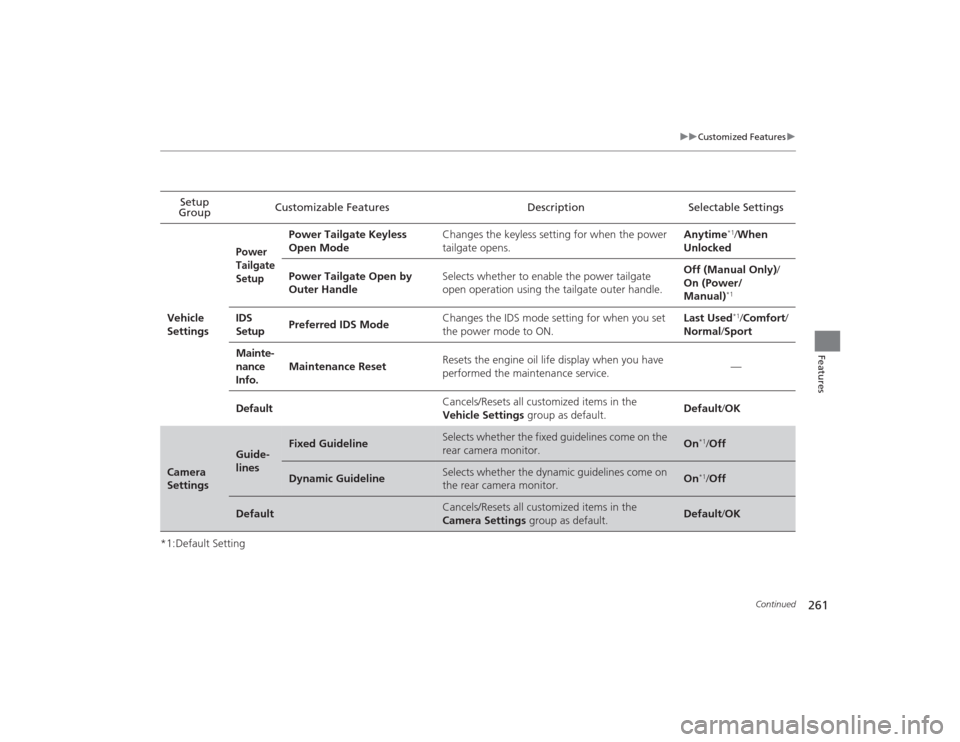
261
uuCustomized Features u
Continued
Features
*1:Default SettingSetup
Group Customizable Features Description Selectable Settings
Vehicle
Settings
Power
Tailgate
Setup
Power Tailgate Keyless
Open Mode Changes the keyless setting for when the power
tailgate opens. Anytime
*1/
When
Unlocked
Power Tailgate Open by
Outer Handle Selects whether to enable the power tailgate
open operation using the tailgate outer handle. Off (Manual Only)
/
On (Power/
Manual)*1
IDS
Setup Preferred IDS Mode Changes the IDS mode setting for when you set
the power mode to ON. Last Used
*1/
Comfort/
Normal /Sport
Mainte-
nance
Info. Maintenance Reset
Resets the engine oil life display when you have
performed the maintenance service.
—
Default Cancels/Resets all customized items in the
Vehicle Settings
group as default. Default
/OK
Camera
Settings
Guide-
lines
Fixed Guideline
Selects whether the fixed guidelines come on the
rear camera monitor.
On
*1/Off
Dynamic Guideline
Selects whether the dynamic guidelines come on
the rear camera monitor.
On
*1/Off
Default
Cancels/Resets all customized items in the
Camera Settings group as default.
Default/OK
Page 263 of 505
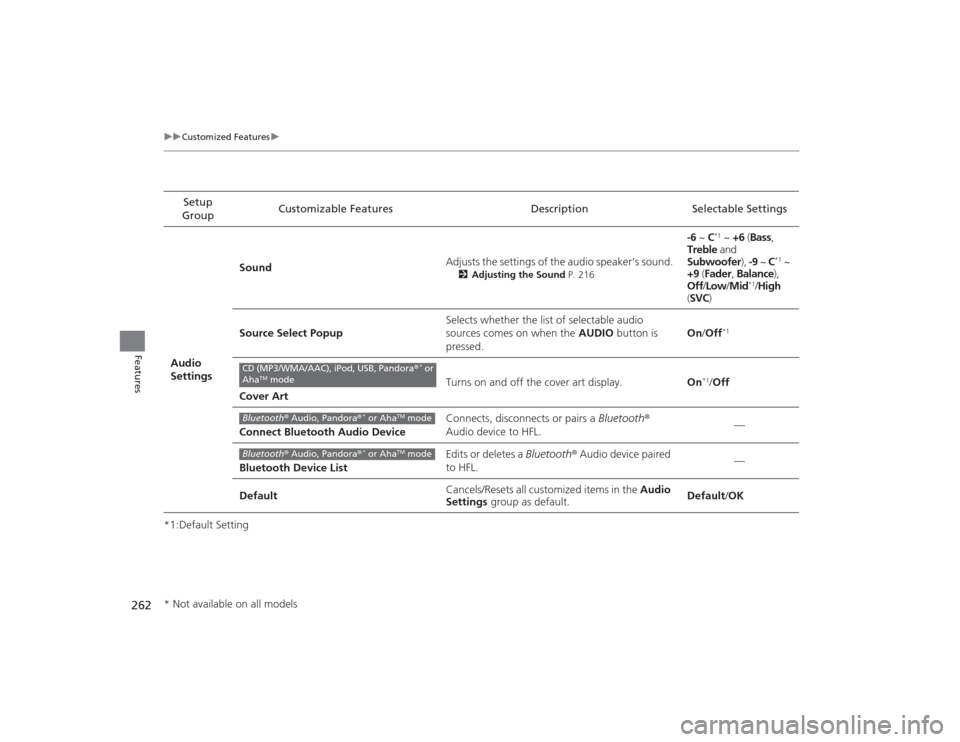
262
uuCustomized Features u
Features
*1:Default SettingSetup
Group Customizable Features Description Selectable Settings
Audio
Settings Sound
Adjusts the settings of the audio speaker’s sound.
2
Adjusting the Sound P. 216
-6 ~ C
*1 ~ +6 (Bass ,
Treble and
Subwoofer ), -9 ~ C
*1 ~
+9 (Fader , Balance ),
Off /Low /Mid
*1/High
( SVC )
Source Select Popup Selects whether the list of selectable audio
sources comes on when the
AUDIO button is
pressed. On
/Off
*1
Cover Art Turns on and off the cover art display.
On
*1/Off
Connect Bluetooth Audio Device Connects, disconnects or pairs a
Bluetooth®
Audio device to HFL. —
Bluetooth Device List Edits or deletes a
Bluetooth® Audio device paired
to HFL. —
Default Cancels/Resets all customized items in the
Audio
Settings group as default. Default
/OK
CD (MP3/WMA/AAC), iPod, USB, Pandora ®
* or
Aha
TM mode
Bluetooth ® Audio, Pandora®
* or Aha
TM mode
Bluetooth ® Audio, Pandora®
* or Aha
TM mode
* Not available on all models