steering wheel Acura MDX 2015 Service Manual
[x] Cancel search | Manufacturer: ACURA, Model Year: 2015, Model line: MDX, Model: Acura MDX 2015Pages: 505, PDF Size: 18.62 MB
Page 220 of 505
Continued
219
uuAudio System Basic Operation uPlaying AM/FM Radio
Features
To store a station:
1. Tune to the selected station.
2. Press the MENU button.
3. Rotate to select Save Preset, then press .
4. Rotate to select the preset number you want to store that station, then press
.
You can also store that station by the following procedure.
1. Tune to the selected station.
2. Rotate to select the preset number you want to store the station.
3. Press and hold for a few seconds.
1. Tune to the selected station.
2. Select More.
3. Select Save Preset .
4. Select the preset number you want to store that station.
You can also store that station by the following procedure.
1. Tune to the selected station.
2. Change the display to the preset screen.
3. Select and hold the preset number you want to store that station.■
Preset Memory
1Playing AM/FM Radio
The ST indicator appears on the display indicating
stereo FM broadcasts.
Stereo reproduction in AM is not available.
Switching the Audio Mode
Press the SOURCE button on the steering wheel.
2 Audio Remote Controls P. 204
You can also switch the mode by pressing the MENU
button and selecting Change Source on the Audio
menu screen.
You can store 6 AM stations and 12 FM stations into
the preset memory.
Interface DialOn Demand Multi-Use Display
TM
Page 246 of 505
245Features
General Information on the Audio SystemSiriusXM® Radio Service1.You need your radio ID ready before registering for subscription. To see the ID in
the display: Turn the interface dial until 0 appears.
2. Have your radio ID and credit card number ready, and either call or visit the
SiriusXM ® website to subscribe.
Switch to the SiriusXM® mode by using the SOURCE button on the steering wheel,
or through the On Demand Multi-Use Display
TM, and stay in this mode for about 30
minutes until the service is activated. Make sure your vehicle is in an open area with
good reception.
Loading:
SiriusXM ® is loading the audio or program information.
Ch off air:
The channel is not currently broadcasting.
Ch unauthorized:
SiriusXM ® radio is receiving information update from the network.
No signal:
The signal is too weak in the current location.
Ch unavailable:
No such channel exists, the channel is not part of your subscription, or the artist or
title information is unavailable.
Check antenna:
There is a problem with the SiriusXM ® antenna. Contact a dealer.
■
Subscribing to SiriusXM® Radio
■
Receiving SiriusXM ® Radio
■
SiriusXM ® Radio Display Messages
1 Subscribing to SiriusXM ® Radio
Contact Information for SiriusXM ® Radio:•US: SiriusXM ® Radio at www.siriusxm.com or 1-
800-852-9696•Canada: SiriusXM ® Canada at www.xmradio.ca, or
1-877-209-0079
1 Receiving SiriusXM ® Radio
The SiriusXM ® satellites are in orbit over the equator;
therefore, objects south of the vehicle may cause
satellite reception interruptions. Satellite signals are
more likely to be blocked by tall buildings and
mountains the farther north you travel from the
equator.
You may experience reception problems under the
following circumstances:•In a location with an obstruction to the south of
your vehicle.•In tunnels•On the lower level of a multi-tiered road•Large items carried on the roof rack
Page 252 of 505
251
uuCustomized Features u
Continued
Features
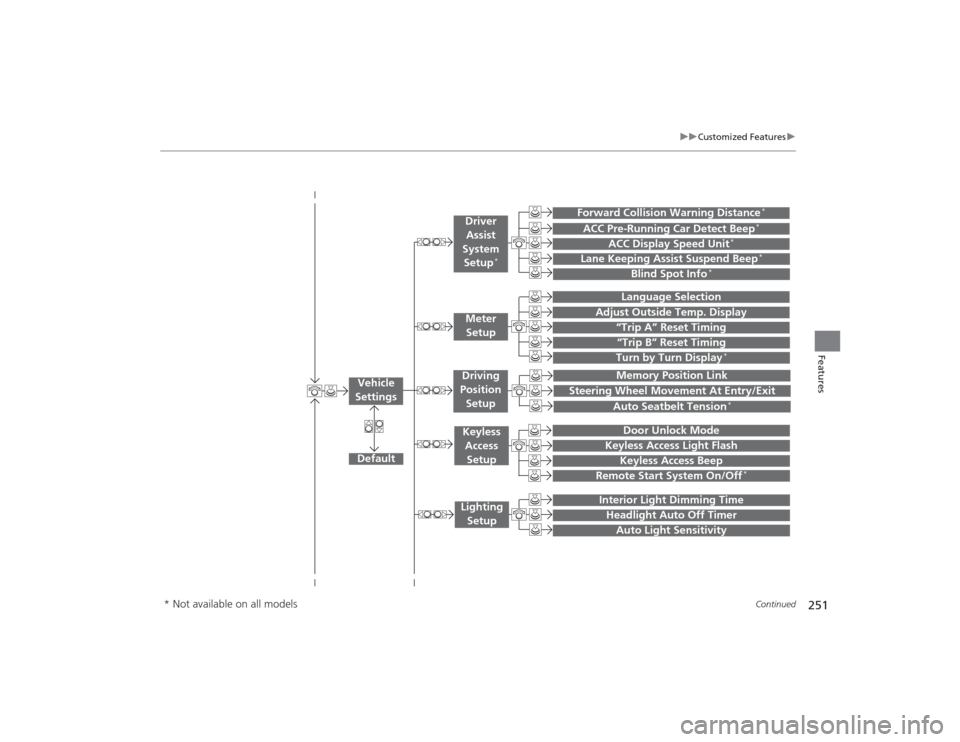
“Trip B” Reset TimingTurn by Turn Display
*
Adjust Outside Temp. Display
“Trip A” Reset Timing
Default
Memory Position Link
Keyless Access Light Flash
Keyless Access Beep
Interior Light Dimming TimeHeadlight Auto Off TimerAuto Light Sensitivity
Vehicle
Settings
Meter SetupKeyless Access
SetupLighting Setup
Remote Start System On/Off
*
Steering Wheel Movement At Entry/Exit
Driving
Position Setup
Door Unlock Mode
Lane Keeping Assist Suspend Beep
*
Blind Spot Info
*
ACC Pre-Running Car Detect Beep
*
ACC Display Speed Unit
*
Driver Assist
System Setup
*
Forward Collision Warning Distance
*
Language SelectionAuto Seatbelt Tension
*
* Not available on all models
Page 260 of 505

259
uuCustomized Features u
Continued
Features
*1:Default SettingSetup
Group Customizable Features Description Selectable Settings
Vehicle
Settings Lighting
Setup
Interior Light Dimming
Time
Changes the length of time the interior lights stay
on after you close the doors. 60seconds
/
30seconds
*1/
15seconds
Headlight Auto Off Timer Changes the length of time the exterior lights
stay on after you close the driver’s door. 60seconds
/
30seconds /
15seconds*1/
0seconds
Auto Light Sensitivity Changes the timing for the headlights to come
on. Max
/High /Mid
*1/
Low /Min
Driving
Position
Setup Memory Position Link
Turns the driving position memory system using a
remote transmitter on and off. On
*1/
Off
Steering Wheel Movement
At Entry/Exit Moves the steering wheel fully up when you get
in/get out of the vehicle.
On*1/
Off
Auto Seatbelt Tension
*
Turns the setting for the automatic seat belt e-
pretensioner activation on and off. On
*1/
Off
* Not available on all models
Page 270 of 505
269
Continued
Features
Bluetooth® HandsFreeLink ®See Navigation System Manual for how to operate Bluetooth® HandsFreeLink ®.
Bluetooth ® HandsFreeLink ® (HFL) allows you to place and receive phone calls using
your vehicle’s audio system, without handling your cell phone.Using HFL
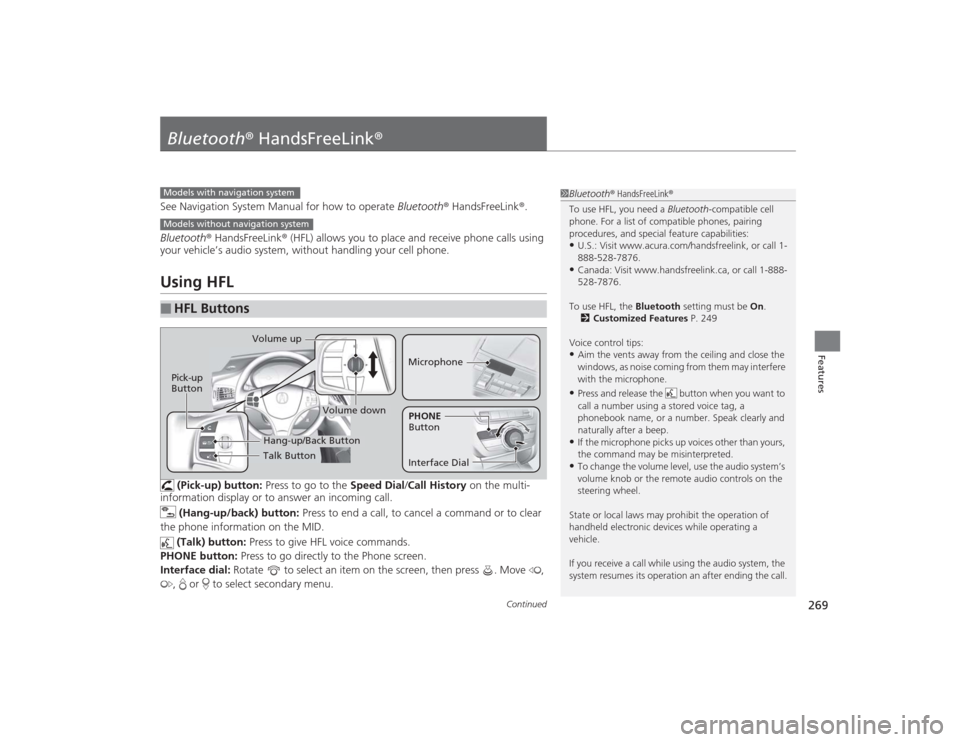
(Pick-up) button: Press to go to the Speed Dial/Call History on the multi-
information display or to answer an incoming call.
(Hang-up/back) button: Press to end a call, to cancel a command or to clear
the phone information on the MID.
(Talk) button: Press to give HFL voice commands.
PHONE button: Press to go directly to the Phone screen.
Interface dial: Rotate to select an item on the screen, then press . Move ,
, or to select secondary menu.
■
HFL Buttons
1 Bluetooth ® HandsFreeLink ®
To use HFL, you need a Bluetooth-compatible cell
phone. For a list of compatible phones, pairing
procedures, and special feature capabilities:•U.S.: Visit www.acura.com/handsfreelink, or call 1-
888-528-7876.•Canada: Visit www.handsfreelink.ca, or call 1-888-
528-7876.
To use HFL, the Bluetooth setting must be On.
2 Customized Features P. 249
Voice control tips:•Aim the vents away from the ceiling and close the
windows, as noise coming from them may interfere
with the microphone.•Press and release the button when you want to
call a number using a stored voice tag, a
phonebook name, or a number. Speak clearly and
naturally after a beep.•If the microphone picks up voices other than yours,
the command may be misinterpreted.•To change the volume level, use the audio system’s
volume knob or the remote audio controls on the
steering wheel.
State or local laws may prohibit the operation of
handheld electronic devices while operating a
vehicle.
If you receive a call while using the audio system, the
system resumes its operation an after ending the call.
Models with navigation systemModels without navigation system
Talk Button
Volume up
MicrophoneHang-up/Back Button
Pick-up
Button
Volume down
Interface DialPHONE
Button
Page 293 of 505
uuBluetooth ® HandsFreeLink ®u HFL Menus
292Features
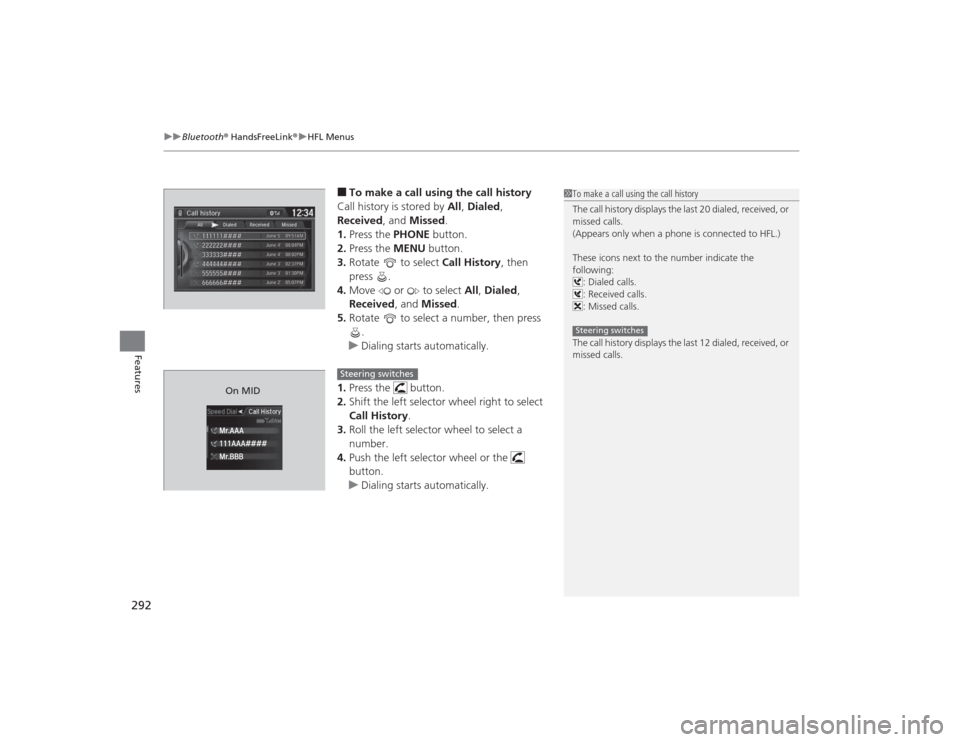
■To make a call using the call history
Call history is stored by All, Dialed ,
Received, and Missed .
1. Press the PHONE button.
2. Press the MENU button.
3. Rotate to select Call History, then
press .
4. Move or to select All, Dialed ,
Received , and Missed .
5. Rotate to select a number, then press
.
u Dialing starts automatically.
1. Press the button.
2. Shift the left selector wheel right to select
Call History .
3. Roll the left selector wheel to select a
number.
4. Push the left selector wheel or the
button.
u Dialing starts automatically.
1To make a call using the call history
The call history displays the last 20 dialed, received, or
missed calls.
(Appears only when a phone is connected to HFL.)
These icons next to the number indicate the
following:
: Dialed calls.
: Received calls.
: Missed calls.
The call history displays the last 12 dialed, received, or
missed calls.Steering switches
111AAA#### Mr.AAA
Mr.BBBOn MID
Steering switches
Page 294 of 505
Continued
293
uuBluetooth ® HandsFreeLink ®u HFL Menus
Features
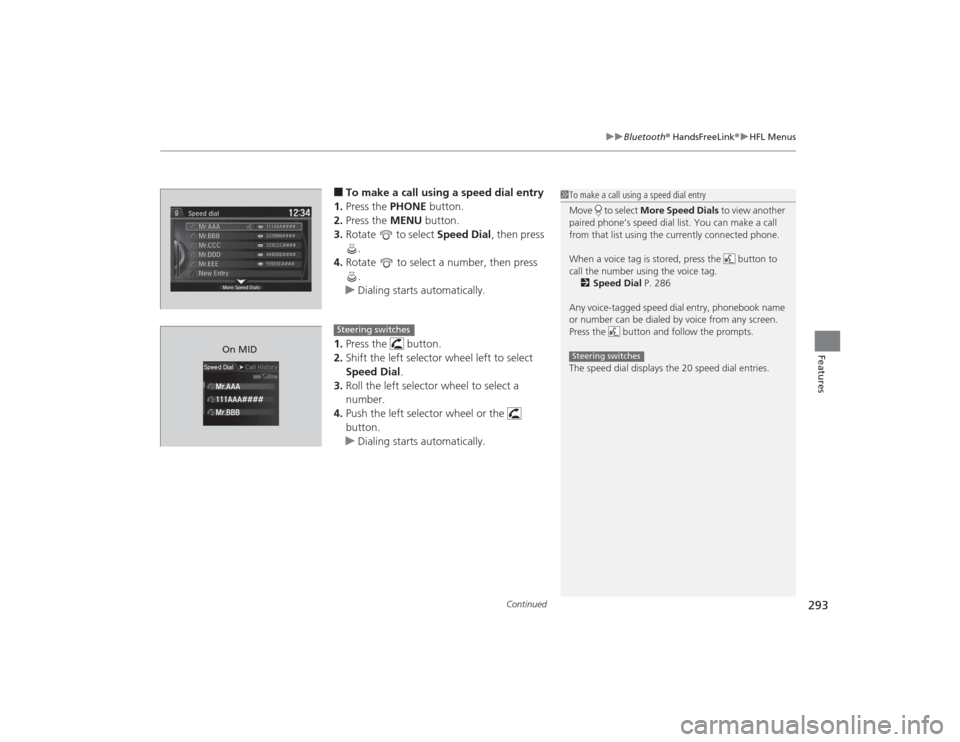
■To make a call using a speed dial entry
1. Press the PHONE button.
2. Press the MENU button.
3. Rotate to select Speed Dial, then press
.
4. Rotate to select a number, then press
.
u Dialing starts automatically.
1. Press the button.
2. Shift the left selector wheel left to select
Speed Dial .
3. Roll the left selector wheel to select a
number.
4. Push the left selector wheel or the
button.
u Dialing starts automatically.
1To make a call using a speed dial entry
Move to select More Speed Dials to view another
paired phone’s speed dial list. You can make a call
from that list using the currently connected phone.
When a voice tag is stored, press the button to
call the number using the voice tag. 2 Speed Dial P. 286
Any voice-tagged speed dial entry, phonebook name
or number can be dialed by voice from any screen.
Press the button and follow the prompts.
The speed dial displays the 20 speed dial entries.Steering switches
111AAA#### Mr.AAA
Mr.BBBOn MID
Steering switches
Page 308 of 505

Continued
307
uuBefore Driving uDriving Preparation
Driving
• Store or secure all items on board properly.
u Carrying too much cargo, or improperly storing it, can affect your vehicle’s
handling, stability, stopping distance, and tires, and make it unsafe.
2 Maximum Load Limit P. 309
•Do not pile items higher than the seat height.
u They can block your view and may be thrown forward in the event of sudden
braking.
• Do not place anything in the front seat footwells. Make sure to secure the floor
mat.
u An object or unsecured floor mat can interfere with your brake and accelerator
pedal operation while driving.
• If you have any animals on board, do not let them move around in the vehicle.
u They may interfere with driving and a crash could occur.
• Securely close and lock all doors and the tailgate.
2 Locking/Unlocking the Doors from the Inside P. 124
•Adjust your seating position properly.
u Adjust the head restraint, too.
2 Adjusting the Seats P. 161
2 Adjusting the Head Restraints P. 164
•Adjust the mirrors and steering wheel properly for your driving.
u Adjust them while sitting in the proper driving position.
2 Adjusting the Steering Wheel P. 157
2 Adjusting the Mirrors P. 158
■
Interior Checks
1Interior Checks
The headlight aim is set by the factory, and does not
need to be adjusted. However, if you regularly carry
heavy items in the cargo area or tow a trailer, have
the aiming readjusted at a dealer or by a qualified
technician.
Page 328 of 505
Continued
327
uuWhen Driving uStarting the Engine
Driving
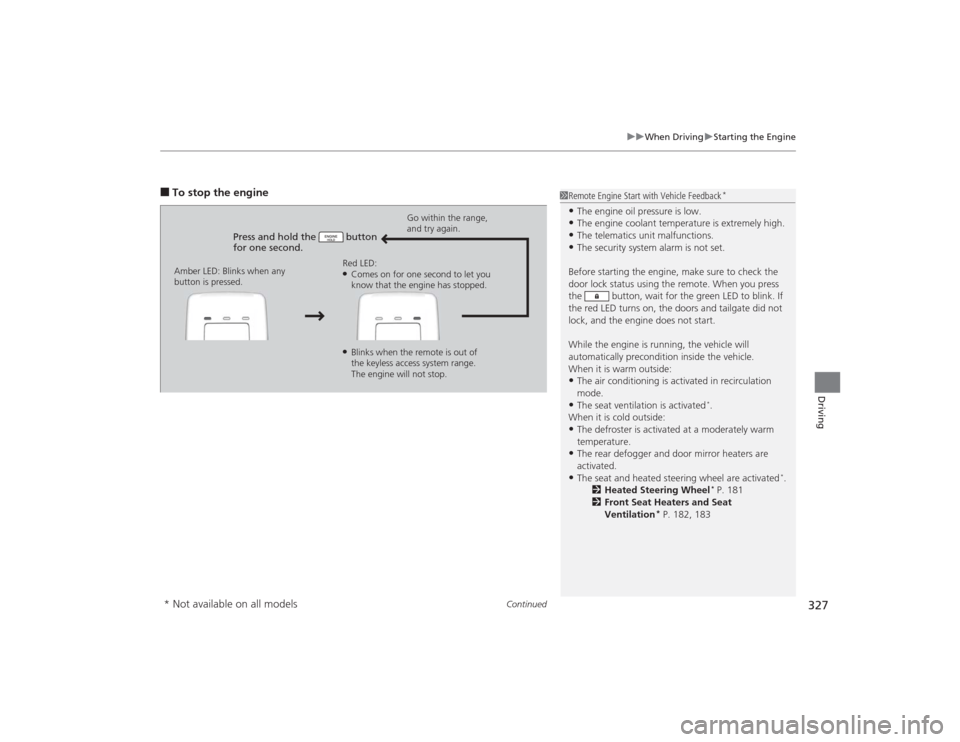
■To stop the engine
Press and hold the button
for one second.
Go within the range,
and try again.
Amber LED: Blinks when any
button is pressed. Red LED:
●Comes on for one second to let you
know that the engine has stopped.●Blinks when the remote is out of
the keyless access system range.
The engine will not stop.
1
Remote Engine Start with Vehicle Feedback
*
•The engine oil pressure is low.•The engine coolant temperature is extremely high.•The telematics unit malfunctions.•The security system alarm is not set.
Before starting the engine, make sure to check the
door lock status using the remote. When you press
the button, wait for the green LED to blink. If
the red LED turns on, the doors and tailgate did not
lock, and the engine does not start.
While the engine is running, the vehicle will
automatically precondition inside the vehicle.
When it is warm outside:•The air conditioning is activated in recirculation
mode.•The seat ventilation is activated
*.
When it is cold outside:
•The defroster is activated at a moderately warm
temperature.•The rear defogger and door mirror heaters are
activated.•The seat and heated steering wheel are activated
*.
2 Heated Steering Wheel
* P. 181
2 Front Seat Heaters and Seat
Ventilation
* P. 182, 183
* Not available on all models
Page 330 of 505

329
uuWhen Driving uPrecautions While Driving
Driving
Precautions While DrivingUtility vehicles have a significantly higher rollover rate than other types of vehicles.
To prevent rollovers or loss of control:
• Take corners at slower speeds than you would with a passenger vehicle.
• Avoid sharp turns and abrupt maneuvers whenever possible.
• Do not modify your vehicle in any way that you would raise the center of gravity.
• Do not carry heavy cargo on the roof.
Never carry more than 165 lbs (75 kg) of cargo on the roof rack (Acura accessory).
Avoid driving in deep water and on flooded roads. This can damage the engine,
driveline, or cause electrical component failure.
If there is a strong impact with something under th e vehicle, stop in a safe location.
Check the underside of the vehicle for damage or any fluid leaks.■
Driving Guidelines for Your Utility Vehicle
■
In Rain
■
Other Precautions
1 Precautions While DrivingNOTICEDo not operate the shift lever while pressing the
accelerator pedal. You could damage the
transmission.NOTICEIf you repeatedly turn the steering wheel at an
extremely low speed, or hold the steering wheel on
the full left or right position for a while, the system
heats up. The system goes into a protective mode,
and limits its performance. The steering wheel
becomes harder and harder to operate. Once the
system cools down, the EPS system is restored.
Repeated operation under these conditions can
eventually damage the system.
If the power mode is set to ACCESSORY or VEHICLE
OFF (LOCK) while driving, the engine will shut down
and all steering and brake power assist functions will
stop, making it difficult to control the vehicle.
Do not put the shift lever in
(N, as you will lose
engine braking (and acceleration) performance.
During the first 600 miles (1,000 km) of operation,
avoid sudden acceleration or full throttle operation so
as not to damage the engine or powertrain.
Avoid hard braking for the first 200 miles (300 km).
You should also follow this when the brake pads are
replaced.