audio Acura MDX 2015 Repair Manual
[x] Cancel search | Manufacturer: ACURA, Model Year: 2015, Model line: MDX, Model: Acura MDX 2015Pages: 505, PDF Size: 18.62 MB
Page 248 of 505
247
uuGeneral Information on the Audio System uRecommended CDs
Features
■Protecting CDs
Follow these precautions when handling or storing CDs:
• Store a CD in its case when it is not being played.
• When wiping a CD, use a soft clean cloth from the center to the outside edge.
• Handle a CD by its edge. Never touch either surface.
• Never insert foreign objects into the CD player.
• Keep CDs out of direct sunlight and extreme heat.
• Do not place stabilizer rings or labels on the CD.
• Avoid fingerprints, liquids, and felt-tip pens on the CD.
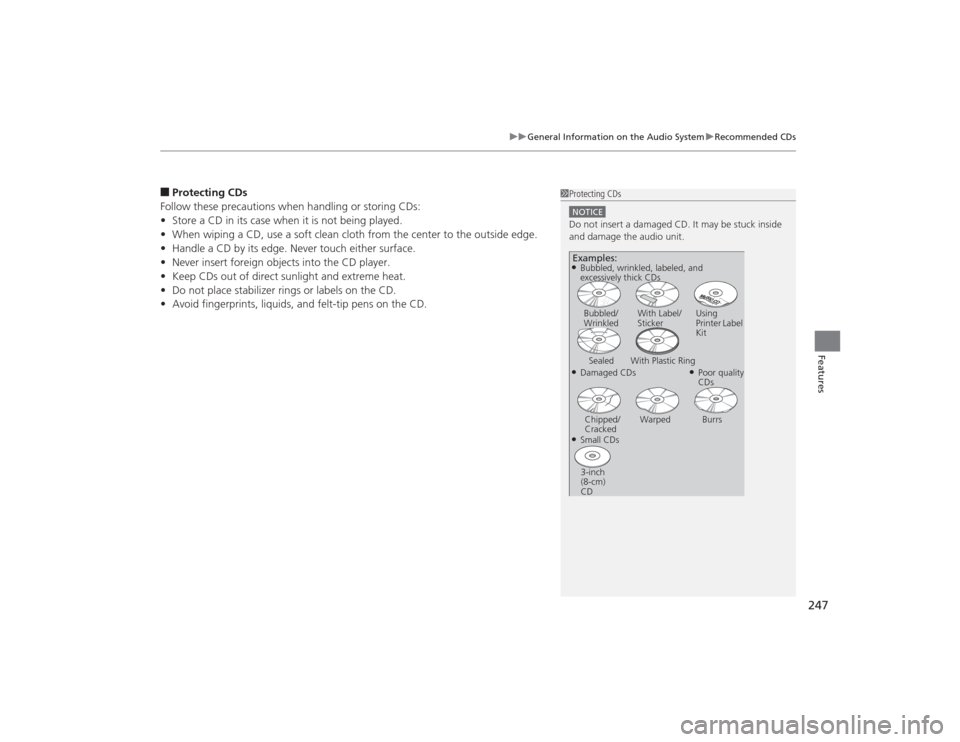
1Protecting CDsNOTICEDo not insert a damaged CD. It may be stuck inside
and damage the audio unit.Examples:●Damaged CDsBubbled/
Wrinkled
With Label/
Sticker Using
Printer Label
Kit
Sealed With Plastic Ring
●Poor quality
CDs
Chipped/
Cracked Warped Burrs
●Small CDs
3-inch
(8-cm)
CD●Bubbled, wrinkled, labeled, and
excessively thick CDs
Page 249 of 505
248
uuGeneral Information on the Audio System uCompatible iPod, iPhone, and USB Flash Drives
Features
Compatible iPod, iPhone, and USB Flash Drives•Use a recommended USB flash drive of 256 MB or higher.
• Some digital audio players may not be compatible.
• Some USB flash drives (e.g., a device with security lockout) may not work.
• Some software files may not allow for audio play or text data display.
• Some versions of MP3, WMA, or AAC formats may be unsupported.■
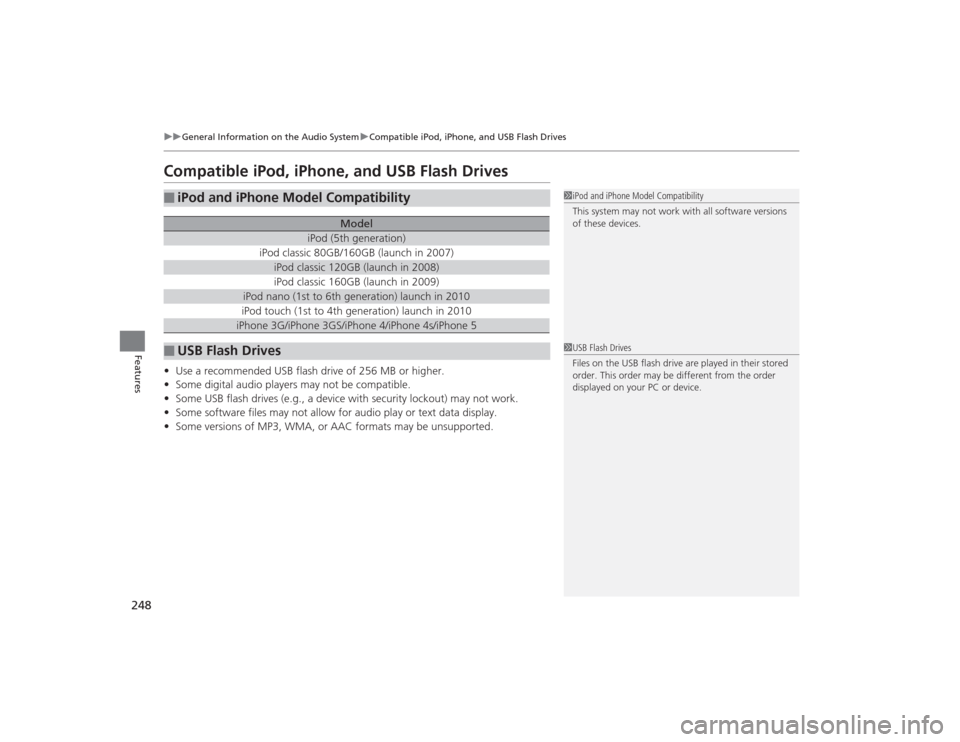
iPod and iPhone Model Compatibility
Model
iPod (5th generation)
iPod classic 80GB/160GB (launch in 2007)
iPod classic 120GB (launch in 2008)iPod classic 160GB (launch in 2009)
iPod nano (1st to 6th generation) launch in 2010iPod touch (1st to 4th generation) launch in 2010iPhone 3G/iPhone 3GS/iPhone 4/iPhone 4s/iPhone 5
■
USB Flash Drives
1iPod and iPhone Model Compatibility
This system may not work with all software versions
of these devices.1USB Flash Drives
Files on the USB flash drive are played in their stored
order. This order may be different from the order
displayed on your PC or device.
Page 250 of 505
249
Continued
Features
Customized FeaturesSee the Navigation System Manual for the customized features except for the
Vehicle Settings.
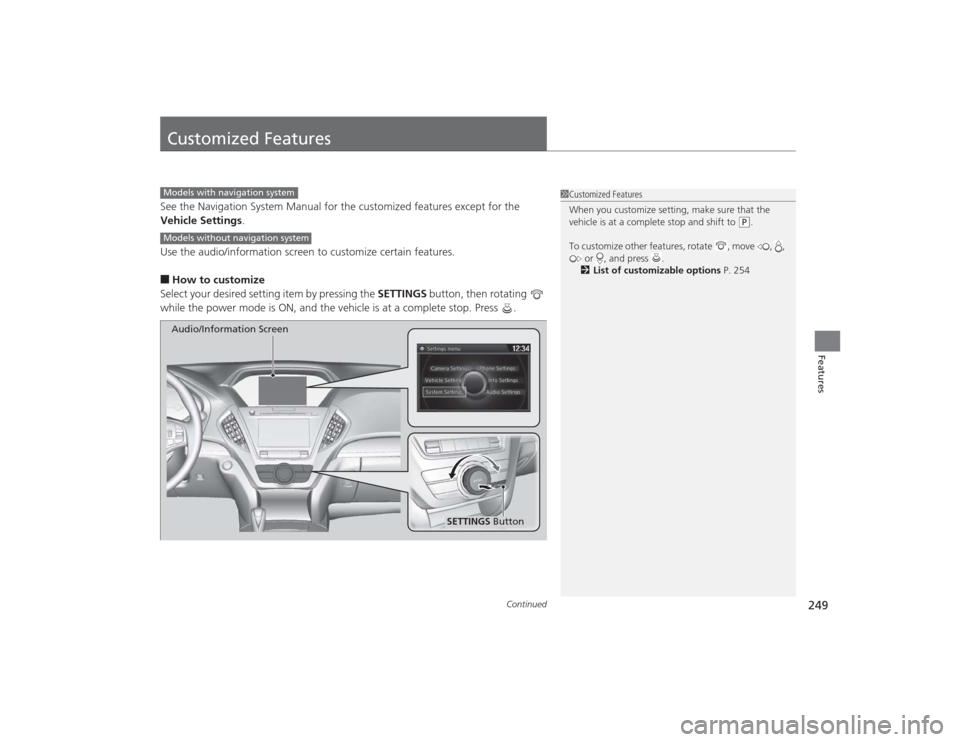
Use the audio/information screen to customize certain features.■How to customize
Select your desired setting item by pressing the SETTINGS button, then rotating
while the power mode is ON, and the vehicle is at a complete stop. Press .
1 Customized Features
When you customize setting, make sure that the
vehicle is at a complete stop and shift to
(P.
To customize other features, rotate , move , , or , and press .
2 List of customizable options P. 254
Models with navigation systemModels without navigation system
SETTINGS Button
Audio/Information Screen
Page 253 of 505
252
uuCustomized Features u
Features
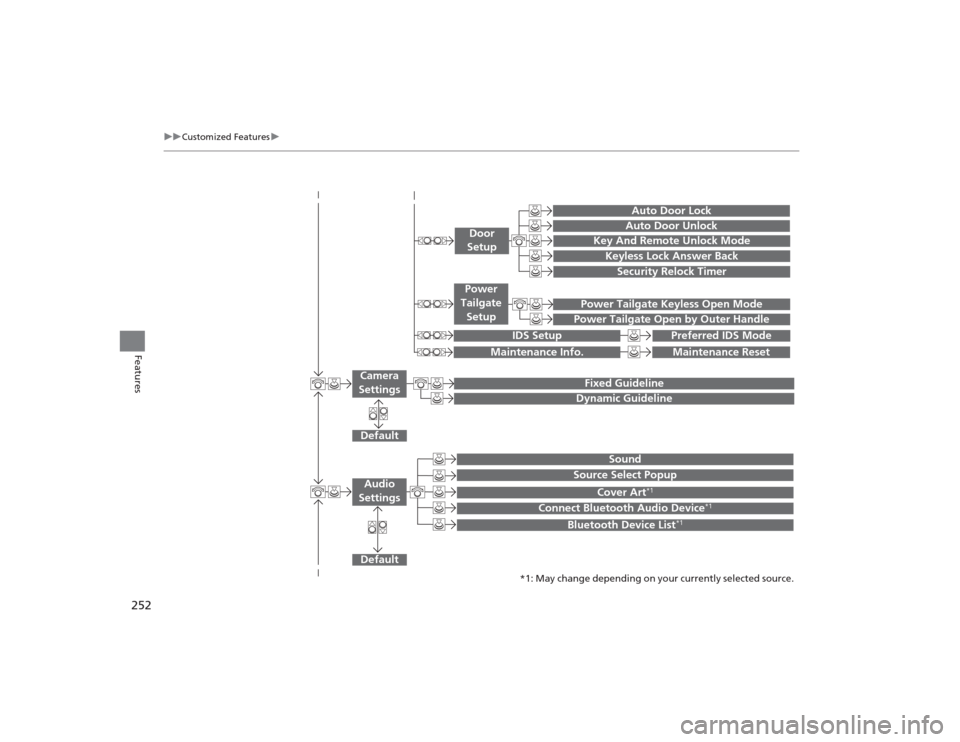
Default
Fixed GuidelineDynamic Guideline
Default
Sound
Source Select Popup
Cover Art
*1
Connect Bluetooth Audio Device
*1
Bluetooth Device List
*1
Audio
Settings
Maintenance Reset
Maintenance Info.
Power Tailgate Keyless Open ModePower Tailgate Open by Outer Handle
Power
Tailgate Setup
Camera
Settings
Preferred IDS Mode
IDS Setup
Key And Remote Unlock ModeKeyless Lock Answer BackSecurity Relock Timer
Auto Door LockAuto Door Unlock
Door
Setup
*1: May change depending on your currently selected source.
Page 255 of 505
254
uuCustomized Features u
Features
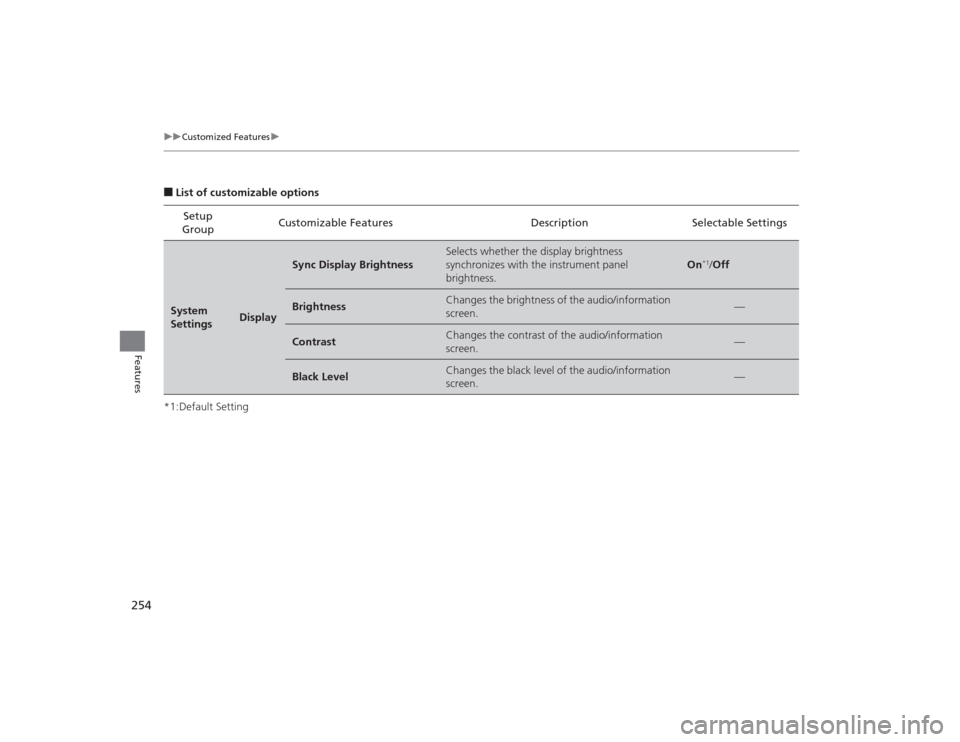
■List of customizable options
*1:Default Setting Setup
Group Customizable Features Description Selectable SettingsSystem
Settings
Display
Sync Display Brightness
Selects whether the display brightness
synchronizes with the instrument panel
brightness.
On
*1/
Off
Brightness
Changes the brightness of the audio/information
screen.
—
Contrast
Changes the contrast of the audio/information
screen.
—
Black Level
Changes the black level of the audio/information
screen.
—
Page 257 of 505
256
uuCustomized Features u
Features
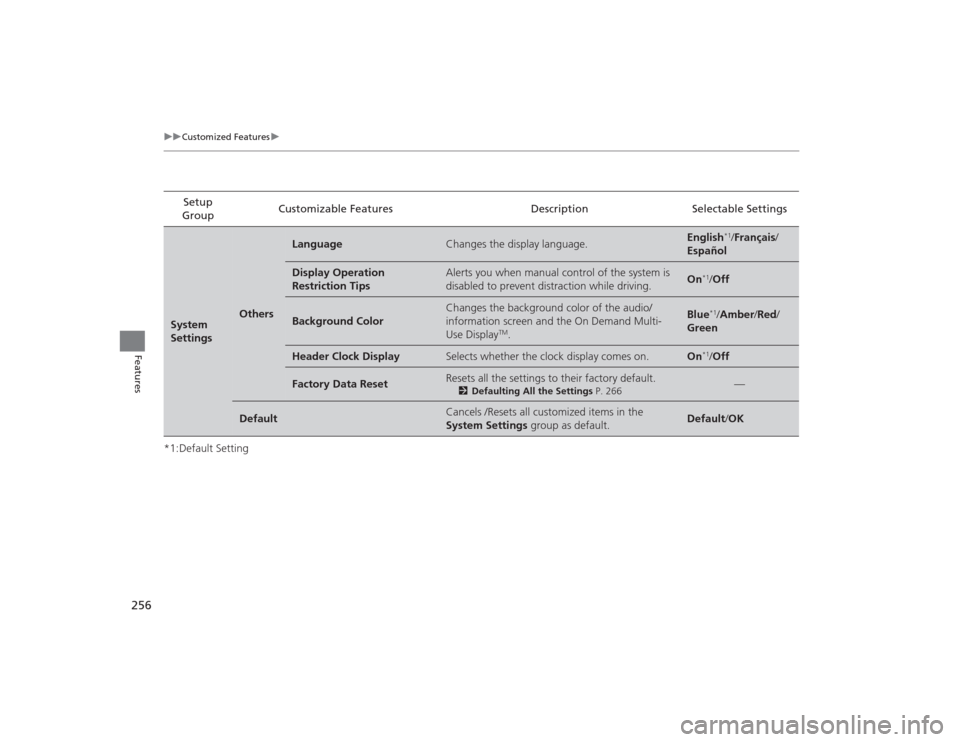
*1:Default SettingSetup
Group Customizable Features Description Selectable SettingsSystem
Settings
Others
Language
Changes the display language.
English
*1/
Français /
Español
Display Operation
Restriction Tips
Alerts you when manual control of the system is
disabled to prevent distraction while driving.
On
*1/ Off
Background Color
Changes the background color of the audio/
information screen and the On Demand Multi-
Use Display
TM.
Blue
*1/Amber /Red/
Green
Header Clock Display
Selects whether the clock display comes on.
On
*1/ Off
Factory Data Reset
Resets all the settings to their factory default.
2 Defaulting All the Settings P. 266
—
Default
Cancels /Resets all customized items in the
System Settings group as default.
Default/OK
Page 263 of 505
262
uuCustomized Features u
Features
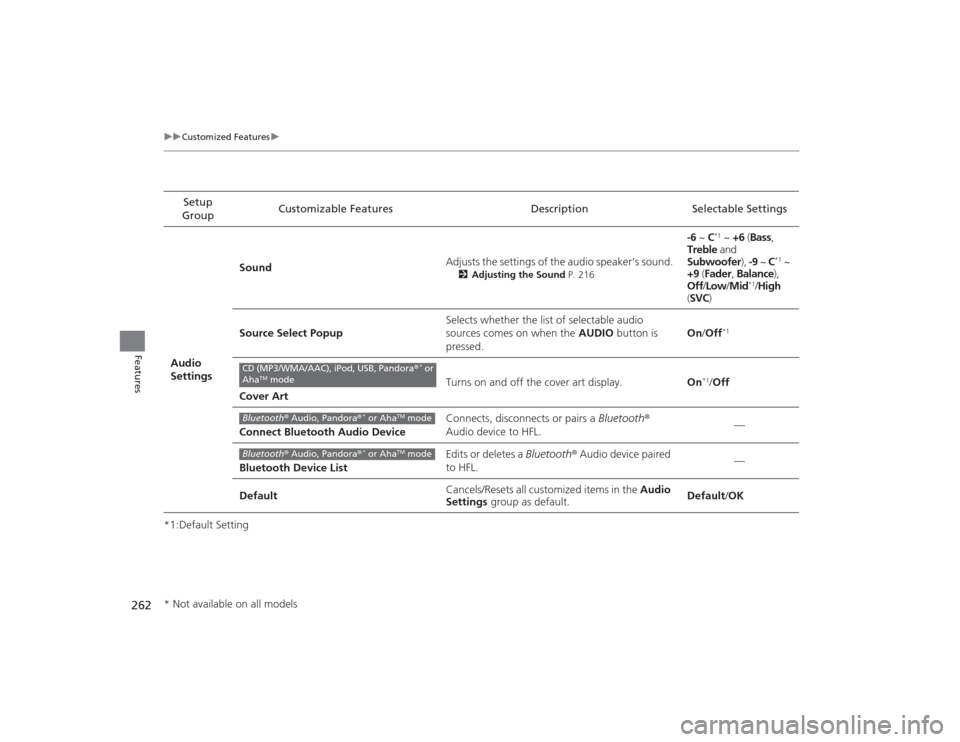
*1:Default SettingSetup
Group Customizable Features Description Selectable Settings
Audio
Settings Sound
Adjusts the settings of the audio speaker’s sound.
2
Adjusting the Sound P. 216
-6 ~ C
*1 ~ +6 (Bass ,
Treble and
Subwoofer ), -9 ~ C
*1 ~
+9 (Fader , Balance ),
Off /Low /Mid
*1/High
( SVC )
Source Select Popup Selects whether the list of selectable audio
sources comes on when the
AUDIO button is
pressed. On
/Off
*1
Cover Art Turns on and off the cover art display.
On
*1/Off
Connect Bluetooth Audio Device Connects, disconnects or pairs a
Bluetooth®
Audio device to HFL. —
Bluetooth Device List Edits or deletes a
Bluetooth® Audio device paired
to HFL. —
Default Cancels/Resets all customized items in the
Audio
Settings group as default. Default
/OK
CD (MP3/WMA/AAC), iPod, USB, Pandora ®
* or
Aha
TM mode
Bluetooth ® Audio, Pandora®
* or Aha
TM mode
Bluetooth ® Audio, Pandora®
* or Aha
TM mode
* Not available on all models
Page 270 of 505
269
Continued
Features
Bluetooth® HandsFreeLink ®See Navigation System Manual for how to operate Bluetooth® HandsFreeLink ®.
Bluetooth ® HandsFreeLink ® (HFL) allows you to place and receive phone calls using
your vehicle’s audio system, without handling your cell phone.Using HFL
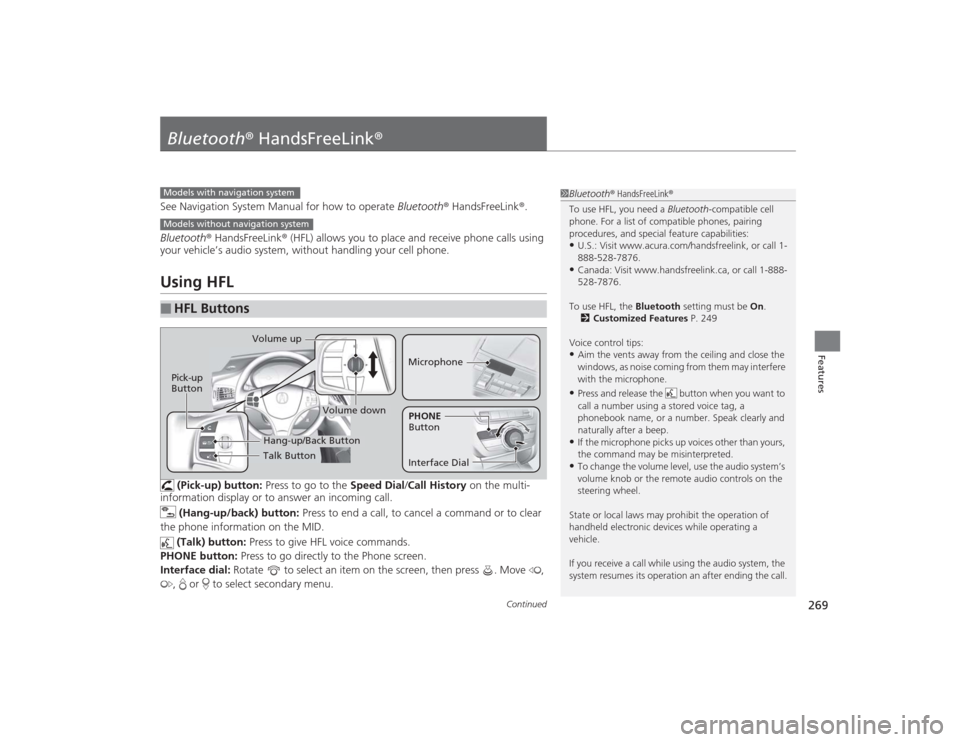
(Pick-up) button: Press to go to the Speed Dial/Call History on the multi-
information display or to answer an incoming call.
(Hang-up/back) button: Press to end a call, to cancel a command or to clear
the phone information on the MID.
(Talk) button: Press to give HFL voice commands.
PHONE button: Press to go directly to the Phone screen.
Interface dial: Rotate to select an item on the screen, then press . Move ,
, or to select secondary menu.
■
HFL Buttons
1 Bluetooth ® HandsFreeLink ®
To use HFL, you need a Bluetooth-compatible cell
phone. For a list of compatible phones, pairing
procedures, and special feature capabilities:•U.S.: Visit www.acura.com/handsfreelink, or call 1-
888-528-7876.•Canada: Visit www.handsfreelink.ca, or call 1-888-
528-7876.
To use HFL, the Bluetooth setting must be On.
2 Customized Features P. 249
Voice control tips:•Aim the vents away from the ceiling and close the
windows, as noise coming from them may interfere
with the microphone.•Press and release the button when you want to
call a number using a stored voice tag, a
phonebook name, or a number. Speak clearly and
naturally after a beep.•If the microphone picks up voices other than yours,
the command may be misinterpreted.•To change the volume level, use the audio system’s
volume knob or the remote audio controls on the
steering wheel.
State or local laws may prohibit the operation of
handheld electronic devices while operating a
vehicle.
If you receive a call while using the audio system, the
system resumes its operation an after ending the call.
Models with navigation systemModels without navigation system
Talk Button
Volume up
MicrophoneHang-up/Back Button
Pick-up
Button
Volume down
Interface DialPHONE
Button
Page 271 of 505
uuBluetooth ® HandsFreeLink ®u Using HFL
270Features
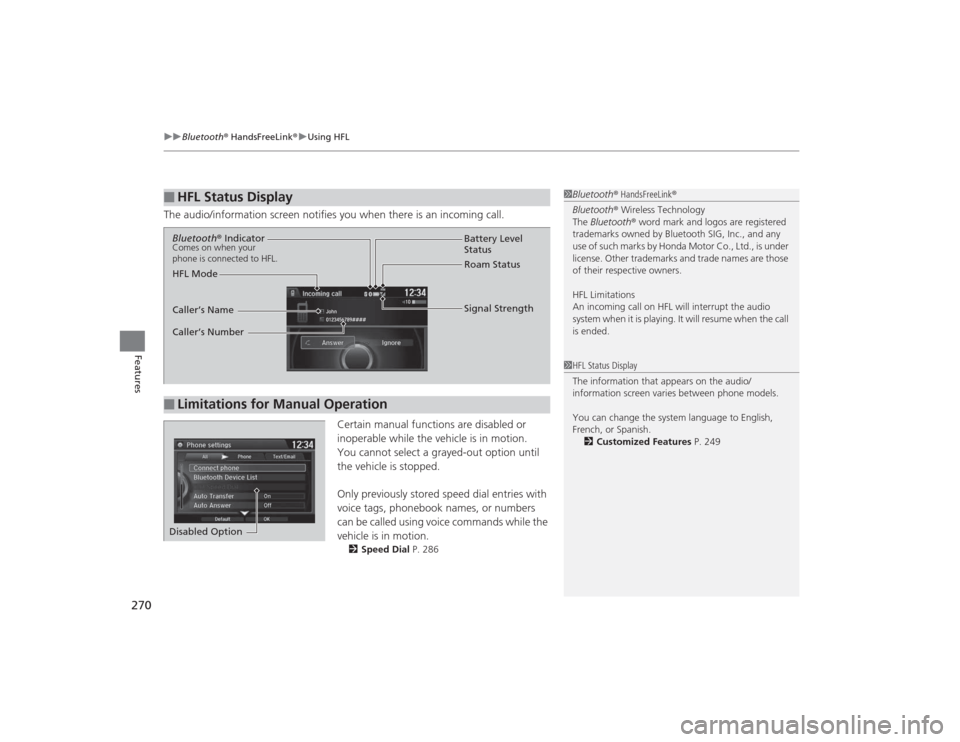
The audio/information screen notifies you when there is an incoming call.
Certain manual functions are disabled or
inoperable while the vehicle is in motion.
You cannot select a grayed-out option until
the vehicle is stopped.
Only previously stored speed dial entries with
voice tags, phonebook names, or numbers
can be called using voice commands while the
vehicle is in motion.
2 Speed Dial P. 286
■
HFL Status Display
1Bluetooth ® HandsFreeLink ®
Bluetooth ® Wireless Technology
The Bluetooth ® word mark and logos are registered
trademarks owned by Bluetooth SIG, Inc., and any
use of such marks by Honda Motor Co., Ltd., is under
license. Other trademarks and trade names are those
of their respective owners.
HFL Limitations
An incoming call on HFL will interrupt the audio
s y s te m wh e n it is p la y i n g . It wi ll re s u m e w h en t h e c a l l
is ended.1 HFL Status Display
The information that appears on the audio/
information screen varies between phone models.
You can change the system language to English,
French, or Spanish.
2 Customized Features P. 249
■
Limitations for Manual OperationBluetooth ® IndicatorComes on when your
phone is connected to HFL.
Signal Strength
HFL Mode Battery Level
Status
Roam Status
Caller’s Name
Caller’s Number
Disabled Option
Page 276 of 505
Continued
275
uuBluetooth ® HandsFreeLink ®u HFL Menus
Features
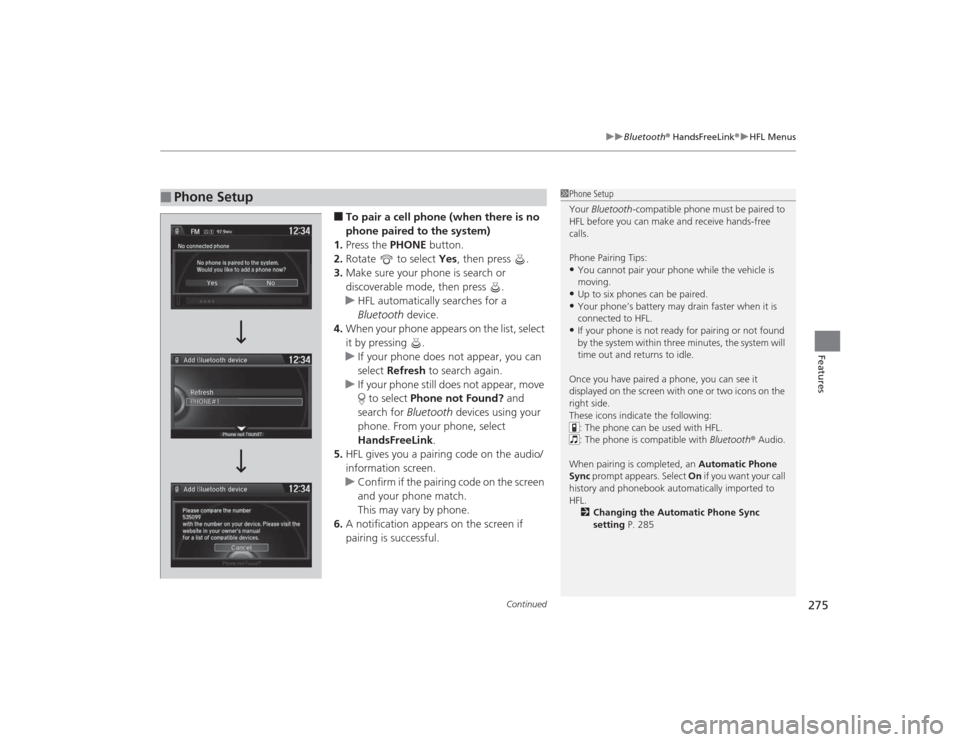
■To pair a cell phone (when there is no
phone paired to the system)
1. Press the PHONE button.
2. Rotate to select Yes, then press .
3. Make sure your phone is search or
discoverable mode, then press .
u HFL automatically searches for a
Bluetooth device.
4. When your phone appears on the list, select
it by pressing .
u If your phone does not appear, you can
select Refresh to search again.
u If your phone still does not appear, move
to select Phone not Found? and
search for Bluetooth devices using your
phone. From your phone, select
HandsFreeLink .
5. HFL gives you a pairing code on the audio/
information screen.
u Confirm if the pairing code on the screen
and your phone match.
This may vary by phone.
6. A notification appears on the screen if
pairing is successful.
■
Phone Setup
1Phone Setup
Your Bluetooth -compatible phone must be paired to
HFL before you can make and receive hands-free
calls.
Phone Pairing Tips:•You cannot pair your phone while the vehicle is
moving.•Up to six phones can be paired.•Your phone’s battery may drain faster when it is
connected to HFL.•If your phone is not ready for pairing or not found
by the system within three minutes, the system will
time out and returns to idle.
Once you have paired a phone, you can see it
displayed on the screen with one or two icons on the
right side.
These icons indicate the following: : The phone can be used with HFL.
: The phone is compatible with Bluetooth ® Audio.
When pairing is completed, an Automatic Phone
Sync prompt appears. Select On if you want your call
history and phonebook automatically imported to
HFL.
2 Changing the Automatic Phone Sync
setting P. 285