Hfl Acura MDX 2015 Owner's Manual
[x] Cancel search | Manufacturer: ACURA, Model Year: 2015, Model line: MDX, Model: Acura MDX 2015Pages: 505, PDF Size: 18.62 MB
Page 200 of 505
199
Features
This chapter describes how to operate technology features.
Audio SystemAbout Your Audio System ................ 200
USB Port .......................................... 201
Auxiliary Input Jack .......................... 202
Audio System Theft Protection ......... 203
Audio Remote Controls .................... 204
Audio System Basic Operation ........ 205
On Demand Multi-Use Display
TM....... 206
Audio/Information Screen ................ 212
Adjusting the Sound ........................ 216
Display Setup ................................... 217
Playing AM/FM Radio ....................... 218
Playing SiriusXM ® Radio ................... 222 Playing a CD .................................... 225
Playing an iPod ................................ 228
Playing Internet Radio ...................... 232
Playing a USB Flash Drive ................. 235
Playing
Bluetooth ® Audio................. 238
Audio Error Messages
CD Player ......................................... 240
iPod/USB Flash Drive ........................ 241
Pandora ®......................................... 242
Aha
TM Radio ..................................... 244
General Information on the Audio System
SiriusXM ® Radio Service ................... 245 Recommended CDs ......................... 246
Compatible iPod, iPhone, and USB Flash
Drives ................................................. 248
Customized Features ........................ 249
Defaulting All the Settings ............... 266
HomeLink ® Universal Transceiver ... 267
Bluetooth ® HandsFreeLink ®
Using HFL ........................................ 269
HFL Menus ...................................... 271
Compass
*.......................................... 302
* Not available on all models
Page 209 of 505
uuAudio System Basic Operation uOn Demand Multi-Use Display
TM
208Features
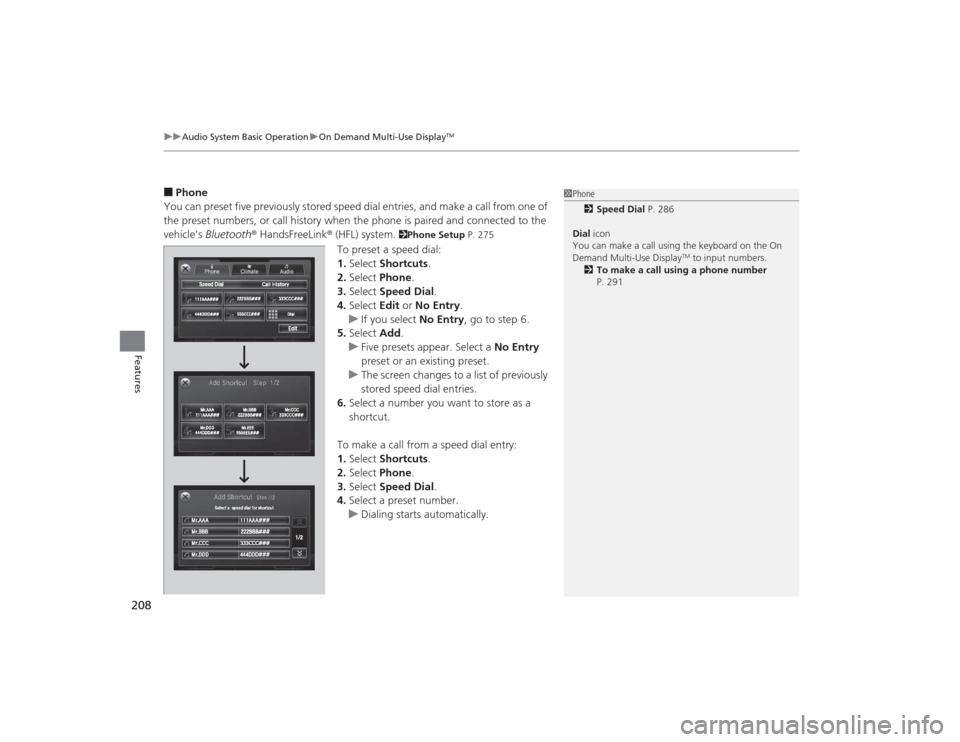
■Phone
You can preset five previously stored speed dial entries, and make a call from one of
the preset numbers, or call history when the phone is paired and connected to the
vehicle‘s Bluetooth ® HandsFreeLink ® (HFL) system.
2Phone Setup P. 275
To preset a speed dial:
1.Select Shortcuts .
2. Select Phone .
3. Select Speed Dial .
4. Select Edit or No Entry .
u If you select No Entry, go to step 6.
5. Select Add.
u Five presets appear. Select a No Entry
preset or an existing preset.
u The screen changes to a list of previously
stored speed dial entries.
6. Select a number you want to store as a
shortcut.
To make a call from a speed dial entry:
1. Select Shortcuts .
2. Select Phone .
3. Select Speed Dial .
4. Select a preset number.
u Dialing starts automatically.
1Phone
2 Speed Dial P. 286
Dial icon
You can make a call using the keyboard on the On
Demand Multi-Use Display
TM to input numbers.
2 To make a call using a phone number
P. 291
Page 214 of 505
213
uuAudio System Basic Operation uAudio/Information Screen
Continued
Features
■Audio
Shows the current audio information.■Phone
Shows the HFL information.
2 Bluetooth® HandsFreeLink ® P. 269
■Info
Shows the Trip Computer or Clock/Wallpaper and other information. Rotate
to select an item, then press .■Trip computer (Current Drive)
Shows the range, and instant and average fuel economy of the current trip, as well
as the average fuel economy from your last trip.■Trip computer (History of Trip A)
Shows the range, average fuel economy and distances traveled for the current trip,
as well as the average fuel economy and distances traveled during the last three
driving cycles.
Each time you reset the trip meter A, the information on the display updates. The
history of the previous three driving cycles is kept.■Deleting the history manually
1. Move on the History of Trip A screen to select Delete History , then press .
2. A confirmation message appears on the screen. Rotate to select Yes, then
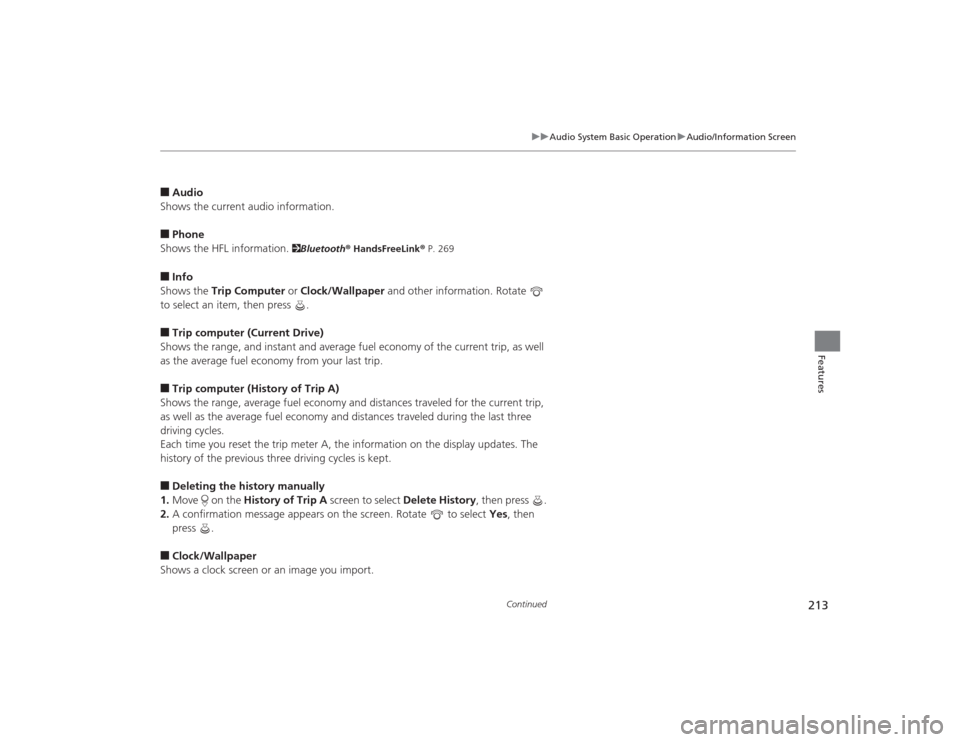
press .■Clock/Wallpaper
Shows a clock screen or an image you import.
Page 233 of 505
232
uuAudio System Basic Operation uPlaying Internet Radio
Features
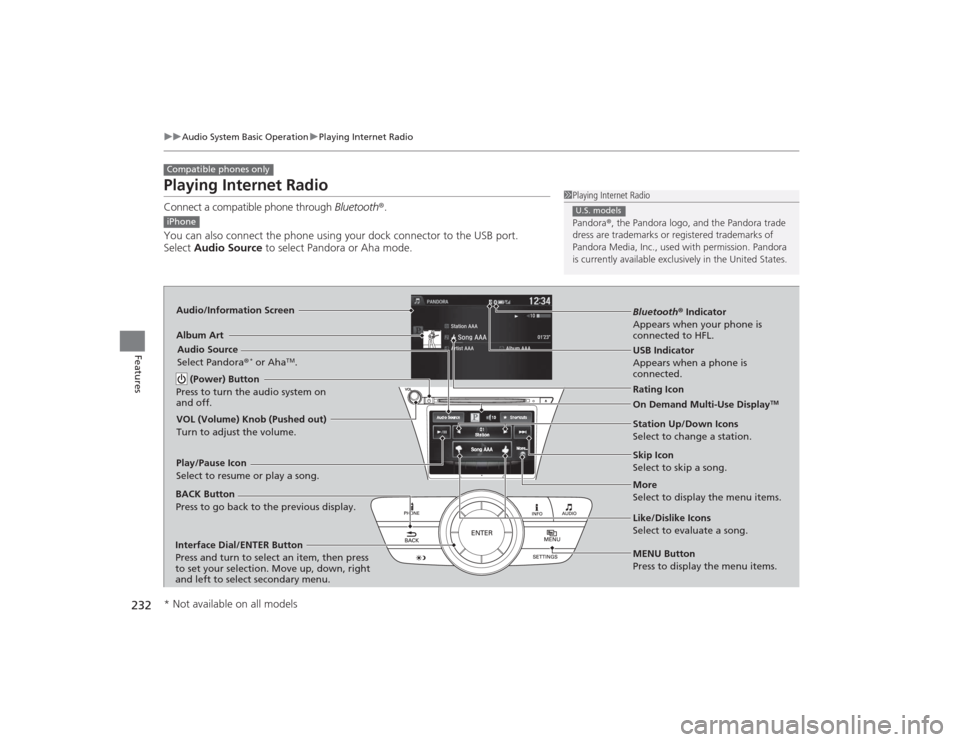
Playing Internet RadioConnect a compatible phone through Bluetooth®.
You can also connect the phone using your dock connector to the USB port.
Select Audio Source to select Pandora or Aha mode.Compatible phones only
1Playing Internet Radio
Pandora ®, the Pandora logo, and the Pandora trade
dress are trademarks or regi stered trademarks of
Pandora Media, Inc., used with permission. Pandora
is currently available exclusively in the United States.U.S. models
iPhoneAudio/Information ScreenAlbum Art
USB Indicator
Appears when a phone is
connected.Rating Icon
BACK Button
Press to go back to the previous display.
Skip Icon
Select to skip a song.
More
Select to display the menu items. Station Up/Down Icons
Select to change a station.
Audio Source
Select Pandora
®
* or Aha
TM.
Play/Pause Icon
Select to resume or play a song.
Like/Dislike Icons
Select to evaluate a song.
(Power) Button
Press to turn the audio system on
and off.
Interface Dial/ENTER Button
Press and turn to select an item, then press
to set your selection. Move up, down, right
and left to select secondary menu.
On Demand Multi-Use Display
TM
VOL (Volume) Knob (Pushed out)
Turn to adjust the volume.
Bluetooth ® Indicator
Appears when your phone is
connected to HFL.
MENU Button
Press to display the menu items.
* Not available on all models
Page 239 of 505
238
uuAudio System Basic Operation uPlaying Bluetooth ® Audio
Features
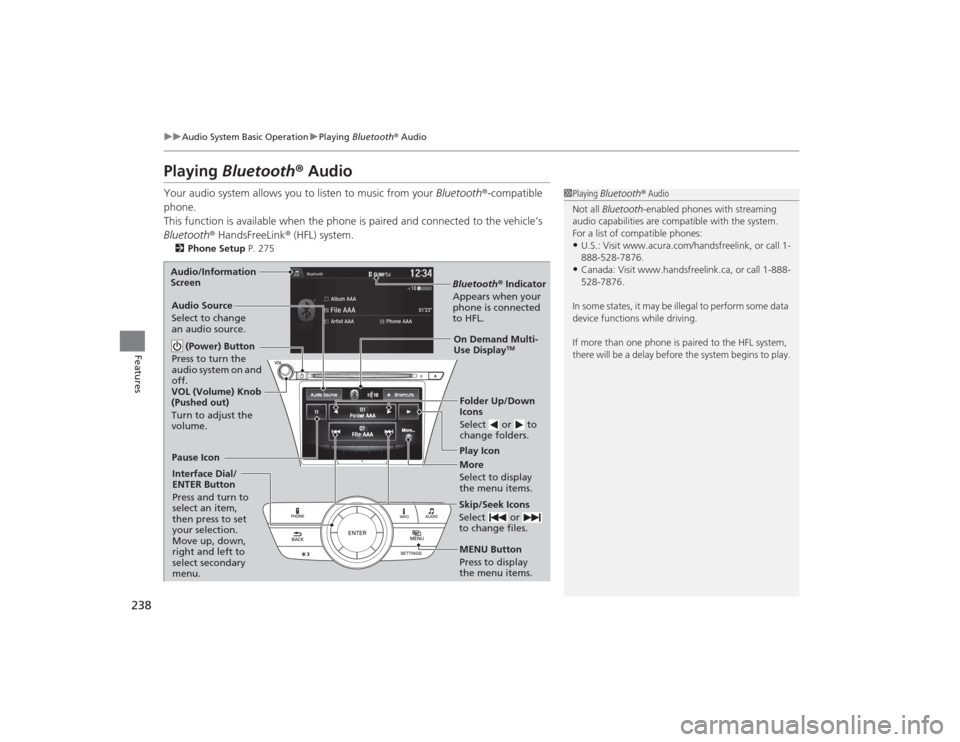
Playing Bluetooth ® AudioYour audio system allows you to listen to music from your Bluetooth®-compatible
phone.
This function is available when the phone is paired and connected to the vehicle’s
Bluetooth ® HandsFreeLink ® (HFL) system.2 Phone Setup P. 275
1Playing Bluetooth ® Audio
Not all Bluetooth -enabled phones with streaming
audio capabilities are compatible with the system.
For a list of compatible phones:•U.S.: Visit www.acura.com/handsfreelink, or call 1-
888-528-7876.•Canada: Visit www.handsfreelink.ca, or call 1-888-
528-7876.
In some states, it may be illegal to perform some data
device functions while driving.
If more than one phone is paired to the HFL system,
there will be a delay before the system begins to play.
Bluetooth ® Indicator
Appears when your
phone is connected
to HFL.Play Icon
Pause Icon
More
Select to display
the menu items.
Audio Source
Select to change
an audio source.
(Power) Button
Press to turn the
audio system on and
off.Interface Dial/
ENTER Button
Press and turn to
select an item,
then press to set
your selection.
Move up, down,
right and left to
select secondary
menu.
Skip/Seek Icons
Select or
to change files.MENU Button
Press to display
the menu items. Folder Up/Down
Icons
Select or to
change folders.On Demand Multi-
Use Display
TM
VOL (Volume) Knob
(Pushed out)
Turn to adjust the
volume.
Audio/Information
Screen
Page 240 of 505
239
uuAudio System Basic Operation uPlaying Bluetooth ® Audio
Features
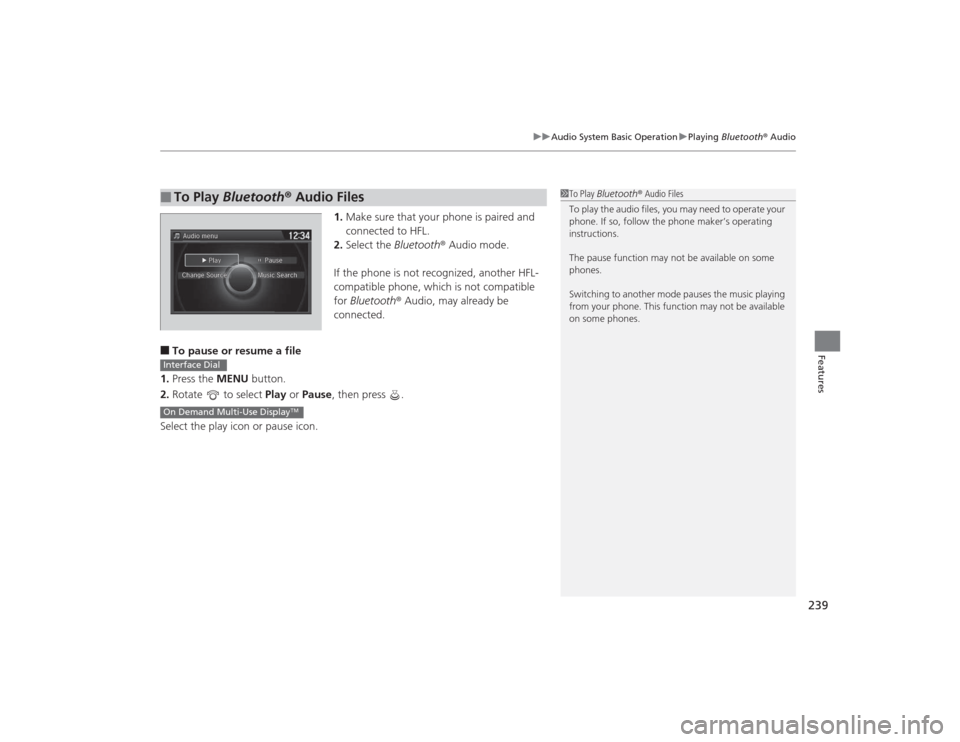
1. Make sure that your phone is paired and
connected to HFL.
2. Select the Bluetooth® Audio mode.
If the phone is not recognized, another HFL-
compatible phone, which is not compatible
for Bluetooth ® Audio, may already be
connected.
■To pause or resume a file
1. Press the MENU button.
2. Rotate to select Play or Pause , then press .
Select the play icon or pause icon.■
To Play Bluetooth ® Audio Files
1 To Play Bluetooth ® Audio Files
To play the audio files, you may need to operate your
phone. If so, follow the phone maker’s operating
instructions.
The pause function may not be available on some
phones.
Switching to another mode pauses the music playing
from your phone. This function may not be available
on some phones.
Interface DialOn Demand Multi-Use Display
TM
Page 256 of 505
255
uuCustomized Features u
Continued
Features
*1:Default SettingSetup
Group Customizable Features Description Selectable SettingsSystem
Settings
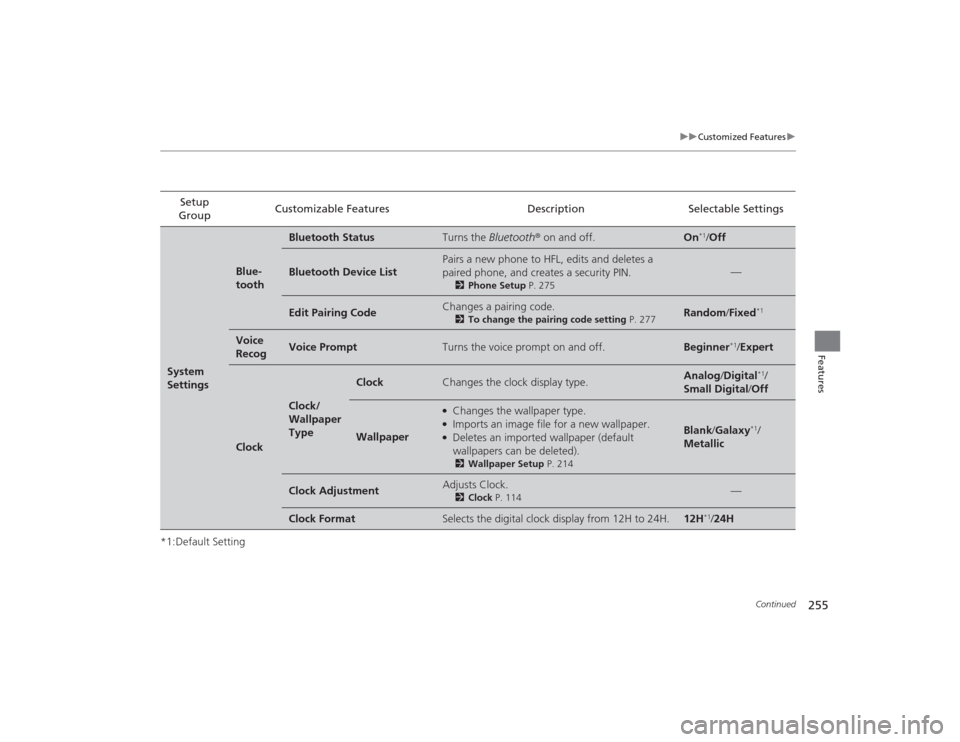
Blue-
tooth
Bluetooth Status
Turns the
Bluetooth® on and off.
On
*1/Off
Bluetooth Device List
Pairs a new phone to HFL, edits and deletes a
paired phone, and creates a security PIN.
2 Phone Setup P. 275
—
Edit Pairing Code
Changes a pairing code.
2To change the pairing code setting P. 277
Random/Fixed
*1
Voice
Recog
Voice Prompt
Turns the voice prompt on and off.
Beginner
*1/ Expert
Clock
Clock/
Wallpaper
Type
Clock
Changes the clock display type.
Analog /Digital
*1/
Small Digital /Off
Wallpaper
●Changes the wallpaper type.●Imports an image file for a new wallpaper.●Deletes an imported wallpaper (default
wallpapers can be deleted).2 Wallpaper Setup P. 214
Blank/Galaxy
*1/
Metallic
Clock Adjustment
Adjusts Clock.
2 Clock P. 114
—
Clock Format
Selects the digital clock display from 12H to 24H.
12H
*1/24H
Page 263 of 505
262
uuCustomized Features u
Features
*1:Default SettingSetup
Group Customizable Features Description Selectable Settings
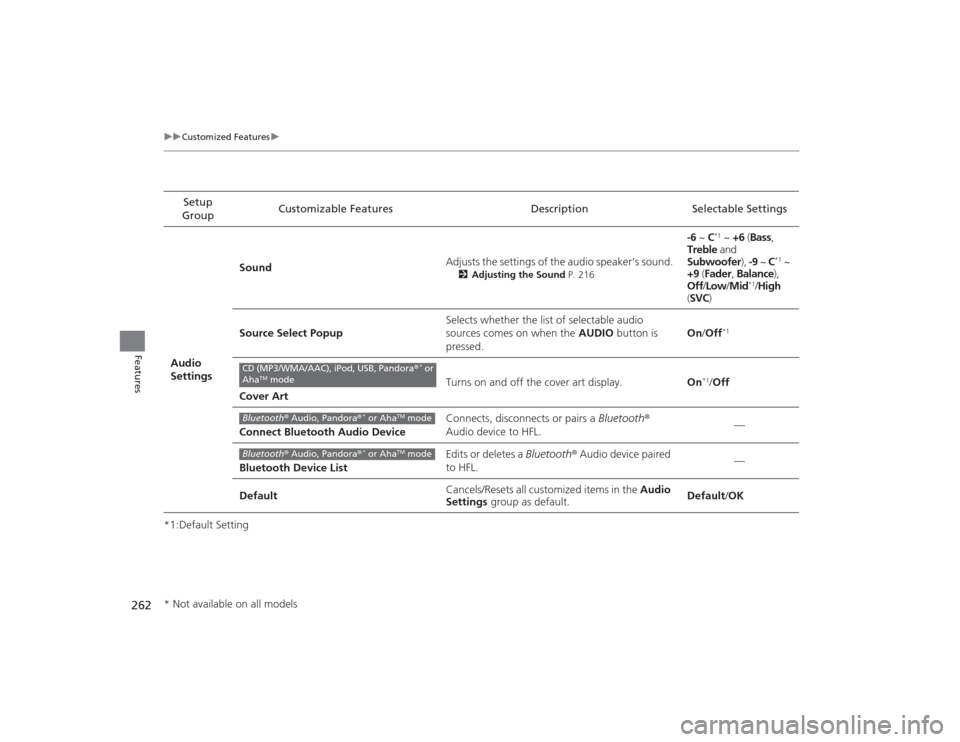
Audio
Settings Sound
Adjusts the settings of the audio speaker’s sound.
2
Adjusting the Sound P. 216
-6 ~ C
*1 ~ +6 (Bass ,
Treble and
Subwoofer ), -9 ~ C
*1 ~
+9 (Fader , Balance ),
Off /Low /Mid
*1/High
( SVC )
Source Select Popup Selects whether the list of selectable audio
sources comes on when the
AUDIO button is
pressed. On
/Off
*1
Cover Art Turns on and off the cover art display.
On
*1/Off
Connect Bluetooth Audio Device Connects, disconnects or pairs a
Bluetooth®
Audio device to HFL. —
Bluetooth Device List Edits or deletes a
Bluetooth® Audio device paired
to HFL. —
Default Cancels/Resets all customized items in the
Audio
Settings group as default. Default
/OK
CD (MP3/WMA/AAC), iPod, USB, Pandora ®
* or
Aha
TM mode
Bluetooth ® Audio, Pandora®
* or Aha
TM mode
Bluetooth ® Audio, Pandora®
* or Aha
TM mode
* Not available on all models
Page 264 of 505
263
uuCustomized Features u
Continued
Features
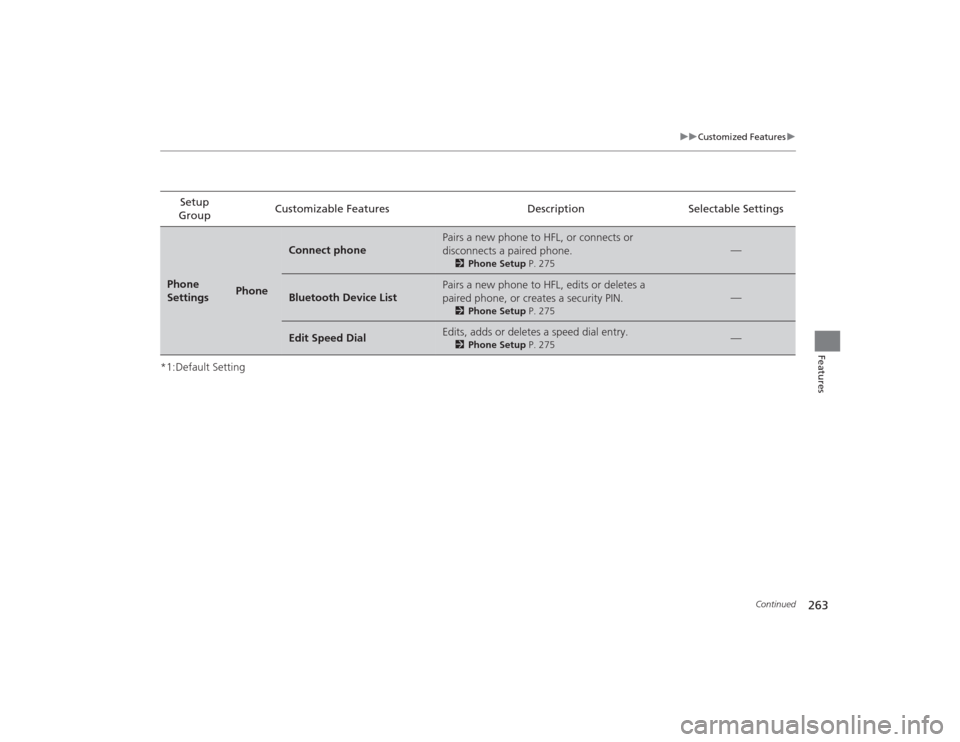
*1:Default SettingSetup
Group Customizable Features Description Selectable SettingsPhone
Settings
Phone
Connect phone
Pairs a new phone to HFL, or connects or
disconnects a paired phone.
2
Phone Setup P. 275
—
Bluetooth Device List
Pairs a new phone to HFL, edits or deletes a
paired phone, or creates a security PIN.
2Phone Setup P. 275
—
Edit Speed Dial
Edits, adds or deletes a speed dial entry.
2Phone Setup P. 275
—
Page 265 of 505
264
uuCustomized Features u
Features
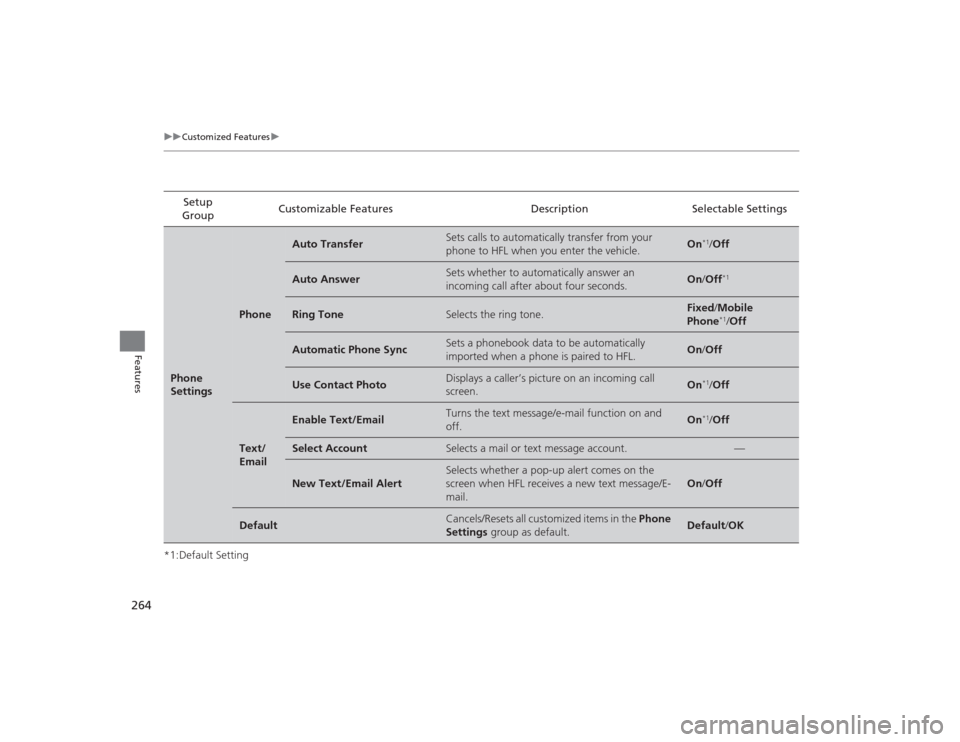
*1:Default SettingSetup
Group Customizable Features Description Selectable SettingsPhone
Settings
Phone
Auto Transfer
Sets calls to automatically transfer from your
phone to HFL when you enter the vehicle.
On
*1/
Off
Auto Answer
Sets whether to automatically answer an
incoming call after about four seconds.
On /Off
*1
Ring Tone
Selects the ring tone.
Fixed /Mobile
Phone
*1/ Off
Automatic Phone Sync
Sets a phonebook data to be automatically
imported when a phone is paired to HFL.
On /Off
Use Contact Photo
Displays a caller’s picture on an incoming call
screen.
On
*1/Off
Text/
Email
Enable Text/Email
Turns the text message/e-mail function on and
off.
On
*1/Off
Select Account
Selects a mail or text message account.
—
New Text/Email Alert
Selects whether a pop-up alert comes on the
screen when HFL receives a new text message/E-
mail.
On /Off
Default
Cancels/Resets all customized items in the Phone
Settings group as default.
Default/OK