radio Acura MDX 2015 Owner's Manual
[x] Cancel search | Manufacturer: ACURA, Model Year: 2015, Model line: MDX, Model: Acura MDX 2015Pages: 505, PDF Size: 18.62 MB
Page 4 of 505
Contents
Child Safety P. 54Exhaust Gas Hazard P. 66Safety Labels P. 67Opening and Closing the Tailgate P. 128 Security System P. 135 Opening and Closing the Windows P. 138
Operating the Switches Around the Steering Wheel P. 141 Adjusting the Mirrors P. 158
Interior Lights/Interior Convenience Items P. 172 Climate Control System P. 185Audio Error Messages P. 240General Information on the Audio System P. 245
Bluetooth® HandsFreeLink ® P. 269 Compass
* P. 302
Off-Highway Driving Guidelines P. 322 When Driving P. 324 Braking P. 371
Refueling P. 387 Fuel Economy P. 389Accessories and Modifications P. 390Maintenance Under the Hood P. 399 Replacing Light Bulbs P. 411
Checking and Maintaining Tires P. 421 Battery P. 430 Remote Transmitter Care P. 431Engine Does Not Start P. 462 Jump Starting P. 465 Shift Lever Does Not Move P. 467
Fuses P. 474 Emergency Towing P. 480
When You Cannot Unlock the Fuel Fill Door P. 481
Devices that Emit Radio Waves P. 487 Reporting Safety Defects P. 488
Authorized Manuals P. 493 Client Service Information P. 494
Quick Reference Guide
P. 4
Safe Driving
P. 25
Instrument Panel
P. 69
Controls
P. 113
Features
P. 199
Driving
P. 305
Maintenance
P. 391
Handling the Unexpected
P. 441
Information
P. 483
Index
P. 495
Page 17 of 505
16Quick Reference Guide
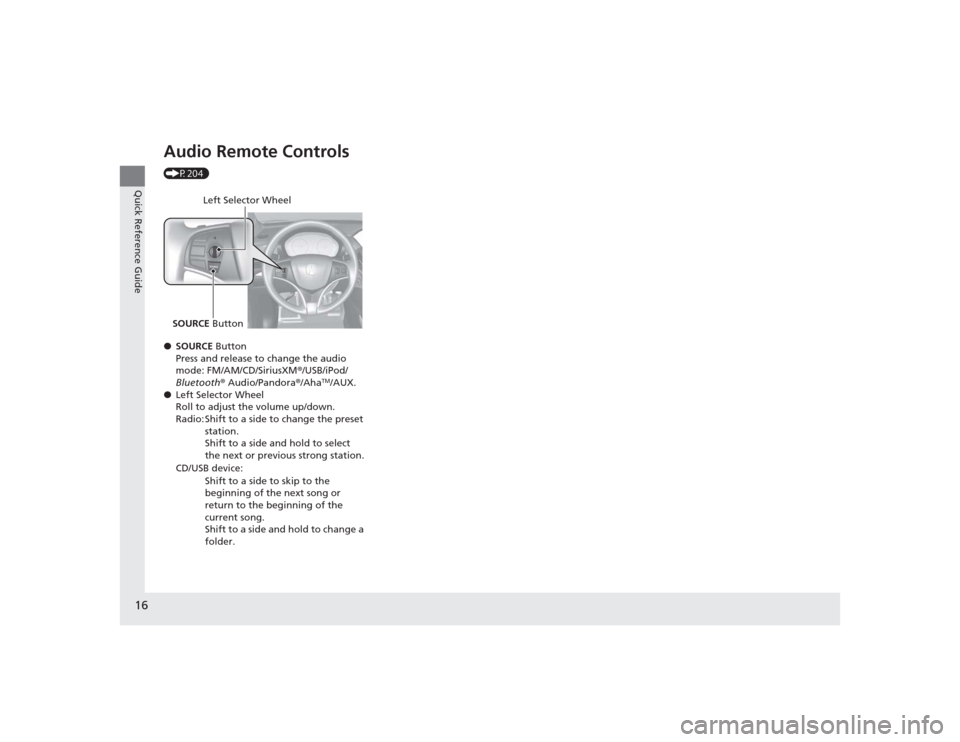
Audio Remote Controls (P204)
●SOURCE Button
Press and release to change the audio
mode: FM/AM/CD/SiriusXM ®/USB/iPod/
Bluetooth ® Audio/Pandora® /Aha
TM/AUX.
● Left Selector Wheel
Roll to adjust the volume up/down.
Radio: Shift to a side to change the preset
station.
Shift to a side and hold to select
the next or previous strong station.
CD/USB device: Shift to a side to skip to the
beginning of the next song or
return to the beginning of the
current song.
Shift to a side and hold to change a
folder.
Left Selector Wheel
SOURCE Button
Page 124 of 505
123
uuLocking and Unlocking the Doors uLow Keyless Access Remote Signal Strength
Controls
Low Keyless Access Remote Signal StrengthThe vehicle transmits radio waves to locate the keyless access remote when locking/
unlocking the doors and tailgate, or to start the engine.
In the following cases, locking/unlocking the doors and tailgate, or starting the
engine may be inhibited or operation may be unstable:
• Strong radio waves are being transmitted by nearby equipment.
• You are carrying the keyless access remote together with telecommunications
equipment, laptop computers, cell phones, or wireless devices.
• A metallic object is touching or covering the keyless access remote.
1Low Keyless Access Remote Signal Strength
Communication between the keyless access remote
and the vehicle consumes the keyless access remote’s
battery.
The keyless access remote battery lasts about two
years. This changes by how often you use the remote.
The battery is consumed whenever the keyless access
remote is receiving strong radio waves. Avoid placing
it near electrica l appliances such as televisions and
personal computers.
Page 136 of 505
135
Continued
Controls
Security SystemImmobilizer SystemThe immobilizer system prevents a key that has not been pre-registered from
starting the engine. Each key contains electronic transmitters that use electronic
signals to verify the key.
Pay attention to the following when pressing the ENGINE START/STOP button:
• Do not allow objects that emit strong radio waves near the ENGINE START/
STOP button.
• Make sure the key is not covered by or touching a metal object.
• Do not bring a key from another vehicle’s immobilizer system with the keyless
access remote.Security System AlarmThe security system alarm activates when the tailgate, hood, or doors are opened
without the key, remote transmitter or keyless access system.■When the security system alarm activates
The horn sounds intermittently, and all of the exterior lights flash.■To deactivate the security system alarm
Unlock the vehicle using the key, remote transmitter, or keyless access system. The
system, along with the horn and flashing lights, is deactivated.
1 Immobilizer SystemNOTICELeaving the keyless access remote in the vehicle can
result in theft or accidental movement of the vehicle.
Always take the key with you whenever you leave the
vehicle unattended.
Do not alter the system or add other devices to it.
Doing so may damage the system and make your
vehicle inoperable.1Security System Alarm
The security alarm continues for a maximum of two
minutes until the security system alarm deactivates.
Page 200 of 505
199
Features
This chapter describes how to operate technology features.
Audio SystemAbout Your Audio System ................ 200
USB Port .......................................... 201
Auxiliary Input Jack .......................... 202
Audio System Theft Protection ......... 203
Audio Remote Controls .................... 204
Audio System Basic Operation ........ 205
On Demand Multi-Use Display
TM....... 206
Audio/Information Screen ................ 212
Adjusting the Sound ........................ 216
Display Setup ................................... 217
Playing AM/FM Radio ....................... 218
Playing SiriusXM ® Radio ................... 222 Playing a CD .................................... 225
Playing an iPod ................................ 228
Playing Internet Radio ...................... 232
Playing a USB Flash Drive ................. 235
Playing
Bluetooth ® Audio................. 238
Audio Error Messages
CD Player ......................................... 240
iPod/USB Flash Drive ........................ 241
Pandora ®......................................... 242
Aha
TM Radio ..................................... 244
General Information on the Audio System
SiriusXM ® Radio Service ................... 245 Recommended CDs ......................... 246
Compatible iPod, iPhone, and USB Flash
Drives ................................................. 248
Customized Features ........................ 249
Defaulting All the Settings ............... 266
HomeLink ® Universal Transceiver ... 267
Bluetooth ® HandsFreeLink ®
Using HFL ........................................ 269
HFL Menus ...................................... 271
Compass
*.......................................... 302
* Not available on all models
Page 201 of 505
200Features
Audio SystemAbout Your Audio SystemSee the Navigation System Manual for operation of the audio system, AcuraLink,
rear entertainment system
*, Bluetooth ® HandsFreeLink ®, and voice commands for
these features.
The audio system features AM/FM radio and SiriusXM ® Radio service. It can also play
audio CDs, WMA/MP3/AAC files, USB flash drives, and iPod, iPhone and Bluetooth ®
devices.
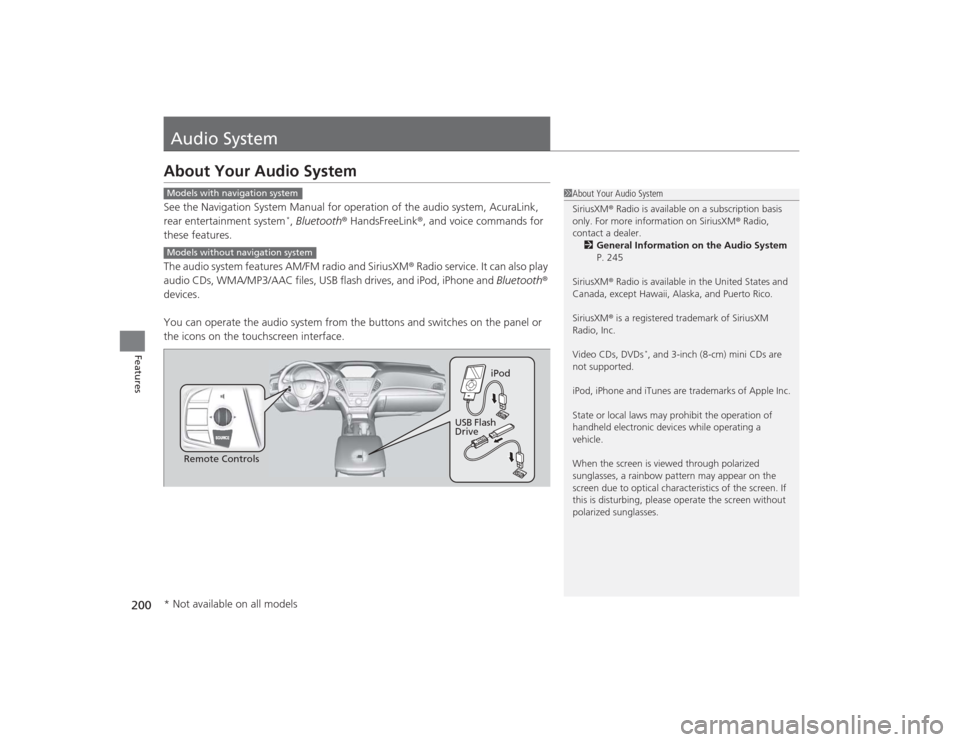
You can operate the audio system from the buttons and switches on the panel or
the icons on the touchscreen interface.
1 About Your Audio System
SiriusXM ® Radio is available on a subscription basis
only. For more information on SiriusXM ® Radio,
contact a dealer.
2 General Information on the Audio System
P. 245
SiriusXM ® Radio is available in the United States and
Canada, except Hawaii, Alaska, and Puerto Rico.
SiriusXM ® is a registered trademark of SiriusXM
Radio, Inc.
Video CDs, DVDs
*, and 3-inch (8-cm) mini CDs are
not supported.
iPod, iPhone and iTunes are trademarks of Apple Inc.
State or local laws may prohibit the operation of
handheld electronic devices while operating a
vehicle.
When the screen is viewed through polarized
sunglasses, a rainbow pattern may appear on the
screen due to optical character istics of the screen. If
this is disturbing, please operate the screen without
polarized sunglasses.
Models with navigation systemModels without navigation system
Remote Controls iPod
USB Flash
Drive
* Not available on all models
Page 205 of 505
204
uuAudio System uAudio Remote Controls
Features
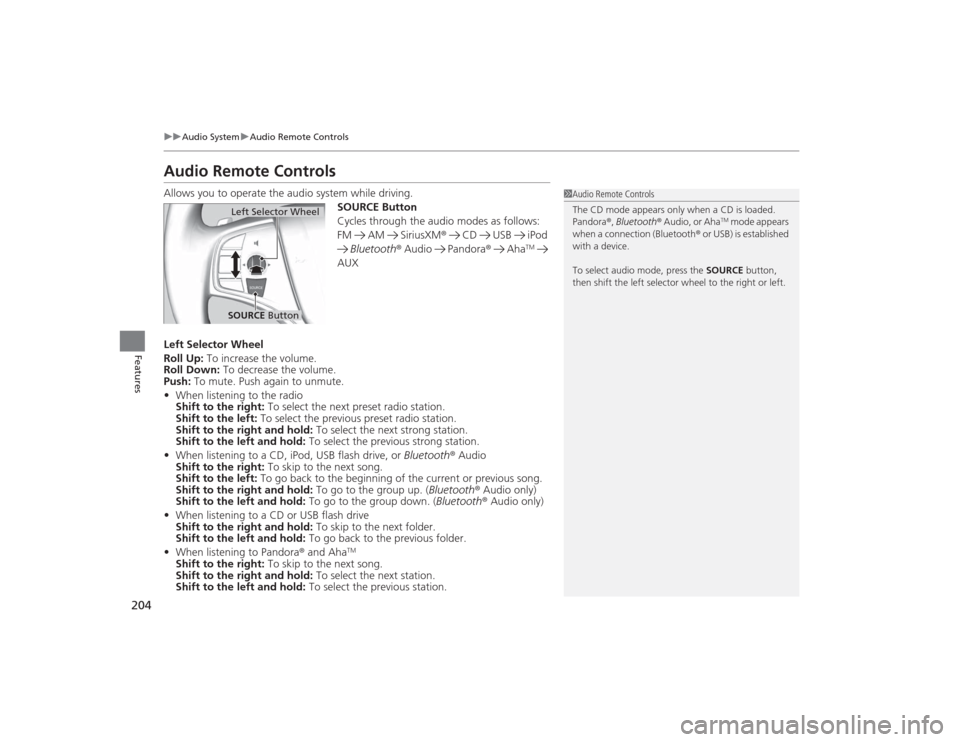
Audio Remote ControlsAllows you to operate the audio system while driving.
SOURCE Button
Cycles through the audio modes as follows:
FM AM SiriusXM® CD USB iPod
Bluetooth ® Audio Pandora ® Aha
TM
AUX
Left Selector Wheel
Roll Up: To increase the volume.
Roll Down: To decrease the volume.
Push: To mute. Push again to unmute.
• When listening to the radio
Shift to the right: To select the next preset radio station.
Shift to the left: To select the previous preset radio station.
Shift to the right and hold: To select the next strong station.
Shift to the left and hold: To select the previous strong station.
• When listening to a CD, iPod, USB flash drive, or Bluetooth® Audio
Shift to the right: To skip to the next song.
Shift to the left: To go back to the beginning of the current or previous song.
Shift to the right and hold: To go to the group up. (Bluetooth ® Audio only)
Shift to the left and hold: To go to the group down. (Bluetooth® Audio only)
• When listening to a CD or USB flash drive
Shift to the right and hold: To skip to the next folder.
Shift to the left and hold: To go back to the previous folder.
• When listening to Pandora ® and Aha
TM
Shift to the right: To skip to the next song.
Shift to the right and hold: To select the next station.
Shift to the left and hold: To select the previous station.
1Audio Remote Controls
The CD mode appears only when a CD is loaded.
Pandora ®, Bluetooth ® Audio, or Aha
TM mode appears
when a connection (Bluetooth ® or USB) is established
with a device.
To select audio mode, press the SOURCE button,
then shift the left selector wheel to the right or left.
Left Selector WheelSOURCE Button
Page 206 of 505
205Features
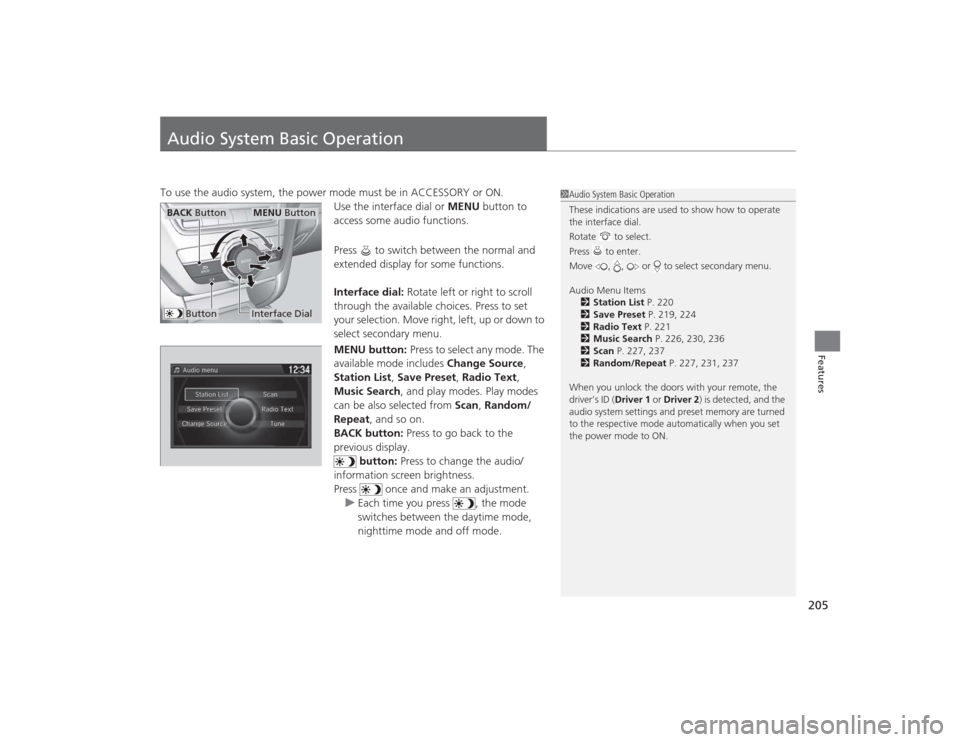
Audio System Basic OperationTo use the audio system, the power mode must be in ACCESSORY or ON.Use the interface dial or MENU button to
access some audio functions.
Press to switch between the normal and
extended display for some functions.
Interface dial: Rotate left or right to scroll
through the available choices. Press to set
your selection. Move right, left, up or down to
select secondary menu.
MENU button: Press to select any mode. The
available mode includes Change Source,
Station List , Save Preset , Radio Text,
Music Search , and play modes. Play modes
can be also selected from Scan, Random/
Repeat , and so on.
BACK button: Press to go back to the
previous display.
button: Press to change the audio/
information screen brightness.
Press once and make an adjustment. u Each time you press , the mode
switches between the daytime mode,
nighttime mode and off mode.
1Audio System Basic Operation
These indications are used to show how to operate
the interface dial.
Rotate to select.
Press to enter.
Move , , or to select secondary menu.
Audio Menu Items
2 Station List P. 220
2 Save Preset P. 219, 224
2 Radio Text P. 221
2 Music Search P. 226, 230, 236
2 Scan P. 227, 237
2 Random/Repeat P. 227, 231, 237
When you unlock the doors with your remote, the
driver’s ID ( Driver 1 or Driver 2) is detected, and the
audio system settings and preset memory are turned
to the respective mode au tomatically when you set
the power mode to ON.
Interface DialMENU Button
BACK Button
Button
Page 211 of 505
uuAudio System Basic Operation uOn Demand Multi-Use Display
TM
210Features
■Audio
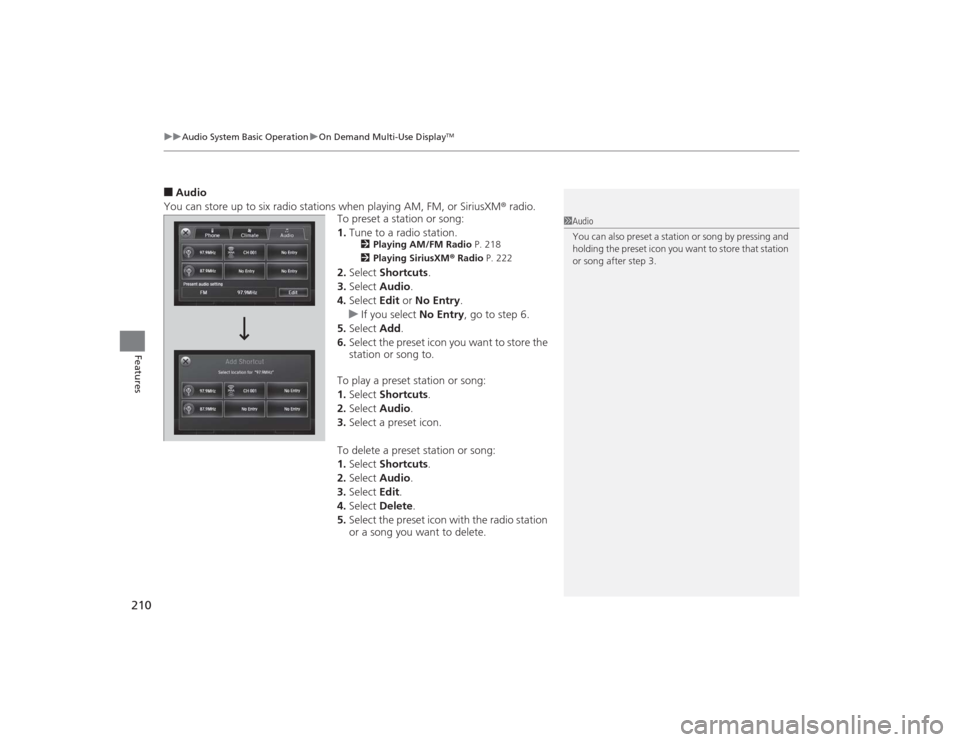
You can store up to six radio stations when playing AM, FM, or SiriusXM ® radio.
To preset a station or song:
1. Tune to a radio station.
2 Playing AM/FM Radio P. 218
2 Playing SiriusXM ® Radio P. 222
2.Select Shortcuts .
3. Select Audio .
4. Select Edit or No Entry .
u If you select No Entry, go to step 6.
5. Select Add.
6. Select the preset icon you want to store the
station or song to.
To play a preset station or song:
1. Select Shortcuts .
2. Select Audio .
3. Select a preset icon.
To delete a preset station or song:
1. Select Shortcuts .
2. Select Audio .
3. Select Edit.
4. Select Delete.
5. Select the preset icon with the radio station
or a song you want to delete.
1Audio
You can also preset a station or song by pressing and
holding the preset icon you want to store that station
or song after step 3.
Page 219 of 505
218
uuAudio System Basic Operation uPlaying AM/FM Radio
Features
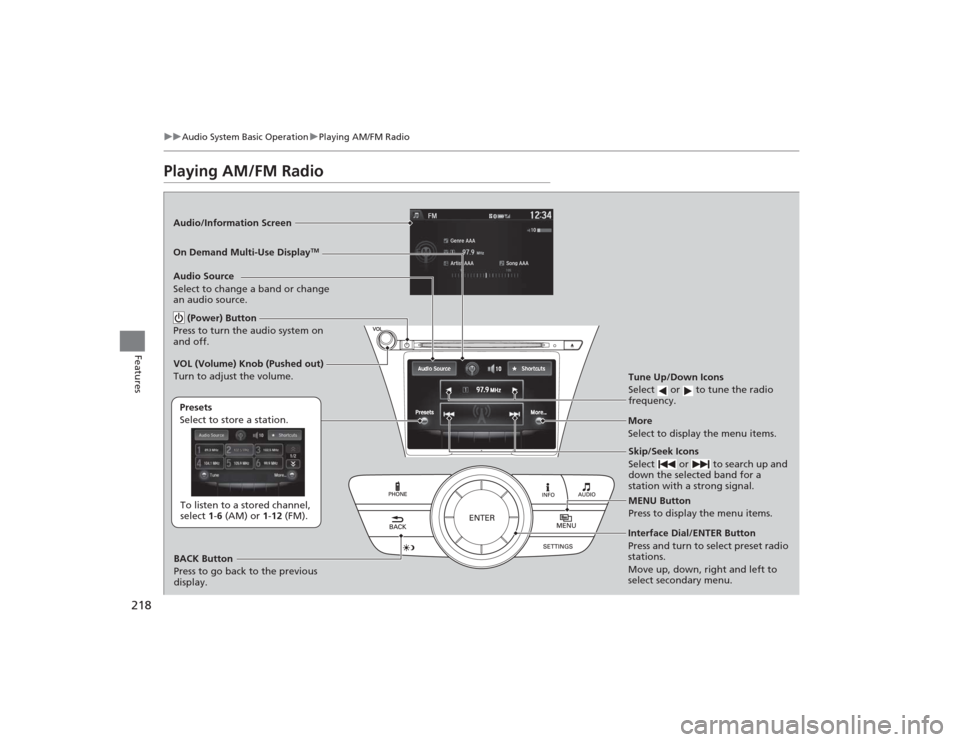
Playing AM/FM RadioAudio/Information Screen
On Demand Multi-Use Display
TM
Tune Up/Down Icons
Select or to tune the radio
frequency.MENU Button
Press to display the menu items.
(Power) Button
Press to turn the audio system on
and off.Audio Source
Select to change a band or change
an audio source.To listen to a stored channel,
select 1-6 (AM) or 1- 12 (FM).
Presets
Select to store a station.
Skip/Seek Icons
Select or to search up and
down the selected band for a
station with a strong signal.
More
Select to display the menu items.
BACK Button
Press to go back to the previous
display.
VOL (Volume) Knob (Pushed out)
Turn to adjust the volume.Interface Dial/ENTER Button
Press and turn to select preset radio
stations.
Move up, down, right and left to
select secondary menu.