park assist Acura MDX 2016 Owner's Guide
[x] Cancel search | Manufacturer: ACURA, Model Year: 2016, Model line: MDX, Model: Acura MDX 2016Pages: 84, PDF Size: 14.98 MB
Page 4 of 84
| 1 VISUAL INDEX
INDEX
VOICE COMMAND
INDEX
CLIENT
INFORMATION
SPECIFICATIONS
MAINTENANCE
HANDLING THE
UNEXPECTED
DRIVING
NAVIGATION
TABLE OF
CONTENTS
VISUAL INDEX
SAFETY
INFORMATION
INSTRUMENT
PANEL
VEHICLE
CONTROLS
AUDIO AND
CONNECTIVITY
BLUETOOTH®
HANDSFREELINK®
ACURALINK®
*if equipped
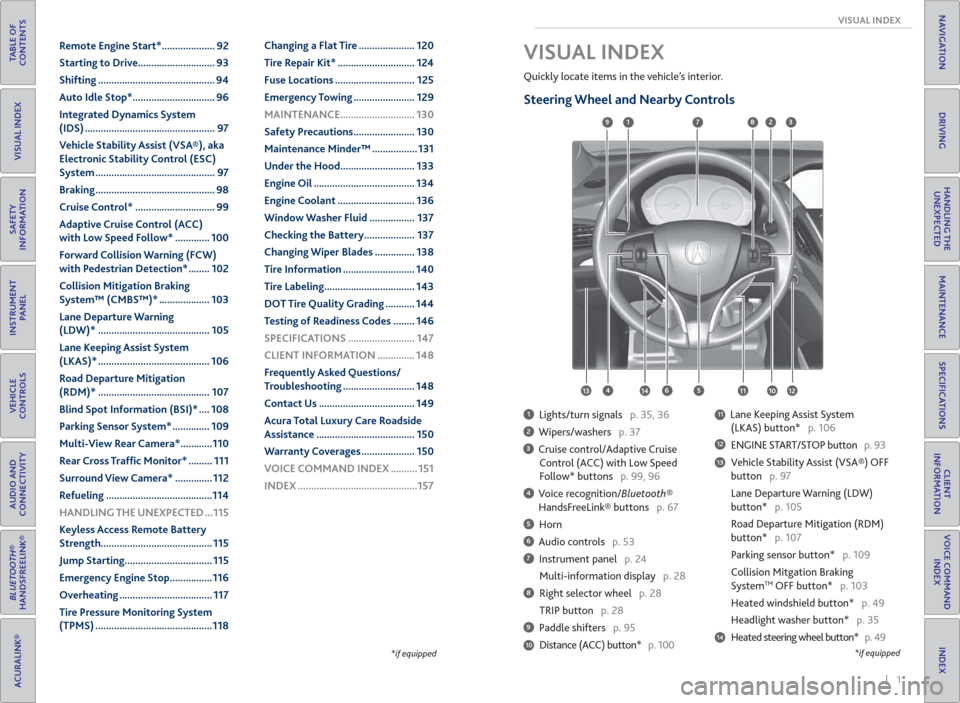
Quickly locate items in the vehicle’s interior.
Steering Wheel and Nearby Controls
1 Lights/turn signals p. 35, 36
2 Wipers/washers p. 37
3 Cruise control/Adaptive Cruise
Control (ACC) with Low Speed
Follow* buttons p. 99, 96
4 Voice recognition/Bluetooth®
HandsFreeLink® buttons p. 67
5 Horn
6 Audio controls p. 53
7 Instrument panel p. 24
Multi-information display p. 28
8 Right selector wheel p. 28
TRIP button p. 28
9 Paddle shifters p. 95
Distance (ACC) button* p. 100
11 Lane Keeping Assist System
(LKAS) button* p. 106
12 ENGINE START/STOP button p. 93
13 Vehicle Stability Assist (VSA®) OFF
button p. 97
Lane Departure Warning (LDW)
button* p. 105
Road Departure Mitigation (RDM)
button* p. 107
Parking sensor button* p. 109
Collision Mitgation Braking
System
TM OFF button* p. 103
Heated windshield button* p. 49
Headlight washer button* p. 35
14 Heated steering wheel button* p. 49
VISUAL INDEX
1
45
9
61011
7283
131412
*if equipped10
Remote Engine Start* .................... 92
Starting to Drive ............................. 93
Shifting ............................................ 94
Auto Idle Stop* ............................... 96
Integrated Dynamics System
(IDS) ................................................. 97
Vehicle Stability Assist (VSA®), aka
Electronic Stability Control (ESC)
System ............................................. 97
Braking ............................................. 98
Cruise Control* .............................. 99
Adaptive Cruise Control (ACC)
with Low Speed Follow* ............. 100
Forward Collision Warning (FCW)
with Pedestrian Detection* ........ 102
Collision Mitigation Braking
System™ (CMBS™)* ................... 103
Lane Departure Warning
(LDW)* .......................................... 105
Lane Keeping Assist System
(LKAS)* .......................................... 106
Road Departure Mitigation
(RDM)* .......................................... 107
Blind Spot Information (BSI)* .... 108
Parking Sensor System* .............. 109
Multi-View Rear Camera* ............110
Rear Cross Traf c Monitor* ......... 111
Surround View Camera* .............. 112
Refueling ........................................114
HANDLING THE UNEXPECTED ...115
Keyless Access Remote Battery
Strength.......................................... 115
Jump Starting ................................. 115
Emergency Engine Stop ................116
Overheating ................................... 117
Tire Pressure Monitoring System
(TPMS) ............................................118Changing a Flat Tire ..................... 120
Tire Repair Kit* ............................. 124
Fuse Locations .............................. 125
Emergency Towing ....................... 129
MAINTENANCE ............................ 130
Safety Precautions ....................... 130
Maintenance Minder™ ................. 131
Under the Hood ............................ 133
Engine Oil ...................................... 134
Engine Coolant ............................. 136
Window Washer Fluid ................. 137
Checking the Battery ................... 137
Changing Wiper Blades ............... 138
Tire Information ........................... 140
Tire Labeling .................................. 143
DOT Tire Quality Grading ........... 144
Testing of Readiness Codes ........ 146
SPECIFICATIONS ......................... 147
CLIENT INFORMATION .............. 148
Frequently Asked Questions/
Troubleshooting ........................... 148
Contact Us .................................... 149
Acura Total Luxury Care Roadside
Assistance ..................................... 150
Warranty Coverages .................... 150
VOICE COMMAND INDEX .......... 151
INDEX .............................................157
Page 16 of 84
24 || 25 INSTRUMENT PANEL INSTRUMENT PANEL
TABLE OF
CONTENTS
INDEX
VISUAL INDEX
VOICE COMMAND
INDEX
SAFETY
INFORMATION
CLIENT
INFORMATION
INSTRUMENT
PANEL
SPECIFICATIONS
VEHICLE
CONTROLS
MAINTENANCE
AUDIO AND
CONNECTIVITY
HANDLING THE
UNEXPECTED
BLUETOOTH®
HANDSFREELINK®
DRIVING
ACURALINK®
NAVIGATION
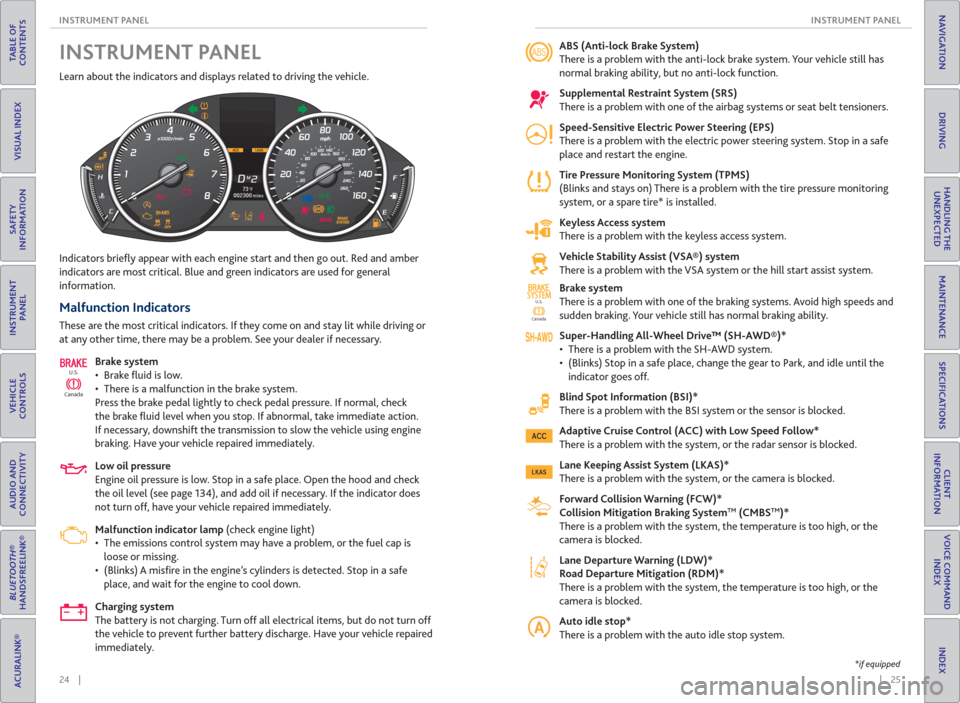
Learn about the indicators and displays related to driving the vehicle.
Indicators briefl y appear with each engine start and then go out. Red and amber
indicators are most critical. Blue and green indicators are used for general
information.
Malfunction Indicators
These are the most critical indicators. If they come on and stay lit while driving or
at any other time, there may be a problem. See your dealer if necessary.
Brake system
• Brake fl uid is low.
• There is a malfunction in the brake system.
Press the brake pedal lightly to check pedal pressure. If normal, check
the brake fl uid level when you stop. If abnormal, take immediate action.
If necessary, downshift the transmission to slow the vehicle using engine
braking. Have your vehicle repaired immediately.
Low oil pressure
Engine oil pressure is low. Stop in a safe place. Open the hood and check
the oil level (see page 134), and add oil if necessary. If the indicator does
not turn off, have your vehicle repaired immediately.
Malfunction indicator lamp (check engine light)
• The emissions control system may have a problem, or the fuel cap is
loose or missing.
• (Blinks) A misfi re in the engine’s cylinders is detected. Stop in a safe
place, and wait for the engine to cool down.
Charging system
The battery is not charging. Turn off all electrical items, but do not turn off
the vehicle to prevent further battery discharge. Have your vehicle repaired
immediately.
CanadaU.S.
INSTRUMENT PANEL ABS ( Anti-lock Brake System)
There is a problem with the anti-lock brake system. Your vehicle still has
normal braking ability, but no anti-lock function.
Supplemental Restraint System ( SRS)
There is a problem with one of the airbag systems or seat belt tensioners.
Speed-Sensitive Electric Power Steering ( EPS)
There is a problem with the electric power steering system. Stop in a safe
place and restart the engine.
Tire Pressure Monitoring System ( TPMS)
(Blinks and stays on) There is a problem with the tire pressure monitoring
system, or a spare tire* is installed.
Keyless Access system
There is a problem with the keyless access system.
Vehicle Stability Assist ( VSA®) system
There is a problem with the VSA system or the hill start assist system.
Brake system
There is a problem with one of the braking systems. Avoid high speeds and
sudden braking. Your vehicle still has normal braking ability.
Super-Handling All-Wheel Drive™ ( SH-AWD®)*
• There is a problem with the SH-AWD system.
• (Blinks) Stop in a safe place, change the gear to Park, and idle until the
indicator goes off.
Blind Spot Information ( BSI)*
There is a problem with the BSI system or the sensor is blocked.
Adaptive Cruise Control ( ACC) with Low Speed Follow*
There is a problem with the system, or the radar sensor is blocked.
Lane Keeping Assist System ( LKAS)*
There is a problem with the system, or the camera is blocked.
Forward Collision Warning ( FCW)*
Collision Mitigation Braking System
TM ( CMBSTM)*
There is a problem with the system, the temperature is too high, or the
camera is blocked.
Lane Departure Warning ( LDW)*
Road Departure Mitigation (RDM)*
There is a problem with the system, the temperature is too high, or the
camera is blocked.
Auto idle stop*
There is a problem with the auto idle stop system.
CanadaU.S.
SYSTEMSYSTEM
*if equipped
Page 42 of 84
| 77 NAVIGATION
INDEX
VOICE COMMAND
INDEX
CLIENT
INFORMATION
SPECIFICATIONS
MAINTENANCE
HANDLING THE
UNEXPECTED
DRIVING
NAVIGATION
76 | ACURALINK®
TABLE OF
CONTENTS
VISUAL INDEX
SAFETY
INFORMATION
INSTRUMENT
PANEL
VEHICLE
CONTROLS
AUDIO AND
CONNECTIVITY
BLUETOOTH®
HANDSFREELINK®
ACURALINK®
Subscription Features
In addition to standard service, receive benefi ts such as collision notifi cation,
emergency assistance, online security, enhanced navigation searches, and
important messages about your vehicle. Requires enrollment and privacy
agreement. To subscribe or get more information, visit owners.acura.com (U.S.) or
myacura.ca (Canada) or contact a dealer.
Emergency Assistance
If your vehicle’s airbags deploy or if the unit detects that the vehicle is severely
impacted, your vehicle automatically attempts to connect to the AcuraLink
operator if your phone is paired to the system and there is suffi cient cellular
coverage.
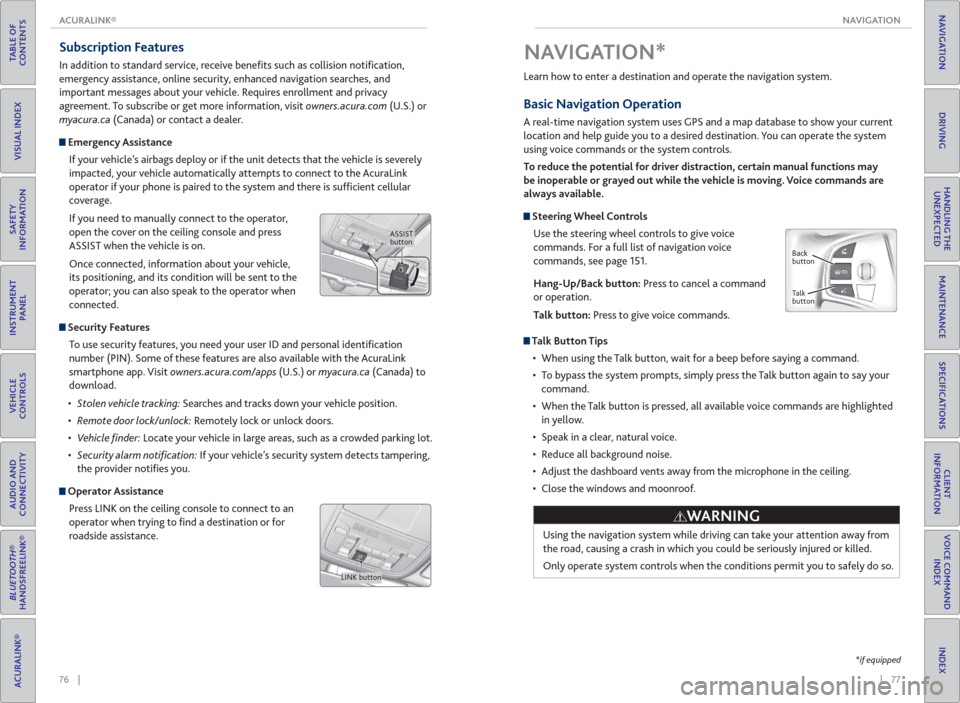
If you need to manually connect to the operator,
open the cover on the ceiling console and press
ASSIST when the vehicle is on.
Once connected, information about your vehicle,
its positioning, and its condition will be sent to the
operator; you can also speak to the operator when
connected.
Security Features
To use security features, you need your user ID and personal identifi cation
number (PIN). Some of these features are also available with the AcuraLink
smartphone app. Visit owners.acura.com/apps (U.S.) or myacura.ca (Canada) to
download.
Searches and tracks down your vehicle position.
Remotely lock or unlock doors.
nder: Locate your vehicle in large areas, such as a crowded parking lot.
cation: If your vehicle’s security system detects tampering,
the provider notifi es you.
Operator Assistance
Press LINK on the ceiling console to connect to an
operator when trying to fi nd a destination or for
roadside assistance.
ASSIST
button
LINK button
*if equipped
Learn how to enter a destination and operate the navigation system.
Basic Navigation Operation
A real-time navigation system uses GPS and a map database to show your current
location and help guide you to a desired destination. You can operate the system
using voice commands or the system controls.
To reduce the potential for driver distraction, certain manual functions may
be inoperable or grayed out while the vehicle is moving. Voice commands are
always available.
Steering Wheel Controls
Use the steering wheel controls to give voice
commands. For a full list of navigation voice
commands, see page 151.
Hang-Up/Back button: Press to cancel a command
or operation.
Talk button: Press to give voice commands.
Talk Button Tips
• When using the Talk button, wait for a beep before saying a command.
• To bypass the system prompts, simply press the Talk button again to say your
command.
• When the Talk button is pressed, all available voice commands are highlighted
in yellow.
• Speak in a clear, natural voice.
• Reduce all background noise.
• Adjust the dashboard vents away from the microphone in the ceiling.
• Close the windows and moonroof.
Using the navigation system while driving can take your attention away from
the road, causing a crash in which you could be seriously injured or killed.
Only operate system controls when the conditions permit you to safely do so.
NAVIGATION*
WARNING
Back
button
Talk
button
Page 53 of 84
98 || 99 DRIVING DRIVING
TABLE OF
CONTENTS
INDEX
VISUAL INDEX
VOICE COMMAND
INDEX
SAFETY
INFORMATION
CLIENT
INFORMATION
INSTRUMENT
PANEL
SPECIFICATIONS
VEHICLE
CONTROLS
MAINTENANCE
AUDIO AND
CONNECTIVITY
HANDLING THE
UNEXPECTED
BLUETOOTH®
HANDSFREELINK®
DRIVING
ACURALINK®
NAVIGATION
Braking
Slow down or stop your vehicle, and keep it from moving when parked.
Foot Brake
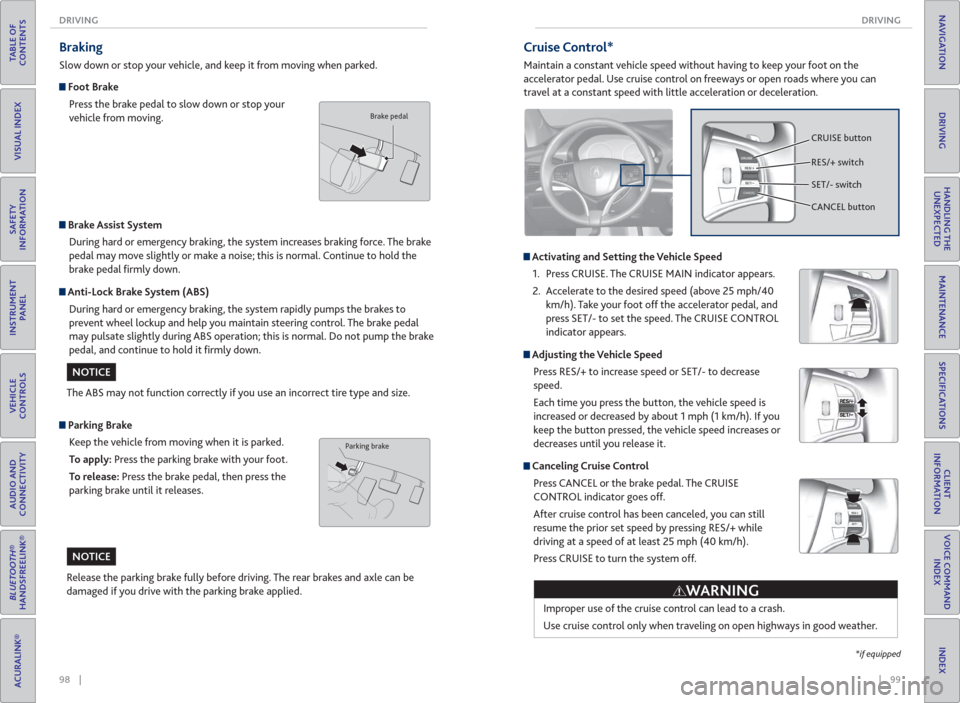
Press the brake pedal to slow down or stop your
vehicle from moving.
Parking Brake
Keep the vehicle from moving when it is parked.
To apply: Press the parking brake with your foot.
To release: Press the brake pedal, then press the
parking brake until it releases.
Brake Assist System
During hard or emergency braking, the system increases braking force. The brake
pedal may move slightly or make a noise; this is normal. Continue to hold the
brake pedal fi rmly down.
Anti-Lock Brake System ( ABS)
During hard or emergency braking, the system rapidly pumps the brakes to
prevent wheel lockup and help you maintain steering control. The brake pedal
may pulsate slightly during ABS operation; this is normal. Do not pump the brake
pedal, and continue to hold it fi rmly down.
The ABS may not function correctly if you use an incorrect tire type and size.
Release the parking brake fully before driving. The rear brakes and axle can be
damaged if you drive with the parking brake applied.
Brake pedal
Parking brake
NOTICE
NOTICE
Cruise Control*
Maintain a constant vehicle speed without having to keep your foot on the
accelerator pedal. Use cruise control on freeways or open roads where you can
travel at a constant speed with little acceleration or deceleration.
Activating and Setting the Vehicle Speed
1. Press CRUISE. The CRUISE MAIN indicator appears.
2. Accelerate to the desired speed (above 25 mph/40
km/h). Take your foot off the accelerator pedal, and
press SET/- to set the speed. The CRUISE CONTROL
indicator appears.
Adjusting the Vehicle Speed
Press RES/+ to increase speed or SET/- to decrease
speed.
Each time you press the button, the vehicle speed is
increased or decreased by about 1 mph (1 km/h). If you
keep the button pressed, the vehicle speed increases or
decreases until you release it.
Canceling Cruise Control
Press CANCEL or the brake pedal. The CRUISE
CONTROL indicator goes off.
After cruise control has been canceled, you can still
resume the prior set speed by pressing RES/+ while
driving at a speed of at least 25 mph (40 km/h).
Press CRUISE to turn the system off.
CRUISE button
RES/+ switch
SET/- switch
CANCEL button
Improper use of the cruise control can lead to a crash.
Use cruise control only when traveling on open highways in good weather.
WARNING
*if equipped
Page 57 of 84
106 || 107 DRIVING DRIVING
TABLE OF
CONTENTS
INDEX
VISUAL INDEX
VOICE COMMAND
INDEX
SAFETY
INFORMATION
CLIENT
INFORMATION
INSTRUMENT
PANEL
SPECIFICATIONS
VEHICLE
CONTROLS
MAINTENANCE
AUDIO AND
CONNECTIVITY
HANDLING THE
UNEXPECTED
BLUETOOTH®
HANDSFREELINK®
DRIVING
ACURALINK®
NAVIGATION
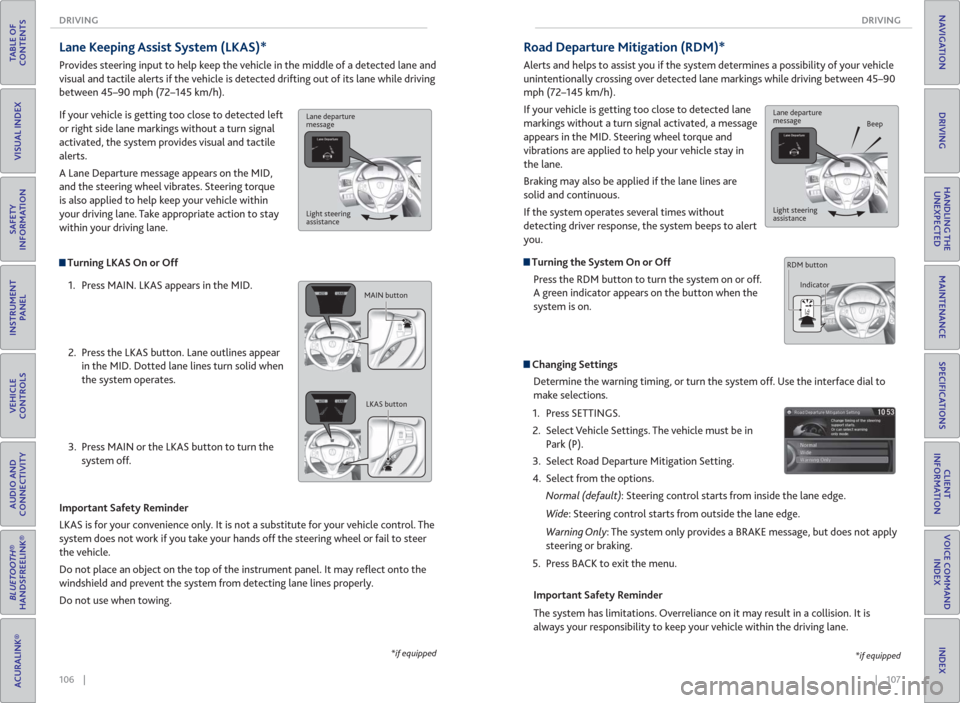
Turning LKAS On or Off
1. Press MAIN. LKAS appears in the MID.
2. Press the LKAS button. Lane outlines appear
in the MID. Dotted lane lines turn solid when
the system operates.
3. Press MAIN or the LKAS button to turn the
system off.
Lane Keeping Assist System ( LKAS)*
Provides steering input to help keep the vehicle in the middle of a detected lane and
visual and tactile alerts if the vehicle is detected drifting out of its lane while driving
between 45–90 mph (72–145 km/h).
If your vehicle is getting too close to detected left
or right side lane markings without a turn signal
activated, the system provides visual and tactile
alerts.
A Lane Departure message appears on the MID,
and the steering wheel vibrates. Steering torque
is also applied to help keep your vehicle within
your driving lane. Take appropriate action to stay
within your driving lane.
Important Safety Reminder
LKAS is for your convenience only. It is not a substitute for your vehicle control. The
system does not work if you take your hands off the steering wheel or fail to steer
the vehicle.
Do not place an object on the top of the instrument panel. It may refl ect onto the
windshield and prevent the system from detecting lane lines properly.
Do not use when towing.
*if equipped
Lane departure
message
Light steering
assistance
MAIN button
LKAS button
Road Departure Mitigation (RDM)*
Alerts and helps to assist you if the system determines a possibility of your vehicle
unintentionally crossing over detected lane markings while driving between 45–90
mph (72–145 km/h).
If your vehicle is getting too close to detected lane
markings without a turn signal activated, a message
appears in the MID. Steering wheel torque and
vibrations are applied to help your vehicle stay in
the lane.
Braking may also be applied if the lane lines are
solid and continuous.
If the system operates several times without
detecting driver response, the system beeps to alert
you.
Turning the System On or Off
Press the RDM button to turn the system on or off.
A green indicator appears on the button when the
system is on.
Steering vibrations
Changing Settings
Determine the warning timing, or turn the system off. Use the interface dial to
make selections.
1. Press SETTINGS.
2. Select Vehicle Settings. The vehicle must be in
Park (P).
3. Select Road Departure Mitigation Setting.
4. Select from the options.
Normal (default): Steering control starts from inside the lane edge.
Wide: Steering control starts from outside the lane edge.
Warning Only: The system only provides a BRAKE message, but does not apply
steering or braking.
5. Press BACK to exit the menu.
Important Safety Reminder
The system has limitations. Overreliance on it may result in a collision. It is
always your responsibility to keep your vehicle within the driving lane.
*if equipped
Lane departure
message
Beep
Light steering
assistance
Indicator RDM button
Page 58 of 84
108 || 109 DRIVING DRIVING
TABLE OF
CONTENTS
INDEX
VISUAL INDEX
VOICE COMMAND
INDEX
SAFETY
INFORMATION
CLIENT
INFORMATION
INSTRUMENT
PANEL
SPECIFICATIONS
VEHICLE
CONTROLS
MAINTENANCE
AUDIO AND
CONNECTIVITY
HANDLING THE
UNEXPECTED
BLUETOOTH®
HANDSFREELINK®
DRIVING
ACURALINK®
NAVIGATION
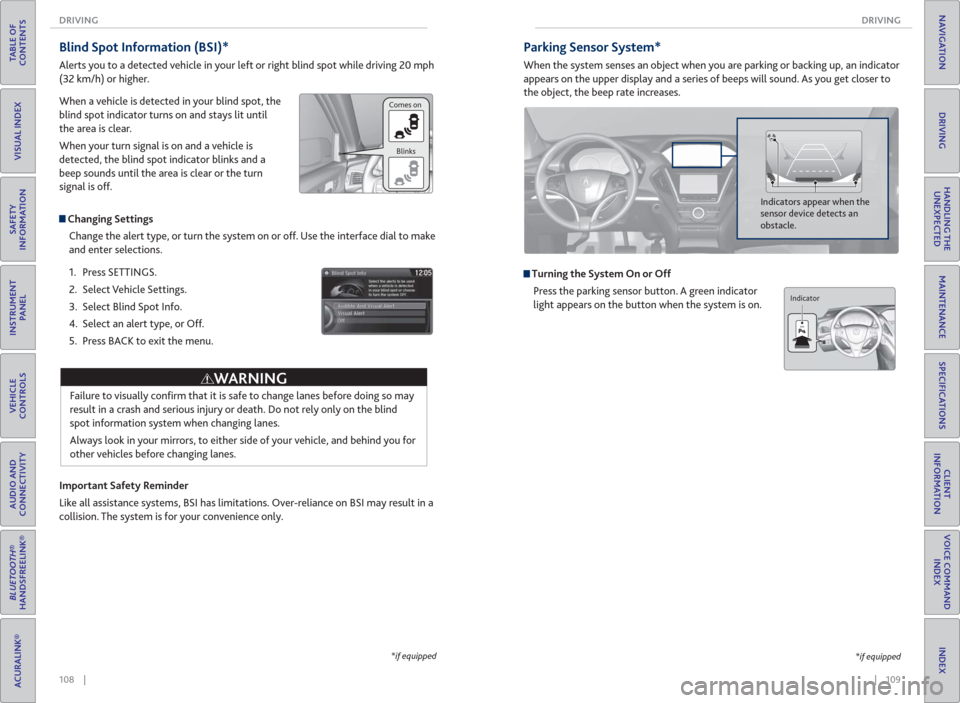
Blind Spot Information ( BSI)*
Alerts you to a detected vehicle in your left or right blind spot while driving 20 mph
(32 km/h) or higher.
When a vehicle is detected in your blind spot, the
blind spot indicator turns on and stays lit until
the area is clear.
When your turn signal is on and a vehicle is
detected, the blind spot indicator blinks and a
beep sounds until the area is clear or the turn
signal is off.
Changing Settings
Change the alert type, or turn the system on or off. Use the interface dial to make
and enter selections.
1. Press SETTINGS.
2. Select Vehicle Settings.
3. Select Blind Spot Info.
4. Select an alert type, or Off.
5. Press BACK to exit the menu.
Important Safety Reminder
Like all assistance systems, BSI has limitations. Over-reliance on BSI may result in a
collision. The system is for your convenience only.
Failure to visually confi rm that it is safe to change lanes before doing so may
result in a crash and serious injury or death. Do not rely only on the blind
spot information system when changing lanes.
Always look in your mirrors, to either side of your vehicle, and behind you for
other vehicles before changing lanes.
WARNING
*if equipped
Comes on
Blinks
Parking Sensor System*
When the system senses an object when you are parking or backing up, an indicator
appears on the upper display and a series of beeps will sound. As you get closer to
the object, the beep rate increases.
Turning the System On or Off
Press the parking sensor button. A green indicator
light appears on the button when the system is on.
Indicators appear when the
sensor device detects an
obstacle.
*if equipped
Indicator
Page 61 of 84
114 || 115 HANDLING THE UNEXPECTED DRIVING
TABLE OF
CONTENTS
INDEX
VISUAL INDEX
VOICE COMMAND
INDEX
SAFETY
INFORMATION
CLIENT
INFORMATION
INSTRUMENT
PANEL
SPECIFICATIONS
VEHICLE
CONTROLS
MAINTENANCE
AUDIO AND
CONNECTIVITY
HANDLING THE
UNEXPECTED
BLUETOOTH®
HANDSFREELINK®
DRIVING
ACURALINK®
NAVIGATION
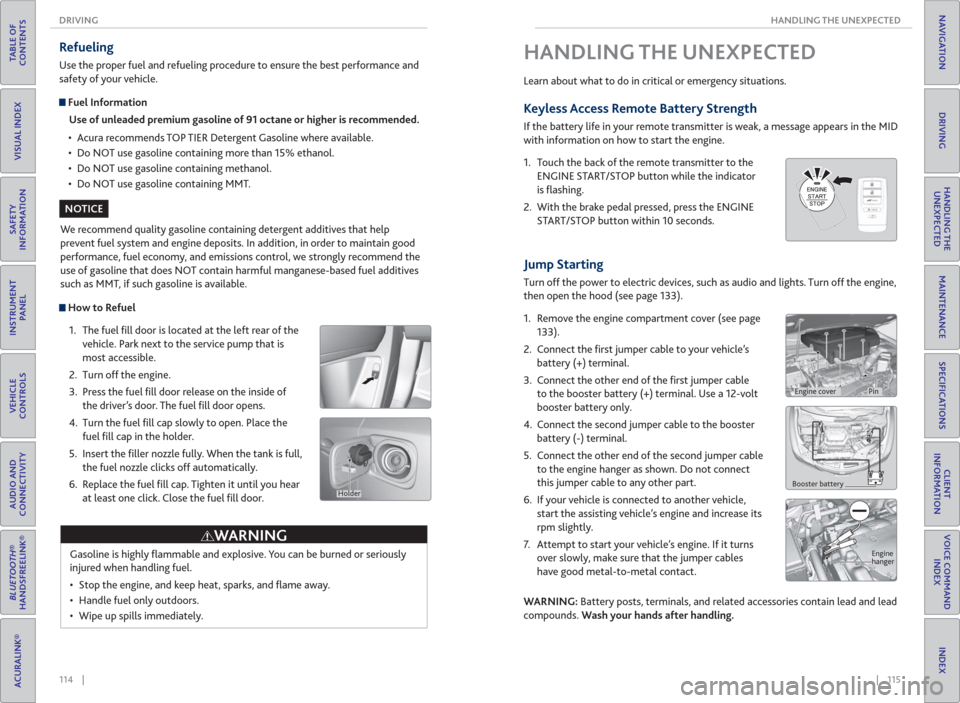
How to Refuel
1. The fuel fi ll door is located at the left rear of the
vehicle. Park next to the service pump that is
most accessible.
2. Turn off the engine.
3. Press the fuel fi ll door release on the inside of
the driver’s door. The fuel fi ll door opens.
4. Turn the fuel fi ll cap slowly to open. Place the
fuel fi ll cap in the holder.
5. Insert the fi ller nozzle fully. When the tank is full,
the fuel nozzle clicks off automatically.
6. Replace the fuel fi ll cap. Tighten it until you hear
at least one click. Close the fuel fi ll door.
Refueling
Use the proper fuel and refueling procedure to ensure the best performance and
safety of your vehicle.
Fuel Information
Use of unleaded premium gasoline of 91 octane or higher is recommended.
• Acura recommends TOP TIER Detergent Gasoline where available.
• Do NOT use gasoline containing more than 15% ethanol.
• Do NOT use gasoline containing methanol.
• Do NOT use gasoline containing MMT.
We recommend quality gasoline containing detergent additives that help
prevent fuel system and engine deposits. In addition, in order to maintain good
performance, fuel economy, and emissions control, we strongly recommend the
use of gasoline that does NOT contain harmful manganese-based fuel additives
such as MMT, if such gasoline is available.
Gasoline is highly fl ammable and explosive. You can be burned or seriously
injured when handling fuel.
• Stop the engine, and keep heat, sparks, and fl ame away.
• Handle fuel only outdoors.
• Wipe up spills immediately.
WARNING
NOTICE
Holder
Jump Starting
Turn off the power to electric devices, such as audio and lights. Turn off the engine,
then open the hood (see page 133).
1. Remove the engine compartment cover (see page
133).
2. Connect the fi rst jumper cable to your vehicle’s
battery (+) terminal.
3. Connect the other end of the fi rst jumper cable
to the booster battery (+) terminal. Use a 12-volt
booster battery only.
4. Connect the second jumper cable to the booster
battery (-) terminal.
5. Connect the other end of the second jumper cable
to the engine hanger as shown. Do not connect
this jumper cable to any other part.
6. If your vehicle is connected to another vehicle,
start the assisting vehicle’s engine and increase its
rpm slightly.
7. Attempt to start your vehicle’s engine. If it turns
over slowly, make sure that the jumper cables
have good metal-to-metal contact.
WARNING: Battery posts, terminals, and related accessories contain lead and lead
compounds. Wash your hands after handling.
HANDLING THE UNEXPECTED
Learn about what to do in critical or emergency situations.
Keyless Access Remote Battery Strength
If the battery life in your remote transmitter is weak, a message appears in the MID
with information on how to start the engine.
1. Touch the back of the remote transmitter to the
ENGINE START/STOP button while the indicator
is fl ashing.
2. With the brake pedal pressed, press the ENGINE
START/STOP button within 10 seconds.
Booster battery
Engine
hanger
Engine coverPin
Page 62 of 84
116 || 117 HANDLING THE UNEXPECTED HANDLING THE UNEXPECTED
TABLE OF
CONTENTS
INDEX
VISUAL INDEX
VOICE COMMAND
INDEX
SAFETY
INFORMATION
CLIENT
INFORMATION
INSTRUMENT
PANEL
SPECIFICATIONS
VEHICLE
CONTROLS
MAINTENANCE
AUDIO AND
CONNECTIVITY
HANDLING THE
UNEXPECTED
BLUETOOTH®
HANDSFREELINK®
DRIVING
ACURALINK®
NAVIGATION
A battery can explode if you do not follow the correct procedure, seriously
injuring anyone nearby.
Keep all sparks, open fl ames, and smoking materials away from the battery.
After the Engine Starts
Once your vehicle’s engine has started, remove the jumper cables in the following
order:
1. Disconnect the jumper cable from your vehicle’s ground.
2. Disconnect the other end of the jumper cable from the booster battery (-)
terminal.
3. Disconnect the jumper cable from your vehicle’s battery (+) terminal.
4. Disconnect the other end of the jumper cable from the booster battery (+)
terminal.
5. Have your vehicle inspected by a nearby service station or a dealer.
WARNING
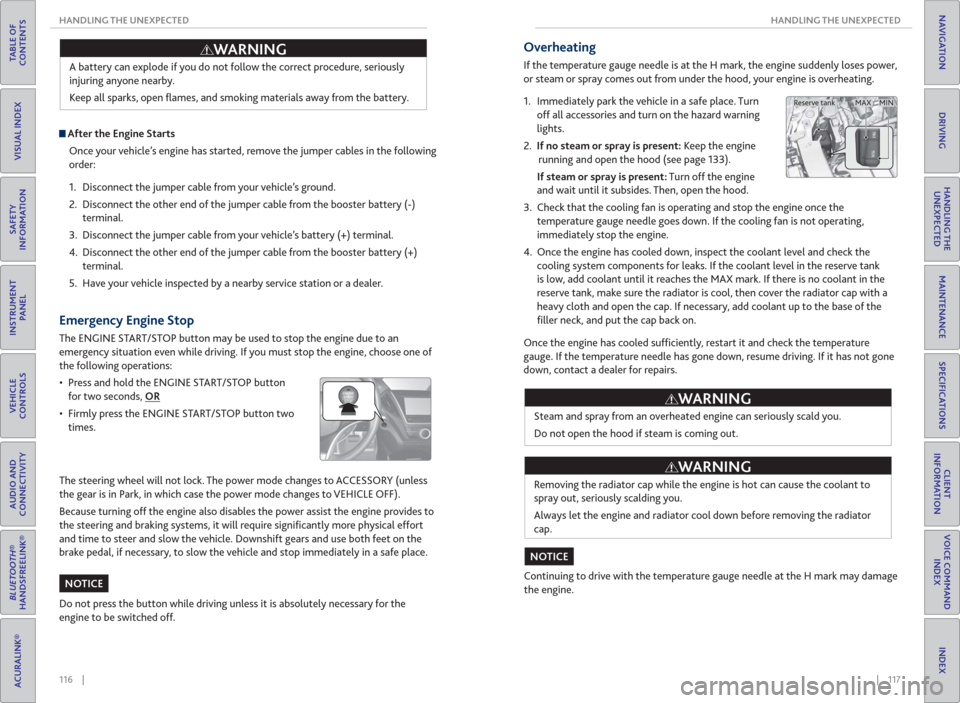
Emergency Engine Stop
The ENGINE START/STOP button may be used to stop the engine due to an
emergency situation even while driving. If you must stop the engine, choose one of
the following operations:
• Press and hold the ENGINE START/STOP button
for two seconds, OR
• Firmly press the ENGINE START/STOP button two
times.
The steering wheel will not lock. The power mode changes to ACCESSORY (unless
the gear is in Park, in which case the power mode changes to VEHICLE OFF).
Because turning off the engine also disables the power assist the engine provides to
the steering and braking systems, it will require signifi cantly more physical effort
and time to steer and slow the vehicle. Downshift gears and use both feet on the
brake pedal, if necessary, to slow the vehicle and stop immediately in a safe place.
Do not press the button while driving unless it is absolutely necessary for the
engine to be switched off.
NOTICE
Overheating
If the temperature gauge needle is at the H mark, the engine suddenly loses power,
or steam or spray comes out from under the hood, your engine is overheating.
1. Immediately park the vehicle in a safe place. Turn
off all accessories and turn on the hazard warning
lights.
2. If no steam or spray is present: Keep the engine
running and open the hood (see page 133).
If steam or spray is present: Turn off the engine
and wait until it subsides. Then, open the hood.
3. Check that the cooling fan is operating and stop the engine once the
temperature gauge needle goes down. If the cooling fan is not operating,
immediately stop the engine.
4. Once the engine has cooled down, inspect the coolant level and check the
cooling system components for leaks. If the coolant level in the reserve tank
is low, add coolant until it reaches the MAX mark. If there is no coolant in the
reserve tank, make sure the radiator is cool, then cover the radiator cap with a
heavy cloth and open the cap. If necessary, add coolant up to the base of the
fi ller neck, and put the cap back on.
Once the engine has cooled suffi ciently, restart it and check the temperature
gauge. If the temperature needle has gone down, resume driving. If it has not gone
down, contact a dealer for repairs.
Steam and spray from an overheated engine can seriously scald you.
Do not open the hood if steam is coming out.
Removing the radiator cap while the engine is hot can cause the coolant to
spray out, seriously scalding you.
Always let the engine and radiator cool down before removing the radiator
cap.
Continuing to drive with the temperature gauge needle at the H mark may damage
the engine.
WARNING
WARNING
NOTICE
MAX MIN Reserve tank
Page 79 of 84
150 || 151 VOICE COMMAND INDEX CLIENT INFORMATION
TABLE OF
CONTENTS
INDEX
VISUAL INDEX
VOICE COMMAND
INDEX
SAFETY
INFORMATION
CLIENT
INFORMATION
INSTRUMENT
PANEL
SPECIFICATIONS
VEHICLE
CONTROLS
MAINTENANCE
AUDIO AND
CONNECTIVITY
HANDLING THE
UNEXPECTED
BLUETOOTH®
HANDSFREELINK®
DRIVING
ACURALINK®
NAVIGATION
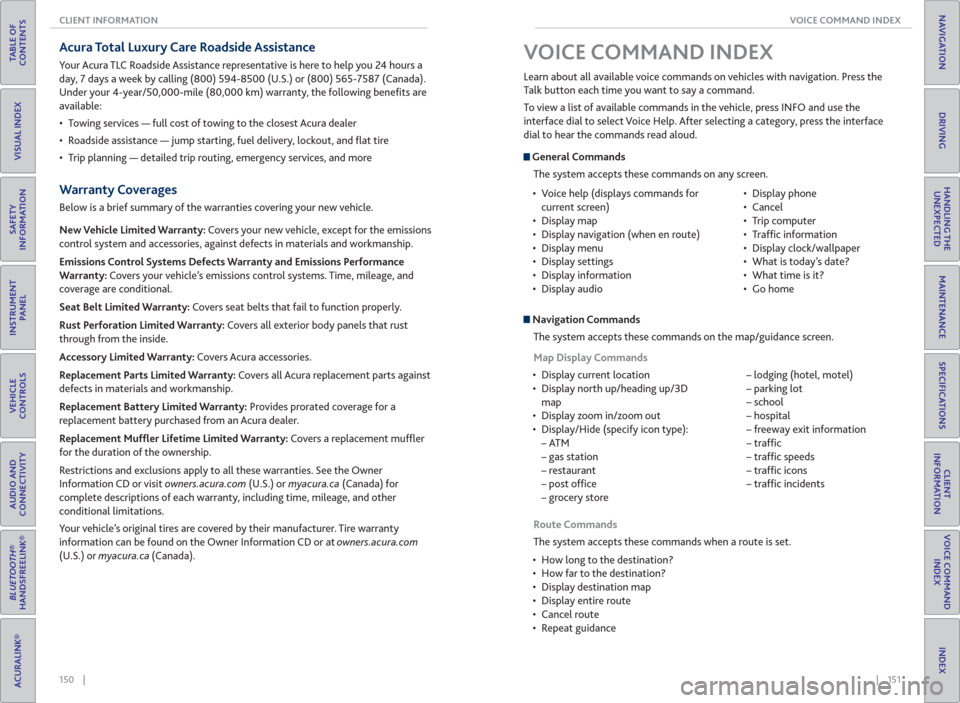
Acura Total Luxury Care Roadside Assistance
Your Acura TLC Roadside Assistance representative is here to help you 24 hours a
day, 7 days a week by calling (800) 594-8500 (U.S.) or (800) 565-7587 (Canada).
Under your 4-year/50,000-mile (80,000 km) warranty, the following benefi ts are
available:
• Towing services — full cost of towing to the closest Acura dealer
• Roadside assistance — jump starting, fuel delivery, lockout, and fl at tire
• Trip planning — detailed trip routing, emergency services, and more
Warranty Coverages
Below is a brief summary of the warranties covering your new vehicle.
New Vehicle Limited Warranty: Covers your new vehicle, except for the emissions
control system and accessories, against defects in materials and workmanship.
Emissions Control Systems Defects Warranty and Emissions Performance
Warranty: Covers your vehicle’s emissions control systems. Time, mileage, and
coverage are conditional.
Seat Belt Limited Warranty: Covers seat belts that fail to function properly.
Rust Perforation Limited Warranty: Covers all exterior body panels that rust
through from the inside.
Accessory Limited Warranty: Covers Acura accessories.
Replacement Parts Limited Warranty: Covers all Acura replacement parts against
defects in materials and workmanship.
Replacement Battery Limited Warranty: Provides prorated coverage for a
replacement battery purchased from an Acura dealer.
Replacement Muf er Lifetime Limited Warranty: Covers a replacement muffl er
for the duration of the ownership.
Restrictions and exclusions apply to all these warranties. See the Owner
Information CD or visit owners.acura.com (U.S.) or myacura.ca (Canada) for
complete descriptions of each warranty, including time, mileage, and other
conditional limitations.
Your vehicle’s original tires are covered by their manufacturer. Tire warranty
information can be found on the Owner Information CD or at owners.acura.com
(U.S.) or myacura.ca (Canada).
General Commands
The system accepts these commands on any screen.
Navigation Commands
The system accepts these commands on the map/guidance screen.
Map Display Commands
• Display current location
• Display north up/heading up/3D
map
• Display zoom in/zoom out
• Display/Hide (specify icon type):
–ATM
– gas station
– restaurant
– post offi ce
– grocery store – lodging (hotel, motel)
– parking lot
– school
– hospital
– freeway exit information
– traffi c
– traffi c speeds
– traffi c icons
– traffi c incidents Learn about all available voice commands on vehicles with navigation. Press the
Talk button each time you want to say a command.
To view a list of available commands in the vehicle, press INFO and use the
interface dial to select Voice Help. After selecting a category, press the interface
dial to hear the commands read aloud.
VOICE COMMAND INDEX
• Voice help (displays commands for
current screen)
• Display map
• Display navigation (when en route)
• Display menu
• Display settings
• Display information
• Display audio• Display phone
• Cancel
• Trip computer
• Traffi c information
• Display clock/wallpaper
• What is today’s date?
• What time is it?
• Go home
Route Commands
The system accepts these commands when a route is set.
• How long to the destination?
• How far to the destination?
• Display destination map
• Display entire route
• Cancel route
• Repeat guidance
Page 80 of 84
152 || 153 VOICE COMMAND INDEX VOICE COMMAND INDEX
TABLE OF
CONTENTS
INDEX
VISUAL INDEX
VOICE COMMAND
INDEX
SAFETY
INFORMATION
CLIENT
INFORMATION
INSTRUMENT
PANEL
SPECIFICATIONS
VEHICLE
CONTROLS
MAINTENANCE
AUDIO AND
CONNECTIVITY
HANDLING THE
UNEXPECTED
BLUETOOTH®
HANDSFREELINK®
DRIVING
ACURALINK®
NAVIGATION
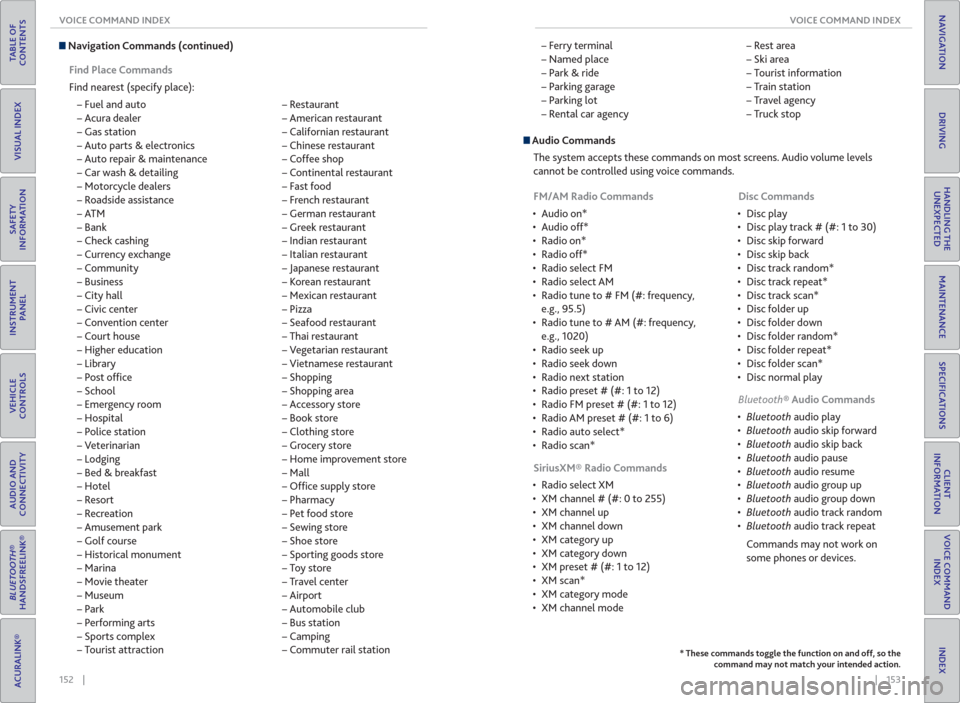
Navigation Commands (continued)
Find Place Commands
Find nearest (specify place):
– Fuel and auto
– Acura dealer
– Gas station
– Auto parts & electronics
– Auto repair & maintenance
– Car wash & detailing
– Motorcycle dealers
– Roadside assistance
–ATM
– Bank
– Check cashing
– Currency exchange
– Community
– Business
– City hall
– Civic center
– Convention center
– Court house
– Higher education
– Library
– Post offi ce
– School
– Emergency room
– Hospital
– Police station
– Veterinarian
– Lodging
– Bed & breakfast
– Hotel
– Resort
– Recreation
– Amusement park
– Golf course
– Historical monument
– Marina
– Movie theater
– Museum
– Park
– Performing arts
– Sports complex
– Tourist attraction – Restaurant
– American restaurant
– Californian restaurant
– Chinese restaurant
– Coffee shop
– Continental restaurant
– Fast food
– French restaurant
– German restaurant
– Greek restaurant
– Indian restaurant
– Italian restaurant
– Japanese restaurant
– Korean restaurant
– Mexican restaurant
– Pizza
– Seafood restaurant
– Thai restaurant
– Vegetarian restaurant
– Vietnamese restaurant
– Shopping
– Shopping area
– Accessory store
– Book store
– Clothing store
– Grocery store
– Home improvement store
– Mall
– Offi ce supply store
– Pharmacy
– Pet food store
– Sewing store
– Shoe store
– Sporting goods store
– Toy store
– Travel center
– Airport
– Automobile club
– Bus station
– Camping
– Commuter rail station – Ferry terminal
– Named place
– Park & ride
– Parking garage
– Parking lot
– Rental car agency – Rest area
– Ski area
– Tourist information
– Train station
– Travel agency
– Truck stop
* These commands toggle the function on and off, so the
command may not match your intended action.
Audio Commands
The system accepts these commands on most screens. Audio volume levels
cannot be controlled using voice commands.
FM/AM Radio Commands
• Audio on*
• Audio off*
• Radio on*
• Radio off*
• Radio select FM
• Radio select AM
• Radio tune to # FM (#: frequency,
e.g., 95.5)
• Radio tune to # AM (#: frequency,
e.g., 1020)
• Radio seek up
• Radio seek down
• Radio next station
• Radio preset # (#: 1 to 12)
• Radio FM preset # (#: 1 to 12)
• Radio AM preset # (#: 1 to 6)
• Radio auto select*
• Radio scan*
SiriusXM® Radio Commands
• Radio select XM
• XM channel # (#: 0 to 255)
• XM channel up
• XM channel down
• XM category up
• XM category down
• XM preset # (#: 1 to 12)
• XM scan*
• XM category mode
• XM channel mode Disc Commands
• Disc play
• Disc play track # (#: 1 to 30)
• Disc skip forward
• Disc skip back
• Disc track random*
• Disc track repeat*
• Disc track scan*
• Disc folder up
• Disc folder down
• Disc folder random*
• Disc folder repeat*
• Disc folder scan*
• Disc normal play
Bluetooth® Audio Commands
audio play
audio skip forward
audio skip back
audio pause
audio resume
audio group up
audio group down
audio track random
audio track repeat
Commands may not work on
some phones or devices.