Phone Acura MDX 2016 User Guide
[x] Cancel search | Manufacturer: ACURA, Model Year: 2016, Model line: MDX, Model: Acura MDX 2016Pages: 557, PDF Size: 31.09 MB
Page 226 of 557
225
uuAudio System Basic Operation uAudio/Information Screen
Continued
Features
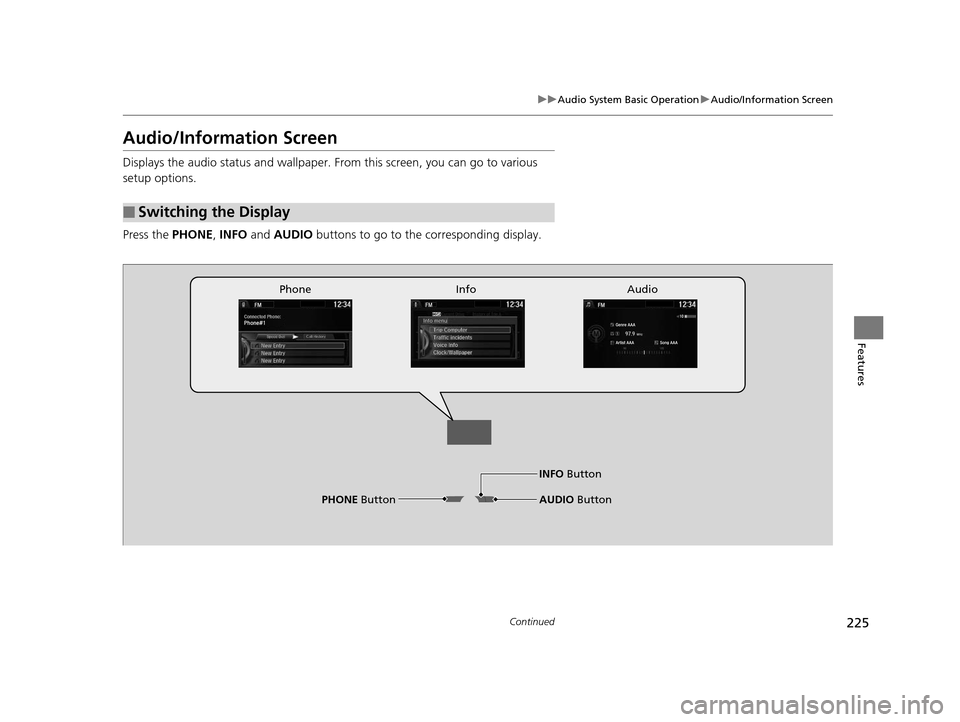
Audio/Information Screen
Displays the audio status and wallpaper. From this screen, you can go to various
setup options.
Press the PHONE, INFO and AUDIO buttons to go to the corresponding display.
■Switching the Display
Audio
Info
Phone
AUDIO ButtonPHONE Button
INFO Button
16 ACURA MDX-31TZ56200.book 225 ページ 2015年3月4日 水曜日 午後2時59分
Page 227 of 557
226
uuAudio System Basic Operation uAudio/Information Screen
Features
■Audio
Shows the current audio information.
■Phone
Shows the HFL information.
2 Bluetooth ® HandsFreeLink® P. 284
■Info
Shows the Trip Computer or Clock/Wallpaper and other information. Rotate
to select an item, then press .
■Trip computer (Current Drive)
Shows the range, and instant and average fu el economy of the current trip, as well
as the average fuel economy from your last trip.
■Trip computer (History of Trip A)
Shows the range, average fuel economy an d distances traveled for the current trip,
as well as the average fuel economy and distances traveled during the last three
driving cycles.
Each time you reset the trip meter A, the information on the display updates. The
history of the previous th ree driving cycles is kept.
■Deleting the history manually
1. Move on the History of Trip A screen to select Delete History, then press .
2. A confirmation message appears on the screen. Rotate to select Yes, then
press .
■Clock/Wallpaper
Shows a clock screen or an image you import.
16 ACURA MDX-31TZ56200.book 226 ページ 2015年3月4日 水曜日 午後2時59分
Page 246 of 557
245
uuAudio System Basic Operation uPlaying Internet Radio
Continued
Features
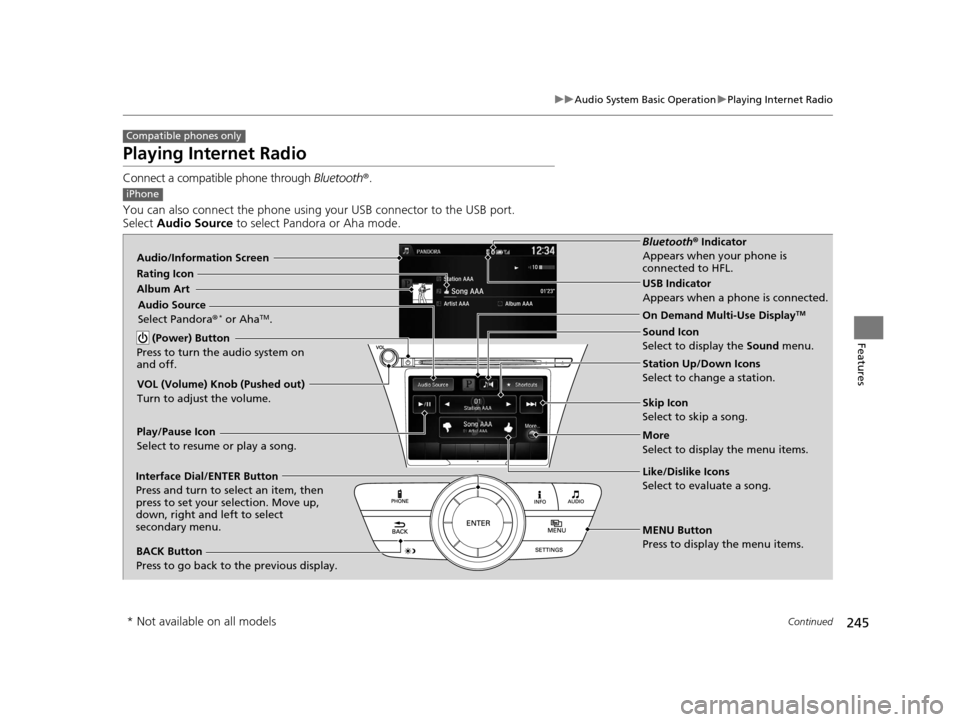
Playing Internet Radio
Connect a compatible phone through Bluetooth®.
You can also connect the phone using your USB connector to the USB port.
Select Audio Source to select Pandora or Aha mode.
Compatible phones only
iPhone
Audio/Information Screen
Album ArtUSB Indicator
Appears when a phone is connected.Rating Icon
BACK Button
Press to go back to the previous display.
Skip Icon
Select to skip a song.
More
Select to display the menu items. Station Up/Down Icons
Select to change a station.
Audio Source
Select Pandora
®
* or AhaTM.
Play/Pause Icon
Select to resume or play a song.
Like/Dislike Icons
Select to evaluate a song.
(Power) Button
Press to turn the audio system on
and off.Interface Dial/ENTER Button
Press and turn to select an item, then
press to set your selection. Move up,
down, right and left to select
secondary menu.
On Demand Multi-Use DisplayTM
VOL (Volume) Knob (Pushed out)
Turn to adjust the volume.
Bluetooth ® Indicator
Appears when your phone is
connected to HFL.
MENU Button
Press to display the menu items. Sound Icon
Select to display the Sound menu.
* Not available on all models
16 ACURA MDX-31TZ56200.book 245 ページ 2015年3月4日 水曜日 午後2時59分
Page 247 of 557
uuAudio System Basic Operation uPlaying Internet Radio
246
Features
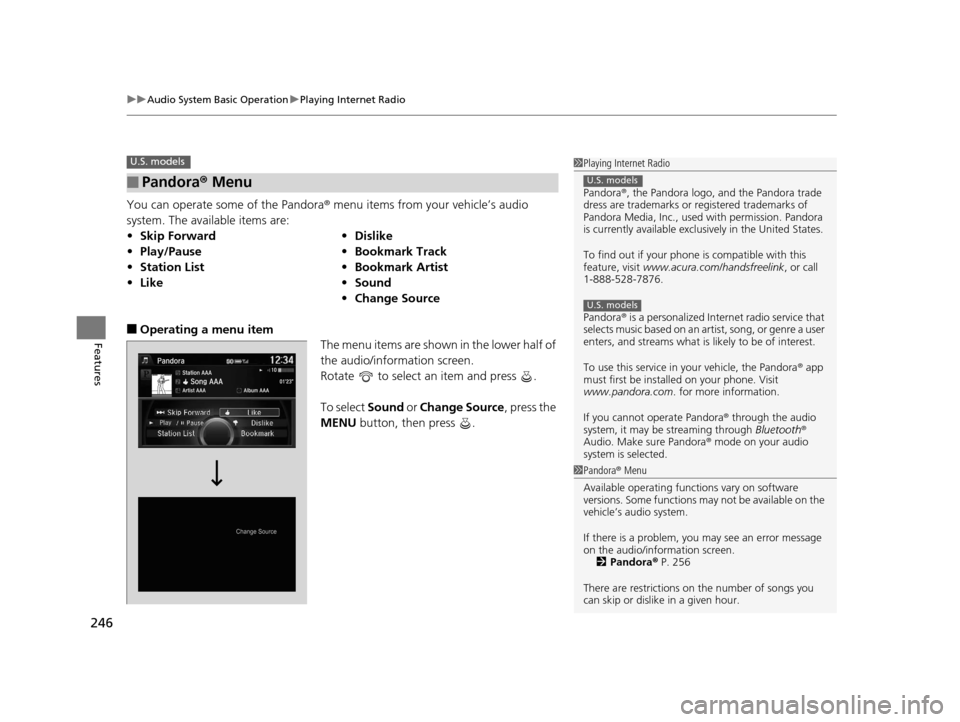
You can operate some of the Pandora® menu items from your vehicle’s audio
system. The available items are:
■Operating a menu item The menu items are shown in the lower half of
the audio/information screen.
Rotate to select an item and press .
To select Sound or Change Source , press the
MENU button, then press .
■Pandora® Menu
•Skip Forward •Dislike
• Play/Pause •Bookmark Track
• Station List •Bookmark Artist
• Like •Sound
• Change Source
U.S. models1Playing Internet Radio
Pandora ®, the Pandora logo, and the Pandora trade
dress are trademarks or registered trademarks of
Pandora Media, Inc., used with permission. Pandora
is currently available exclusively in the United States.
To find out if your phone is compatible with this
feature, visit www.acura.com/handsfreelink , or call
1-888-528-7876.
Pandora ® is a personalized Internet radio service that
selects music based on an artist, song, or genre a user
enters, and streams what is likely to be of interest.
To use this service in your vehicle, the Pandora ® app
must first be installed on your phone. Visit
www.pandora.com . for more information.
If you cannot operate Pandora ® through the audio
system, it may be streaming through Bluetooth®
Audio. Make sure Pandora ® mode on your audio
system is selected.
U.S. models
U.S. models
1 Pandora ® Menu
Available operating functi ons vary on software
versions. Some functions ma y not be available on the
vehicle’s audio system.
If there is a problem, you may see an error message
on the audio/information screen. 2 Pandora ® P. 256
There are restrictions on the number of songs you
can skip or dislike in a given hour.
16 ACURA MDX-31TZ56200.book 246 ページ 2015年3月4日 水曜日 午後2時59分
Page 248 of 557
247
uuAudio System Basic Operation uPlaying Internet Radio
Features
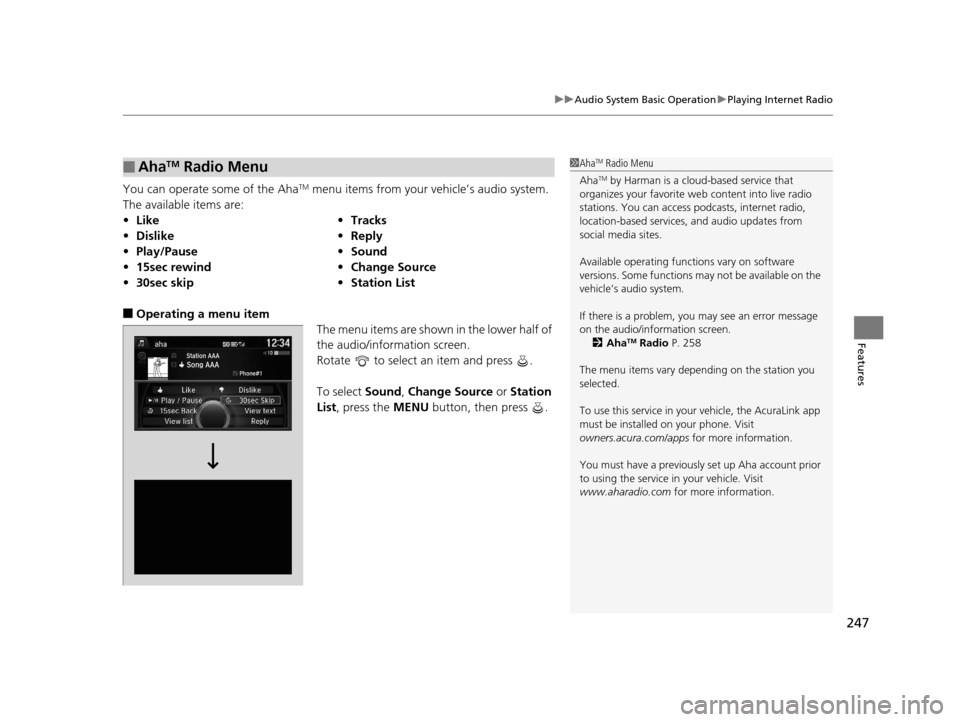
You can operate some of the AhaTM menu items from your vehicle’s audio system.
The available items are:
■Operating a menu item The menu items are shown in the lower half of
the audio/information screen.
Rotate to select an item and press .
To select Sound, Change Source or Station
List , press the MENU button, then press .
■AhaTM Radio Menu
•Like •Tracks
• Dislike •Reply
• Play/Pause •Sound
• 15sec rewind •Change Source
• 30sec skip •Station List
1AhaTM Radio Menu
Aha
TM by Harman is a clou d-based service that
organizes your favorite we b content into live radio
stations. You can access podcasts, internet radio,
location-based services , and audio updates from
social media sites.
Available operating functi ons vary on software
versions. Some functions ma y not be available on the
vehicle’s audio system.
If there is a problem, you may see an error message
on the audio/information screen. 2 Aha
TM Radio P. 258
The menu items vary depending on the station you
selected.
To use this service in your vehicle, the AcuraLink app
must be installed on your phone. Visit
owners.acura.com/apps for more information.
You must have a previously set up Aha account prior
to using the service in your vehicle. Visit
www.aharadio.com for more information.
16 ACURA MDX-31TZ56200.book 247 ページ 2015年3月4日 水曜日 午後2時59分
Page 252 of 557
251
uuAudio System Basic Operation uPlaying Bluetooth ® Audio
Continued
Features
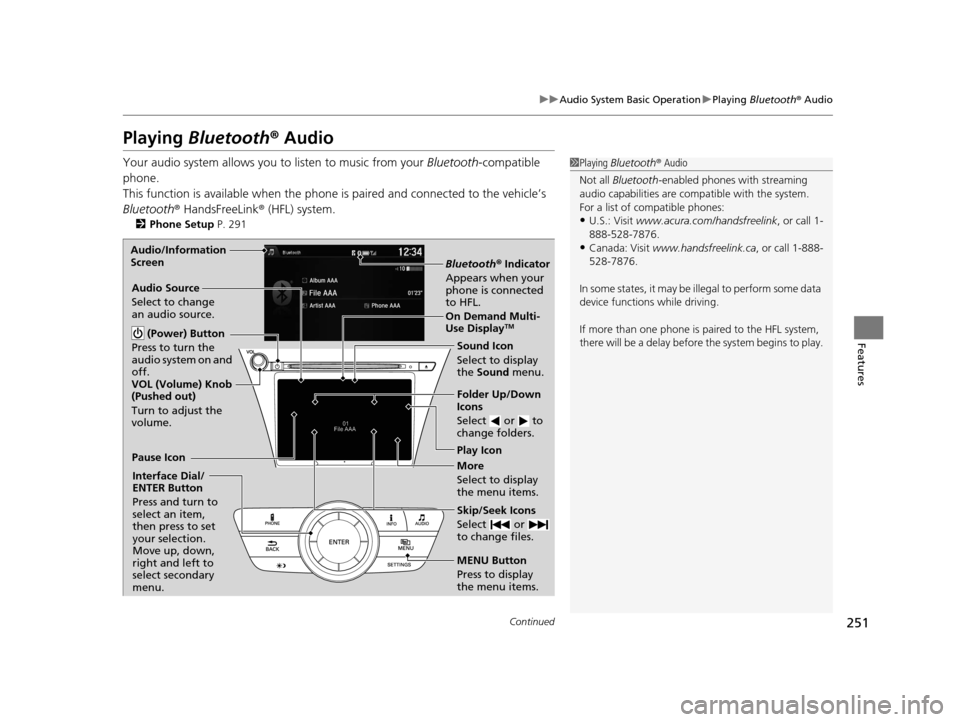
Playing Bluetooth ® Audio
Your audio system allows you to listen to music from your Bluetooth-compatible
phone.
This function is available when the phone is paired an d connected to the vehicle’s
Bluetooth ® HandsFreeLink ® (HFL) system.
2Phone Setup P. 291
1Playing Bluetooth ® Audio
Not all Bluetooth -enabled phones with streaming
audio capabilities are compatible with the system.
For a list of compatible phones:
•U.S.: Visit www.acura.com/handsfreelink , or call 1-
888-528-7876.
•Canada: Visit www.handsfreelink.ca , or call 1-888-
528-7876.
In some states, it may be il legal to perform some data
device functions while driving.
If more than one phone is paired to the HFL system,
there will be a delay before the system begins to play.
Bluetooth® Indicator
Appears when your
phone is connected
to HFL.
Play Icon
Pause Icon
More
Select to display
the menu items.
Audio Source
Select to change
an audio source.
(Power) Button
Press to turn the
audio system on and
off.
Interface Dial/
ENTER Button
Press and turn to
select an item,
then press to set
your selection.
Move up, down,
right and left to
select secondary
menu.
Skip/Seek Icons
Select or
to change files.
MENU Button
Press to display
the menu items. Folder Up/Down
Icons
Select or to
change folders.
On Demand Multi-
Use DisplayTM
VOL (Volume) Knob
(Pushed out)
Turn to adjust the
volume.
Audio/Information
Screen
Sound Icon
Select to display
the Sound
menu.
16 ACURA MDX-31TZ56200.book 251 ページ 2015年3月4日 水曜日 午後2時59分
Page 253 of 557
uuAudio System Basic Operation uPlaying Bluetooth ® Audio
252
Features
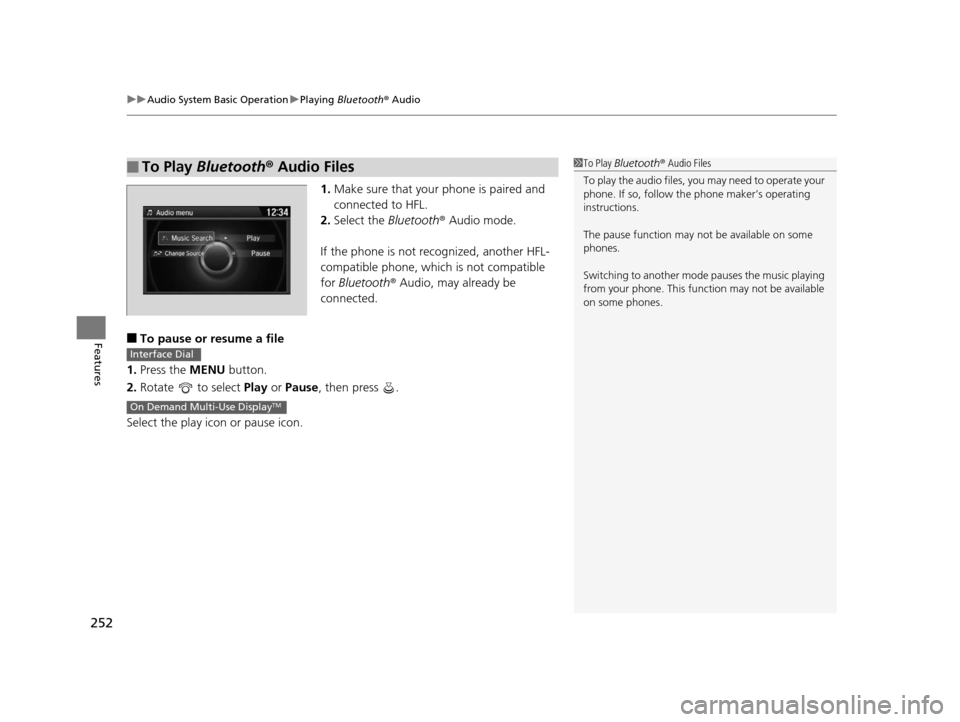
1. Make sure that your phone is paired and
connected to HFL.
2. Select the Bluetooth® Audio mode.
If the phone is not recognized, another HFL-
compatible phone, which is not compatible
for Bluetooth ® Audio, may already be
connected.
■To pause or resume a file
1. Press the MENU button.
2. Rotate to select Play or Pause , then press .
Select the play icon or pause icon.
■To Play Bluetooth® Audio Files1To Play Bluetooth ® Audio Files
To play the audio files, y ou may need to operate your
phone. If so, follow the phone maker’s operating
instructions.
The pause function may no t be available on some
phones.
Switching to another mode pauses the music playing
from your phone. This functi on may not be available
on some phones.
Interface Dial
On Demand Multi-Use DisplayTM
16 ACURA MDX-31TZ56200.book 252 ページ 2015年3月4日 水曜日 午後2時59分
Page 254 of 557
253
uuAudio System Basic Operation uSiri Eyes Free
Features
Siri Eyes Free
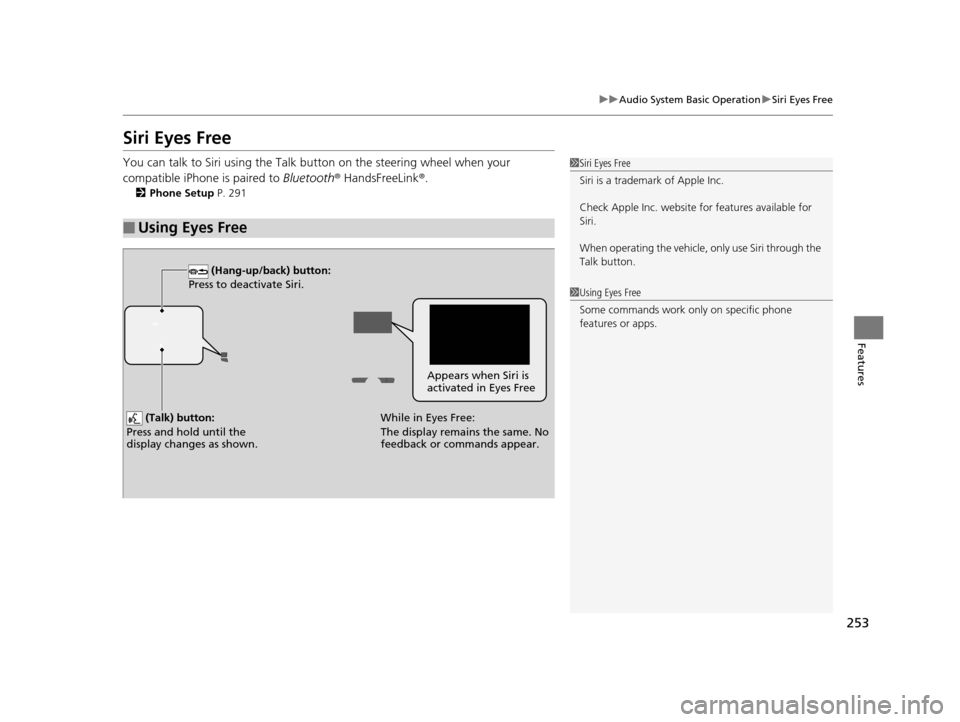
You can talk to Siri using the Talk bu tton on the steering wheel when your
compatible iPhone is paired to Bluetooth ® HandsFreeLink®.
2Phone Setup P. 291
■Using Eyes Free
1Siri Eyes Free
Siri is a trademark of Apple Inc.
Check Apple Inc. website for features available for
Siri.
When operating the vehicle, only use Siri through the
Talk button.
1 Using Eyes Free
Some commands work only on specific phone
features or apps.
Appears when Siri is
activated in Eyes Free
While in Eyes Free:
The display remains the same. No
feedback or commands appear.
(Talk) button:
Press and hold until the
display changes as shown.
(Hang-up/back) button:
Press to deactivate Siri.
16 ACURA MDX-31TZ56200.book 253 ページ 2015年3月4日 水曜日 午後2時59分
Page 263 of 557
262
uuGeneral Information on the Audio System uCompatible iPod, iPhone, and USB Flash Drives
Features
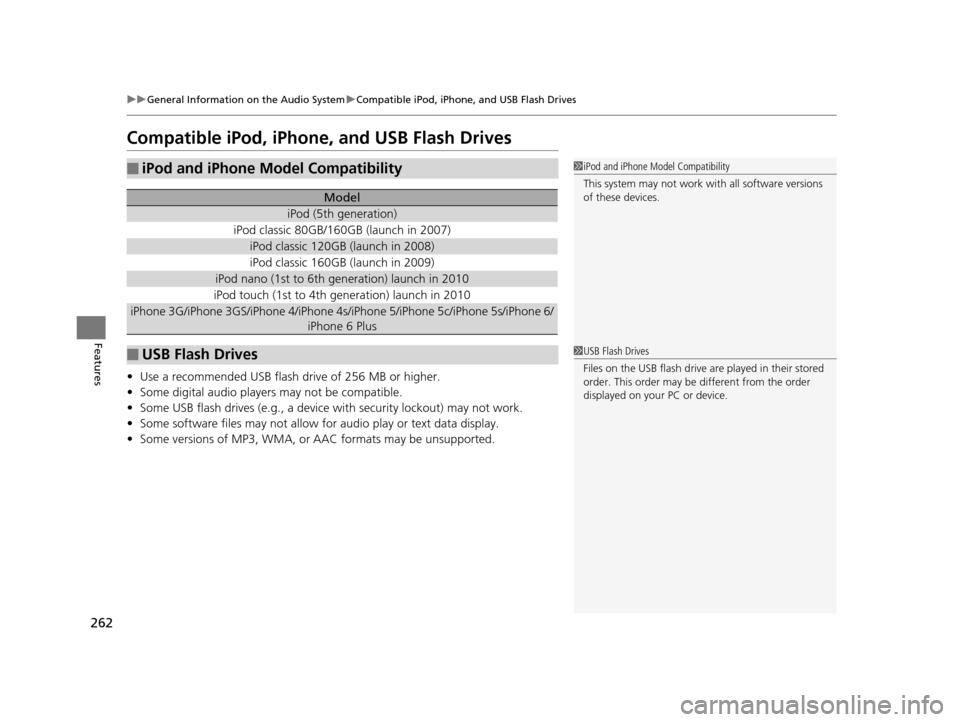
Compatible iPod, iPhone, and USB Flash Drives
• Use a recommended USB flash drive of 256 MB or higher.
• Some digital audio players may not be compatible.
• Some USB flash drives (e.g., a device with security lockout) may not work.
• Some software files may not allow for audio play or text data display.
• Some versions of MP3, WMA, or AAC formats may be unsupported.
■iPod and iPhone Model Compatibility
Model
iPod (5th generation)
iPod classic 80GB/160GB (launch in 2007)
iPod classic 120GB (launch in 2008)
iPod classic 160GB (launch in 2009)
iPod nano (1st to 6th generation) launch in 2010
iPod touch (1st to 4th generation) launch in 2010
iPhone 3G/iPhone 3GS/iPhone 4/iPhone 4s /iPhone 5/iPhone 5c/iPhone 5s/iPhone 6/
iPhone 6 Plus
■USB Flash Drives
1 iPod and iPhone Model Compatibility
This system may not work with all software versions
of these devices.
1USB Flash Drives
Files on the USB flash drive are played in their stored
order. This order may be different from the order
displayed on your PC or device.
16 ACURA MDX-31TZ56200.book 262 ページ 2015年3月4日 水曜日 午後2時59分
Page 268 of 557
267
uuCustomized Features u
Continued
Features
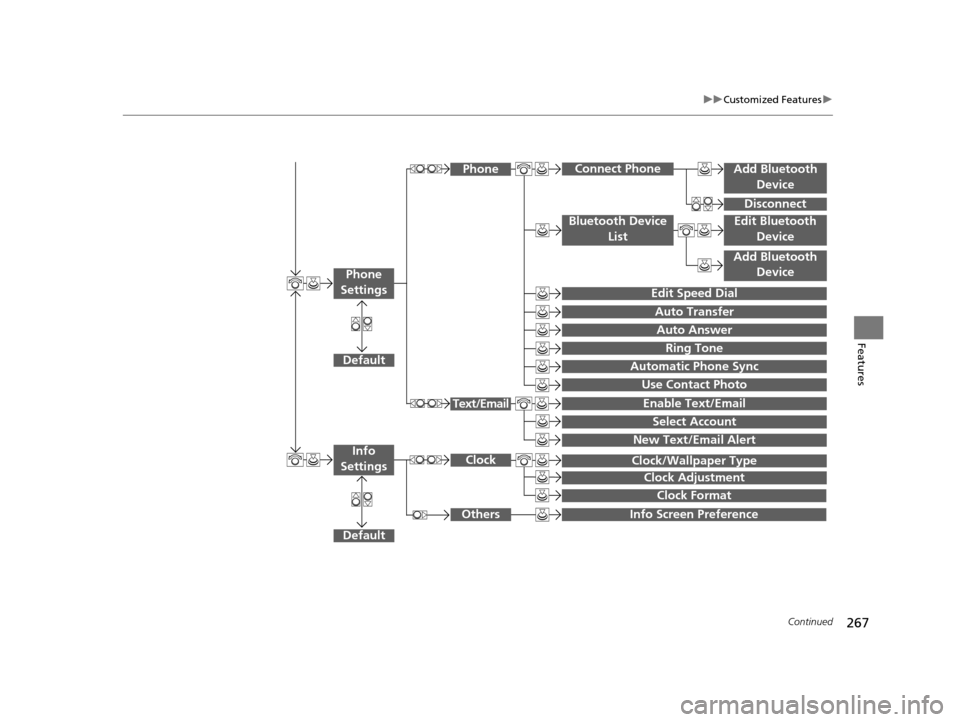
Add Bluetooth
Device
Disconnect
Default
PhoneConnect Phone
Edit Bluetooth Device
Add Bluetooth Device
Bluetooth Device
List
Edit Speed Dial
Auto Transfer
Auto Answer
Ring Tone
Automatic Phone Sync
Use Contact Photo
Enable Text/Email
Select Account
New Text/Email Alert
Text/Email
Phone
Settings
Info Screen Preference
Clock Format
Clock/Wallpaper Type
Clock Adjustment
Clock
Default
Info
Settings
Others
16 ACURA MDX-31TZ56200.book 267 ページ 2015年3月4日 水曜日 午後2時59分