navigation Acura MDX 2017 Navigation Manual
[x] Cancel search | Manufacturer: ACURA, Model Year: 2017, Model line: MDX, Model: Acura MDX 2017Pages: 369, PDF Size: 29.59 MB
Page 51 of 369
50
Personal InformationCategory History
System Setup
Category History
HSETTINGS button Navi Settings Personal Info Category History
The navigation system maintains a list of yo ur recently used place categories as a
shortcut for selecting the same categories in the future. You can delete some or all
of your recently used categories from the list.
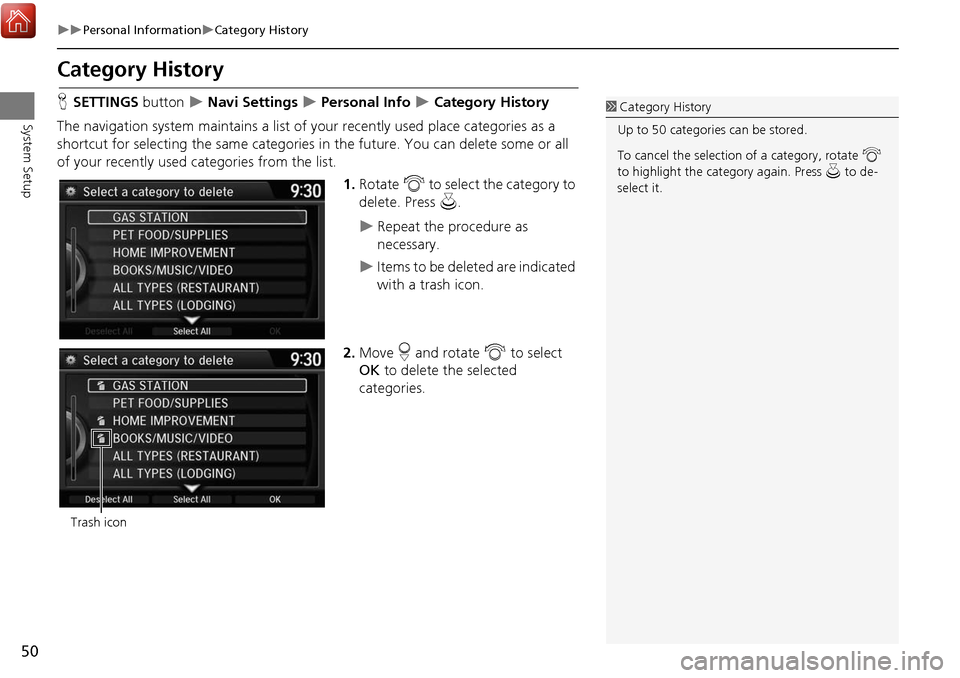
1.Rotate i to select the category to
delete. Press u.
Repeat the procedure as
necessary.
Items to be deleted are indicated
with a trash icon.
2. Move r and rotate i to select
OK to delete the selected
categories.
1 Category History
Up to 50 categories can be stored.
To cancel the selection of a category, rotate i
to highlight the ca tegory again. Press u to de-
select it.
Trash icon
Page 52 of 369
51
Personal InformationDownload POI
System Setup
Download POI
Import custom Points of Interest (POI) into the navigation system and set the POI as a
destination. You can also a dd, edit, and delete POIs.
H MENU button (on map)
More Search Methods Download POI
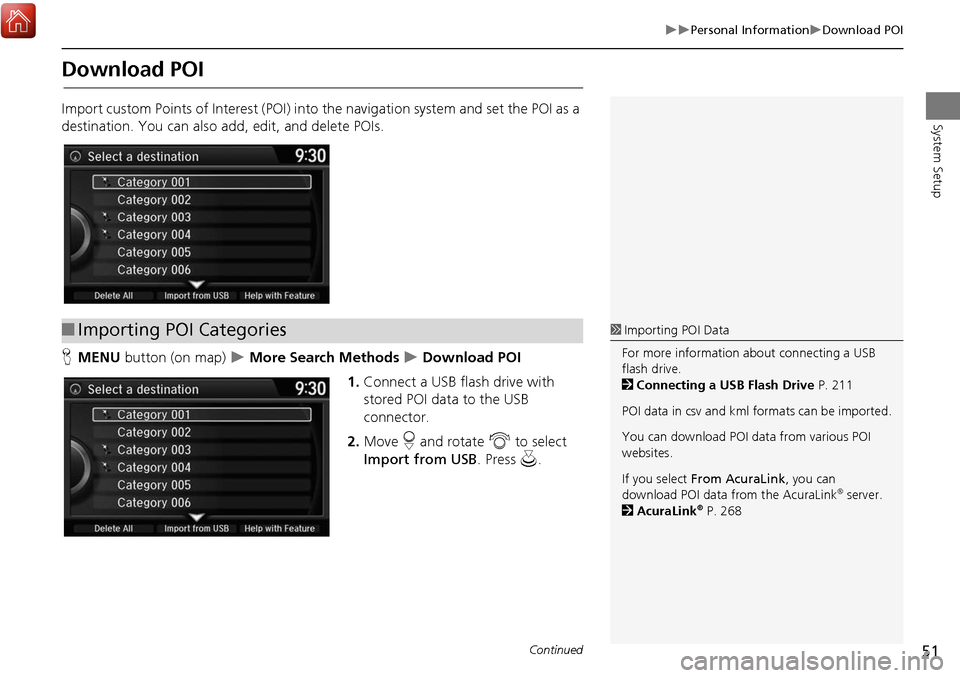
1. Connect a USB flash drive with
stored POI data to the USB
connector.
2. Move r and rotate i to select
Import from USB . Press u.
■Importing POI Categories1 Importing POI Data
For more information about connecting a USB
flash drive.
2 Connecting a USB Flash Drive P. 211
POI data in csv and kml formats can be imported.
You can download POI data from various POI
websites.
If you select From AcuraLink, you can
download POI data from the AcuraLink
® server.
2 AcuraLink® P. 268
Continued
Page 55 of 369
54
System Setup
Routing
HSETTINGS button Navi Settings Routing
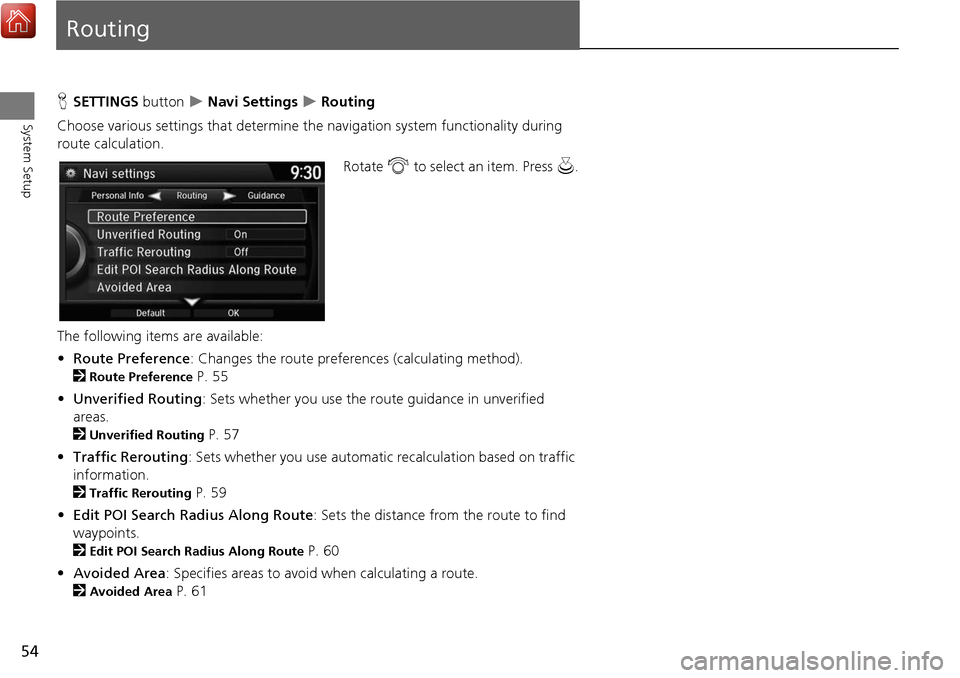
Choose various settings that determine th e navigation system functionality during
route calculation.
Rotate i to select an item. Press u .
The following item s are available:
• Route Preference : Changes the route preferences (calculating method).
2
Route Preference P. 55
• Unverified Routing : Sets whether you use the route guidance in unverified
areas.
2
Unverified Routing P. 57
• Traffic Rerouting : Sets whether you use automatic recalculation based on traffic
information.
2
Traffic Rerouting P. 59
• Edit POI Search Radius Along Route : Sets the distance from the route to find
waypoints.
2
Edit POI Search Radius Along Route P. 60
• Avoided Area : Specifies areas to avoid when calculating a route.
2
Avoided Area P. 61
Page 58 of 369
57
RoutingUnverified Routing
System Setup
Unverified Routing
HSETTINGS button Navi Settings Routing Unverified Routing
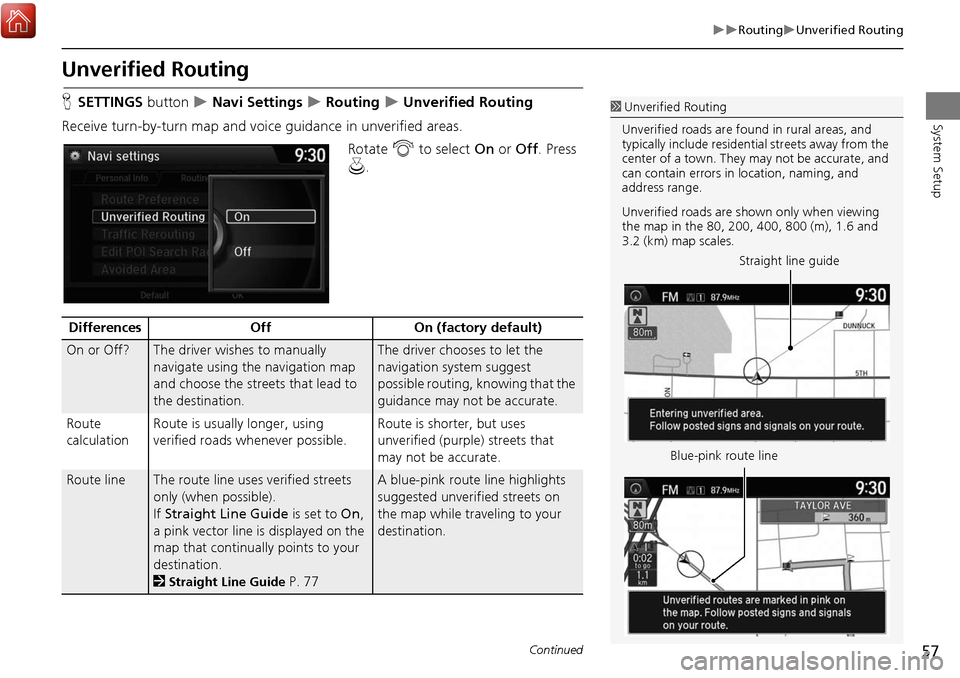
Receive turn-by-turn map and voice guidance in unverified areas. Rotate i to select On or Off . Press
u .1Unverified Routing
Unverified roads are found in rural areas, and
typically include residential streets away from the
center of a town. They may not be accurate, and
can contain errors in location, naming, and
address range.
Unverified roads are s hown only when viewing
the map in the 80, 200, 400, 800 (m), 1.6 and
3.2 (km) map scales.
Straight line guide
Blue-pink route line
Differences OffOn (factory default)
On or Off?The driver wishes to manually
navigate using the navigation map
and choose the streets that lead to
the destination.The driver chooses to let the
navigation system suggest
possible routing, knowing that the
guidance may not be accurate.
Route
calculation Route is usually longer, using
verified roads whenever possible. Route is shorter, but uses
unverified (purple)
streets that
may not be accurate.
Route lineThe route line uses verified streets
only (when possible).
If Straight Line Guide is set to On,
a pink vector line is displayed on the
map that continually points to your
destination.
2
Straight Line Guide P. 77
A blue-pink route line highlights
suggested unverified streets on
the map while traveling to your
destination.
Continued
Page 64 of 369
63
System Setup
Guidance
HSETTINGS button Navi Settings Guidance
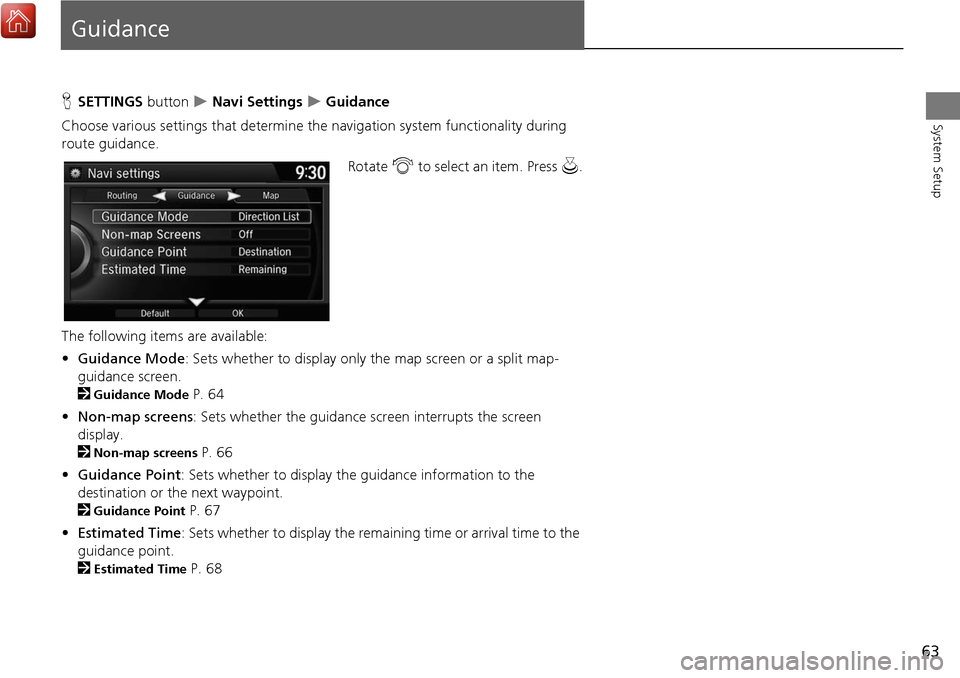
Choose various settings that determine the navigation system functionality during
route guidance. Rotate i to select an item. Press u.
The following items are available:
• Guidance Mode : Sets whether to display only the map screen or a split map-
guidance screen.
2
Guidance Mode P. 64
• Non-map screens : Sets whether the guidance screen interrupts the screen
display.
2
Non-map screens P. 66
• Guidance Point : Sets whether to display the guidance information to the
destination or the next waypoint.
2
Guidance Point P. 67
• Estimated Time : Sets whether to display the remain ing time or arrival time to the
guidance point.
2
Estimated Time P. 68
Page 67 of 369
66
GuidanceNon-map screens
System Setup
Non-map screens
HSETTINGS button Navi Settings Guidance Non-map screens
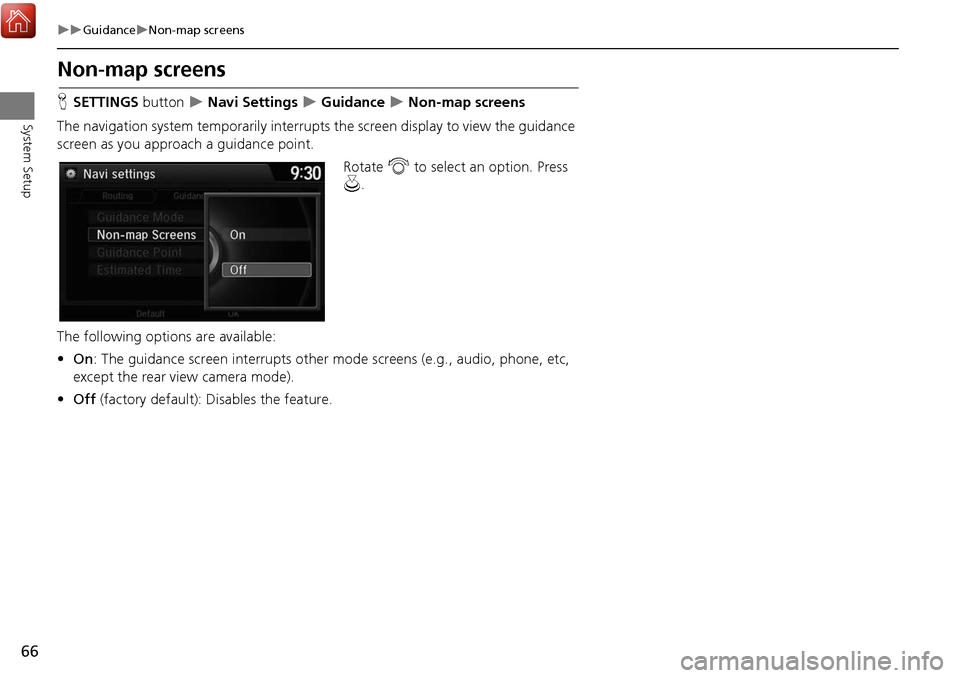
The navigation system temporarily interrupts the screen display to view the guidance
screen as you approach a guidance point.
Rotate i to select an option. Press
u .
The following options are available:
• On : The guidance screen interrupts other mode screens (e.g., audio, phone, etc,
except the rear view camera mode).
• Off (factory default): Disables the feature.
Page 80 of 369

79
MapMap Legend
System Setup
Map Legend
HSETTINGS button Navi Settings Map Map Legend
See an overview of the map lines, areas, routes, traffic information, and navigation
icons.
Move w or y select an item.
The system displays the map
legend.
1Map Legend
A visual guide helps you see the map legend.
2 Map Screen Legend P. 9
2 AcuraLink Real-Time Traffic™ P. 14
Continued
Page 84 of 369
83
MapDisplay Tracking
System Setup
Display Tracking
HSETTINGS button Navi Settings Map Display Tracking
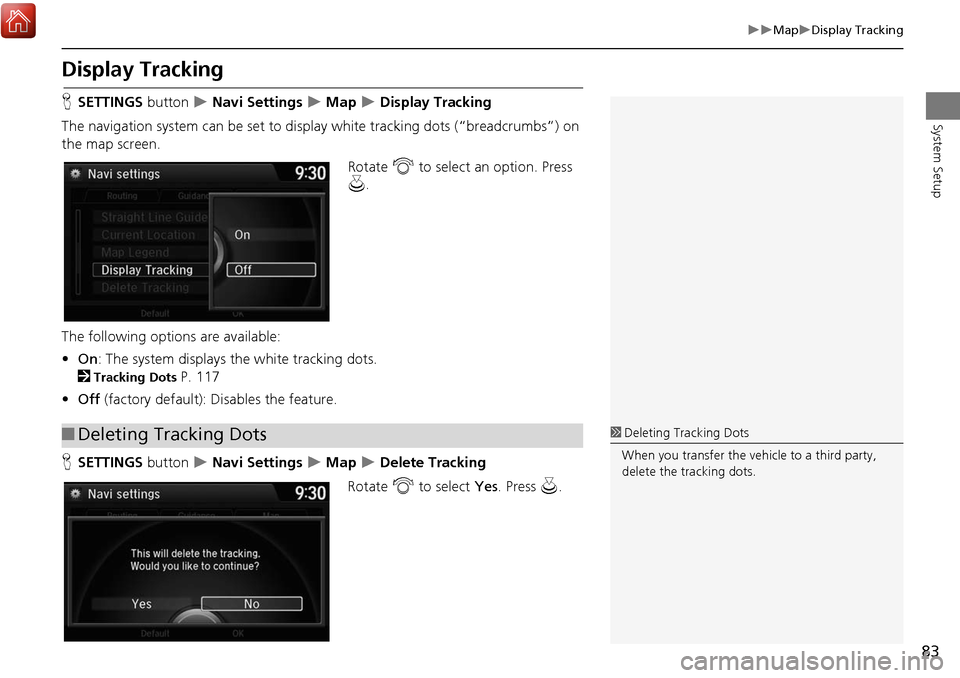
The navigation system can be set to di splay white tracking dots (“breadcrumbs”) on
the map screen.
Rotate i to select an option. Press
u .
The following options are available:
• On : The system displays the white tracking dots.
2
Tracking Dots P. 117
• Off (factory default): Disables the feature.
H SETTINGS button
Navi Settings Map Delete Tracking
Rotate i to select Yes. Press u.
■Deleting Tracking Dots1 Deleting Tracking Dots
When you transfer the vehicle to a third party,
delete the tracking dots.
Page 88 of 369
87
Navigation
This section describes how to enter a destination, select a route to take,
and follow the route to your destination. It also describes how to change your route or destination along the way.
Entering a Destination........................... 88
Address ................................................. 90
Address Book ......................................... 96
Previous Destination ............................... 97
Place Category ....................................... 98
Local Search ......................................... 100
Place Name .......................................... 102
Place Phone Number ............................ 105
Download POI ...................................... 106
Scenic Route ........................................ 107
Intersection .......................................... 108
Map Input............................................ 109
Coordinate .......................................... 111 Calculating the Route
............................112
Viewing the Routes ...............................113
Driving to Your Destination .................114
Viewing the Route ................................114
Listening to Voice Guidance ..................118
Reaching a Waypoint ............................119
Map Menu ..............................................120
Displaying the Map Menu .....................120
Hide Traffic Flow ...................................122
Directions .............................................123
Traffic Rerouting™................................125
Changing Your Route ............................127
Pausing the Route .................................128
Canceling the Route .............................128 Adding Waypoints ............................... 129
Editing the Destination List ................... 133
Taking a Detour ................................... 135
Avoiding Streets ................................... 135
Changing Your Destination ................. 136
Find Nearest Place ................................ 136
Selecting a Destination on the Map ...... 137
Entering a New Destination .................. 138
Resuming Your Trip .............................. 139
Page 89 of 369
88
Navigation
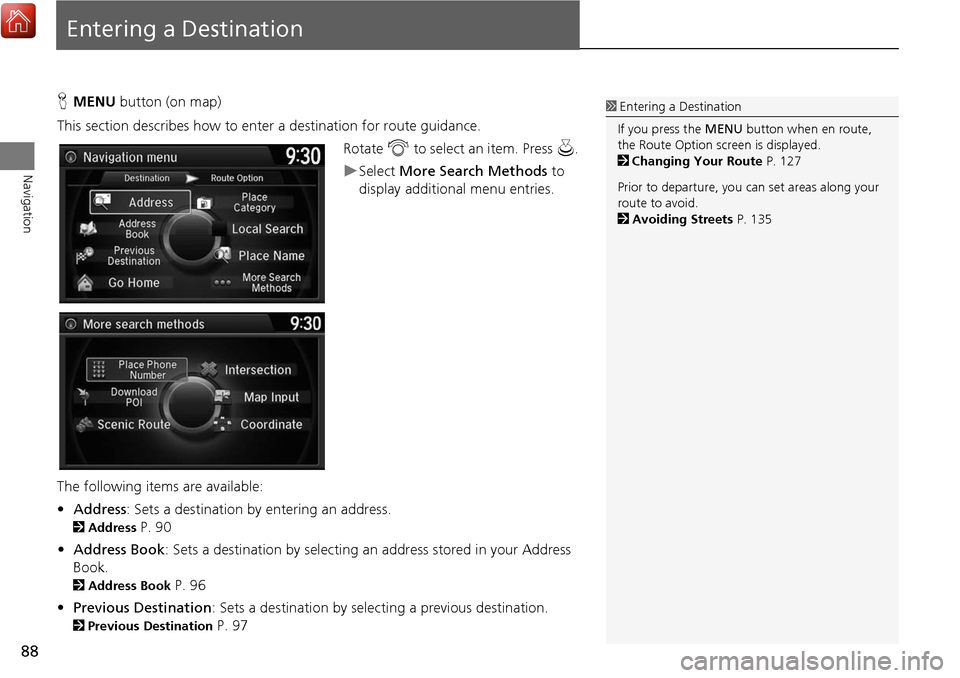
Entering a Destination
HMENU button (on map)
This section describes how to enter a destination for route guidance. Rotate i to select an item. Press u .
Select More Search Methods to
display additional menu entries.
The following item s are available:
• Address : Sets a destination by entering an address.
2Address P. 90
• Address Book: Sets a destination by selecting an address stored in your Address
Book.
2 Address Book P. 96
• Previous Destination : Sets a destination by select ing a previous destination.
2Previous Destination P. 97
1Entering a Destination
If you press the MENU button when en route,
the Route Option screen is displayed.
2 Changing Your Route P. 127
Prior to departure, you can set areas along your
route to avoid.
2 Avoiding Streets P. 135