location Acura MDX 2017 Navigation Manual
[x] Cancel search | Manufacturer: ACURA, Model Year: 2017, Model line: MDX, Model: Acura MDX 2017Pages: 369, PDF Size: 29.59 MB
Page 12 of 369
11
Quick Reference GuideNavigation—Home Addresses and Going Home
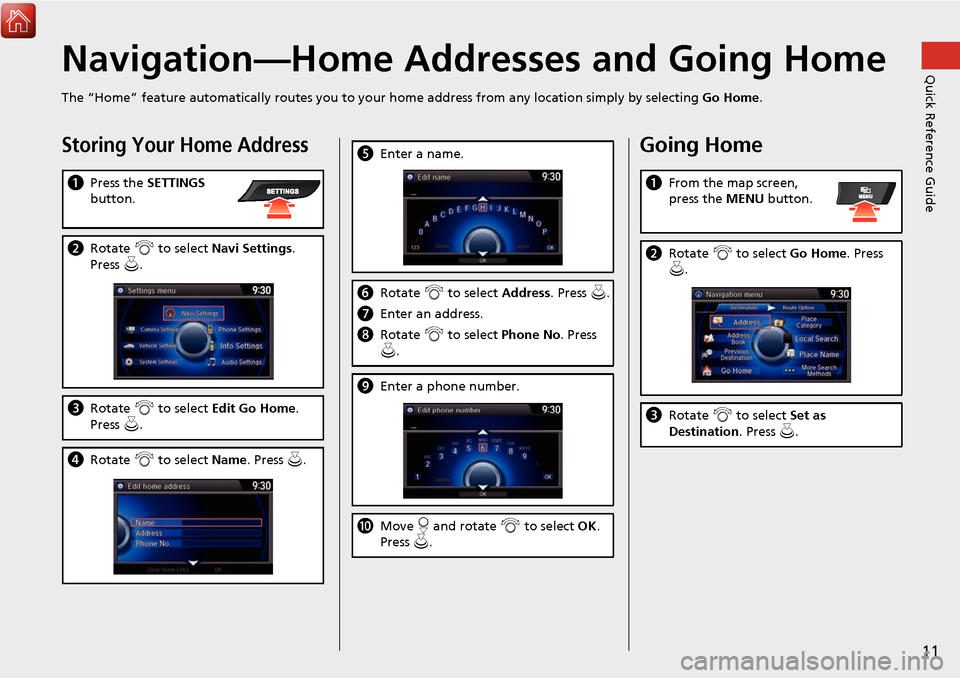
The “Home” feature automatically routes you to your home address from any location simply by selecting Go Home.
Storing Your Home Address
aPress the SETTINGS
button.
b Rotate i to select Navi Settings .
Press u.
c Rotate i to select Edit Go Home.
Press u.
d Rotate i to select Name. Press u .
eEnter a name.
fRotate i to select Address. Press u.
g Enter an address.
h Rotate i to select Phone No . Press
u .
i Enter a phone number.
jMove r and rotate i to select OK .
Press u.
Going Home
a From the map screen,
press the MENU button.
bRotate i to select Go Home . Press
u .
c Rotate i to select Set as
Destination . Press u.
Page 14 of 369
13
Quick Reference GuideNavigation—Changing Route or Destination
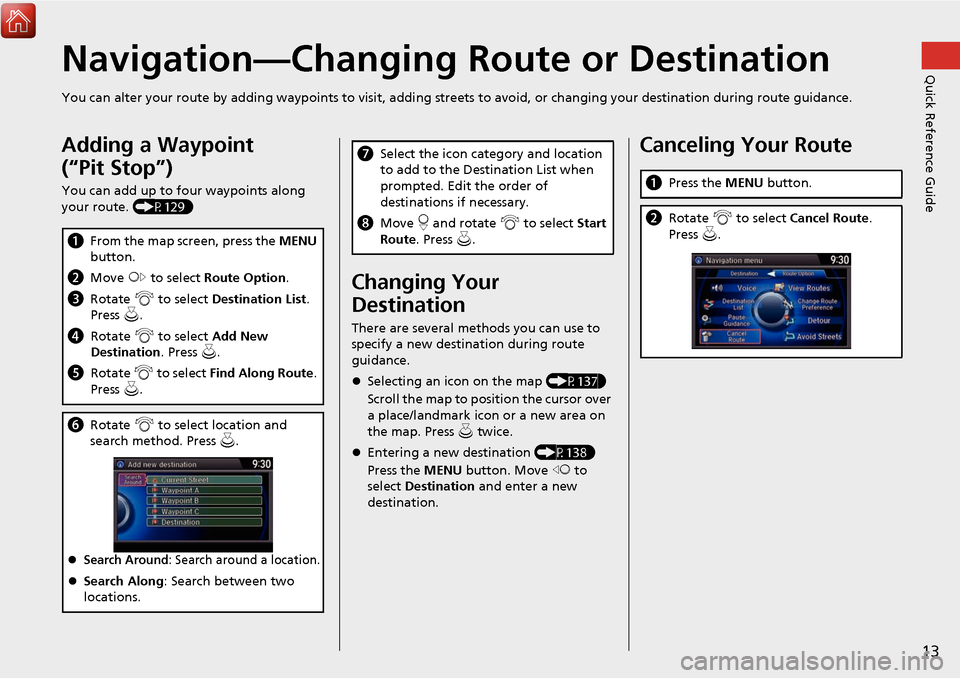
You can alter your route by adding waypoints to visit, adding streets to avoid, or changing your destination during route guida nce.
Adding a Waypoint
(“Pit Stop”)
You can add up to four waypoints along
your route. (P129)
aFrom the map screen, press the MENU
button.
b Move y to select Route Option .
c Rotate i to select Destination List .
Press u.
d Rotate i to select Add New
Destination . Press u.
e Rotate i to select Find Along Route .
Press u.
f Rotate i to select location and
search method. Press u .
Search Around: Search around a location.
Search Along : Search between two
locations.
Changing Your
Destination
There are several methods you can use to
specify a new destination during route
guidance.
Selecting an icon on the map (P137)
Scroll the map to position the cursor over
a place/landmark icon or a new area on
the map. Press u twice.
Entering a new destination (P138)
Press the MENU button. Move w to
select Destination and enter a new
destination.
g Select the icon category and location
to add to the Destination List when
prompted. Edit the order of
destinations if necessary.
h Move r and rotate i to select Start
Route . Press u .Canceling Your Route
aPress the MENU button.
bRotate i to select Cancel Route.
Press u.
Page 22 of 369
21
System Setup
This section describes the start-up procedure and the navigation andsetup functions.
Start-up.............................................................. 22
Voice Control System ........................................ 24
Command Input .............................................. 24
Voice Recognition ............................................ 25
Voice Recognition Settings ............................... 26
Siri Eyes Free .................................................... 27
Interface Settings .............................................. 28
Personal Information ........................................ 39
Address Book ................................................... 40
Home Address ................................................. 47
PIN Numbers .................................................... 48
Previous Destination ......................................... 49
Category History .............................................. 50
Download POI .................................................. 51
Routing .............................................................. 54
Route Preference.............................................. 55
Unverified Routing ........................................... 57
Traffic Rerouting .............................................. 59 Edit POI Search Radius Along Route.................. 60
Avoided Area ................................................... 61
Guidance ............................................................ 63
Guidance Mode ............................................... 64
Non-map screens ............................................. 66
Guidance Point................................................. 67
Estimated Time................................................. 68
Map ..................................................................... 69
Showing Icons on Map ..................................... 71
Color................................................................ 73
View (Map Orientation) .................................... 76
3D Angle Adjustment ....................................... 77
Straight Line Guide........................................... 77
Current Location .............................................. 78
Map Legend ..................................................... 79
Display Tracking ............................................... 83
Correct Vehicle Position.................................... 84 Data Reset
......................................................... 85
Defaulting All the Settings ............................... 85
On Demand Multi-Use Display™ ..................... 86
Changing the Screen Settings .......................... 86
Page 43 of 369
42
Personal InformationAddress Book
System Setup
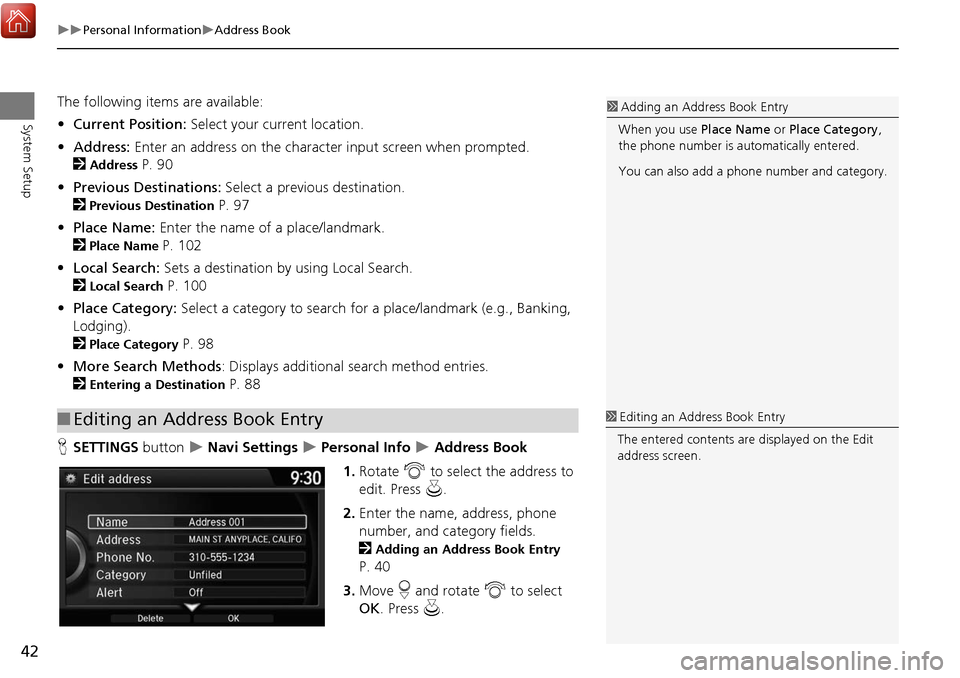
The following items are available:
• Current Position: Select your current location.
• Address: Enter an address on the character input screen when prompted.
2
Address P. 90
• Previous Destinations: Select a previous destination.
2
Previous Destination P. 97
• Place Name: Enter the name of a place/landmark.
2
Place Name P. 102
• Local Search: Sets a destination by using Local Search.
2
Local Search P. 100
• Place Category: Select a category to search for a place/landmark (e.g., Banking,
Lodging).
2
Place Category P. 98
• More Search Methods : Displays additional search method entries.
2
Entering a Destination P. 88
H SETTINGS button
Navi Settings Personal Info Address Book
1. Rotate i to select the address to
edit. Press u.
2. Enter the name, address, phone
number, and category fields.
2
Adding an Address Book Entry
P. 40
3. Move r and rotate i to select
OK . Press u.
■Editing an Address Book Entry
1 Adding an Address Book Entry
When you use Place Name or Place Category ,
the phone number is au tomatically entered.
You can also add a phone number and category.
1 Editing an Address Book Entry
The entered contents are displayed on the Edit
address screen.
Page 48 of 369
47
Personal InformationHome Address
System Setup
Home Address
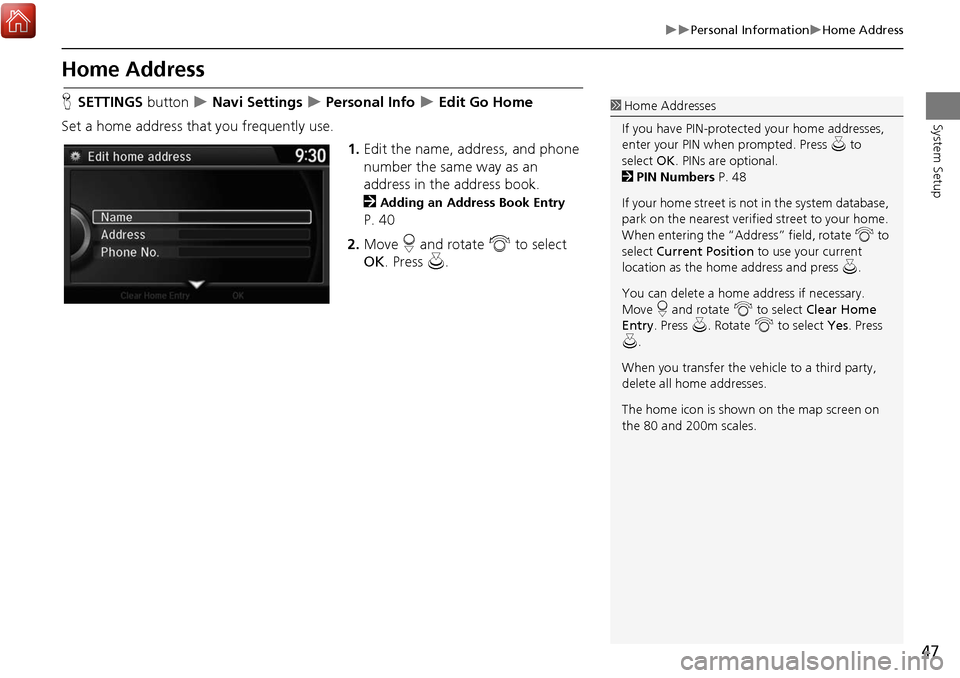
HSETTINGS button Navi Settings Personal Info Edit Go Home
Set a home address that you frequently use. 1.Edit the name, address, and phone
number the same way as an
address in the address book.
2
Adding an Address Book Entry
P. 40
2. Move r and rotate i to select
OK . Press u.
1Home Addresses
If you have PIN-protecte d your home addresses,
enter your PIN when prompted. Press u to
select OK. PINs are optional.
2 PIN Numbers P. 48
If your home street is not in the system database,
park on the nearest verified street to your home.
When entering the “Address” field, rotate i to
select Current Position to use your current
location as the home address and press u.
You can delete a home address if necessary.
Move r and rotate i to select Clear Home
Entry . Press u . Rotate i to select Yes. Press
u .
When you transfer the vehicle to a third party,
delete all home addresses.
The home icon is shown on the map screen on
the 80 and 200m scales.
Page 49 of 369
48
Personal InformationPIN Numbers
System Setup
PIN Numbers
HSETTINGS button Navi Settings Personal Info PIN Number
Set a four-digit PIN for protecting persona l addresses and your home address. Once
you set a PIN, you are prompted to enter it whenever you access a personal address
or a home address.
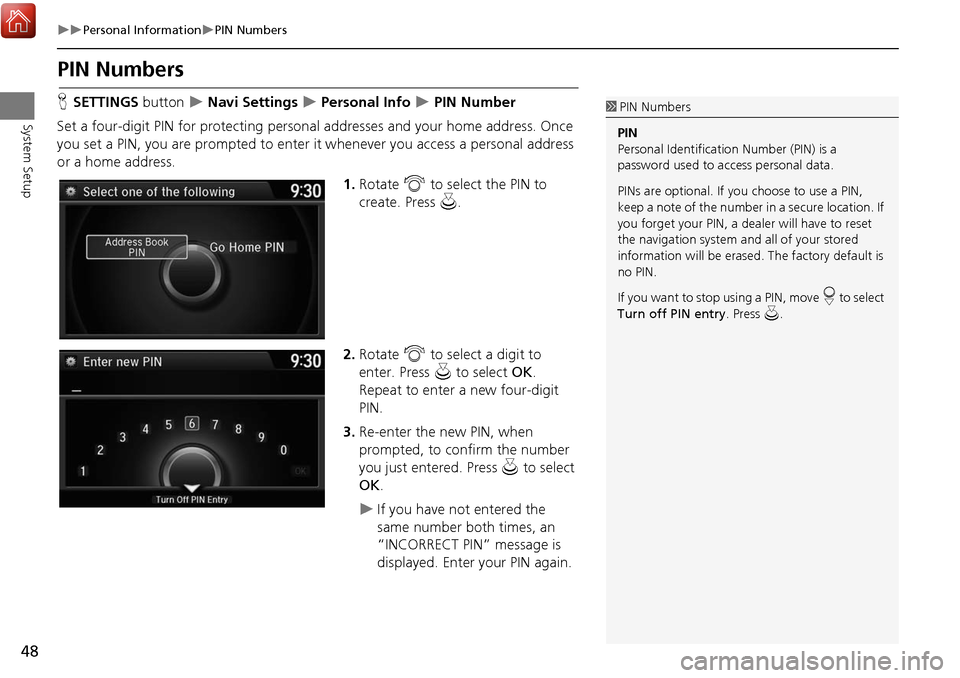
1.Rotate i to select the PIN to
create. Press u.
2. Rotate i to select a digit to
enter. Press u to select OK .
Repeat to enter a new four-digit
PIN.
3. Re-enter the new PIN, when
prompted, to confirm the number
you just entered. Press u to select
OK .
If you have not entered the
same number both times, an
“INCORRECT PIN” message is
displayed. Enter your PIN again.
1PIN Numbers
PIN
Personal Identification Number (PIN) is a
password used to access personal data.
PINs are optional. If you choose to use a PIN,
keep a note of the number in a secure location. If
you forget your PIN, a dealer will have to reset
the navigation system a nd all of your stored
information will be erased . The factory default is
no PIN.
If you want to stop using a PIN, move
r to select
Turn off PIN entry . Press u.
Page 57 of 369
56
RoutingRoute Preference
System Setup
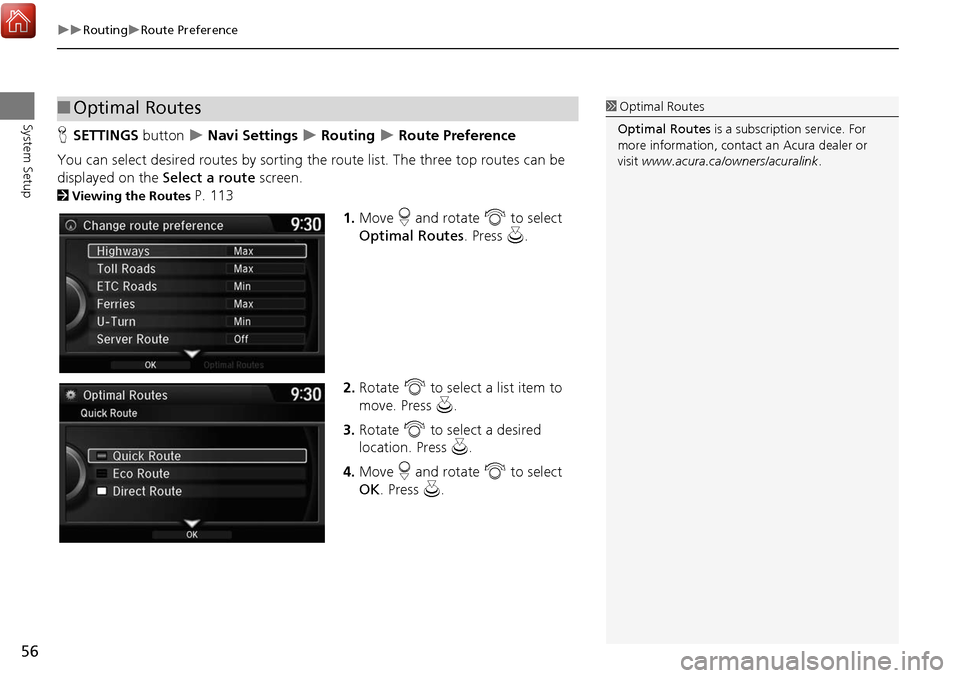
HSETTINGS button Navi Settings Routing Route Preference
You can select desired routes by sorting the route list. The three top routes can be
displayed on the Select a route screen.
2Viewing the Routes P. 113
1.Move r and rotate i to select
Optimal Routes . Press u.
2. Rotate i to select a list item to
move. Press u.
3. Rotate i to select a desired
location. Press u .
4. Move r and rotate i to select
OK . Press u.
■Optimal Routes1 Optimal Routes
Optimal Routes is a subscription service. For
more information, contact an Acura dealer or
visit www.acura.ca/owners/acuralink .
Page 58 of 369
57
RoutingUnverified Routing
System Setup
Unverified Routing
HSETTINGS button Navi Settings Routing Unverified Routing
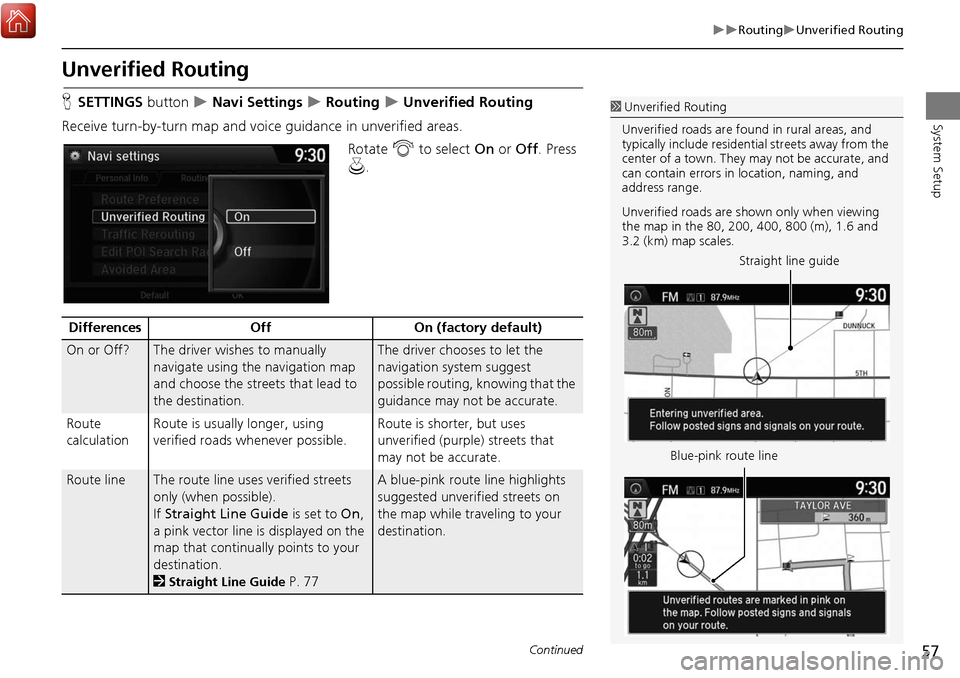
Receive turn-by-turn map and voice guidance in unverified areas. Rotate i to select On or Off . Press
u .1Unverified Routing
Unverified roads are found in rural areas, and
typically include residential streets away from the
center of a town. They may not be accurate, and
can contain errors in location, naming, and
address range.
Unverified roads are s hown only when viewing
the map in the 80, 200, 400, 800 (m), 1.6 and
3.2 (km) map scales.
Straight line guide
Blue-pink route line
Differences OffOn (factory default)
On or Off?The driver wishes to manually
navigate using the navigation map
and choose the streets that lead to
the destination.The driver chooses to let the
navigation system suggest
possible routing, knowing that the
guidance may not be accurate.
Route
calculation Route is usually longer, using
verified roads whenever possible. Route is shorter, but uses
unverified (purple)
streets that
may not be accurate.
Route lineThe route line uses verified streets
only (when possible).
If Straight Line Guide is set to On,
a pink vector line is displayed on the
map that continually points to your
destination.
2
Straight Line Guide P. 77
A blue-pink route line highlights
suggested unverified streets on
the map while traveling to your
destination.
Continued
Page 70 of 369
69
System Setup
Map
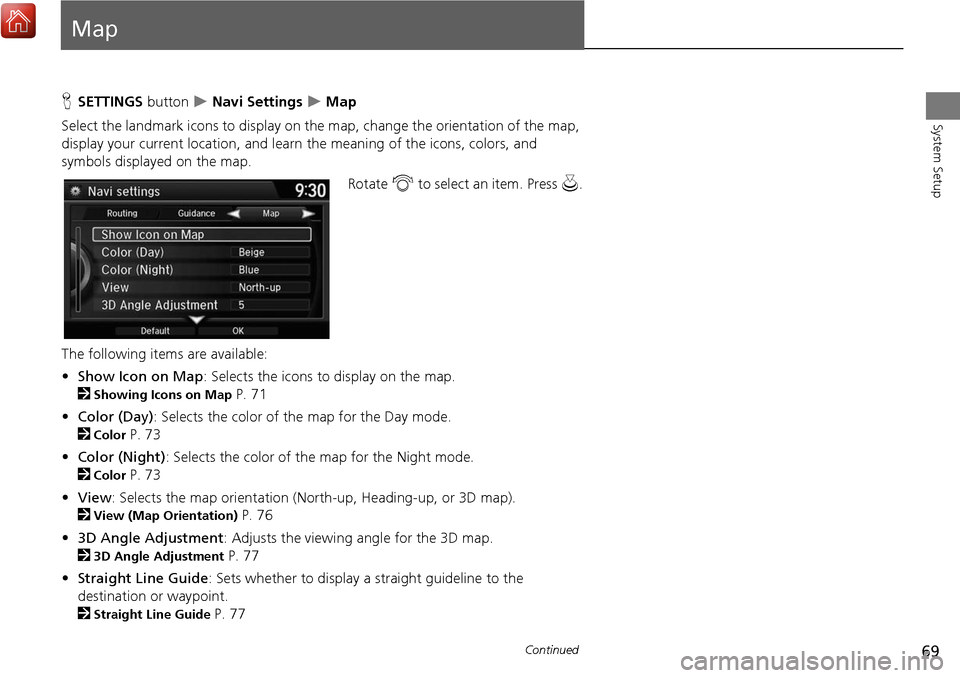
HSETTINGS button Navi Settings Map
Select the landmark icons to display on the map, change the orientation of the map,
display your current location, and learn the meaning of the icons, colors, and
symbols displayed on the map.
Rotate i to select an item. Press u.
The following items are available:
• Show Icon on Map : Selects the icons to display on the map.
2
Showing Icons on Map P. 71
• Color (Day) : Selects the color of the map for the Day mode.
2
Color P. 73
• Color (Night) : Selects the color of the map for the Night mode.
2
Color P. 73
• View : Selects the map orientation (No rth-up, Heading-up, or 3D map).
2
View (Map Orientation) P. 76
• 3D Angle Adjustment: Adjusts the viewing angle for the 3D map.
2
3D Angle Adjustment P. 77
• Straight Line Guide : Sets whether to display a straight guideline to the
destination or waypoint.
2
Straight Line Guide P. 77
Continued
Page 71 of 369

70
Map
System Setup
•Current Location : Displays and saves your current location.
2
Current Location P. 78
• Map Legend : Displays an overview of the map features.
2
Map Legend P. 79
• Display Tracking : Sets whether to display the tracking dots on the map.
2
Display Tracking P. 83
• Delete Tracking : Deletes the tracking dots on the map.
2
Deleting Tracking Dots P. 83
• Correct Vehicle Position : Adjusts the position of the vehicle on the map.
2
Correct Vehicle Position P. 84
• System Device Information : Views database, software, device, and vehicle
identification information.
2
System Device Information P. 302
• Map Data Update : Checks the map data update status when updating the map
database.
2
Map Data Update P. 302