hfl Acura MDX 2017 Owner's Manual
[x] Cancel search | Manufacturer: ACURA, Model Year: 2017, Model line: MDX, Model: Acura MDX 2017Pages: 581, PDF Size: 32.65 MB
Page 228 of 581
227
Features
This chapter describes how to operate technology features.
Audio SystemAbout Your Audio System ................ 228
USB Ports ......................................... 229
Auxiliary Input Jack .......................... 230
Audio System Theft Protection ......... 230
Audio Remote Controls .................... 231
Audio System Basic Operation ........ 232
On Demand Multi-Use Display
TM....... 233
Audio/Information Screen ................ 239
Adjusting the Sound ........................ 243
Display Setup ................................... 244
Playing AM/FM Radio ....................... 245
Playing SiriusXM ® Radio ................... 249 Playing a CD .................................... 260
Playing an iPod ................................ 263
Playing Internet Radio ...................... 267
Playing a USB Flash Drive ................. 270
Playing
Bluetooth ® Audio................. 273
Siri Eyes Free .................................... 275
Audio Error Messages CD Player ......................................... 276
iPod/USB Flash Drive ........................ 277
Pandora ®......................................... 278
Aha
TM Radio ..................................... 280 General Information on the Audio
SystemSiriusXM ® Radio Service ................... 281
Recommended CDs ......................... 282
Compatible iPod, iPhone, and USB Flash Drives ................................................. 284
Customized Features ........................ 285
Defaulting All the Settings ............... 306
HomeLink ® Universal Transceiver ... 307
Bluetooth ® HandsFreeLink®
Using HFL ........................................ 310
HFL Menus ...................................... 312
Compass
*.......................................... 344
* Not available on all models
17 ACURA MDX-31TZ56300.book 227 ページ 2016年5月13日 金曜日 午後7時46分
Page 236 of 581
Continued235
uuAudio System Basic Operation uOn Demand Multi-Use DisplayTM
Features
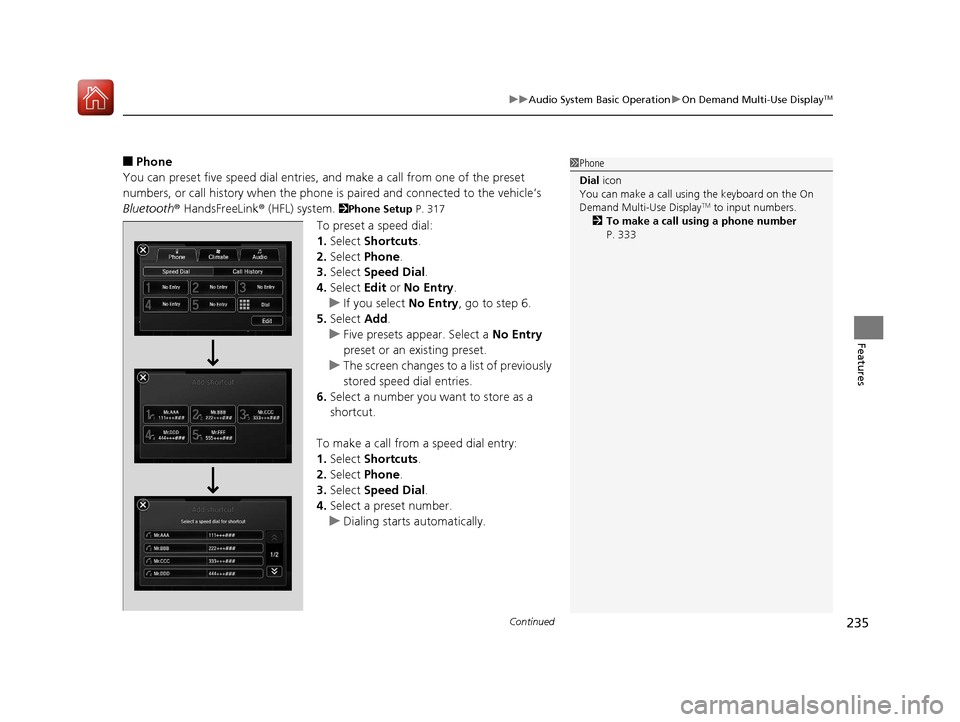
■Phone
You can preset five speed dial entries, and make a call from one of the preset
numbers, or call history when the phone is paired and connected to the vehicle‘s
Bluetooth ® HandsFreeLink ® (HFL) system.
2Phone Setup P. 317
To preset a speed dial:
1.Select Shortcuts .
2. Select Phone.
3. Select Speed Dial .
4. Select Edit or No Entry .
u If you select No Entry, go to step 6.
5. Select Add.
u Five presets appear. Select a No Entry
preset or an existing preset.
u The screen changes to a list of previously
stored speed dial entries.
6. Select a number you want to store as a
shortcut.
To make a call from a speed dial entry:
1. Select Shortcuts .
2. Select Phone.
3. Select Speed Dial .
4. Select a preset number.
u Dialing starts automatically.
1Phone
Dial icon
You can make a call using the keyboard on the On
Demand Multi-Use Display
TM to input numbers.
2 To make a call using a phone number
P. 333
17 ACURA MDX-31TZ56300.book 235 ページ 2016年5月13日 金曜日 午後7時46分
Page 241 of 581
240
uuAudio System Basic Operation uAudio/Information Screen
Features
■Audio
Shows the current audio information.
■Phone
Shows the HFL information.
2 Bluetooth ® HandsFreeLink® P. 310
■Info
Shows the Trip Computer or Clock/Wallpaper and other information. Rotate
to select an item, then press .
■Trip computer (Current Drive)
Shows the range, and instant and average fu el economy of the current trip, as well
as the average fuel economy from your last trip.
■Trip computer (History of Trip A)
Shows the range, average fuel economy an d distances traveled for the current trip,
as well as the average fuel economy and distances traveled during the last three
driving cycles.
Each time you reset the trip meter A, the information on the display updates. The
history of the previous th ree driving cycles is kept.
■Deleting the history manually
1. Move on the History of Trip A screen to select Delete History, then press .
2. A confirmation message appears on the screen. Rotate to select Yes, then
press .
■Clock/Wallpaper
Shows a clock screen or an image you import.
17 ACURA MDX-31TZ56300.book 240 ページ 2016年5月13日 金曜日 午後7時46分
Page 268 of 581
267
uuAudio System Basic Operation uPlaying Internet Radio
Continued
Features
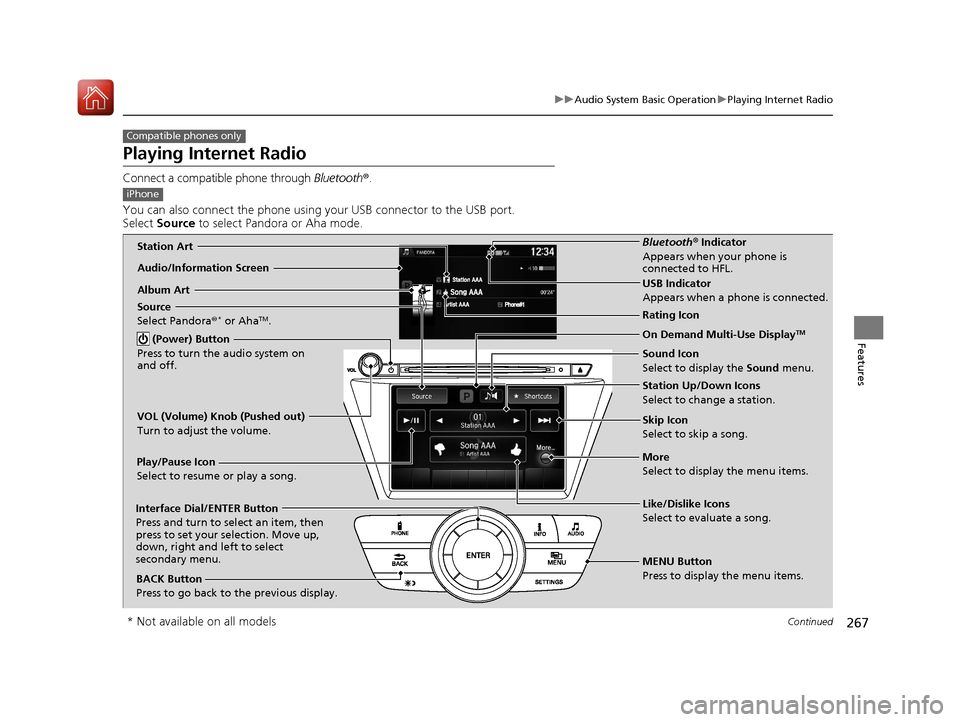
Playing Internet Radio
Connect a compatible phone through Bluetooth®.
You can also connect the phone using your USB connector to the USB port.
Select Source to select Pandora or Aha mode.
Compatible phones only
iPhone
Audio/Information Screen
Album ArtUSB Indicator
Appears when a phone is connected.
Rating Icon
BACK Button
Press to go back to the previous display.
Skip Icon
Select to skip a song.
More
Select to display the menu items. Station Up/Down Icons
Select to change a station.
Source
Select Pandora
®
* or AhaTM.
Play/Pause Icon
Select to resume or play a song.
Like/Dislike Icons
Select to evaluate a song.
(Power) Button
Press to turn the audio system on
and off.Interface Dial/ENTER Button
Press and turn to select an item, then
press to set your selection. Move up,
down, right and left to select
secondary menu.
On Demand Multi-Use DisplayTM
VOL (Volume) Knob (Pushed out)
Turn to adjust the volume.
Bluetooth ® Indicator
Appears when your phone is
connected to HFL.
MENU Button
Press to display the menu items. Sound Icon
Select to display the Sound menu.Station Art
* Not available on all models
17 ACURA MDX-31TZ56300.book 267 ページ 2016年5月13日 金曜日 午後7時46分
Page 274 of 581

273
uuAudio System Basic Operation uPlaying Bluetooth ® Audio
Continued
Features
Playing Bluetooth ® Audio
Your audio system allows you to listen to music from your Bluetooth-compatible
phone.
This function is available when the phone is paired an d connected to the vehicle’s
Bluetooth ® HandsFreeLink ® (HFL) system.
2Phone Setup P. 317
1Playing Bluetooth ® Audio
Not all Bluetooth -enabled phones with streaming
audio capabilities are compatible with the system.
For a list of compatible phones:
•U.S.: Visit www.acura.com/handsfreelink , or call 1-
888-528-7876.
•Canada: Visit www.handsfreelink.ca , or call 1-888-
528-7876.
In some states, it may be il legal to perform some data
device functions while driving.
If more than one phone is paired to the HFL system,
there will be a delay before the system begins to play.
Bluetooth® Indicator
Appears when your
phone is connected
to HFL.
Play Icon
Pause Icon
More
Select to display
the menu items.
Source
Select to change
an audio source.
(Power) Button
Press to turn the
audio system on
and off.
Interface Dial/
ENTER Button
Press and turn to
select an item,
then press to set
your selection.
Move up, down,
right and left to
select secondary
menu.
Skip/Seek Icons
Select or
to change files.
MENU Button
Press to display
the menu items. Folder Up/Down
Icons
Select or to
change folders.
On Demand Multi-
Use DisplayTM
VOL (Volume)
Knob (Pushed out)
Turn to adjust the
volume.
Audio/Information
Screen
Sound Icon
Select to display
the Sound
menu.
17 ACURA MDX-31TZ56300.book 273 ページ 2016年5月13日 金曜日 午後7時46分
Page 275 of 581

uuAudio System Basic Operation uPlaying Bluetooth ® Audio
274
Features
1. Make sure that your phone is paired and
connected to HFL.
2. Select the Bluetooth® Audio mode.
If the phone is not recognized, another HFL-
compatible phone, which is not compatible
for Bluetooth ® Audio, may already be
connected.
■To pause or resume a file
1. Press the MENU button.
2. Rotate to select Play or Pause , then press .
Select the play icon or pause icon.
■To Play Bluetooth® Audio Files1To Play Bluetooth ® Audio Files
To play the audio files, y ou may need to operate your
phone. If so, follow the phone maker’s operating
instructions.
The pause function may no t be available on some
phones.
Switching to another mode pauses the music playing
from your phone. This functi on may not be available
on some phones.
Interface Dial
On Demand Multi-Use DisplayTM
17 ACURA MDX-31TZ56300.book 274 ページ 2016年5月13日 金曜日 午後7時46分
Page 292 of 581

291
uuCustomized Features u
Continued
Features
■List of customizable options
*1:Default Setting Setup
Group Customizable Features Descri
ption Selectable Settings
System
Settings
Display
Sync Display Brightness
Selects whether the display brightness
synchronizes with the instrument panel
brightness.
On*1/Off
BrightnessChanges the brightness of the audio/
information screen.—
ContrastChanges the contrast of the audio/
information screen.—
Black LevelChanges the black level of the audio/
information screen.—
Bluetooth
Bluetooth StatusTurns the Bluetooth® on and off.On*1/Off
Bluetooth Device List
Pairs a new phone to HFL, edits and deletes a
paired phone, and creates a security PIN.
2 Phone Setup P. 317
—
Edit Pairing CodeChanges a pairing code.
2To change the pairing code setting P. 319Random/Fixed*1
Voice RecoVoice PromptTurns the voice prompt on and off.Beginner*1/Expert
17 ACURA MDX-31TZ56300.book 291 ページ 2016年5月13日 金曜日 午後7時46分
Page 303 of 581

302
uuCustomized Features u
Features
*1:Default SettingSetup
Group Customizable Features Description Selectable Settings
Audio
SettingsBluetooth
Bluetooth Device List Edits or deletes a
Bluetooth® Audio device
paired to HFL. —
Connect Bluetooth Audio
Device Connects, disconnects or pairs a
Bluetooth®
Audio device to HFL. —
Other Source Select Popup
Selects whether the list of selectable audio
sources comes on when the
AUDIO button is
pressed. On
/Off
*1
Cover Art Turns on and off the cover art display.
On
*1/Off
Default Cancels/Resets all customized items in the
Audio Settings
group as default. Default/
OK
Bluetooth ® Audio, Pandora ®* or
AhaTM mode
Bluetooth ® Audio, Pandora ®* or
AhaTM mode
iPod, USB, Pandora ®* or AhaTM
mode
* Not available on all models
17 ACURA MDX-31TZ56300.book 302 ページ 2016年5月13日 金曜日 午後7時46分
Page 304 of 581

303
uuCustomized Features u
Continued
Features
*1:Default SettingSetup
Group Customizable Features Descri
ption Selectable Settings
Phone
SettingsPhone
Connect Phone
Pairs a new phone to HFL, or connects or
disconnects a paired phone.
2Phone Setup P. 317
—
Bluetooth Device List
Pairs a new phone to HFL, edits or deletes a
paired phone, or cr eates a security PIN.
2Phone Setup P. 317
—
Edit Speed DialEdits, adds or deletes a speed dial entry.
2Phone Setup P. 317—
Auto TransferSets calls to automatica lly transfer from your
phone to HFL when you enter the vehicle.On*1/ Off
Auto AnswerSets whether to automatically answer an
incoming call after about four seconds.On /Off*1
Ring ToneSelects the ring tone.Fixed /Mobile
Phone*1/ Off
Automatic Phone SyncSets a phonebook data to be automatically
imported when a phon e is paired to HFL.On/Off
Use Contact PhotoDisplays a caller’s pict ure on an incoming call
screen.On*1/ Off
17 ACURA MDX-31TZ56300.book 303 ページ 2016年5月13日 金曜日 午後7時46分
Page 305 of 581
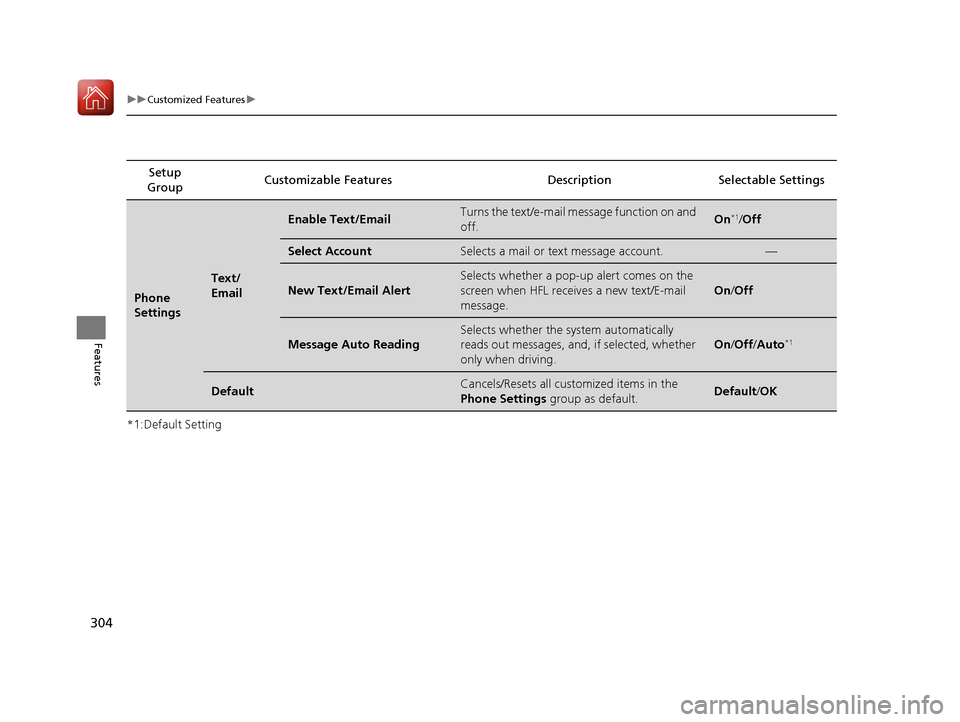
304
uuCustomized Features u
Features
*1:Default SettingSetup
Group Customizable Features Description Selectable Settings
Phone
Settings
Text/
Email
Enable Text/EmailTurns the text/e-mail me
ssage function on and
off.On*1/ Off
Select AccountSelects a mail or text message account.—
New Text/Email Alert
Selects whether a pop-up alert comes on the
screen when HFL receives a new text/E-mail
message.
On /Off
Message Auto Reading
Selects whether the system automatically
reads out messages, and, if selected, whether
only when driving.
On /Off /Auto*1
DefaultCancels/Resets all customized items in the
Phone Settings group as default.Default/ OK
17 ACURA MDX-31TZ56300.book 304 ページ 2016年5月13日 金曜日 午後7時46分