phone Acura MDX 2018 Owner's Guide
[x] Cancel search | Manufacturer: ACURA, Model Year: 2018, Model line: MDX, Model: Acura MDX 2018Pages: 697, PDF Size: 38.45 MB
Page 332 of 697

331
uuGeneral Information on the Audio System uLegal Information on Apple CarPlay/Android Auto
Continued
Features
Legal Information on Appl e CarPlay/Android Auto
USE OF APPLE CARPLAY IS SUBJECT TO YOUR AGREEMENT TO THE CARPLAY TERMS OF USE, WHICH ARE INCLUDED AS PART OF THE
APPLE iOS TERMS OF USE. IN SUMMARY, THE CARPLAY TERMS OF USE DISCLAIM APPLE AND ITS SERVICE PROVIDERS’ LIABILITY IF THE
SERVICES FAIL TO PERFORM CORRECTLY OR ARE DISCONTINUED, STRICTLY LIMIT APPLE AND ITS SERVICE PROVIDERS’ OTHER
LIABILITIES, DESCRIBE THE KINDS OF USER INFORMATION (INCLUDING, FOR EXAMPL E, VEHICLE LOCATION, VEHICLE SPEED, AND
VEHICLE STATUS) BEING GATHERED AND STORED BY APPLE AND IT S SERVICE PROVIDERS, AND DISCLOSE CERTAIN POSSIBLE RISKS
ASSOCIATED WITH THE USE OF CARPLAY, INCLUDING THE POTENTIAL FOR DRIVER DISTRACTION. SEE APPLE’S PRIVACY POLICY FOR
DETAILS REGARDING APPLE'S USE AND HANDL ING OF DATA UPLOADED BY CARPLAY.
USE OF ANDROID AUTO IS SUBJECT TO YOUR AGREEMENT TO THE ANDROID AUTO TERMS OF USE WHICH MUST BE AGREED TO WHEN\
THE ANDROID AUTO APPLICATION IS DOWNLOADED TO YOUR ANDR OID PHONE. IN SUMMARY, THE ANDROID AUTO TERMS OF USE
DISCLAIM GOOGLE AND ITS SERVICE PROVIDERS’ LIABILITY IF THE SERVICES FAIL TO PERFORM CORRECTLY OR ARE DISCONTINUED,
STRICTLY LIMIT GOOGLE AND ITS SERVICE PROV IDERS’ OTHER LIABILITIES, DESCRIBE THE KINDS OF USER INFORMATION (INCLUDING,
FOR EXAMPLE, VEHICLE LOCATION, VEHI CLE SPEED, AND VEHICLE STATUS) BEING GATHERED AND STORED BY GOOGLE AND ITS
SERVICE PROVIDERS, AND DISCLOSE CERTAIN POSSIBLE RISKS ASSOCIATED WITH THE USE OF ANDROID AUTO, INCLUDING THE
POTENTIAL FOR DRIVER DISTRACTION. SEE GOOGLE’S PRIVACY POLICY FOR DETAILS REGARDING GOOGLE’S USE AND HANDLING OF
DATA UPLOADED BY ANDROID AUTO.
■OWNER’S MANUAL LICENSE/LIABILITY STATEMENTS
18 ACURA MDX-31TZ56400.book 331 ページ 2017年8月23日 水曜日 午後4時1分
Page 336 of 697
335
Features
Rear Entertainment System (RES)*
Allows the rear passengers to enjoy a different entertainment source, such as DVD,
CD, and radio, than the front passengers.
Wireless Headphones
The rear seat passengers can listen to audio from the rear entertainment system by
a wireless headphone that comes with your vehicle.
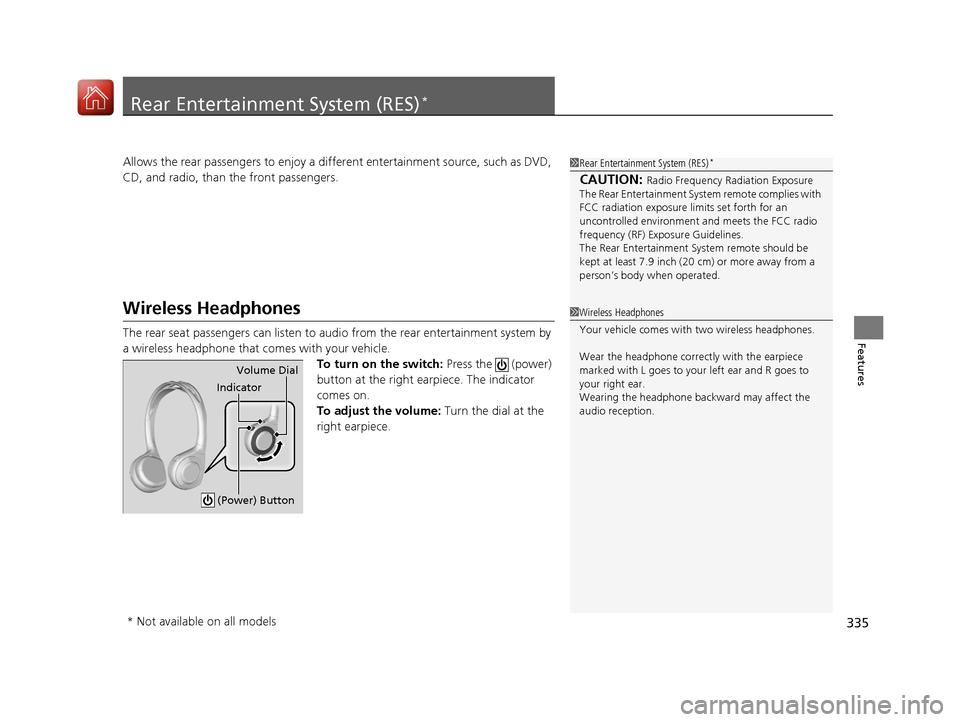
To turn on the switch: Press the (power)
button at the right earpiece. The indicator
comes on.
To adjust the volume: Turn the dial at the
right earpiece.
1 Rear Entertainment System (RES)*
CAUTION: Radio Frequency Radiation Exposure
The Rear Entertainment System remote complies with
FCC radiation exposure lim its set forth for an
uncontrolled environment and meets the FCC radio
frequency (RF) Exposure Guidelines.
The Rear Entertainment Sy stem remote should be
kept at least 7.9 inch (20 cm) or more away from a
person’s body when operated.
1 Wireless Headphones
Your vehicle comes with two wireless headphones.
Wear the headphone correc tly with the earpiece
marked with L goes to y our left ear and R goes to
your right ear.
Wearing the headphone back ward may affect the
audio reception.
Indicator Volume Dial
(Power) Button
* Not available on all models
18 ACURA MDX-31TZ56400.book 335 ページ 2017年8月23日 水曜日 午後4時1分
Page 337 of 697
336
uuRear Entertainment System (RES)*uAuxiliary Console Panel
Features
Auxiliary Console Panel
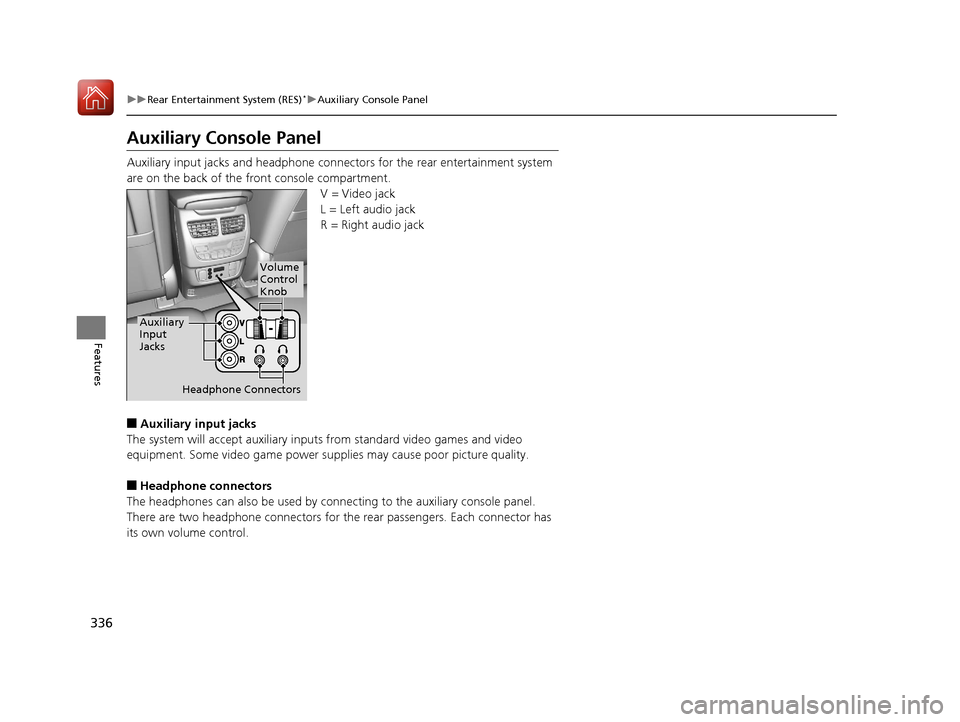
Auxiliary input jacks and headphone connectors for the rear entertainment system
are on the back of the front console compartment.
V = Video jack
L = Left audio jack
R = Right audio jack
■Auxiliary input jacks
The system will accept auxiliary inputs from standard video games and video
equipment. Some video game power supplies may cause poor picture quality.
■Headphone connectors
The headphones can also be used by conn ecting to the auxiliary console panel.
There are two headphone connectors for the rear passengers. Each connector has
its own volume control.
Headphone Connectors
Auxiliary
Input
Jacks
Volume
Control
Knob
18 ACURA MDX-31TZ56400.book 336 ページ 2017年8月23日 水曜日 午後4時1分
Page 347 of 697

346
uuRear Entertainment System (RES)*uRear Control Panel Operation
Features
1. Press the SETUP button (in DVD mode).
2. Select an item. Press the ENTER button.
The following items are available:
• Brightness
*: Adjusts the screen’s brightness. Adjust the brightness using the
interface dial and press the ENTER button.
• Appearance
*: Selects the color of the rear menu screen.
• Display Adjust : Adjusts the screen’s preferences.
2Adjusting the screen P. 347
•Aspect Ratio : Selects an aspect ratio of the image.
2Setting the aspect ratio P. 348
•PERSONAL SURROUND : Sets the surround of the wi reless headphones. You can
choose from three options: Music, Cinema , or Voice . Select Off to disable the
feature.
• Language : Sets the system language used on all screens. You can choose from
three languages: English, Français (French), or Español (Spanish).
■Screen and Surround Settings
* Not available on all models
18 ACURA MDX-31TZ56400.book 346 ページ 2017年8月23日 水曜日 午後4時1分
Page 357 of 697
356
uuRear Entertainment System (RES)*uFront Control Panel Operation
Features
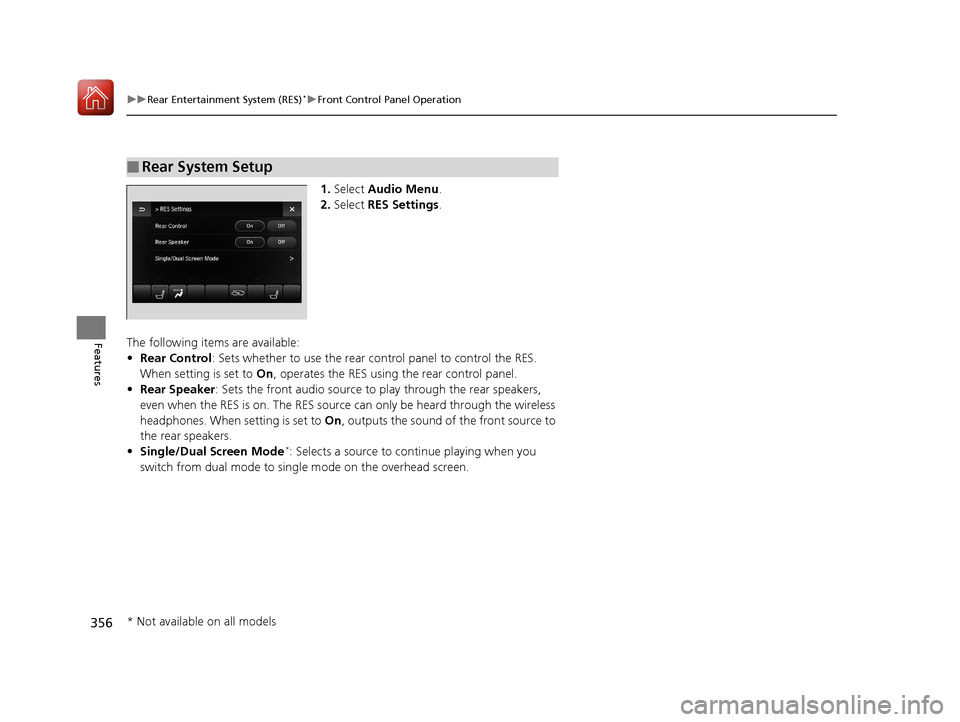
1. Select Audio Menu .
2. Select RES Settings.
The following items are available:
• Rear Control : Sets whether to use the rear co ntrol panel to control the RES.
When setting is set to On, operates the RES using the rear control panel.
• Rear Speaker : Sets the front audio source to play through the rear speakers,
even when the RES is on. The RES source can only be heard through the wireless
headphones. When setting is set to On, outputs the sound of the front source to
the rear speakers.
• Single/Dual Screen Mode
*: Selects a source to co ntinue playing when you
switch from dual mode to singl e mode on the overhead screen.
■Rear System Setup
* Not available on all models
18 ACURA MDX-31TZ56400.book 356 ページ 2017年8月23日 水曜日 午後4時1分
Page 360 of 697
359
uuCustomized Features u
Continued
Features
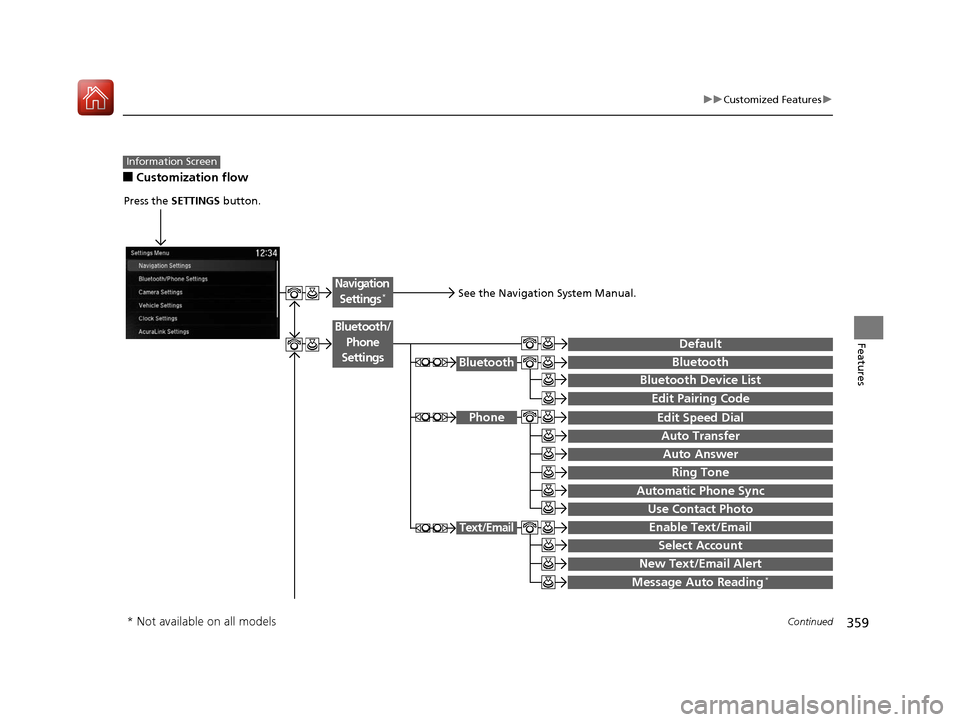
■Customization flow
Information Screen
Press the SETTINGS button.
BluetoothBluetooth
Bluetooth Device List
Edit Speed Dial
Auto Transfer
Auto Answer
Ring Tone
Automatic Phone Sync
Use Contact Photo
Enable Text/Email
Select Account
New Text/Email Alert
Text/Email
Message Auto Reading*
Default
Edit Pairing Code
Phone
Bluetooth/
Phone
Settings
See the Navigation System Manual.
Navigation Settings*
* Not available on all models
18 ACURA MDX-31TZ56400.book 359 ページ 2017年8月23日 水曜日 午後4時1分
Page 365 of 697

364
uuCustomized Features u
Features
Voice Prompt
Brightness
Contrast
Black Level
Default
Display
System
Settings
Voice Reco.
Sync Display Brightness
System Device Information*Header Clock Display
Language
Operation Restriction Tips*
Others
Default
Apple CarPlay Device List
Android Auto Device List
Smartphone
Settings
Smartphone Volume
Factory Data Reset
Units*
Song By Voice*
Song By Voice Phonetic Modification*
Phonebook Phonetic Modification*
Guidance Volume*
Feedback*Guidance Volume
Verbal Reminder
* Not available on all models
18 ACURA MDX-31TZ56400.book 364 ページ 2017年8月23日 水曜日 午後4時1分
Page 366 of 697
365
uuCustomized Features u
Continued
Features
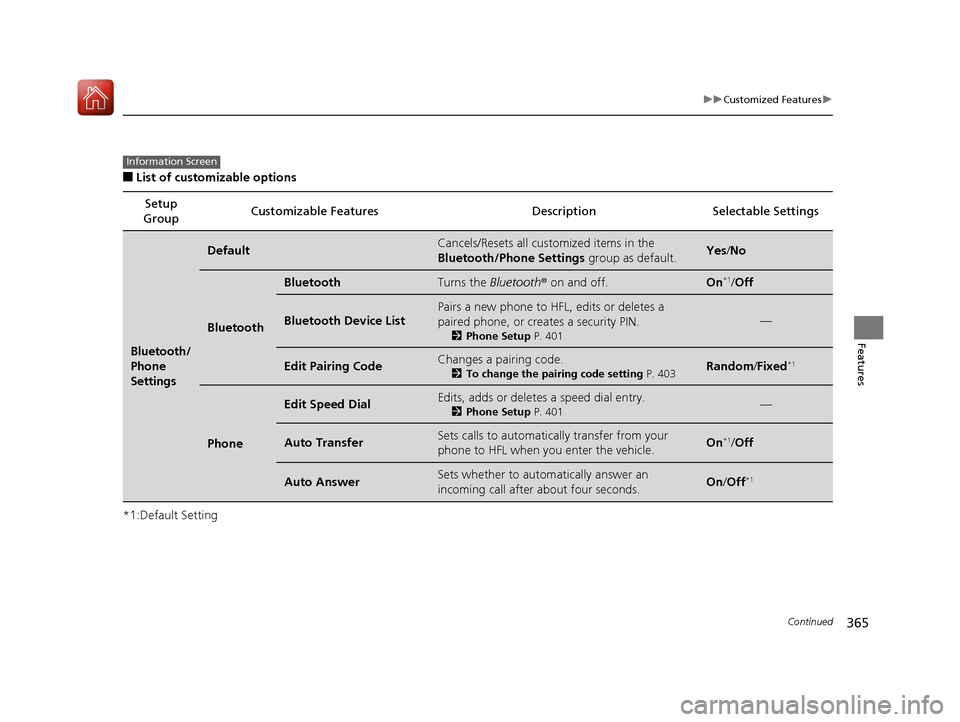
■List of customizable options
*1:Default Setting Setup
Group Customizable Features Description Selectable Settings
Bluetooth/
Phone
Settings
DefaultCancels/Resets all customized items in the
Bluetooth/Phone Settings
group as default.Yes/No
Bluetooth
BluetoothTurns the Bluetooth ® on and off.On*1/Off
Bluetooth Device List
Pairs a new phone to HFL, edits or deletes a
paired phone, or creates a security PIN.
2 Phone Setup P. 401
—
Edit Pairing CodeChanges a pairing code.
2To change the pairing code setting P. 403Random/Fixed*1
Phone
Edit Speed DialEdits, adds or deletes a speed dial entry.
2 Phone Setup P. 401—
Auto TransferSets calls to automatically transfer from your
phone to HFL when you enter the vehicle.On*1/Off
Auto AnswerSets whether to automatically answer an
incoming call after about four seconds.On /Off*1
Information Screen
18 ACURA MDX-31TZ56400.book 365 ページ 2017年8月23日 水曜日 午後4時1分
Page 367 of 697
366
uuCustomized Features u
Features
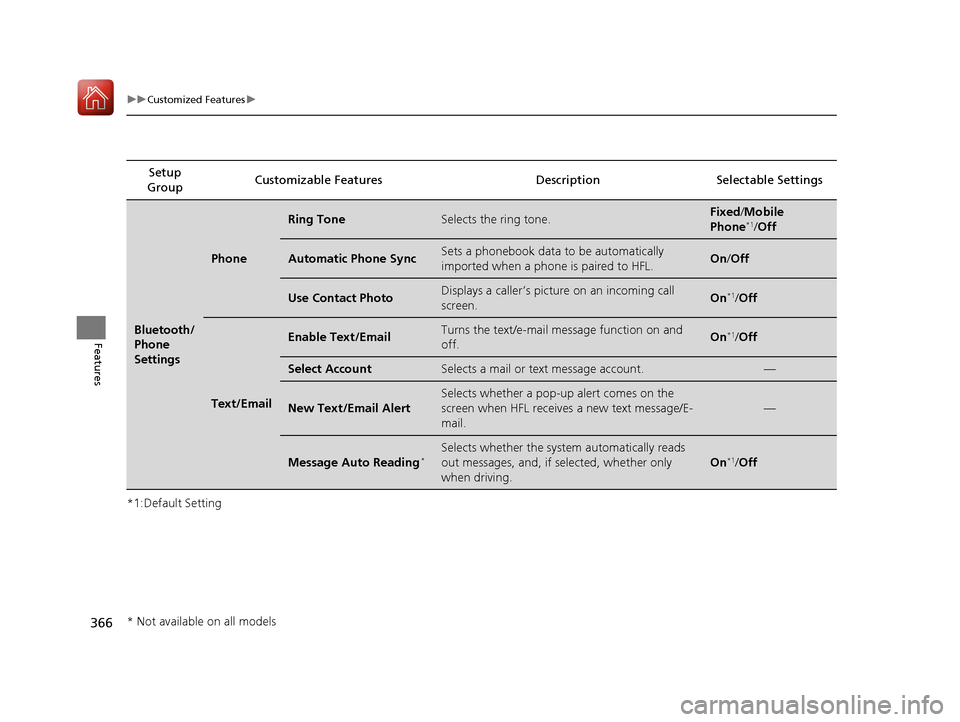
*1:Default SettingSetup
Group Customizable Features Descri
ption Selectable Settings
Bluetooth/
Phone
Settings
Phone
Ring ToneSelects the ring tone.Fixed/Mobile
Phone*1/ Off
Automatic Phone SyncSets a phonebook data to be automatically
imported when a phon e is paired to HFL.On/Off
Use Contact PhotoDisplays a caller’s picture on an incoming call
screen.On*1/Off
Text/Email
Enable Text/EmailTurns the text/e-mail message function on and
off.On*1/Off
Select AccountSelects a mail or text message account.—
New Text/Email Alert
Selects whether a pop-up alert comes on the
screen when HFL receives a new text message/E-
mail.
—
Message Auto Reading*Selects whether the system automatically reads
out messages, and, if selected, whether only
when driving.
On*1/Off
* Not available on all models
18 ACURA MDX-31TZ56400.book 366 ページ 2017年8月23日 水曜日 午後4時1分
Page 380 of 697

379
uuCustomized Features u
Continued
Features
*1:Default SettingSetup
Group Customizable Features Description Selectable Settings
System
Settings Voice
Reco.Voice Prompt
•
Beginner: Explains each option.
• Expert: Turns off voice prompts. Beginner
*1/
Expert
Turns the voice prompt on and off. On
*1/
Off
Song By Voice
*Turns the Song By VoiceTM on and off.
2 Song By VoiceTM (SBV) P. 287On*1/Off
Song By Voice Phonetic
Modification
*
Modifies a voice command for music stored in
the HDD or an iPod.
2 Phonetic Modification P. 289
—
Phonebook Phonetic
Modification
*Modifies a voice command for the phonebook.
2 Phonebook Phonetic Modification* P. 416—
Guidance Volume
*Changes the volume of the voice prompt. —
Models without navigation system
Models with navigation system
* Not available on all models
18 ACURA MDX-31TZ56400.book 379 ページ 2017年8月23日 水曜日 午後4時1分