speaker Acura MDX 2019 Owner's Manual
[x] Cancel search | Manufacturer: ACURA, Model Year: 2019, Model line: MDX, Model: Acura MDX 2019Pages: 701, PDF Size: 38.75 MB
Page 355 of 701
354
uuRear Entertainment System (RES)*uFront Control Panel Operation
Features
Front Control Panel Operation
Operate the Rear Entertainment System (RES) from the On Demand Multi-Use
DisplayTM.
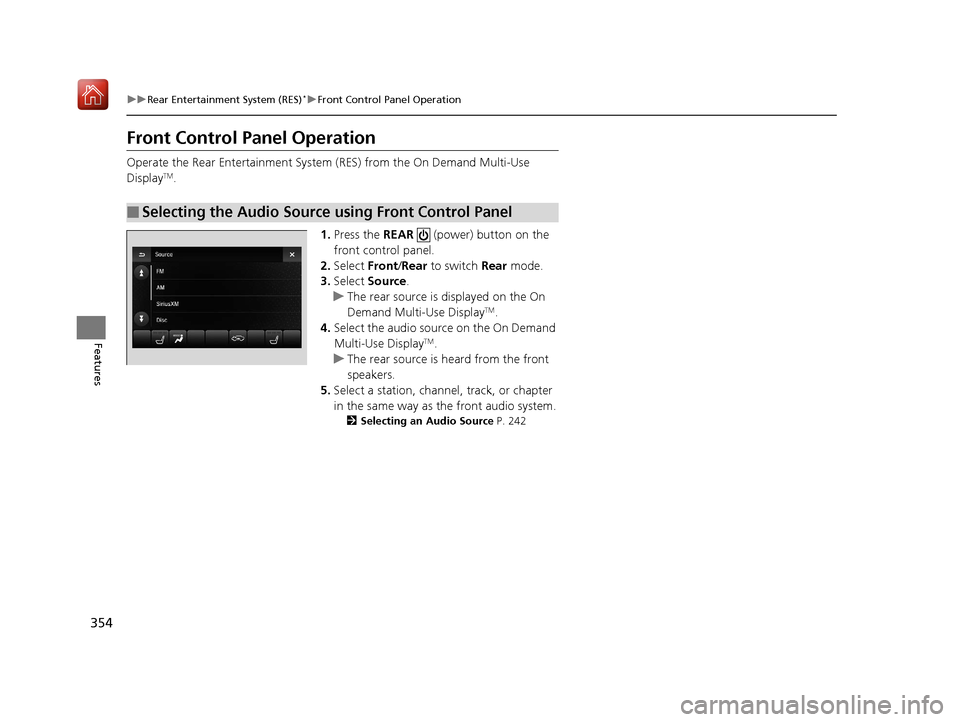
1.Press the REAR (power) button on the
front control panel.
2. Select Front/Rear to switch Rear mode.
3. Select Source .
u The rear source is displayed on the On
Demand Multi-Use Display
TM.
4. Select the audio source on the On Demand
Multi-Use Display
TM.
u The rear source is heard from the front
speakers.
5. Select a station, channel, track, or chapter
in the same way as the front audio system.
2 Selecting an Audio Source P. 242
■Selecting the Audio Source using Front Control Panel
19 ACURA MDX-31TZ56510.book 354 ページ 2018年12月11日 火曜日 午後4時47分
Page 359 of 701
358
uuRear Entertainment System (RES)*uFront Control Panel Operation
Features
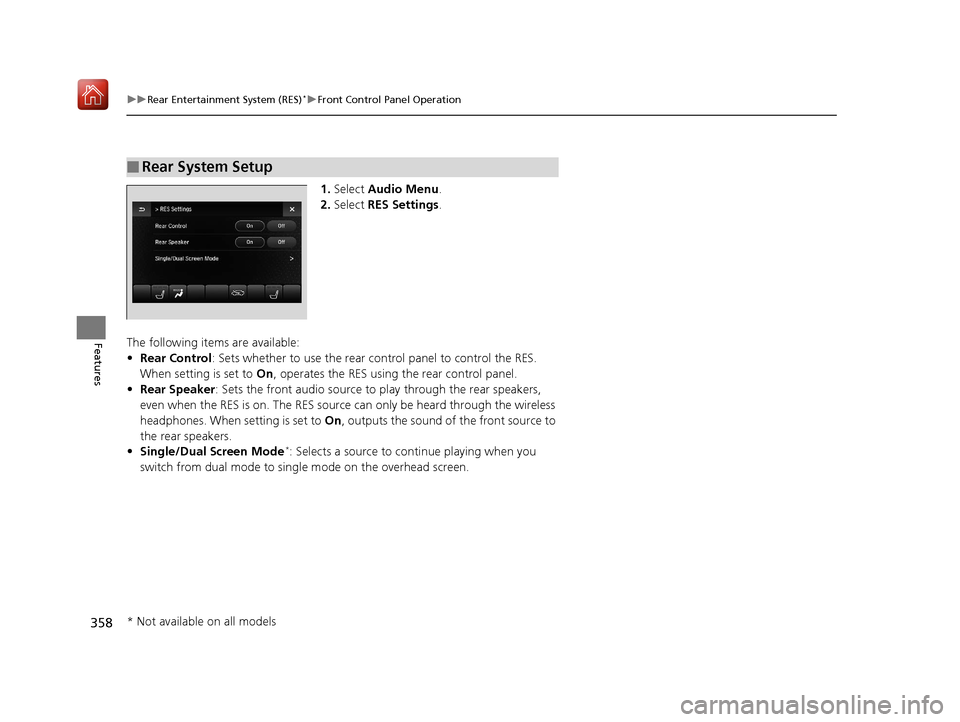
1. Select Audio Menu .
2. Select RES Settings.
The following items are available:
• Rear Control : Sets whether to use the rear co ntrol panel to control the RES.
When setting is set to On, operates the RES using the rear control panel.
• Rear Speaker : Sets the front audio source to play through the rear speakers,
even when the RES is on. The RES source can only be heard through the wireless
headphones. When setting is set to On, outputs the sound of the front source to
the rear speakers.
• Single/Dual Screen Mode
*: Selects a source to co ntinue playing when you
switch from dual mode to singl e mode on the overhead screen.
■Rear System Setup
* Not available on all models
19 ACURA MDX-31TZ56510.book 358 ページ 2018年12月11日 火曜日 午後4時47分
Page 381 of 701
380
uuCustomized Features u
Features
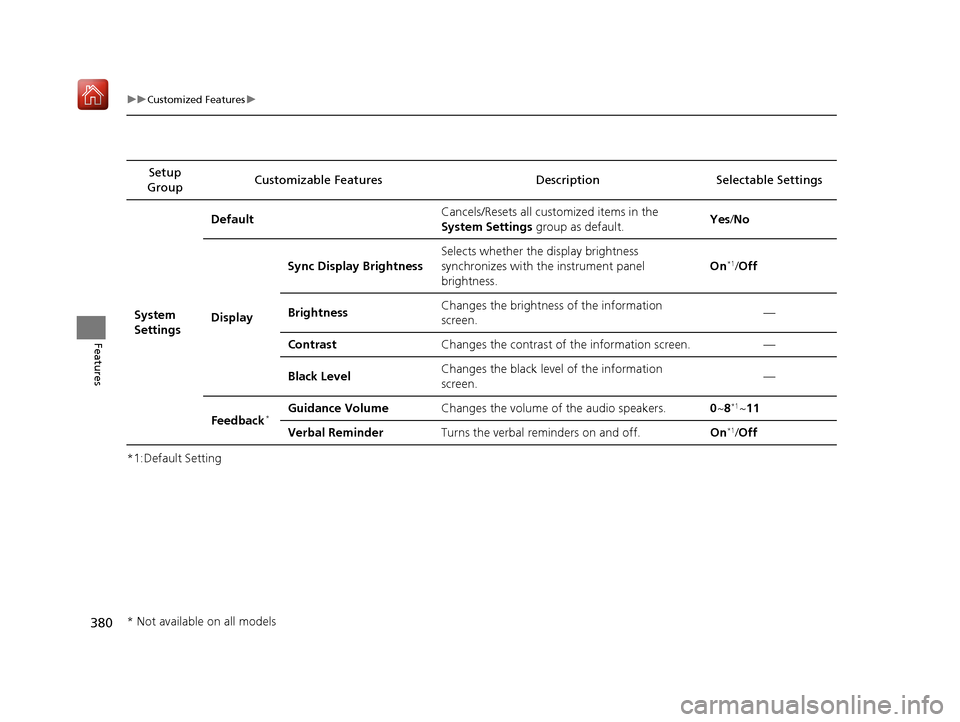
*1:Default SettingSetup
Group Customizable Features Desc
ription Selectable Settings
System
Settings Default
Cancels/Resets all customized items in the
System Settings
group as default. Yes
/No
Display Sync Display Brightness
Selects whether the display brightness
synchronizes with the instrument panel
brightness. On
*1/
Off
Brightness Changes the brightness of the information
screen. —
Contrast Changes the contrast of the information screen. —
Black Level Changes the black leve
l of the information
screen. —
Feedback
*Guidance Volume Changes the volume of the audio speakers. 0~8*1~11
Verbal Reminder Turns the verbal reminders on and off. On
*1/Off
* Not available on all models
19 ACURA MDX-31TZ56510.book 380 ページ 2018年12月11日 火曜日 午後4時47分
Page 386 of 701

385
uuCustomized Features u
Continued
FeaturesSync Display Brightness
Brightness
Contrast
Black Level
Beep
Keyboard
Screen Settings
RES Settings*Rear Control
Rear Speaker
Single/Dual Screen Mode*
HD Radio Mode*Other
Cover Art
DVD Auto PlayDVD*
Audio Language
Subtitle Language
Menu Language
Dynamic Range
* Not available on all models
19 ACURA MDX-31TZ56510.book 385 ページ 2018年12月11日 火曜日 午後4時47分
Page 387 of 701
386
uuCustomized Features u
Features
■List of customizable options
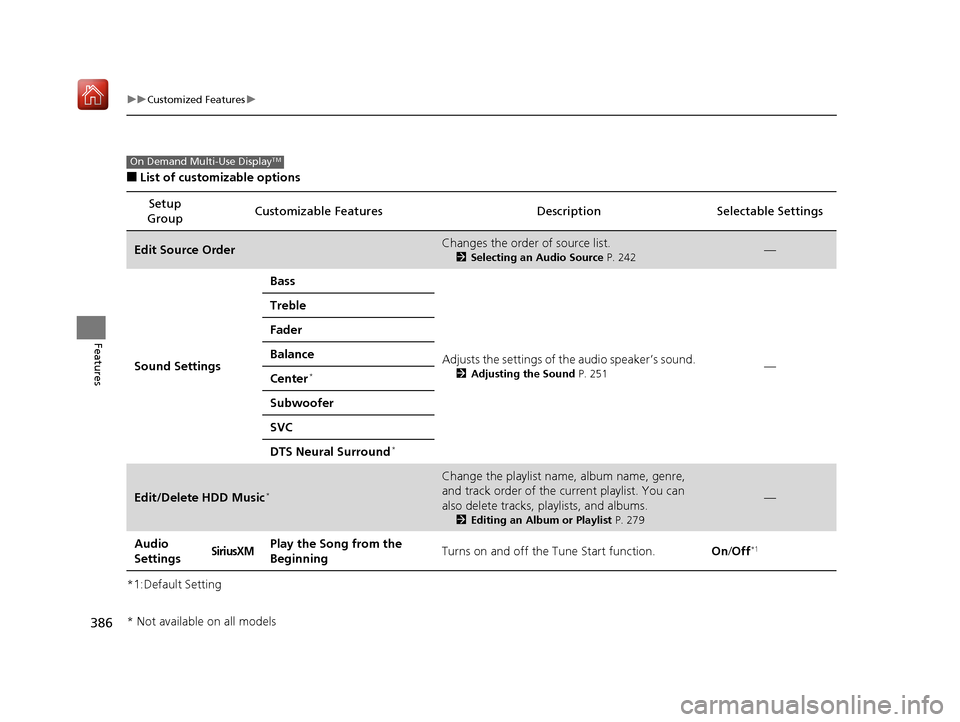
*1:Default Setting Setup
Group Customizable Features Descri
ption Selectable Settings
Edit Source OrderChanges the order of source list.
2Selecting an Audio Source P. 242—
Sound Settings Bass
Adjusts the settings of the audio speaker’s sound.
2Adjusting the Sound P. 251—
Treble
Fader
Balance
Center*
Subwoofer
SVC
DTS Neural Surround
*
Edit/Delete HDD Music*
Change the playlist name, album name, genre,
and track order of the cu
rrent playlist. You can
also delete tracks, playlists, and albums.
2 Editing an Album or Playlist P. 279
—
Audio
SettingsSiriusXMPlay the Song from the
BeginningTurns on and off the Tune Start function.On/Off*1
On Demand Multi-Use DisplayTM
* Not available on all models
19 ACURA MDX-31TZ56510.book 386 ページ 2018年12月11日 火曜日 午後4時47分
Page 391 of 701
390
uuCustomized Features u
Features
*1:Default SettingSetup
Group Customizable Features
Description Selectable Settings
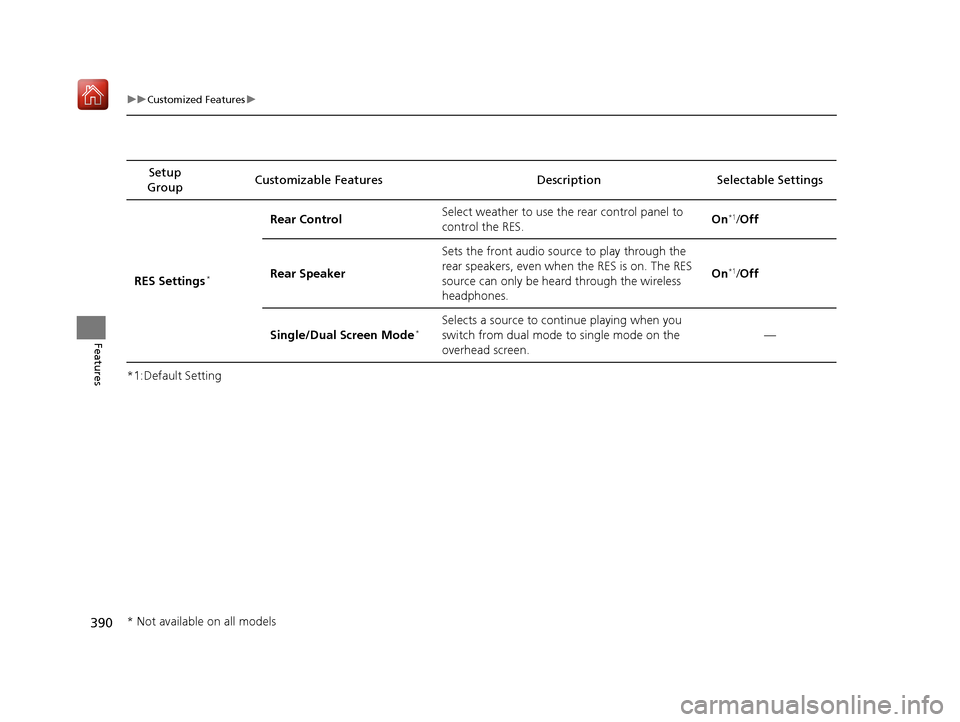
RES Settings
*
Rear Control Select weather to use the rear control panel to
control the RES. On*1/
Off
Rear Speaker Sets the front audio source to play through the
rear speakers, even when the RES is on. The RES
source can only be heard through the wireless
headphones. On
*1/
Off
Single/Dual Screen Mode
*Selects a source to continue playing when you
switch from dual mode to single mode on the
overhead screen. —
* Not available on all models
19 ACURA MDX-31TZ56510.book 390 ページ 2018年12月11日 火曜日 午後4時47分
Page 414 of 701
Continued413
uuBluetooth ® HandsFreeLink ®u HFL Menus
Features
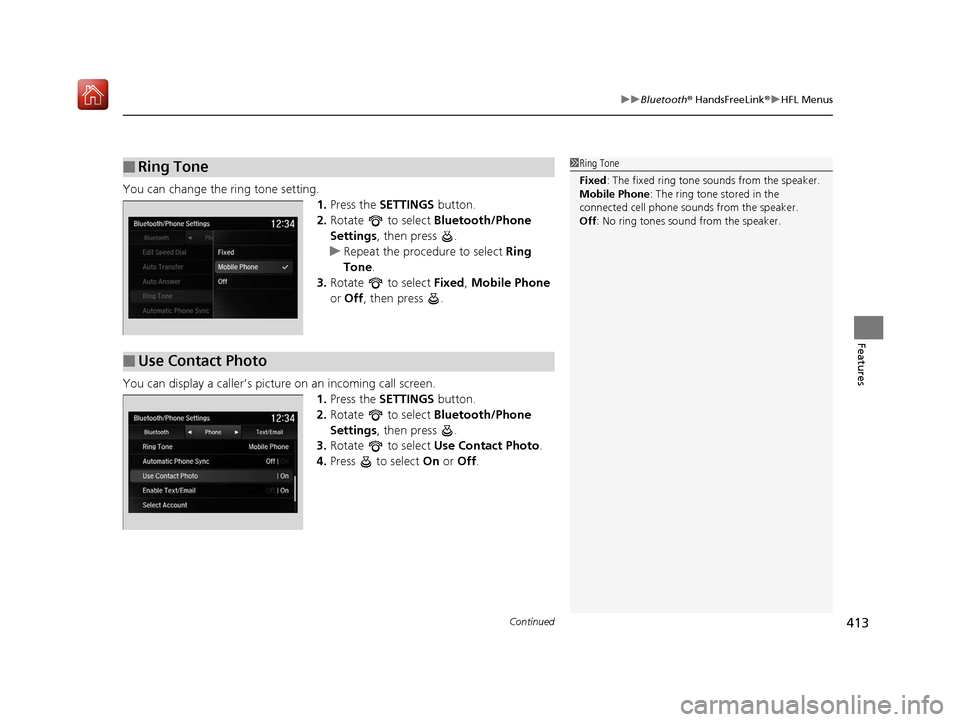
You can change the ring tone setting.
1.Press the SETTINGS button.
2. Rotate to select Bluetooth/Phone
Settings , then press .
u Repeat the procedure to select Ring
Tone .
3. Rotate to select Fixed, Mobile Phone
or Off , then press .
You can display a caller’s picture on an incoming call screen. 1.Press the SETTINGS button.
2. Rotate to select Bluetooth/Phone
Settings , then press .
3. Rotate to select Use Contact Photo .
4. Press to select On or Off .
■Ring Tone1Ring Tone
Fixed: The fixed ring tone sounds from the speaker.
Mobile Phone: The ring tone stored in the
connected cell phone sounds from the speaker.
Off : No ring tones sound from the speaker.
■Use Contact Photo
19 ACURA MDX-31TZ56510.book 413 ページ 2018年12月11日 火曜日 午後4時47分
Page 424 of 701

Continued423
uuBluetooth ® HandsFreeLink ®u HFL Menus
Features
You can make calls by inputting any phone
number, or by using the imported
phonebook, call history, speed dial entries, or
redial.
■Making a Call1Making a Call
Any voice-tagged speed di al entry, phonebook name,
or number can be dialed by voice from most screens.
Press the button and say “Call” and the voice tag
name, “Call by name” and the phonebook name, or
“Call” and the phone number.
The maximum range be tween your phone and
vehicles is 30 fe et (10 meters).
Once a call is connected, you can hear the voice of
the person you are call ing through the audio
speakers.
While there is an active connection with Apple
CarPlay, phone calls ca nnot be made with
HandsFreeLink ® and are only made from Apple
CarPlay.
19 ACURA MDX-31TZ56510.book 423 ページ 2018年12月11日 火曜日 午後4時47分
Page 438 of 701
437Continued
Features
AcuraLink®*
Is a subscription-based service that provid es convenient features such as voice
communication in case of emergency, online security, one-on-one operator
assistance, and the transmission of importa nt messages regarding your vehicle’s
status.
For information on traffic rero uting and traffic information updates, provided by the
AcuraLink server, see the Navigation System Manual.
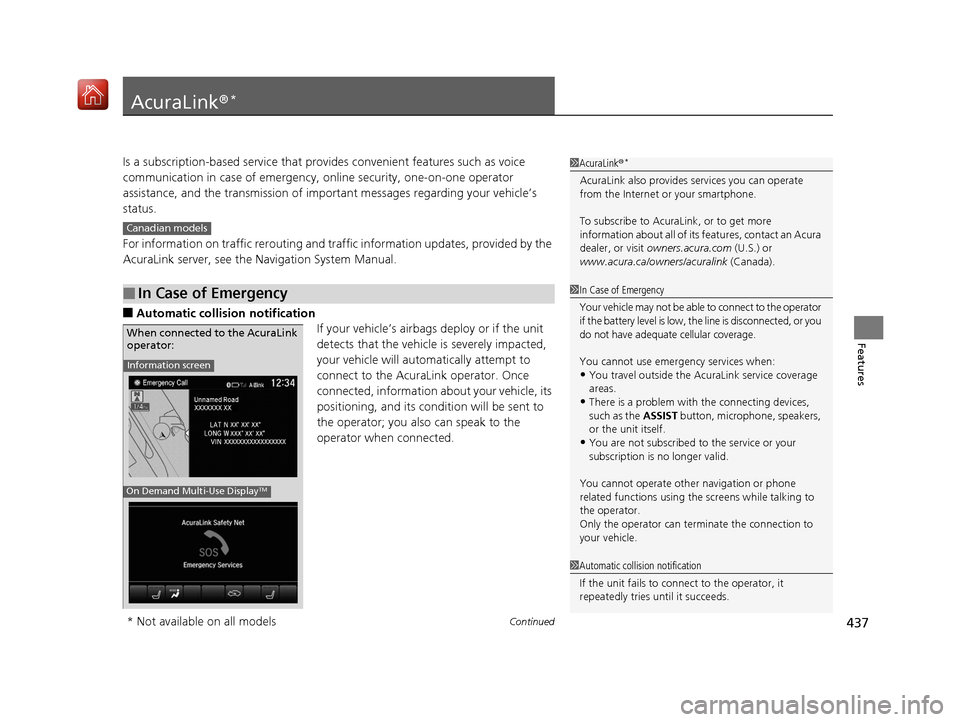
■Automatic collis ion notification
If your vehicle’s airbags deploy or if the unit
detects that the vehicle is severely impacted,
your vehicle will automatically attempt to
connect to the AcuraLink operator. Once
connected, information about your vehicle, its
positioning, and its condition will be sent to
the operator; you also can speak to the
operator when connected.
■In Case of Emergency
1AcuraLink ®*
AcuraLink also provides services you can operate
from the Internet or your smartphone.
To subscribe to AcuraLink, or to get more
information about all of its features, contact an Acura
dealer, or visit owners.acura.com (U.S.) or
www.acura.ca/owners/acuralink (Canada).
Canadian models
1In Case of Emergency
Your vehicle may not be able to connect to the operator
if the battery level is low, the line is disconnected, or you
do not have adequate cellular coverage.
You cannot use emergency services when:
•You travel outside the AcuraLink service coverage
areas.
•There is a problem with the connecting devices,
such as the ASSIST button, microphone, speakers,
or the unit itself.
•You are not subscribed to the service or your
subscription is no longer valid.
You cannot operate othe r navigation or phone
related functions using the screens while talking to
the operator.
Only the operator can terminate the connection to
your vehicle.
1 Automatic collision notification
If the unit fails to connect to the operator, it
repeatedly tries until it succeeds.
Information screen
On Demand Multi-Use DisplayTM
When connected to the AcuraLink
operator:
* Not available on all models
19 ACURA MDX-31TZ56510.book 437 ページ 2018年12月11日 火曜日 午後4時47分