display Acura RDX 2011 Owner's Manual
[x] Cancel search | Manufacturer: ACURA, Model Year: 2011, Model line: RDX, Model: Acura RDX 2011Pages: 517, PDF Size: 27.89 MB
Page 290 of 517
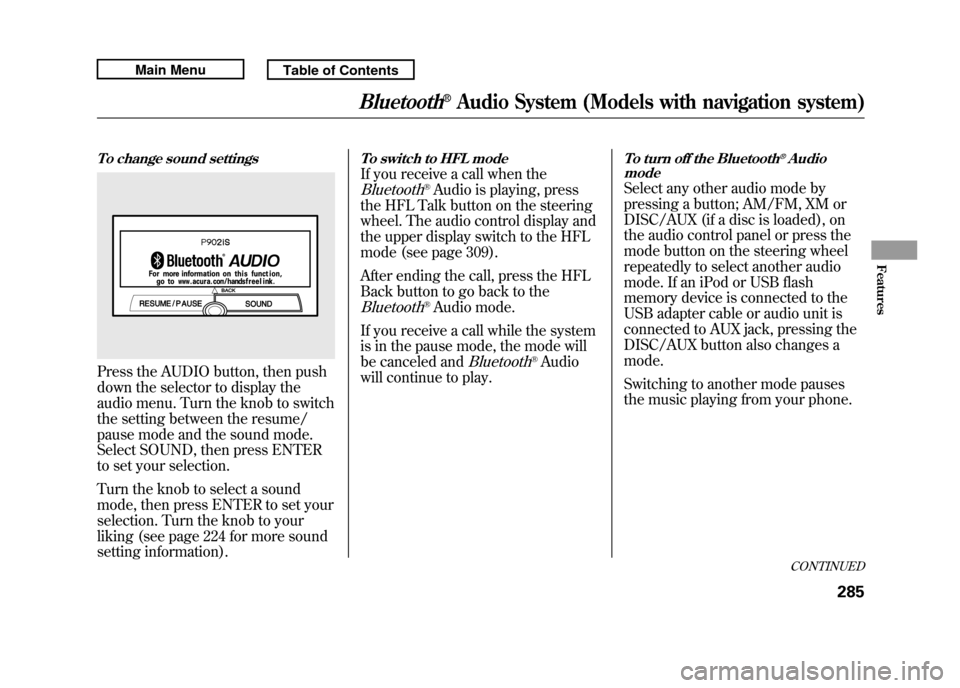
To change sound settingsPress the AUDIO button, then push
down the selector to display the
audio menu. Turn the knob to switch
the setting between the resume/
pause mode and the sound mode.
Select SOUND, then press ENTER
to set your selection.
Turn the knob to select a sound
mode, then press ENTER to set your
selection. Turn the knob to your
liking (see page 224 for more sound
setting information).
To switch to HFL modeIf you receive a call when theBluetooth
®Audio is playing, press
the HFL Talk button on the steering
wheel. The audio control display and
the upper display switch to the HFL
mode (see page 309).
After ending the call, press the HFL
Back button to go back to the
Bluetooth
®Audio mode.
If you receive a call while the system
is in the pause mode, the mode will
be canceled and
Bluetooth
®Audio
will continue to play.
To turn off the Bluetooth
®Audio
mode
Select any other audio mode by
pressing a button; AM/FM, XM or
DISC/AUX (if a disc is loaded), on
the audio control panel or press the
mode button on the steering wheel
repeatedly to select another audio
mode. If an iPod or USB flash
memory device is connected to the
USB adapter cable or audio unit is
connected to AUX jack, pressing the
DISC/AUX button also changes a
mode.
Switching to another mode pauses
the music playing from your phone.
CONTINUED
Bluetooth
®Audio System (Models with navigation system)
285
Features
10/06/08 17:42:32 11 ACURA RDX MMC North America Owner's M 50 31STK640 enu
Page 292 of 517
FM/AM Radio Frequencies
The radio can receive the complete
AM and FM bands.
Those bands cover these
frequencies:
AM band: 530 to 1,710 kHz
FM band: 87.7 to 107.9 MHz
Radio stations on the AM band are
assigned frequencies at least 10 kHz
apart (530, 540, 550). Stations on the
FM band are assigned frequencies at
least 0.2 MHz apart (87.9, 88.1, 88.3).
Stations must use these exact
frequencies. It is fairly common for
stations to round-off the frequency in
their advertising, so your radio could
display a frequency of 100.9 even
though the announcer may identify
the station as‘‘FM101. ’’ FM/AM Radio Reception
How well the radio receives stations
is dependent on many factors, such
as the distance from the station's
transmitter, nearby large objects, and
atmospheric conditions.
A radio station's signal gets weaker
as you get farther away from its
transmitter. If you are listening to an
AM station, you will notice the sound
volume becoming weaker, and the
station drifting in and out. If you are
listening to an FM station, you will
see the stereo indicator flickering off
and on as the signal weakens.
Eventually, the stereo indicator will
go off and the sound will fade
completely as you get out of range of
the station's signal.
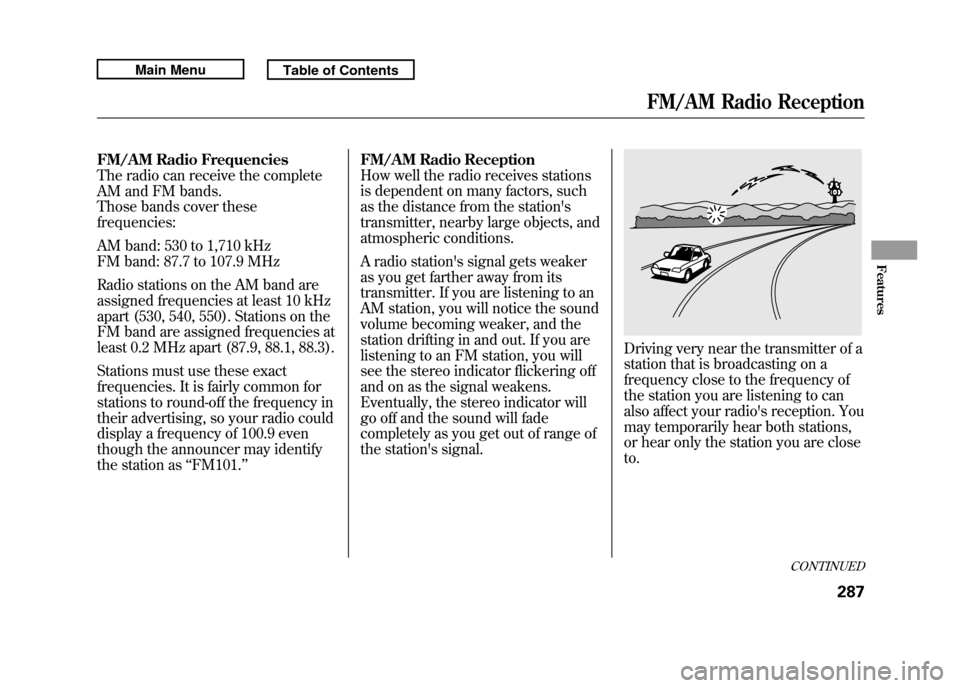
Driving very near the transmitter of a
station that is broadcasting on a
frequency close to the frequency of
the station you are listening to can
also affect your radio's reception. You
may temporarily hear both stations,
or hear only the station you are close
to.
CONTINUED
FM/AM Radio Reception
287
Features
10/06/08 17:42:32 11 ACURA RDX MMC North America Owner's M 50 31STK640 enu
Page 296 of 517
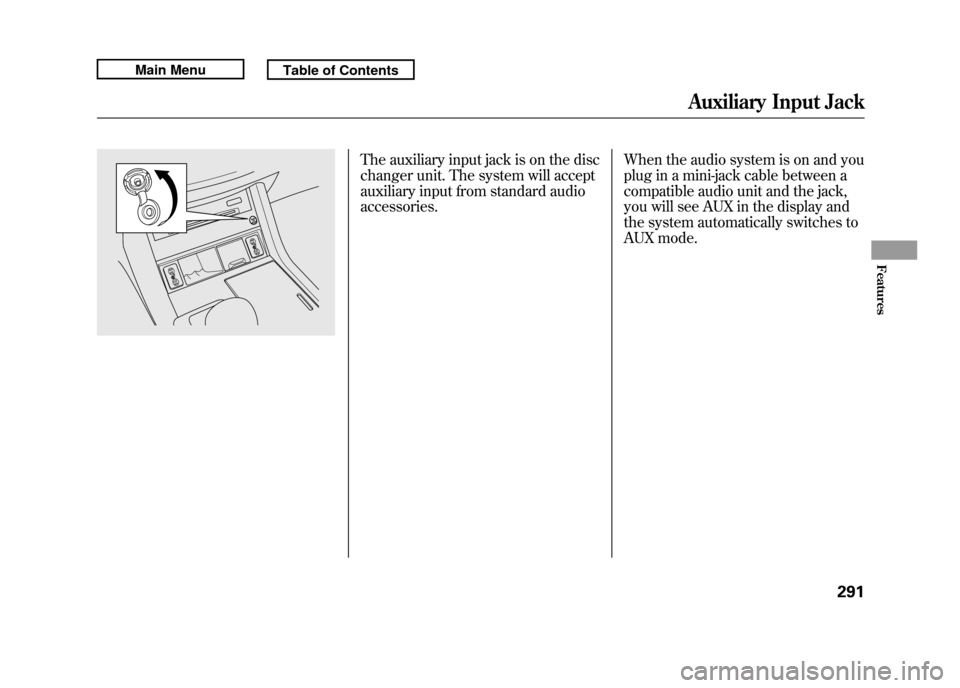
The auxiliary input jack is on the disc
changer unit. The system will accept
auxiliary input from standard audio
accessories.When the audio system is on and you
plug in a mini-jack cable between a
compatible audio unit and the jack,
you will see AUX in the display and
the system automatically switches to
AUX mode.
Auxiliary Input Jack
291
Features
10/06/08 17:42:32 11 ACURA RDX MMC North America Owner's M 50 31STK640 enu
Page 297 of 517

Your vehicle's audio system will
disable itself if it is disconnected
from electrical power for any reason.
To make it work again, you must
enter a specific five-digit code with
the preset bars or buttons
(depending on models). Because
there are hundreds of number
combinations possible from the five
digits, making the system work
without knowing the exact code is
nearly impossible.
You should have received a card that
lists your audio system code number
and serial number. It is best to store
this card in a safe place at home. In
addition, you should write the audio
system's serial number in this
owner's manual.
If you lose the card, you must obtain
the code number from your dealer.
To do this, you will need the audio
system's serial number.NOTE:
If you have a My Acura account, you
can retrieve the anti-theft code
online.
If your vehicle's battery is
disconnected or goes dead, the audio
system will disable itself. If this
happens, you will see
‘‘
’’on
the center or upper display
(depending on models) the next time
you turn on the system. Use the
preset bars or buttons (depending on
models) to enter the five-digit code.
The code is located on the radio code
card included in your owner's
manual kit. When it is entered
correctly, the radio will start playing. If you make a mistake entering the
code, do not start over; complete the
five-digit sequence, then enter the
correct code. You have ten tries to
enter the correct code. If you are
unsuccessful in ten attempts, you
must then leave the system on for 1
hour before trying again.
The system will retain your AM and
FM presets even if power is
disconnected.
Radio Theft Protection29210/06/08 17:42:32 11 ACURA RDX MMC North America Owner's M 50 31STK640 enu
Page 298 of 517
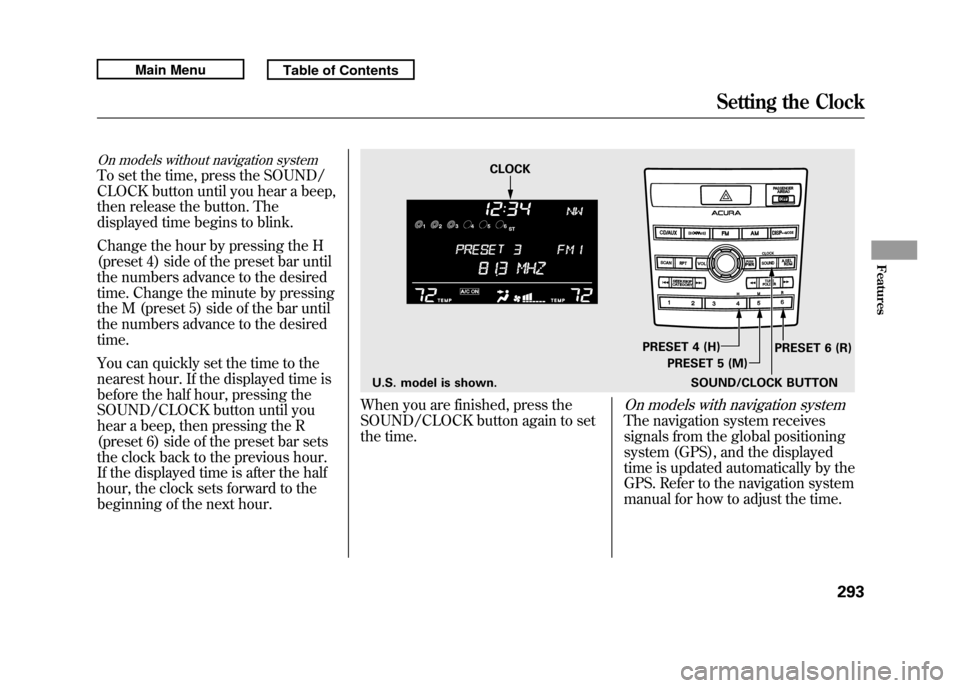
On models without navigation systemTo set the time, press the SOUND/
CLOCK button until you hear a beep,
then release the button. The
displayed time begins to blink.
Change the hour by pressing the H
(preset 4) side of the preset bar until
the numbers advance to the desired
time. Change the minute by pressing
the M (preset 5) side of the bar until
the numbers advance to the desired
time.
You can quickly set the time to the
nearest hour. If the displayed time is
before the half hour, pressing the
SOUND/CLOCK button until you
hear a beep, then pressing the R
(preset 6) side of the preset bar sets
the clock back to the previous hour.
If the displayed time is after the half
hour, the clock sets forward to the
beginning of the next hour.
When you are finished, press the
SOUND/CLOCK button again to set
the time.
On models with navigation systemThe navigation system receives
signals from the global positioning
system (GPS), and the displayed
time is updated automatically by the
GPS. Refer to the navigation system
manual for how to adjust the time.
U.S. model is shown.SOUND/CLOCK BUTTONPRESET 6 (R)
PRESET 4 (H)
PRESET 5 (M)
CLOCK
Setting the Clock
293
Features
10/06/08 17:42:32 11 ACURA RDX MMC North America Owner's M 50 31STK640 enu
Page 300 of 517
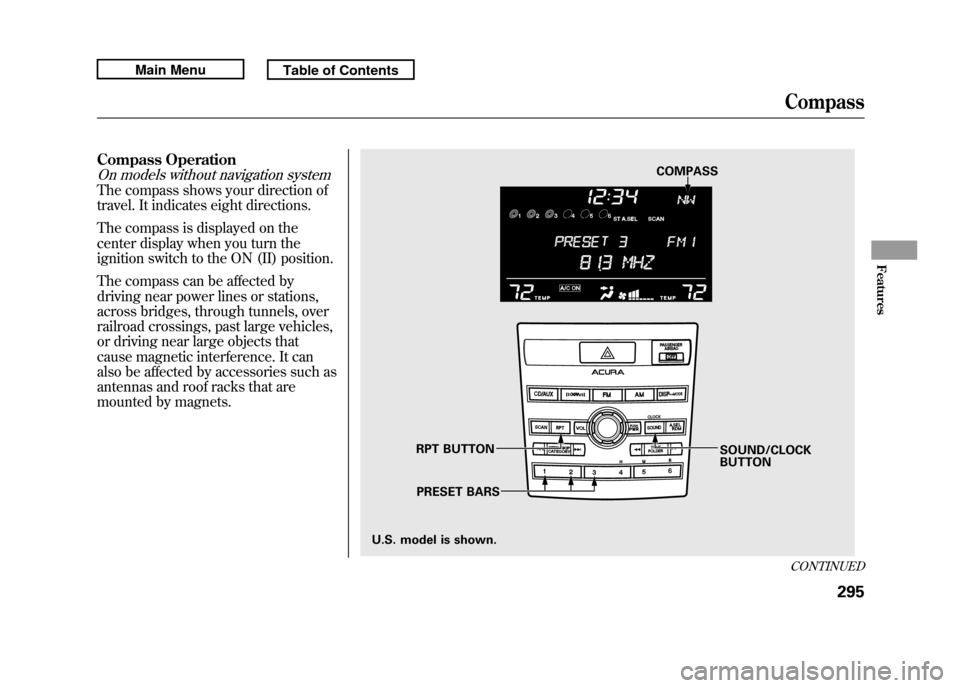
Compass OperationOn models without navigation systemThe compass shows your direction of
travel. It indicates eight directions.
The compass is displayed on the
center display when you turn the
ignition switch to the ON (II) position.
The compass can be affected by
driving near power lines or stations,
across bridges, through tunnels, over
railroad crossings, past large vehicles,
or driving near large objects that
cause magnetic interference. It can
also be affected by accessories such as
antennas and roof racks that are
mounted by magnets.
COMPASSSOUND/CLOCK
BUTTON
RPT BUTTON
PRESET BARS
U.S. model is shown.
CONTINUEDCompass
295
Features
10/06/08 17:42:32 11 ACURA RDX MMC North America Owner's M 50 31STK640 enu
Page 301 of 517
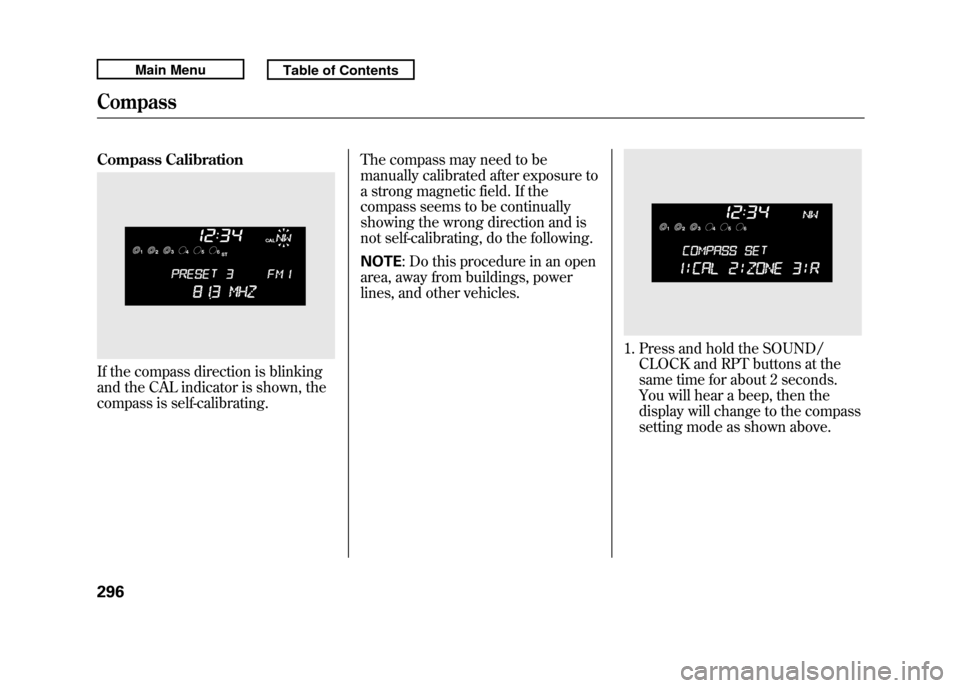
Compass CalibrationIf the compass direction is blinking
and the CAL indicator is shown, the
compass is self-calibrating.The compass may need to be
manually calibrated after exposure to
a strong magnetic field. If the
compass seems to be continually
showing the wrong direction and is
not self-calibrating, do the following.
NOTE
: Do this procedure in an open
area, away from buildings, power
lines, and other vehicles.
1. Press and hold the SOUND/ CLOCK and RPT buttons at the
same time for about 2 seconds.
You will hear a beep, then the
display will change to the compass
setting mode as shown above.
Compass29610/06/08 17:42:32 11 ACURA RDX MMC North America Owner's M 50 31STK640 enu
Page 302 of 517

2. Select‘‘CAL ’’by pressing preset 1
to enter the calibration mode. If
you want to cancel this mode,
select ‘‘R ’’ by pressing preset 3.
The display will return to the
normal display.
3. Select ‘‘CAL START ’’by pressing
preset 1. The system will start the
calibration. ‘‘CAL ’’will appear on
the display, then the direction will
also begin to blink. If you select
‘‘ R ’’ by pressing preset 3, the
display will return to the compass
setting mode.
4. When the direction stops blinking, the calibration mode is completed.
The display will return to the
normal display.
Compass Zone SelectionIn most areas, there is a variation
between magnetic north and true
north. Zone selection is required so
the compass can compensate for this
variation. To check and select the
zone set into the compass, do the
procedure on the following pages.
CONTINUEDCompass
297
Features
10/06/08 17:42:32 11 ACURA RDX MMC North America Owner's M 50 31STK640 enu
Page 303 of 517
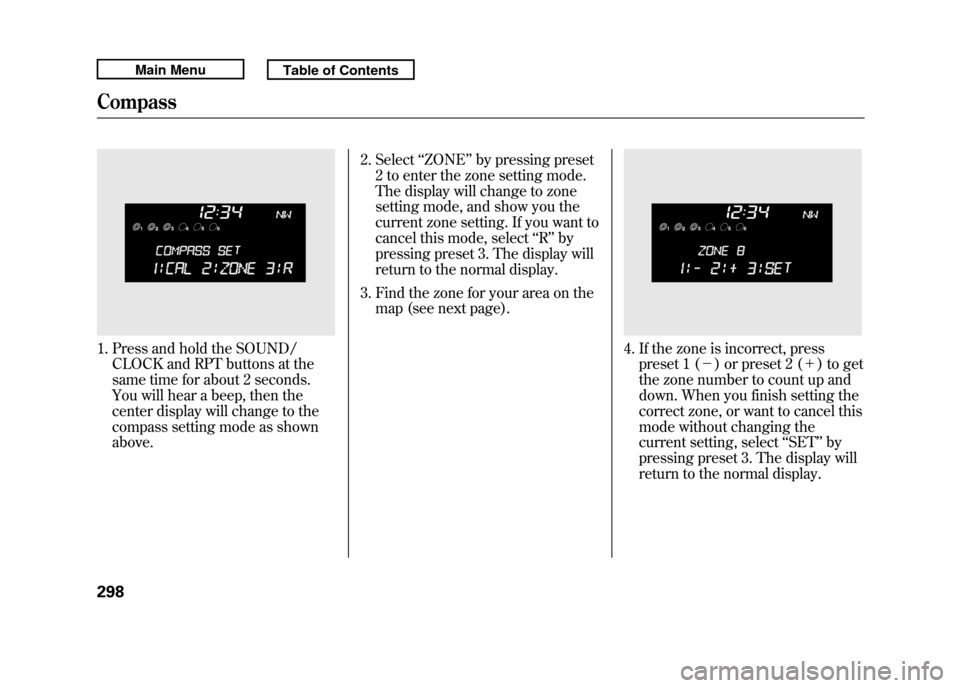
1. Press and hold the SOUND/CLOCK and RPT buttons at the
same time for about 2 seconds.
You will hear a beep, then the
center display will change to the
compass setting mode as shown
above. 2. Select
‘‘ZONE ’’by pressing preset
2 to enter the zone setting mode.
The display will change to zone
setting mode, and show you the
current zone setting. If you want to
cancel this mode, select ‘‘R ’’ by
pressing preset 3. The display will
return to the normal display.
3. Find the zone for your area on the map (see next page).
4. If the zone is incorrect, presspreset 1 (- ) or preset 2 (+ ) to get
the zone number to count up and
down. When you finish setting the
correct zone, or want to cancel this
mode without changing the
current setting, select ‘‘SET ’’by
pressing preset 3. The display will
return to the normal display.
Compass29810/06/08 17:42:32 11 ACURA RDX MMC North America Owner's M 50 31STK640 enu
Page 313 of 517
Help Features●To hear general HFL information,
including help on pairing a phone
or setting up the system, say
‘‘Tutorial. ’’●For help at any time, including a
list of available commands, say
‘‘Hands free help.’’
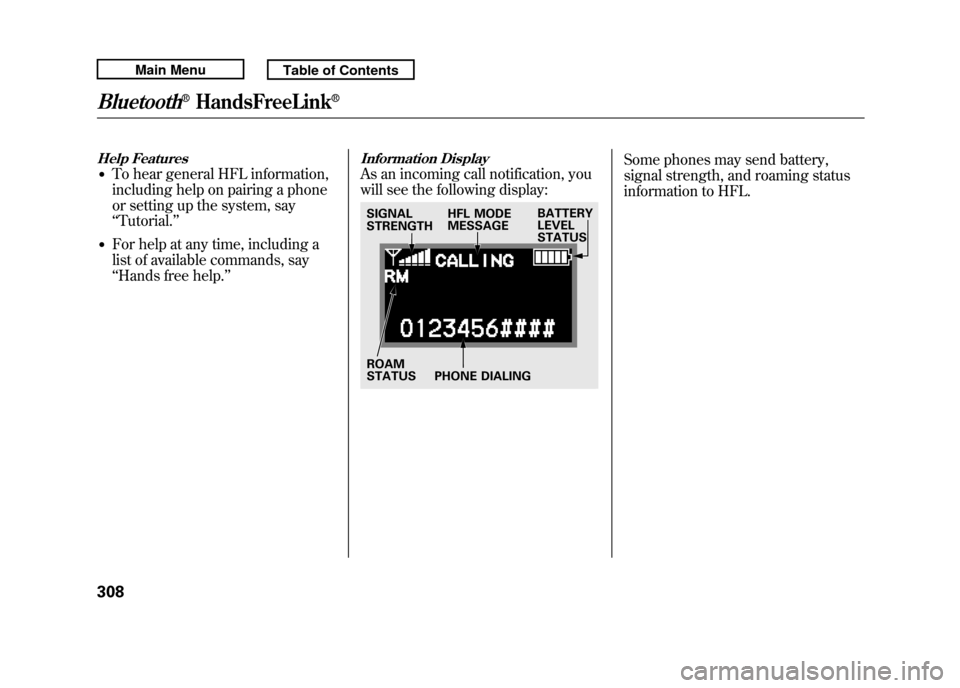
Information DisplayAs an incoming call notification, you
will see the following display:
Some phones may send battery,
signal strength, and roaming status
information to HFL.
SIGNAL
STRENGTH HFL MODE
MESSAGE BATTERY
LEVEL
STATUS
ROAM
STATUS PHONE DIALING
Bluetooth
®HandsFreeLink
®
30810/06/08 17:42:32 11 ACURA RDX MMC North America Owner's M 50 31STK640 enu