buttons Acura RDX 2011 Owner's Guide
[x] Cancel search | Manufacturer: ACURA, Model Year: 2011, Model line: RDX, Model: Acura RDX 2011Pages: 517, PDF Size: 27.89 MB
Page 237 of 517
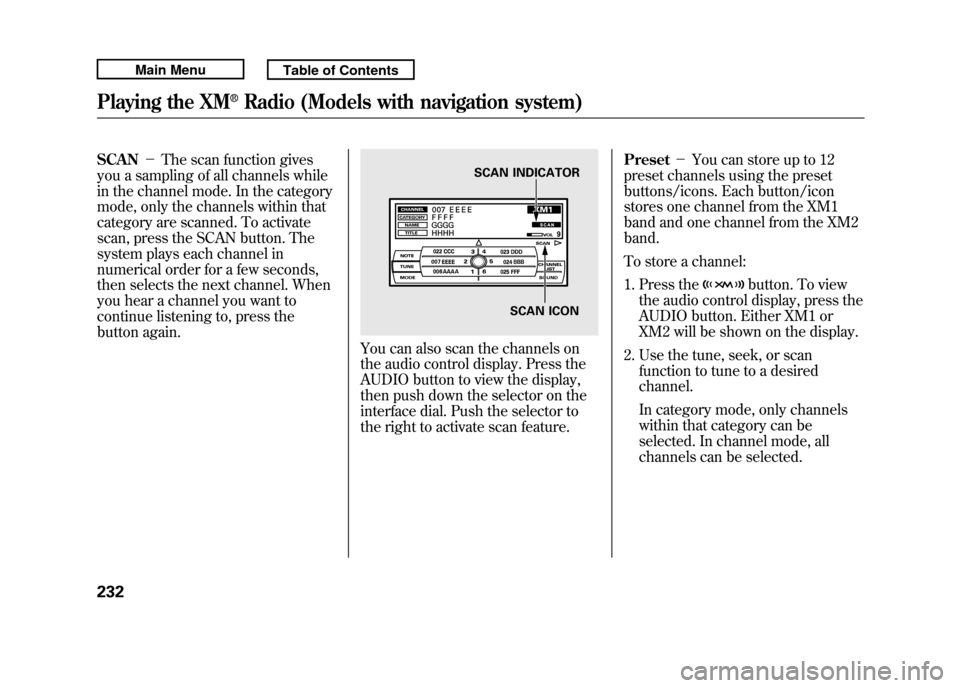
SCAN-The scan function gives
you a sampling of all channels while
in the channel mode. In the category
mode, only the channels within that
category are scanned. To activate
scan, press the SCAN button. The
system plays each channel in
numerical order for a few seconds,
then selects the next channel. When
you hear a channel you want to
continue listening to, press the
button again.
You can also scan the channels on
the audio control display. Press the
AUDIO button to view the display,
then push down the selector on the
interface dial. Push the selector to
the right to activate scan feature. Preset
-You can store up to 12
preset channels using the preset
buttons/icons. Each button/icon
stores one channel from the XM1
band and one channel from the XM2
band.
To store a channel:
1. Press the
button. To view
the audio control display, press the
AUDIO button. Either XM1 or
XM2 will be shown on the display.
2. Use the tune, seek, or scan function to tune to a desired
channel.
In category mode, only channels
within that category can be
selected. In channel mode, all
channels can be selected.
SCAN INDICATOR
SCAN ICON
Playing the XM
®Radio (Models with navigation system)
23210/06/08 17:42:32 11 ACURA RDX MMC North America Owner's M 50 31STK640 enu
Page 245 of 517
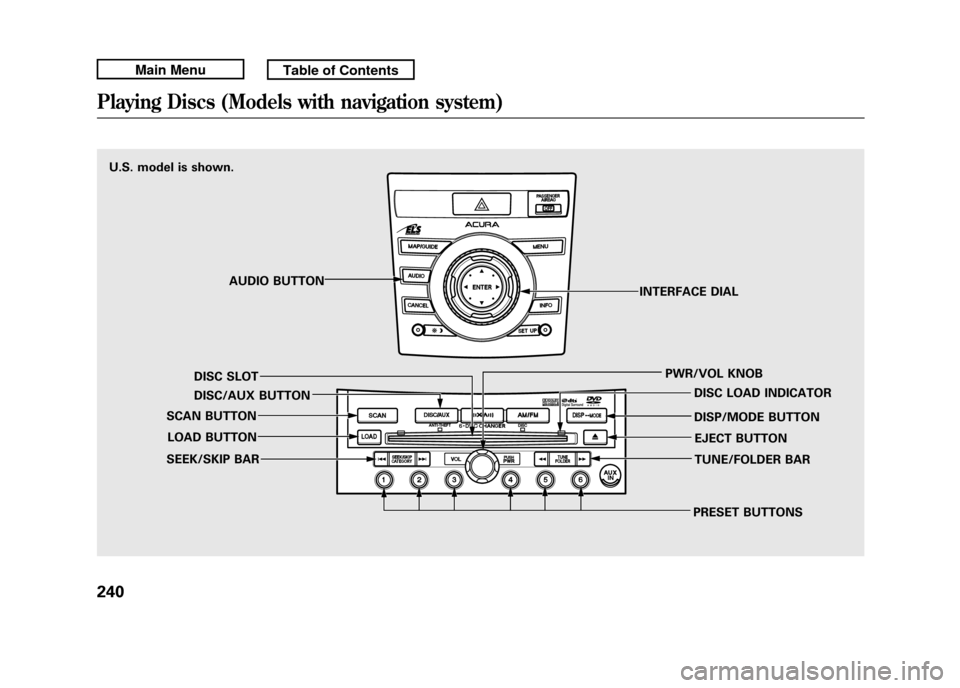
U.S. model is shown.AUDIO BUTTON
DISC SLOT
DISC/AUX BUTTON
SCAN BUTTON
LOAD BUTTON
SEEK/SKIP BAR
PRESET BUTTONSTUNE/FOLDER BAR EJECT BUTTON
DISP/MODE BUTTON DISC LOAD INDICATOR
PWR/VOL KNOB
INTERFACE DIALPlaying Discs (Models with navigation system)24010/06/08 17:42:32 11 ACURA RDX MMC North America Owner's M 50 31STK640 enu
Page 267 of 517

To Play an iPod
®
This audio system can operate the
audio files on the iPod
®with the
same controls used for the in-dash
disc changer. To play an iPod,
connect it to the USB adapter cable
in the console compartment by using
your dock connector, then press the
DISC/AUX button. The ignition
switch must be in the ACCESSORY
(I) or ON (II) position. The iPod will
also be recharged with the ignition
switch in these positions.
The system will only play songs
stored on the iPod with iTunes.
iPod and iTunes are registered
trademarks owned by Apple Inc.
Voice Control SystemYou can select the AUX mode by
using the navigation system voice
control buttons, but cannot operate
the play mode functions. iPods compatible with your audio
system using the USB adapter cable
are:
Model Software
iPod classic Ver. 1.0 or more
iPod with
video
(iPod 5th
generation) Ver. 1.2 or more
iPod nano Ver. 1.2 or more
iPod nano 2nd
generation Ver. 1.1.2 or more
iPod nano 3rd
generation Ver. 1.0 or more
iPod nano 4th
generation Ver. 1.0.2 or more
iPod touch Ver. 1.1.1 or more
iPod touch
2nd generation Ver. 2.1.1 or more
iPhone Ver. 2.1.0 or more
iPhone 3G Ver. 2.1.0 or more Use only compatible iPods with the
latest software. iPods that are not
compatible will not work in this audio
unit.
NOTE:
●Do not connect your iPod using a
hub.●Do not keep the iPod in the
vehicle. Direct sunlight and high
heat will damage it.●Do not use an extension cable
between the USB adapter cable
equipped with your vehicle and
your dock connector.●We recommend backing up your
data before playing it.●Some devices cannot be powered
or charged via the USB adapter, if
this is the case use the accessory
adapter to supply power to your
device.
Playing an iPod
®(Models with navigation system)
26210/06/08 17:42:32 11 ACURA RDX MMC North America Owner's M 50 31STK640 enu
Page 278 of 517

NOTE:●Do not use a device such as a card
reader or hard drive as the device
or your files may be damaged.●Do not connect your USB flash
memory device using a hub.●Do not use an extension cable to
the USB adapter cable equipped
with your vehicle.●Do not keep a USB flash memory
device in the vehicle. Direct
sunlight and high heat will damage
it.●We recommend backing up your
data before playing a USB flash
memory device.
●Depending on the type and
number of files, it may take some
time before they begin to play.●Depending on the software the
files were made with, it may not be
possible to play some files, or
display some text data.●Some devices cannot be powered
or charged via the USB adapter, if
this is the case use the accessory
adapter to supply power to your
device.●Depending on the type of
encoding and writing software
used, there may be cases where
character information does not
display properly.
Voice Control SystemYou can select the AUX mode by
using the navigation system voice
control buttons, but cannot operate
the play mode functions.
CONTINUED
Playing a USB Flash Memory Device (Models with navigation system)
273
Features
10/06/08 17:42:32 11 ACURA RDX MMC North America Owner's M 50 31STK640 enu
Page 288 of 517

Once a device is linked, the name of
the device will appear on the screen.
Pressing the DISP/MODE button
switches the audio control display
between the
Bluetooth
®Audio and
the device name.
If more than one phone is paired to
the HFL system, there will be a delay
before the system begins to play.
To play the audio files, you may need
to operate your phone. If so, follow
the phone maker's operating
instructions.
ꭧ : If an iPod, USB flash memory
device or audio unit connected
to the auxiliary input jack was
selected at the last mode, you
will see iPod, USB or AUX in
the upper display and the audio
control display (if selected).
Push the DISC/AUX button
again to play audio files from
your
Bluetooth
®Audio phone. In the following conditions, the
display shows
‘‘NO CONNECT ’’
message.
●The phone is not linked to HFL.●The phone is not turned on.●The phone is not in the vehicle.●Another HFL compatible phone,
which is not compatible forBluetooth
®Audio, is already
connected. If your
Bluetooth
®Audio compatible
phone does not operate as described,
make sure it is an Acura approved
phone. To find out if your phone is
approved, go to
www.acura.com/
handsfreelink
(in Canada,
www.acura.
ca
), or call the HandsFreeLink
®
consumer support at (888) 528-7876.Voice Control SystemYou can select the AUX mode by
using the navigation system voice
control buttons, but cannot operate
the play mode functions.
CONTINUED
Bluetooth
®Audio System (Models with navigation system)
283
Features
10/06/08 17:42:32 11 ACURA RDX MMC North America Owner's M 50 31STK640 enu
Page 297 of 517

Your vehicle's audio system will
disable itself if it is disconnected
from electrical power for any reason.
To make it work again, you must
enter a specific five-digit code with
the preset bars or buttons
(depending on models). Because
there are hundreds of number
combinations possible from the five
digits, making the system work
without knowing the exact code is
nearly impossible.
You should have received a card that
lists your audio system code number
and serial number. It is best to store
this card in a safe place at home. In
addition, you should write the audio
system's serial number in this
owner's manual.
If you lose the card, you must obtain
the code number from your dealer.
To do this, you will need the audio
system's serial number.NOTE:
If you have a My Acura account, you
can retrieve the anti-theft code
online.
If your vehicle's battery is
disconnected or goes dead, the audio
system will disable itself. If this
happens, you will see
‘‘
’’on
the center or upper display
(depending on models) the next time
you turn on the system. Use the
preset bars or buttons (depending on
models) to enter the five-digit code.
The code is located on the radio code
card included in your owner's
manual kit. When it is entered
correctly, the radio will start playing. If you make a mistake entering the
code, do not start over; complete the
five-digit sequence, then enter the
correct code. You have ten tries to
enter the correct code. If you are
unsuccessful in ten attempts, you
must then leave the system on for 1
hour before trying again.
The system will retain your AM and
FM presets even if power is
disconnected.
Radio Theft Protection29210/06/08 17:42:32 11 ACURA RDX MMC North America Owner's M 50 31STK640 enu
Page 301 of 517
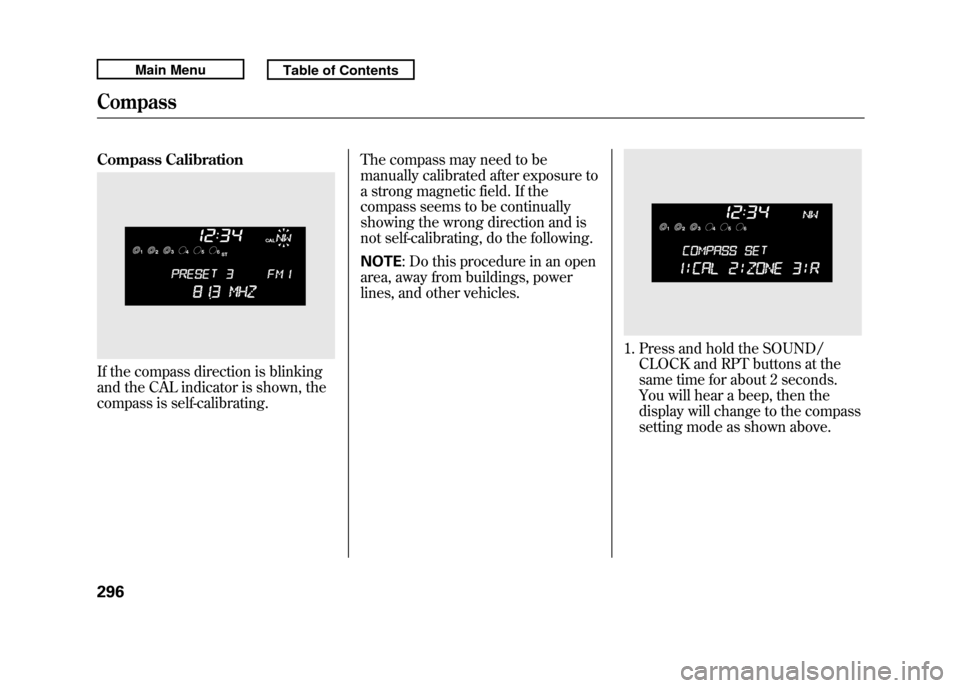
Compass CalibrationIf the compass direction is blinking
and the CAL indicator is shown, the
compass is self-calibrating.The compass may need to be
manually calibrated after exposure to
a strong magnetic field. If the
compass seems to be continually
showing the wrong direction and is
not self-calibrating, do the following.
NOTE
: Do this procedure in an open
area, away from buildings, power
lines, and other vehicles.
1. Press and hold the SOUND/ CLOCK and RPT buttons at the
same time for about 2 seconds.
You will hear a beep, then the
display will change to the compass
setting mode as shown above.
Compass29610/06/08 17:42:32 11 ACURA RDX MMC North America Owner's M 50 31STK640 enu
Page 303 of 517
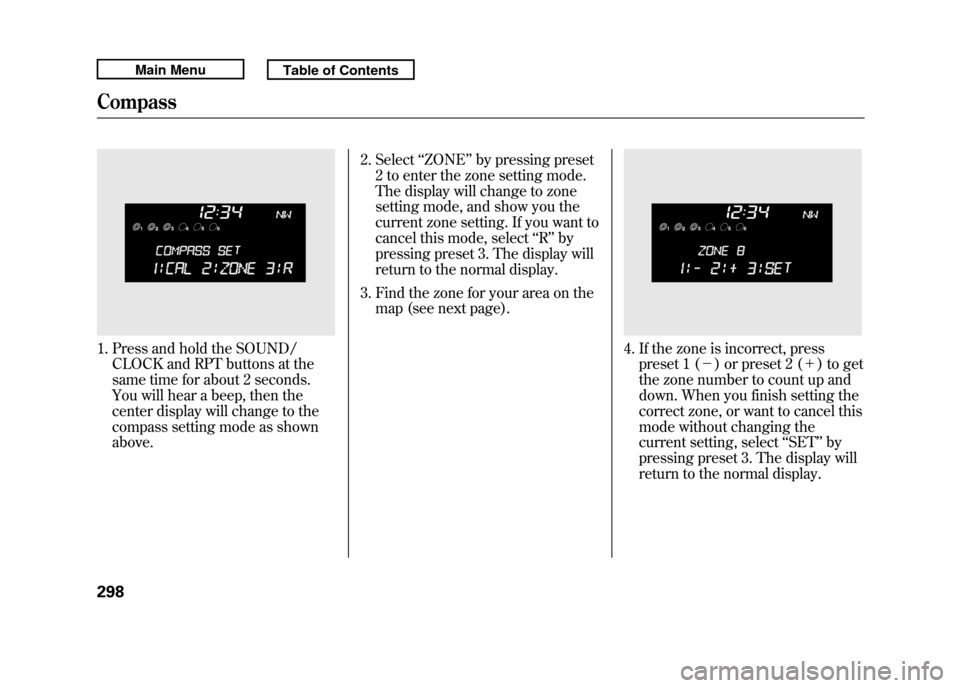
1. Press and hold the SOUND/CLOCK and RPT buttons at the
same time for about 2 seconds.
You will hear a beep, then the
center display will change to the
compass setting mode as shown
above. 2. Select
‘‘ZONE ’’by pressing preset
2 to enter the zone setting mode.
The display will change to zone
setting mode, and show you the
current zone setting. If you want to
cancel this mode, select ‘‘R ’’ by
pressing preset 3. The display will
return to the normal display.
3. Find the zone for your area on the map (see next page).
4. If the zone is incorrect, presspreset 1 (- ) or preset 2 (+ ) to get
the zone number to count up and
down. When you finish setting the
correct zone, or want to cancel this
mode without changing the
current setting, select ‘‘SET ’’by
pressing preset 3. The display will
return to the normal display.
Compass29810/06/08 17:42:32 11 ACURA RDX MMC North America Owner's M 50 31STK640 enu
Page 308 of 517

The HomeLink
®Universal Transceiver
built into your vehicle can be
programmed to operate up to three
remote controlled devices around your
home, such as garage doors, lighting,
or home security systems.
General Safety InformationBefore programming your HomeLink
to operate a garage door opener,
confirm that the opener has an
external entrapment protection
system, such as an ‘‘electronic eye, ’’or
other safety and reverse stop features.
If your garage door was manufactured
before April 1, 1982, you may not be
able to program HomeLink to operate
it. These units do not have safety
features that cause the motor to stop
and reverse it if an obstacle is detected
during closing, increasing the risk of
injury. Do not use HomeLink with any
garage door opener that lacks safety
stop and reverse features. Units manufactured between April 1,
1982 and January 1, 1993 may be
equipped with safety stop and reverse
features. If your unit does not have an
external entrapment protection
system, an easy test to confirm the
function and performance of the safety
stop and reverse feature is to lay a 2
╳
4 under the closing door. The door
should stop and reverse upon
contacting the piece of wood. As an
additional safety feature, garage door
openers manufactured after January 1,
1993 are required to have external
entrapment protection systems, such
as an electronic eye, which detect an
object obstructing the door.
Important Safety PrecautionsRefer to the safety information that
came with your garage door opener to
test that the safety features are
functioning properly. If you do not
have this information, contact the
manufacturer of the equipment.
Before programming HomeLink to a
garage door or gate opener, make sure
that people and objects are out of the
way of the device to prevent potential
injury or damage. When programming
a garage door opener, park just
outside the garage.Training HomeLinkBefore you begin
- If you just
received your vehicle and have not
trained any of the buttons in
HomeLink before, you should erase
any previously learned codes before
training the first button. To do this,
press and hold the two outside buttons
on the HomeLink transceiver for about
20 seconds, until the red indicator
flashes. Release the buttons, then
proceed to step 1.
CONTINUED
HomeLink
®Universal Transceiver
303
Features
10/06/08 17:42:32 11 ACURA RDX MMC North America Owner's M 50 31STK640 enu
Page 309 of 517
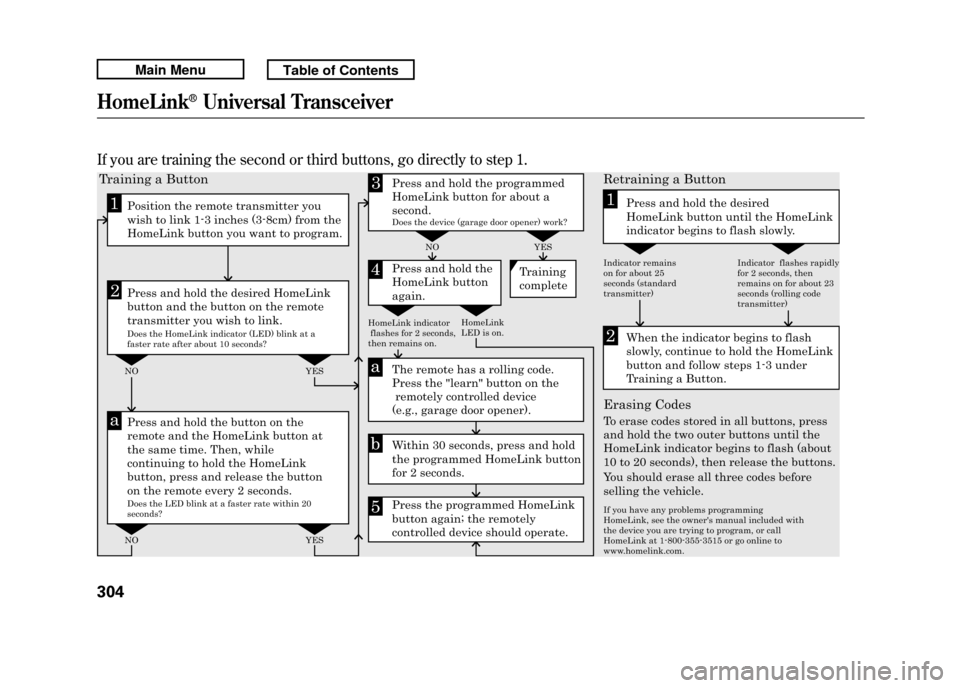
If you are training the second or third buttons, go directly to step 1.
2
a
ab
1
1
23
5
4
Training a Button
NO NO
NO YES
YES
Retraining a Button
Erasing Codes
Press and hold the desired
HomeLink button until the HomeLink
indicator begins to flash slowly.
When the indicator begins to flash
slowly, continue to hold the HomeLink
button and follow steps 1-3 under
Training a Button.
To erase codes stored in all buttons, press
and hold the two outer buttons until the
HomeLink indicator begins to flash (about
10 to 20 seconds), then release the buttons.
You should erase all three codes before
selling the vehicle.
Press and hold the programmed
HomeLink button for about a
second.
Press and hold the
HomeLink button
again.
The remote has a
rolling code.
Press the "learn" button on the
remotely controlled device
(e.g., garage door opener).
Within 30 seconds, press and hold
the programmed HomeLink button
for 2 seconds.
Press the programmed HomeLink
button again; the remotely
controlled device should operate. Training
complete
Position the remote transmitter you
wish to link 1-3 inches (3-8cm) from the
HomeLink button you want to program.
Press and hold the desired HomeLink
button and the button on the remote
transmitter you wish to link.
Press and hold the button on the
remote and the HomeLink button at
the same time. Then, while
continuing to hold the HomeLink
button, press and release the button
on the remote every 2 seconds.
Does the HomeLink indicator (LED) blink at a
faster rate after about 10 seconds?
HomeLink
LED is on.
Does the device (garage door opener) work?
HomeLink indicator
flashes for 2 seconds,
then remains on. Indicator remains
on for about 25
seconds (standard
transmitter)
If you have any problems programming
HomeLink, see the owner's manual included with
the device you are trying to program, or call
HomeLink at 1-800-355-3515 or go online to
www.homelink.com.Indicator flashes rapidly
for 2 seconds, then
remains on for about 23
seconds (rolling code
transmitter)
Does the LED blink at a faster rate within 20 seconds? YES
HomeLink
®Universal Transceiver
30410/06/08 17:42:32 11 ACURA RDX MMC North America Owner's M 50 31STK640 enu