reset Acura RDX 2014 User Guide
[x] Cancel search | Manufacturer: ACURA, Model Year: 2014, Model line: RDX, Model: Acura RDX 2014Pages: 363, PDF Size: 13.7 MB
Page 91 of 363
90
uuGauges and Multi-Information Display uMulti-Information Display
Instrument Panel
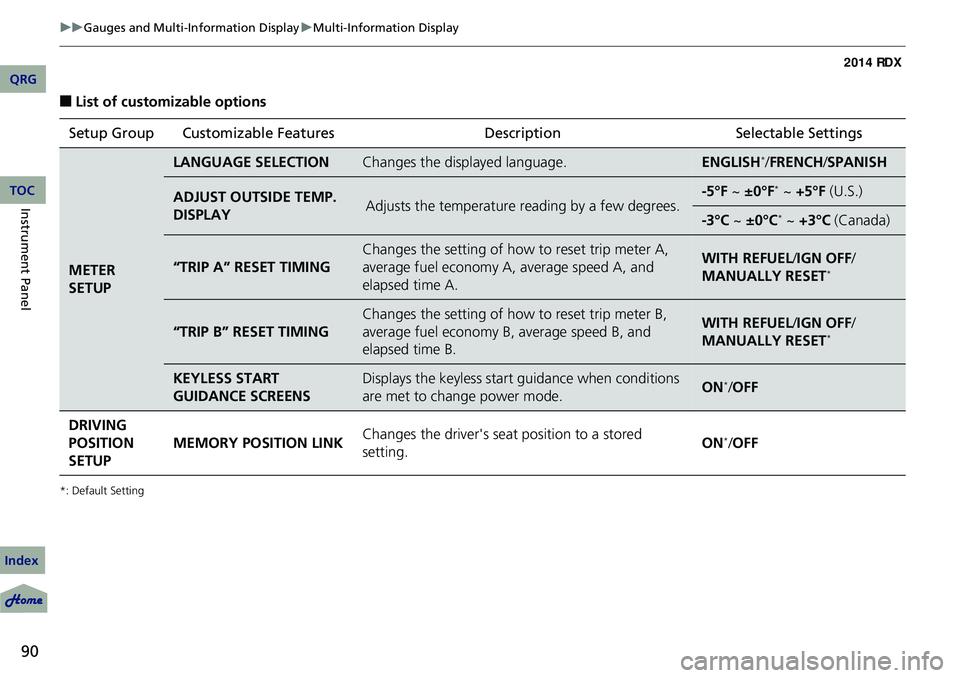
■List of customizable options
*: Default Setting
Setup Group Customizable Features DescriptionSelectable Settings
METER
SETUP
LANGUAGE SELECTIONChanges the displayed language.ENGLISH*/FRENCH /SPANISH
ADJUST OUTSIDE TEMP.
DISPLAYAdjusts the temperature reading by a few degrees.-5°F ~ ±0°F* ~ +5°F (U.S.)
-3°C ~ ±0°C* ~ +3°C (Canada)
“TRIP A” RESET TIMING
Changes the setting of how to reset trip meter A,
average fuel economy A, average speed A, and
elapsed time A.WITH REFUEL/ IGN OFF/
MANUALLY RESET*
“TRIP B” RESET TIMING
Changes the setting of how to reset trip meter B,
average fuel economy B, average speed B, and
elapsed time B.WITH REFUEL/ IGN OFF/
MANUALLY RESET*
KEYLESS START
GUIDANCE SCREENSDisplays the keyless start guidance when conditions
are met to change power mode.ON*/ OFF
DRIVING
POSITION
SETUP MEMORY POSITION LINK
Changes the driver's seat position to a stored
setting. ON
*/
OFF
QRG
Index
TOC
Page 93 of 363
92
uuGauges and Multi-Information Display uMulti-Information Display
Instrument Panel
*1:Not available on all models
*2: Default Setting
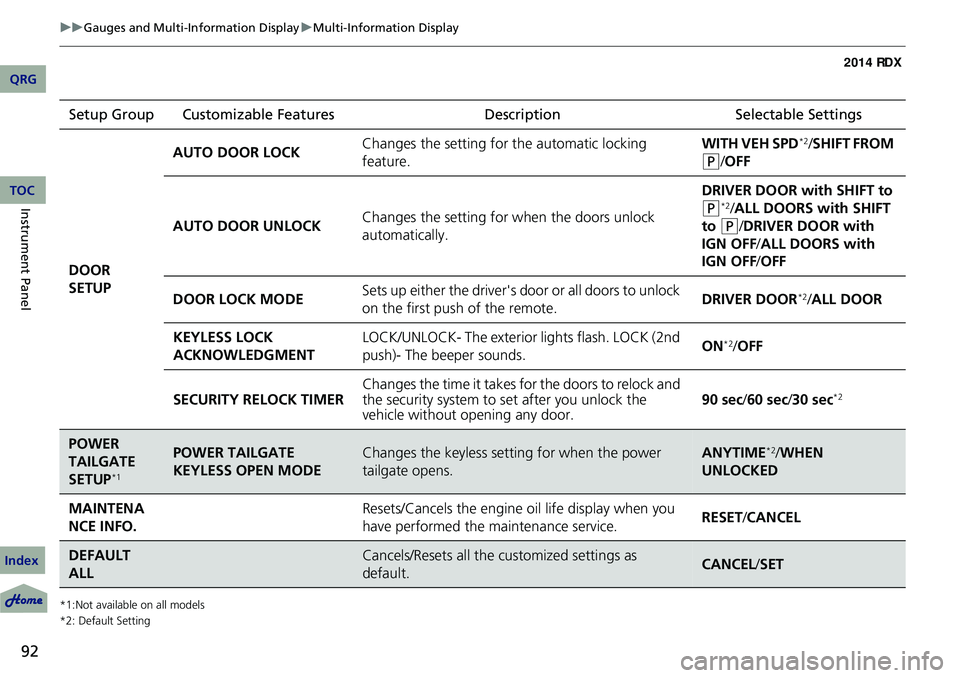
Setup Group Customizable Features DescriptionSelectable Settings
DOOR
SETUP AUTO DOOR LOCK
Changes the setting for
the automatic locking
feature. WITH VEH SPD
*2/
SHIFT FROM
(P/ OFF
AUTO DOOR UNLOCK Changes the setting for
when the doors unlock
automatically. DRIVER DOOR with SHIFT to
(P*2/ ALL DOORS with SHIFT
to
(P/DRIVER DOOR with
IGN OFF /ALL DOORS with
IGN OFF /OFF
DOOR LOCK MODE Sets up either the driver's door or all doors to unlock
on the first push
of the remote. DRIVER DOOR
*2/
ALL DOOR
KEYLESS LOCK
ACKNOWLEDGMENT LOCK/UNLOCK- The exterior
lights flash. LOCK (2nd
push)- The beeper sounds. ON
*2/
OFF
SECURITY RELOCK TIMER Changes the time it takes for the doors to relock and
the security system to set after you unlock the
vehicle without opening any door. 90 sec/
60 sec/30 sec
*2
POWER
TAILGATE
SETUP
*1
POWER TAILGATE
KEYLESS OPEN MODEChanges the keyless setting for when the power
tailgate opens.ANYTIME*2/WHEN
UNLOCKED
MAINTENA
NCE INFO.Resets/Cancels the engine oil life display when you
have performed the maintenance service. RESET /CANCEL
DEFAULT
ALLCancels/Resets all the customized settings as
default.CANCEL /SET
QRG
Index
TOC
Page 94 of 363

93
uuGauges and Multi-Information Display uMulti-Information Display
Continued
■Example of customization settings
The steps for changing the “TRIP A” RESET TIMING setting to WITH REFUEL are
shown below. The default setting for “TRIP A” RESET TIMING is MANUALLY
RESET .
1.Press / button to select
CUSTOMIZE SETTINGS , then press the
SEL/RESET button.
2. Press the / button until METER
SETUP appears on the display.
3. Press the SEL/RESET button.
u LANGUAGE SELECTION appears first in
the display.
QRG
Index
Instrument PanelTOC
Page 95 of 363

94
uuGauges and Multi-Information Display uMulti-Information Display
Instrument Panel
4. Press the / button until “TRIP A”
RESET TIMING appears on the display,
then press the SEL/RESET button.
u The display switches to the
customization setup screen, where you
can select WITH REFUEL, IGN OFF,
MANUALLY RESET , or EXIT .
5. Press the / button and select WITH
REFUEL , then press the SEL/RESET button.
u The WITH REFUEL setup screen appears,
then the display returns to the
customization menu screen.
6. Press the / button until EXIT
appears on the display, then press the SEL/
RESET button.
7. Repeat Step 6 until you return to the
normal screen.
QRG
Index
TOC
Page 97 of 363
96
Controls
Setting the Clock
Clock
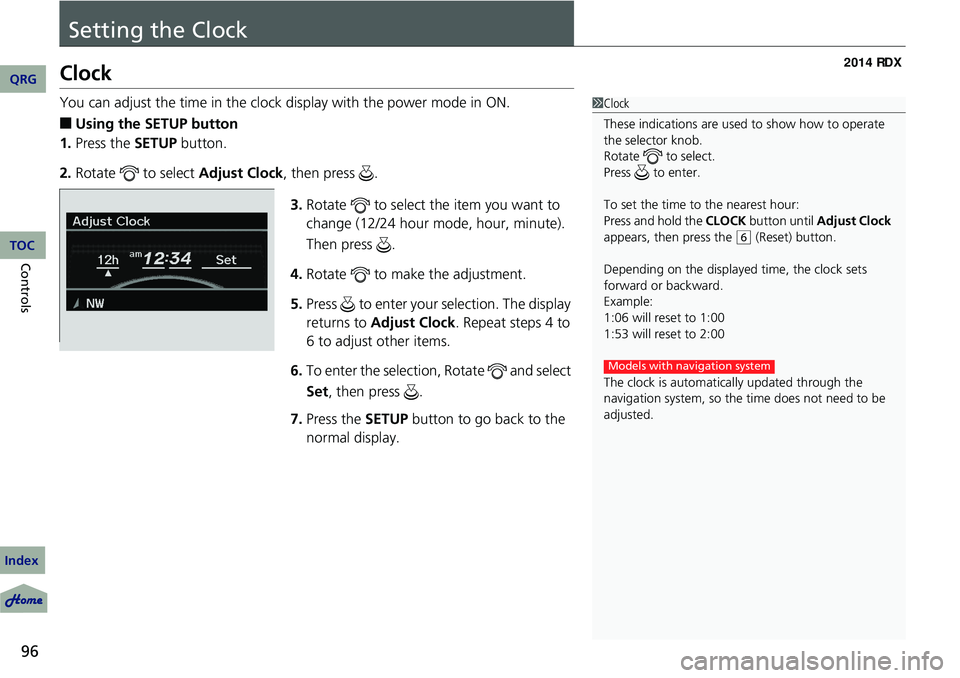
You can adjust the time in the clock display with the power mode in ON.
■Using the SETUP button
1. Press the SETUP button.
2. Rotate to select Adjust Clock, then press .
3.Rotate to select the item you want to
change (12/24 hour mode, hour, minute).
Then press .
4. Rotate to make the adjustment.
5. Press to enter your selection. The display
returns to Adjust Clock . Repeat steps 4 to
6 to adjust other items.
6. To enter the selection, Rotate and select
Set , then press .
7. Press the SETUP button to go back to the
normal display.
1Clock
These indications are used to show how to operate
the selector knob.
Rotate to select.
Press to enter.
To set the time to the nearest hour:
Press and hold the CLOCK button until Adjust Clock
appears, then press the
( 6 (Reset) button.
Depending on the displayed time, the clock sets
forward or backward.
Example:
1:06 will reset to 1:00
1:53 will reset to 2:00
The clock is automatica lly updated through the
navigation system, so the ti me does not need to be
adjusted.
Models with navigation system
QRG
Index
TOC
Page 129 of 363
128
uuOperating the Switches Around the Steering Wheel uBrightness Control
Controls
Brightness Control
When the power mode is in ON, you can use
the brightness control knob to adjust
instrument panel brightness.
Brighten: Turn the knob to the right.
Dim: Turn the knob to the left.
You will hear a beep when the brightness
reaches minimum or maximum. The multi-
information display will return to its original
state several seconds after you adjust the
brightness.
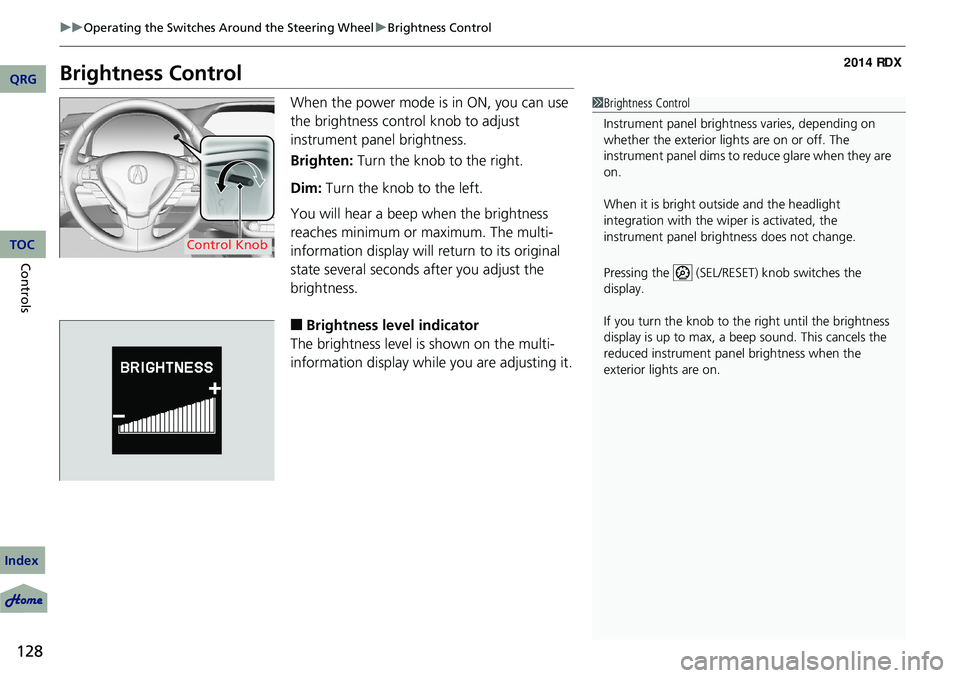
■Brightness level indicator
The brightness level is shown on the multi-
information display while you are adjusting it.
1 Brightness Control
Instrument panel brightne ss varies, depending on
whether the exterior lights are on or off. The
instrument panel dims to reduce glare when they are
on.
When it is bright out side and the headlight
integration with the wi per is activated, the
instrument panel bri ghtness does not change.
Pressing the (SEL/RESET) knob switches the
display.
If you turn the knob to the right until the brightness
display is up to max, a beep sound. This cancels the
reduced instrument panel brightness when the
exterior lights are on.
Control Knob
QRG
Index
TOC
Page 131 of 363
130
uuOperating the Switches Around the Steering Wheel uDriving Position Memory System
Controls
Driving Position Memory System
You can store two driver’s seat and door mirror positions with the driving position
memory system.
When you unlock and open the driver’s door with a remote transmitter, the seat and
door mirrors adjust automatically to one of the two preset positions.
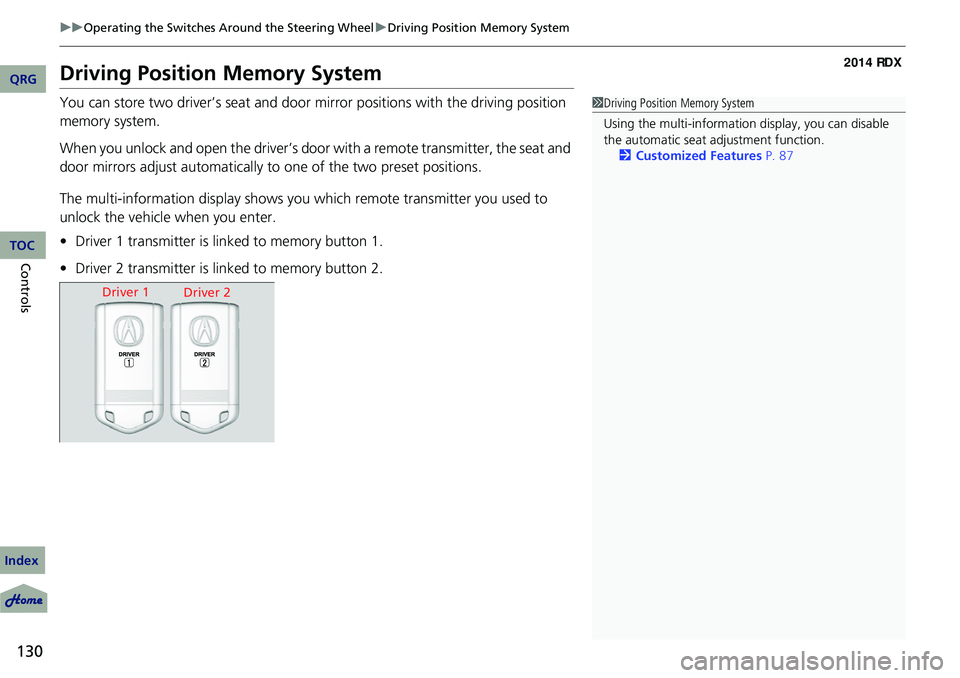
The multi-information display shows you which remote transmitter you used to
unlock the vehicle when you enter.
• Driver 1 transmitter is linked to memory button 1.
• Driver 2 transmitter is linked to memory button 2.1Driving Position Memory System
Using the multi-information display, you can disable
the automatic seat adjustment function. 2 Customized Features P. 87
Driver 1
Driver 2
QRG
Index
TOC
Page 161 of 363
160
uuAudio System uAudio System Theft Protection
Features
Audio System Theft Protection
The audio system is disabled when it is di sconnected from the power source, such as
when the battery is disconnected or goes dead.
■Reactivating th e audio system
1. Set the power mode to ON, and turn on the audio system.
u If you set the power mode to ACCESSORY, you will be requested to enter the
audio security code. See step 3.
2. Press and hold the power button ag ain for more than two seconds.
u The audio system is reactivated when the system’s control unit recognizes that
the system is in your vehicle.
If the control unit fails to recognize, ENTER CODE appears on the audio/
information screen.
3. Enter the audio security code using the pr eset buttons. If you enter an incorrect
digit, continue to the last digit, then try again. If you do not enter the code
correctly after 10 tries, leave the system for one hour before trying again, or visit
a dealer to have the system reset.
1 Audio System Theft Protection
Find the audio system's se curity code and serial
number label in your owner’s manual kit.
We recommend that you write down the serial
number in this owner’s manual.
Do not store the label in your vehicle. If you lose the
label, you must first retrie ve the serial number, and
then obtain the code.
You can find out about your serial number and
security code from a dealer.
You can register the secu rity code at Acura Owners
(owners.acura.com.), and find information on how to
retrieve the serial numbe r and obtain the code at
radio-navicode.acura.com .
U.S. models
QRG
Index
TOC
Page 166 of 363
165
uuAudio System Basic Operation uAudio Remote Controls
Audio Remote Controls
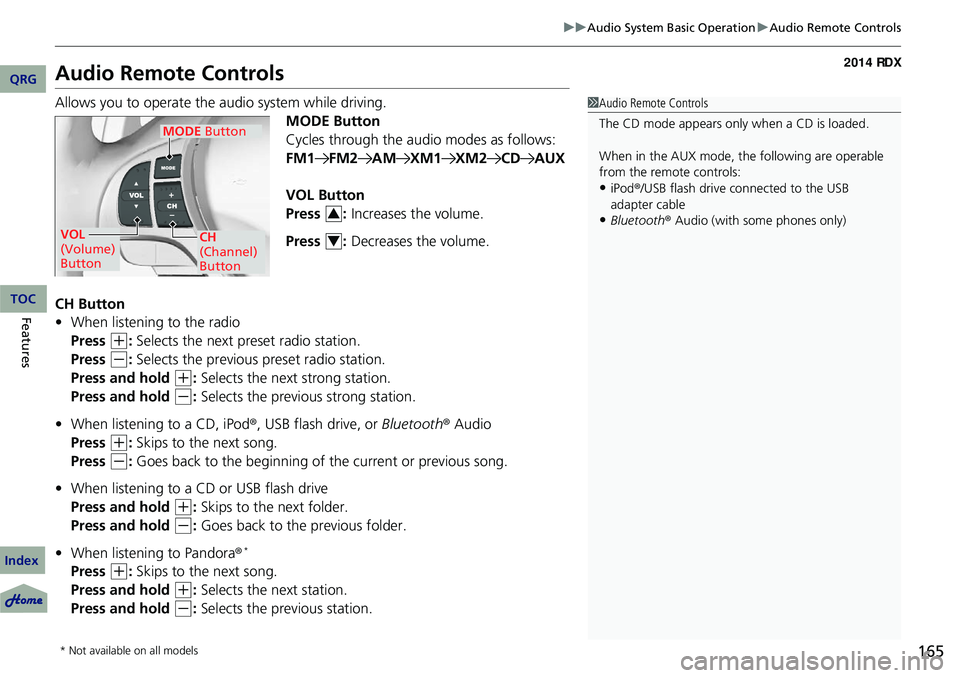
Allows you to operate the audio system while driving.
MODE Button
Cycles through the audio modes as follows:
FM1FM2AMXM1XM2CDAUX
VOL Button
Press : Increases the volume.
Press : Decreases the volume.
CH Button
• When listening to the radio
Press
(+: Selects the next preset radio station.
Press
(-: Selects the previous preset radio station.
Press and hold
(+: Selects the next strong station.
Press and hold
(-: Selects the previous strong station.
• When listening to a CD, iPod®, USB flash drive, or Bluetooth® Audio
Press
(+: Skips to the next song.
Press
(-: Goes back to the beginning of the current or previous song.
• When listening to a CD or USB flash drive
Press and hold
(+: Skips to the next folder.
Press and hold
(-: Goes back to the previous folder.
• When listening to Pandora®
*
Press (+: Skips to the next song.
Press and hold
(+: Selects the next station.
Press and hold
(-: Selects the previous station.
1 Audio Remote Controls
The CD mode appears only when a CD is loaded.
When in the AUX mode, the following are operable
from the remote controls:
•iPod ®/USB flash drive connected to the USB
adapter cable
•Bluetooth ® Audio (with some phones only)VOL
(Volume)
Button
MODE Button
CH
(Channel)
Button
3
4
* Not available on all models
QRG
Index
FeaturesTOC
Page 168 of 363
167
uuAudio System Basic Operation uPlaying the AM/FM Radio
Continued
Playing the AM/FM Radio
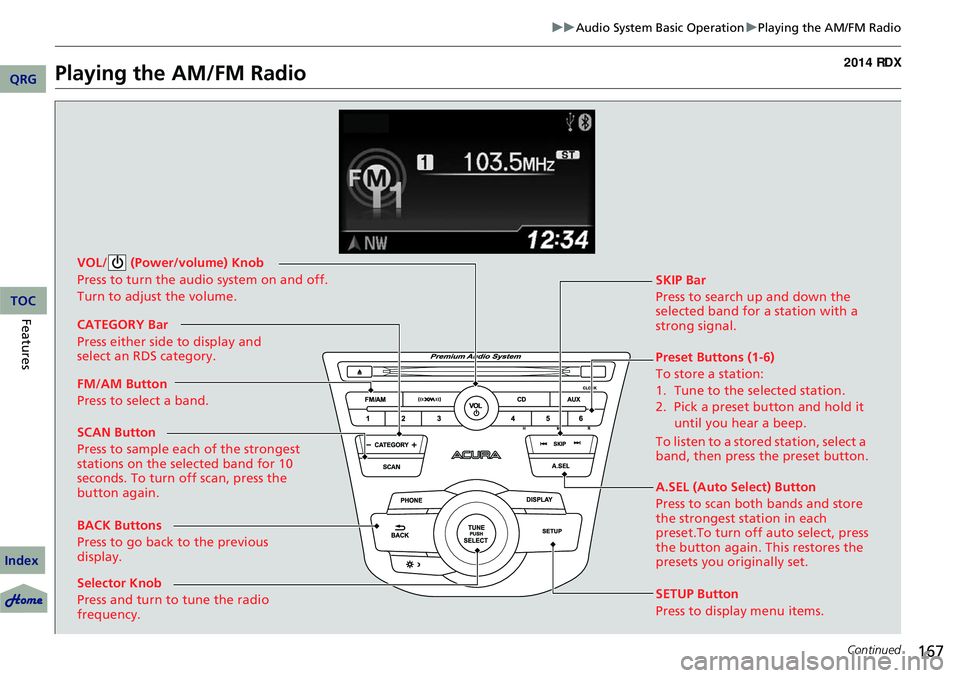
BACK Buttons
Press to go back to the previous
display. SCAN Button
Press to sample each of the strongest
stations on the selected band for 10
seconds. To turn off scan, press the
button again. VOL/ (Power/volume) Knob
Press to turn the audio system on and off.
Turn to adjust the volume.
Preset Buttons (1-6)
To store a station:
1. Tune to the selected station.
2. Pick a preset button and hold it
until you hear a beep.
To listen to a stored station, select a
band, then press the preset button. SKIP Bar
Press to search up and down the
selected band for a station with a
strong signal.
SETUP Button
Press to display menu items.
Selector Knob
Press and turn to tune the radio
frequency. FM/AM Button
Press to select a band. CATEGORY Bar
Press either side to display and
select an RDS category.
A.SEL (Auto Select) Button
Press to scan both bands and store
the strongest station in each
preset.To turn off auto select, press
the button again. This restores the
presets you originally set.
QRG
Index
FeaturesTOC