information screen Acura RDX 2015 Owner's Guide
[x] Cancel search | Manufacturer: ACURA, Model Year: 2015, Model line: RDX, Model: Acura RDX 2015Pages: 365, PDF Size: 12.56 MB
Page 211 of 365

uuBluetooth ® HandsFreeLink ®u HFL Menus
210
Features
If you get into the vehicle while you are on the phone, the call can be automatically
transferred to HFL. 1.Press the PHONE button or the button.
2. Rotate to select Phone Setup, then
press .
u Repeat the procedure to select Auto
Transfer .
3. Rotate to select On, then press .
4. You will receive a notification on the screen
if the change is successful.
You can select a caller’s information to be displayed when you have an incoming
call. 1.Press the PHONE button or the button.
2. Rotate to select Phone Setup, then
press .
u Repeat the procedure to select Caller ID
Info .
3. Rotate to select a mode you want, then
press .
4. You will receive a notification on the screen
if the change is successful.
■Automatic Transferring
■Caller’s ID Information1Caller’s ID Information
Name Priority mode: A caller’s name is displayed if
it is stored in the phonebook.
Number Priority mode: A caller’s phone number is
displayed.
Page 255 of 365
uuWhen Driving uTPMS (Tire Pressure Monitoring System)
254
Driving
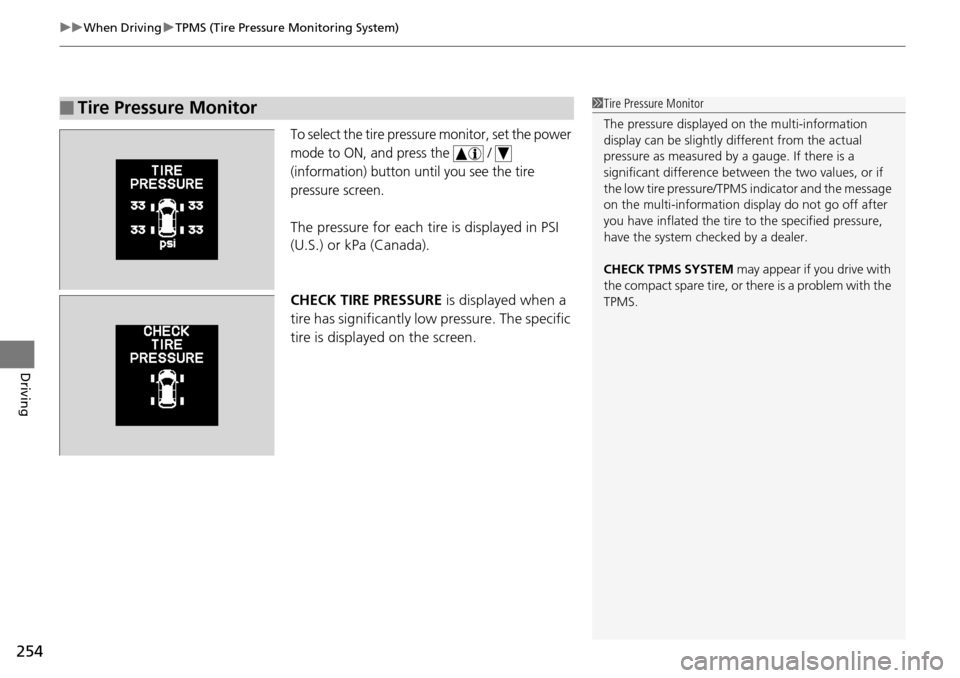
To select the tire pressure monitor, set the power
mode to ON, and press the /
(information) button until you see the tire
pressure screen.
The pressure for each tire is displayed in PSI
(U.S.) or kPa (Canada).
CHECK TIRE PRESSURE is displayed when a
tire has significantly lo w pressure. The specific
tire is displayed on the screen.
■Tire Pressure Monitor1 Tire Pressure Monitor
The pressure displayed on the multi-information
display can be slightly different from the actual
pressure as measured by a gauge. If there is a
significant di fference between the two values, or if
the low tire pressure/TPMS indicator and the message
on the multi-information di splay do not go off after
you have inflated the tire to the specified pressure,
have the system checked by a dealer.
CHECK TPMS SYSTEM may appear if you drive with
the compact spare tire, or there is a problem with the
TPMS.
Page 263 of 365

262
Driving
Multi-View Rear Camera
About Your Multi-View Rear Camera
For models with navigation system, see Navigation System Manual.
The audio/information screen can display your vehicle’s rear view. The display
automatically changes to the rear view when the shift lever is moved to
(R.
You can view three different camera angl es on the rearview display. Press the
selector knob to switch the angle.
If the last used viewing mode is Wide or Normal, the same mode is selected the next
time you shift into
(R. If Top view was last used, Wide mode is selected.
■Multi-View Rear Camera Display Area
1 About Your Multi-View Rear Camera
The rear camera view is restricted. You cannot see
the corner ends of the bum per or what is underneath
the bumper. Its unique le ns also makes objects
appear closer or farther than they actually are.
Visually confirm that it is safe to drive before backing
up. Certain conditions (such as weather, lighting, and
high temperatures) may also restrict the rear view. Do
not rely on the rearview display which does not give
you all information about conditions at the back of
your vehicle.
If the camera lens is cove red with dirt or moisture,
use a soft, moist cloth to keep the lens clean and free
of debris.Models with navigation system
Models without navigation system
Guidelines
BumperCamera Approx. 20 inches (50 cm)
Tailgate Open Range
Approx. 39 inches (1 m)
Approx. 79 inches (2 m)
Approx. 118 inches (3 m)
Wide View Mode
Normal View Mode
Top Down View Mode