lock Acura RDX 2015 Workshop Manual
[x] Cancel search | Manufacturer: ACURA, Model Year: 2015, Model line: RDX, Model: Acura RDX 2015Pages: 365, PDF Size: 12.56 MB
Page 125 of 365

uuOperating the Switches Around the Steering Wheel uLight Switches
124
Controls
The headlights automatically co me on when the wipers are used several times within
certain number of intervals while the headlight switch is in
#Y.The headlights
automatically go off a few minutes after the wipers are stopped.
The headlights, all other exterior lights, an d the instrument panel lights turn off 15
seconds after you set the power mode to VEHICLE OFF(LOCK), take the remote with
you, and close the driver's door.
If you set the power mode to VEHICLE OFF (LOCK) with the headlight switch on, but
do not open the door, the lights turn o ff after 10 minutes (three minutes, if the
switch is in the
#Y position).
The lights turn on again when you unlock or open the driver's door. If you unlock
the door, but do not open it within 15 seconds, the lights go off. If you open the
driver's door, you will hear a lights on reminder chime.
■Headlight Integration with Wiper
■Automatic Lighting Off Feature
1Headlight Integration with Wiper*
This feature activates while the headlights are in
#Y. The instrument pane l brightness does not
change when the headlights come on.
If the ambient light is da rk, the automatic lighting
control overrides this feat ure, and the headlights
come on whether or not the wipers cycle several
times.
1 Automatic Lighting Off Feature
You can change the headlight auto off timer setting.
2 Customized Features P. 87
* Not available on all models
Page 126 of 365
125
uuOperating the Switches Around the Steering Wheel uFog Lights*
Controls
Fog Lights*
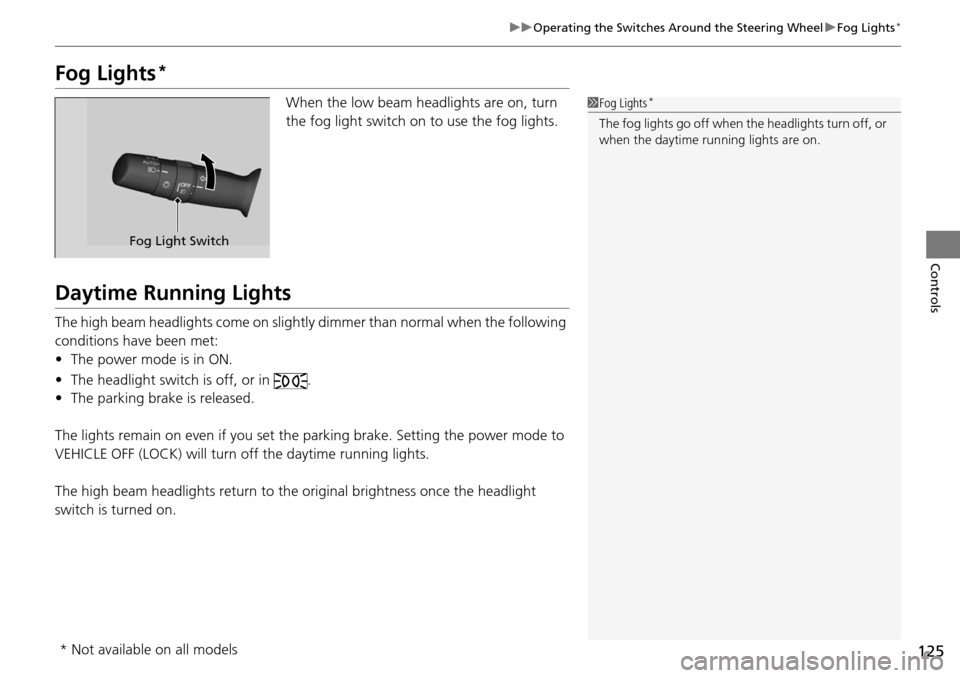
When the low beam headlights are on, turn
the fog light switch on to use the fog lights.
Daytime Running Lights
The high beam headlights come on slightly dimmer than normal when the following
conditions have been met:
• The power mode is in ON.
• The headlight switch is off, or in .
• The parking brake is released.
The lights remain on even if you set th e parking brake. Setting the power mode to
VEHICLE OFF (LOCK) will turn off the daytime running lights.
The high beam headlights return to the original brightness once the headlight
switch is turned on.
1 Fog Lights*
The fog lights go off when the headlights turn off, or
when the daytime running lights are on.
Fog Light Switch
* Not available on all models
Page 128 of 365

127
uuOperating the Switches Around the Steering Wheel uWipers and Washers
Controls
The rear wiper and washer can be used when
the power mode is in ON.
■Wiper switch (OFF, INT, ON)
Change the wiper switch setting according to
the amount of rain.
■Washer ( )
Sprays while you rotate the switch to this
position.
Hold it to activate th e wiper and to spray the
washer. Once released , it stops operating
after a few more sweeps.
■Operating in reverse
When you shift the transmission to
(R with the front wiper activated, the rear wiper
operates automatically as follows even if its switch is off.
■Rear Wiper/Washer1 Wipers and Washers
If the wiper stops operating due to any obstacle such
as the build-up of snow, pa rk the vehicle in a safe
place.
Rotate the wiper switch to OFF, and set the power
mode to ACCESSORY or VEHICLE OFF (LOCK), then
remove the obstacle.
INT: Intermittent
OFF ON : Continuous wipe
Washer
Front Wiper PositionRear Wiper Operation
INT (Intermittent)Intermittent
LO (Low speed wipe)
HI (High speed wipe)Continuous
Page 131 of 365
130
uuOperating the Switches Around the Steering Wheel uDriving Position Memory System
Controls
Driving Position Memory System
You can store two driver’s seat and door mirror positions with the driving position
memory system.
When you unlock and open the driver’s door with a remote transmitter, the seat and
door mirrors adjust automatically to one of the two preset positions.
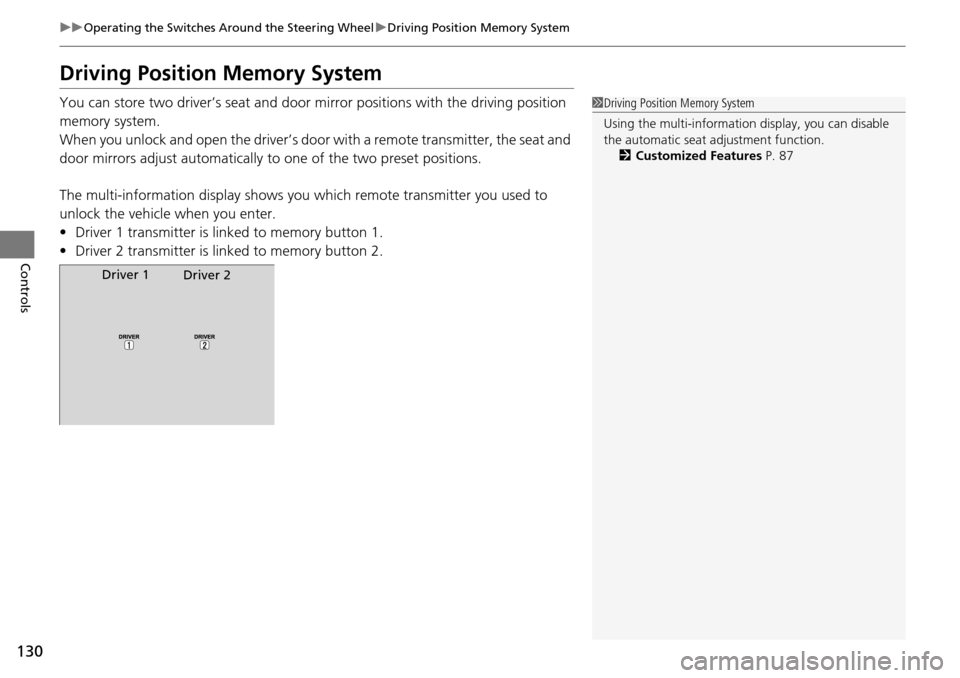
The multi-information display shows you which remote transmitter you used to
unlock the vehicle when you enter.
• Driver 1 transmitter is linked to memory button 1.
• Driver 2 transmitter is linked to memory button 2.1Driving Position Memory System
Using the multi-information display, you can disable
the automatic seat adjustment function. 2 Customized Features P. 87
Driver 1
Driver 2
Page 133 of 365

132
uuOperating the Switches Around the Steering Wheel uAdjusting the Steering Wheel
Controls
Adjusting the Steering Wheel
The steering wheel height and distance from your body can be adjusted so that you
can comfortably grip the steering wheel in an appropriate driving posture.
1.Pull the steering wheel adjustment lever up.
u The steering wheel adjustment lever is
under the steering column.
2. Move the steering wheel up or down, and
in or out.
u Make sure you can see the instrument
panel gauges and indicators.
3. Push the steering wheel adjustment lever
down to lock the steering wheel in position.
u After adjusting the position, make sure
you have securely locked the steering
wheel in place by trying to move it up,
down, in, and out.1Adjusting the Steering Wheel
Make any steering wheel adjustments before you
start driving.
3WARNING
Adjusting the steering wheel position while
driving may cause you to lose control of the
vehicle and be seriously injured in a crash.
Adjust the steering wheel only when the
vehicle is stopped.To adjust
To lockLever
Page 140 of 365

Continued139
uuAdjusting the Seats uAdjusting the Seat Positions
Controls
A passenger sitting in a center back seating
position should adjust the height of their head
restraint to an appropriate position before the
vehicle begins moving.
To raise the head restraint:
Pull it upward.
To lower the head restraint:
Push it down while pressing the release
button.
Head restraints can be removed for cleaning or repair.
To remove a head restraint:
Pull the restraint up as far as it will go. Then push the release button, and pull the
restraint up and out.
To reinstall a head restraint:
Insert the legs back in place, then adjust the head restraint to an appropriate height
while pressing the release button. Pull up on the restraint to make sure it is locked
in position.
■Changing the Rear Center Seat Head Restraint Position
■Removing and Reinstalling the Head Restraints1 Removing and Reinstalling the Head Restraints
3WARNING
Failure to reinstall, or correctly reinstall, the
head restraints can result in severe injury
during a crash.
Always replace the he ad restraints before
driving.
Page 144 of 365

143Continued
Controls
Interior Lights/Interior Convenience Items
Interior Lights
■ON
The interior lights come on regardless of
whether the doors are open or closed.
■Door activated
The interior lights come on in the following
situations:
• When any of the doors are opened.
• You unlock the driver's door.
• When the power mode is set to VEHICLE
OFF (LOCK).
■OFF
The interior lights remain off regardless of
whether the doors are open or closed.
The map lights can be turned on and off by
pressing the button.
■Interior Light Switches1 Interior Light Switches
In the door activated position, the interior lights fade
out and go off about 30 se conds after the doors are
closed.
The lights go off after 30 seconds in the following
situations:
•When you unlock the driver's door but do not open
it.
•When you set the power mode to VEHICLE OFF
(LOCK) but do not open a door.
You can change the interi or lights dimming time.
2 Customized Features P. 87
The interior lights go off i mmediately in the following
situations:
•When you lock the driver's door.
•When you close the driver's door in ACCESSORY
mode.
•When you set the power mode to ON.
If you leave any of the doors open in VEHICLE OFF
(LOCK) mode, the interior lights go off after about 15
minutes.
Door Activated
Position
Off
Front
Door Activated Position
On
Off
Rear
On
■Map Lights
1
Map Lights
When the interior light swit ch is in the door activated
position and any door is open, the map light will not
go off when you press the button.
Page 146 of 365
145
uuInterior Lights/Interior Convenience Items uInterior Convenience Items
Continued
Controls
Interior Convenience Items
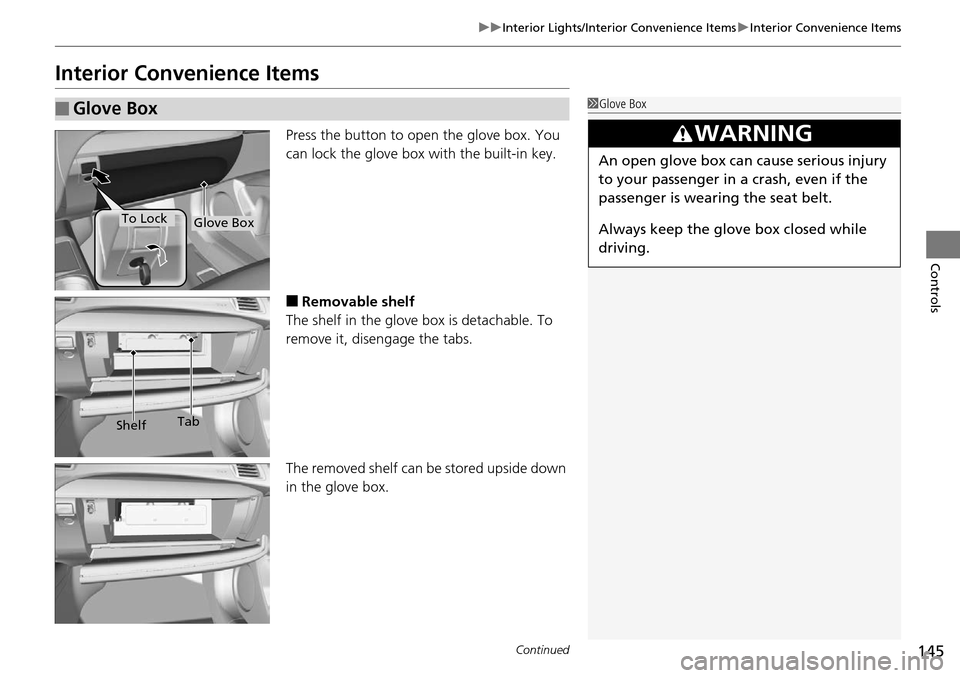
Press the button to open the glove box. You
can lock the glove box with the built-in key.
■Removable shelf
The shelf in the glove box is detachable. To
remove it, disengage the tabs.
The removed shelf can be stored upside down
in the glove box.
■Glove Box1 Glove Box
3WARNING
An open glove box can cause serious injury
to your passenger in a crash, even if the
passenger is wearing the seat belt.
Always keep the glove box closed while
driving.
Glove BoxTo Lock
Shelf Tab
Page 162 of 365
161
Features
Audio System Basic Operation
To use the audio system function, the power mode must be in ACCESSORY or ON.
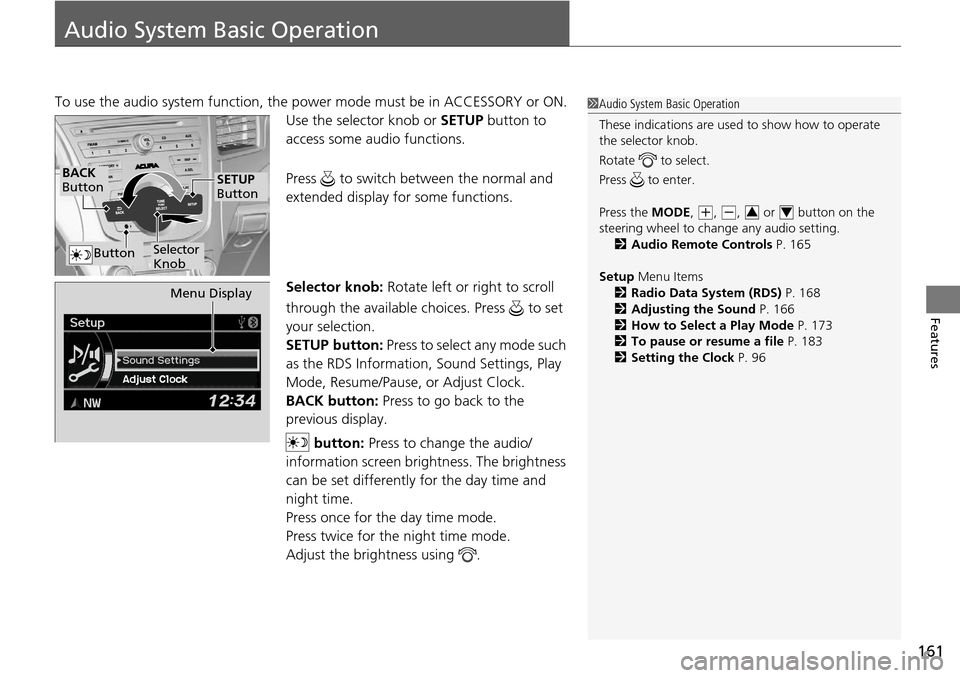
Use the selector knob or SETUP button to
access some au dio functions.
Press to switch between the normal and
extended display fo r some functions.
Selector knob: Rotate left or right to scroll
through the available choices. Press to set
your selection.
SETUP button: Press to select any mode such
as the RDS Information, Sound Settings, Play
Mode, Resume/Pause, or Adjust Clock.
BACK button: Press to go back to the
previous display.
button: Press to change the audio/
information screen brightness. The brightness
can be set differently for the day time and
night time.
Press once for the day time mode.
Press twice for the night time mode.
Adjust the brightness using . 1 Audio System Basic Operation
These indications are used to show how to operate
the selector knob.
Rotate to select.
Press to enter.
Press the MODE,
( +, (-, or button on the
steering wheel to cha nge any audio setting.
2 Audio Remote Controls P. 165
Setup Menu Items
2 Radio Data System (RDS) P. 168
2 Adjusting the Sound P. 166
2 How to Select a Play Mode P. 173
2 To pause or resume a file P. 183
2 Setting the Clock P. 9634
BACK
Button
Selector
Knob
SETUP
Button
Button
Menu Display
Page 164 of 365
163
uuAudio System Basic Operation uAudio/Information Screen*
Continued
Features
Shows the current audio information.
2 Audio System Basic Operation P. 161
Shows a clock screen or an image you import.
2Wallpaper Setup P. 184
Minimizes the display by only showing the compass, audio status, and clock on the
display.
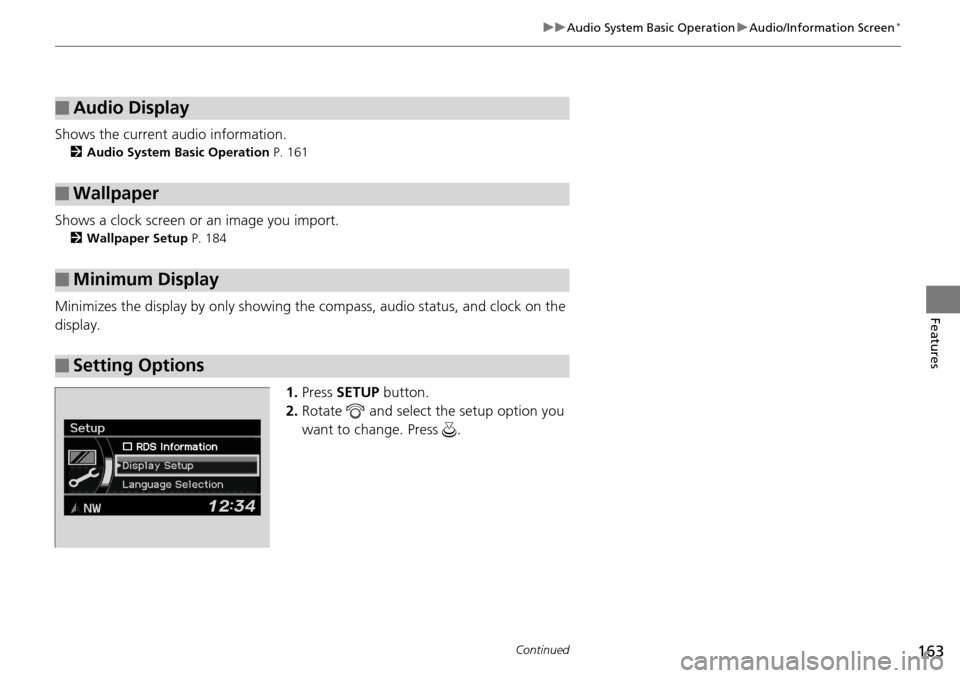
1.Press SETUP button.
2. Rotate and select the setup option you
want to change. Press .
■Audio Display
■Wallpaper
■Minimum Display
■Setting Options