Ac vent Acura RDX 2016 User Guide
[x] Cancel search | Manufacturer: ACURA, Model Year: 2016, Model line: RDX, Model: Acura RDX 2016Pages: 81, PDF Size: 17.94 MB
Page 41 of 81
74 || 75
Talk Button Tips
For a list of phone-related voice commands, see page 152.
• When using the Talk button, wait until you hear a beep before speaking.
• To bypass the system prompts, simply press the Talk button again to say your
command.
• When the Talk button is pressed, all available voice commands are highlighted
in yellow.
• Speak in a clear, natural voice.
• Reduce all background noise.
• Adjust the dashboard and side vents away from the microphone in the ceiling.
• Close the windows and moonroof.
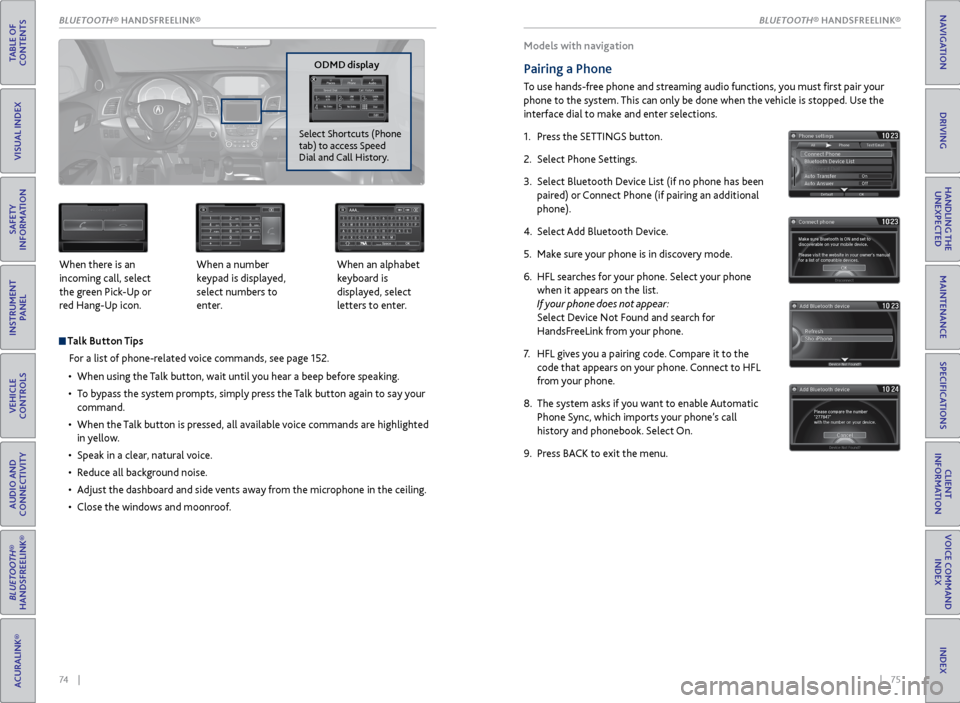
When there is an
incoming call, select
the green Pick-Up or
red Hang-Up icon.
When a number
keypad is displayed,
select numbers to
enter. When an alphabet
keyboard is
displayed, select
letters to enter.
P
ODMD display
Select Shortcuts (Phone
tab) to access Speed
Dial and Call History.
Models with navigation
Pairing a Phone
To use hands-free phone and streaming audio functions, you must first pair your
phone to the system. This can only be done when the vehicle is stopped. Use the
interface dial to make and enter selections.
1. Press the SETTINGS button.
2. Select Phone Settings.
3. Select Bluetooth Device List (if no phone has been
paired) or Connect Phone (if pairing an additional
phone).
4. Select Add Bluetooth Device.
5. Make sure your phone is in discovery mode.
6. HFL searches for your phone. Select your phone
when it appears on the list.
If your phone does not appear:
Select Device Not Found and search for
HandsFreeLink from your phone.
7. HFL gives you a pairing code. Compare it to the
code that appears on your phone. Connect to HFL
from your phone.
8. The system asks if you want to enable Automatic
Phone Sync, which imports your phone’s call
history and phonebook. Select On.
9. Press BACK to exit the menu.
BLUETOOTH® HANDSFREELINK®
TABLE OF
CONTENTS
INDEX
VISUAL INDEX
VOICE COMMAND INDEX
SAFETY
INFORMATION
CLIENT
INFORMATION
INSTRUMENT PANEL
SPECIFICATIONS
VEHICLE
CONTROLS
MAINTENANCE
AUDIO AND
CONNECTIVITY
HANDLING THE UNEXPECTED
BLUETOOTH®
HANDSFREELINK®
DRIVING
ACURALINK®
NAVIGATIONBLUETOOTH\256 HANDSFREELINK
Page 45 of 81
| 83
NAVIGATION
INDEX
VOICE COMMAND
INDEX
CLIENT
INFORMATION
SPECIFICATIONS
MAINTENANCE
HANDLING THE UNEXPECTED
DRIVING
NAVIGATION
82 |
TABLE OF
CONTENTS
VISUAL INDEX
SAFETY
INFORMATION
INSTRUMENT PANEL
VEHICLE
CONTROLS
AUDIO AND
CONNECTIVITY
BLUETOOTH®
HANDSFREELINK®
ACURALINK®
Learn how to enter a destination and operate the navigation system.
Basic Navigation Operation
A real-time navigation system uses GPS and a map database to show your current
location and help guide you to a desired destination. You can operate the system
using voice commands or the system controls.
To reduce the potential for driver distraction, certain manual functions may
be inoperable or grayed out while the vehicle is moving. Voice commands are
always available.
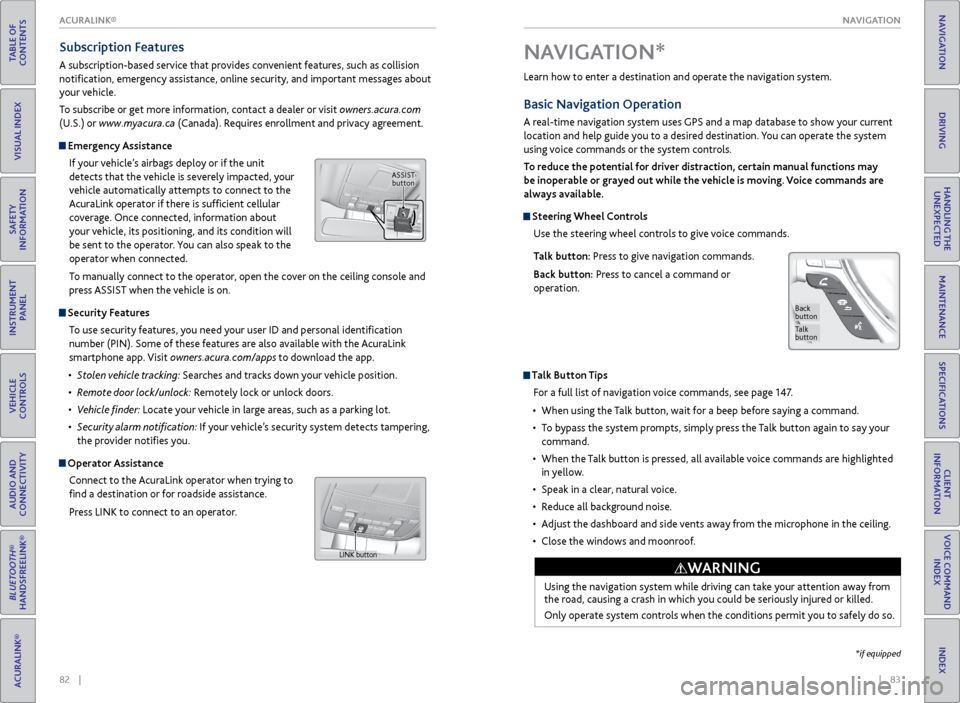
Steering Wheel Controls
Use the steering wheel controls to give voice commands.
Talk button: Press to give navigation commands.
Back button: Press to cancel a command or
operation.
Talk Button Tips
For a full list of navigation voice commands, see page 147.
• When using the Talk button, wait for a beep before saying a command.
• To bypass the system prompts, simply press the Talk button again to say your
command.
• When the Talk button is pressed, all available voice commands are highlighted
in yellow.
• Speak in a clear, natural voice.
• Reduce all background noise.
• Adjust the dashboard and side vents away from the microphone in the ceiling.
• Close the windows and moonroof.
Using the navigation system while driving can take your attention away from
the road, causing a crash in which you could be seriously injured or killed.
Only operate system controls when the conditions permit you to safely do so.
WARNING
NAVIGATION*
Talk
button
Back
button
*if equipped
Subscription Features
A subscription-based service that provides convenient features, such as collision
notification, emergency assistance, online security, and important messages about
your vehicle.
To subscribe or get more information, contact a dealer or visit owners.acura.com
(U.S.) or www.myacura.ca (Canada). Requires enrollment and privacy agreement.
Emergency Assistance
If your vehicle’s airbags deploy or if the unit
detects that the vehicle is severely impacted, your
vehicle automatically attempts to connect to the
AcuraLink operator if there is sufficient cellular
coverage. Once connected, information about
your vehicle, its positioning, and its condition will
be sent to the operator. You can also speak to the
operator when connected.
To manually connect to the operator, open the cover on the ceiling console and
press ASSIST when the vehicle is on.
Security Features
To use security features, you need your user ID and personal identification
number (PIN). Some of these features are also available with the AcuraLink
smartphone app. Visit owners.acura.com/apps to download the app.
• Stolen vehicle tracking: Searches and tracks down your vehicle position.
• Remote door lock/unlock: Remotely lock or unlock doors.
• Vehicle finder: Locate your vehicle in large areas, such as a parking lot.
• Security alarm notification: If your vehicle’s security system detects tampering,
the provider notifies you.
Operator Assistance
Connect to the AcuraLink operator when trying to
find a destination or for roadside assistance.
Press LINK to connect to an operator.
ASSIST button
LINK button
ACURALINK®
Page 49 of 81
90 || 91
DRIVING
DRIVING
TABLE OF
CONTENTS
INDEX
VISUAL INDEX
VOICE COMMAND INDEX
SAFETY
INFORMATION
CLIENT
INFORMATION
INSTRUMENT PANEL
SPECIFICATIONS
VEHICLE
CONTROLS
MAINTENANCE
AUDIO AND
CONNECTIVITY
HANDLING THE UNEXPECTED
BLUETOOTH®
HANDSFREELINK®
DRIVING
ACURALINK®
NAVIGATION
Learn about preparation for driving and other features.
Before Driving
Check the following items before you begin driving.
Exterior Checks
• Make sure there are no obstructions on the windows, door mirrors, exterior
lights, or other parts of the vehicle.
• Remove any frost, snow, or ice.
• Make sure the hood is securely closed.
• Heat from the engine and exhaust can ignite flammable materials left under
the hood, causing a fire. If you’ve parked your vehicle for an extended period,
inspect and remove any debris that may have collected, such as dried grass
and leaves that have fallen or have been carried in for use as a nest by a small
animal. Also check under the hood for leftover flammable materials after you
or someone else has performed maintenance on your vehicle.
• Make sure the tires are in good condition.
• Make sure there are no people or objects behind or around the vehicle.
DRIVING
Interior Checks
• Store or secure all items on board properly.
• Do not pile items higher than the seat height.
• Do not place anything in the front seat footwells. Make sure to secure the floor
mats.
• If you have any animals on board, do not let them move freely in the vehicle.
• Securely close and lock all doors and the tailgate.
• Adjust your seating position, mirrors, and steering wheel properly.
• Be sure items placed on the floor behind the front seats cannot roll under the
seats.
• Everyone in the vehicle must fasten their seat belt.
Make sure that the indicators in the instrument panel come on when you start the
vehicle, and go off soon after. If the doors are frozen shut, use warm water around the door edges to melt any
ice. Do not try to force them open, as this can damage the rubber trim around
the doors. When done, wipe dry to avoid further freezing.
NOTICE
Driving Guidelines for Your Utility Vehicle
Utility vehicles have a significantly higher rollover rate than other types of
vehicles. To prevent rollovers or loss of control:
• Take corners at slower speeds than you would with a passenger vehicle.
• Avoid sharp turns and abrupt maneuvers whenever possible.
• Do not modify your vehicle in any way that raises its center of gravity.
• Never carry more than 165 lbs (75 kg) of cargo on the roof rack (Acura
accessory).
In addition:
• During the first 600 miles (1,000 km) of operation, avoid sudden acceleration
or full throttle operation so as not to damage the engine or powertrain.
• Avoid hard braking for the first 200 miles (300 km). You should also follow this
when the brake pads are replaced.
Improperly operating this vehicle on or off pavement can cause a crash or
rollover in which you and your passengers can be seriously injured or killed.
Follow all instructions and guidelines in this guide.
Keep your speed low, and don’t drive faster than conditions permit.
WARNING
Improper accessories or modifications can affect your vehicle’s handling,
stability, and performance, and cause a crash in which you can be seriously
hurt or killed.
Follow all instructions in the vehicle owner’s manual regarding accessories
and modifications.
WARNING
AWD (All-Wheel Drive) with Intelligent Control System*
When the AWD system senses a loss of front wheel traction, it automatically
transfers some power to the rear wheels. This allows you to utilize all available
traction and may increase mobility.
You still need to exercise the same care when accelerating, steering, and braking
that you would in a two-wheel drive vehicle.
If you excessively spin all four wheels and overheat the system, only the front
wheels receive power. Stop until the system cools down.
Do not continuously spin the front tires of your vehicle. Continuously spinning
the front tires can cause transmission or rear differential damage.
NOTICE
*if equipped
Page 52 of 81
96 || 97
DRIVING
DRIVING
TABLE OF
CONTENTS
INDEX
VISUAL INDEX
VOICE COMMAND INDEX
SAFETY
INFORMATION
CLIENT
INFORMATION
INSTRUMENT PANEL
SPECIFICATIONS
VEHICLE
CONTROLS
MAINTENANCE
AUDIO AND
CONNECTIVITY
HANDLING THE UNEXPECTED
BLUETOOTH®
HANDSFREELINK®
DRIVING
ACURALINK®
NAVIGATION
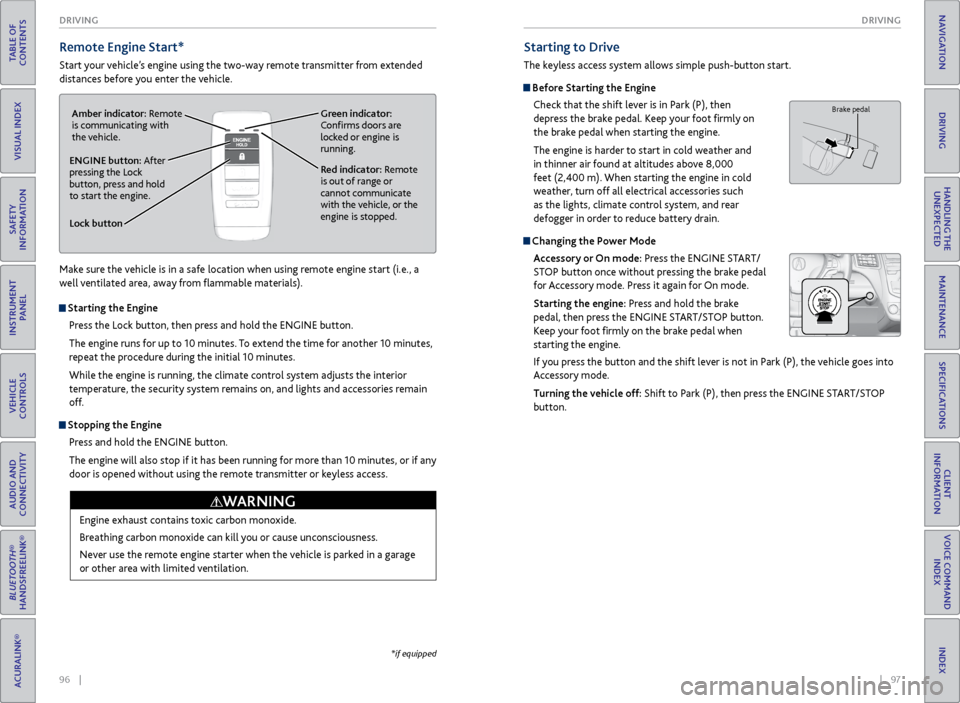
Remote Engine Start*
Start your vehicle’s engine using the two-way remote transmitter from extended
distances before you enter the vehicle.
*if equipped
Starting to Drive
The keyless access system allows simple push-button start.
Before Starting the Engine
Check that the shift lever is in Park (P), then
depress the brake pedal. Keep your foot firmly on
the brake pedal when starting the engine.
The engine is harder to start in cold weather and
in thinner air found at altitudes above 8,000
feet (2,400 m). When starting the engine in cold
weather, turn off all electrical accessories such
as the lights, climate control system, and rear
defogger in order to reduce battery drain.
Changing the Power Mode
Accessory or On mode: Press the ENGINE START/
STOP button once without pressing the brake pedal
for Accessory mode. Press it again for On mode.
Starting the engine: Press and hold the brake
pedal, then press the ENGINE START/STOP button.
Keep your foot firmly on the brake pedal when
starting the engine.
If you press the button and the shift lever is not in Park (P), the vehicle goes into
Accessory mode.
Turning the vehicle off: Shift to Park (P), then press the ENGINE START/STOP
button.
Brake pedal
Lock button
ENGINE button: After
pressing the Lock
button, press and hold
to start the engine.Red indicator: Remote
is out of range or
cannot communicate
with the vehicle, or the
engine is stopped.
Amber indicator: Remote
is communicating with
the vehicle.
Green indicator:
Confirms doors are
locked or engine is
running.
Starting the Engine
Press the Lock button, then press and hold the ENGINE button.
The engine runs for up to 10 minutes. To extend the time for another 10 minutes,
repeat the procedure during the initial 10 minutes.
While the engine is running, the climate control system adjusts the interior
temperature, the security system remains on, and lights and accessories remain
off.
Stopping the EnginePress and hold the ENGINE button.
The engine will also stop if it has been running for more than 10 minutes, or if any
door is opened without using the remote transmitter or keyless access.
Engine exhaust contains toxic carbon monoxide.
Breathing carbon monoxide can kill you or cause unconsciousness.
Never use the remote engine starter when the vehicle is parked in a garage
or other area with limited ventilation.
WARNING
Make sure the vehicle is in a safe location when using remote engine start (i.e., a
well ventilated area, away from flammable materials).
Page 54 of 81
100 || 101
DRIVING
DRIVING
TABLE OF
CONTENTS
INDEX
VISUAL INDEX
VOICE COMMAND INDEX
SAFETY
INFORMATION
CLIENT
INFORMATION
INSTRUMENT PANEL
SPECIFICATIONS
VEHICLE
CONTROLS
MAINTENANCE
AUDIO AND
CONNECTIVITY
HANDLING THE UNEXPECTED
BLUETOOTH®
HANDSFREELINK®
DRIVING
ACURALINK®
NAVIGATION
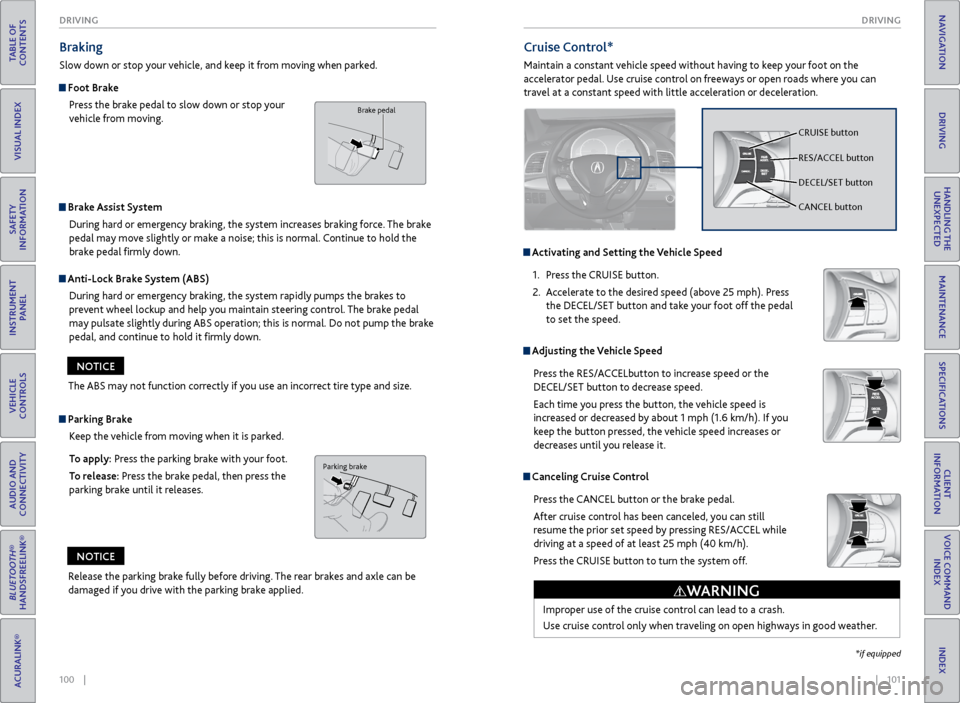
Braking
Slow down or stop your vehicle, and keep it from moving when parked.
Foot Brake
Press the brake pedal to slow down or stop your
vehicle from moving.
Parking BrakeKeep the vehicle from moving when it is parked.
To apply: Press the parking brake with your foot.
To release: Press the brake pedal, then press the
parking brake until it releases.
Brake Assist SystemDuring hard or emergency braking, the system increases braking force. The brake
pedal may move slightly or make a noise; this is normal. Continue to hold the
brake pedal firmly down.
Anti-Lock Brake System (ABS)
During hard or emergency braking, the system rapidly pumps the brakes to
prevent wheel lockup and help you maintain steering control. The brake pedal
may pulsate slightly during ABS operation; this is normal. Do not pump the brake
pedal, and continue to hold it firmly down.
Parking brake
Release the parking brake fully before driving. The rear brakes and axle can be
damaged if you drive with the parking brake applied.
NOTICE
The ABS may not function correctly if you use an incorrect tire type and size.
NOTICE
Brake pedal
Cruise Control*
Maintain a constant vehicle speed without having to keep your foot on the
accelerator pedal. Use cruise control on freeways or open roads where you can
travel at a constant speed with little acceleration or deceleration.
Improper use of the cruise control can lead to a crash.
Use cruise control only when traveling on open highways in good weather.
WARNING
Activating and Setting the Vehicle Speed1. Press the CRUISE button.
2. Accelerate to the desired speed (above 25 mph). Press
the DECEL/SET button and take your foot off the pedal
to set the speed.
Adjusting the Vehicle Speed
Press the RES/ACCELbutton to increase speed or the
DECEL/SET button to decrease speed.
Each time you press the button, the vehicle speed is
increased or decreased by about 1 mph (1.6 km/h). If you
keep the button pressed, the vehicle speed increases or
decreases until you release it.
Canceling Cruise ControlPress the CANCEL button or the brake pedal.
After cruise control has been canceled, you can still
resume the prior set speed by pressing RES/ACCEL while
driving at a speed of at least 25 mph (40 km/h).
Press the CRUISE button to turn the system off.
CRUISE button
RES/ACCEL button
DECEL/SET button
CANCEL button
*if equipped
Page 58 of 81
108 || 109
DRIVING
DRIVING
TABLE OF
CONTENTS
INDEX
VISUAL INDEX
VOICE COMMAND INDEX
SAFETY
INFORMATION
CLIENT
INFORMATION
INSTRUMENT PANEL
SPECIFICATIONS
VEHICLE
CONTROLS
MAINTENANCE
AUDIO AND
CONNECTIVITY
HANDLING THE UNEXPECTED
BLUETOOTH®
HANDSFREELINK®
DRIVING
ACURALINK®
NAVIGATION
Vehicle Stability Assist (VSA®), aka Electronic Stability Control
(ESC) System
Helps to stabilize the vehicle during cornering if the vehicle turns more or less
than what was intended. It assists in maintaining traction on slippery surfaces by
regulating engine output and selectively applying the brakes.
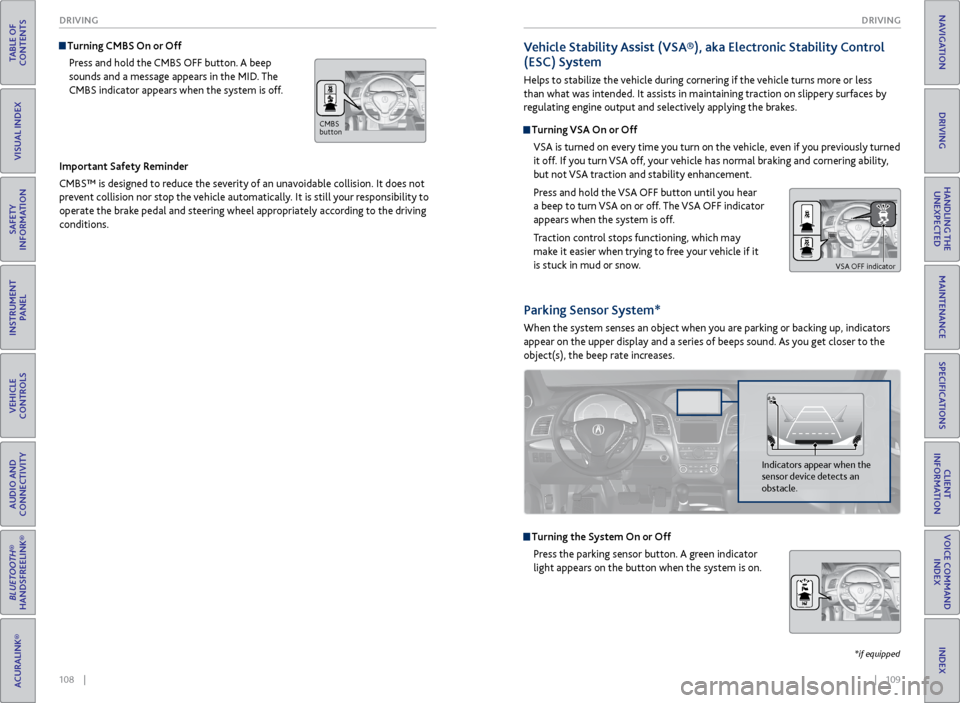
Turning VSA On or Off
VSA is turned on every time you turn on the vehicle, even if you previously turned
it off. If you turn VSA off, your vehicle has normal braking and cornering ability,
but not VSA traction and stability enhancement.
Press and hold the VSA OFF button until you hear
a beep to turn VSA on or off. The VSA OFF indicator
appears when the system is off.
Traction control stops functioning, which may
make it easier when trying to free your vehicle if it
is stuck in mud or snow.
VSA OFF indicator
Turning CMBS On or OffPress and hold the CMBS OFF button. A beep
sounds and a message appears in the MID. The
CMBS indicator appears when the system is off.
Important Safety Reminder
CMBS™ is designed to reduce the severity of an unavoidable collision. It does not
prevent collision nor stop the vehicle automatically. It is still your responsibility to
operate the brake pedal and steering wheel appropriately according to the driving
conditions.
Parking Sensor System*
When the system senses an object when you are parking or backing up, indicators
appear on the upper display and a series of beeps sound. As you get closer to the
object(s), the beep rate increases.
Turning the System On or Off Press the parking sensor button. A green indicator
light appears on the button when the system is on.
Indicators appear when the
sensor device detects an
obstacle.
CMBS
button
*if equipped
Page 60 of 81
112 || 113
HANDLING THE UNEXPECTED
DRIVING
TABLE OF
CONTENTS
INDEX
VISUAL INDEX
VOICE COMMAND INDEX
SAFETY
INFORMATION
CLIENT
INFORMATION
INSTRUMENT PANEL
SPECIFICATIONS
VEHICLE
CONTROLS
MAINTENANCE
AUDIO AND
CONNECTIVITY
HANDLING THE UNEXPECTED
BLUETOOTH®
HANDSFREELINK®
DRIVING
ACURALINK®
NAVIGATION
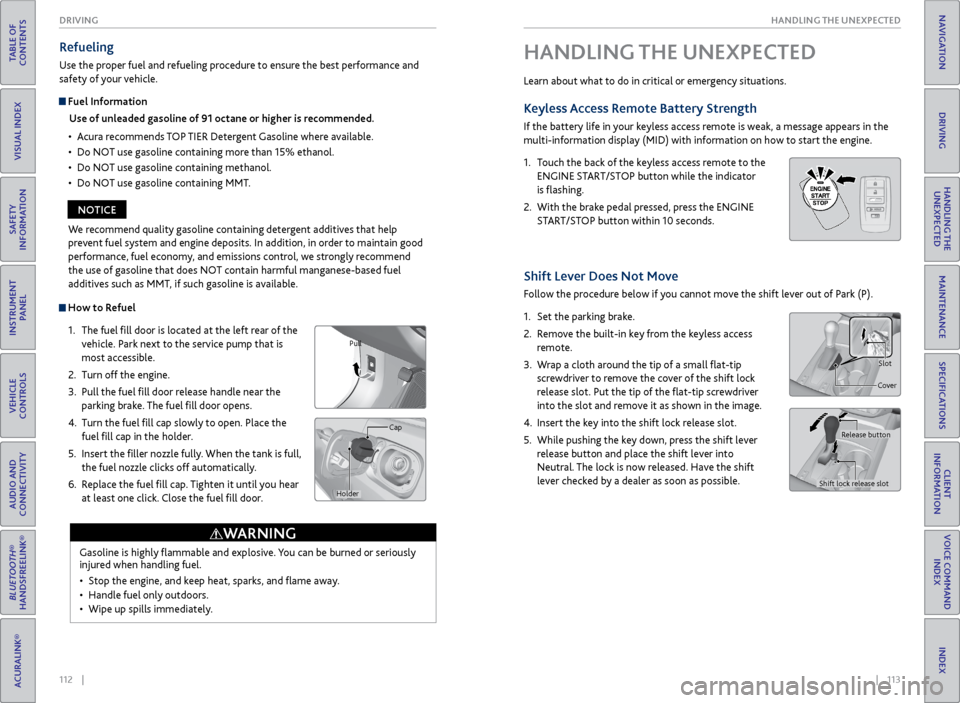
How to Refuel
1. The fuel fill door is located at the left rear of the
vehicle. Park next to the service pump that is
most accessible.
2. Turn off the engine.
3. Pull the fuel fill door release handle near the
parking brake. The fuel fill door opens.
4. Turn the fuel fill cap slowly to open. Place the
fuel fill cap in the holder.
5. Insert the filler nozzle fully. When the tank is full,
the fuel nozzle clicks off automatically.
6. Replace the fuel fill cap. Tighten it until you hear
at least one click. Close the fuel fill door.
Refueling
Use the proper fuel and refueling procedure to ensure the best performance and
safety of your vehicle.
Fuel Information
Use of unleaded gasoline of 91 octane or higher is recommended.
• Acura recommends TOP TIER Detergent Gasoline where available.
• Do NOT use gasoline containing more than 15% ethanol.
• Do NOT use gasoline containing methanol.
• Do NOT use gasoline containing MMT.
Gasoline is highly flammable and explosive. You can be burned or seriously
injured when handling fuel.
• Stop the engine, and keep heat, sparks, and flame away.
• Handle fuel only outdoors.
• Wipe up spills immediately.
WARNING
Pull
Cap
Holder
We recommend quality gasoline containing detergent additives that help
prevent fuel system and engine deposits. In addition, in order to maintain good
performance, fuel economy, and emissions control, we strongly recommend
the use of gasoline that does NOT contain harmful manganese-based fuel
additives such as MMT, if such gasoline is available.
NOTICE Learn about what to do in critical or emergency situations.
Keyless Access
Remote Battery Strength
If the battery life in your keyless access remote is weak, a message appears in the
multi-information display (MID) with information on how to start the engine.
1. Touch the back of the keyless access remote to the
ENGINE START/STOP button while the indicator
is flashing.
2. With the brake pedal pressed, press the ENGINE
START/STOP button within 10 seconds.
HANDLING THE UNEXPECTED
HOLD
Shift Lever Does Not Move
Follow the procedure below if you cannot move the shift lever out of Park (P).
1. Set the parking brake.
2. Remove the built-in key from the keyless access
remote.
3. Wrap a cloth around the tip of a small flat-tip
screwdriver to remove the cover of the shift lock
release slot. Put the tip of the flat-tip screwdriver
into the slot and remove it as shown in the image.
4. Insert the key into the shift lock release slot.
5. While pushing the key down, press the shift lever
release button and place the shift lever into
Neutral. The lock is now released. Have the shift
lever checked by a dealer as soon as possible.
Slot
Cover
Release button
Shift lock release slot
Page 63 of 81

118 || 119
HANDLING THE UNEXPECTED
HANDLING THE UNEXPECTED
TABLE OF
CONTENTS
INDEX
VISUAL INDEX
VOICE COMMAND INDEX
SAFETY
INFORMATION
CLIENT
INFORMATION
INSTRUMENT PANEL
SPECIFICATIONS
VEHICLE
CONTROLS
MAINTENANCE
AUDIO AND
CONNECTIVITY
HANDLING THE UNEXPECTED
BLUETOOTH®
HANDSFREELINK®
DRIVING
ACURALINK®
NAVIGATION
Tire Pressure Monitoring System (TPMS) - Required Federal
Explanation
Each tire, including the spare (if provided), should be checked monthly
when cold and inflated to the inflation pressure recommended by the
vehicle manufacturer on the vehicle placard or tire inflation pressure
label.
(If your vehicle has tires of a different size than the size indicated on the
vehicle placard or tire inflation pressure label, you should determine the
proper tire inflation pressure for those tires.)
As an added safety feature, your vehicle has been equipped with a tire
pressure monitoring system (TPMS) that illuminates a low tire
pressure telltale when one or more of your tires is significantly
under-inflated.
Accordingly, when the low tire pressure telltale illuminates, you should
stop and check your tires as soon as possible, and inflate them to the
proper pressure.
Driving on a significantly under-inflated tire causes the tire to overheat
and can lead to tire failure. Under-inflation also reduces fuel efficiency
and tire tread life, and may affect the vehicle’s handling and stopping
ability.
Please note that the TPMS is not a substitute for proper tire
maintenance, and it is the driver’s responsibility to maintain correct
tire pressure, even if under-inflation has not reached the level to trigger
illumination of the TPMS low tire pressure telltale.
Your vehicle has also been equipped with a TPMS malfunction indicator
to indicate when the system is not operating properly. The TPMS
malfunction indicator is combined with the low tire pressure telltale.
When the system detects a malfunction, the telltale will flash for
approximately one minute and then remain continuously illuminated.
This sequence will continue upon subsequent vehicle start-ups as long as
the malfunction exists.
When the malfunction indicator is illuminated, the system may not be
able to detect or signal low tire pressure as intended.
TPMS malfunctions may occur for a variety of reasons, including the
installation of replacement or alternate tires or wheels on the vehicle
that prevent the TPMS from functioning properly.
Always check the TPMS malfunction telltale after replacing one or
more tires or wheels on your vehicle to ensure that the replacement
or alternate tires and wheels allow the TPMS to continue to function
properly.Tire Repair Kit*
If a tire has a small puncture, you can use the tire repair kit to temporarily repair it.
The puncture must be smaller than 3/16-inch (4 mm) and not in the tire sidewall.
Go to a dealer to have the full-size tire permanently repaired or replaced.
Before Repairing the Tire
1. Park the vehicle on firm, level, non-slippery surface.
2. Make sure the vehicle is in Park (P), and apply the parking brake.
3. Turn on the hazard warning lights, and turn the vehicle off.
Getting Ready to Repair the Tire
1. Open the cargo area floor lid.
2. Take the kit out of the tool box.
3. Place the kit face up on flat ground near the
punctured tire and away from traffic. Do not
place the kit on its side.
4. Follow the instructions in the kit to repair the
tire.
Do not use an unapproved puncture-repairing agent other than the one provided
in the kit that came with your vehicle. If a different agent is used, you may
permanently damage the tire pressure sensor.
NOTICE
Floor lid
Tire repair kit
*if equipped
Page 76 of 81

144 || 145
CLIENT INFORMATION
CLIENT INFORMATION
TABLE OF
CONTENTS
INDEX
VISUAL INDEX
VOICE COMMAND INDEX
SAFETY
INFORMATION
CLIENT
INFORMATION
INSTRUMENT PANEL
SPECIFICATIONS
VEHICLE
CONTROLS
MAINTENANCE
AUDIO AND
CONNECTIVITY
HANDLING THE UNEXPECTED
BLUETOOTH®
HANDSFREELINK®
DRIVING
ACURALINK®
NAVIGATION
Learn about information specific to you as an Acura client and how to get help.
Frequently Asked Questions/Troubleshooting
Below are some frequently asked questions and troubleshooting items that you
may have about the vehicle.
Q: How do I set the vehicle clock?
A: For vehicles without navigation, see page 49. For vehicles with navigation, the
time is automatically set using GPS signals.
Q: Why doesn’t the vehicle start when I press the ENGINE START/STOP button?
A: The brake pedal must be pressed to start the engine.
Q: What is the AUTO setting on my headlight lever?
A: When in the AUTO position, the vehicle’s exterior lights will automatically turn
on or off depending on the ambient lighting.
Q: Only the driver’s door unlocks when I shift to Park (P). Can all doors unlock?
A: You can change door lock or unlock settings in the multi-information display
using the Vehicle Settings menu (see page 29), or using the SETTINGS button
(see page 48).
Q: Why won’t the driver’s door unlock when I grab the door handle, even though the
keyless access remote is within range?
A: If you pull the handle too quickly, the system may not have time to confirm the
door is unlocked. Wait to hear a beep to confirm the door is unlocked. If you are
wearing gloves, the system may be slow to respond.
Q: After my battery was disconnected or went dead, the audio system is asking for a
code. Where do I find this?
A: In most cases, you do not need to enter a code. Turn on the vehicle and the audio
system, and press and hold the power button until the system reactivates.
Q: Why can’t I operate Pandora through the audio system?
A: Audio may be streaming through Bluetooth® Audio. Make sure Pandora mode
is selected and the phone cable is properly connected to the USB port. Some
phones may prompt you to “Allow” a connection.
Q: Is my phone compatible with Bluetooth features?
A: Visit www.acura.com/handsfreelink (U.S) or www.handsfreelink.ca (Canada) to
check phone compatibility for Bluetooth® Audio, Bluetooth® HandsFreeLink®,
and SMS text messaging.
CLIENT INFORMATION
Contact Us
Acura dealer personnel are trained professionals. They should be able to answer
all your questions. If you encounter a problem that your dealership does not solve
to your satisfaction, please discuss it with the dealership’s service manager or
general manager. If you are dissatisfied with the decision made by the dealership’s
management, contact Acura Client Relations/Services.
U.S. owners:
American Honda Motor Co., Inc.
Acura Client Relations
1919 Torrance Blvd.
Mail Stop 500-2N-7E
Torrance, CA 90501-2746
Tel: (800) 382-2238
In Puerto Rico and
the U.S. Virgin Islands:
Bella International
P.O. Box 190816
San Juan, PR 00919-0816
Tel: (787) 620-7546 Canadian owners:
Honda Canada, Inc.
Acura Client Services
180 Honda Blvd.
Markham, ON
L6C 0H9
Tel: (888) 922-8729
Fax: (877) 939-0909
e-mail: [email protected]
When you call or write, please give us the following information:
• Vehicle Identification Number
• Date of purchase
• Odometer reading of your vehicle
• Your name, address, and telephone number
• A detailed description of the problem
• Name of the dealer who sold the vehicle to you
Q: Every
time I press the Talk button, the system gives me voice prompts. Can I turn
these off?*
A: Press the SETTINGS button. Use the interface dial to select System Settings, and
then Voice Prompt. Select Off.
Q: Why can’t I select an item using the interface dial?*
A: To prevent driver distraction, certain items are limited or inoperable while the
vehicle is moving. Use voice commands or pull over to select the items.
Q: Where can I find the vehicle identification number (VIN)?
A: Check the label on the driver’s doorjamb.
*if equipped
Page 78 of 81
148 || 149
VOICE COMMAND INDEX
VOICE COMMAND INDEX
TABLE OF
CONTENTS
INDEX
VISUAL INDEX
VOICE COMMAND INDEX
SAFETY
INFORMATION
CLIENT
INFORMATION
INSTRUMENT PANEL
SPECIFICATIONS
VEHICLE
CONTROLS
MAINTENANCE
AUDIO AND
CONNECTIVITY
HANDLING THE UNEXPECTED
BLUETOOTH®
HANDSFREELINK®
DRIVING
ACURALINK®
NAVIGATION
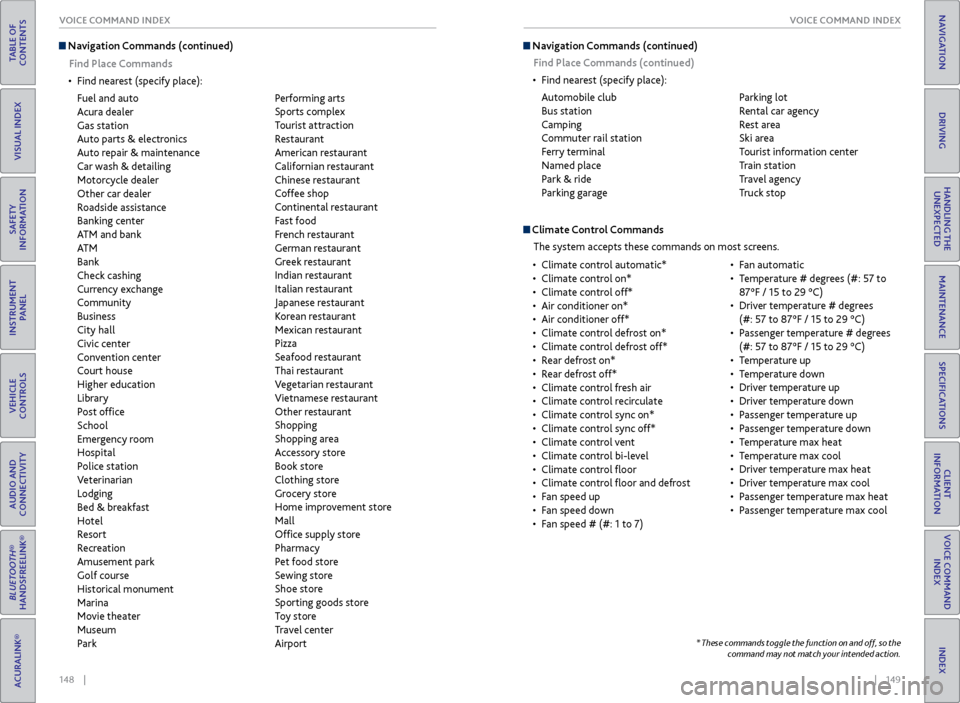
Navigation Commands (continued)
Find Place Commands
• Find nearest (specify place):
Fuel and auto
Acura dealer
Gas station
Auto parts & electronics
Auto repair & maintenance
Car wash & detailing
Motorcycle dealer
Other car dealer
Roadside assistance
Banking center
ATM and bank
AT M
Bank
Check cashing
Currency exchange
Community
Business
City hall
Civic center
Convention center
Court house
Higher education
Library
Post office
School
Emergency room
Hospital
Police station
Veterinarian
Lodging
Bed & breakfast
Hotel
Resort
Recreation
Amusement park
Golf course
Historical monument
Marina
Movie theater
Museum
Park Performing arts
Sports complex
Tourist attraction
Restaurant
American restaurant
Californian restaurant
Chinese restaurant
Coffee shop
Continental restaurant
Fast food
French restaurant
German restaurant
Greek restaurant
Indian restaurant
Italian restaurant
Japanese restaurant
Korean restaurant
Mexican restaurant
Pizza
Seafood restaurant
Thai restaurant
Vegetarian restaurant
Vietnamese restaurant
Other restaurant
Shopping
Shopping area
Accessory store
Book store
Clothing store
Grocery store
Home improvement store
Mall
Office supply store
Pharmacy
Pet food store
Sewing store
Shoe store
Sporting goods store
Toy store
Travel center
Airport Navigation Commands (continued)
Find Place Commands (continued)
• Find nearest (specify place):
Automobile club
Bus station
Camping
Commuter rail station
Ferry terminal
Named place
Park & ride
Parking garage Parking lot
Rental car agency
Rest area
Ski area
Tourist information center
Train station
Travel agency
Truck stop
Climate Control Commands
The system accepts these commands on most screens.
• Climate control automatic*
• Climate control on*
• Climate control off*
• Air conditioner on*
• Air conditioner off*
• Climate control defrost on*
• Climate control defrost off*
• Rear defrost on*
• Rear defrost off*
• Climate control fresh air
• Climate control recirculate
• Climate control sync on*
• Climate control sync off*
• Climate control vent
• Climate control bi-level
• Climate control floor
• Climate control floor and defrost
• Fan speed up
• Fan speed down
• Fan speed # (#: 1 to 7) •
Fan automatic
• Temperature # degrees (#: 57 to
87°F / 15 to 29 °C)
• Driver temperature # degrees
(#: 57 to 87°F / 15 to 29 °C)
• Passenger temperature # degrees
(#: 57 to 87°F / 15 to 29 °C)
• Temperature up
• Temperature down
• Driver temperature up
• Driver temperature down
• Passenger temperature up
• Passenger temperature down
• Temperature max heat
• Temperature max cool
• Driver temperature max heat
• Driver temperature max cool
• Passenger temperature max heat
• Passenger temperature max cool
* These commands toggle the function on and off, so the
command may not match your intended action.