phone Acura RDX 2016 User Guide
[x] Cancel search | Manufacturer: ACURA, Model Year: 2016, Model line: RDX, Model: Acura RDX 2016Pages: 81, PDF Size: 17.94 MB
Page 39 of 81
70 || 71
Models without navigation
Pairing a Phone
To use hands-free phone and streaming audio functions, you must first pair your
phone to the system. This can only be done when the vehicle is stopped. Use the
selector knob to make and enter selections.
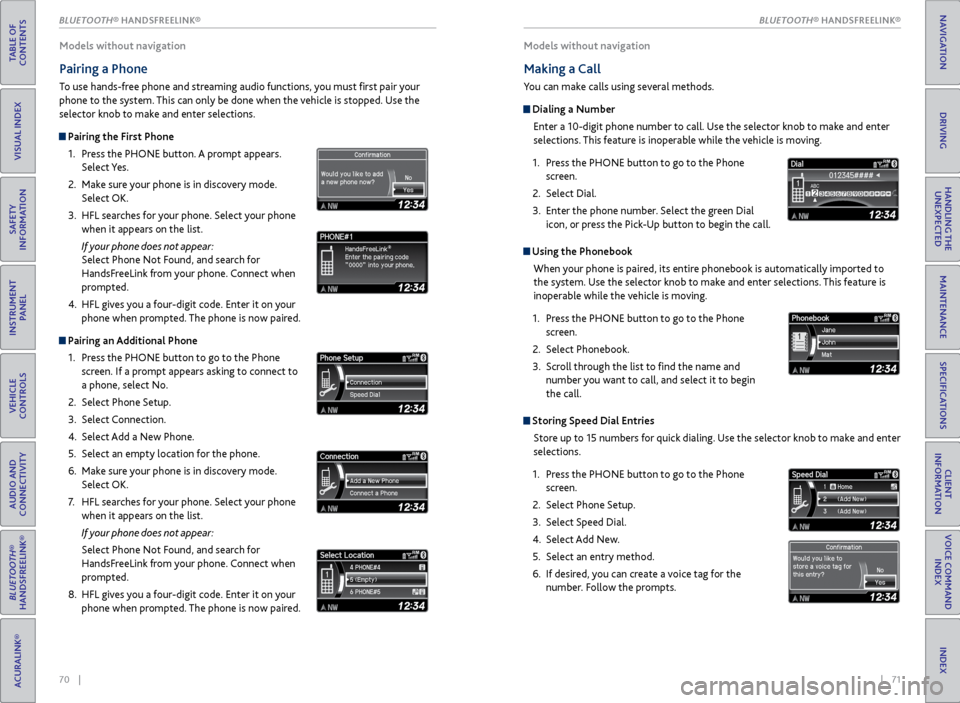
Pairing the First Phone
1. Press the PHONE button. A prompt appears.
Select Yes.
2. Make sure your phone is in discovery mode.
Select OK.
3. HFL searches for your phone. Select your phone
when it appears on the list.
If your phone does not appear:
Select Phone Not Found, and search for
HandsFreeLink from your phone. Connect when
prompted.
4. HFL gives you a four-digit code. Enter it on your
phone when prompted. The phone is now paired.
Pairing an Additional Phone
1. Press the PHONE button to go to the Phone
screen. If a prompt appears asking to connect to
a phone, select No.
2. Select Phone Setup.
3. Select Connection.
4. Select Add a New Phone.
5. Select an empty location for the phone.
6. Make sure your phone is in discovery mode.
Select OK.
7. HFL searches for your phone. Select your phone
when it appears on the list.
If your phone does not appear:
Select Phone Not Found, and search for
HandsFreeLink from your phone. Connect when
prompted.
8. HFL gives you a four-digit code. Enter it on your
phone when prompted. The phone is now paired.
Models without navigation
Making a Call
You can make calls using several methods.
Dialing a Number
Enter a 10-digit phone number to call. Use the selector knob to make and enter
selections. This feature is inoperable while the vehicle is moving.
1. Press the PHONE button to go to the Phone
screen.
2. Select Dial.
3. Enter the phone number. Select the green Dial
icon, or press the Pick-Up button to begin the call.
Using the Phonebook
When your phone is paired, its entire phonebook is automatically imported to
the system. Use the selector knob to make and enter selections. This feature is
inoperable while the vehicle is moving.
1. Press the PHONE button to go to the Phone
screen.
2. Select Phonebook.
3. Scroll through the list to find the name and
number you want to call, and select it to begin
the call.
Storing Speed Dial Entries
Store up to 15 numbers for quick dialing. Use the selector knob to make and enter
selections.
1. Press the PHONE button to go to the Phone
screen.
2. Select Phone Setup.
3. Select Speed Dial.
4. Select Add New.
5. Select an entry method.
6. If desired, you can create a voice tag for the
number. Follow the prompts.
BLUETOOTH® HANDSFREELINK®
TABLE OF
CONTENTS
INDEX
VISUAL INDEX
VOICE COMMAND INDEX
SAFETY
INFORMATION
CLIENT
INFORMATION
INSTRUMENT PANEL
SPECIFICATIONS
VEHICLE
CONTROLS
MAINTENANCE
AUDIO AND
CONNECTIVITY
HANDLING THE UNEXPECTED
BLUETOOTH®
HANDSFREELINK®
DRIVING
ACURALINK®
NAVIGATIONBL\256 HANDSFREELINK
Page 40 of 81
72 || 73
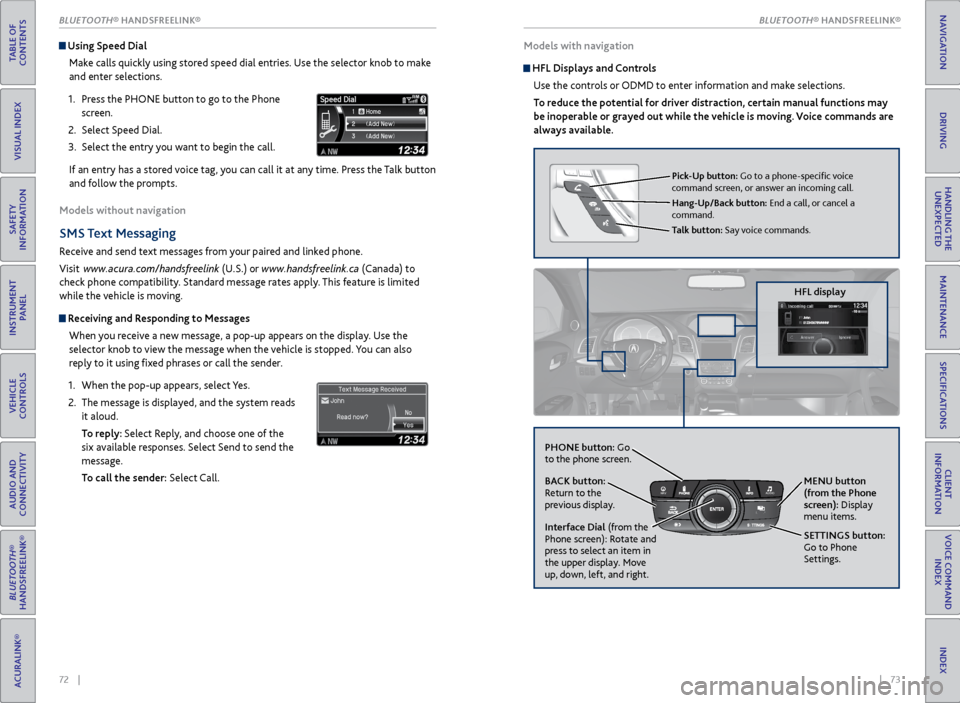
Using Speed Dial
Make calls quickly using stored speed dial entries. Use the selector knob to make
and enter selections.
1. Press the PHONE button to go to the Phone
screen.
2. Select Speed Dial.
3. Select the entry you want to begin the call.
If an entry has a stored voice tag, you can call it at any time. Press the Talk button
and follow the prompts.
Models without navigation
SMS Text Messaging
Receive and send text messages from your paired and linked phone.
Visit www.acura.com/handsfreelink (U.S.) or www.handsfreelink.ca (Canada) to
check phone compatibility. Standard message rates apply. This feature is limited
while the vehicle is moving.
Receiving and Responding to Messages
When you receive a new message, a pop-up appears on the display. Use the
selector knob to view the message when the vehicle is stopped. You can also
reply to it using fixed phrases or call the sender.
1. When the pop-up appears, select Yes.
2. The message is displayed, and the system reads
it aloud.
To reply: Select Reply, and choose one of the
six available responses. Select Send to send the
message.
To call the sender: Select Call.
Models with navigation
HFL Displays and Controls
Use the controls or ODMD to enter information and make selections.
To reduce the potential for driver distraction, certain manual functions may
be inoperable or grayed out while the vehicle is moving. Voice commands are
always available.
HFL display
Pick-Up button: Go to a phone-specific voice
command screen, or answer an incoming call.
Hang-Up/Back button: End a call, or cancel a
command.
Talk button: Say voice commands.
NAVAUDIOAUDIONAV
PHONE button: Go
to the phone screen.
BACK button:
Return to the
previous display.
Interface Dial (from the
Phone screen): Rotate and
press to select an item in
the upper display. Move
up, down, left, and right. MENU button
(from the Phone
screen): Display
menu items.
SETTINGS button:
Go to Phone
Settings.
BLUETOOTH® HANDSFREELINK®
TABLE OF
CONTENTS
INDEX
VISUAL INDEX
VOICE COMMAND INDEX
SAFETY
INFORMATION
CLIENT
INFORMATION
INSTRUMENT PANEL
SPECIFICATIONS
VEHICLE
CONTROLS
MAINTENANCE
AUDIO AND
CONNECTIVITY
HANDLING THE UNEXPECTED
BLUETOOTH®
HANDSFREELINK®
DRIVING
ACURALINK®
NAVIGATIONBLUETOOTH\256 HANDSFREELINK
Page 41 of 81
74 || 75
Talk Button Tips
For a list of phone-related voice commands, see page 152.
• When using the Talk button, wait until you hear a beep before speaking.
• To bypass the system prompts, simply press the Talk button again to say your
command.
• When the Talk button is pressed, all available voice commands are highlighted
in yellow.
• Speak in a clear, natural voice.
• Reduce all background noise.
• Adjust the dashboard and side vents away from the microphone in the ceiling.
• Close the windows and moonroof.
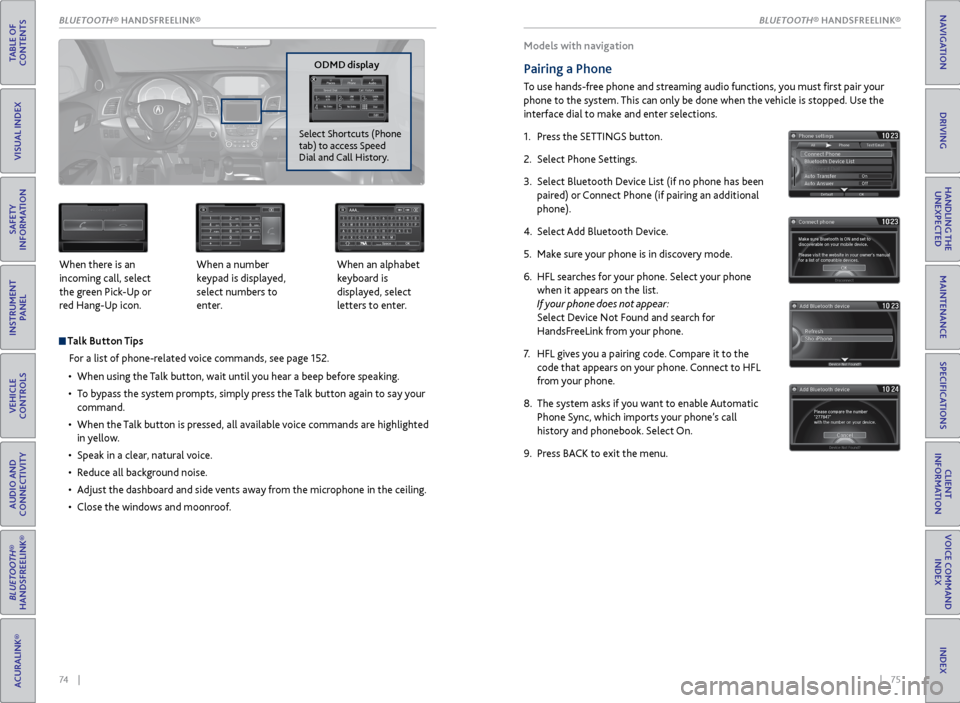
When there is an
incoming call, select
the green Pick-Up or
red Hang-Up icon.
When a number
keypad is displayed,
select numbers to
enter. When an alphabet
keyboard is
displayed, select
letters to enter.
P
ODMD display
Select Shortcuts (Phone
tab) to access Speed
Dial and Call History.
Models with navigation
Pairing a Phone
To use hands-free phone and streaming audio functions, you must first pair your
phone to the system. This can only be done when the vehicle is stopped. Use the
interface dial to make and enter selections.
1. Press the SETTINGS button.
2. Select Phone Settings.
3. Select Bluetooth Device List (if no phone has been
paired) or Connect Phone (if pairing an additional
phone).
4. Select Add Bluetooth Device.
5. Make sure your phone is in discovery mode.
6. HFL searches for your phone. Select your phone
when it appears on the list.
If your phone does not appear:
Select Device Not Found and search for
HandsFreeLink from your phone.
7. HFL gives you a pairing code. Compare it to the
code that appears on your phone. Connect to HFL
from your phone.
8. The system asks if you want to enable Automatic
Phone Sync, which imports your phone’s call
history and phonebook. Select On.
9. Press BACK to exit the menu.
BLUETOOTH® HANDSFREELINK®
TABLE OF
CONTENTS
INDEX
VISUAL INDEX
VOICE COMMAND INDEX
SAFETY
INFORMATION
CLIENT
INFORMATION
INSTRUMENT PANEL
SPECIFICATIONS
VEHICLE
CONTROLS
MAINTENANCE
AUDIO AND
CONNECTIVITY
HANDLING THE UNEXPECTED
BLUETOOTH®
HANDSFREELINK®
DRIVING
ACURALINK®
NAVIGATIONBLUETOOTH\256 HANDSFREELINK
Page 42 of 81
76 || 77
Models with navigation
Making a Call
You can make calls using several methods.
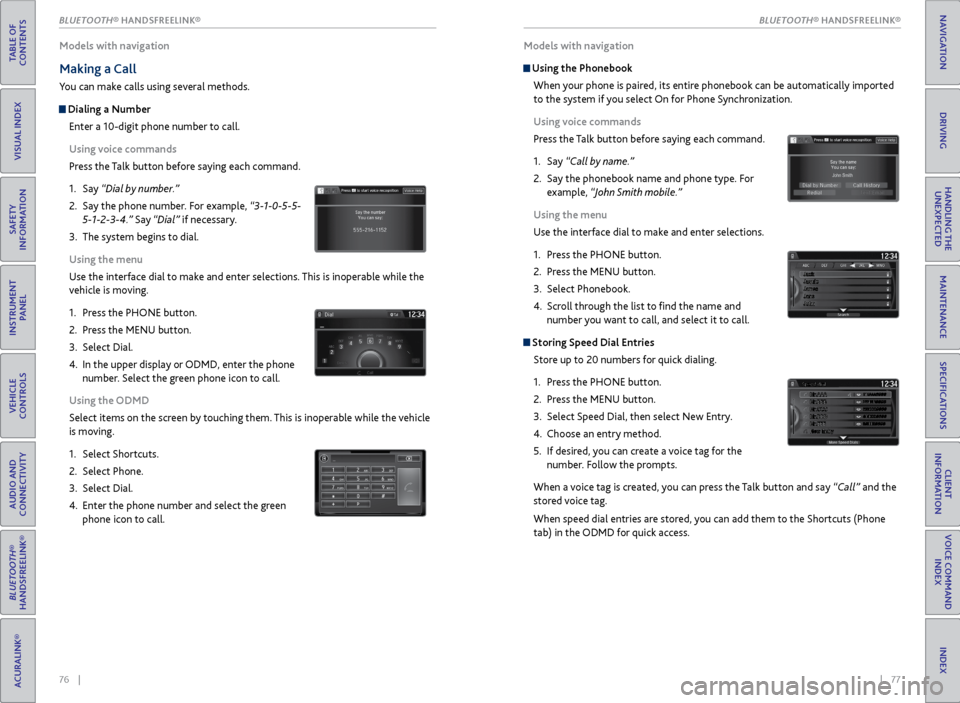
Dialing a Number
Enter a 10-digit phone number to call.
Using voice commands
Press the Talk button before saying each command.
1. Say “Dial by number.”
2. Say the phone number. For example, “3-1-0-5-5-
5-1-2-3-4.” Say “Dial” if necessary.
3. The system begins to dial.
Using the menu
Use the interface dial to make and enter selections. This is inoperable while the
vehicle is moving.
1. Press the PHONE button.
2. Press the MENU button.
3. Select Dial.
4. In the upper display or ODMD, enter the phone
number. Select the green phone icon to call.
Using the ODMD
Select items on the screen by touching them. This is inoperable while the vehicle
is moving.
1. Select Shortcuts.
2. Select Phone.
3. Select Dial.
4. Enter the phone number and select the green
phone icon to call.
P
Models with navigation
Using the Phonebook
When your phone is paired, its entire phonebook can be automatically imported
to the system if you select On for Phone Synchronization.
Using voice commands
Press the Talk button before saying each command.
1. Say “Call by name.”
2. Say the phonebook name and phone type. For
example, “John Smith mobile.”
Using the menu
Use the interface dial to make and enter selections.
1. Press the PHONE button.
2. Press the MENU button.
3. Select Phonebook.
4. Scroll through the list to find the name and
number you want to call, and select it to call.
Storing Speed Dial Entries
Store up to 20 numbers for quick dialing.
1. Press the PHONE button.
2. Press the MENU button.
3. Select Speed Dial, then select New Entry.
4. Choose an entry method.
5. If desired, you can create a voice tag for the
number. Follow the prompts.
When a voice tag is created, you can press the Talk button and say “Call” and the
stored voice tag.
When speed dial entries are stored, you can add them to the Shortcuts (Phone
tab) in the ODMD for quick access.
BLUETOOTH® HANDSFREELINK®
TABLE OF
CONTENTS
INDEX
VISUAL INDEX
VOICE COMMAND INDEX
SAFETY
INFORMATION
CLIENT
INFORMATION
INSTRUMENT PANEL
SPECIFICATIONS
VEHICLE
CONTROLS
MAINTENANCE
AUDIO AND
CONNECTIVITY
HANDLING THE UNEXPECTED
BLUETOOTH®
HANDSFREELINK®
DRIVING
ACURALINK®
NAVIGATIONBLUETOOTH\256 HANDSFREELINK
Page 43 of 81
78 || 79
Models with navigation
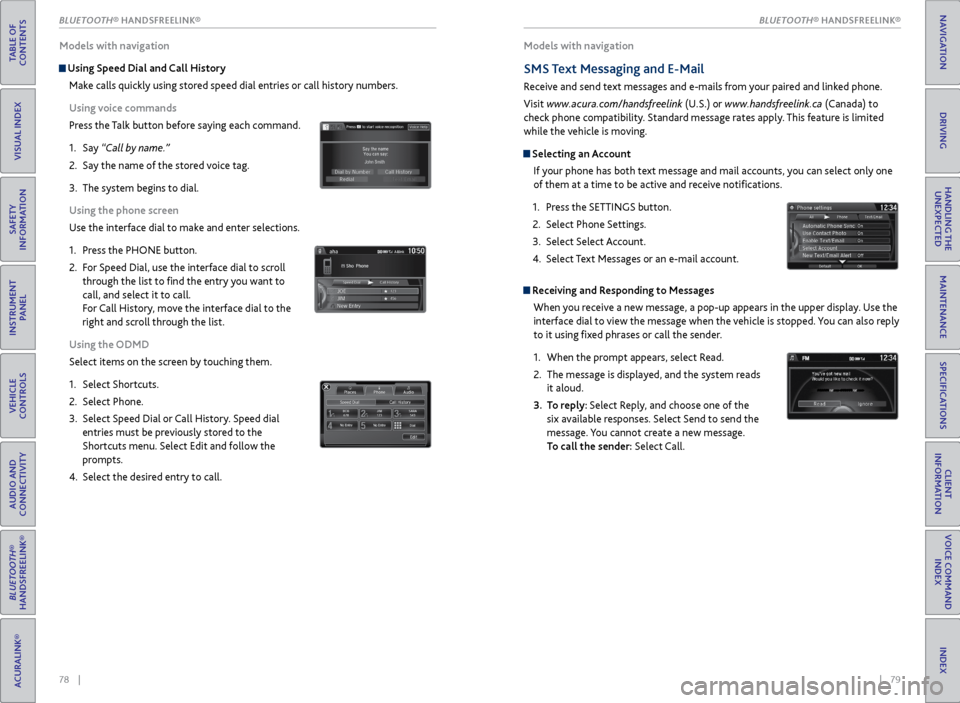
Using Speed Dial and Call History
Make calls quickly using stored speed dial entries or call history numbers.
Using voice commands
Press the Talk button before saying each command.
1. Say “Call by name.”
2. Say the name of the stored voice tag.
3. The system begins to dial.
Using the phone screen
Use the interface dial to make and enter selections.
1. Press the PHONE button.
2. For Speed Dial, use the interface dial to scroll
through the list to find the entry you want to
call, and select it to call.
For Call History, move the interface dial to the
right and scroll through the list.
Using the ODMD
Select items on the screen by touching them.
1. Select Shortcuts.
2. Select Phone.
3. Select Speed Dial or Call History. Speed dial
entries must be previously stored to the
Shortcuts menu. Select Edit and follow the
prompts.
4. Select the desired entry to call.
Models with navigation
SMS Text Messaging and E-Mail
Receive and send text messages and e-mails from your paired and linked phone.
Visit www.acura.com/handsfreelink (U.S.) or www.handsfreelink.ca (Canada) to
check phone compatibility. Standard message rates apply. This feature is limited
while the vehicle is moving.
Selecting an Account
If your phone has both text message and mail accounts, you can select only one
of them at a time to be active and receive notifications.
1. Press the SETTINGS button.
2. Select Phone Settings.
3. Select Select Account.
4. Select Text Messages or an e-mail account.
Receiving and Responding to Messages
When you receive a new message, a pop-up appears in the upper display. Use the
interface dial to view the message when the vehicle is stopped. You can also reply
to it using fixed phrases or call the sender.
1. When the prompt appears, select Read.
2. The message is displayed, and the system reads
it aloud.
3. To reply: Select Reply, and choose one of the
six available responses. Select Send to send the
message. You cannot create a new message.
To call the sender: Select Call.
xyz xyz
BLUETOOTH® HANDSFREELINK®
TABLE OF
CONTENTS
INDEX
VISUAL INDEX
VOICE COMMAND INDEX
SAFETY
INFORMATION
CLIENT
INFORMATION
INSTRUMENT PANEL
SPECIFICATIONS
VEHICLE
CONTROLS
MAINTENANCE
AUDIO AND
CONNECTIVITY
HANDLING THE UNEXPECTED
BLUETOOTH®
HANDSFREELINK®
DRIVING
ACURALINK®
NAVIGATIONBLUETOOTH\256 HANDSFREELINK
Page 44 of 81
| 81
INDEX
VOICE COMMAND INDEX
CLIENT
INFORMATION
SPECIFICATIONS
MAINTENANCE
HANDLING THE UNEXPECTED
DRIVING
NAVIGATION
80 |
*if equipped
Models with navigation
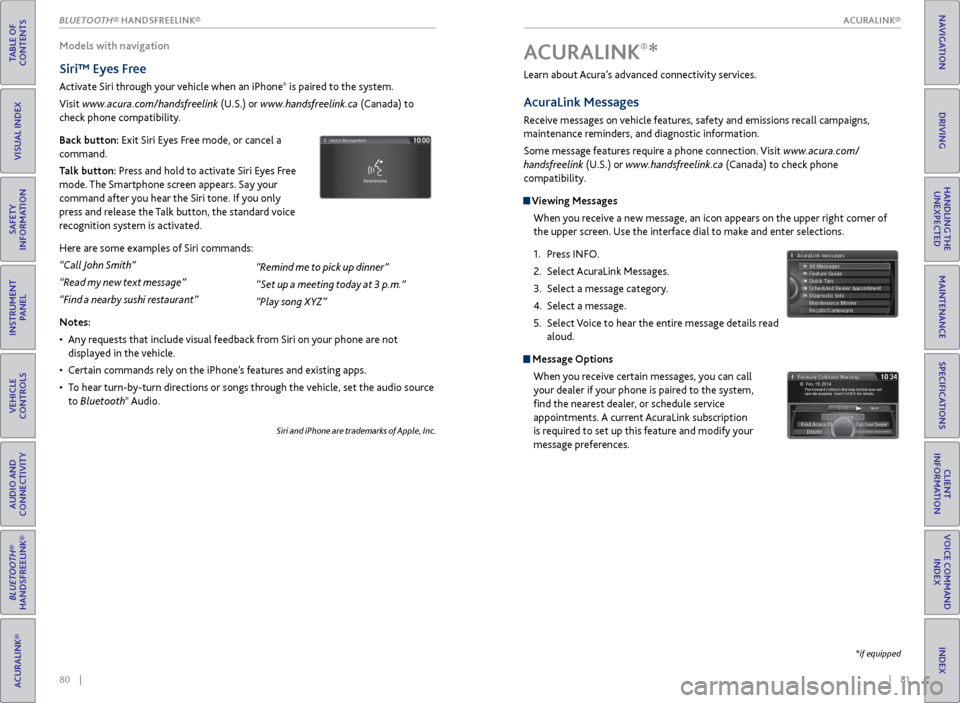
Siri™ Eyes Free
Activate Siri through your vehicle when an iPhone® is paired to the system.
Visit www.acura.com/handsfreelink (U.S.) or www.handsfreelink.ca (Canada) to
check phone compatibility.
Back button: Exit Siri Eyes Free mode, or cancel a
command.
Talk button: Press and hold to activate Siri Eyes Free
mode. The Smartphone screen appears. Say your
command after you hear the Siri tone. If you only
press and release the Talk button, the standard voice
recognition system is activated.
Here are some examples of Siri commands:
“Call John Smith”
“Read my new text message”
“Find a nearby sushi restaurant”
Notes:
• Any requests that include visual feedback from Siri on your phone are not
displayed in the vehicle.
• Certain commands rely on the iPhone’s features and existing apps.
• To hear turn-by-turn directions or songs through the vehicle, set the audio source
to Bluetooth
® Audio.
Siri and iPhone are trademarks of Apple, Inc.
“Remind me to pick up dinner”
“Set up a meeting today at 3 p.m.”
“Play song XYZ” Learn about Acura’s advanced connectivity services.
AcuraLink Messages
Receive messages on vehicle features, safety and emissions recall campaigns,
maintenance reminders, and diagnostic information.
Some message features require a phone connection. Visit www.acura.com/
handsfreelink (U.S.) or
www.handsfreelink.ca (Canada) to check phone
compatibility.
Viewing Messages
When you receive a new message, an icon appears on the upper right corner of
the upper screen. Use the interface dial to make and enter selections.
1. Press INFO.
2. Select AcuraLink Messages.
3. Select a message category.
4. Select a message.
5. Select Voice to hear the entire message details read
aloud.
Message Options
When you receive certain messages, you can call
your dealer if your phone is paired to the system,
find the nearest dealer, or schedule service
appointments. A current AcuraLink subscription
is required to set up this feature and modify your
message preferences.
A CURALINK®*
ACURALINK®
BLUETOOTH® HANDSFREELINK®
TABLE OF
CONTENTS
VISUAL INDEX
SAFETY
INFORMATION
INSTRUMENT PANEL
VEHICLE
CONTROLS
AUDIO AND
CONNECTIVITY
BLUETOOTH®
HANDSFREELINK®
ACURALINK®
ACURALINK®
Page 45 of 81
| 83
NAVIGATION
INDEX
VOICE COMMAND
INDEX
CLIENT
INFORMATION
SPECIFICATIONS
MAINTENANCE
HANDLING THE UNEXPECTED
DRIVING
NAVIGATION
82 |
TABLE OF
CONTENTS
VISUAL INDEX
SAFETY
INFORMATION
INSTRUMENT PANEL
VEHICLE
CONTROLS
AUDIO AND
CONNECTIVITY
BLUETOOTH®
HANDSFREELINK®
ACURALINK®
Learn how to enter a destination and operate the navigation system.
Basic Navigation Operation
A real-time navigation system uses GPS and a map database to show your current
location and help guide you to a desired destination. You can operate the system
using voice commands or the system controls.
To reduce the potential for driver distraction, certain manual functions may
be inoperable or grayed out while the vehicle is moving. Voice commands are
always available.
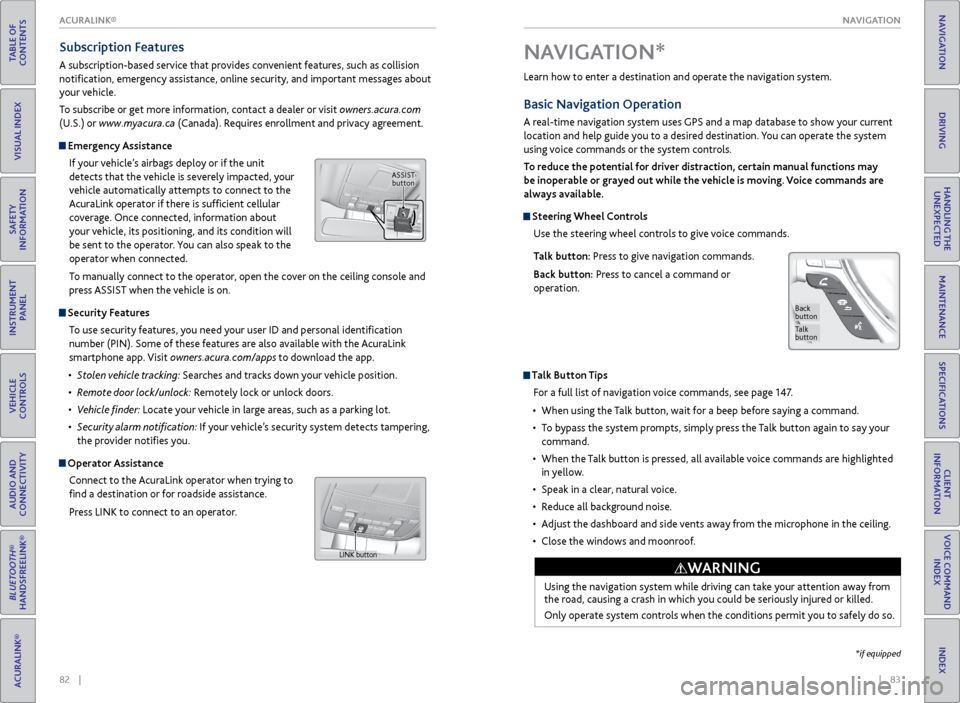
Steering Wheel Controls
Use the steering wheel controls to give voice commands.
Talk button: Press to give navigation commands.
Back button: Press to cancel a command or
operation.
Talk Button Tips
For a full list of navigation voice commands, see page 147.
• When using the Talk button, wait for a beep before saying a command.
• To bypass the system prompts, simply press the Talk button again to say your
command.
• When the Talk button is pressed, all available voice commands are highlighted
in yellow.
• Speak in a clear, natural voice.
• Reduce all background noise.
• Adjust the dashboard and side vents away from the microphone in the ceiling.
• Close the windows and moonroof.
Using the navigation system while driving can take your attention away from
the road, causing a crash in which you could be seriously injured or killed.
Only operate system controls when the conditions permit you to safely do so.
WARNING
NAVIGATION*
Talk
button
Back
button
*if equipped
Subscription Features
A subscription-based service that provides convenient features, such as collision
notification, emergency assistance, online security, and important messages about
your vehicle.
To subscribe or get more information, contact a dealer or visit owners.acura.com
(U.S.) or www.myacura.ca (Canada). Requires enrollment and privacy agreement.
Emergency Assistance
If your vehicle’s airbags deploy or if the unit
detects that the vehicle is severely impacted, your
vehicle automatically attempts to connect to the
AcuraLink operator if there is sufficient cellular
coverage. Once connected, information about
your vehicle, its positioning, and its condition will
be sent to the operator. You can also speak to the
operator when connected.
To manually connect to the operator, open the cover on the ceiling console and
press ASSIST when the vehicle is on.
Security Features
To use security features, you need your user ID and personal identification
number (PIN). Some of these features are also available with the AcuraLink
smartphone app. Visit owners.acura.com/apps to download the app.
• Stolen vehicle tracking: Searches and tracks down your vehicle position.
• Remote door lock/unlock: Remotely lock or unlock doors.
• Vehicle finder: Locate your vehicle in large areas, such as a parking lot.
• Security alarm notification: If your vehicle’s security system detects tampering,
the provider notifies you.
Operator Assistance
Connect to the AcuraLink operator when trying to
find a destination or for roadside assistance.
Press LINK to connect to an operator.
ASSIST button
LINK button
ACURALINK®
Page 76 of 81

144 || 145
CLIENT INFORMATION
CLIENT INFORMATION
TABLE OF
CONTENTS
INDEX
VISUAL INDEX
VOICE COMMAND INDEX
SAFETY
INFORMATION
CLIENT
INFORMATION
INSTRUMENT PANEL
SPECIFICATIONS
VEHICLE
CONTROLS
MAINTENANCE
AUDIO AND
CONNECTIVITY
HANDLING THE UNEXPECTED
BLUETOOTH®
HANDSFREELINK®
DRIVING
ACURALINK®
NAVIGATION
Learn about information specific to you as an Acura client and how to get help.
Frequently Asked Questions/Troubleshooting
Below are some frequently asked questions and troubleshooting items that you
may have about the vehicle.
Q: How do I set the vehicle clock?
A: For vehicles without navigation, see page 49. For vehicles with navigation, the
time is automatically set using GPS signals.
Q: Why doesn’t the vehicle start when I press the ENGINE START/STOP button?
A: The brake pedal must be pressed to start the engine.
Q: What is the AUTO setting on my headlight lever?
A: When in the AUTO position, the vehicle’s exterior lights will automatically turn
on or off depending on the ambient lighting.
Q: Only the driver’s door unlocks when I shift to Park (P). Can all doors unlock?
A: You can change door lock or unlock settings in the multi-information display
using the Vehicle Settings menu (see page 29), or using the SETTINGS button
(see page 48).
Q: Why won’t the driver’s door unlock when I grab the door handle, even though the
keyless access remote is within range?
A: If you pull the handle too quickly, the system may not have time to confirm the
door is unlocked. Wait to hear a beep to confirm the door is unlocked. If you are
wearing gloves, the system may be slow to respond.
Q: After my battery was disconnected or went dead, the audio system is asking for a
code. Where do I find this?
A: In most cases, you do not need to enter a code. Turn on the vehicle and the audio
system, and press and hold the power button until the system reactivates.
Q: Why can’t I operate Pandora through the audio system?
A: Audio may be streaming through Bluetooth® Audio. Make sure Pandora mode
is selected and the phone cable is properly connected to the USB port. Some
phones may prompt you to “Allow” a connection.
Q: Is my phone compatible with Bluetooth features?
A: Visit www.acura.com/handsfreelink (U.S) or www.handsfreelink.ca (Canada) to
check phone compatibility for Bluetooth® Audio, Bluetooth® HandsFreeLink®,
and SMS text messaging.
CLIENT INFORMATION
Contact Us
Acura dealer personnel are trained professionals. They should be able to answer
all your questions. If you encounter a problem that your dealership does not solve
to your satisfaction, please discuss it with the dealership’s service manager or
general manager. If you are dissatisfied with the decision made by the dealership’s
management, contact Acura Client Relations/Services.
U.S. owners:
American Honda Motor Co., Inc.
Acura Client Relations
1919 Torrance Blvd.
Mail Stop 500-2N-7E
Torrance, CA 90501-2746
Tel: (800) 382-2238
In Puerto Rico and
the U.S. Virgin Islands:
Bella International
P.O. Box 190816
San Juan, PR 00919-0816
Tel: (787) 620-7546 Canadian owners:
Honda Canada, Inc.
Acura Client Services
180 Honda Blvd.
Markham, ON
L6C 0H9
Tel: (888) 922-8729
Fax: (877) 939-0909
e-mail: [email protected]
When you call or write, please give us the following information:
• Vehicle Identification Number
• Date of purchase
• Odometer reading of your vehicle
• Your name, address, and telephone number
• A detailed description of the problem
• Name of the dealer who sold the vehicle to you
Q: Every
time I press the Talk button, the system gives me voice prompts. Can I turn
these off?*
A: Press the SETTINGS button. Use the interface dial to select System Settings, and
then Voice Prompt. Select Off.
Q: Why can’t I select an item using the interface dial?*
A: To prevent driver distraction, certain items are limited or inoperable while the
vehicle is moving. Use voice commands or pull over to select the items.
Q: Where can I find the vehicle identification number (VIN)?
A: Check the label on the driver’s doorjamb.
*if equipped
Page 77 of 81
146 || 147
VOICE COMMAND INDEX
CLIENT INFORMATION
TABLE OF
CONTENTS
INDEX
VISUAL INDEX
VOICE COMMAND INDEX
SAFETY
INFORMATION
CLIENT
INFORMATION
INSTRUMENT PANEL
SPECIFICATIONS
VEHICLE
CONTROLS
MAINTENANCE
AUDIO AND
CONNECTIVITY
HANDLING THE UNEXPECTED
BLUETOOTH®
HANDSFREELINK®
DRIVING
ACURALINK®
NAVIGATION
Acura Total Luxury Care Roadside Assistance
Your Acura TLC Roadside Assistance representative is here to help you 24 hours a
day, 7 days a week by calling (800) 594-8500 (U.S.) or (800) 565-7587 (Canada).
Under your 4-year/50,000-mile (80,000 km) warranty, the following benefits are
available:
• Towing services—full cost of towing to the closest Acura dealer
• Roadside assistance—jump starting, fuel delivery, lockout, and flat tire
• Trip planning—detailed trip routing, emergency services, and more
Warranty Coverages
Below is a brief summary of the warranties covering your new vehicle.
New Vehicle Limited Warranty: Covers your new vehicle, except for the emissions
control system and accessories, against defects in materials and workmanship.
Emissions Control Systems Defects Warranty and Emissions Performance
Warranty: Covers your vehicle’s emissions control systems. Time, mileage, and
coverage are conditional.
Seat Belt Limited Warranty: Covers seat belts that fail to function properly.
Rust Perforation Limited Warranty: Covers all exterior body panels that rust
through from the inside.
Accessory Limited Warranty: Covers Acura accessories.
Replacement Parts Limited Warranty: Covers all Acura replacement parts against
defects in materials and workmanship.
Replacement Battery Limited Warranty: Provides prorated coverage for a
replacement battery purchased from an Acura dealer.
Replacement Muffler Lifetime Limited Warranty: Covers a replacement muffler
for the duration of the ownership.
Restrictions and exclusions apply to all these warranties. See the Owner
Information CD or visit owners.acura.com (U.S.) or www.myacura.ca (Canada)
for complete descriptions of each warranty, including time, mileage, and other
conditional limitations.
Your vehicle’s original tires are covered by their manufacturer. Tire warranty
information can be found on the Owner Information CD or owners.acura.com (U.S.)
or www.myacura.ca (Canada).
Navigation Commands
The system accepts these commands on the map/guidance screen.
Route Commands
The system accepts these commands when a route is set.
• How long to the destination?
• How far to the destination?
• Display destination map •
Display entire route
• Cancel route
• Go home
Map Display Commands
• Display/Hide (specify icon type):
AT M
gas station
restaurant
post office
grocery store
lodging (hotel, motel)
parking lot
school
hospital
traffic
traffic speeds
traffic icons
traffic incidents •
Display current location
• Display north up
• Display heading up
• Display 3D map
• Display zoom in
• Display zoom out
Learn about all available voice commands to help you operate the certain features.
Press the Talk button before you say a command. Available on vehicles with
navigation.
To view a list of available commands in the vehicle, press the INFO button and use
the interface dial to select Voice Info. Select a category to hear the commands read
aloud.
V
OICE COMMAND INDEX
Global Commands
The system accepts these commands on most screens.
• Voice help
• Display voice portal
• Display phone (or PHONE button)
• Display audio (or AUDIO button)
• Display information (or INFO button)
• Display menu (or MENU button)
• Display setting (or SETTINGS button)
• Display map •
Display navigation
• Back (returns to previous screen)
• Cancel
• What is today’s date?
• What time is it?
• Messages
• Trip computer
• Display clock
Page 79 of 81
150 || 151
VOICE COMMAND INDEX
VOICE COMMAND INDEX
TABLE OF
CONTENTS
INDEX
VISUAL INDEX
VOICE COMMAND INDEX
SAFETY
INFORMATION
CLIENT
INFORMATION
INSTRUMENT PANEL
SPECIFICATIONS
VEHICLE
CONTROLS
MAINTENANCE
AUDIO AND
CONNECTIVITY
HANDLING THE UNEXPECTED
BLUETOOTH®
HANDSFREELINK®
DRIVING
ACURALINK®
NAVIGATION
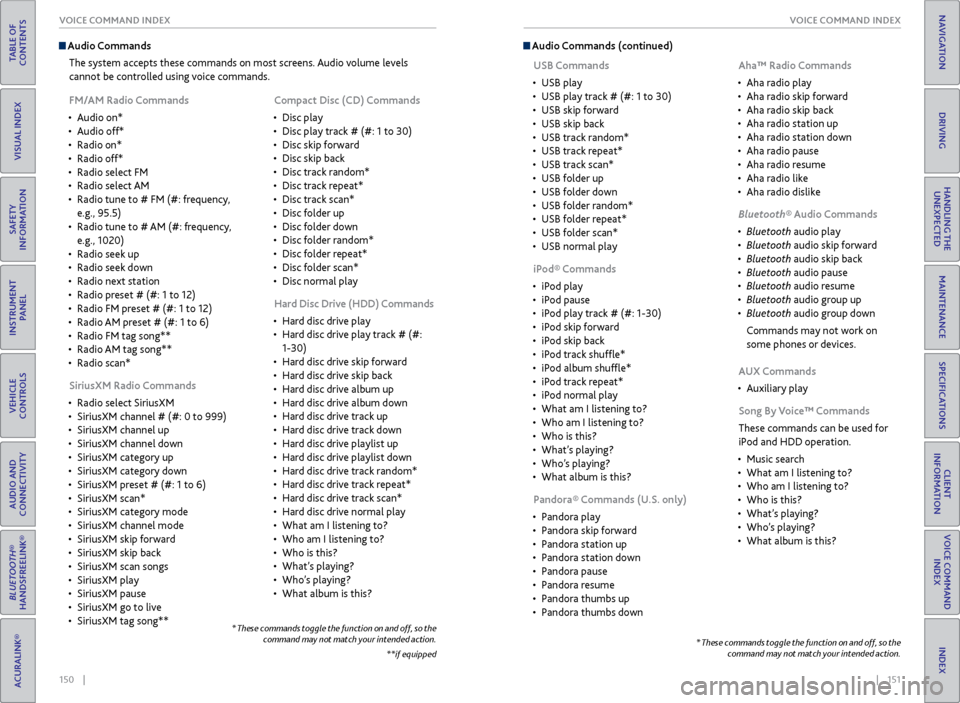
Audio Commands
The system accepts these commands on most screens. Audio volume levels
cannot be controlled using voice commands.
FM/AM Radio Commands
• Audio on*
• Audio off*
• Radio on*
• Radio off*
• Radio select FM
• Radio select AM
• Radio tune to # FM (#: frequency,
e.g., 95.5)
• Radio tune to # AM (#: frequency,
e.g., 1020)
• Radio seek up
• Radio seek down
• Radio next station
• Radio preset # (#: 1 to 12)
• Radio FM preset # (#: 1 to 12)
• Radio AM preset # (#: 1 to 6)
• Radio FM tag song**
• Radio AM tag song**
• Radio scan*
SiriusXM Radio Commands
• Radio select SiriusXM
• SiriusXM channel # (#: 0 to 999)
• SiriusXM channel up
• SiriusXM channel down
• SiriusXM category up
• SiriusXM category down
• SiriusXM preset # (#: 1 to 6)
• SiriusXM scan*
• SiriusXM category mode
• SiriusXM channel mode
• SiriusXM skip forward
• SiriusXM skip back
• SiriusXM scan songs
• SiriusXM play
• SiriusXM pause
• SiriusXM go to live
• SiriusXM tag song** Compact Disc (CD) Commands
• Disc play
• Disc play track # (#: 1 to 30)
• Disc skip forward
• Disc skip back
• Disc track random*
• Disc track repeat*
• Disc track scan*
• Disc folder up
• Disc folder down
• Disc folder random*
• Disc folder repeat*
• Disc folder scan*
• Disc normal play
Hard Disc Drive (HDD) Commands
• Hard disc drive play
• Hard disc drive play track # (#:
1-30)
• Hard disc drive skip forward
• Hard disc drive skip back
• Hard disc drive album up
• Hard disc drive album down
• Hard disc drive track up
• Hard disc drive track down
• Hard disc drive playlist up
• Hard disc drive playlist down
• Hard disc drive track random*
• Hard disc drive track repeat*
• Hard disc drive track scan*
• Hard disc drive normal play
• What am I listening to?
• Who am I listening to?
• Who is this?
• What’s playing?
• Who’s playing?
• What album is this? Audio Commands (continued)
* These commands toggle the function on and off, so the
command may not match your intended action.
USB Commands
• USB play
• USB play track # (#: 1 to 30)
• USB skip forward
• USB skip back
• USB track random*
• USB track repeat*
• USB track scan*
• USB folder up
• USB folder down
• USB folder random*
• USB folder repeat*
• USB folder scan*
• USB normal play
iPod® Commands
• iPod play
• iPod pause
• iPod play track # (#: 1-30)
• iPod skip forward
• iPod skip back
• iPod track shuffle*
• iPod album shuffle*
• iPod track repeat*
• iPod normal play
• What am I listening to?
• Who am I listening to?
• Who is this?
• What’s playing?
• Who’s playing?
• What album is this?
Pandora® Commands (U.S. only)
• Pandora play
• Pandora skip forward
• Pandora station up
• Pandora station down
• Pandora pause
• Pandora resume
• Pandora thumbs up
• Pandora thumbs down Aha™ Radio Commands
• Aha radio play
• Aha radio skip forward
• Aha radio skip back
• Aha radio station up
• Aha radio station down
• Aha radio pause
• Aha radio resume
• Aha radio like
• Aha radio dislike
Bluetooth® Audio Commands
• Bluetooth audio play
• Bluetooth audio skip forward
• Bluetooth audio skip back
• Bluetooth audio pause
• Bluetooth audio resume
• Bluetooth audio group up
• Bluetooth audio group down
Commands may not work on
some phones or devices.
AUX Commands
• Auxiliary play
Song By Voice™ Commands
These commands can be used for
iPod and HDD operation.
• Music search
• What am I listening to?
• Who am I listening to?
• Who is this?
• What’s playing?
• Who’s playing?
• What album is this?
* These commands toggle the function on and off, so the
command may not match your intended action.
**if equipped