ESP Acura RDX 2016 User Guide
[x] Cancel search | Manufacturer: ACURA, Model Year: 2016, Model line: RDX, Model: Acura RDX 2016Pages: 445, PDF Size: 15.25 MB
Page 153 of 445
uuOperating the Switches Around the Steering Wheel uWipers and Washers
152
Controls
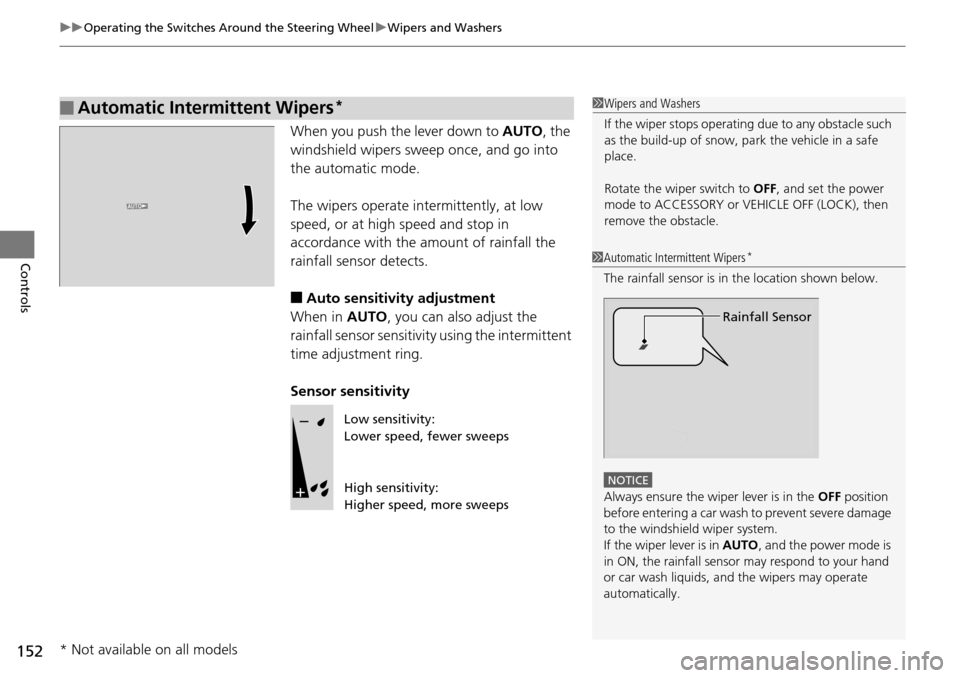
When you push the lever down to AUTO, the
windshield wipers sweep once, and go into
the automatic mode.
The wipers operate intermittently, at low
speed, or at high speed and stop in
accordance with the am ount of rainfall the
rainfall sensor detects.
■Auto sensitivity adjustment
When in AUTO, you can also adjust the
rainfall sensor sensitivity using the intermittent
time adjustment ring.
Sensor sensitivity
■Automatic Intermittent Wipers*1 Wipers and Washers
If the wiper stops operating due to any obstacle such
as the build-up of snow, pa rk the vehicle in a safe
place.
Rotate the wiper switch to OFF, and set the power
mode to ACCESSORY or VEHICLE OFF (LOCK), then
remove the obstacle.
1 Automatic Intermittent Wipers*
The rainfall sensor is in the location shown below.
NOTICE
Always ensure the wiper lever is in the OFF position
before entering a car wash to prevent severe damage
to the windshiel d wiper system.
If the wiper lever is in AUTO, and the power mode is
in ON, the rainfall sensor may respond to your hand
or car wash liquids, and the wipers may operate
automatically.
Rainfall Sensor
Low sensitivity:
Lower speed, fewer sweeps
High sensitivity:
Higher speed, more sweeps
* Not available on all models
Page 226 of 445
225
uuBluetooth® HandsFreeLink ®*uUsing HFL
Features
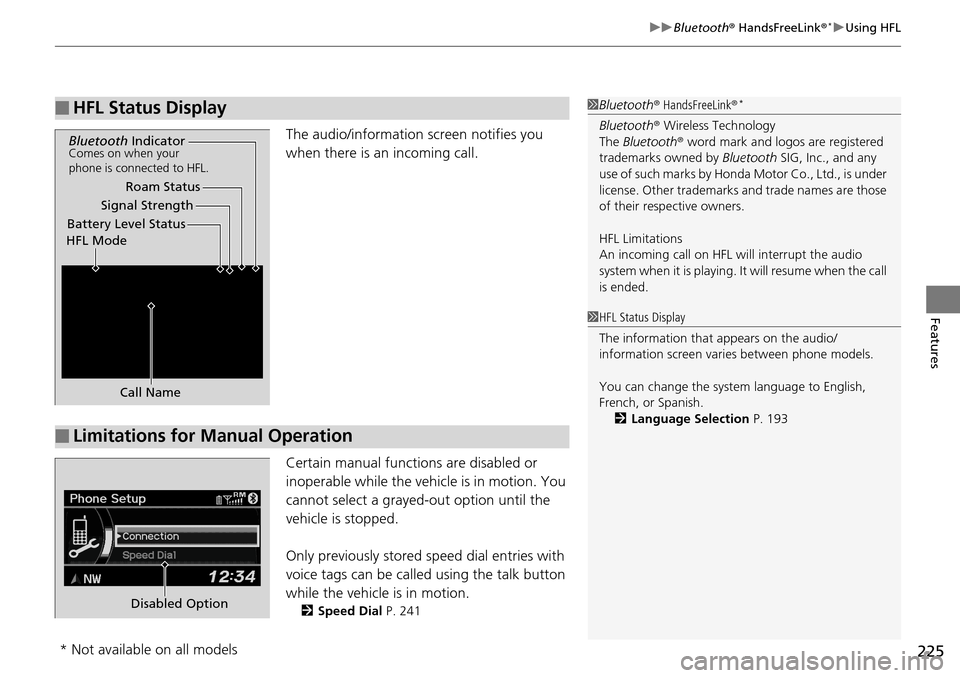
The audio/information screen notifies you
when there is an incoming call.
Certain manual functions are disabled or
inoperable while the vehicle is in motion. You
cannot select a grayed-out option until the
vehicle is stopped.
Only previously stored speed dial entries with
voice tags can be called using the talk button
while the vehicle is in motion.
2 Speed Dial P. 241
■HFL Status Display1Bluetooth ® HandsFreeLink ®*
Bluetooth® Wireless Technology
The Bluetooth ® word mark and logos are registered
trademarks owned by Bluetooth SIG, Inc., and any
use of such marks by Honda Motor Co., Ltd., is under
license. Other trademarks and trade names are those
of their respective owners.
HFL Limitations
An incoming call on HFL will interrupt the audio
s y s t e m wh e n it is p la y i n g . It wi ll r e s u m e w h en t h e c a l l
is ended.
Signal Strength
HFL Mode Battery Level Status Roam Status
Call Name
Bluetooth IndicatorComes on when your
phone is connected to HFL.
■Limitations for Manual Operation
1HFL Status Display
The information that appears on the audio/
information screen vari es between phone models.
You can change the system language to English,
French, or Spanish. 2 Language Selection P. 193
Disabled Option
* Not available on all models
Page 242 of 445
Continued241
uuBluetooth ® HandsFreeLink ®*uHFL Menus
Features
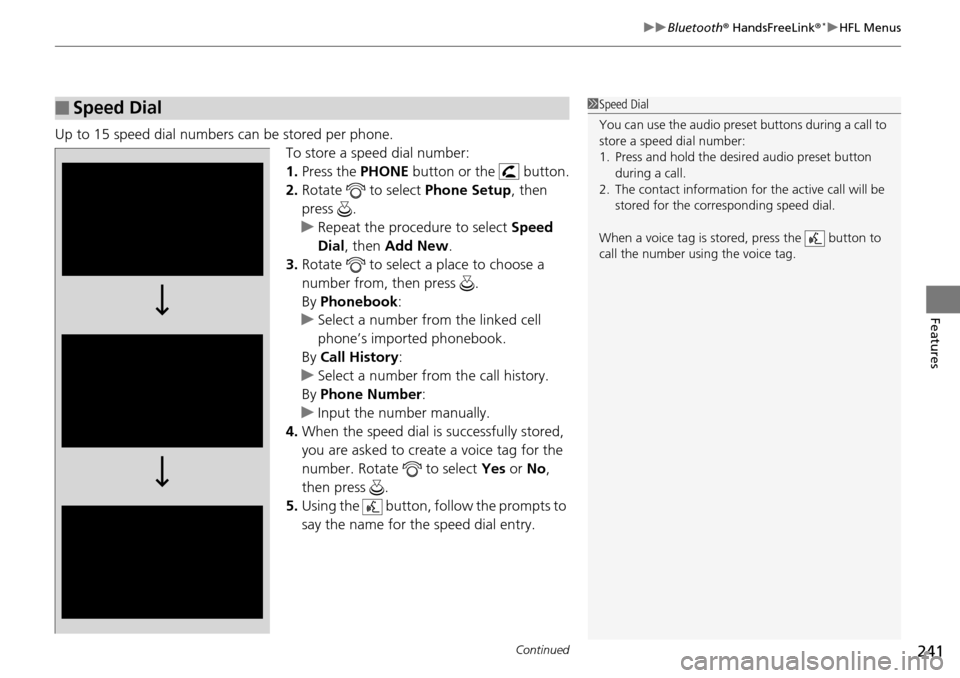
Up to 15 speed dial numbers can be stored per phone.
To store a speed dial number:
1.Press the PHONE button or the button.
2. Rotate to select Phone Setup, then
press .
u Repeat the procedure to select Speed
Dial , then Add New .
3. Rotate to select a place to choose a
number from, then press .
By Phonebook :
u Select a number from the linked cell
phone’s imported phonebook.
By Call History :
u Select a number from the call history.
By Phone Number :
u Input the number manually.
4. When the speed dial is successfully stored,
you are asked to create a voice tag for the
number. Rotate to select Yes or No,
then press .
5. Using the button, follow the prompts to
say the name for the speed dial entry.
■Speed Dial1Speed Dial
You can use the audio preset buttons during a call to
store a speed dial number:
1. Press and hold the desired audio preset button during a call.
2. The contact information for the active call will be stored for the corresponding speed dial.
When a voice tag is stored, press the button to
call the number using the voice tag.
Page 246 of 445
Continued245
uuBluetooth ® HandsFreeLink ®*uHFL Menus
Features
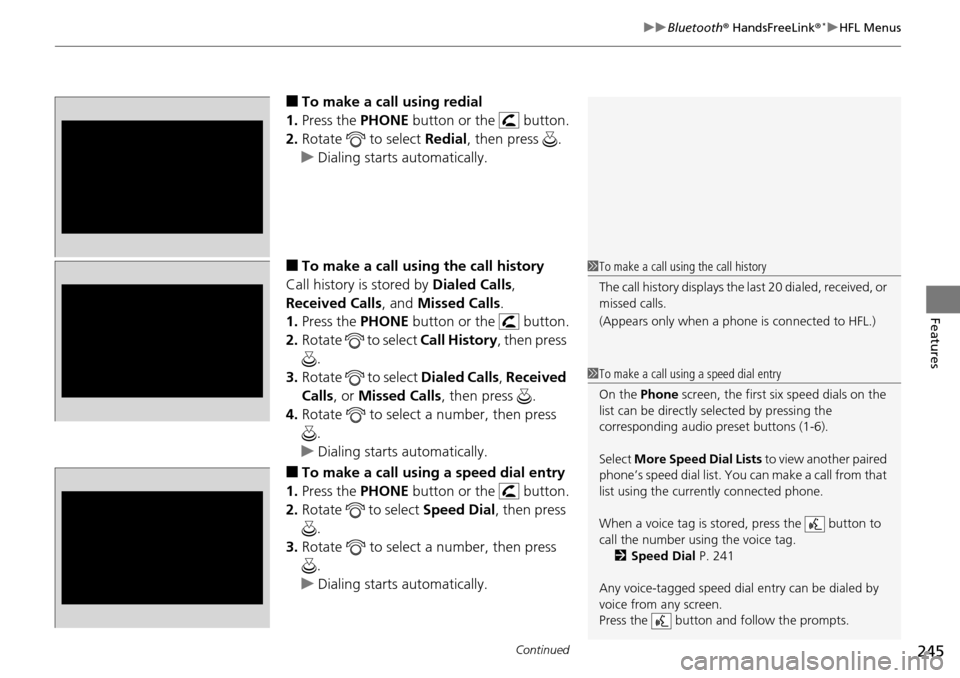
■To make a call using redial
1. Press the PHONE button or the button.
2. Rotate to select Redial, then press .
u Dialing starts automatically.
■To make a call usin g the call history
Call history is stored by Dialed Calls,
Received Calls , and Missed Calls .
1. Press the PHONE button or the button.
2. Rotate to select Call History, then press
.
3. Rotate to select Dialed Calls, Received
Calls , or Missed Calls , then press .
4. Rotate to select a number, then press
.
u Dialing starts automatically.
■To make a call using a speed dial entry
1. Press the PHONE button or the button.
2. Rotate to select Speed Dial , then press
.
3. Rotate to select a number, then press
.
u Dialing starts automatically.
1To make a call using the call history
The call history disp lays the last 20 dialed, received, or
missed calls.
(Appears only when a phone is connected to HFL.)
1 To make a call using a speed dial entry
On the Phone screen, the first six speed dials on the
list can be directly selected by pressing the
corresponding audio preset buttons (1-6).
Select More Speed Dial Lists to view another paired
phone’s speed dial list. You ca n make a call from that
list using the currently connected phone.
When a voice tag is stored, press the button to
call the number using the voice tag. 2 Speed Dial P. 241
Any voice-tagged speed dial entry can be dialed by
voice from any screen.
Press the button and follow the prompts.
Page 275 of 445
274
uuWhen Driving uAutomatic Transmission
Driving
Automatic Transmission
The engine runs at a higher id le speed and creeping increases.
Keep the brake pedal firmly depressed when stopped.
Quickly depressing the accelerator pedal while driving uphill may cause the
transmission to drop to a lower gear, unexp ectedly increasing vehicle speed. Depress
the accelerator pedal carefully, especi ally on slippery roads and curves.
■Creeping
■Kickdown
Page 287 of 445
uuWhen Driving uAdaptive Cruise Control (ACC)*
286
Driving
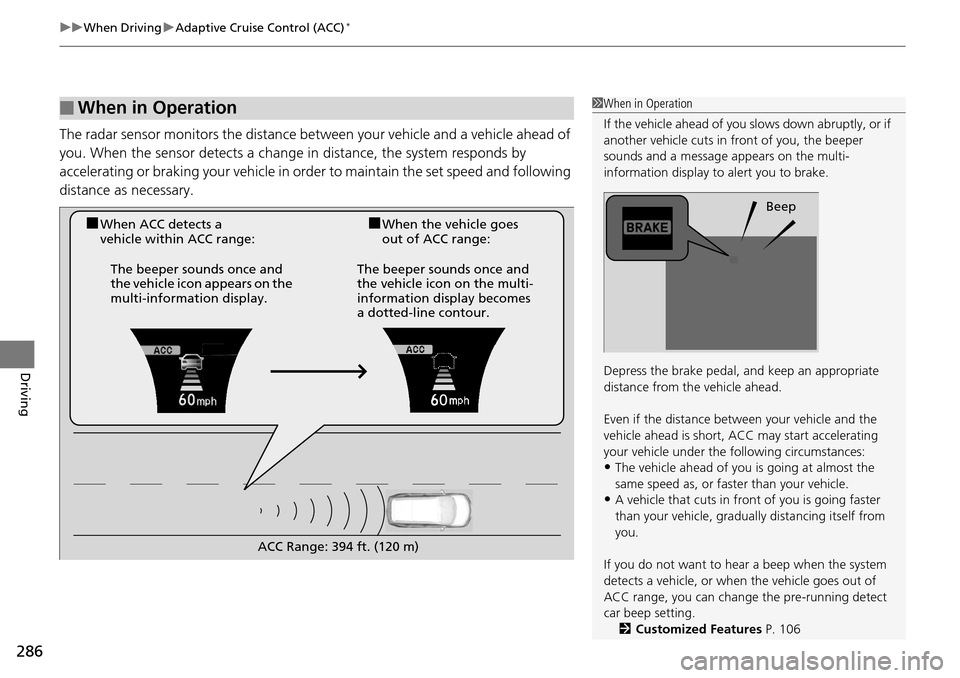
The radar sensor monitors the distance be tween your vehicle and a vehicle ahead of
you. When the sensor detects a change in distance, the system responds by
accelerating or braking your vehicle in orde r to maintain the set speed and following
distance as necessary.
■When in Operation1 When in Operation
If the vehicle ahead of you slows down abruptly, or if
another vehicle cuts in front of you, the beeper
sounds and a message appears on the multi-
information display to alert you to brake.
Depress the brake pedal, and keep an appropriate
distance from the vehicle ahead.
Even if the distance betw een your vehicle and the
vehicle ahead is short, ACC may start accelerating
your vehicle under the following circumstances:
•The vehicle ahead of you is going at almost the
same speed as, or fast er than your vehicle.
•A vehicle that cuts in front of you is going faster
than your vehicle, gradua lly distancing itself from
you.
If you do not want to hear a beep when the system
detects a vehicle, or when the vehicle goes out of
ACC range, you can change the pre-running detect
car beep setting.
2 Customized Features P. 106
Beep
■When ACC detects a
vehicle within ACC range:■When the vehicle goes
out of ACC range:
The beeper sounds once and
the vehicle icon appears on the
multi-information display. The beeper sounds once and
the vehicle icon on the multi-
information display becomes
a dotted-line contour.
ACC Range: 394 ft. (120 m)
Page 290 of 445
Continued289
uuWhen Driving uAdaptive Cruise Control (ACC)*
Driving
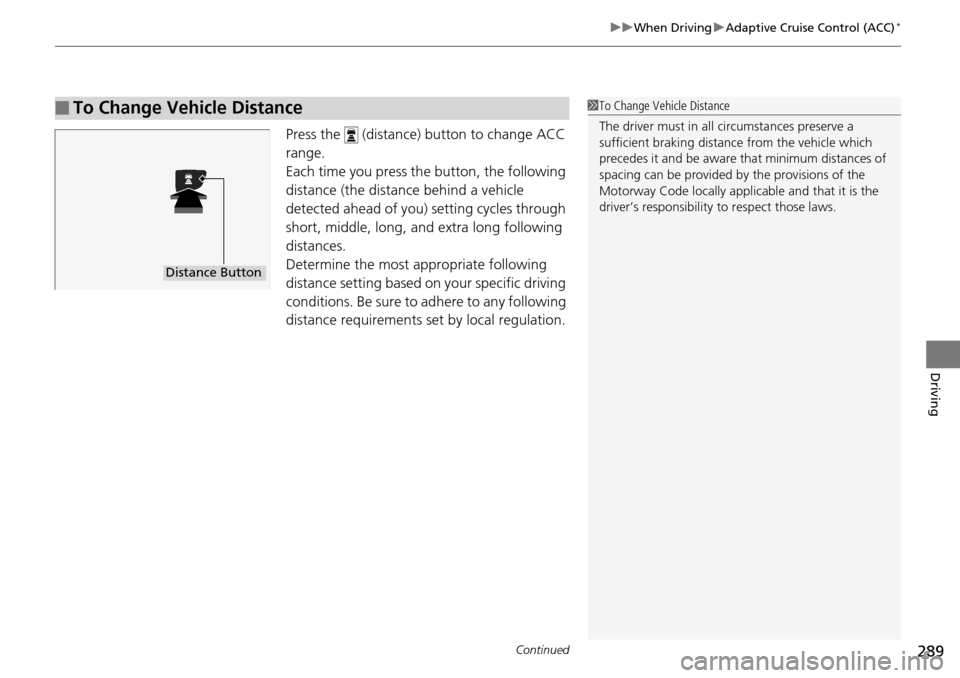
Press the (distance) button to change ACC
range.
Each time you press th e button, the following
distance (the distance behind a vehicle
detected ahead of you) setting cycles through
short, middle, long, and extra long following
distances.
Determine the most appropriate following
distance setting based on your specific driving
conditions. Be sure to adhere to any following
distance requirements set by local regulation.
■To Change Vehicle Distance1 To Change Vehicle Distance
The driver must in all circumstances preserve a
sufficient brakin g distance from the vehicle which
precedes it and be aware that minimum distances of
spacing can be provided by the provisions of the
Motorway Code locally applicable and that it is the
driver’s responsibility to respect those laws.
Distance Button
Page 294 of 445
293
uuWhen Driving uLane Departure Warning (LDW)*
Continued
Driving
Lane Departure Warning (LDW)*
Alerts you when the system determines a possibility of your vehicle unintentionally
crossing over detected lane markings.
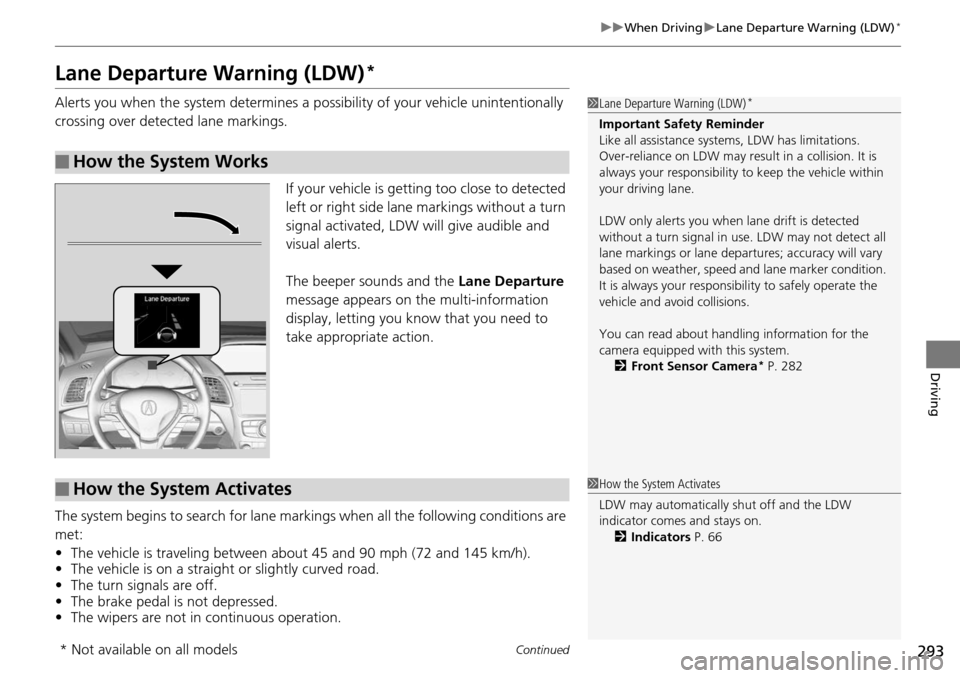
If your vehicle is getting too close to detected
left or right side lane markings without a turn
signal activated, LDW will give audible and
visual alerts.
The beeper sounds and the Lane Departure
message appears on the multi-information
display, letting you know that you need to
take appropriate action.
The system begins to search for lane mark ings when all the following conditions are
met:
• The vehicle is traveling between about 45 and 90 mph (72 and 145 km/h).
• The vehicle is on a straight or slightly curved road.
• The turn signals are off.
• The brake pedal is not depressed.
• The wipers are not in continuous operation.
■How the System Works
1Lane Departure Warning (LDW)*
Important Safety Reminder
Like all assistance systems, LDW has limitations.
Over-reliance on LDW may result in a collision. It is
always your respons ibility to keep the vehicle within
your driving lane.
LDW only alerts you when lane drift is detected
without a turn signal in us e. LDW may not detect all
lane markings or lane departures; a ccuracy will vary
based on weather, speed and lane marker condition.
It is always your responsibility to safely operate the
vehicle and avoid collisions.
You can read about handling information for the
camera equipped with this system. 2 Front Sensor Camera
* P. 282
■How the System Activates1How the System Activates
LDW may automatically shut off and the LDW
indicator comes and stays on.
2 Indicators P. 66
* Not available on all models
Page 298 of 445
297
uuWhen Driving uLane Keeping Assist System (LKAS)*
Continued
Driving
Lane Keeping Assist System (LKAS)*
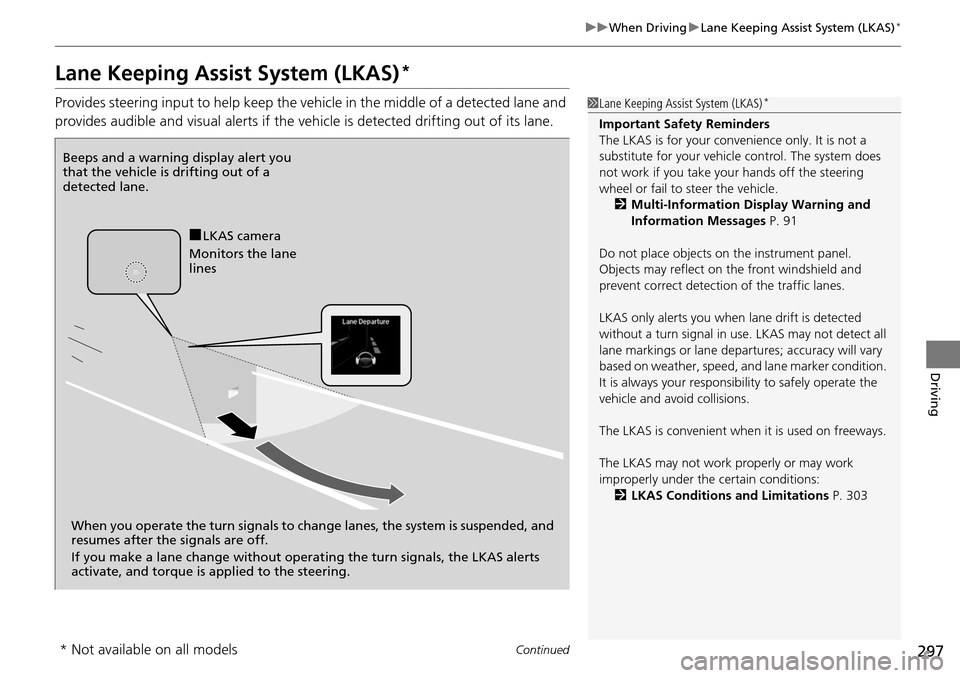
Provides steering input to help keep the vehicle in the middle of a detected lane and
provides audible and visual alerts if the vehicle is detected drifting out of its lane.1Lane Keeping Assist System (LKAS)*
Important Safety Reminders
The LKAS is for your convenience only. It is not a
substitute for your vehicl e control. The system does
not work if you take y our hands off the steering
wheel or fail to steer the vehicle.
2 Multi-Information Display Warning and
Information Messages P. 91
Do not place objects on the instrument panel.
Objects may reflect on th e front windshield and
prevent correct detectio n of the traffic lanes.
LKAS only alerts you when lane drift is detected
without a turn signal in use. LKAS may not detect all
lane markings or lane departures; a ccuracy will vary
based on weather, speed, an d lane marker condition.
It is always your responsibility to safely operate the
vehicle and avoid collisions.
The LKAS is convenient when it is used on freeways.
The LKAS may not work properly or may work
improperly under the certain conditions: 2 LKAS Conditions and Limitations P. 303
Beeps and a warning display alert you
that the vehicle is drifting out of a
detected lane.
When you operate the turn signals to chan ge lanes, the system is suspended, and
resumes after the signals are off.
If you make a lane change without operat ing the turn signals, the LKAS alerts
activate, and torque is applied to the steering.
■LKAS camera
Monitors the lane
lines
* Not available on all models
Page 306 of 445
305
uuWhen Driving uVehicle Stability Assist (VSA ®), aka Electronic Stability Control (ESC), System
Continued
Driving
Vehicle Stability Assist (VSA ®), aka Electronic
Stability Control (ESC), System
VSA ® helps to stabilize the vehicle during corn ering if the vehicle turns more or less
than what was intended. It also assists in maintaining traction on slippery surfaces.
It does so by regulating engine ou tput and selectively applying the brakes.
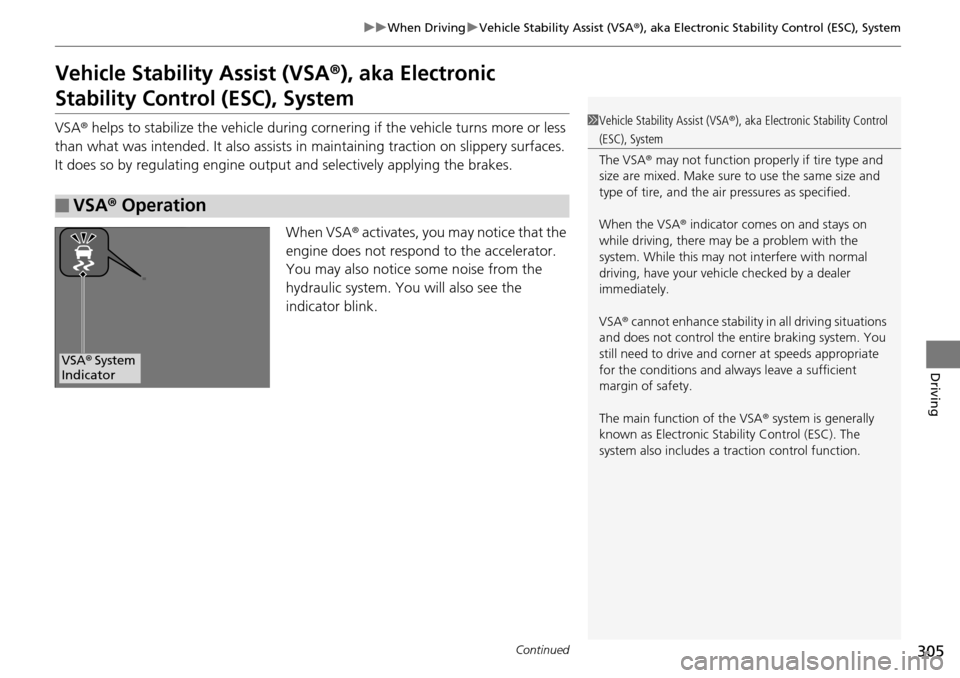
When VSA ® activates, you may notice that the
engine does not respond to the accelerator.
You may also notice some noise from the
hydraulic system. You will also see the
indicator blink.
■VSA ® Operation
1 Vehicle Stability Assist (VSA ®), aka Electronic Stability Control
(ESC), System
The VSA ® may not function properl y if tire type and
size are mixed. Make sure to use the same size and
type of tire, and the air pressures as specified.
When the VSA ® indicator comes on and stays on
while driving, there may be a problem with the
system. While this may not interfere with normal
driving, have your vehi cle checked by a dealer
immediately.
VSA ® cannot enhance stability in all driving situations
and does not control the entire braking system. You
still need to drive and corner at speeds appropriate
for the conditions and alwa ys leave a sufficient
margin of safety.
The main function of the VSA ® system is generally
known as Electronic Stability Control (ESC). The
system also includes a traction control function.
VSA® System
Indicator