Drive mode Acura RDX 2017 Navigation Manual
[x] Cancel search | Manufacturer: ACURA, Model Year: 2017, Model line: RDX, Model: Acura RDX 2017Pages: 357, PDF Size: 12.4 MB
Page 6 of 357
5
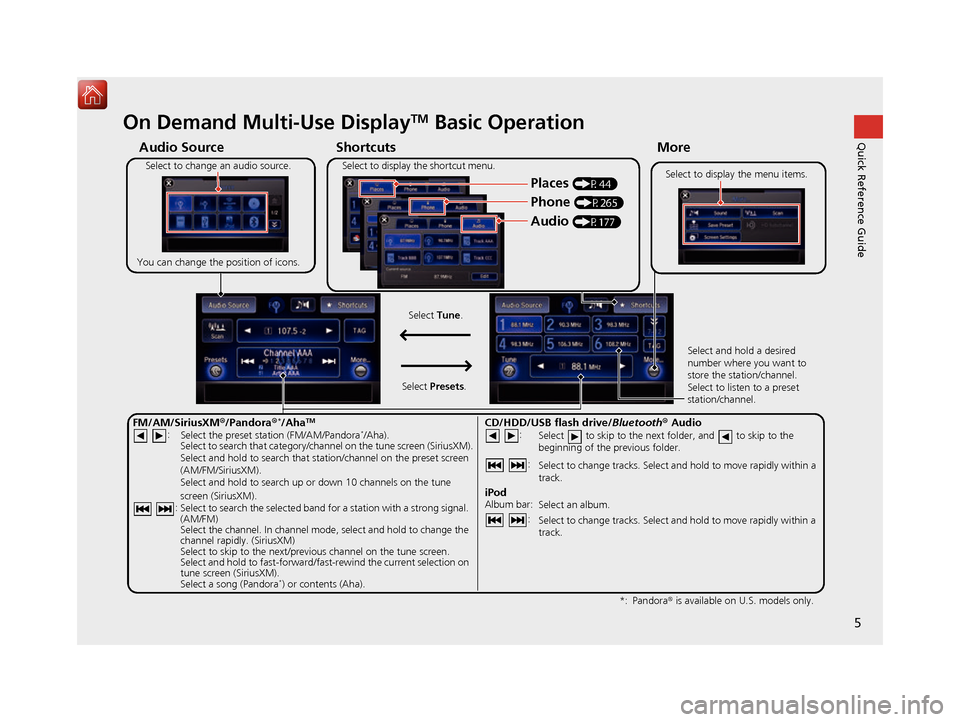
Quick Reference GuideOn Demand Multi-Use DisplayTM Basic Operation
Shortcuts
Audio Source More
Places
(P44)
Phone (P265)
Audio (P177)
Select to change an audio source.
You can change the position of icons. Select to display the menu items.
FM/AM/SiriusXM
®/Pandora®*/AhaTM
:
:
Select the preset station (FM/AM/Pandora*/Aha).
Select to search that category/channel on the tune screen (SiriusXM).
Select and hold to search that station/channel on the preset screen
(AM/FM/SiriusXM).
Select and hold to search up or down 10 channels on the tune
screen (SiriusXM).
Select to search the selected band for a station with a strong signal.
(AM/FM)
Select the channel. In channel mode, select and hold to change the
channel rapidly. (SiriusXM)
Select to skip to the next/previous channel on the tune screen.
Select and hold to fast-forward/fast-rewind the current selection on
tune screen (SiriusXM).
Select a song (Pandora
*) or contents (Aha). Select and hold a desired
number where you want to
store the station/channel.
Select to listen to a preset
station/channel.
Select
Tune.
Select Presets.
Pandora® is available on U.S. models only.
*:
Select to display the shortcut menu.
CD/HDD/USB flash drive/
Bluetooth® Audio :
:
Select to skip to the next folder, and to skip to the
beginning of the previous folder.
Select to change tracks. Select and hold to move rapidly within a
track.
iPodAlbum bar:
: Select an album.
Select to change tracks. Select and hold to move rapidly within a
track.
16 ACURA RDX NAVI-31TX48300.book 5 ページ 2015年8月5日 水曜日 午後4時12分
Page 21 of 357
20
System Setup
Start-up
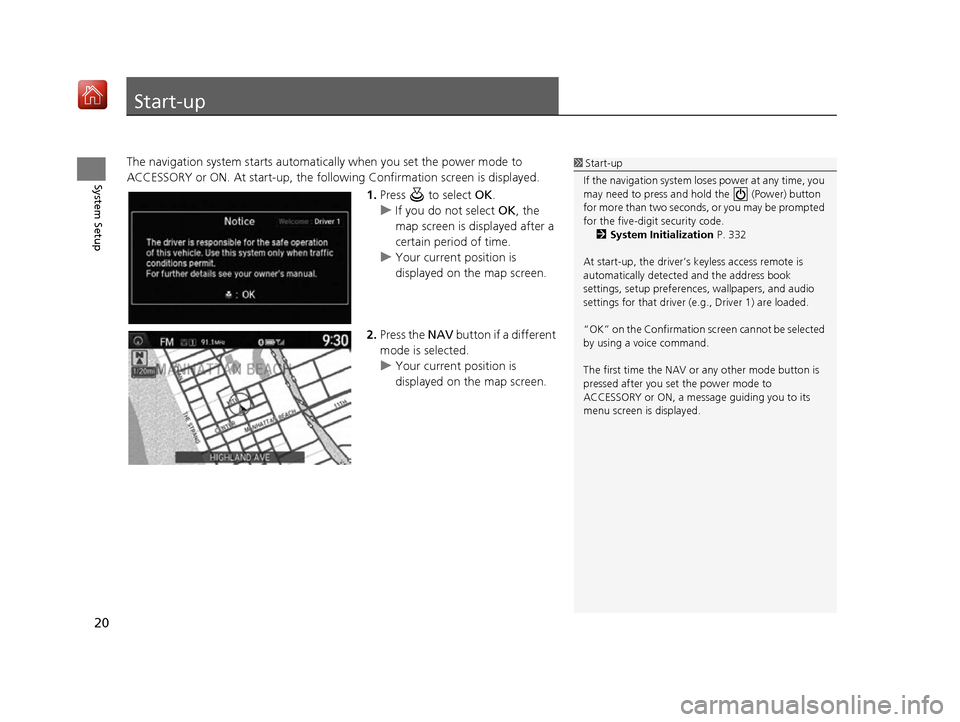
The navigation system starts automatically when you set the power mode to
ACCESSORY or ON. At start-up, the follow ing Confirmation screen is displayed.
1.Press to select OK.
u If you do not select OK, the
map screen is displayed after a
certain period of time.
u Your current position is
displayed on the map screen.
2. Press the NAV button if a different
mode is selected.
u Your current position is
displayed on the map screen.1Start-up
If the navigation system lo ses power at any time, you
may need to press and hold the (Power) button
for more than two seconds, or you may be prompted
for the five-digit security code. 2 System Initialization P. 332
At start-up, the driver’s keyless access remote is
automatically detected and the address book
settings, setup pr eferences, wallpapers, and audio
settings for that driver (e.g., Driver 1) are loaded.
“OK” on the Confirmation sc reen cannot be selected
by using a voice command.
The first time the NAV or any other mode button is
pressed after you set the power mode to
ACCESSORY or ON, a message guiding you to its
menu screen is displayed.
16 ACURA RDX NAVI-31TX48300.book 20 ページ 2015年8月5日 水曜日 午後4時12分
Page 91 of 357
90
uuCustomized Features u
System Setup
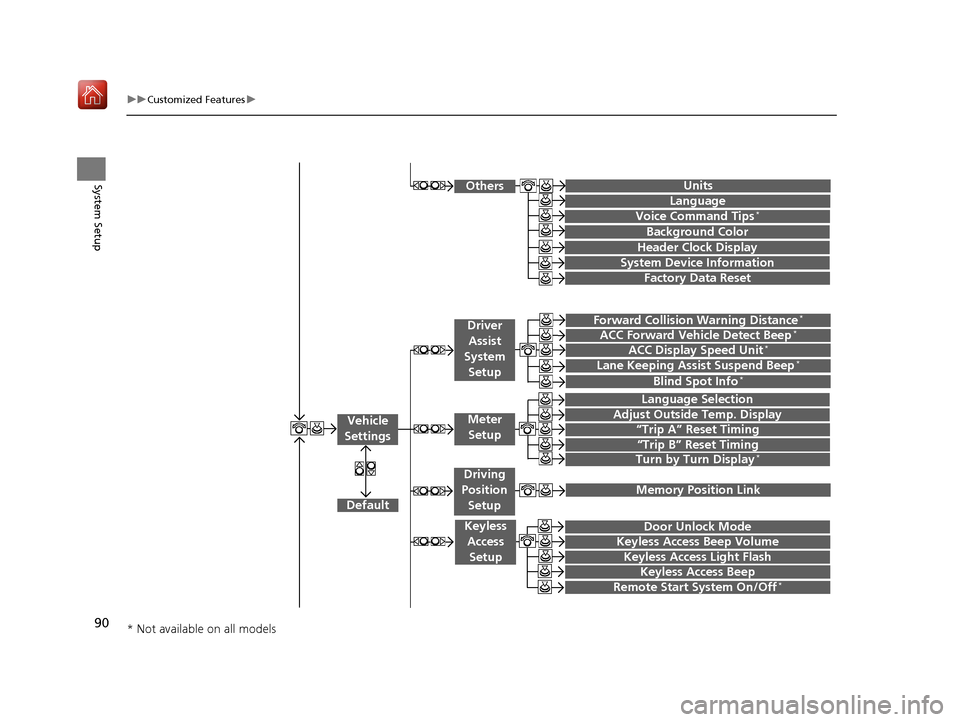
“Trip A” Reset Timing
“Trip B” Reset Timing
Language Selection
Adjust Outside Temp. Display
Forward Collision Warning Distance*
ACC Forward Vehicle Detect Beep*
Turn by Turn Display*
Default
Door Unlock Mode
Keyless Access Light Flash
Vehicle
Settings
Driver
Assist
System
Setup
Keyless Access Setup
Keyless Access Beep
Blind Spot Info*
Driving
Position
Setup
Lane Keeping Assist Suspend Beep*ACC Display Speed Unit*
Remote Start System On/Off*
Memory Position Link
Meter Setup
Keyless Access Beep Volume
Factory Data Reset
Background Color
Header Clock Display
Units
Voice Command Tips*
Others
Language
System Device Information
* Not available on all models
16 ACURA RDX NAVI-31TX48300.book 90 ページ 2015年8月5日 水曜日 午後4時12分
Page 100 of 357
99
uuCustomized Features u
Continued
System Setup
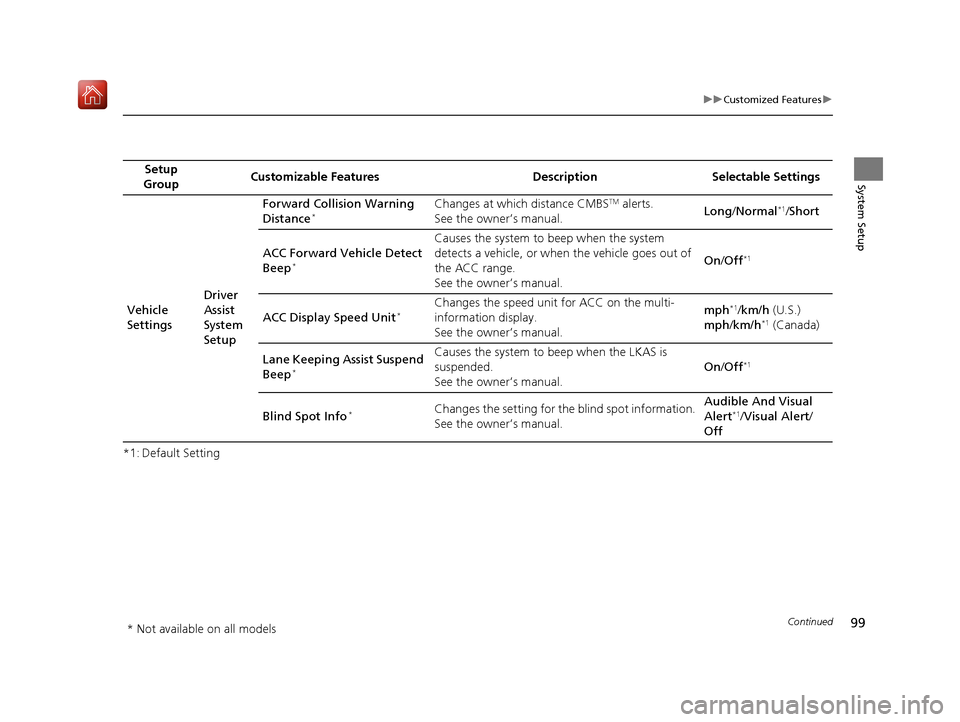
*1: Default SettingSetup
Group Customizable Features Description Selectable Settings
Vehicle
Settings Driver
Assist
System
SetupForward Collision Warning
Distance
*Changes at which distance CMBSTM alerts.
See the owner’s manual. Long
/Normal*1/Short
ACC Forward Vehicle Detect
Beep
*
Causes the system to beep when the system
detects a vehicle, or when the vehicle goes out of
the ACC range.
See the owner’s manual. On
/Off
*1
ACC Display Speed Unit*Changes the speed unit for ACC on the multi-
information display.
See the owner’s manual. mph*1/
km/h (U.S.)
mph /km/h*1 (Canada)
Lane Keeping Assist Suspend
Beep
*
Causes the system to b eep when the LKAS is
suspended.
See the owner’s manual. On
/Off*1
Blind Spot Info*Changes the setting for the blind spot information.
See the owner’s manual. Audible And Visual
Alert*1/
Visual Alert /
Off
* Not available on all models
16 ACURA RDX NAVI-31TX48300.book 99 ページ 2015年8月5日 水曜日 午後4時12分
Page 102 of 357

101
uuCustomized Features u
Continued
System Setup
*1: Default SettingSetup
Group Customizable Features Description Selectable Settings
Vehicle
Settings Keyless
Access
SetupDoor Unlock Mode
Changes which doors unlock when you grab the
driver’s door handle.
See the owner’s manual. Driver Door Only
*1/
All
Doors
Keyless Access Beep Volume Changes the volume of the keyless access beep. —
Keyless Access Light Flash Causes some exterior lights to flash when you
unlock/lock the doors.
See the owner’s manual. On
*1/
Off
Keyless Access Beep Causes the beeper to sound when you unlock/lock
the doors.
See the owner’s manual. On
*1/
Off
Remote Start System On/Off
*Turns the remote engine start feature on and off.
See the owner’s manual. On*1/
Off
Lighting
Setup Interior Ligh
t Dimming Time Changes the length of time the interior lights stay
on after you close the doors.
See the owner’s manual. 60seconds
/
30seconds
*1/
15seconds
Headlight Auto Off Timer Changes the length of time the exterior lights stay
on after you close the driver’s door.
See the owner’s manual. 60seconds
/30seconds /
15seconds
*1/ 0seconds
Auto Light Sensitivity Changes the timing for the headlights to come on.
See the owner’s manual. Max
/High /Mid
*1/Low /
Min
* Not available on all models
16 ACURA RDX NAVI-31TX48300.book 101 ページ 2015年8月5日 水曜日 午後4時12分
Page 103 of 357
102
uuCustomized Features u
System Setup
*1: Default SettingSetup
Group Customizable Features Description Selectable Settings
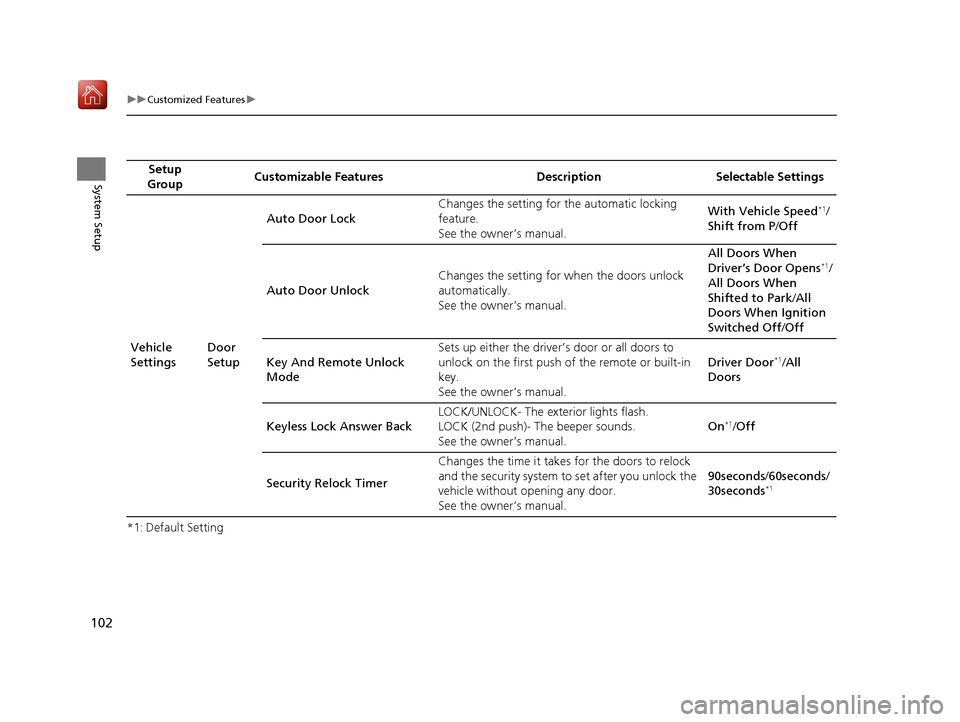
Vehicle
Settings Door
SetupAuto Door Lock
Changes the setting for
the automatic locking
feature.
See the owner’s manual. With Vehicle Speed
*1/
Shift from P /Off
Auto Door Unlock Changes the setting for
when the doors unlock
automatically.
See the owner’s manual. All Doors When
Driver’s Door Opens
*1/
All Doors When
Shifted to Park /All
Doors When Ignition
Switched Off /Off
Key And Remote Unlock
Mode Sets up either the driver’s door or all doors to
unlock on the first push of the remote or built-in
key.
See the owner’s manual.
Driver Door
*1/
All
Doors
Keyless Lock Answer Back LOCK/UNLOCK- The ex
terior lights flash.
LOCK (2nd push)- The beeper sounds.
See the owner’s manual. On
*1/
Off
Security Relock Timer Changes the time it takes for the doors to relock
and the security system to set after you unlock the
vehicle without opening any door.
See the owner’s manual. 90seconds
/60seconds /
30seconds
*1
16 ACURA RDX NAVI-31TX48300.book 102 ページ 2015年8月5日 水曜日 午後4時12分
Page 145 of 357
144
Navigation
Driving to Your Destination
This section describes how to follow the route guidance to your destination, receive
traffic information and choose the icons displayed on the map screen.
Viewing the Route
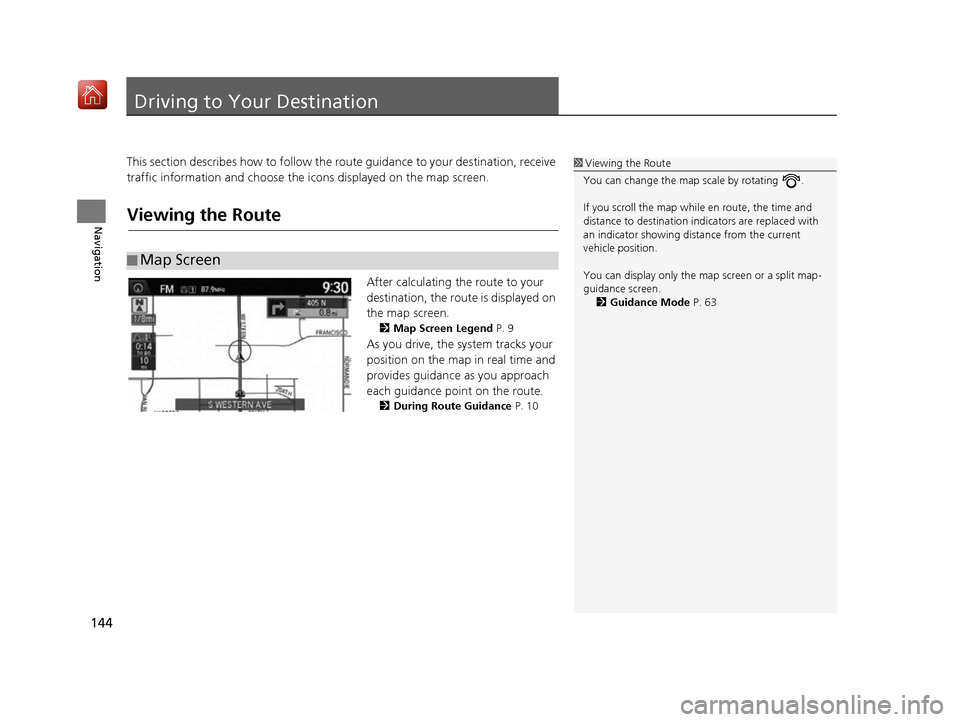
After calculating the route to your
destination, the route is displayed on
the map screen.
2Map Screen Legend P. 9
As you drive, the system tracks your
position on the map in real time and
provides guidance as you approach
each guidance point on the route.
2During Route Guidance P. 10
■Map Screen
1
Viewing the Route
You can change the map scale by rotating .
If you scroll the map whil e en route, the time and
distance to destination indi cators are replaced with
an indicator showing di stance from the current
vehicle position.
You can display only the ma p screen or a split map-
guidance screen. 2 Guidance Mode P. 63
16 ACURA RDX NAVI-31TX48300.book 144 ページ 2015年8月5日 水曜日 午後4時12分
Page 174 of 357
173
Audio
This section describes how to operate the audio system. You can play music from a widearray of media sources, and control the audio system using the audio buttons, the
Interface Dial, or voice control.
Audio System.................................................. 174
About Your Audio System .............................. 174
USB Port ........................................................ 175
Auxiliary Input Jack ......... .......................... ..... 176
Audio System Theft Protection ....................... 176
Setting Audio Shortcuts ................................. 177
Customizing Audio Source ............................. 178
Audio Remote Controls .................................. 179
Steering Wheel Controls ................................ 179
Audio Settings ................................................. 181
Adjusting the Sound ...................................... 183
Playing FM/AM Radio ..................................... 184
Selecting FM/AM Mode.................................. 184
Audio Screen Control ..................................... 185
Audio Menu .................................................. 188
Playing SiriusXM ® Radio ................................. 190
Selecting SiriusXM ® Mode .............................. 190
Audio Screen Control ..................................... 191 Audio Menu ................................................... 200
SiriusXM®
Radio Service.................................. 203
Playing a Disc ................................................... 205
Selecting Disc Mode ....................................... 205
Audio Screen Control ..................................... 206
Audio Menu ................................................... 207
Recommended CDs ........................................ 210
Playing Hard Disc Drive (HDD) Audio ............ 212
Selecting HDD Mode ...................................... 212
Recording a Music CD to HDD........................ 213
Audio Screen Control ..................................... 214
Audio Menu ................................................... 215
Playing an iPod ................................................ 224
Selecting iPod Mode....................................... 225
Audio Screen Control ..................................... 226
Audio Menu ................................................... 228
Song By Voice
TM (SBV) .................................... 231 Playing Internet Radio
.................................... 236
Selecting Internet Radio Mode ....................... 236
Pandora ® Menu
*............................................ 237
AhaTM Radio Menu ......................................... 239
Playing a USB Flash Drive ............................... 241
Selecting USB Mode....................................... 242
Audio Screen Control..................................... 243
Audio Menu .................................................. 244
Playing Bluetooth ® Audio .............................. 247
Selecting Bluetooth ® Audio Mode.................. 247
Audio Screen Control..................................... 248
16 ACURA RDX NAVI-31TX48300.book 173 ページ 2015年8月5日 水曜日 午後4時12分
Page 176 of 357
175
uuAudio System uUSB Port
Audio
USB Port
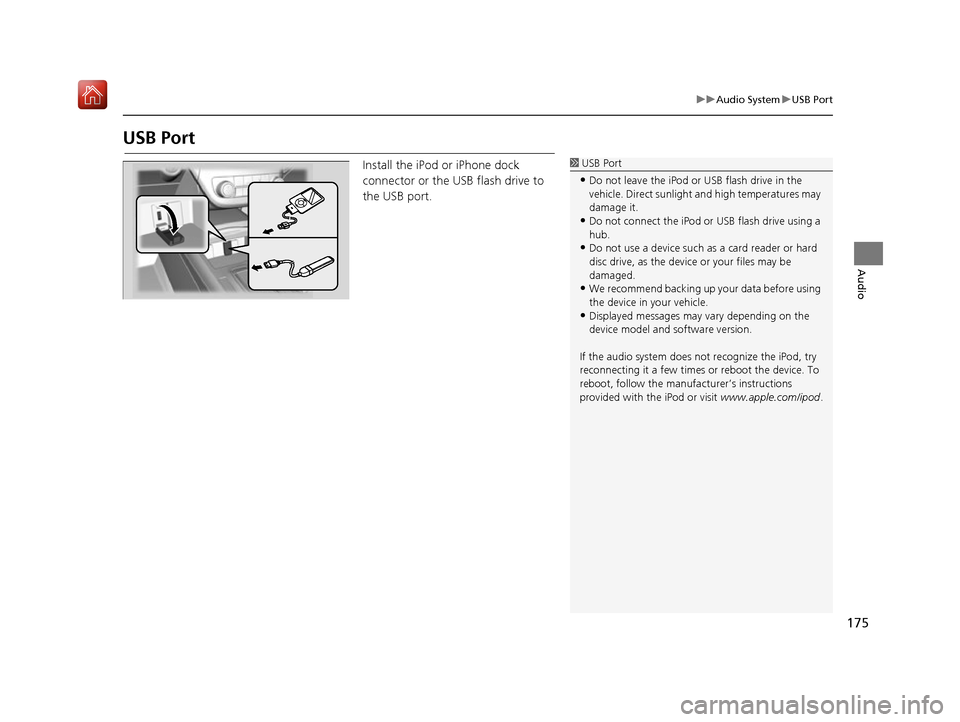
Install the iPod or iPhone dock
connector or the USB flash drive to
the USB port.1 USB Port
•Do not leave the iPod or USB flash drive in the
vehicle. Direct sunlight and high temperatures may
damage it.
•Do not connect the iPod or USB flash drive using a
hub.
•Do not use a device such as a card reader or hard
disc drive, as the device or your files may be
damaged.
•We recommend backing up yo ur data before using
the device in your vehicle.
•Displayed messages may vary depending on the
device model and software version.
If the audio system does not recognize the iPod, try
reconnecting it a few times or reboot the device. To
reboot, follow the manufac turer’s instructions
provided with the iPod or visit www.apple.com/ipod.
16 ACURA RDX NAVI-31TX48300.book 175 ページ 2015年8月5日 水曜日 午後4時12分
Page 181 of 357
uuAudio Remote Controls uSteering Wheel Controls
180
Audio
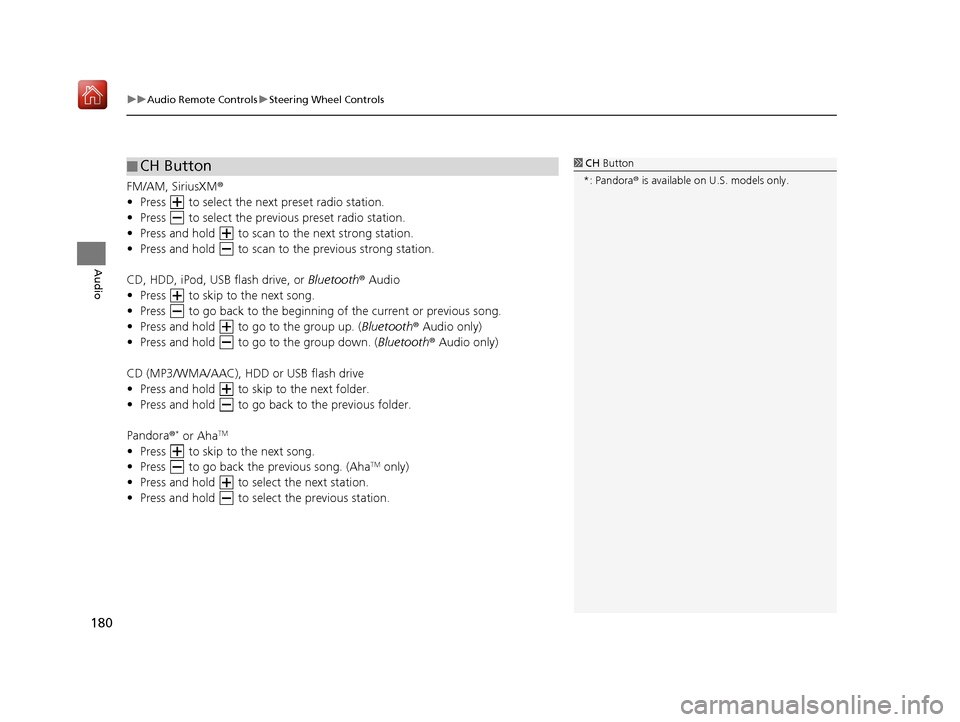
FM/AM, SiriusXM ®
• Press to select the next preset radio station.
• Press to select the previous preset radio station.
• Press and hold to scan to the next strong station.
• Press and hold to scan to the previous strong station.
CD, HDD, iPod, USB flash drive, or Bluetooth® Audio
• Press to skip to the next song.
• Press to go back to the beginning of the current or previous song.
• Press and hold to go to the group up. ( Bluetooth® Audio only)
• Press and hold to go to the group down. ( Bluetooth® Audio only)
CD (MP3/WMA/AAC), HDD or USB flash drive
• Press and hold to skip to the next folder.
• Press and hold to go back to the previous folder.
Pandora ®
* or AhaTM
• Press to skip to the next song.
• Press to go back the previous song. (AhaTM only)
• Press and hold to select the next station.
• Press and hold to select the previous station.
■ CH Button1
CH Button
*: Pandora ® is available on U.S. models only.
16 ACURA RDX NAVI-31TX48300.book 180 ページ 2015年8月5日 水曜日 午後4時12分