Navigation code Acura RDX 2017 Navigation Manual
[x] Cancel search | Manufacturer: ACURA, Model Year: 2017, Model line: RDX, Model: Acura RDX 2017Pages: 357, PDF Size: 12.4 MB
Page 17 of 357
16
Quick Reference GuideTroubleshootingFor more Information (P315)
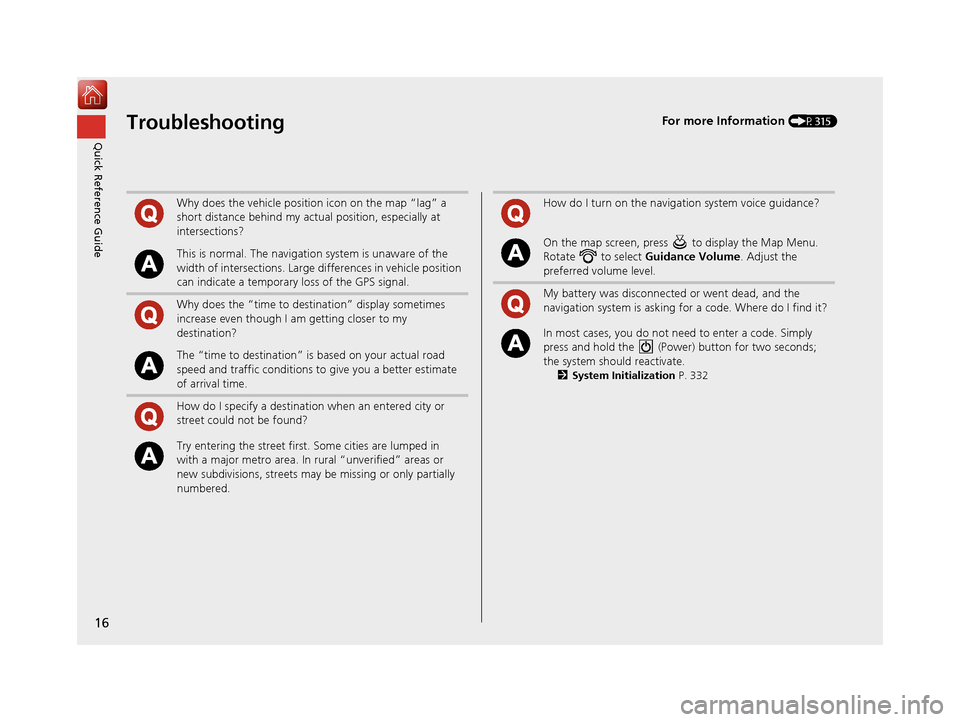
Why does the vehicle position icon on the map “lag” a
short distance behind my actual position, especially at
intersections?
This is normal. The navigation system is unaware of the
width of intersections. Large differences in vehicle position
can indicate a temporary loss of the GPS signal.
Why does the “time to destination” display sometimes
increase even though I am getting closer to my
destination?
The “time to destination” is based on your actual road
speed and traffic conditions to give you a better estimate
of arrival time.
How do I specify a destination when an entered city or
street could not be found?
Try entering the street first. Some cities are lumped in
with a major metro area. In rural “unverified” areas or
new subdivisions, streets may be missing or only partially
numbered.
How do I turn on the navigation system voice guidance?
On the map screen, press to display the Map Menu.
Rotate to select Guidance Volume. Adjust the
preferred volume level.
My battery was disconnected or went dead, and the
navigation system is asking for a code. Where do I find it?
In most cases, you do not need to enter a code. Simply
press and hold the (Power) button for two seconds;
the system should reactivate.
2 System Initialization P. 332
16 ACURA RDX NAVI-31TX48300.book 16 ページ 2015年8月5日 水曜日 午後4時12分
Page 21 of 357
20
System Setup
Start-up
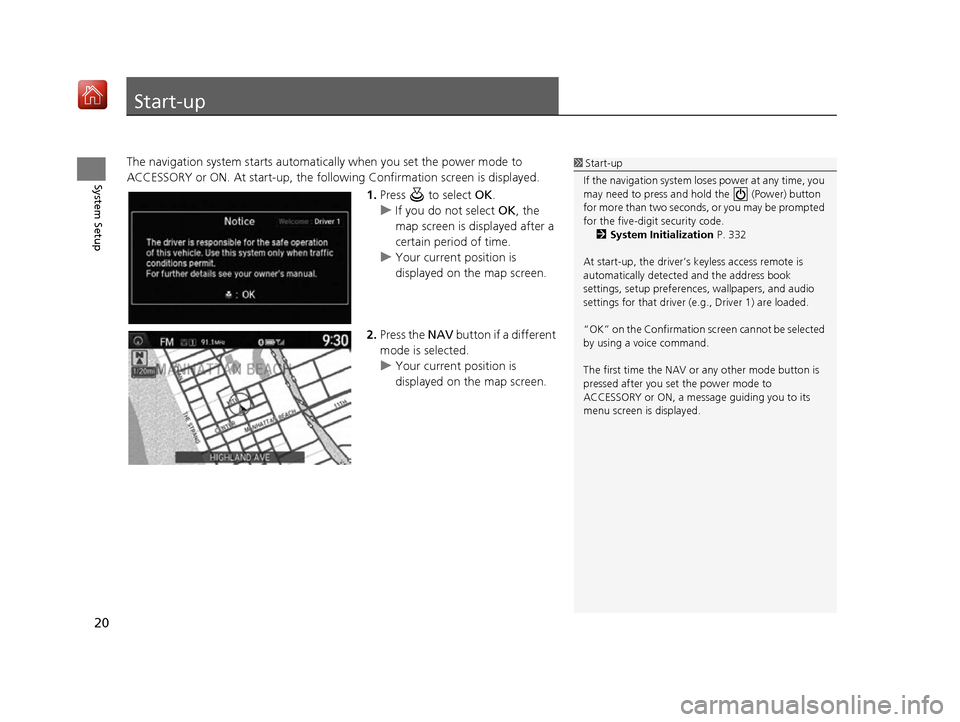
The navigation system starts automatically when you set the power mode to
ACCESSORY or ON. At start-up, the follow ing Confirmation screen is displayed.
1.Press to select OK.
u If you do not select OK, the
map screen is displayed after a
certain period of time.
u Your current position is
displayed on the map screen.
2. Press the NAV button if a different
mode is selected.
u Your current position is
displayed on the map screen.1Start-up
If the navigation system lo ses power at any time, you
may need to press and hold the (Power) button
for more than two seconds, or you may be prompted
for the five-digit security code. 2 System Initialization P. 332
At start-up, the driver’s keyless access remote is
automatically detected and the address book
settings, setup pr eferences, wallpapers, and audio
settings for that driver (e.g., Driver 1) are loaded.
“OK” on the Confirmation sc reen cannot be selected
by using a voice command.
The first time the NAV or any other mode button is
pressed after you set the power mode to
ACCESSORY or ON, a message guiding you to its
menu screen is displayed.
16 ACURA RDX NAVI-31TX48300.book 20 ページ 2015年8月5日 水曜日 午後4時12分
Page 119 of 357
118
uuEntering a Destination uAddress
Navigation
Address
H MENU button uAddress
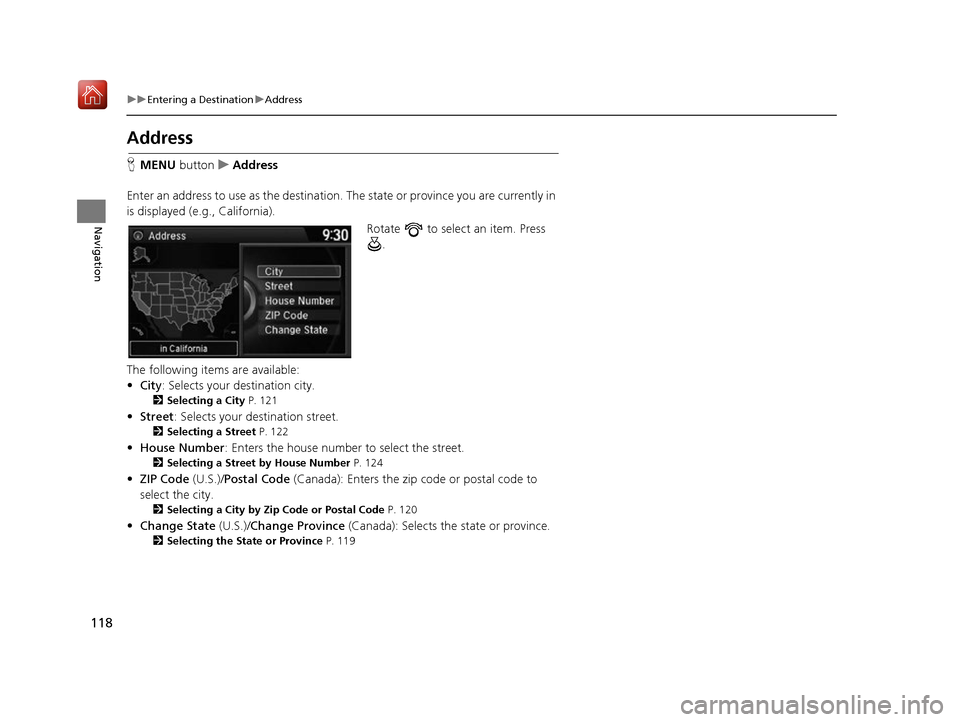
Enter an address to use as the destination. The state or province you are currently in
is displayed (e.g., California).
Rotate to select an item. Press .
The following items are available:
• City : Selects your destination city.
2Selecting a City P. 121
•Street : Selects your destination street.
2Selecting a Street P. 122
•House Number : Enters the house number to select the street.
2Selecting a Street by House Number P. 124
•ZIP Code (U.S.)/Postal Code (Canada): Enters the zip code or postal code to
select the city.
2 Selecting a City by Zip Code or Postal Code P. 120
•Change State (U.S.)/Change Province (Canada): Selects the state or province.
2Selecting the State or Province P. 119
16 ACURA RDX NAVI-31TX48300.book 118 ページ 2015年8月5日 水曜日 午後4時12分
Page 121 of 357
uuEntering a Destination uAddress
120
Navigation
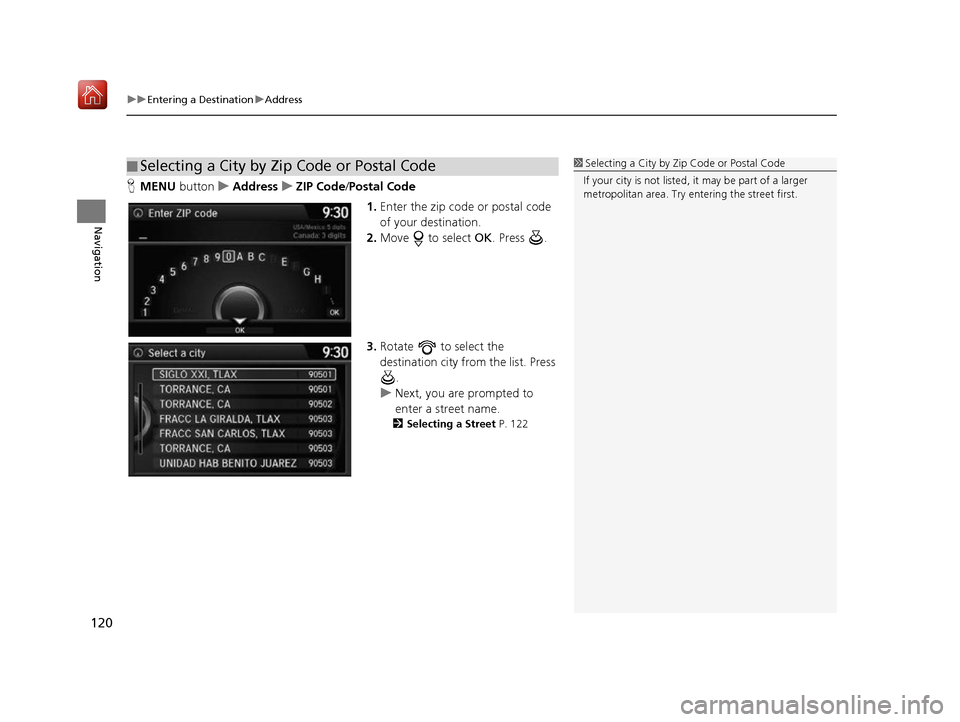
H MENU button uAddress uZIP Code /Postal Code
1.Enter the zip code or postal code
of your destination.
2. Move to select OK. Press .
3. Rotate to select the
destination city fro m the list. Press
.
u Next, you are prompted to
enter a street name.
2 Selecting a Street P. 122
■Selecting a City by Zip Code or Postal Code1
Selecting a City by Zip Code or Postal Code
If your city is not listed, it may be part of a larger
metropolitan area. Try entering the street first.
16 ACURA RDX NAVI-31TX48300.book 120 ページ 2015年8月5日 水曜日 午後4時12分
Page 135 of 357
134
uuEntering a Destination uPlace Phone Number
Navigation
Place Phone Number
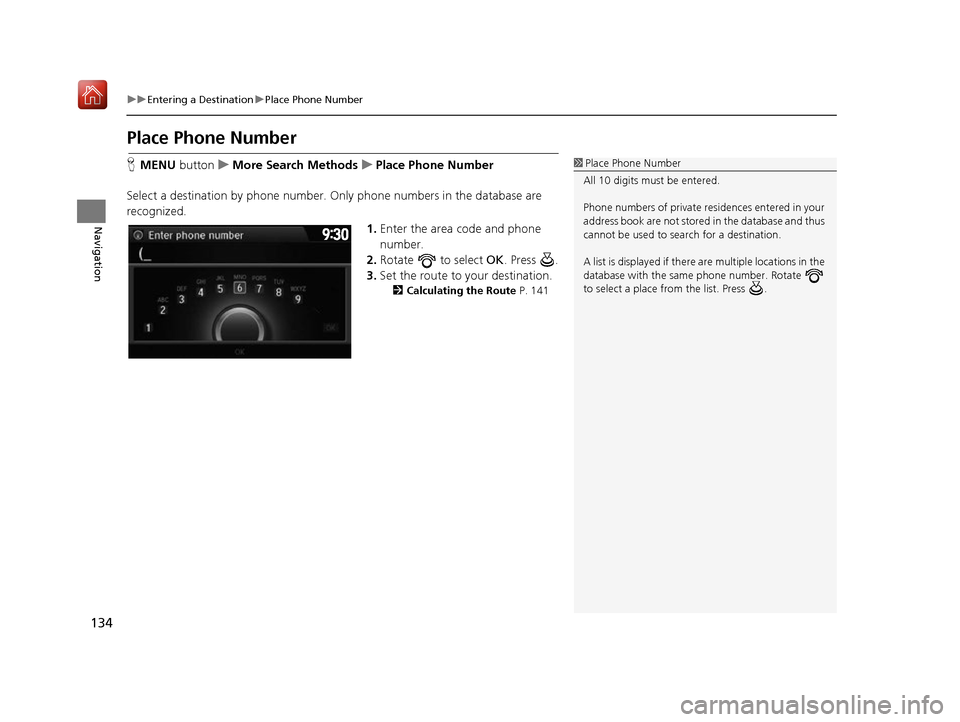
H MENU button uMore Search Methods uPlace Phone Number
Select a destination by phone number. Only phone numbers in the database are
recognized. 1.Enter the area code and phone
number.
2. Rotate to select OK. Press .
3. Set the route to your destination.
2 Calculating the Route P. 141
1Place Phone Number
All 10 digits must be entered.
Phone numbers of private re sidences entered in your
address book are not stored in the database and thus
cannot be used to sear ch for a destination.
A list is displayed if there are multiple locations in the
database with the same phone number. Rotate
to select a place from the list. Press .
16 ACURA RDX NAVI-31TX48300.book 134 ページ 2015年8月5日 水曜日 午後4時12分
Page 257 of 357

uuBluetooth ® HandsFreeLink ®u Pairing a Phone
256
Bluetooth ® HandsFreeLink ®
4.HFL gives you a pairing code on
the navigation screen.
u Confirm if the pairing code on
the screen and your phone
match.
This may vary by phone.
5. You will receive a notification on
the screen if pairing is successful.
H PHONE button uPhone Settings uConnect Phone
1.Rotate to select Add
Bluetooth Device .
2. Make sure your phone is in search
or discoverable mode. Press .
u HFL automatically searches for
a Bluetooth ® device.1Pairing a Phone
When pairing is completed, an Automatic Phone
Sync prompt appears. Select On if you want your call
history and phonebook automatically imported to
HFL. 2 Automatic Phone Sync Setting P. 277
Some phones may have an ad ditional setting to allow
the phone to auto connect each time you turn on
your vehicle.
■ Pairing from Phone Setup
16 ACURA RDX NAVI-31TX48300.book 256 ページ 2015年8月5日 水曜日 午後4時12分
Page 258 of 357

257
uuBluetooth ® HandsFreeLink ®u Pairing a Phone
Continued
Bluetooth ® HandsFreeLink ®
3.When your phone appears on the
list, select it by pressing .
u If your phone does not appear,
you can select Refresh to
search again.
u If your phone still does not
appear, move to select
Device Not Found? and
search for Bluetooth® devices
using your phone. From your
phone, select HandsFreeLink .
4. HFL gives you a pairing code on
the navigation screen.
u Confirm if the pairing code on
the screen and your phone
match. This may vary by phone.
5. You will receive a notification on
the screen if pairing is successful.
16 ACURA RDX NAVI-31TX48300.book 257 ページ 2015年8月5日 水曜日 午後4時12分
Page 323 of 357

322
uuTroubleshooting uMiscellaneous Questions
Troubleshooting
Miscellaneous Questions
ProblemSolution
My battery was disconnected or went dead, and the
navigation system is asking for a code.Set the power mode to ON, and press and hold the (Power) button for two
seconds. The system should reactivate. If you have installed an aftermarket system,
contact a dealer.
16 ACURA RDX NAVI-31TX48300.book 322 ページ 2015年8月5日 水曜日 午後4時12分
Page 332 of 357
331
Reference Information
System Initialization..............................332
Entering the Security Code ....................332
Acquiring GPS Information ....................332
Startup Confirmation Screen .................333
Map Matching ......................................333
System Limitations ................................334
GPS System...........................................334
Address Calculation ..............................334
Database ..............................................334
Client Assistance ....................................336
Resolving Problems ...............................336
Acura Client Relations Contact Information ... 336
Visiting Your Dealer ..............................336
Map Coverage ......................................337 Obtaining a Navigation Update ............ 337
Traffic Information ............................... 338
Operation in Alaska, Hawaii, Canada, Puerto
Rico, and Mexico ...................................... 338
Legal Information ................................. 339
Copyrights ........................................... 339
User Agreements ................................. 339
As required by the FCC ........................ 344
16 ACURA RDX NAVI-31TX48300.book 331 ページ 2015年8月5日 水曜日 午後4時12分
Page 333 of 357

332
Reference Information
System Initialization
The navigation system must be initialized if
power to the navigation system is
interrupted for any reason (e.g., the battery
was disconnected).
Entering the Security Code
In most cases, you do not need to enter a
security code. Follow the steps to reactivate
the system.
1. Set the power mode to ON, and turn on
the audio system.
2. Press and hold the (Power) button for
more than two seconds.
u The system is reactivated when the
system’s control unit recognizes that
the system is in your vehicle.
If the control unit fa ils to recognize,
you must go to a dealer and have the
system checked.
Acquiring GPS Information
Depending on the length of time the power
was interrupted, your system may require
GPS initialization.
If initialization is not necessary, the system
proceeds directly to the Startup
Confirmation screen.
If the system fails to locate a sufficient
number of satellites to locate your position
within 10 minutes, the following screen is
displayed.
If you are experiencing GPS reception
problems:
2 GPS System P. 334
16 ACURA RDX NAVI-31TX48300.book 332 ページ 2015年8月5日 水曜日 午後4時12分