information light Acura RDX 2017 User Guide
[x] Cancel search | Manufacturer: ACURA, Model Year: 2017, Model line: RDX, Model: Acura RDX 2017Pages: 449, PDF Size: 10.88 MB
Page 112 of 449
111
uuGauges and Multi-Information Display uMulti-Information Display
Continued
Instrument Panel
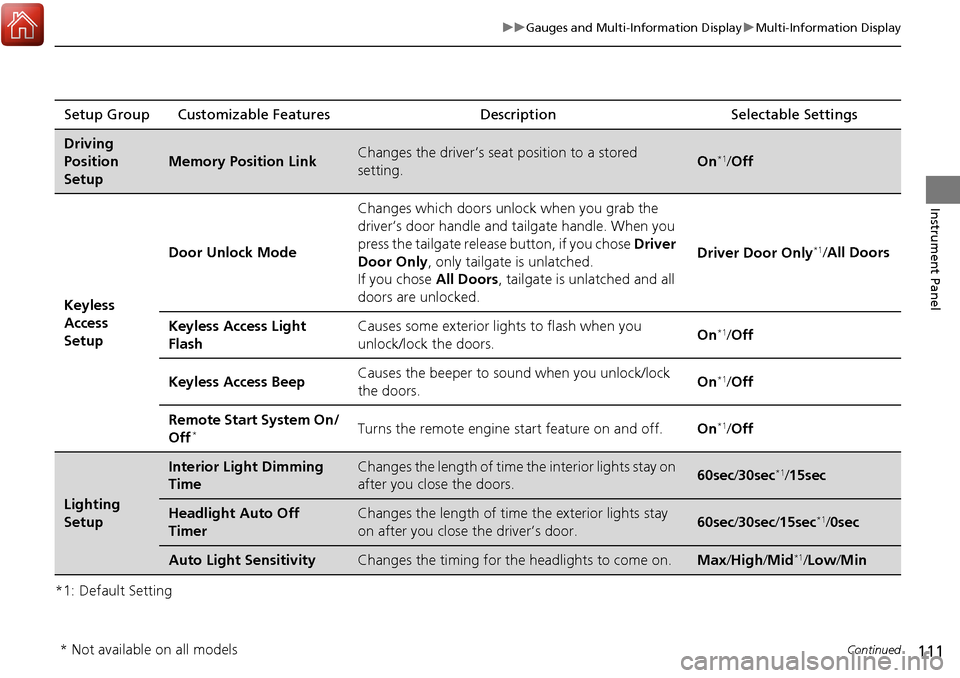
*1: Default SettingSetup Group Customizable Features
Description Selectable Settings
Driving
Position
Setup
Memory Position LinkChanges the driver’s seat position to a stored
setting.On*1/ Off
Keyless
Access
Setup Door Unlock Mode
Changes which doors unlock when you grab the
driver’s door handle and tailgate handle. When you
press the tailgate release button, if you chose
Driver
Door Only , only tailgate is unlatched.
If you chose All Doors, tailgate is unlatched and all
doors are unlocked. Driver Door Only
*1/
All Doors
Keyless Access Light
Flash Causes some exterior li
ghts to flash when you
unlock/lock the doors. On
*1/
Off
Keyless Access Beep Causes the beeper to so
und when you unlock/lock
the doors. On
*1/
Off
Remote Start System On/
Off
*Turns the remote engine start feature on and off. On*1/Off
Lighting
Setup
Interior Light Dimming
TimeChanges the length of time the interior lights stay on
after you close the doors.60sec /30sec*1/15sec
Headlight Auto Off
TimerChanges the length of time the exterior lights stay
on after you close the driver’s door.60sec /30sec /15sec*1/ 0sec
Auto Light SensitivityChanges the timing for th e headlights to come on.Max/High /Mid*1/Low /Min
* Not available on all models
Page 113 of 449
112
uuGauges and Multi-Information Display uMulti-Information Display
Instrument Panel
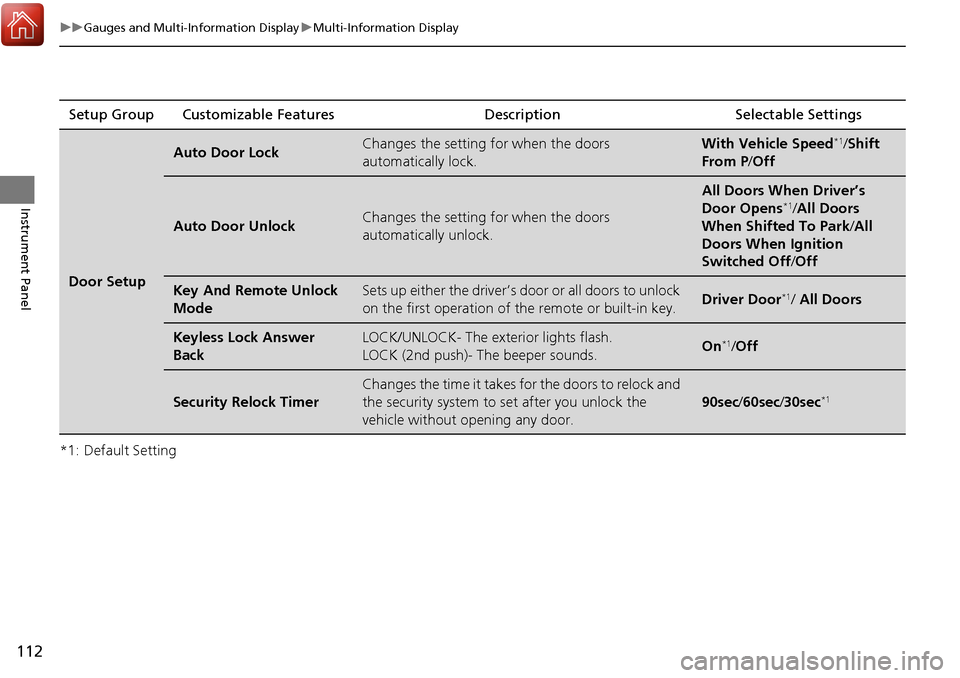
*1: Default SettingSetup Group Customizable Features Description Selectable Settings
Door Setup
Auto Door LockChanges the setting for when the doors
automatically lock.With Vehicle Speed*1/
Shift
From P /Off
Auto Door UnlockChanges the setting for when the doors
automatically unlock.
All Doors When Driver’s
Door Opens*1/All Doors
When Shifted To Park /All
Doors When Ignition
Switched Off /Off
Key And Remote Unlock
ModeSets up either the driver’s door or all doors to unlock
on the first operation of the remote or built-in key.Driver Door*1/ All Doors
Keyless Lock Answer
BackLOCK/UNLOCK- The exterior lights flash.
LOCK (2nd push)- The beeper sounds.On*1/Off
Security Relock Timer
Changes the time it takes for the doors to relock and
the security system to set after you unlock the
vehicle without opening any door.
90sec /60sec /30sec*1
Page 125 of 449
uuLocking and Unlocking the Doors uLocking/Unlocking the Doors from the Outside
124
Controls
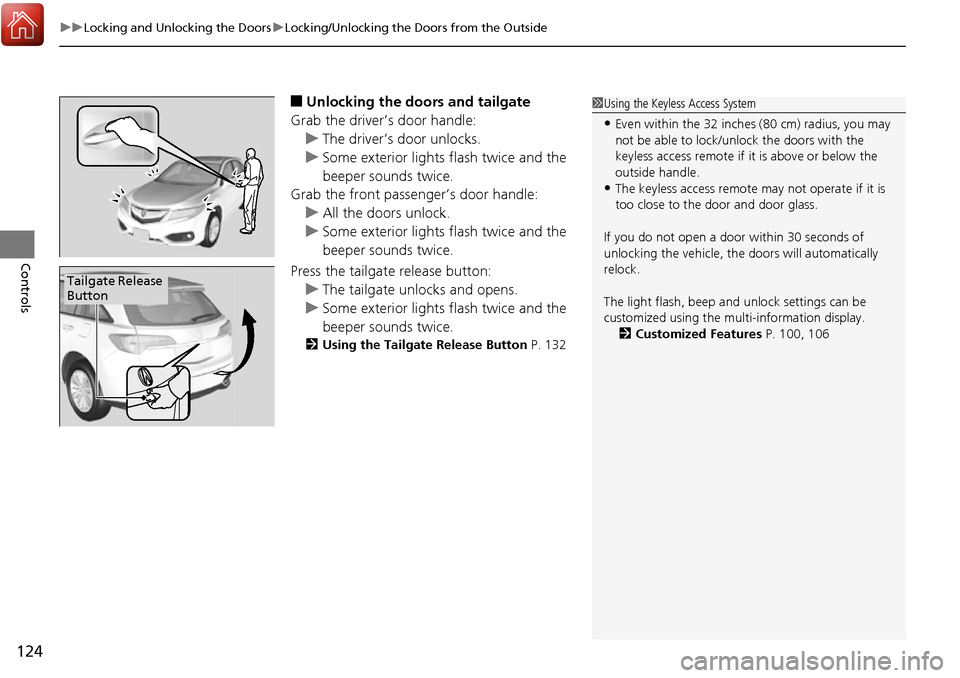
■Unlocking the doors and tailgate
Grab the driver’s door handle: u The driver’s door unlocks.
u Some exterior lights flash twice and the
beeper sounds twice.
Grab the front passenger’s door handle:
u All the doors unlock.
u Some exterior lights flash twice and the
beeper sounds twice.
Press the tailgate release button: u The tailgate unlocks and opens.
u Some exterior lights flash twice and the
beeper sounds twice.
2 Using the Tailgate Release Button P. 132
1Using the Keyless Access System
•Even within the 32 inches (80 cm) radius, you may
not be able to lock/unl ock the doors with the
keyless access remote if it is above or below the
outside handle.
•The keyless access remote may not operate if it is
too close to the door and door glass.
If you do not open a door within 30 seconds of
unlocking the vehicle, th e doors will automatically
relock.
The light flash, beep a nd unlock settings can be
customized using the mu lti-information display.
2 Customized Features P. 100, 106
Tailgate Release
Button
Page 155 of 449
154
uuOperating the Switches Around the Steering Wheel uBrightness Control
Controls
Brightness Control
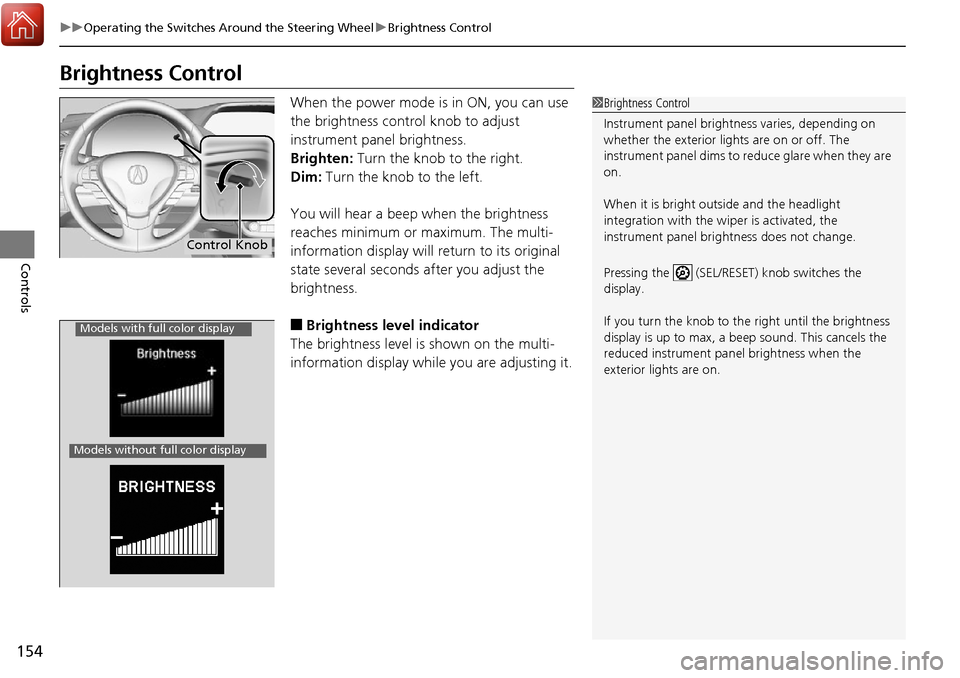
When the power mode is in ON, you can use
the brightness control knob to adjust
instrument panel brightness.
Brighten: Turn the knob to the right.
Dim: Turn the knob to the left.
You will hear a beep when the brightness
reaches minimum or maximum. The multi-
information display will return to its original
state several seconds after you adjust the
brightness.
■Brightness level indicator
The brightness level is shown on the multi-
information display while you are adjusting it.
1 Brightness Control
Instrument panel brightne ss varies, depending on
whether the exterior lights are on or off. The
instrument panel dims to reduce glare when they are
on.
When it is bright out side and the headlight
integration with the wi per is activated, the
instrument panel bri ghtness does not change.
Pressing the (SEL/RESET) knob switches the
display.
If you turn the knob to the right until the brightness
display is up to max, a beep sound. This cancels the
reduced instrument panel brightness when the
exterior lights are on.
Control Knob
Models with full color display
Models without full color display
Page 183 of 449
182
uuClimate Control System uSynchronized Mode
Controls
Synchronized Mode
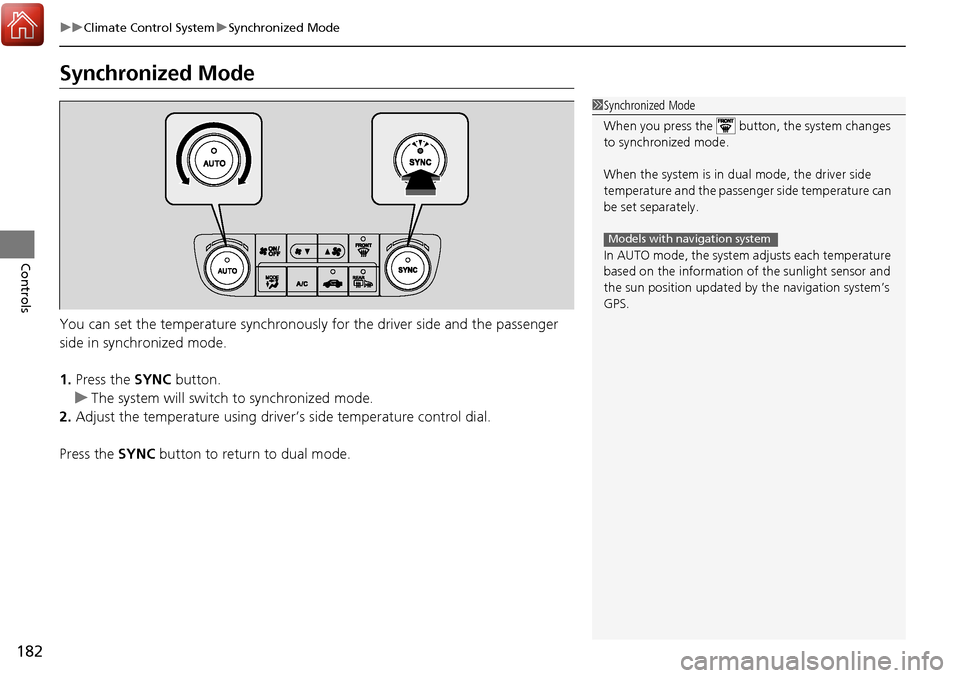
You can set the temperature synchronously for the driver side and the passenger
side in synchronized mode.
1. Press the SYNC button.
u The system will switch to synchronized mode.
2. Adjust the temperature using driver ’s side temperature control dial.
Press the SYNC button to return to dual mode.
1Synchronized Mode
When you press the button, the system changes
to synchronized mode.
When the system is in dua l mode, the driver side
temperature and the passenger side temperature can
be set separately.
In AUTO mode, the system adjusts each temperature
based on the information of the sunlight sensor and
the sun position updated by the navigation system’s
GPS.
Models with navigation system
Page 221 of 449
uuGeneral Information on the Audio System*uRecommended CDs
220
Features
■Protecting CDs
Follow these precautions when handling or storing CDs:
• Store a CD in its case when it is not being played.
• When wiping a CD, use a soft clean clot h from the center to the outside edge.
• Handle a CD by its edge. Never touch either surface.
• Never insert foreign objects into the CD player.
• Keep CDs out of direct sunlight and extreme heat.
• Do not place stabilizer ri ngs or labels on the CD.
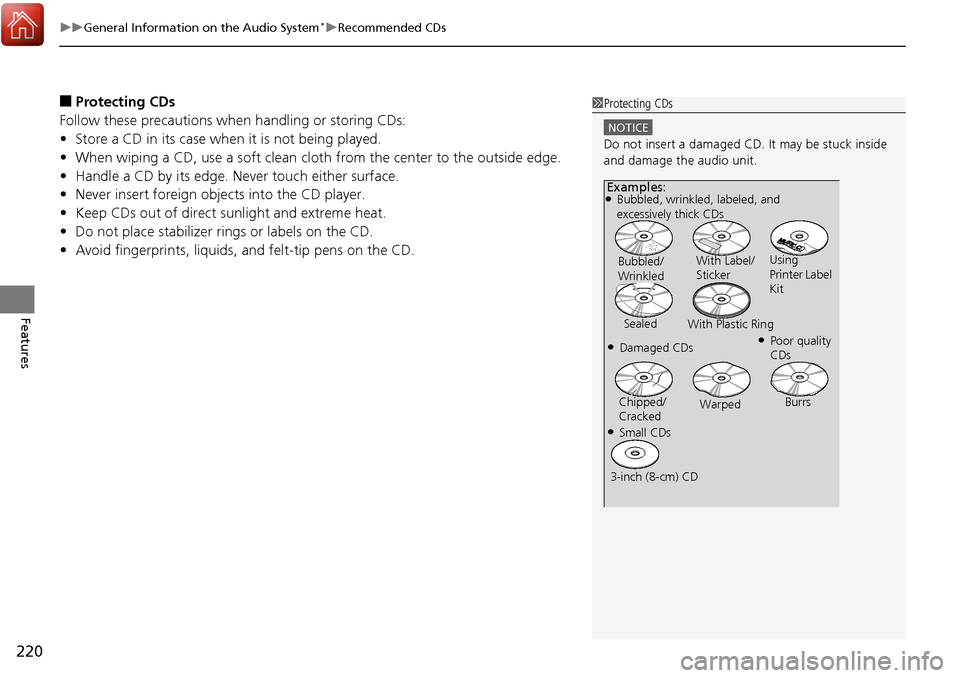
• Avoid fingerprints, liquids, and felt-tip pens on the CD.1Protecting CDs
NOTICE
Do not insert a damaged CD. It may be stuck inside
and damage the audio unit.
Examples:●Bubbled, wrinkled, labeled, and
excessively thick CDs
Bubbled/
Wrinkled With Label/
Sticker
Using
Printer Label
Kit
Sealed With Plastic Ring
●Poor quality
CDs●Damaged CDs
Chipped/
Cracked Warped
Burrs
●Small CDs
3-inch (8-cm) CD
Page 223 of 449
222
Features
HomeLink® Universal Transceiver
The HomeLink ® Universal Transceiver can be pr ogrammed to operate up to three
remote controlled devices around your home, such as garage doors, lighting, or
home security systems.
Refer to the safety information that came wi th your garage door opener to test that
the safety features are functioning properly. If you do not have the safety
information, contact the manufacturer.
Before programming HomeLink, make sure that people and objects are out of the
way of the garage or gate to prevent potential injury or damage.
When programming a garage door opener, park just outside the garage door’s
path.
Training HomeLink
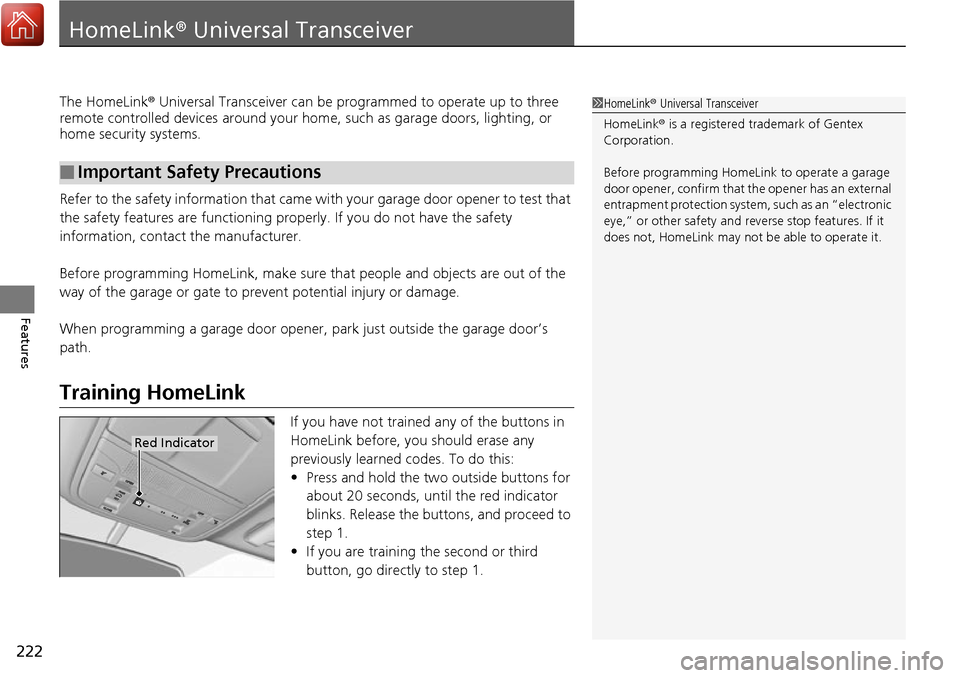
If you have not trained any of the buttons in
HomeLink before, you should erase any
previously learned codes. To do this:
• Press and hold the two outside buttons for
about 20 seconds, until the red indicator
blinks. Release the bu ttons, and proceed to
step 1.
• If you are training the second or third
button, go directly to step 1.
■Important Safety Precautions
1HomeLink ® Universal Transceiver
HomeLink® is a registered tra demark of Gentex
Corporation.
Before programming HomeLi nk to operate a garage
door opener, confirm that the opener has an external
entrapment protection system, such as an “electronic
eye,” or other safety and reverse stop features. If it
does not, HomeLink may not be able to operate it.
Red Indicator
Page 290 of 449
Continued289
uuWhen Driving uAdaptive Cruise Control (ACC)*
Driving
The system may automatically shut off and the ACC indicator will come on under
certain conditions. Some examples of thes e conditions are listed below. Other
conditions may reduce some of the ACC functions.
2 Front Sensor Camera* P. 282
■Environmental conditions
Driving in bad weather (r ain, fog, snow, etc.).
■Roadway conditions
Driving on a snowy or wet roadway (obscure d lane marking, vehicle tracks, reflected
lights, road spra y, high contrast).
■Vehicle conditions
• The outside of the windshield is blocked by dirt, mud, leaves, wet snow, etc.
• An abnormal tire or wheel condition (wro ng sized, varied size or construction,
improperly inflated, compact spare tire
*, etc.).
• The camera temperature gets too hot.
• The parking brake is applied.
• When the front grille is dirty.
• When the front of the vehicle tilts up du e to heavy cargo in the cargo space or
rear seats.
• When tire chains are installed.
■ACC Conditions and Limitations1ACC Conditions and Limitations
The radar sensor for ACC is shared with the Collision
Mitigation Braking System
TM (CMBSTM).
2 Collision Mitigation Braking SystemTM
(CMBSTM)* P. 322
You can read about handling information for the
camera equipped with this system. 2 Front Sensor Camera
* P. 282
* Not available on all models
Page 298 of 449
297
uuWhen Driving uLane Departure Warning (LDW)*
Continued
Driving
Lane Departure Warning (LDW)*
Alerts you when the system determines a possibility of your vehicle unintentionally
crossing over detected lane markings.
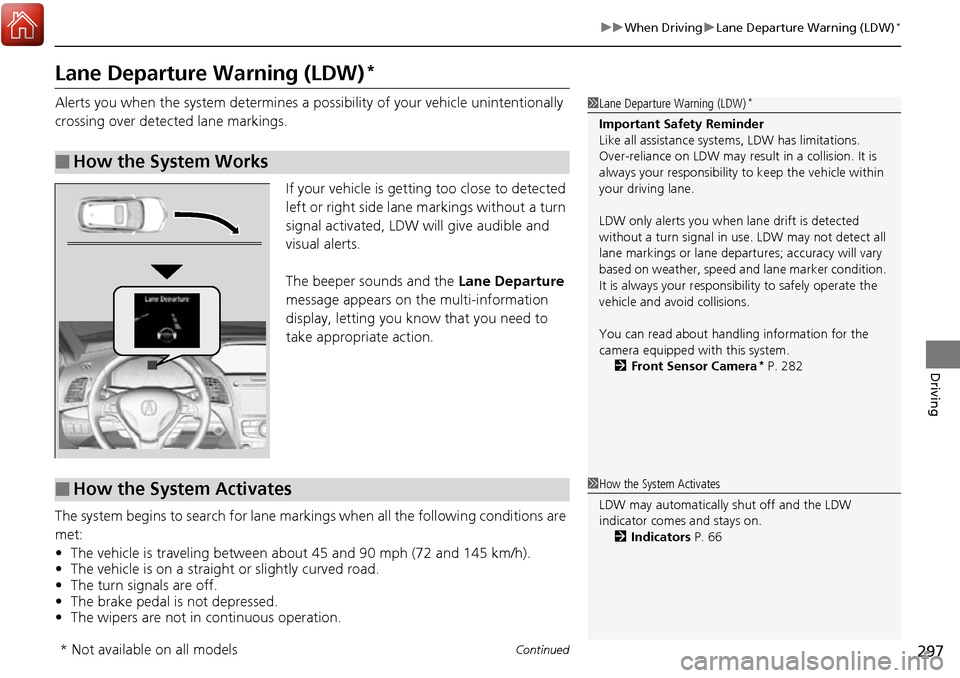
If your vehicle is getting too close to detected
left or right side lane markings without a turn
signal activated, LDW will give audible and
visual alerts.
The beeper sounds and the Lane Departure
message appears on the multi-information
display, letting you know that you need to
take appropriate action.
The system begins to search for lane mark ings when all the following conditions are
met:
• The vehicle is traveling between about 45 and 90 mph (72 and 145 km/h).
• The vehicle is on a straight or slightly curved road.
• The turn signals are off.
• The brake pedal is not depressed.
• The wipers are not in continuous operation.
■How the System Works
1Lane Departure Warning (LDW)*
Important Safety Reminder
Like all assistance systems, LDW has limitations.
Over-reliance on LDW may result in a collision. It is
always your respons ibility to keep the vehicle within
your driving lane.
LDW only alerts you when lane drift is detected
without a turn signal in us e. LDW may not detect all
lane markings or lane departures; a ccuracy will vary
based on weather, speed and lane marker condition.
It is always your responsibility to safely operate the
vehicle and avoid collisions.
You can read about handling information for the
camera equipped with this system. 2 Front Sensor Camera
* P. 282
■How the System Activates1How the System Activates
LDW may automatically shut off and the LDW
indicator comes and stays on.
2 Indicators P. 66
* Not available on all models
Page 304 of 449
303
uuWhen Driving uLane Keeping Assist System (LKAS)*
Continued
Driving
The system can be used when th e following conditions are met.
• The lane in which you are driving has detectable lane markers on both sides, and
your vehicle is in the center of the lane.
• The vehicle speed is between about 45 and 90 mph (72 and 145 km/h).
• You are driving on a straight or slightly curved road.
• The turn signals are off.
• The brake pedal is not depressed.
• The wipers are not in continuous operation.
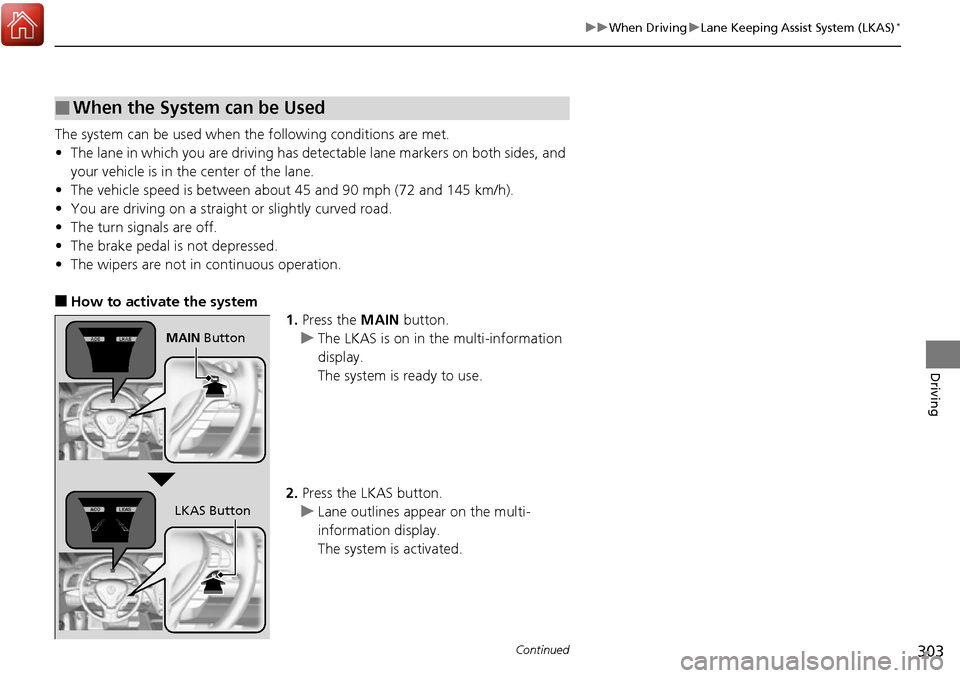
■How to activate the system
1.Press the MAIN button.
u The LKAS is on in the multi-information
display.
The system is ready to use.
2. Press the LKAS button.
u Lane outlines appear on the multi-
information display.
The system is activated.
■When the System can be Used
MAIN Button
LKAS Button