the Acura RDX 2017 Owner's Manual
[x] Cancel search | Manufacturer: ACURA, Model Year: 2017, Model line: RDX, Model: Acura RDX 2017Pages: 449, PDF Size: 10.88 MB
Page 224 of 449
223
uuHomeLink ® Universal Transceiver uTraining HomeLink
Features
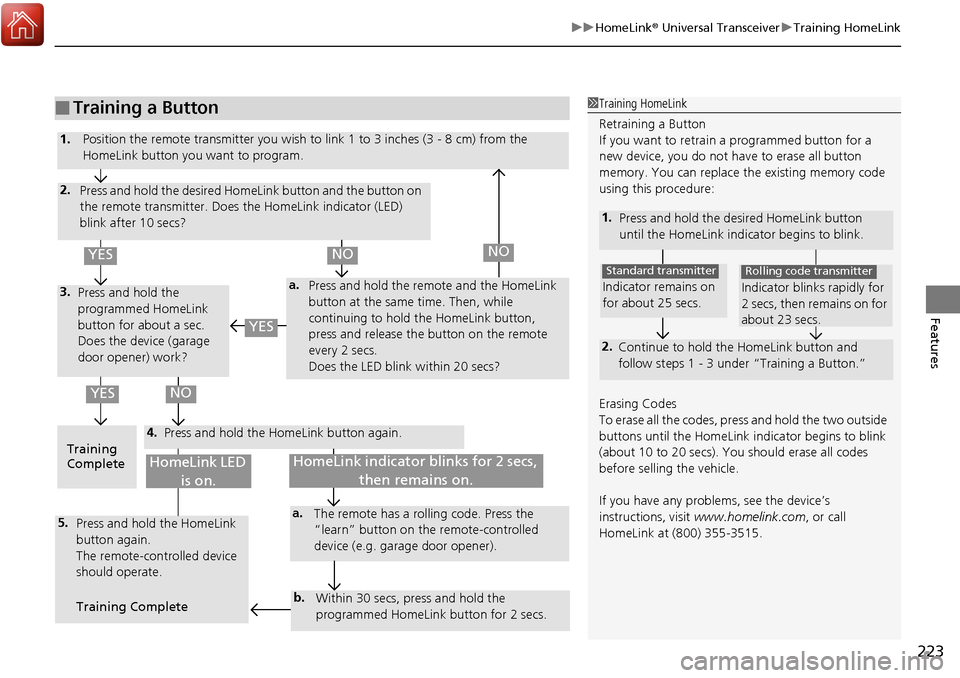
■Training a Button1Training HomeLink
Retraining a Button
If you want to retrain a programmed button for a
new device, you do not ha ve to erase all button
memory. You can replace the existing memory code
using this procedure:
1. Press and hold the desired HomeLink button
until the HomeLink indi cator begins to blink.
2.
Continue to hold the HomeLink button and
follow steps 1 - 3 unde r “Training a Button.”
Indicator remains on
for about 25 secs.
Standard transmitter
Indicator blinks rapidly for
2 secs, then remains on for
about 23 secs.
Rolling code transmitter
Erasing Codes
To erase all the codes, press and hold the two outside
buttons until the HomeLink i ndicator begins to blink
(about 10 to 20 secs). You should erase all codes
before selling the vehicle.
If you have any problems, see the device’s
instructions, visit www.homelink.com , or call
HomeLink at (800) 355-3515.
4.
a.3.
2.
5.a.
b.
1. Position the remote transmitter you wish to link 1 to 3 inches (3 - 8 cm) from the
HomeLink button you want to program.
Press and hold the desired HomeLink button and the button on
the remote transmitter. Does the HomeLink indicator (LED)
blink after 10 secs?
Press and hold the
programmed HomeLink
button for about a sec.
Does the device (garage
door opener) work? Press and hold the remote and the HomeLink
button at the same time. Then, while
continuing to hold the HomeLink button,
press and release the button on the remote
every 2 secs.
Does the LED blink within 20 secs?
Training
Complete Press and hold the HomeLink button again.
Press and hold the HomeLink
button again.
The remote-controlled device
should operate.
Training Complete The remote has a ro
lling code. Press the
“learn” button on the remote-controlled
device (e.g. garage door opener).
Within 30 secs, press and hold the
programmed HomeLink button for 2 secs.
HomeLink indicator blinks for 2 secs, then remains on.HomeLink LED is on.
YESNO
YES
YESNONO
Page 225 of 449
224
Features
Bluetooth® HandsFreeLink ®
For models with navigation system, see Navigation System Manual for how to
operate Bluetooth ® HandsFreeLink ®.
Bluetooth ® HandsFreeLink ® (HFL) allows you to place and receive phone calls using
your vehicle’s audio system, without handling your cell phone.
Using HFL
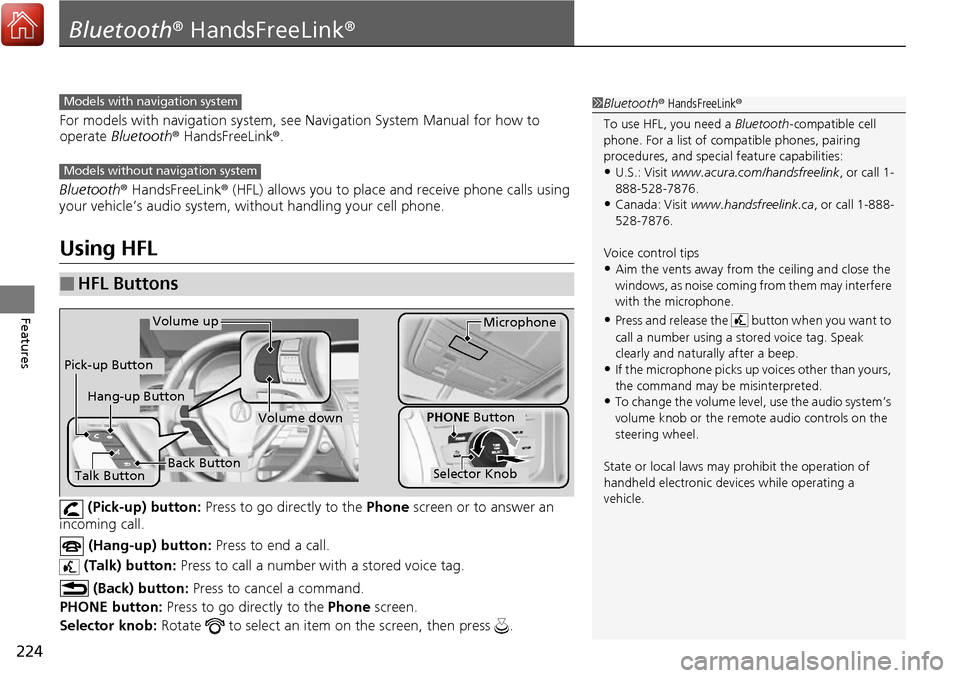
(Pick-up) button: Press to go directly to the Phone screen or to answer an
incoming call.
(Hang-up) button: Press to end a call.
(Talk) button: Press to call a number with a stored voice tag.
(Back) button: Press to cancel a command.
PHONE button: Press to go directly to the Phone screen.
Selector knob: Rotate to select an item on the screen, then press .
■HFL Buttons
1Bluetooth ® HandsFreeLink ®
To use HFL, you need a Bluetooth-compatible cell
phone. For a list of compatible phones, pairing
procedures, and special feature capabilities:
•U.S.: Visit www.acura.com/handsfreelink , or call 1-
888-528-7876.
•Canada: Visit www.handsfreelink.ca , or call 1-888-
528-7876.
Voice control tips
•Aim the vents away from the ceiling and close the
windows, as noise coming fr om them may interfere
with the microphone.
•Press and release the button when you want to
call a number using a st ored voice tag. Speak
clearly and naturally after a beep.
•If the microphone picks up vo ices other than yours,
the command may be misinterpreted.
•To change the volume level, use the audio system’s
volume knob or the remote audio controls on the
steering wheel.
State or local laws may pr ohibit the operation of
handheld electronic devi ces while operating a
vehicle.
Models with navigation system
Models without navigation system
Talk Button
Volume upMicrophone
Hang-up Button
Pick-up Button
Volume down
Selector Knob
PHONE Button
Back Button
Page 226 of 449
225
uuBluetooth ® HandsFreeLink ®u Using HFL
Features
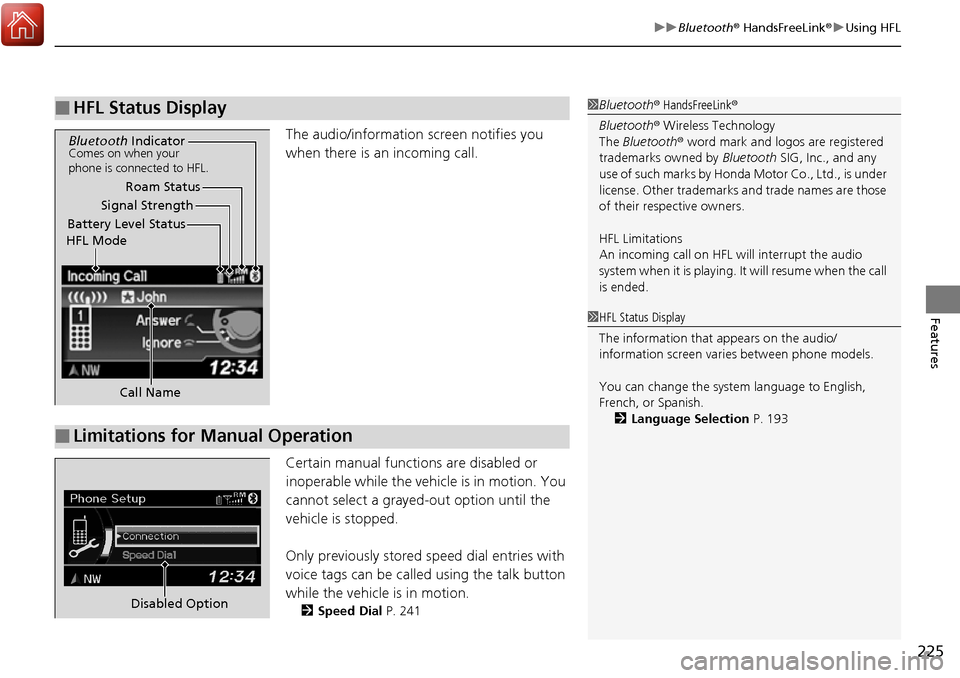
The audio/information screen notifies you
when there is an incoming call.
Certain manual functions are disabled or
inoperable while the vehicle is in motion. You
cannot select a grayed-out option until the
vehicle is stopped.
Only previously stored speed dial entries with
voice tags can be called using the talk button
while the vehicle is in motion.
2 Speed Dial P. 241
■HFL Status Display1Bluetooth ® HandsFreeLink ®
Bluetooth ® Wireless Technology
The Bluetooth ® word mark and logos are registered
trademarks owned by Bluetooth SIG, Inc., and any
use of such marks by Honda Motor Co., Ltd., is under
license. Other trademarks and trade names are those
of their respective owners.
HFL Limitations
An incoming call on HFL will interrupt the audio
s y s te m wh e n it is p la y i n g . It wi ll re s u m e w h en t h e c a l l
is ended.
Signal Strength
HFL Mode Battery Level Status Roam Status
Call Name
Bluetooth IndicatorComes on when your
phone is connected to HFL.
■Limitations for Manual Operation
1HFL Status Display
The information that appears on the audio/
information screen vari es between phone models.
You can change the system language to English,
French, or Spanish. 2 Language Selection P. 193
Disabled Option
Page 227 of 449
226
uuBluetooth ® HandsFreeLink ®u HFL Menus
Features
HFL Menus
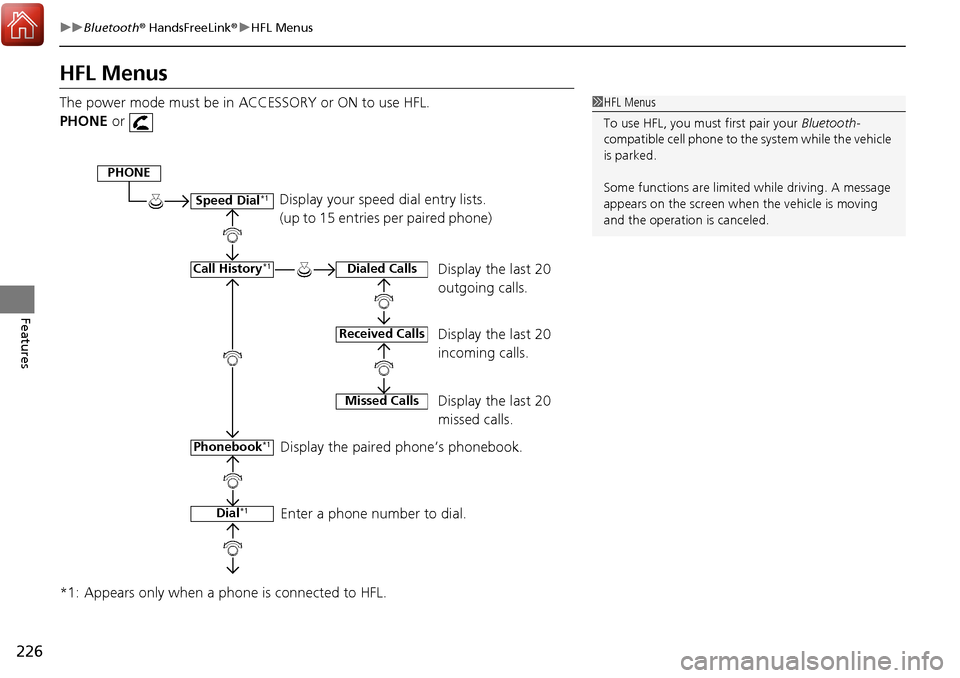
The power mode must be in ACCESSORY or ON to use HFL.
PHONE or
*1: Appears only when a phone is connected to HFL.1 HFL Menus
To use HFL, you must first pair your Bluetooth-
compatible cell phone to th e system while the vehicle
is parked.
Some functions are limited while driving. A message
appears on the screen when the vehicle is moving
and the operation is canceled.
Display your speed dial entry lists.
(up to 15 entries per paired phone)
Display the last 20
outgoing calls.
Display the last 20
incoming calls.
Display the last 20
missed calls.
Display the paired phone’s phonebook.
Enter a phone number to dial.
PHONE
Speed Dial*1
Call History*1
Phonebook*1
Dial*1
Dialed Calls
Received Calls
Missed Calls
Page 228 of 449
227
uuBluetooth ® HandsFreeLink ®u HFL Menus
Continued
Features
*1: Appears only when a phone is connected to HFL.
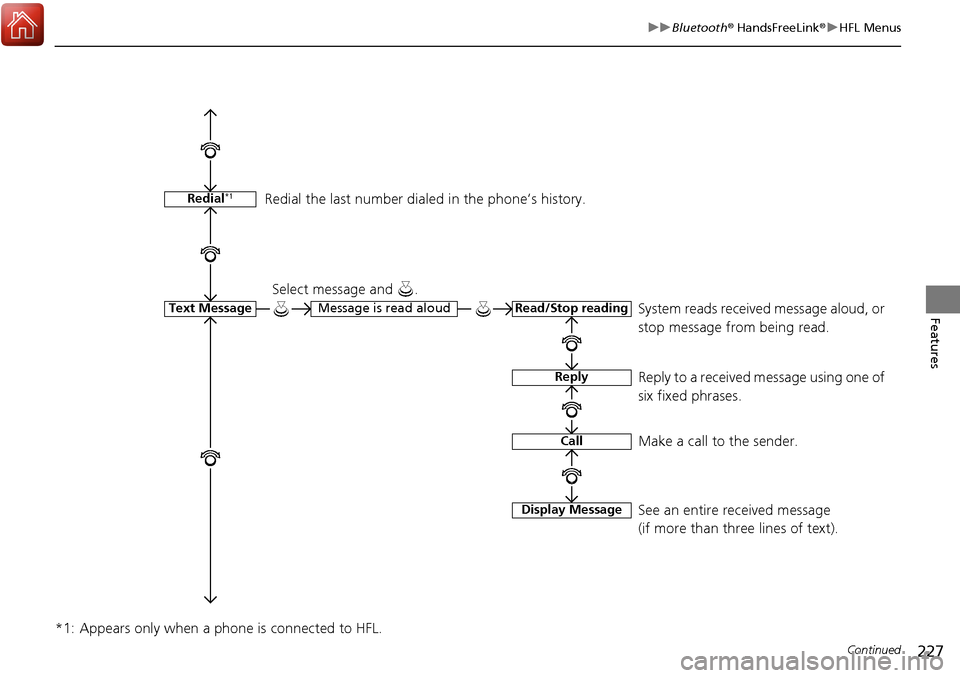
Redial*1
Text MessageRead/Stop readingMessage is read aloud
Reply
Call
Display Message
System reads received message aloud, or
stop message from being read.
Select message and .
Reply to a received message using one of
six fixed phrases.
Make a call to the sender.
See an entire received message
(if more than three lines of text).
Redial the last number dial
ed in the phone’s history.
Page 229 of 449
228
uuBluetooth ® HandsFreeLink ®u HFL Menus
Features
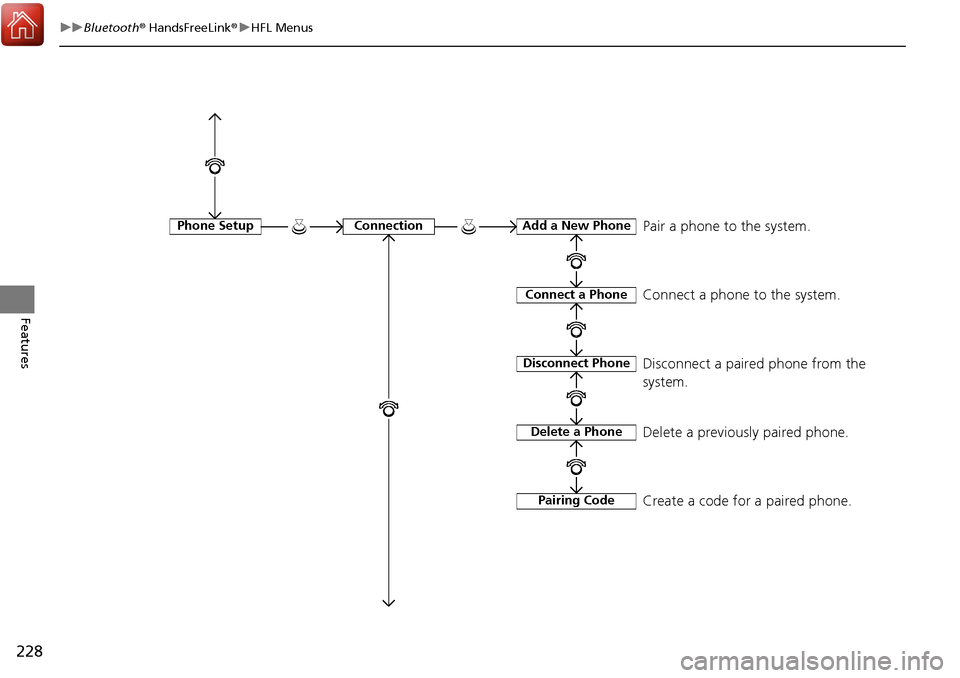
Phone SetupConnectionAdd a New Phone
Connect a Phone
Disconnect Phone
Delete a Phone
Pairing Code
Pair a phone to the system.
Connect a phone to the system.
Disconnect a paired phone from the
system.
Delete a previously paired phone.
Create a code for a paired phone.
Page 230 of 449
229
uuBluetooth ® HandsFreeLink ®u HFL Menus
Continued
Features
*1: Appears only when a phone is connected to HFL.
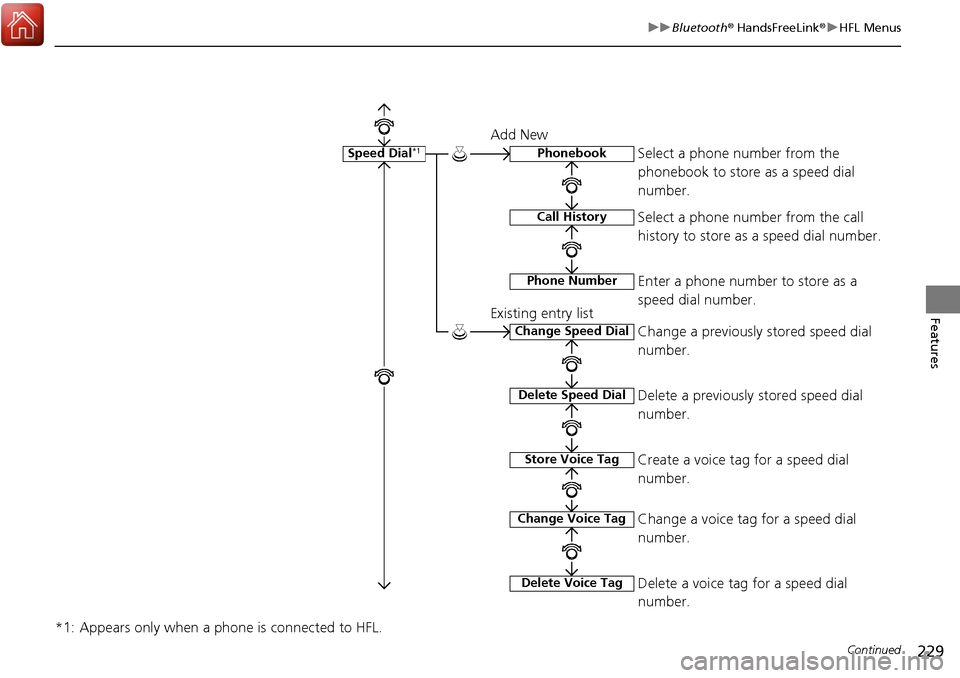
Speed Dial*1Phonebook
Call History
Phone Number
Change Speed Dial
Delete Speed Dial
Store Voice Tag
Change Voice Tag
Delete Voice Tag
Add New
Existing entry list Select a phone number from the
phonebook to store as a speed dial
number.
Select a phone number from the call
history to store as a speed dial number.
Enter a phone number to store as a
speed dial number.
Change a previously stored speed dial
number.
Delete a previously stored speed dial
number.
Create a voice tag for a speed dial
number.
Change a voice tag for a speed dial
number.
Delete a voice tag for a speed dial
number.
Page 231 of 449

230
uuBluetooth ® HandsFreeLink ®u HFL Menus
Features
*1: Appears only when a phone is connected to HFL.
Passcode*1
Auto Transfer
Caller ID InfoName Priority
Number Priority
Text Message Notice
System Clear
Set calls to automatically transfer from your phone to HFL when you
enter the vehicle.
Prioritize the caller’s name as the
caller ID.
Prioritize the caller’s phone number as
the caller ID.
Create a security PIN for a paired phone.
Turn incoming text message notifications on or off.
Clear the system of all paired phone s, phonebook entries, and security
codes.
Page 232 of 449
Continued231
uuBluetooth ® HandsFreeLink ®u HFL Menus
Features
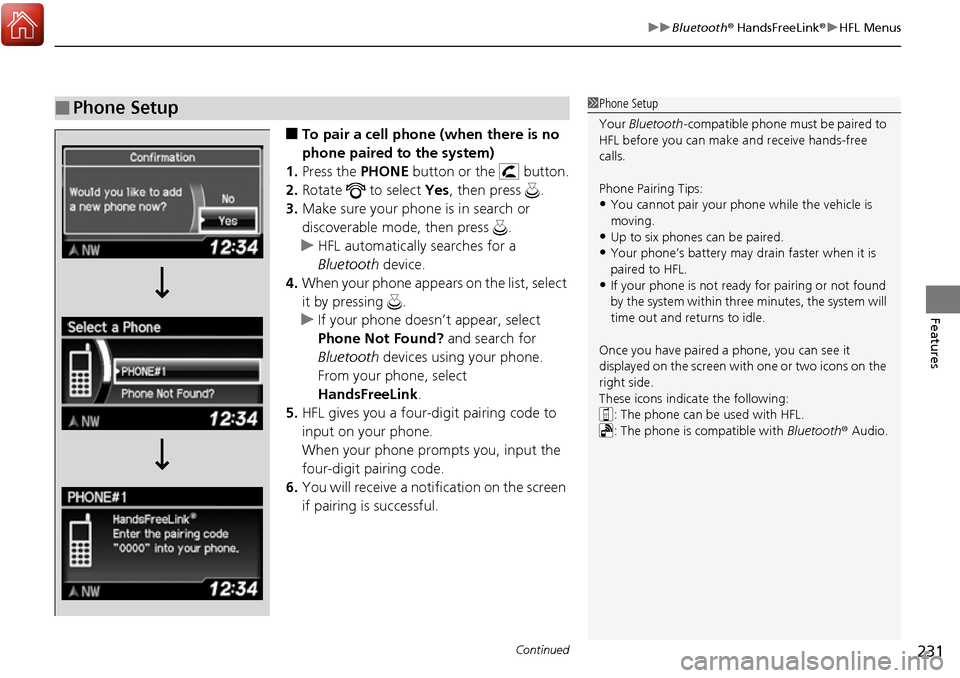
■To pair a cell phone (when there is no
phone paired to the system)
1. Press the PHONE button or the button.
2. Rotate to select Yes, then press .
3. Make sure your phone is in search or
discoverable mode, then press .
u HFL automatically searches for a
Bluetooth device.
4. When your phone appears on the list, select
it by pressing .
u If your phone doesn’t appear, select
Phone Not Found? and search for
Bluetooth devices using your phone.
From your phone, select
HandsFreeLink .
5. HFL gives you a four-digit pairing code to
input on your phone.
When your phone prompts you, input the
four-digit pairing code.
6. You will receive a notif ication on the screen
if pairing is successful.
■Phone Setup1 Phone Setup
Your Bluetooth -compatible phone must be paired to
HFL before you can make and receive hands-free
calls.
Phone Pairing Tips:
•You cannot pair your phone while the vehicle is
moving.
•Up to six phones can be paired.
•Your phone’s battery may dr ain faster when it is
paired to HFL.
•If your phone is not ready for pairing or not found
by the system within three minutes, the system will
time out and returns to idle.
Once you have paired a phone, you can see it
displayed on the screen with one or two icons on the
right side.
These icons indicate the following: : The phone can be used with HFL.
: The phone is compatible with Bluetooth® Audio.
Page 233 of 449

232
uuBluetooth ® HandsFreeLink ®u HFL Menus
Features
■To pair a cell phone (when a phone has
already been paired to the system)
1. Press the PHONE button or the button.
u If a prompt appears asking to connect to
a phone, select No and proceed with
step 2.
2. Rotate to select Phone Setup, then
press .
3. Rotate to select Connection, then press
.
4. Rotate to select Add a New Phone,
then press .
u The screen changes to Select Location.
5. Rotate to select Empty, then press .