phone Acura RDX 2017 Owner's Guide
[x] Cancel search | Manufacturer: ACURA, Model Year: 2017, Model line: RDX, Model: Acura RDX 2017Pages: 449, PDF Size: 10.88 MB
Page 245 of 449

uuBluetooth ® HandsFreeLink ®u HFL Menus
244
Features
■To make a call using the imported
phonebook
When your phone is paired, the contents of its
phonebook are automatically imported to
HFL.
1. Press the PHONE button or the button.
2. Rotate to select Phonebook, then press
.
3. The phonebook is stored alphabetically.
Rotate to select the initial, then press
.
4. Rotate to select a name, then press .
5. Rotate to select a number, then press
.
u Dialing starts automatically.
■To make a call using a phone number
1. Press the PHONE button or the button.
2. Rotate to select Dial, then press .
3. Rotate to select a number, then press
.
4. Rotate to select , then press .
u Dialing starts automatically.
1To make a call using the imported phonebook
This function is disabled while the vehicle is moving.
However, you can call a stored voice-tagged speed
dial number using the talk button. 2 Limitations for Manual Operation P. 225
2 Speed Dial P. 241
1To make a call using a phone number
This function is disabled while the vehicle is moving.
However, you can call a stored voice-tagged speed
dial number using the talk button. 2 Limitations for Manual Operation P. 225
2 Speed Dial P. 241
Page 246 of 449

Continued245
uuBluetooth ® HandsFreeLink ®u HFL Menus
Features
■To make a call using redial
1. Press the PHONE button or the button.
2. Rotate to select Redial, then press .
u Dialing starts automatically.
■To make a call usin g the call history
Call history is stored by Dialed Calls,
Received Calls , and Missed Calls .
1. Press the PHONE button or the button.
2. Rotate to select Call History, then press
.
3. Rotate to select Dialed Calls, Received
Calls , or Missed Calls , then press .
4. Rotate to select a number, then press
.
u Dialing starts automatically.
■To make a call using a speed dial entry
1. Press the PHONE button or the button.
2. Rotate to select Speed Dial , then press
.
3. Rotate to select a number, then press
.
u Dialing starts automatically.
1To make a call using the call history
The call history disp lays the last 20 dialed, received, or
missed calls.
(Appears only when a phone is connected to HFL.)
1 To make a call using a speed dial entry
On the Phone screen, the first six speed dials on the
list can be directly selected by pressing the
corresponding audio preset buttons (1-6).
Select More Speed Dial Lists to view another paired
phone’s speed dial list. You ca n make a call from that
list using the currently connected phone.
When a voice tag is stored, press the button to
call the number using the voice tag. 2 Speed Dial P. 241
Any voice-tagged speed dial entry can be dialed by
voice from any screen.
Press the button and follow the prompts.
Page 248 of 449

Continued247
uuBluetooth ® HandsFreeLink ®u HFL Menus
Features
The following options are available during a call.
Mute: Mute your voice.
Transfer Call : Transfer a call from HFL to your phone.
Touch Tones : Send numbers during a call. This is useful when you call a menu-
driven phone system.
1.To view the availabl e options, press the
PHONE button.
2. Rotate to select the option, then press
.
u The check box is checked when Mute is
selected. Select Mute again to turn it off.
■Options During a Call1Options During a Call
Touch Tones: Available on some phones.
Page 249 of 449

uuBluetooth ® HandsFreeLink ®u HFL Menus
248
Features
HFL can display newly received text message s as well as 20 of the most recently
received messages on a linked cell phone. Each received message can be read aloud
and replied to using a fixed common phrase. 1.A pop-up appears and notifies you of a new
text message.
2. Rotate to select Yes to listen to the
message, then press .
u The text message is displayed. The
system automatically starts reading out
the message.
3. To discontinue the message read-out, press
the BACK button.
■Receiving a Text Message1Receiving a Text Message
Not all phones are compatible with this feature.
Check handsfreelink.com for a list of compatible
phones.
The system does not display any received messages
while you are driving. You can only hear them read
aloud.
With some phones, you may be able to display upto
20 most recent text messages.
Only the first three lines of the received message are
displayed with this option. 2 Displaying an entire message P. 252
State or local laws may limit your use of the HFL text
message feature. Only use the text message feature
when conditions allow you to do so safely.
Page 250 of 449

Continued249
uuBluetooth ® HandsFreeLink ®u HFL Menus
Features
1. Press the PHONE button or the button.
2. Rotate to select Text Message, then
press .
3. Rotate to select a message, then press
.
u The text message is displayed. The
system automatically starts reading the
message aloud.
■Displaying Messages1Displaying Messages
The icon appears next to an unread message.
Only the first three lines of the received message are
displayed with this option.
2 Displaying an entire message P. 252
If you delete a message on the phone, the message is
also deleted in the system. If you send a message
from the system, the message goes to your phone’s
outbox.
Page 251 of 449

uuBluetooth ® HandsFreeLink ®u HFL Menus
250
Features
■Using the stop reading or read option
1. Press the PHONE button or the button.
2. Rotate to select Text Message, then
press .
3. Rotate to select a message, then press
.
u The text message is displayed. The
system automatically starts reading the
message aloud.
4. Press to enter the Text Message Menu .
5. Rotate to select Stop Reading or Read ,
then press .1 Using the stop reading or read option
This option changes to:
•Stop Reading while the text message is read out.
Select this option to disc ontinue the message read-
out.
•Read when you go to the Text Message menu, or
after you selected Stop Reading. Select this option
to hear the system re ading out the selected
message.
Page 252 of 449

Continued251
uuBluetooth ® HandsFreeLink ®u HFL Menus
Features
■Reply to a message
You can reply to a message using one of the
six common phrases available in the system.
1. Press the PHONE button or the button.
2. Rotate to select Text Message, then
press .
3. Rotate to select a message, then press
.
u The text message is displayed. The
system automatically starts reading out
the message.
4. Press to enter the Text Message Menu .
5. Rotate to select Reply, then press .
6. Rotate to select the reply message, then
press .
7. The reply message you selected is displayed.
Select Yes to send the message.1Reply to a message
The available fixed reply messages are as follows:
•Talk to you later, I’m driving.
•I am on my way.•I’m running late.
•OK
•Yes•No
You cannot add, edit, or delete reply messages.
After you reply, the fo llowing is displayed:
Page 253 of 449
252
uuBluetooth ® HandsFreeLink ®u HFL Menus
Features
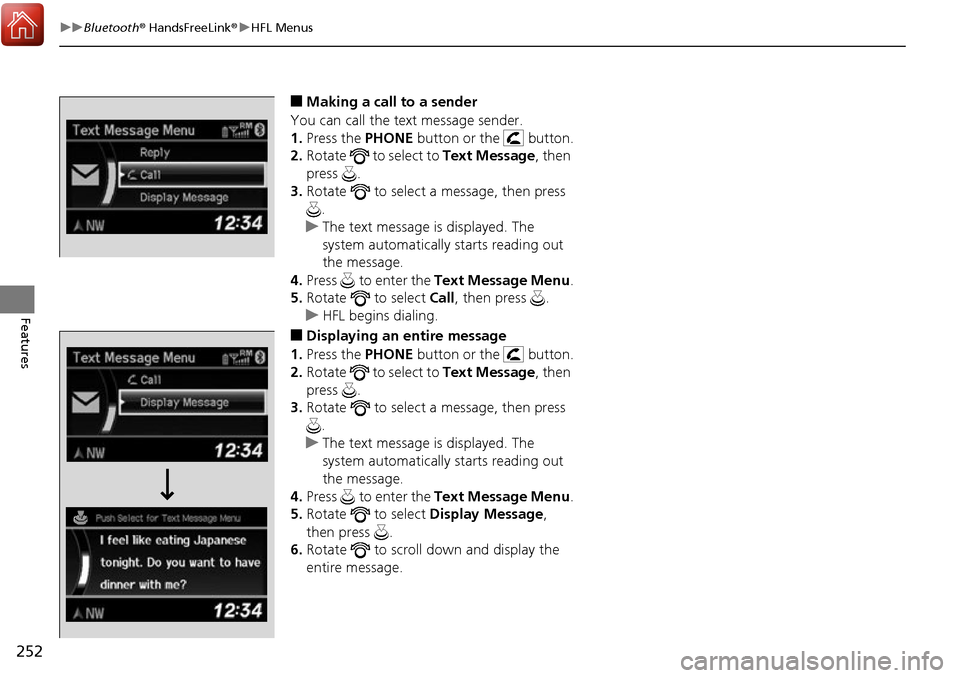
■Making a call to a sender
You can call the text message sender.
1. Press the PHONE button or the button.
2. Rotate to select to Text Message, then
press .
3. Rotate to select a message, then press
.
u The text message is displayed. The
system automatically starts reading out
the message.
4. Press to enter the Text Message Menu .
5. Rotate to select Call, then press .
u HFL begins dialing.
■Displaying an entire message
1. Press the PHONE button or the button.
2. Rotate to select to Text Message, then
press .
3. Rotate to select a message, then press
.
u The text message is displayed. The
system automatically starts reading out
the message.
4. Press to enter the Text Message Menu .
5. Rotate to select Display Message,
then press .
6. Rotate to scroll down and display the
entire message.
Page 440 of 449

439
Information
Authorized Manuals
■Service Express
For electronic copies of service publications, you can purchase a subscription to
Service Express. Visit www.techinfo.honda.com for pricing and options.
■For U.S. Owners
Manuals can be purchased from Helm Incorporated. You can order a manual by
phone at (800) 782-4356 (credit card orders only), or online at www.helminc.com.
■For Canadian Owners
Please contact a dealer to order any manuals that you may require.
Page 441 of 449
440
Information
Client Service Information
Acura dealer personnel are trained professionals.
They should be able to answer all your questions. If you encounter a problem that
your dealership does not solve to your satisfaction, please discuss it with the
dealership’s service manager or general ma nager. If you are dissatisfied with the
decision made by the dealership’s management, contact Acura Client Relations/
Services.
U.S. Owners
American Honda Motor Co., Inc.
Acura Client Relations
Mail Stop 500-2N-7E
1919 Torrance Blvd.
Torrance, CA 90501-2746
Tel: (800) 382-2238 Canadian Owners
Honda Canada Inc.
Acura Client Services
180 Honda Boulevard
Markham, ON
L6C 0H9
Tel: 1-888-9-ACURA-9
Fax: 1-877-939-0909
E-Mail: [email protected]
In Puerto Rico and the U.S. Virgin
Islands
Bella International
P.O. Box 190816
San Juan, PR 00919-0816
Tel: (787) 620-75461 Client Service Information
When you call or write, please give us the following
information:
•Vehicle Identification Number
2Vehicle Identification Number (VIN),
Engine Number and Transmission
Number P. 432
•Date of purchase•Odometer reading of your vehicle
•Your name, address, and telephone number
•A detailed description of the problem•Name of the dealer who sold the vehicle to you