Nav system Acura RDX 2018 User Guide
[x] Cancel search | Manufacturer: ACURA, Model Year: 2018, Model line: RDX, Model: Acura RDX 2018Pages: 453, PDF Size: 20.13 MB
Page 191 of 453
190
uuAudio System*uAudio System Theft Protection
Features
Audio System Theft Protection
The audio system is disabled when it is disconnected from the power source, such as
when the battery is disconnected or goes dead.
■Reactivating th e audio system
1. Set the power mode to ON, and turn on the audio system.
u If you set the power mode to ACCESSORY, you will be requested to enter the
audio security code. See step 3.
2. Press and hold the power button ag ain for more than two seconds.
u The audio system is reactivated when the system’s control unit recognizes that
the system is in your vehicle.
If the control unit fails to recognize, ENTER CODE appears on the audio/
information screen.
3. Enter the audio security code using the pr eset buttons. If you enter an incorrect
digit, continue to the last digit, then try again. If you do not enter the code
correctly after 10 tries, leave the system for one hour before trying again, or visit
a dealer to have the system reset.
1 Audio System Theft Protection
Find the audio system’s se curity code and serial
number label in your owner’s manual kit.
We recommend that you write down the serial
number in this owner’s manual.
Do not store the label in your vehicle. If you lose the
label, you must first retrie ve the serial number, and
then obtain the code.
You can find out about your serial number and
security code from a dealer.
You can register the securi ty code at Acura Owners
(owners.acura.com.), and find information on how to
retrieve the serial numbe r and obtain the code at
radio-navicode.acura.com.
U.S. models
Page 197 of 453
196
uuAudio System Basic Operation*uWallpaper Setup
Features
Wallpaper Setup
You can change, store, and delete the wa llpaper on the audio/information screen.
See the navigation system manual for how to change the wallpaper.
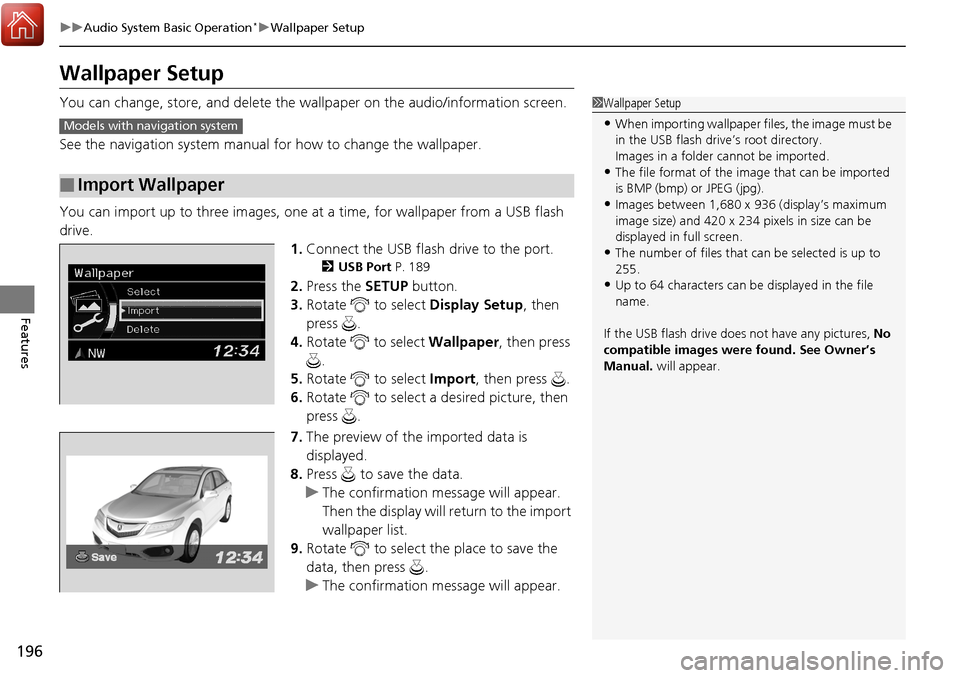
You can import up to three images, one at a time, for wallpaper from a USB flash
drive. 1.Connect the USB flash drive to the port.
2 USB Port P. 189
2.Press the SETUP button.
3. Rotate to select Display Setup, then
press .
4. Rotate to select Wallpaper, then press
.
5. Rotate to select Import, then press .
6. Rotate to select a desired picture, then
press .
7. The preview of the imported data is
displayed.
8. Press to save the data.
u The confirmation message will appear.
Then the display will return to the import
wallpaper list.
9. Rotate to select the place to save the
data, then press .
u The confirmation message will appear.
■Import Wallpaper
1Wallpaper Setup
•When importing wallpaper files, the image must be
in the USB flash drive’s root directory.
Images in a folder cannot be imported.
•The file format of the im age that can be imported
is BMP (bmp) or JPEG (jpg).
•Images between 1,680 x 936 (display’s maximum
image size) and 420 x 234 pixels in size can be
displayed in full screen.
•The number of files that can be selected is up to
255.
•Up to 64 characters can be displayed in the file
name.
If the USB flash drive doe s not have any pictures, No
compatible images were found. See Owner’s
Manual. will appear.
Models with navigation system
Page 221 of 453
220
Features
General Information on the Audio System*
SiriusXM® Radio Service
1. You need your radio ID ready before registering for subscription. To see the ID in
the display: Turn the selector knob until 0 appears.
2. Have your radio ID and credit card num ber ready, and either call or visit the
SiriusXM ® website to subscribe.
Press the (SiriusXM ®) button and stay in this mode for about 30 minutes
until the service is activated. Make sure yo ur vehicle is in an open area with good
reception.
Loading...:
SiriusXM ® is loading the audio or program information.
Channel Off Air:
The channel is not currently broadcasting.
Channel Not Authorized:
SiriusXM ® radio is receiving information update from the network.
No Signal:
The signal is too weak in the current location.
--------:
No such channel exists, the channel is not pa rt of your subscription, or the artist or
title information is unavailable.
Check Antenna:
There is a problem with the SiriusXM ® antenna. Contact a dealer.
■Subscribing to SiriusXM® Radio
■Receiving SiriusXM® Radio
■SiriusXM® Radio Display Messages
1 Subscribing to SiriusXM ® Radio
Contact Information for SiriusXM ® Radio:
US: SiriusXM ® Radio at www.siriusxm.com or
1-866-635-2349
Canada: SiriusXM ® Canada at www.siriusxm.ca, or
1-877-209-0079
1 Receiving SiriusXM ® Radio
The SiriusXM ® satellites are in orbit over the equator;
therefore, objects south of the vehicle may cause
satellite reception interruptions. Sa tellite signals are
more likely to be blocked by tall buildings and
mountains the farther north you travel from the
equator.
You may experience rece ption problems under the
following circumstances:
•In a location with an obstruction to the south of
your vehicle.
•In tunnels•On the lower level of a multi-tiered road
•Large items carried on the roof rack
* Not available on all models
Page 227 of 453

226
Features
Bluetooth® HandsFreeLink ®
For models with navigation system, see Navigation System Manual for how to
operate Bluetooth ® HandsFreeLink ®.
Bluetooth ® HandsFreeLink ® (HFL) allows you to place and receive phone calls using
your vehicle’s audio system, without handling your cell phone.
Using HFL
(Pick-up) button: Press to go directly to the Phone screen or to answer an
incoming call.
(Hang-up) button: Press to end a call.
(Talk) button: Press to call a number with a stored voice tag.
(Back) button: Press to cancel a command.
PHONE button: Press to go directly to the Phone screen.
Selector knob: Rotate to select an item on the screen, then press .
■HFL Buttons
1Bluetooth ® HandsFreeLink ®
To use HFL, you need a Bluetooth-compatible cell
phone. For a list of compatible phones, pairing
procedures, and special feature capabilities:
•U.S.: Visit www.acura.com/handsfreelink , or call 1-
888-528-7876.
•Canada: Visit www.handsfreelink.ca , or call 1-888-
528-7876.
Voice control tips
•Aim the vents away from the ceiling and close the
windows, as noise coming fr om them may interfere
with the microphone.
•Press and release the button when you want to
call a number using a st ored voice tag. Speak
clearly and naturally after a beep.
•If the microphone picks up vo ices other than yours,
the command may be misinterpreted.
•To change the volume level, use the audio system’s
volume knob or the remote audio controls on the
steering wheel.
State or local laws may pr ohibit the operation of
handheld electronic devi ces while operating a
vehicle.
Models with navigation system
Models without navigation system
Talk Button
Volume upMicrophone
Hang-up Button
Pick-up Button
Volume down
Selector Knob
PHONE Button
Back Button
Page 325 of 453
324
uuBraking uCollision Mitigation Braking SystemTM (CMBSTM)*
Driving
Collision Mitigati on Braking SystemTM (CMBSTM)*
Can assist you when there is a possibility of your vehicle colliding with a vehicle or a
pedestrian detected in front of yours. The CMBSTM is designed to alert you when a
potential collision is determined, as well as to reduce your vehicle speed to help
minimize collision severity when a collision is deemed unavoidable.
■How the system works
1 Collision Mitigation Braking SystemTM (CMBSTM)*
Important Safety Reminder
The CMBSTM is designed to reduce the severity of an
unavoidable collision. It does not prevent collision nor
stop the vehicle automatically. It is still your
responsibility to operate the brake pedal and steering
wheel appropriately acco rding to the driving
conditions.
The CMBS
TM may not activate or may not detect a
vehicle in front of y our vehicle under certain
conditions:
2 CMBS
TM Conditions and Limitations P. 328
You can read about handling information for the
camera equipped with this system. 2 Front Sensor Camera
* P. 284
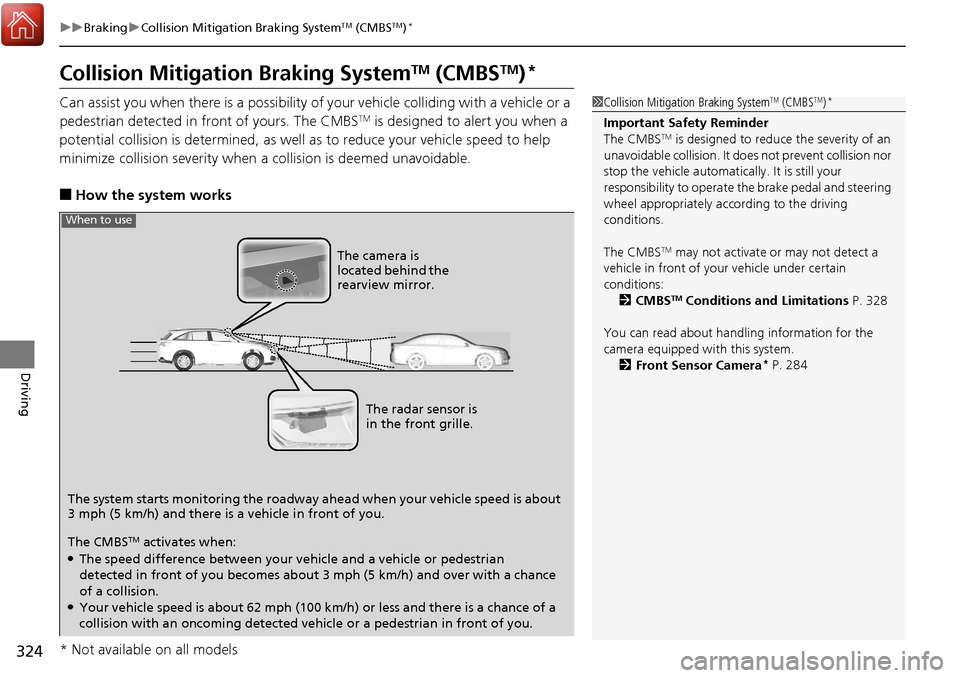
The system starts monitoring the roadway ah ead when your vehicle speed is about
3 mph (5 km/h) and there is a vehicle in front of you. The radar sensor is
in the front grille.
The CMBS
TM activates when:●The speed difference between your vehicle and a vehicle or pedestrian
detected in front of you becomes about 3 mph (5 km/h) and over with a chance
of a collision.
●Your vehicle speed is about 62 mph (100 km/h) or less and there is a chance of a
collision with an oncoming detected vehicle or a pedestrian in front of you. The camera is
located behind the
rearview mirror.
When to use
* Not available on all models
Page 327 of 453
326
uuBraking uCollision Mitigation Braking SystemTM (CMBSTM)*
Driving
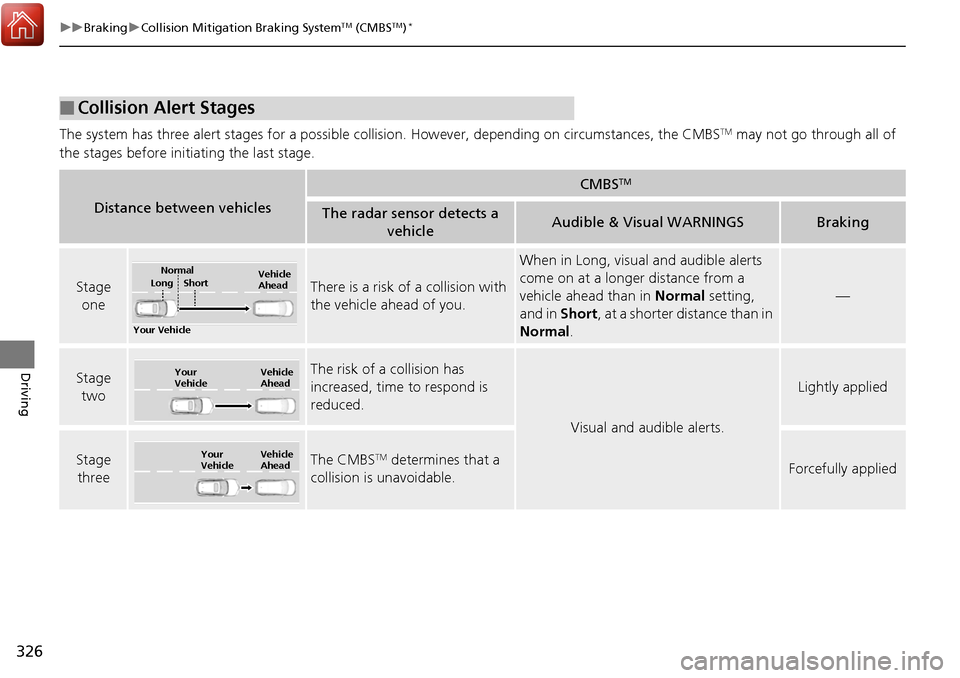
The system has three alert stages for a possible collision. However, depending on circumstances, the CMBSTM may not go through all of
the stages before initiating the last stage.
■Collision Alert Stages
Distance between vehicles
CMBSTM
The radar sensor detects a vehicleAudible & Visual WARNINGSBraking
Stage oneThere is a risk of a collision with
the vehicle ahead of you.
When in Long, visual and audible alerts
come on at a longer distance from a
vehicle ahead than in Normal setting,
and in Short, at a shorter distance than in
Normal .
—
Stage
twoThe risk of a collision has
increased, time to respond is
reduced.
Visual and audible alerts.
Lightly applied
Stage
three The CMBSTM determines that a
collision is unavoidable.Forcefully applied
Your Vehicle Vehicle
Ahead
Normal
Short
Long
Your
Vehicle Vehicle
Ahead
Your
VehicleVehicle
Ahead
Page 341 of 453

340
Driving
Multi-View Rear Camera
About Your Multi-View Rear Camera
For models with navigation system, see Navigation System Manual.
The audio/information screen can display your vehicle’s rear view. The display
automatically changes to the rear view when the shift lever is moved to
(R.
You can view three different camera angl es on the rearview display. Press the
selector knob to switch the angle.
If the last used viewing mode is Wide or Normal, the same mode is selected the next
time you shift into
(R. If Top view was last used, Wide mode is selected.
■Multi-View Rear Camera Display Area
1 About Your Multi-View Rear Camera
The rear camera view is restricted. You cannot see
the corner ends of the bum per or what is underneath
the bumper. Its unique le ns also makes objects
appear closer or farther than they actually are.
Visually confirm that it is safe to drive before backing
up. Certain conditions (such as weather, lighting, and
high temperatures) may also restrict the rear view. Do
not rely on the rearview display which does not give
you all information about conditions at the back of
your vehicle.
If the camera lens is cove red with dirt or moisture,
use a soft, moist cloth to keep the lens clean and free
of debris.Models with navigation system
Models without navigation system
Guidelines
Bumper
Camera Approx. 20 inches (50 cm)
Tailgate Open Range
Approx. 39 inches (1 m)
Approx. 79 inches (2 m)
Approx. 118 inches (3 m)
Wide View Mode
Normal View Mode
Top Down View Mode
Page 386 of 453

385
Maintenance
Battery
Checking the Battery
Check the battery terminals for corrosion monthly.
If your vehicle’s battery is disconnected or goes dead:
• The audio system is disabled.
2 Reactivating the audio system P. 190
•The clock resets.
2 Setting the Clock P. 120
•The navigation system* is disabled.
2 Refer to navigation system manual
Charging the Battery
Disconnect both battery cables to prevent damaging your vehicle’s electrical system.
Always disconnect the negative (–) cable first, and reconnect it last.
1Battery
WARNING: Battery post, terminals,
and related accessories contain lead
and lead compounds.
Wash your hands after handling.
When you find corrosion, cl ean the battery terminals
by applying a baking powder and water solution.
Rinse the terminals with water. Cloth/towel dry the
battery. Coat the terminals with grease to help
prevent future corrosion.
When replacing the battery, the replacement must be
of the same specifications.
Please consult a dealer for more information.
3WARNING
The battery gives off explosive hydrogen
gas during normal operation.
A spark or flame can cause the battery to
explode with enough force to kill or
seriously hurt you.
When conducting any battery
maintenance, wear prot ective clothing and
a face shield, or have a skilled technician do
it.
* Not available on all models
Page 428 of 453

427
uuFuses uFuse Locations
Handling the Unexpected
Located under the dashboard.
Fuse locations are shown on the label on
the side panel.
Locate the fuse in question by the fuse
number and label number.
■Circuit protected and fuse rating
■Interior Fuse Box
Fuse Label
Fuse Box
Circuit ProtectedAmps
1−−
2ACG15 A
3ODS7.5 A
4Fuel Pump15 A
5Meter7.5 A
6Rear Wiper10 A
7VB SOL10 A
8Front Right Side
Door Lock Motor (Unlock)15 A
9Rear Left Side
Door Lock Motor (Unlock)15 A
10 Power Lumbar 7.5 A
11Moonroof20 A
12 Accessory Power Socket
(Center Console) 20 A
13Washer Main15 A
14 Seat Heaters 20 A
15Driver’s Door Lock Motor (Unlock)10 A
16 Driver’s Power Seat Sliding 20 A
17Driver’s Power Seat Reclining20 A
18
Passenger’s Power Seat Sliding20 A
19ACC7.5 A
20 ACC Key Lock 7.5 A
21Daytime Running Lights7.5 A
22 A/C 7.5 A
23Option10 A
24 ABS/VSA 7.5 A
25IDAS(10 A)
26 Audio Amp 20 A*1
30 A*2
27Accessory Power Socket
(Front)20 A
28 − −
29SRS10 A
Circuit ProtectedAmps
*1:Models without navigation system
*2:Models with navigation system30
Driver’s Door Lock Motor
(Lock) 10 A
31Smart10 A
32 Front Right Side
Door Lock Motor (Lock) 15 A
33Rear Left Side
Door Lock Motor (Lock)15 A
34 Small Lights 7.5 A
35Illumination7.5 A
36 Rear Wiper Main 10 A
37Passenger’s Power Seat Reclining20 A
38 Left Headlight High Beam 10 A
39Right Headlight High Beam10 A
40 − −
41Door Lock20 A
42 Driver’s Power Window 20 A
43Rear Right Side Power Window20 A
44 Front Right Side Power
Window 20 A
45Rear Left Side Power
Window20 A
46 Wiper 30 A
Circuit ProtectedAmps