Controls Acura RDX 2018 Manual PDF
[x] Cancel search | Manufacturer: ACURA, Model Year: 2018, Model line: RDX, Model: Acura RDX 2018Pages: 453, PDF Size: 20.13 MB
Page 183 of 453
182
Controls
Climate Control System
Using Automatic Climate Control
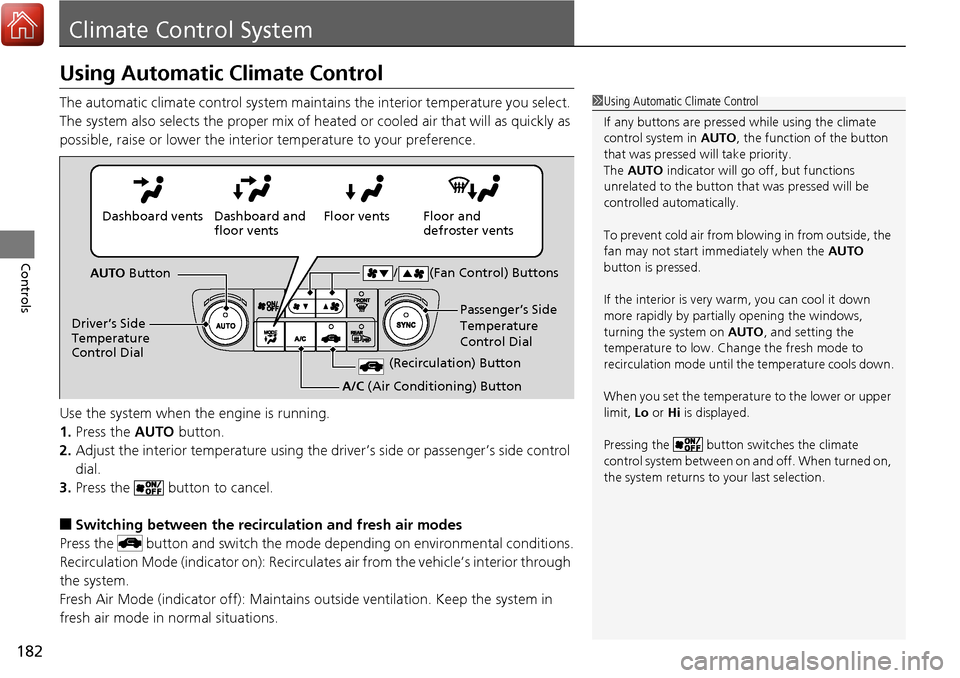
The automatic climate control system maintains the interior temperature you select.
The system also selects the proper mix of heated or cooled air that will as quickly as
possible, raise or lower the interior temperature to your preference.
Use the system when the engine is running.
1. Press the AUTO button.
2. Adjust the interior temperature using the dr iver’s side or passenger’s side control
dial.
3. Press the button to cancel.
■Switching between the recirculation and fresh air modes
Press the button and switch the mode depending on environmental conditions.
Recirculation Mode (indicator on): Recirculates air from the vehicle’s interior through
the system.
Fresh Air Mode (indicator off): Maintains outside ventilation. Keep the system in
fresh air mode in normal situations.
1 Using Automatic Climate Control
If any buttons are presse d while using the climate
control system in AUTO, the function of the button
that was pressed will take priority.
The AUTO indicator will go off, but functions
unrelated to the button th at was pressed will be
controlled automatically.
To prevent cold air from bl owing in from outside, the
fan may not start i mmediately when the AUTO
button is pressed.
If the interior is very warm, you can cool it down
more rapidly by partial ly opening the windows,
turning the system on AUTO, and setting the
temperature to low. Change the fresh mode to
recirculation mode until the temperature cools down.
When you set the temperature to the lower or upper
limit, Lo or Hi is displayed.
Pressing the button switches the climate
control system between on and off. When turned on,
the system returns to your last selection.
Floor and
defroster vents
Floor vents
Dashboard and
floor vents
Dashboard vents
AUTO Button
Driver’s Side
Temperature
Control Dial Passenger’s Side
Temperature
Control Dial
/ (Fan Control) Buttons
(Recirculation) Button
A/C
(Air Conditioning) Button
Page 184 of 453
183
uuClimate Control System uUsing Automatic Climate Control
Controls
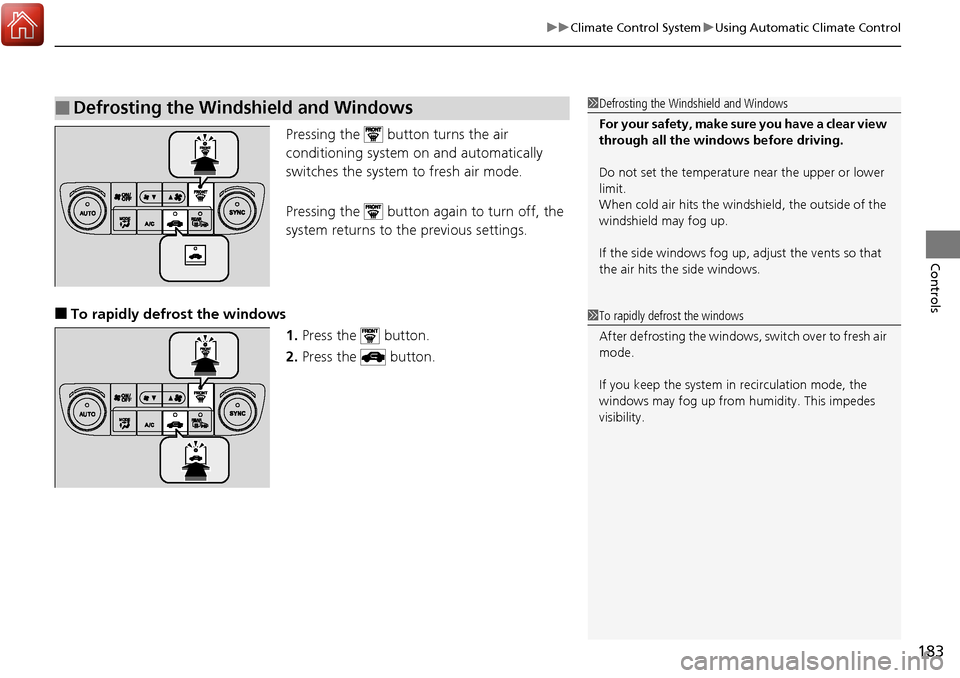
Pressing the button turns the air
conditioning system on and automatically
switches the system to fresh air mode.
Pressing the button again to turn off, the
system returns to the previous settings.
■To rapidly defrost the windows
1.Press the button.
2. Press the button.
■Defrosting the Windshield and Windows1Defrosting the Windshield and Windows
For your safety, make sure you have a clear view
through all the windows before driving.
Do not set the temperatur e near the upper or lower
limit.
When cold air hits the windshield, the outside of the
windshield may fog up.
If the side windows fog up, adjust the vents so that
the air hits th e side windows.
1To rapidly defrost the windows
After defrosting the windows, switch over to fresh air
mode.
If you keep the system in recirculation mode, the
windows may fog up from humidity. This impedes
visibility.
Page 185 of 453
184
uuClimate Control System uSynchronized Mode
Controls
Synchronized Mode
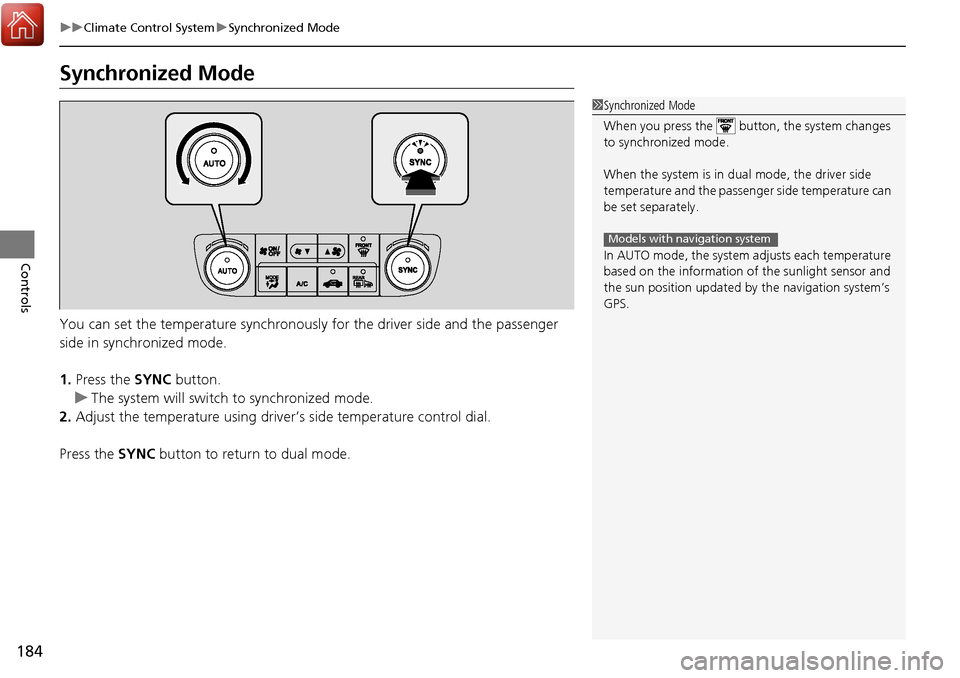
You can set the temperature synchronously for the driver side and the passenger
side in synchronized mode.
1. Press the SYNC button.
u The system will switch to synchronized mode.
2. Adjust the temperature using driver ’s side temperature control dial.
Press the SYNC button to return to dual mode.
1Synchronized Mode
When you press the button, the system changes
to synchronized mode.
When the system is in dua l mode, the driver side
temperature and the passenger side temperature can
be set separately.
In AUTO mode, the system adjusts each temperature
based on the information of the sunlight sensor and
the sun position updated by the navigation system’s
GPS.
Models with navigation system
Page 186 of 453
185
uuClimate Control System uAutomatic Climate Control Sensors
Controls
Automatic Climate Control Sensors
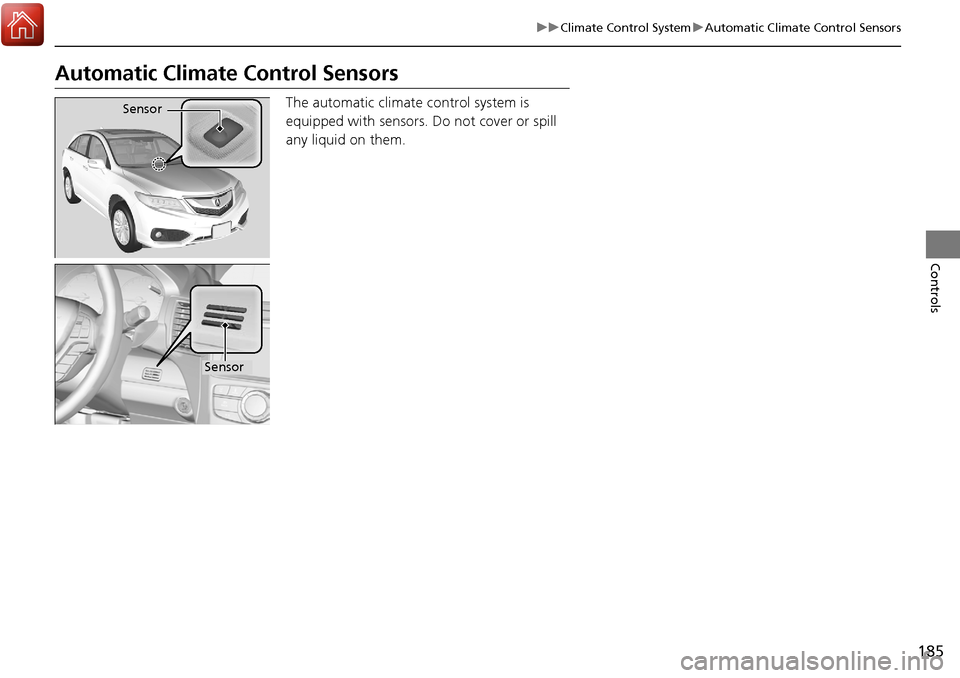
The automatic climate control system is
equipped with sensors. Do not cover or spill
any liquid on them.Sensor
Sensor
Page 188 of 453
187
Features
This chapter describes how to operate technology features.
Audio System*
About Your Audio System ................ 188
USB Port .......................................... 189
Auxiliary Input Jack .......................... 189
Audio System Theft Protection ......... 190
Audio Remote Controls .................... 191
Audio System Basic Operation
*....... 192
Audio/Information Screen ................ 193
Wallpaper Setup .............................. 196
Display Setup ................................... 198
Adjusting the Sound ........................ 199
Playing the AM/FM Radio ................. 200
Playing the SiriusXM ® Radio ............. 202 Playing a CD .................................... 204
Playing an iPod ................................ 207
Playing Pandora
®............................. 210
Playing a USB Flash Drive ................. 212
Playing Bluetooth ® Audio................. 215
Audio Error Messages
*..................... 217
General Information on the Audio System
*............................................ 220
HomeLink ® Universal Transceiver
Training HomeLink ........................... 224
Bluetooth® HandsFreeLink®
Using HFL ........................................ 226
HFL Menus....................................... 228 Compass
*.......................................... 255
* Not available on all models
Page 189 of 453
188
Features
Audio System*
About Your Audio System
On models with navigation system, see Navigation System Manual for operation of
the audio system, AcuraLink, Bluetooth ® HandsFreeLink ®, and voice commands for
these features.
The audio system features AM/FM radio and the SiriusXM ® Radio service. It can also
play audio CDs, WMA/MP3/AAC files, iPod, iPhone, USB flash drives, and
Bluetooth ® devices.
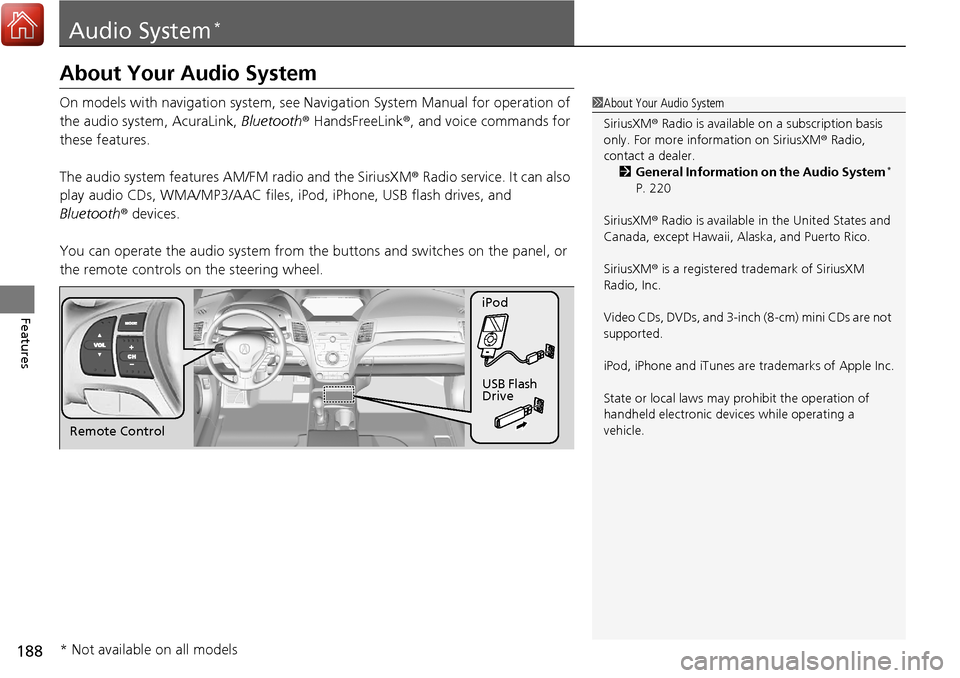
You can operate the audio sy stem from the buttons and sw itches on the panel, or
the remote controls on the steering wheel.1About Your Audio System
SiriusXM ® Radio is available on a subscription basis
only. For more information on SiriusXM ® Radio,
contact a dealer.
2 General Information on the Audio System
*
P. 220
SiriusXM ® Radio is available in the United States and
Canada, except Ha waii, Alaska, and Puerto Rico.
SiriusXM ® is a registered trademark of SiriusXM
Radio, Inc.
Video CDs, DVDs, and 3-inch (8-cm) mini CDs are not
supported.
iPod, iPhone and iTunes are trademarks of Apple Inc.
State or local laws may pr ohibit the operation of
handheld electronic devi ces while operating a
vehicle.
Remote Control iPod
USB Flash
Drive
* Not available on all models
Page 192 of 453
191
uuAudio System*uAudio Remote Controls
Features
Audio Remote Controls
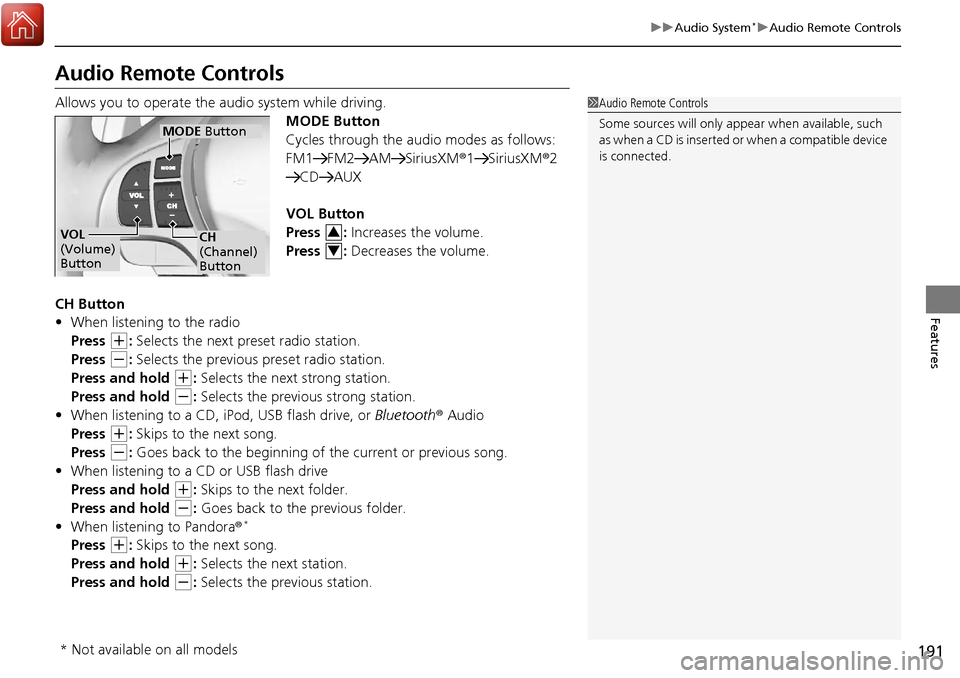
Allows you to operate the audio system while driving.
MODE Button
Cycles through the audio modes as follows:
FM1 FM2 AM SiriusXM®1 SiriusXM®2
CD AUX
VOL Button
Press : Increases the volume.
Press : Decreases the volume.
CH Button
• When listening to the radio
Press
(+: Selects the next preset radio station.
Press
(-: Selects the previous preset radio station.
Press and hold
(+: Selects the next strong station.
Press and hold
(-: Selects the previous strong station.
• When listening to a CD, iPod, USB flash drive, or Bluetooth® Audio
Press
(+: Skips to the next song.
Press
(-: Goes back to the beginning of the current or previous song.
• When listening to a CD or USB flash drive
Press and hold
(+: Skips to the next folder.
Press and hold
(-: Goes back to the previous folder.
• When listening to Pandora®*
Press (+: Skips to the next song.
Press and hold
(+: Selects the next station.
Press and hold
(-: Selects the previous station.
1 Audio Remote Controls
Some sources will only appe ar when available, such
as when a CD is inserted or when a compatible device
is connected.
VOL
(Volume)
Button
MODE Button
CH
(Channel)
Button3
4
* Not available on all models
Page 193 of 453
192
Features
Audio System Basic Operation*
To use the audio system function, the power mode must be in ACCESSORY or ON.
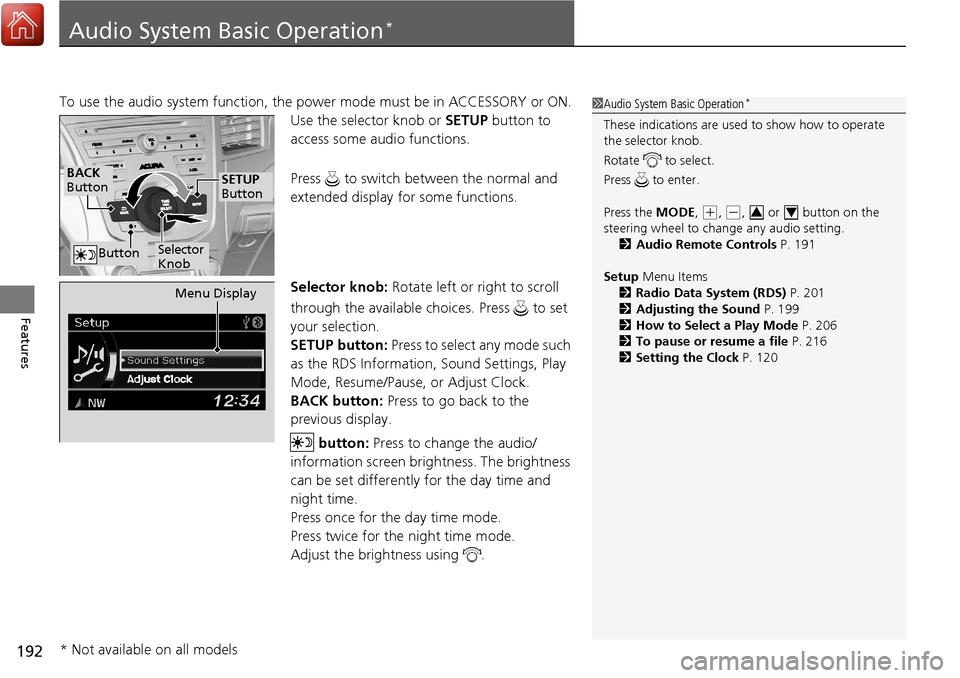
Use the selector knob or SETUP button to
access some audio functions.
Press to switch between the normal and
extended display fo r some functions.
Selector knob: Rotate left or right to scroll
through the available choices. Press to set
your selection.
SETUP button: Press to select any mode such
as the RDS Information, Sound Settings, Play
Mode, Resume/Pause, or Adjust Clock.
BACK button: Press to go back to the
previous display.
button: Press to change the audio/
information screen brightness. The brightness
can be set differently for the day time and
night time.
Press once for the day time mode.
Press twice for the night time mode.
Adjust the brightness using . 1 Audio System Basic Operation*
These indications are used to show how to operate
the selector knob.
Rotate to select.
Press to enter.
Press the MODE,
(+, (-, or button on the
steering wheel to cha nge any audio setting.
2 Audio Remote Controls P. 191
Setup Menu Items
2 Radio Data System (RDS) P. 201
2 Adjusting the Sound P. 199
2 How to Select a Play Mode P. 206
2 To pause or resume a file P. 216
2 Setting the Clock P. 12034
BACK
Button
Selector
Knob
SETUP
Button
Button
Menu Display
* Not available on all models
Page 202 of 453
201
uuAudio System Basic Operation*uPlaying the AM/FM Radio
Features
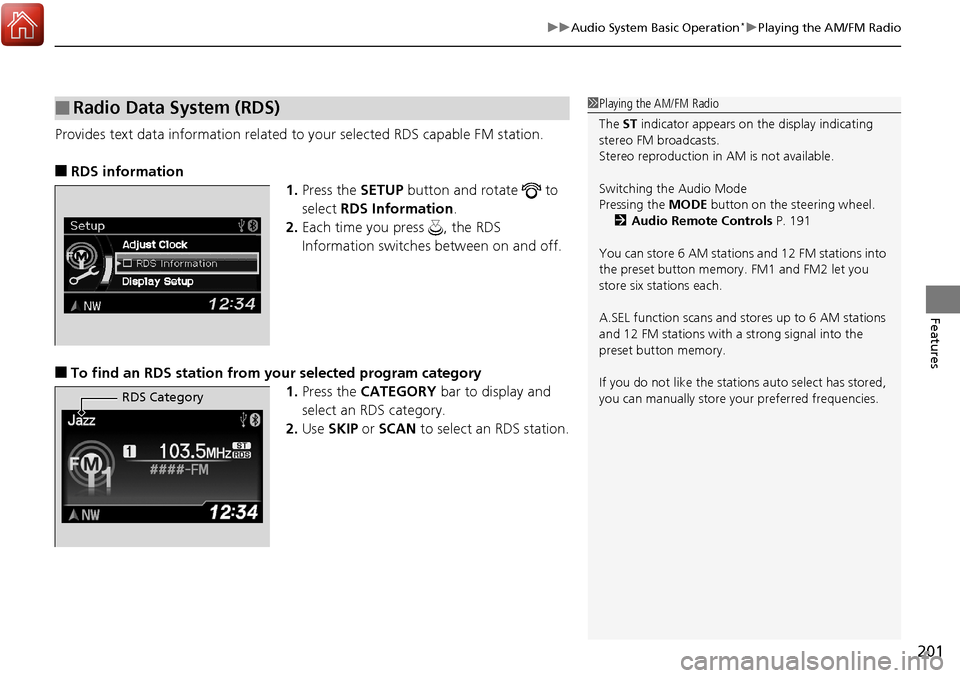
Provides text data information related to your selected RDS capable FM station.
■RDS information
1.Press the SETUP button and rotate to
select RDS Information .
2. Each time you press , the RDS
Information switches between on and off.
■To find an RDS station from your selected program category
1.Press the CATEGORY bar to display and
select an RDS category.
2. Use SKIP or SCAN to select an RDS station.
■Radio Data System (RDS)1Playing the AM/FM Radio
The ST indicator appears on the display indicating
stereo FM broadcasts.
Stereo reproduction in AM is not available.
Switching the Audio Mode
Pressing the MODE button on the steering wheel.
2 Audio Remote Controls P. 191
You can store 6 AM stations and 12 FM stations into
the preset button memory. FM1 and FM2 let you
store six stations each.
A.SEL function scans and stores up to 6 AM stations
and 12 FM stations with a strong signal into the
preset button memory.
If you do not like the stati ons auto select has stored,
you can manually store your preferred frequencies.
RDS Category
Page 227 of 453

226
Features
Bluetooth® HandsFreeLink ®
For models with navigation system, see Navigation System Manual for how to
operate Bluetooth ® HandsFreeLink ®.
Bluetooth ® HandsFreeLink ® (HFL) allows you to place and receive phone calls using
your vehicle’s audio system, without handling your cell phone.
Using HFL
(Pick-up) button: Press to go directly to the Phone screen or to answer an
incoming call.
(Hang-up) button: Press to end a call.
(Talk) button: Press to call a number with a stored voice tag.
(Back) button: Press to cancel a command.
PHONE button: Press to go directly to the Phone screen.
Selector knob: Rotate to select an item on the screen, then press .
■HFL Buttons
1Bluetooth ® HandsFreeLink ®
To use HFL, you need a Bluetooth-compatible cell
phone. For a list of compatible phones, pairing
procedures, and special feature capabilities:
•U.S.: Visit www.acura.com/handsfreelink , or call 1-
888-528-7876.
•Canada: Visit www.handsfreelink.ca , or call 1-888-
528-7876.
Voice control tips
•Aim the vents away from the ceiling and close the
windows, as noise coming fr om them may interfere
with the microphone.
•Press and release the button when you want to
call a number using a st ored voice tag. Speak
clearly and naturally after a beep.
•If the microphone picks up vo ices other than yours,
the command may be misinterpreted.
•To change the volume level, use the audio system’s
volume knob or the remote audio controls on the
steering wheel.
State or local laws may pr ohibit the operation of
handheld electronic devi ces while operating a
vehicle.
Models with navigation system
Models without navigation system
Talk Button
Volume upMicrophone
Hang-up Button
Pick-up Button
Volume down
Selector Knob
PHONE Button
Back Button