COMMAND Acura RDX 2020 Owner's Manual
[x] Cancel search | Manufacturer: ACURA, Model Year: 2020, Model line: RDX, Model: Acura RDX 2020Pages: 657, PDF Size: 33.2 MB
Page 244 of 657
243
uuAudio System uAudio Remote Controls
Continued
Features
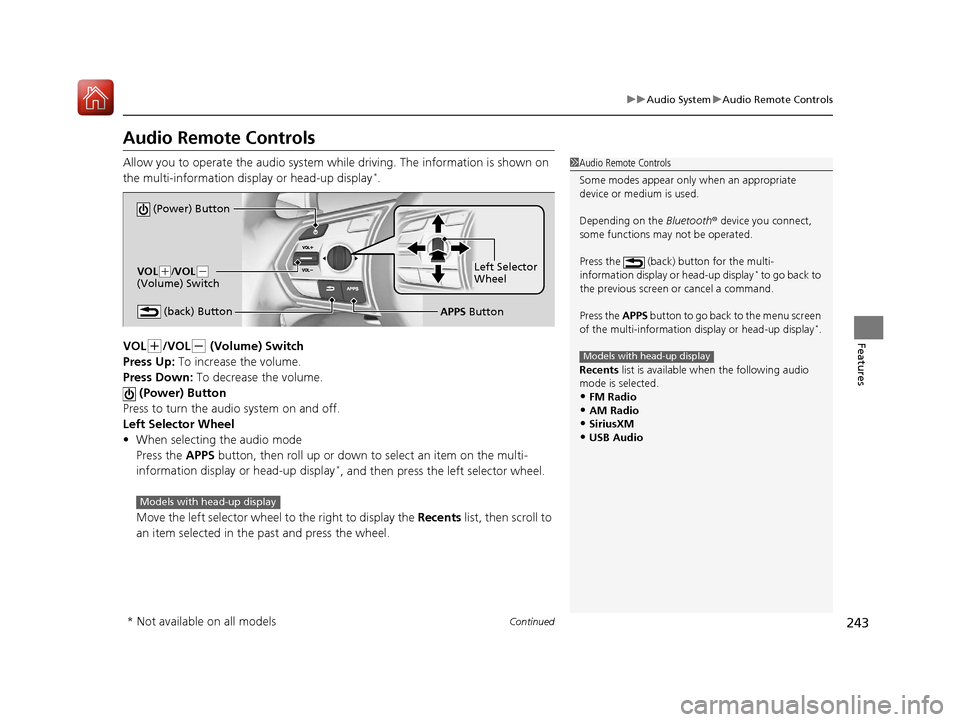
Audio Remote Controls
Allow you to operate the audio system whil e driving. The information is shown on
the multi-information display or head-up display*.
VOL
(+/VOL(- (Volume) Switch
Press Up: To increase the volume.
Press Down: To decrease the volume.
(Power) Button
Press to turn the audio system on and off.
Left Selector Wheel
• When selecting the audio mode
Press the APPS button, then roll up or down to select an item on the multi-
information display or head-up display
*, and then press the left selector wheel.
Move the left selector wheel to the right to display the Recents list, then scroll to
an item selected in the past and press the wheel.
1 Audio Remote Controls
Some modes appear only when an appropriate
device or medium is used.
Depending on the Bluetooth® device you connect,
some functions ma y not be operated.
Press the (back) button for the multi-
information display or head-up display
* to go back to
the previous screen or cancel a command.
Press the APPS button to go back to the menu screen
of the multi-information di splay or head-up display
*.
Recents list is available when the following audio
mode is selected.
•FM Radio
•AM Radio•SiriusXM
•USB Audio
Models with head-up display
(Power) Button
VOL( +/VOL(-
(Volume) Switch
(back) ButtonLeft Selector
Wheel
APPS Button
Models with head-up display
* Not available on all models
20 ACURA RDX-31TJB6111.book 243 ページ 2020年2月11日 火曜日 午後2時6分
Page 247 of 657

246
uuAudio System Basic Operation uTrue Touchpad Operation
Features
True Touchpad Operation
You can operate the system using yo ur finger(s) on the true touchpad.
■Click
Lightly press true touchpad A to select an
item.
■Press and hold
Press and hold to initiate edit mode
throughout the system.
■Swipe
Swipe or drag your finger in various directions
to operate each screen.
■True Touchpad A Operation
1 True Touchpad Operation
True Touchpad Operation
•Some items may be grayed out during driving to
reduce the potential for distraction.
•You can select them when the vehicle is stopped or
use voice commands.
•Wearing gloves may limit or prevent true touchpad
response.
•Some electronics like inverters may cause slow
response while using the true touchpad.
You can operate the true touchpad using gloves
when you set the Touchpad Sensitivity setting to
High . However, the insulated gloves can not be
operated the true touchpad.
2 Customized Features P. 335
20 ACURA RDX-31TJB6111.book 246 ページ 2020年2月11日 火曜日 午後2時6分
Page 271 of 657
270
uuAudio System Basic Operation uVoice Control Operation
Features
Voice Control Operation
Your vehicle has a voice control system that allows hands-free operation.
The voice control system uses the (tal k) and (back) buttons on the steering
wheel and a microphone near the map lights on the ceiling.
To achieve optimum voice recognition when using the voice control system:
• The system recognize a natural language and accept your free form voice
command.
An example of voice commands:
2 Voice Recognition Screen P. 271
•Close the windows and panoramic roof.
• Adjust the dashboard and side vents so air does not blow onto the microphone
on the ceiling.
• Speak clearly in a clear, natural speaking voice without pausing between words.
• Reduce any background noise if possible. The system may misinterpret your
command if more than one person is speaking at the same time.
■Voice Recognition
1Voice Control Operation
When you press the button, the system beeps and
the display changes to the voice recognition screen.
Press the (home) button, (back) button on
the true touchpad or APPS button on the steering
wheel to cancel a voice recognition function.
20 ACURA RDX-31TJB6111.book 270 ページ 2020年2月11日 火曜日 午後2時6分
Page 272 of 657
271
uuAudio System Basic Operation uVoice Control Operation
Continued
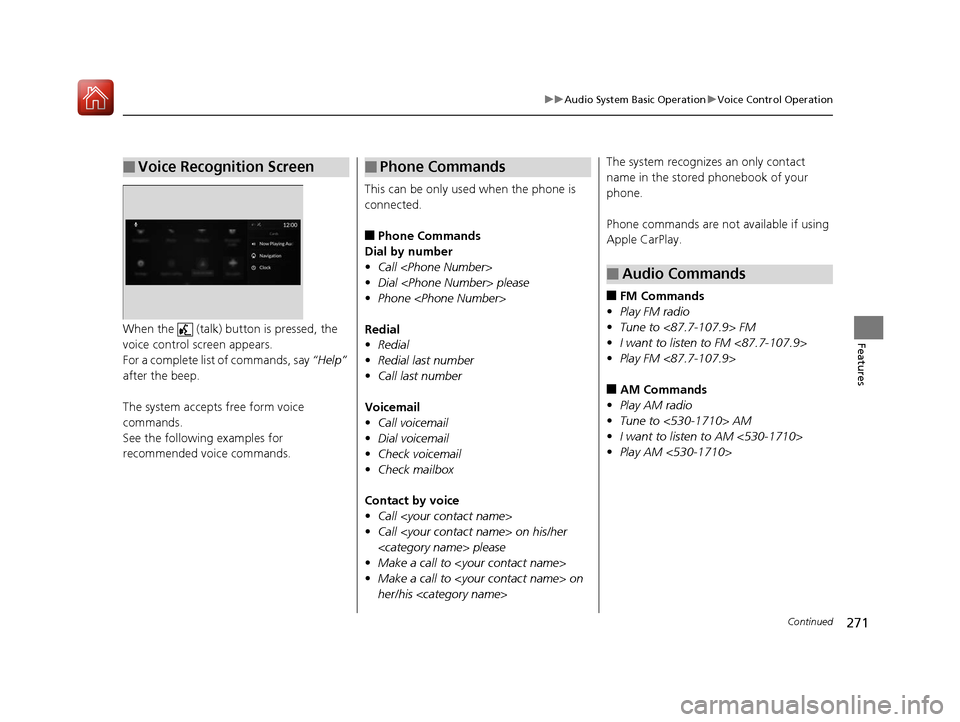
FeaturesWhen the (talk) button is pressed, the
voice control screen appears.
For a complete list of commands, say “Help”
after the beep.
The system accepts free form voice
commands.
See the following examples for
recommended voice commands.
■Voice Recognition Screen
This can be only used when the phone is
connected.
■Phone Commands
Dial by number
• Call
• Dial
• Phone
Redial
• Redial
• Redial last number
• Call last number
Voicemail
• Call voicemail
• Dial voicemail
• Check voicemail
• Check mailbox
Contact by voice
• Call
• Call
• Make a call to
• Make a call to
her/his
■Phone CommandsThe system recognizes an only contact
name in the stored phonebook of your
phone.
Phone commands are not available if using
Apple CarPlay.
■FM Commands
• Play FM radio
• Tune to <87.7-107.9> FM
• I want to listen to FM <87.7-107.9>
• Play FM <87.7-107.9>
■AM Commands
• Play AM radio
• Tune to <530-1710> AM
• I want to listen to AM <530-1710>
• Play AM <530-1710>
■Audio Commands
20 ACURA RDX-31TJB6111.book 271 ページ 2020年2月11日 火曜日 午後2時6分
Page 273 of 657
272
uuAudio System Basic Operation uVoice Control Operation
Features
■Sirius XM Commands
• Play XM radio
• Play XM
• Listen to
• Play XM Channel
• Tune to
• Listen to
satellite radio
■USB Commands
• Play USB
• Play iPod
• Play genre
• Play
• Play
• Play
• Play
■Bluetooth ® Audio Commands
• Play Bluetooth
■AUX Commands
• Play AUX
2 Refer to the Navigation System Manual
•Help
• Cancel
• Repeat
Voice Help are readout voice guidance for
Help on current screen.
You can search for the desired item on each
search screen with your voice.
• Next Page
• Previous Page
• Back
• Go to
• Select
*1: Models with navigation system
■Navigation Commands*1
■Standard Commands
■Letter Input Commands
■List Commands
20 ACURA RDX-31TJB6111.book 272 ページ 2020年2月11日 火曜日 午後2時6分
Page 302 of 657
301
uuAudio System Basic Operation uSiri Eyes Free
Features
Siri Eyes Free
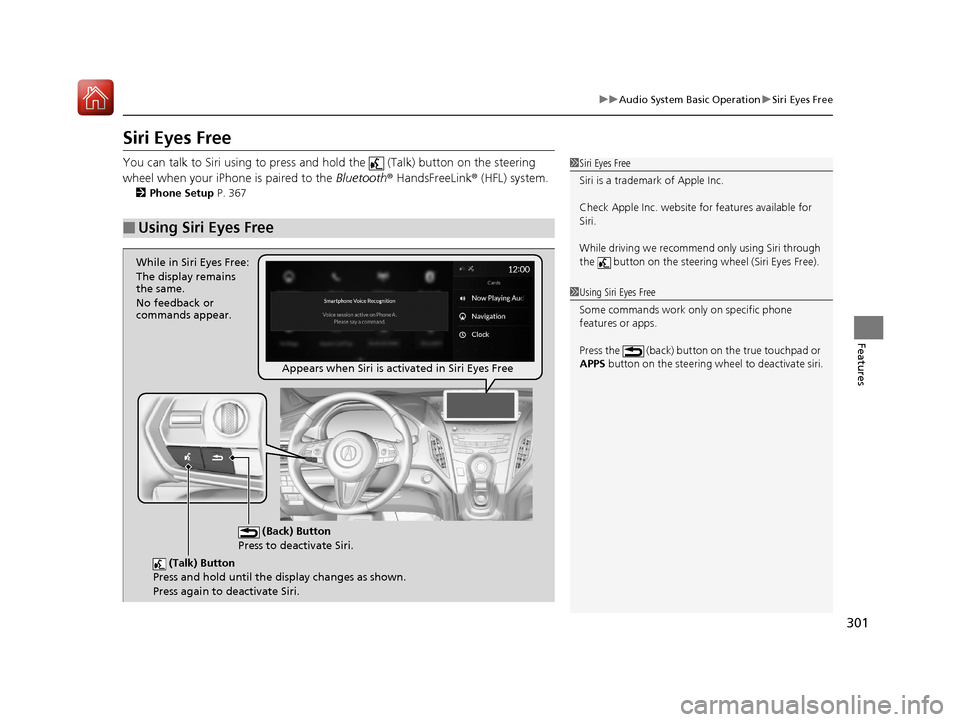
You can talk to Siri using to press and hold the (Talk) button on the steering
wheel when your iPhone is paired to the Bluetooth® HandsFreeLink ® (HFL) system.
2 Phone Setup P. 367
■Using Siri Eyes Free
1Siri Eyes Free
Siri is a trademark of Apple Inc.
Check Apple Inc. website for features available for
Siri.
While driving we recomme nd only using Siri through
the button on the steering wheel (Siri Eyes Free).
1Using Siri Eyes Free
Some commands work only on specific phone
features or apps.
Press the (back) button on the true touchpad or
APPS button on the steering whee l to deactivate siri.
(Talk) Button
Press and hold until the display changes as shown.
Press again to deactivate Siri.
(Back) Button
Press to deactivate Siri.
While in Siri Eyes Free:
The display remains
the same.
No feedback or
commands appear.
Appears when Siri is activated in Siri Eyes Free
20 ACURA RDX-31TJB6111.book 301 ページ 2020年2月11日 火曜日 午後2時6分
Page 306 of 657
305
uuAudio System Basic Operation uApple CarPlay
Features
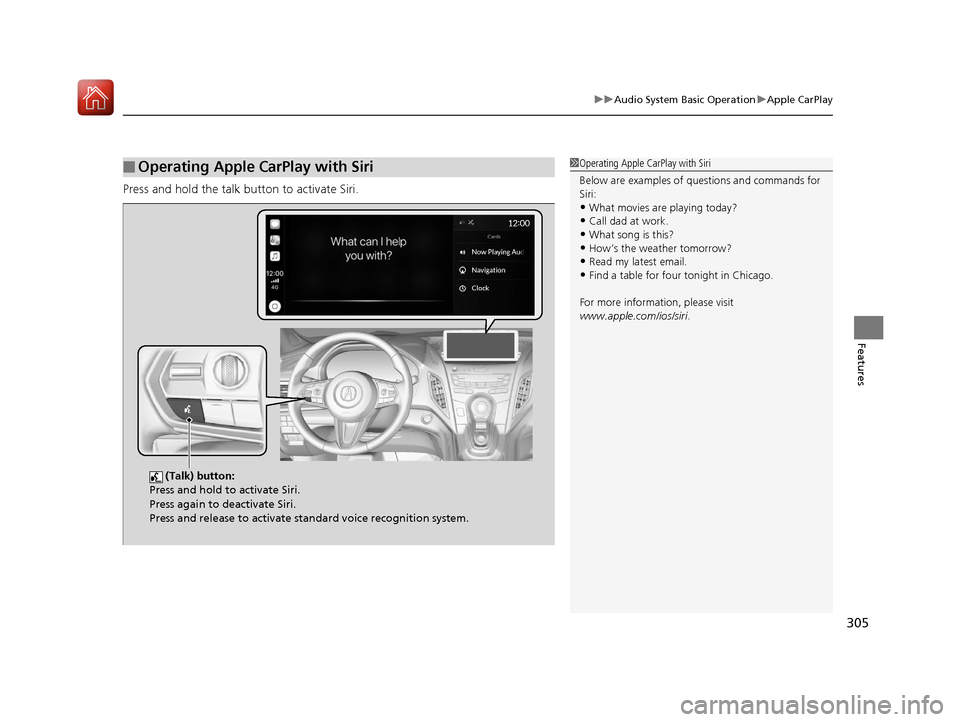
Press and hold the talk bu tton to activate Siri.
■Operating Apple CarPlay with Siri1Operating Apple CarPlay with Siri
Below are examples of questions and commands for
Siri:
•What movies are playing today?
•Call dad at work.
•What song is this?•How’s the weather tomorrow?
•Read my latest email.
•Find a table for four tonight in Chicago.
For more information, please visit
www.apple.com/ios/siri .
(Talk) button:
Press and hold to activate Siri.
Press again to deactivate Siri.
Press and release to activate st andard voice recognition system.
20 ACURA RDX-31TJB6111.book 305 ページ 2020年2月11日 火曜日 午後2時6分
Page 322 of 657
321
uuGeneral Information on the Audio System uHonda App License Agreement
Continued
Features
2. Potential Map Inaccuracy and Route Safety. Maps used by this system may be inaccurate because of changes in roads, traffic controls,
routing, or driving conditions. Always use good judgment and co mmon sense when following suggested routes. Do not follow the ro ute
suggestions if doing so would result in an unsafe or illegal driving maneuver, if you would be placed in an unsafe situation, or if you would
be directed into an area that you consider unsafe. Do not rely on any navigation featur es included in the system to route you to emergency
services. Not all emergency services such as police, fire stations, hospitals, or clinics are likely to be contained in the map database for such
navigation features. Ask local authorities or an emergency services operator for such locations and routes. The driver is ultimately
responsible for the safe operation of the vehicle and therefore, must evaluate whether it is safe to follow the suggested directions. Any
navigation features are pr ovided only as an aid. Make your driving decisions based on your obse rvations of local conditions and existing
traffic regulations. Navigation features are not a substitute for your personal judgment. Any route suggestions made by the SOF TWARE or
SERVICES should never replace any local traffic regulations or your personal judgment or knowledge of safe driving practices.
3. Speech Recognition:
You acknowledge and understand that HONDA and PROV IDERS may record, retain, and use voices commands
when you use the speech recognition componen ts of the SOFTWARE or SERVICES. You and all VEHICLE operators and passengers (a)
consent to the recording and retention of voice commands in support of providing speech recognition components and (b) release HONDA
and PROVIDERS from all claims, liabilities, and losses that may result from any use of such recorded voice commands. Recognitio n errors
are inherent in speech recognition. It is your responsibility to monitor any speech recognition functions included in the syste m and address
any errors. Neither HONDA nor PROVIDERS will be liable for any damages arising out of errors in the speech recognition process.
4. Distraction Hazards.
Navigation features may require manual (non-verbal) input or setup. Attempting to perform such set-up or insert
data while driving can seriously distract your attention and could cause a crash or other serious consequences; the ability to undertake such
interactions may also be limited by state or local law, which laws you are responsible to know and follow. Even occasional shor t scans of
the screen may be hazardous if your attention has been diverted away from your driving at a critical time. Pull over and stop the vehicle in
a safe and legal manner before attempting to access a function of the system requiring prolonged attention. Do not raise the vo lume
excessively. Keep the volume at a level where you can still hear outside traffic and emergency signals while driving. Driving while unable
to hear these sounds could result in a crash.
20 ACURA RDX-31TJB6111.book 321 ページ 2020年2月11日 火曜日 午後2時6分
Page 362 of 657
361Continued
Features
Bluetooth® HandsFreeLink ®
Bluetooth® HandsFreeLink ® (HFL) allows you to place and receive phone calls using
your vehicle’s audio system, without handling your cell phone.
Using HFL
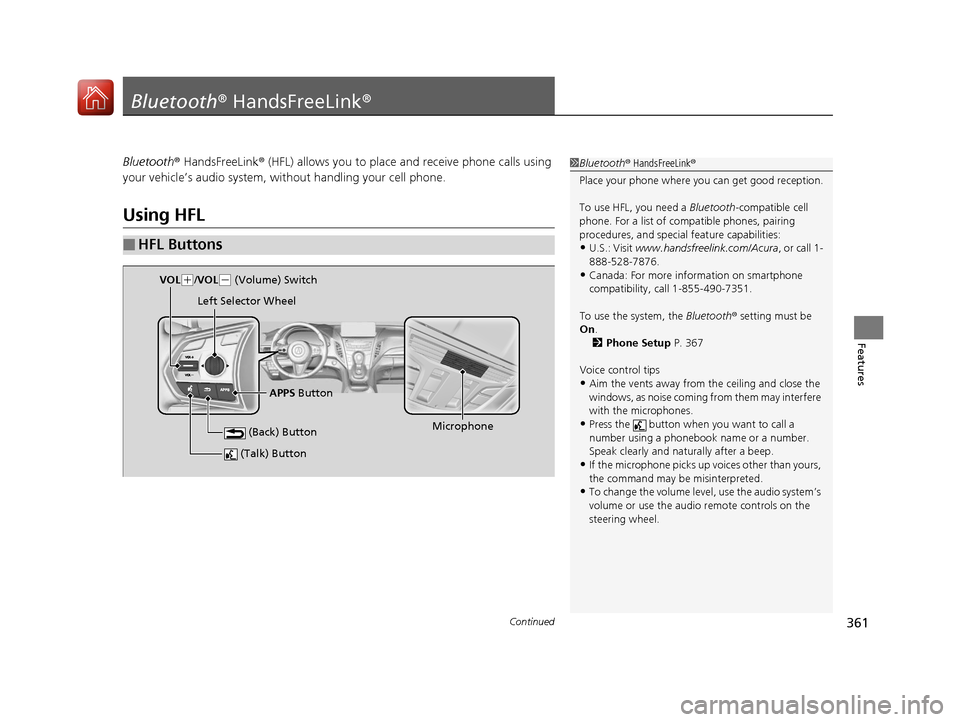
■HFL Buttons
1 Bluetooth ® HandsFreeLink ®
Place your phone where y ou can get good reception.
To use HFL, you need a Bluetooth-compatible cell
phone. For a list of compatible phones, pairing
procedures, and special feature capabilities:
•U.S.: Visit www.handsfreeli nk.com/Acura, or call 1-
888-528-7876.
•Canada: For more info rmation on smartphone
compatibility, call 1-855-490-7351.
To use the system, the Bluetooth® setting must be
On .
2 Phone Setup P. 367
Voice control tips
•Aim the vents away from the ceiling and close the
windows, as noise coming fr om them may interfere
with the microphones.
•Press the button when you want to call a
number using a phonebook name or a number.
Speak clearly and naturally after a beep.
•If the microphone picks up vo ices other than yours,
the command may be misinterpreted.
•To change the volume level, use the audio system’s
volume or use the audio remote controls on the
steering wheel.
(Talk) Button
Microphone
(Back) Button
VOL( +/VOL(- (Volume) Switch
Left Selector Wheel
APPS Button
20 ACURA RDX-31TJB6111.book 361 ページ 2020年2月11日 火曜日 午後2時6分
Page 363 of 657
uuBluetooth ® HandsFreeLink ®u Using HFL
362
Features
Left Selector Wheel:
• Incomming call: Move the selector wheel to the ri ght to answer the call. Move it
to the left to decline the call.
• During a call: Move the selector wheel to the ri ght to display the call options
menu. Move it to the left to end the call.
• (back) button: Press the button to go back to the previous screen or to
cancel a command.
• (talk) button: Press the button to start voice recognition.
To go to the phone screen of the multi-information display or the head-up display
*:
1. Press the APPS button on the steering wheel.
2. Using the selector wheel, scroll to Phone on the multi-information display or the
head-up display
*, and then press the left selector wheel.
u You can select Favorites or Recents by moving the selector wheel to the left
or the right.
1 Bluetooth ® HandsFreeLink ®
Bluetooth ® Wireless Technology
The Bluetooth ® word mark and logos are registered
trademarks owned by Bluetooth SIG, Inc., and any
use of such marks by Honda Motor Co., Ltd., is under
license. Other trademarks and trade names are those
of their respective owners.
HFL Limitations
An incoming call on HFL will interrupt the audio
system when it is playing. It will resume when the call
is ended.
* Not available on all models
20 ACURA RDX-31TJB6111.book 362 ページ 2020年2月11日 火曜日 午後2時6分