steering ACURA RDX 2023 Service Manual
[x] Cancel search | Manufacturer: ACURA, Model Year: 2023, Model line: RDX, Model: ACURA RDX 2023Pages: 713, PDF Size: 21.99 MB
Page 246 of 713
uuInterior Convenience Items uOther Interior Convenience Items
244
Controls
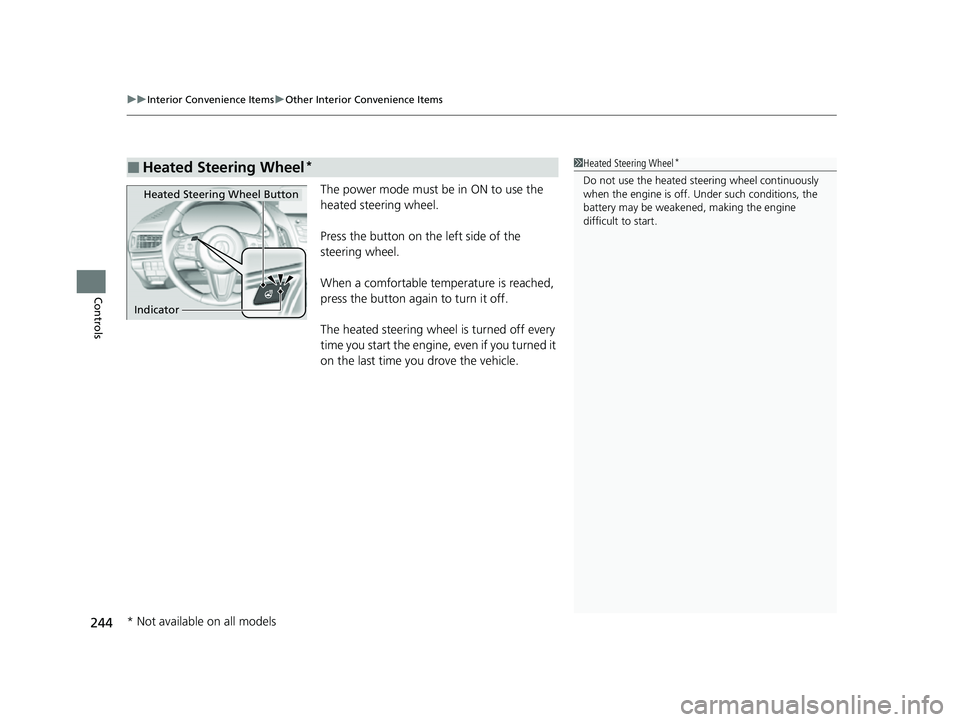
The power mode must be in ON to use the
heated steering wheel.
Press the button on the left side of the
steering wheel.
When a comfortable temperature is reached,
press the button again to turn it off.
The heated steering wheel is turned off every
time you start the engine, even if you turned it
on the last time you drove the vehicle.
■Heated Steering Wheel*1Heated Steering Wheel*
Do not use the heated st eering wheel continuously
when the engine is off. Under such conditions, the
battery may be weaken ed, making the engine
difficult to start.
Heated Steering Wheel Button
Indicator
* Not available on all models
23 ACURA RDX-31TJB6400.book 244 ページ 2022年8月4日 木曜日 午後1時51分
Page 256 of 713

254
Features
Audio System
About Your Audio System
The audio system features AM/FM radio and SiriusXM® Radio service. It can also play
USB flash drives, and iPod, iPhone, iPad and Bluetooth® devices.
You can operate the audio system from the True Touchpad Interface, buttons and
knobs on the panel, or the remote controls on the steering wheel.1 About Your Audio System
State or local laws may pr ohibit the operation of
handheld electronic devices while operating a
vehicle.
SiriusXM ® Radio is available on a subscription basis
only. For more information on SiriusXM ® Radio,
contact a dealer. 2 General Information on the Audio System
P. 336
SiriusXM ® Radio is available in the United States and
Canada, except Ha waii, Alaska, and Puerto Rico.
SiriusXM ® is a registered trademark of SiriusXM
Radio, Inc.
After you turn the power mode to VEHICLE OFF
(LOCK) with the driver’s door closed, you can use the
audio system for up to 30 minutes per driving cycle.
However, whether you can continue using the audio
system depends on the batter y condition. Repeatedly
using this feature ma y drain the battery.
The audio system turns off when you open the
driver’s door.
Remote Controls iPod
USB Flash
Drive
23 ACURA RDX-31TJB6400.book 254 ページ 2022年8月4日 木曜日 午後1時51分
Page 278 of 713
276
uuAudio System Basic Operation uAudio/Information Screen
Features
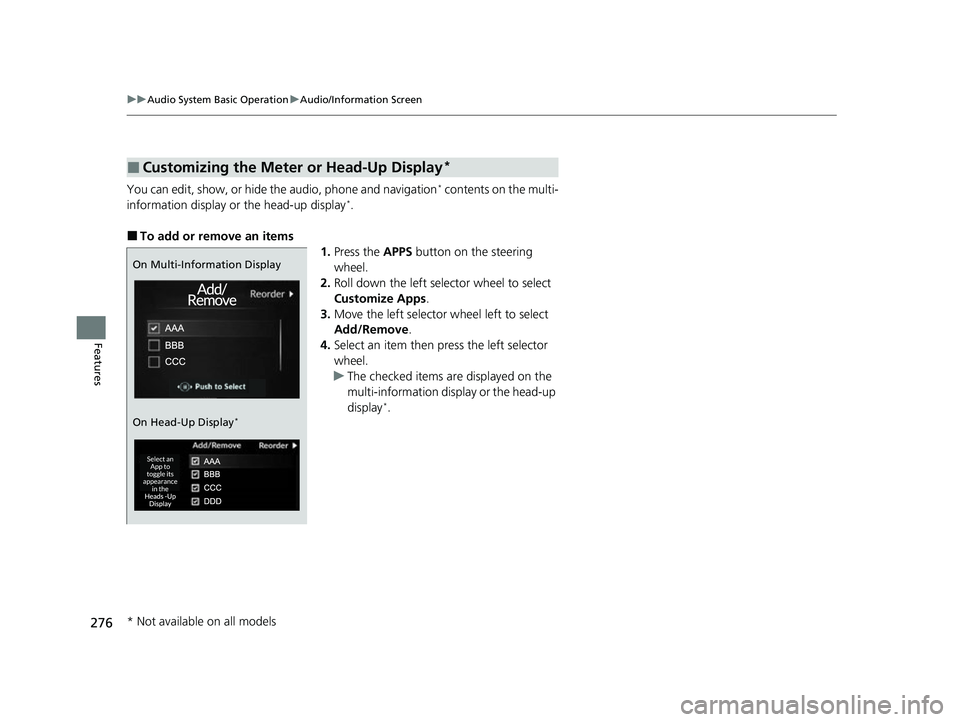
You can edit, show, or hide the audio, phone and navigation* contents on the multi-
information display or the head-up display*.
■To add or remove an items 1.Press the APPS button on the steering
wheel.
2. Roll down the left selector wheel to select
Customize Apps .
3. Move the left selector wheel left to select
Add/Remove .
4. Select an item then press the left selector
wheel.
u The checked items are displayed on the
multi-information display or the head-up
display
*.
■Customizing the Meter or Head-Up Display*
On Multi-Information Display
On Head-Up Display
*
* Not available on all models
23 ACURA RDX-31TJB6400.book 276 ページ 2022年8月4日 木曜日 午後1時51分
Page 279 of 713
277
uuAudio System Basic Operation uAudio/Information Screen
Features
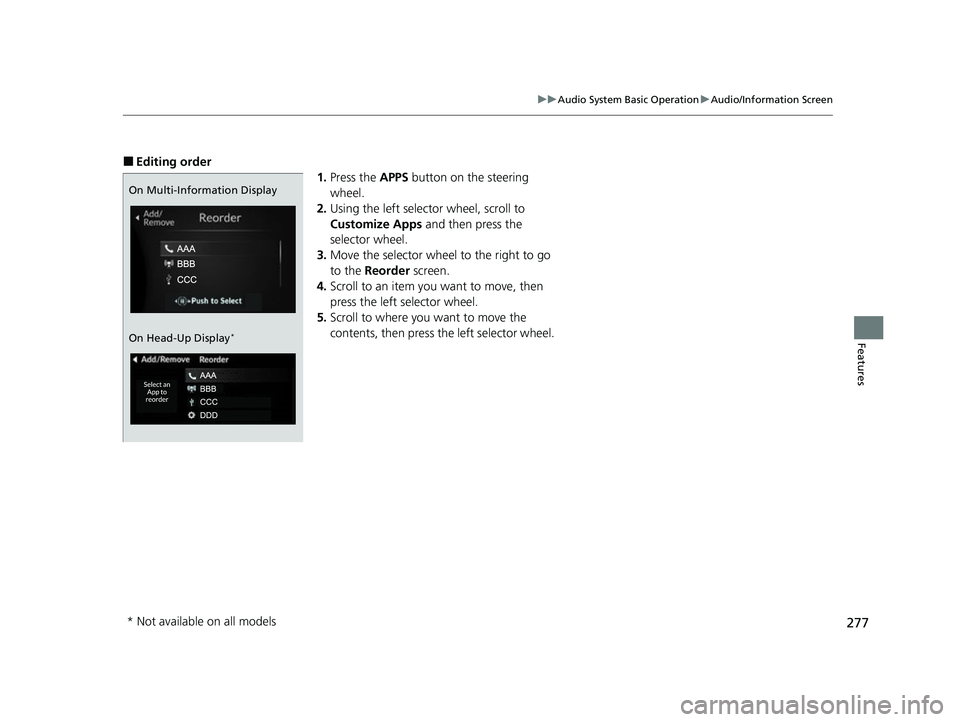
■Editing order
1.Press the APPS button on the steering
wheel.
2. Using the left selector wheel, scroll to
Customize Apps and then press the
selector wheel.
3. Move the selector wheel to the right to go
to the Reorder screen.
4. Scroll to an item you want to move, then
press the left selector wheel.
5. Scroll to where you want to move the
contents, then press the left selector wheel.
On Multi-Information Display
On Head-Up Display
*
* Not available on all models
23 ACURA RDX-31TJB6400.book 277 ページ 2022年8月4日 木曜日 午後1時51分
Page 291 of 713

289
uuAudio System Basic Operation uAlexa Built-In*
Features
Alexa Built-In*
You can talk to Amazon Alexa through the audio system. With Alexa, you can:
• Stream music
• Check the weather
• Answer questions
• Control smart home devices
• And more with supported Alexa skills
Once you sign into Alexa in the vehicle, you
can use Alexa without opening the app.
You can trigger Alexa by doing any of the following:
• Say the wake word “ Alexa” from anywhere in the audio system.
• Press the (Talk) butt on on the steering wheel.
• Select the Alexa icon from inside the app.
■Using Alexa
1Alexa Built-In*
Support Resources
For more information or client support:
•Call Acura Client Re lations at 1-800-382-2238.
•Go to https://www.amazon.com/alexasupport .
1Using Alexa
Troubleshooting Tips:
•Make sure you are connected to your phone via
either Wi-Fi Hotspot or AT&T Vehicle Data Plan.
•If using an AT&T Vehicle Data Plan, confirm that
your subscription is active.
•Make sure you are logged into your Amazon
account.
•If Alexa Built-in is us ing your phone’s Wi-Fi
Network, connecting CarP lay/Android Auto by
wireless will disable Alexa Built-In. To enable Alexa
Built-In and Carplay or A ndroid Auto at the same
time, connect your phone with an Apple or
Android OEM cable.
Deleting Your Alexa Settings from the Vehicle
For your privacy and securi ty, if you transfer the
vehicle to a third party, re set all vehicle settings to
default and delete all personal data. Also, remove the
vehicle from the list of de vices in your phone’s Alexa
app. 2 Defaulting All the Settings P. 385
* Not available on all models
23 ACURA RDX-31TJB6400.book 289 ページ 2022年8月4日 木曜日 午後1時51分
Page 292 of 713
290
uuAudio System Basic Operation uVoice Control Operation
Features
Voice Control Operation
Your vehicle has a voice control system that allows hands-free operation.
The voice control system uses the (tal k) and (back) buttons on the steering
wheel and a microphone near the map lights on the ceiling.
To achieve optimum voice recognition when using the voice control system:
• The system recognizes natural language and accepts free-form voice commands.
An example of voice commands:
2 Voice Recognition Screen P. 291
•Close the windows and panoramic roof.
• Adjust the dashboard and side vents so air does not blow onto the microphone
on the ceiling.
• Speak clearly in a clear, natural speaking voice without pausing between words.
• Reduce any background noise if possible. The system may misinterpret your
command if more than one person is speaking at the same time.
■Voice Recognition
1Voice Control Operation
When you press the button, the system beeps and
the display changes to the voice recognition screen.
Press the (home) button, (back) button on
the True Touchpad Interface or APPS button on the
steering wheel to cancel a voice recognition function.
23 ACURA RDX-31TJB6400.book 290 ページ 2022年8月4日 木曜日 午後1時51分
Page 296 of 713
uuAudio System Basic Operation uPlaying AM/FM Radio
294
Features
To add a favorite station:
1. Tune to the selected station.
2. Select Add Favorite , then select Current Station.
u When you select From Station List , you can store a station from the station
list.
■Editing a favorite station
Select and hold to desire d favorite station icon.
The following items are available:
• Remove Favorite : Delete the favorite station icon from the favorite station list.
• Replace with (number): Replace the stor ed favorite station icon.
• Add to Home Page : Add the shortcut icon of the stored favorite station to the
home screen.
• Add to Heads-Up Display
*: Add the shortcut item of the stored favorite station
to the head-up display menu.
■Favorite Station1 Favorite Station
The ST indicator appears on the display indicating
stereo FM broadcasts.
Stereo reproduction in AM is not available.
Switching the Audio Mode
Press the APPS button on the steering wheel, then
select an item or select the audio source icon on the
home screen.
2 Audio Remote Controls P. 258
You can store 12 AM/FM stati ons as favorite stations.
HD Radio Technology manufactured under license
from iBiquity Digi tal Corporation. U.S. and Foreign
Patents. For patents see http://dts.com/patents. HD
Radio, Artist Experience, and the HD, HD Radio, and
“ARC” logos are registered trademarks or
trademarks of iBiquity Di gital Corporation in the
United States and/ or other countries.
* Not available on all models
23 ACURA RDX-31TJB6400.book 294 ページ 2022年8月4日 木曜日 午後1時51分
Page 300 of 713

uuAudio System Basic Operation uPlaying SiriusXM ® Radio
298
Features
1. Select MENU .
2. Select SiriusXM Settings .
3. Select Tune Mode .
4. Select All Channels or Within Category .
■To Change the Tune Mode1Playing SiriusXM ® Radio
In the channel mode, all available channels are
selectable. In the categor y mode, you can select a
channel within a ca tegory (Jazz, Rock, Classical, etc.).
There may be instances when SiriusXM ® Radio does
not broadcast all the data fi elds (artist name, title).
This does not indicate a problem with your audio
system.
SiriusXM ® Radio stations load in ascending order,
which can take about a minute. Once they have
loaded you will be able to scroll up or down to make
your selections.
Switching the Audio Mode
Press the APPS button on the steering wheel, then
select an item or select the audio source icon on the
home screen. 2 Audio Remote Controls P. 258
Tune Start:
When you change to a favorite channel, a song being
played on that channel restarts from the beginning
with this function. This can be turned on or off by the
following procedure.
1. Select MENU.
2. Select SiriusXM Settings .
3. Select Tune Start .
4. Select On or Off .
To change a category, select Category icons, or
select Channels and then select category item.
23 ACURA RDX-31TJB6400.book 298 ページ 2022年8月4日 木曜日 午後1時51分
Page 338 of 713
336
Features
General Information on the Audio System
SiriusXM® Radio Service
1. You need your radio ID ready before registering for subscription. To see the ID in
the screen, select channel up/down icons to Ch.0.
2. Have your radio ID ready, and either call or visit the SiriusXM ® website to
subscribe.
Switch to the SiriusXM ® mode by using the audio remote controls on the steering
wheel, or through the audio/information screen, and stay in this mode for about 30
minutes until the service is activated. Make sure your vehicle is in an open area with
good reception.
Channel **** not subscribed. Ca ll SiriusXM to subscribe.
*1
You are not subscribed to the channel selected.
Subscription updated:
SiriusXM® radio is receiving informat ion update from the network.
Channel Not Available:
No such channel exits, or the artist or title information is unavailable.
No Signal:
The signal is too weak in the current location.
Check Tuner:
There is a problem with the SiriusXM ® tuner. Contact a dealer.
Check Antenna:
There is a problem with the SiriusXM ® antenna. Contact a dealer.
*1 : ****part is variable characters, and w ill change depending upon where an subscribe.
■Subscribing to SiriusXM® Radio
■Receiving SiriusXM ® Radio
■SiriusXM ® Radio Display Messages
1 Subscribing to SiriusXM ® Radio
Contact Information for SiriusXM ® Radio:
•US: SiriusXM ® Radio at
www.siriusxm.com/subscribenow , or 1-866-635-
2349
•Canada: SiriusXM ® Canada at
www.siriusxm.ca/subscribe-now , or 1-877-209-
0079
1 Receiving SiriusXM ® Radio
The SiriusXM ® satellites are in orbit over the equator;
therefore, objects south of the vehicle may cause
satellite reception interruptions. Sa tellite signals are
more likely to be blocked by tall buildings and
mountains the farther north you travel from the
equator.
You may experience rece ption problems under the
following circumstances:
•In a location with an obstruction to the south of
your vehicle.
•In tunnels•On the lower level of a multi-tiered road
•Large items carried on the roof rack
23 ACURA RDX-31TJB6400.book 336 ページ 2022年8月4日 木曜日 午後1時51分
Page 392 of 713

uuBluetooth ® HandsFreeLink ®u Using HFL
390
Features
Left Selector Wheel:
• Incoming call: Move the selector wheel to the ri ght to answer the call. Move it
to the left to decline the call.
• During a call: Move the selector wheel to the ri ght to display the call options
menu. Move it to the left to end the call.
• (back) button: Press the button to go back to the previous screen or to
cancel a command.
• (talk) button: Press the button to start voice recognition.
To go to the phone screen of the multi-in formation display or the head-up display
*:
1. Press the APPS button on the steering wheel.
2. Using the selector wheel, scroll to Phone on the multi-information display or the
head-up display
*, and then press the left selector wheel.
u You can select Favorites or Recents by moving the selector wheel to the left
or the right.
1 Bluetooth ® HandsFreeLink ®
Bluetooth ® Wireless Technology
The Bluetooth ® word mark and logos are registered
trademarks owned by Bluetooth SIG, Inc., and any
use of such marks by Honda Motor Co., Ltd., is under
license. Other trademarks and trade names are those
of their respective owners.
HFL Limitations
An incoming call on HFL will interrupt the audio
system when it is playing. It will resume when the call
is ended.
* Not available on all models
23 ACURA RDX-31TJB6400.book 390 ページ 2022年8月4日 木曜日 午後1時51分