reset Acura RLX 2014 User Guide
[x] Cancel search | Manufacturer: ACURA, Model Year: 2014, Model line: RLX, Model: Acura RLX 2014Pages: 518, PDF Size: 15.83 MB
Page 164 of 518
Continued
163
uuInterior Lights/Interior Convenience ItemsuInterior Convenience Items
Controls
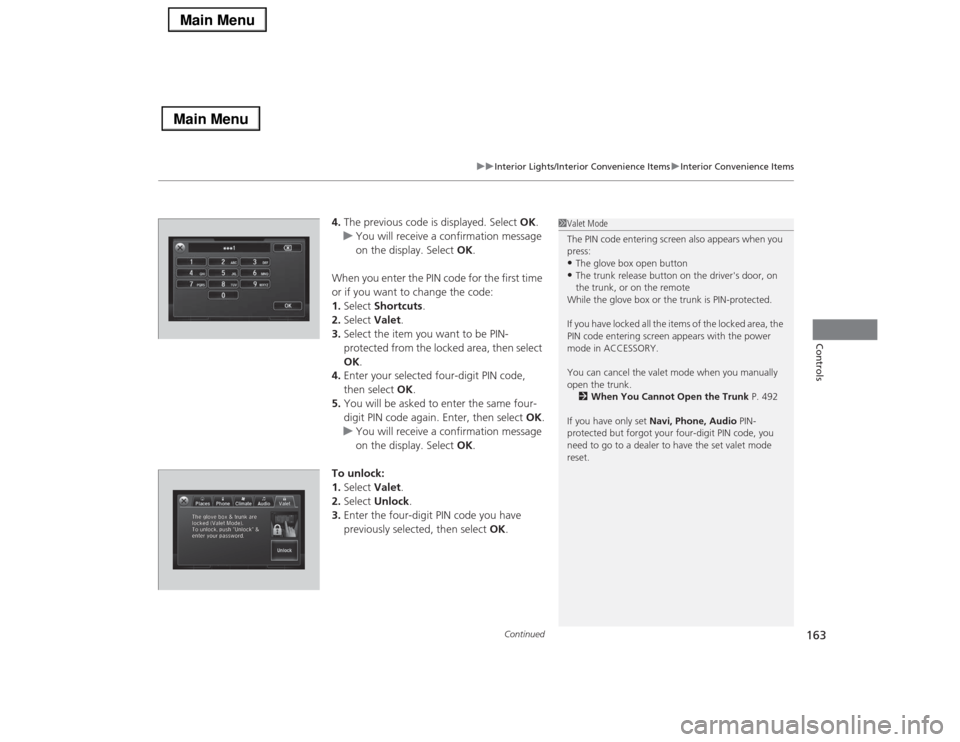
4.The previous code is displayed. Select OK.
uYou will receive a confirmation message
on the display. Select OK.
When you enter the PIN code for the first time
or if you want to change the code:
1.Select Shortcuts.
2.Select Valet.
3.Select the item you want to be PIN-
protected from the locked area, then select
OK.
4.Enter your selected four-digit PIN code,
then select OK.
5.You will be asked to enter the same four-
digit PIN code again. Enter, then select OK.
uYou will receive a confirmation message
on the display. Select OK.
To unlock:
1.Select Valet.
2.Select Unlock.
3.Enter the four-digit PIN code you have
previously selected, then select OK.
1Valet Mode
The PIN code entering screen also appears when you
press:•The glove box open button•The trunk release button on the driver's door, on
the trunk, or on the remote
While the glove box or the trunk is PIN-protected.
If you have locked all the items of the locked area, the
PIN code entering screen appears with the power
mode in ACCESSORY.
You can cancel the valet mode when you manually
open the trunk.
2When You Cannot Open the Trunk P. 492
If you have only set Navi, Phone, Audio PIN-
protected but forgot your four-digit PIN code, you
need to go to a dealer to have the set valet mode
reset.
Page 192 of 518
191
uuAudio SystemuAudio System Theft Protection
Features
Audio System Theft ProtectionThe audio system is disabled when it is disconnected from the power source, such as
when the battery is disconnected or goes dead.■Reactivating the audio system
1.Set the power mode to ON, and turn on the audio system.
uIf you set the power mode to ACCESSORY, you will be requested to enter the
audio security code. See step 3.
2.Press and hold the power button again for more than two seconds.
uThe audio system is reactivated when the system’s control unit recognizes that
the system is in your vehicle.
If the control unit fails to recognize, Enter PIN Code appears on the audio/
information screen.
3.Enter the audio security code using the On Demand Multi-Use Display
TM. If you
enter an incorrect digit, continue to the last digit, then try again. If you do not
enter code correctly after 10 tries, leave the system for one hour before trying
again, or visit a dealer to have the system reset.
1Audio System Theft Protection
Find the audio system’s security code and serial
number label in your owner’s manual kit.
We recommend that you write down the serial
number, but not the security code, in this owner’s
manual.
Do not store the label in your vehicle. If you lose the
label, you must first retrieve the serial number, and
then obtain the code.
You can find out about your serial number and
security code from a dealer.
You can register the security code at Acura Owners
(owners.acura.com.), and find information on how to
retrieve the serial number and obtain the code at
radio-navicode.acura.com.U.S. models
Page 193 of 518
192
uuAudio SystemuAudio Remote Controls
Features
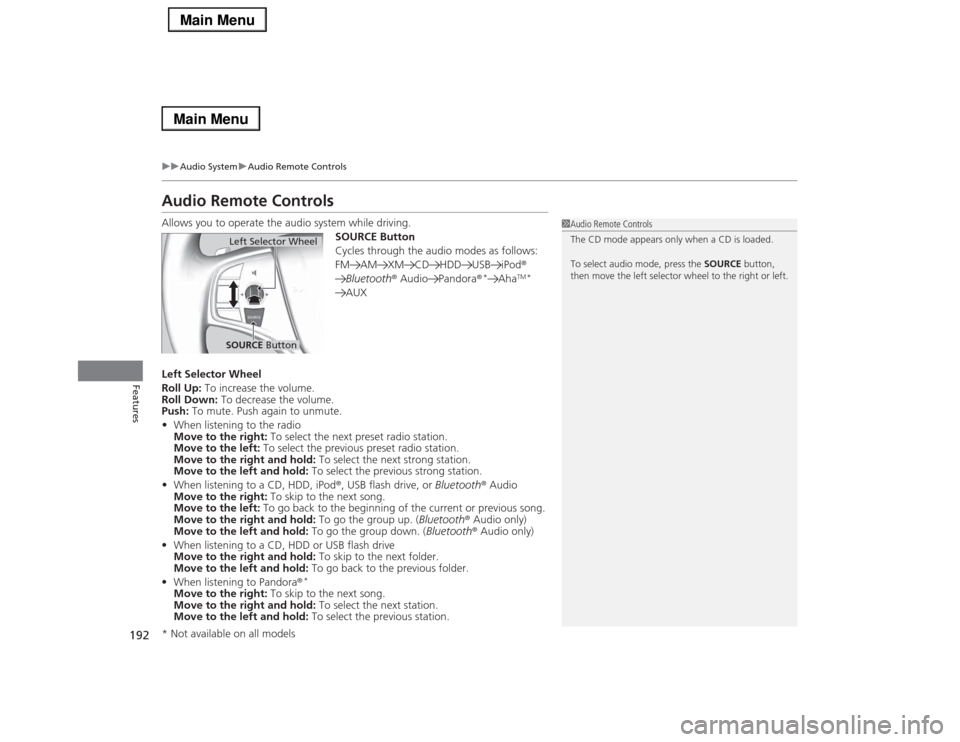
Audio Remote ControlsAllows you to operate the audio system while driving.
SOURCE Button
Cycles through the audio modes as follows:
FM AM XM CD HDD USB iPod®
Bluetooth® Audio Pandora®
*
Aha
TM*
AUX
Left Selector Wheel
Roll Up: To increase the volume.
Roll Down: To decrease the volume.
Push: To mute. Push again to unmute.
•When listening to the radio
Move to the right: To select the next preset radio station.
Move to the left: To select the previous preset radio station.
Move to the right and hold: To select the next strong station.
Move to the left and hold: To select the previous strong station.
•When listening to a CD, HDD, iPod®, USB flash drive, or Bluetooth® Audio
Move to the right: To skip to the next song.
Move to the left: To go back to the beginning of the current or previous song.
Move to the right and hold: To go the group up. (Bluetooth® Audio only)
Move to the left and hold: To go the group down. (Bluetooth® Audio only)
•When listening to a CD, HDD or USB flash drive
Move to the right and hold: To skip to the next folder.
Move to the left and hold: To go back to the previous folder.
•When listening to Pandora®
*
Move to the right: To skip to the next song.
Move to the right and hold: To select the next station.
Move to the left and hold: To select the previous station.
1Audio Remote Controls
The CD mode appears only when a CD is loaded.
To select audio mode, press the SOURCE button,
then move the left selector wheel to the right or left.
Left Selector WheelSOURCE Button
* Not available on all models
Page 194 of 518
193Features
Audio System Basic OperationTo use the audio system function, the power mode must be in ACCESSORY or ON.
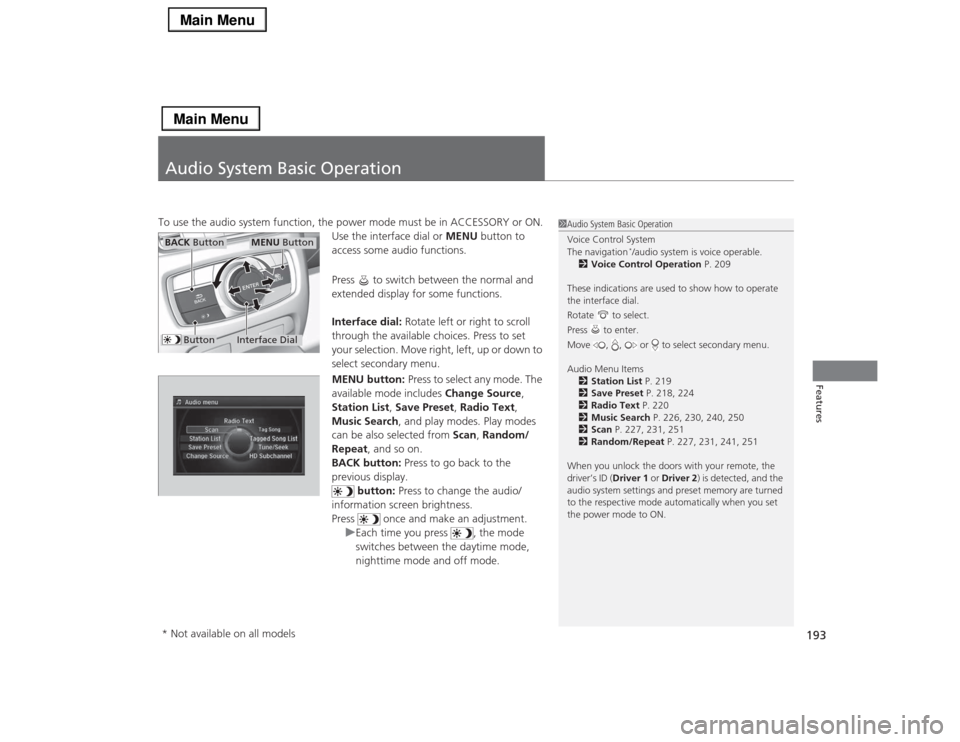
Use the interface dial or MENU button to
access some audio functions.
Press to switch between the normal and
extended display for some functions.
Interface dial: Rotate left or right to scroll
through the available choices. Press to set
your selection. Move right, left, up or down to
select secondary menu.
MENU button: Press to select any mode. The
available mode includes Change Source,
Station List, Save Preset, Radio Text,
Music Search, and play modes. Play modes
can be also selected from Scan, Random/
Repeat, and so on.
BACK button: Press to go back to the
previous display.
button: Press to change the audio/
information screen brightness.
Press once and make an adjustment.
uEach time you press , the mode
switches between the daytime mode,
nighttime mode and off mode.
1Audio System Basic Operation
Voice Control System
The navigation
*/audio system is voice operable.
2Voice Control Operation P. 209
These indications are used to show how to operate
the interface dial.
Rotate to select.
Press to enter.
Move , , or to select secondary menu.
Audio Menu Items
2Station List P. 219
2Save Preset P. 218, 224
2Radio Text P. 220
2Music Search P. 226, 230, 240, 250
2Scan P. 227, 231, 251
2Random/Repeat P. 227, 231, 241, 251
When you unlock the doors with your remote, the
driver’s ID (Driver 1 or Driver 2) is detected, and the
audio system settings and preset memory are turned
to the respective mode automatically when you set
the power mode to ON.
Interface Dial
MENU Button
BACK Button
Button
* Not available on all models
Page 196 of 518

Continued
195
uuAudio System Basic OperationuOn Demand Multi-Use Display
TM
Features
You can preset the settings of four or three
categories (Places
*, Phone, Climate, Audio)
from Shortcuts.
■
Shortcuts
1Shortcuts
The preset memory is cleared when it is disconnected
from the power source, such as when the battery is
disconnected or goes dead.
Shortcuts Icon* Not available on all models
Page 197 of 518
uuAudio System Basic OperationuOn Demand Multi-Use Display
TM
196Features
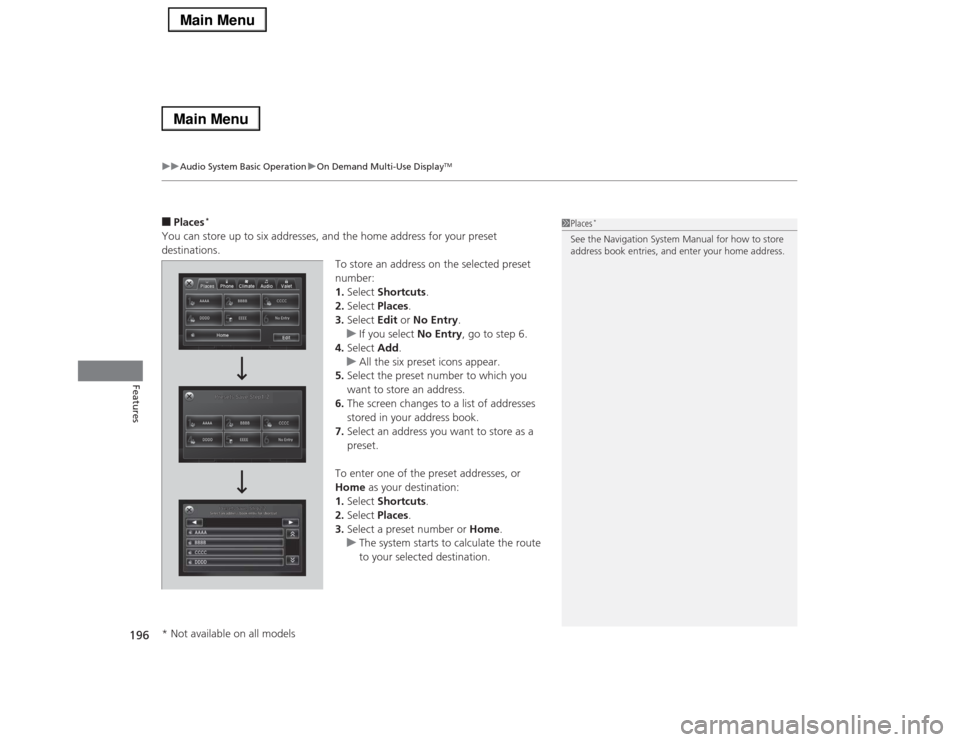
■Places
*
You can store up to six addresses, and the home address for your preset
destinations.
To store an address on the selected preset
number:
1.Select Shortcuts.
2.Select Places.
3.Select Edit or No Entry.
uIf you select No Entry, go to step 6.
4.Select Add.
uAll the six preset icons appear.
5.Select the preset number to which you
want to store an address.
6.The screen changes to a list of addresses
stored in your address book.
7.Select an address you want to store as a
preset.
To enter one of the preset addresses, or
Home as your destination:
1.Select Shortcuts.
2.Select Places.
3.Select a preset number or Home.
uThe system starts to calculate the route
to your selected destination.
1Places
*
See the Navigation System Manual for how to store
address book entries, and enter your home address.
* Not available on all models
Page 198 of 518

197
uuAudio System Basic OperationuOn Demand Multi-Use Display
TM
Continued
Features
To delete a preset address:
1.Select Shortcuts.
2.Select Places.
3.Select Edit.
4.Select Delete.
5.Select the preset number with the
destination you want to delete.
Page 199 of 518
uuAudio System Basic OperationuOn Demand Multi-Use Display
TM
198Features
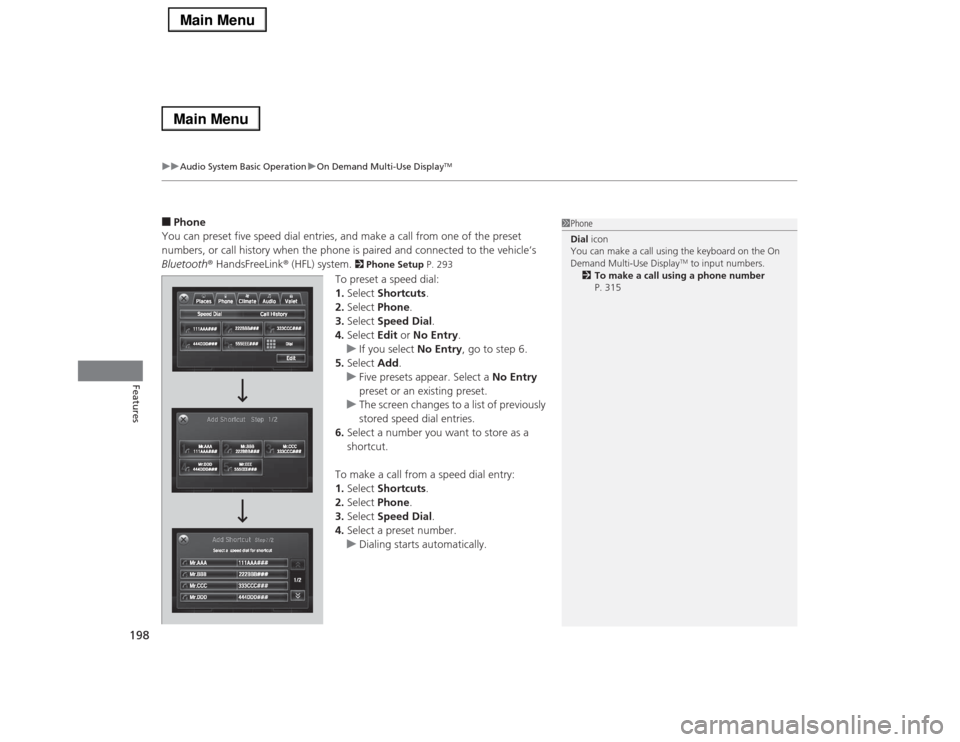
■Phone
You can preset five speed dial entries, and make a call from one of the preset
numbers, or call history when the phone is paired and connected to the vehicle‘s
Bluetooth® HandsFreeLink® (HFL) system.
2 Phone Setup P. 293
To preset a speed dial:
1.Select Shortcuts.
2.Select Phone.
3.Select Speed Dial.
4.Select Edit or No Entry.
uIf you select No Entry, go to step 6.
5.Select Add.
uFive presets appear. Select a No Entry
preset or an existing preset.
uThe screen changes to a list of previously
stored speed dial entries.
6.Select a number you want to store as a
shortcut.
To make a call from a speed dial entry:
1.Select Shortcuts.
2.Select Phone.
3.Select Speed Dial.
4.Select a preset number.
uDialing starts automatically.
1Phone
Dial icon
You can make a call using the keyboard on the On
Demand Multi-Use Display
TM to input numbers.
2To make a call using a phone number
P. 315
Page 200 of 518
Continued
199
uuAudio System Basic OperationuOn Demand Multi-Use Display
TM
Features
To delete a speed dial:
1.Select Shortcuts.
2.Select Phone.
3.Select Speed Dial.
4.Select Edit.
5.Select Delete.
6.Select the preset number with the phone
number you want to delete.
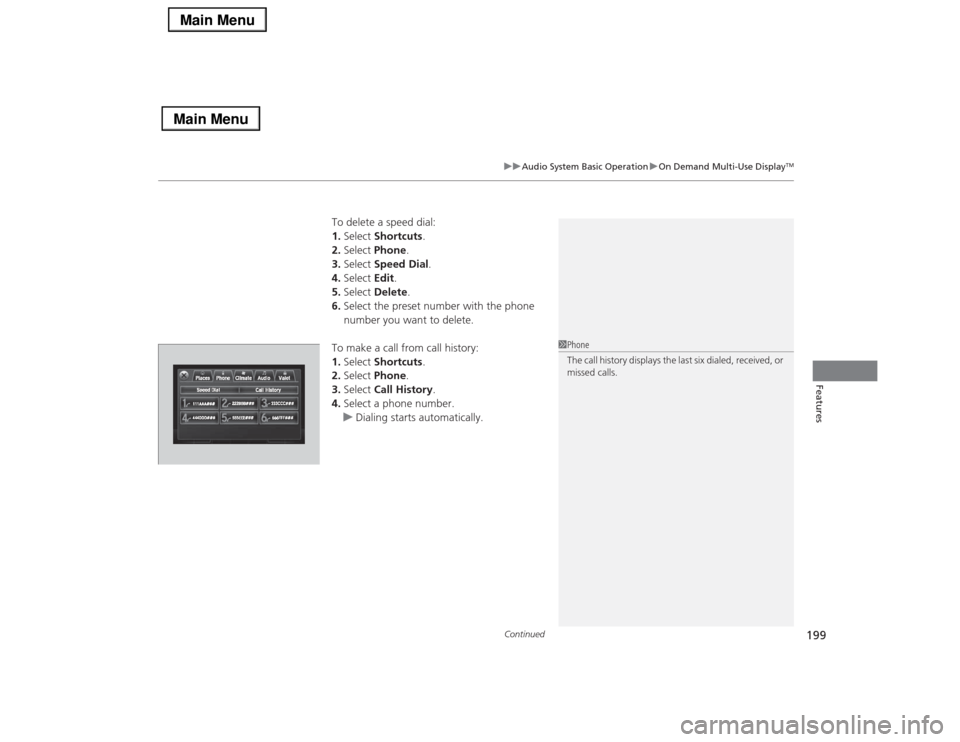
To make a call from call history:
1.Select Shortcuts.
2.Select Phone.
3.Select Call History.
4.Select a phone number.
uDialing starts automatically.
1Phone
The call history displays the last six dialed, received, or
missed calls.
Page 201 of 518
uuAudio System Basic OperationuOn Demand Multi-Use Display
TM
200Features
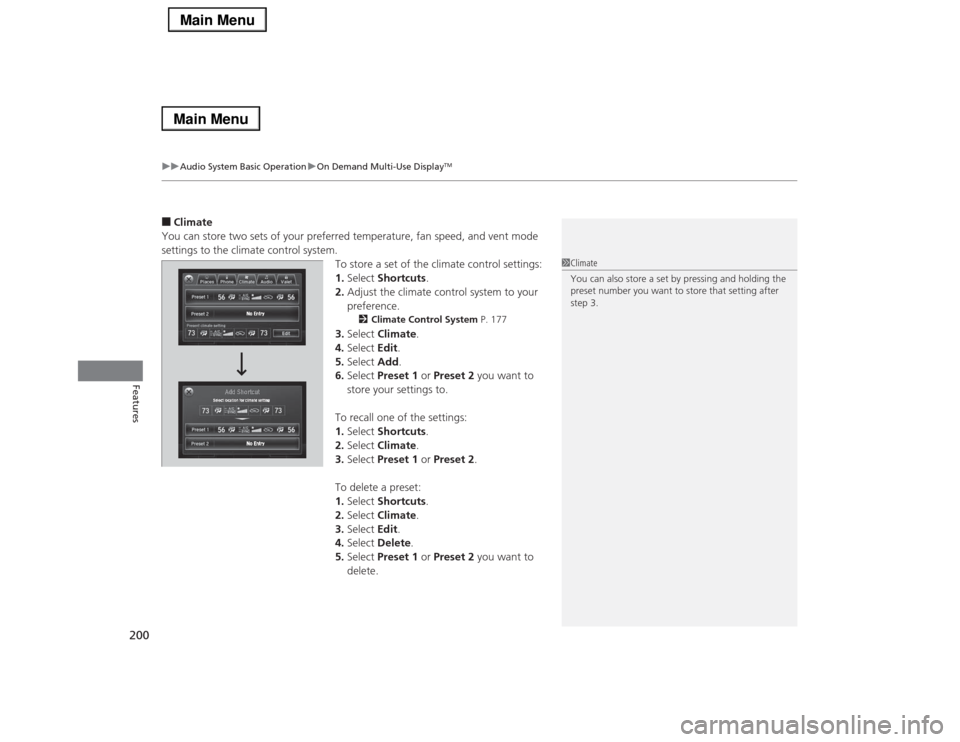
■Climate
You can store two sets of your preferred temperature, fan speed, and vent mode
settings to the climate control system.
To store a set of the climate control settings:
1.Select Shortcuts.
2.Adjust the climate control system to your
preference.
2Climate Control System P. 177
3.Select Climate.
4.Select Edit.
5.Select Add.
6.Select Preset 1 or Preset 2 you want to
store your settings to.
To recall one of the settings:
1.Select Shortcuts.
2.Select Climate.
3.Select Preset 1 or Preset 2.
To delete a preset:
1.Select Shortcuts.
2.Select Climate.
3.Select Edit.
4.Select Delete.
5.Select Preset 1 or Preset 2 you want to
delete.
1Climate
You can also store a set by pressing and holding the
preset number you want to store that setting after
step 3.