ad blue Acura RLX 2015 User Guide
[x] Cancel search | Manufacturer: ACURA, Model Year: 2015, Model line: RLX, Model: Acura RLX 2015Pages: 521, PDF Size: 22.24 MB
Page 247 of 521
uuAudio System Basic Operation uPlaying Internet Radio
246Features
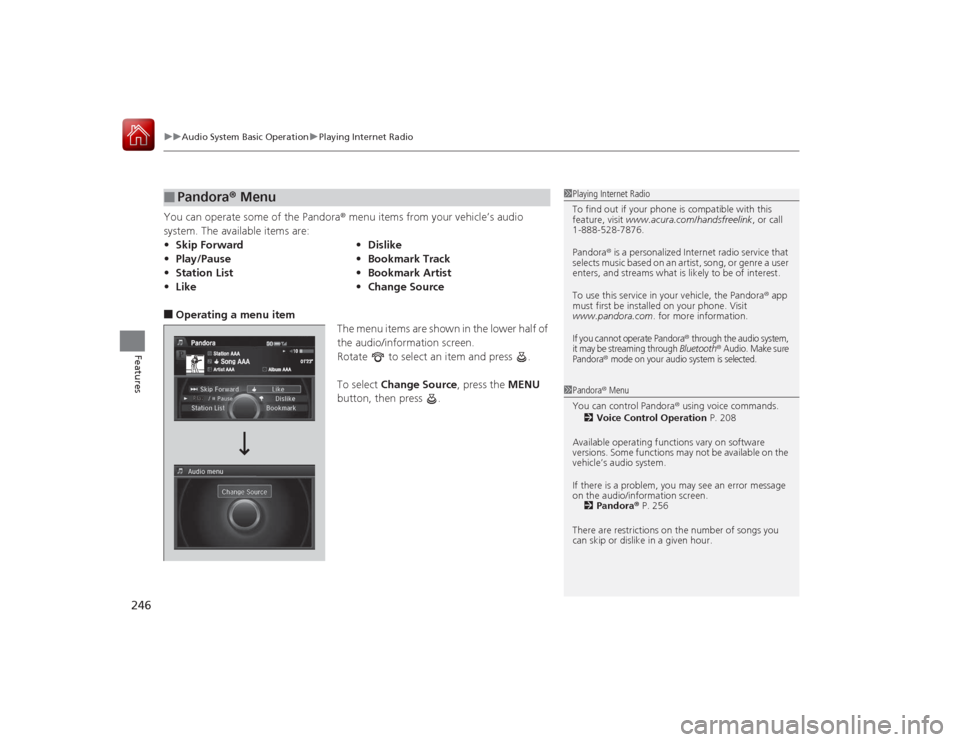
You can operate some of the Pandora® menu items from your vehicle’s audio
system. The available items are:■Operating a menu item
The menu items are shown in the lower half of
the audio/information screen.
Rotate to select an item and press .
To select Change Source , press the MENU
button, then press .■
Pandora® Menu
•Skip Forward •Dislike
• Play/Pause •Bookmark Track
• Station List •Bookmark Artist
• Like •Change Source
1Playing Internet Radio
To find out if your phone is compatible with this
feature, visit www.acura.com/handsfreelink , or call
1-888-528-7876.
Pandora ® is a personalized Internet radio service that
selects music based on an artist, song, or genre a user
enters, and streams what is likely to be of interest.
To use this service in your vehicle, the Pandora ® app
must first be installed on your phone. Visit
www.pandora.com . for more information.If you cannot operate Pandora
® through the audio system,
it may be streaming through Bluetooth
® Audio. Make sure
Pandora
® mode on your audio system is selected.
1 Pandora ® Menu
You can control Pandora ® using voice commands.
2 Voice Control Operation P. 208
Available operating functions vary on software
versions. Some functions may not be available on the
vehicle’s audio system.
If there is a problem, you may see an error message
on the audio/information screen. 2 Pandora ® P. 256
There are restrictions on the number of songs you
can skip or dislike in a given hour.
Page 252 of 521
251
uuAudio System Basic Operation uPlaying Bluetooth ® Audio
Continued
Features
Playing Bluetooth ® AudioYour audio system allows you to listen to music from your Bluetooth®-compatible
phone.
This function is available when the phone is paired and connected to the vehicle’s
Bluetooth ® HandsFreeLink ® (HFL) system.2Phone Setup P. 292
1Playing Bluetooth ® Audio
Not all Bluetooth -enabled phones with streaming
audio capabilities are compatible with the system.
For a list of compatible phones:•U.S.: Visit www.acura.com/handsfreelink , or call 1-
888-528-7876.•Canada: Visit www.handsfreelink.ca , or call 1-888-
528-7876.
In some states, it may be illegal to perform some data
device functions while driving.
If more than one phone is paired to the HFL system,
there will be a delay before the system begins to play.
You can control Bluetooth® Audio using voice
commands.
2 Voice Control Operation P. 208
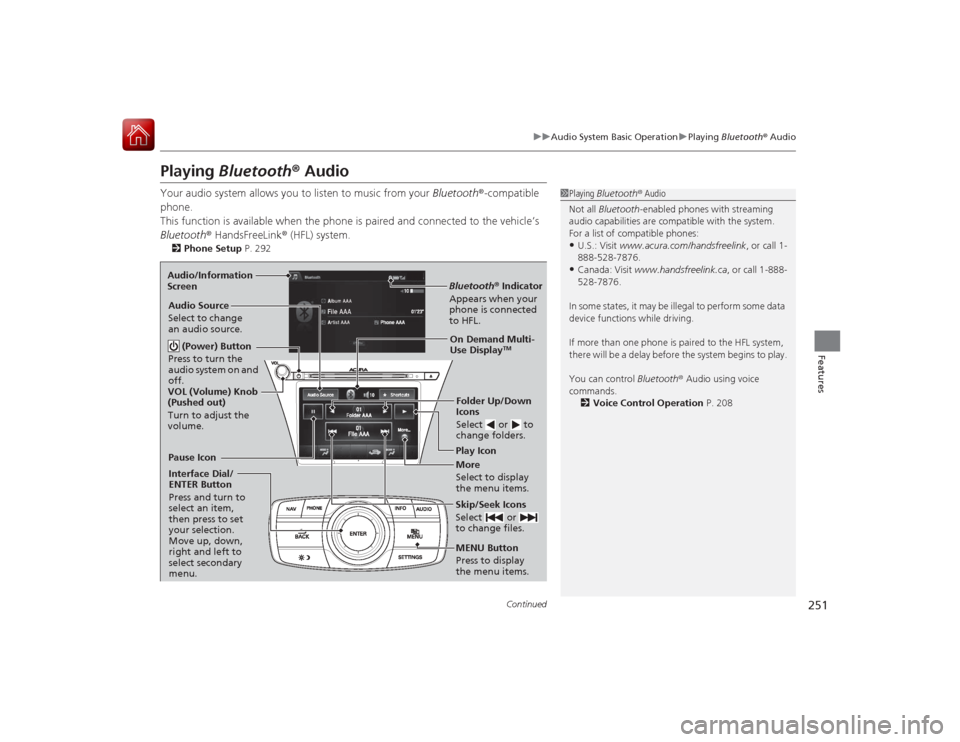
Bluetooth® Indicator
Appears when your
phone is connected
to HFL.Play Icon
Pause Icon
More
Select to display
the menu items.
Audio Source
Select to change
an audio source.
(Power) Button
Press to turn the
audio system on and
off.Interface Dial/
ENTER Button
Press and turn to
select an item,
then press to set
your selection.
Move up, down,
right and left to
select secondary
menu.
Skip/Seek Icons
Select or
to change files.MENU Button
Press to display
the menu items. Folder Up/Down
Icons
Select or to
change folders.On Demand Multi-
Use Display
TM
VOL (Volume) Knob
(Pushed out)
Turn to adjust the
volume.
Audio/Information
Screen
Page 253 of 521
uuAudio System Basic Operation uPlaying Bluetooth ® Audio
252Features
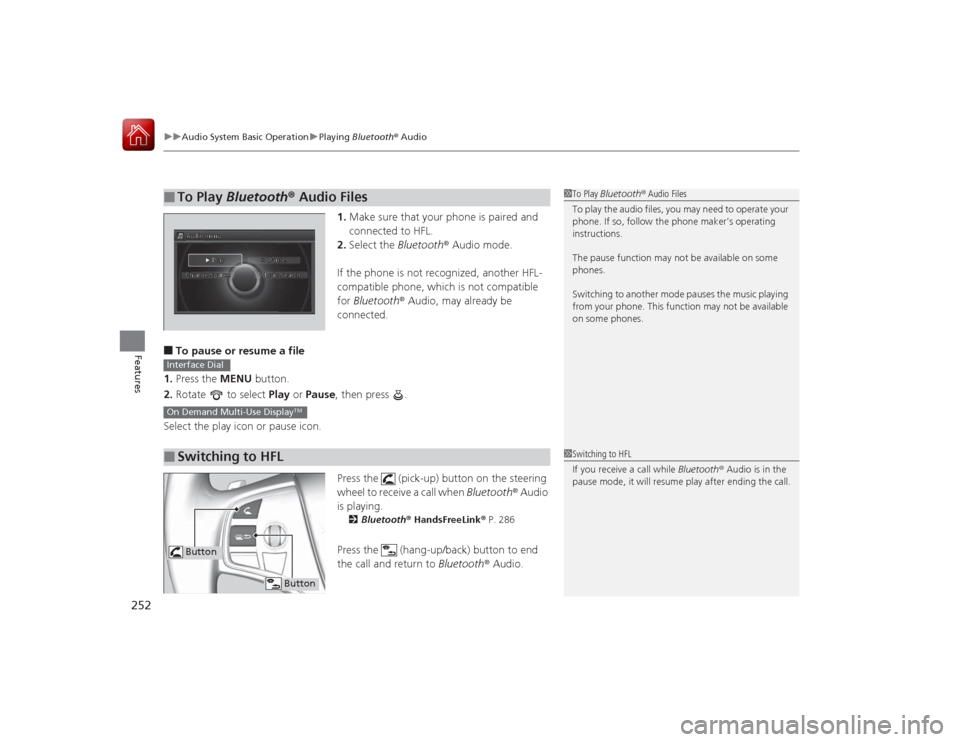
1. Make sure that your phone is paired and
connected to HFL.
2. Select the Bluetooth® Audio mode.
If the phone is not recognized, another HFL-
compatible phone, which is not compatible
for Bluetooth ® Audio, may already be
connected.
■To pause or resume a file
1. Press the MENU button.
2. Rotate to select Play or Pause , then press .
Select the play icon or pause icon.
Press the (pick-up) button on the steering
wheel to receive a call when Bluetooth® Audio
is playing.
2 Bluetooth ® HandsFreeLink ® P. 286Press the (hang-up/back) button to end
the call and return to Bluetooth® Audio.
■
To Play Bluetooth® Audio Files
1To Play Bluetooth ® Audio Files
To play the audio files, you may need to operate your
phone. If so, follow the phone maker’s operating
instructions.
The pause function may not be available on some
phones.
Switching to another mode pauses the music playing
from your phone. This function may not be available
on some phones.
■
Switching to HFLInterface DialOn Demand Multi-Use Display
TM
1 Switching to HFL
If you receive a call while Bluetooth® Audio is in the
pause mode, it will resume play after ending the call.
Button
Button
Page 265 of 521
264
uuCustomized Features u
Features
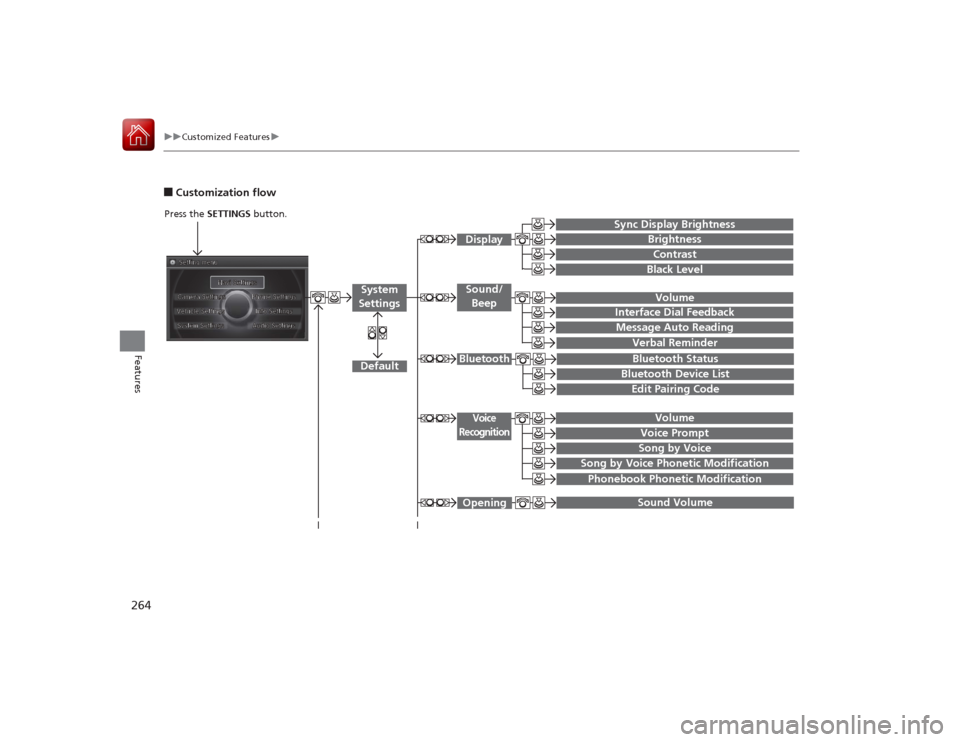
■Customization flow
Song by Voice
Song by Voice Phonetic ModificationPhonebook Phonetic Modification
Press the SETTINGS button.
Volume
Voice Prompt
Message Auto Reading
Volume
Interface Dial Feedback
Verbal Reminder
BrightnessContrastBlack Level
Bluetooth StatusBluetooth Device ListEdit Pairing Code
Default
Sound/BeepDisplay
System
Settings
Bluetooth
Voice
Recognition
Sync Display Brightness
Sound Volume
Opening
Page 268 of 521
267
uuCustomized Features u
Continued
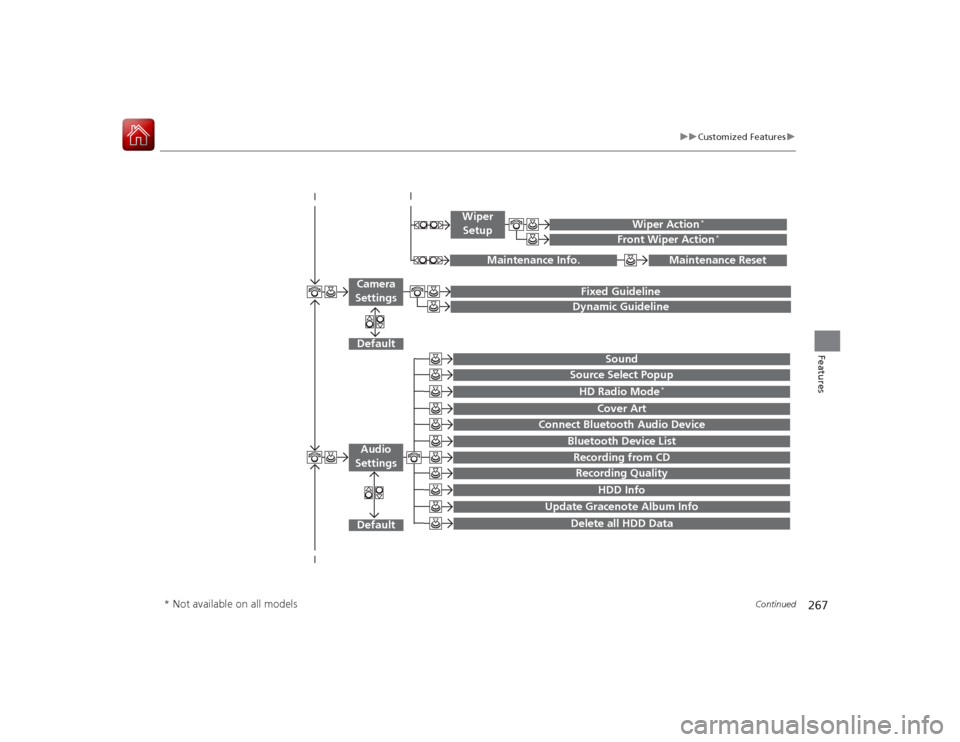
Features
Default
Fixed GuidelineDynamic Guideline
Default
Sound
Source Select PopupHD Radio Mode
*
Cover Art
Connect Bluetooth Audio Device
Bluetooth Device ListRecording from CDRecording Quality
HDD Info
Update Gracenote Album Info
Delete all HDD Data
Audio
Settings
Maintenance Reset
Maintenance Info.
Wiper Action
*
Front Wiper Action
*
Wiper Setup
Camera
Settings
* Not available on all models
Page 269 of 521
268
uuCustomized Features u
Features
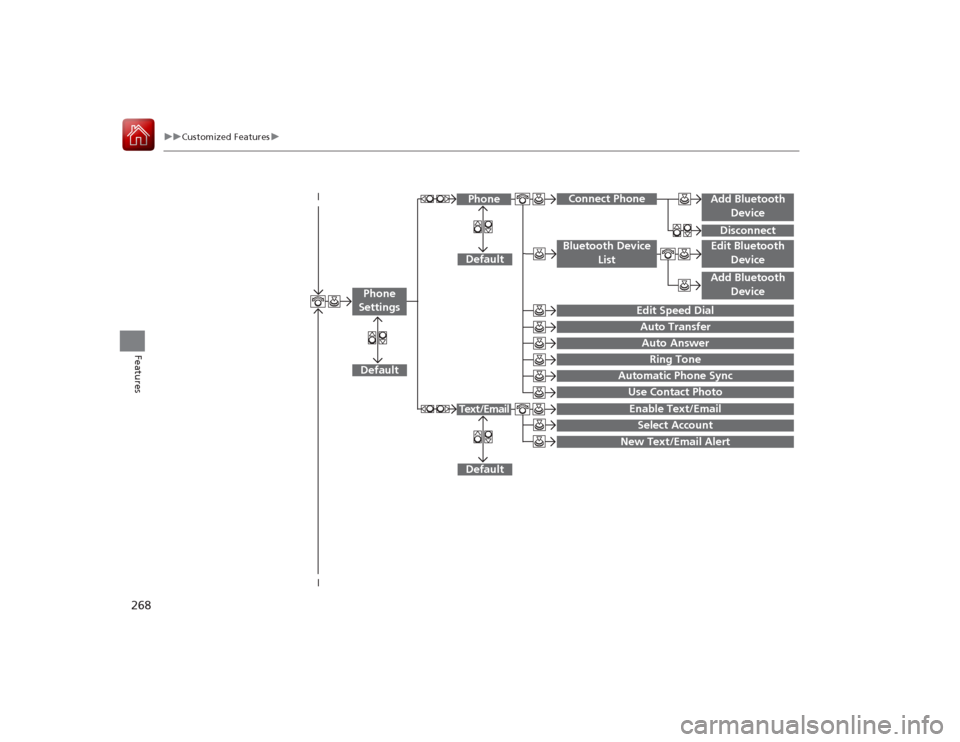
Add Bluetooth
DeviceDisconnect
Default
Phone
Connect Phone
Edit Bluetooth DeviceAdd Bluetooth Device
Bluetooth Device
List
Edit Speed DialAuto TransferAuto AnswerRing Tone
Automatic Phone SyncUse Contact Photo
Default
Default
Enable Text/EmailSelect Account
New Text/Email Alert
Text/Email
Phone
Settings
Page 271 of 521
270
uuCustomized Features u
Features
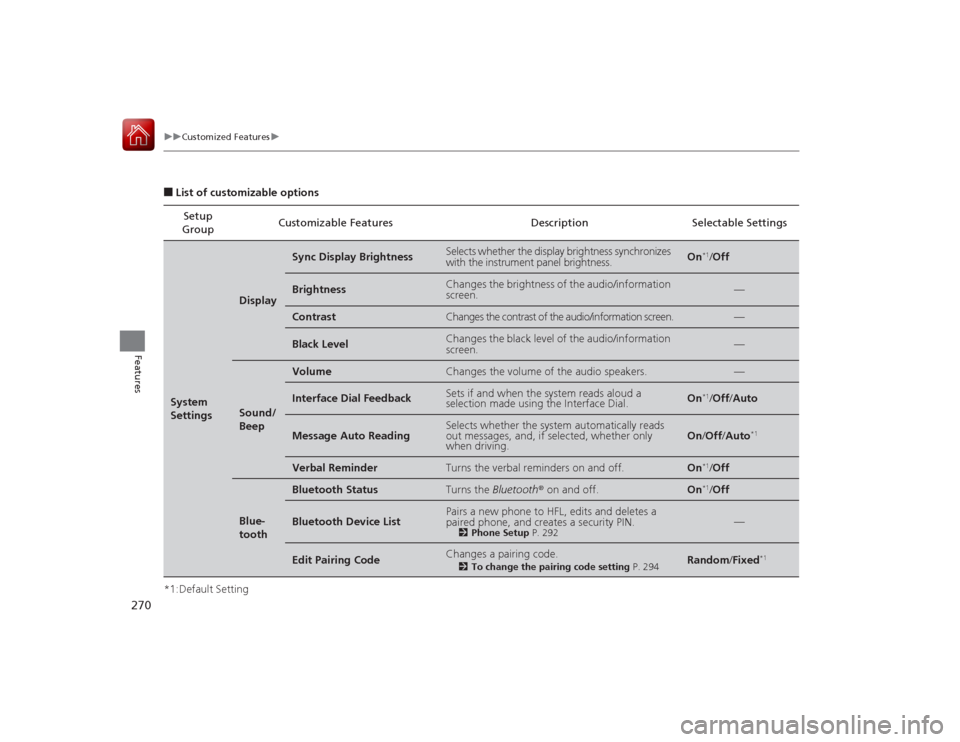
■List of customizable options
*1:Default Setting Setup
Group Customizable Features Description Selectable SettingsSystem
Settings
Display
Sync Display Brightness
Selects whether the display brightness synchronizes
with the instrument panel brightness.
On
*1/
Off
Brightness
Changes the brightness of the audio/information
screen.
—
Contrast
Changes the contrast of the audio/information screen.
—
Black Level
Changes the black level of the audio/information
screen.
—
Sound/
Beep
Volume
Changes the volume of the audio speakers.
—
Interface Dial Feedback
Sets if and when the system reads aloud a
selection made using the Interface Dial.
On
*1/Off /Auto
Message Auto Reading
Selects whether the system automatically reads
out messages, and, if selected, whether only
when driving.
On /Off /Auto
*1
Verbal Reminder
Turns the verbal reminders on and off.
On
*1/Off
Blue-
tooth
Bluetooth Status
Turns the Bluetooth ® on and off.
On
*1/Off
Bluetooth Device List
Pairs a new phone to HFL, edits and deletes a
paired phone, and creates a security PIN.
2 Phone Setup P. 292
—
Edit Pairing Code
Changes a pairing code.
2To change the pairing code setting P. 294
Random/Fixed
*1
Page 273 of 521
272
uuCustomized Features u
Features
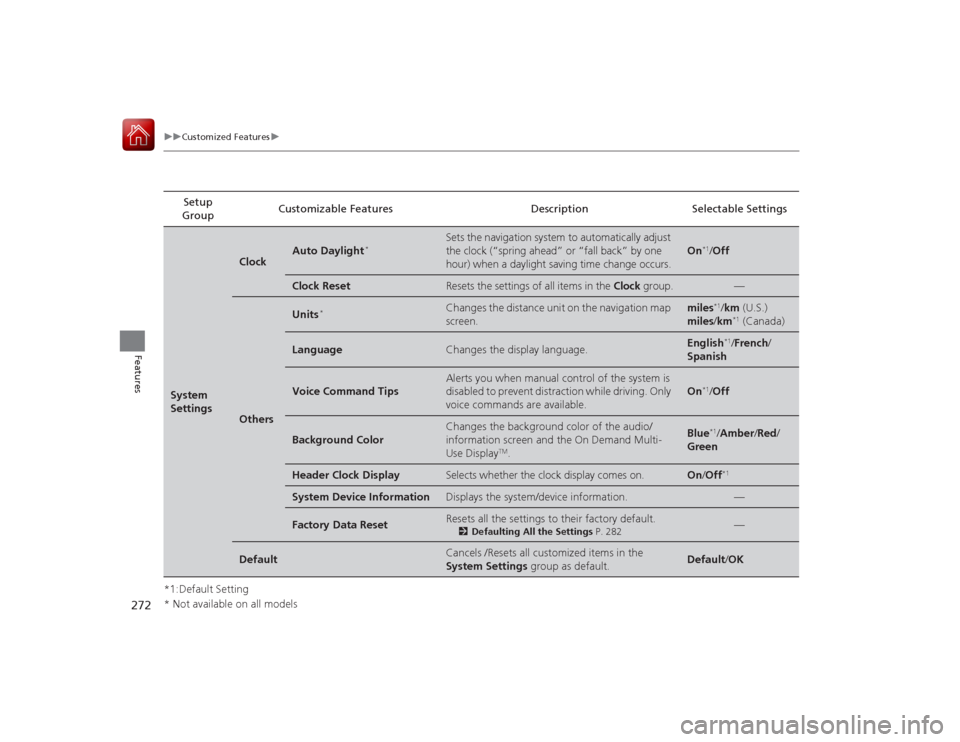
*1:Default SettingSetup
Group Customizable Features Description Selectable SettingsSystem
Settings
Clock
Auto Daylight
*
Sets the navigation system to automatically adjust
the clock (“spring ahead” or “fall back” by one
hour) when a daylight saving time change occurs.
On
*1/
Off
Clock Reset
Resets the settings of all items in the Clock group.
—
Others
Units
*
Changes the distance unit on the navigation map
screen.
miles
*1/km (U.S.)
miles /km*1 (Canada)
Language
Changes the display language.
English
*1/French /
Spanish
Voice Command Tips
Alerts you when manual control of the system is
disabled to prevent distraction while driving. Only
voice commands are available.
On
*1/ Off
Background Color
Changes the background color of the audio/
information screen and the On Demand Multi-
Use Display
TM.
Blue
*1/Amber /Red/
Green
Header Clock Display
Selects whether the clock display comes on.
On /Off
*1
System Device Information
Displays the system/device information.
—
Factory Data Reset
Resets all the settings to their factory default.
2 Defaulting All the Settings P. 282
—
Default
Cancels /Resets all customized items in the
System Settings group as default.
Default/OK
* Not available on all models
Page 279 of 521
278
uuCustomized Features u
Features
*1:Default SettingSetup
Group Customizable Features
DescriptionSelectable Settings
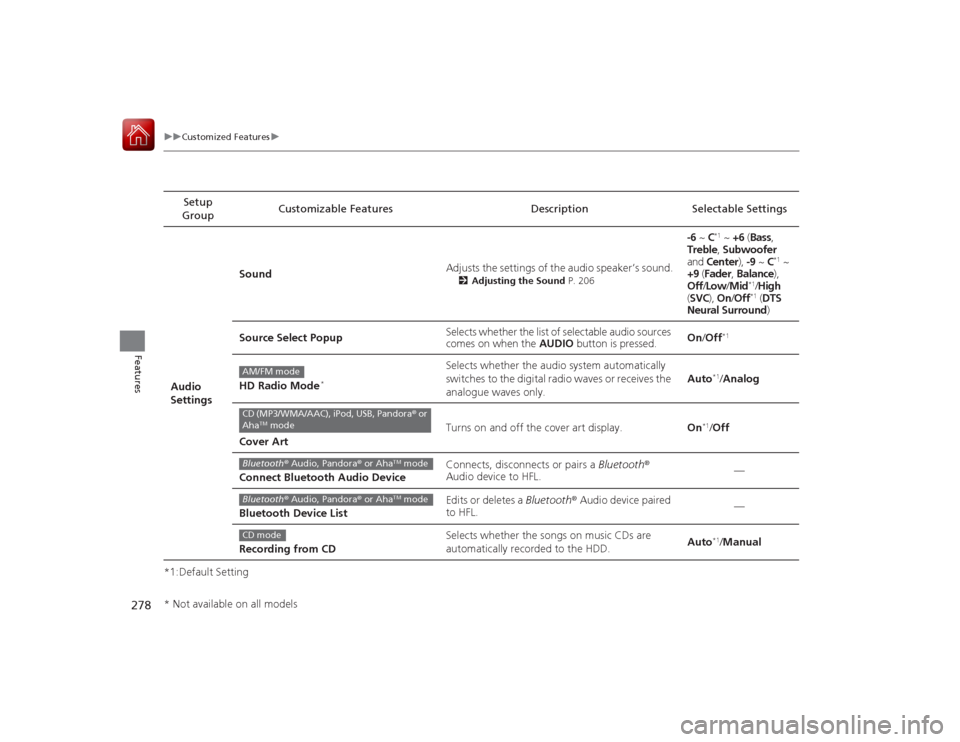
Audio
Settings Sound
Adjusts the settings of the audio speaker’s sound.
2
Adjusting the Sound P. 206
-6 ~ C
*1 ~ +6 (Bass ,
Treble , Subwoofer
and Center ), -9 ~ C
*1 ~
+9 (Fader , Balance ),
Off /Low /Mid
*1/High
( SVC ), On/ Off*1 (DTS
Neural Surround)
Source Select Popup Selects whether the list of selectable audio sources
comes on when the
AUDIO button is pressed. On
/Off
*1
HD Radio Mode
*
Selects whether the audio system automatically
switches to the digital radio waves or receives the
analogue waves only. Auto
*1/
Analog
Cover Art Turns on and off the cover art display.
On
*1/Off
Connect Bluetooth Audio Device Connects, disconnects or pairs a
Bluetooth®
Audio device to HFL. —
Bluetooth Device List Edits or deletes a
Bluetooth® Audio device paired
to HFL. —
Recording from CD Selects whether the songs on music CDs are
automatically recorded to the HDD.
Auto*1/
Manual
AM/FM modeCD (MP3/WMA/AAC), iPod, USB, Pandora ® or
Aha
TM mode
Bluetooth ® Audio, Pandora® or Aha
TM mode
Bluetooth® Audio, Pandora® or Aha
TM mode
CD mode
* Not available on all models
Page 280 of 521
279
uuCustomized Features u
Continued
Features
*1:Default SettingSetup
Group Customizable Features Description Selectable Settings
Audio
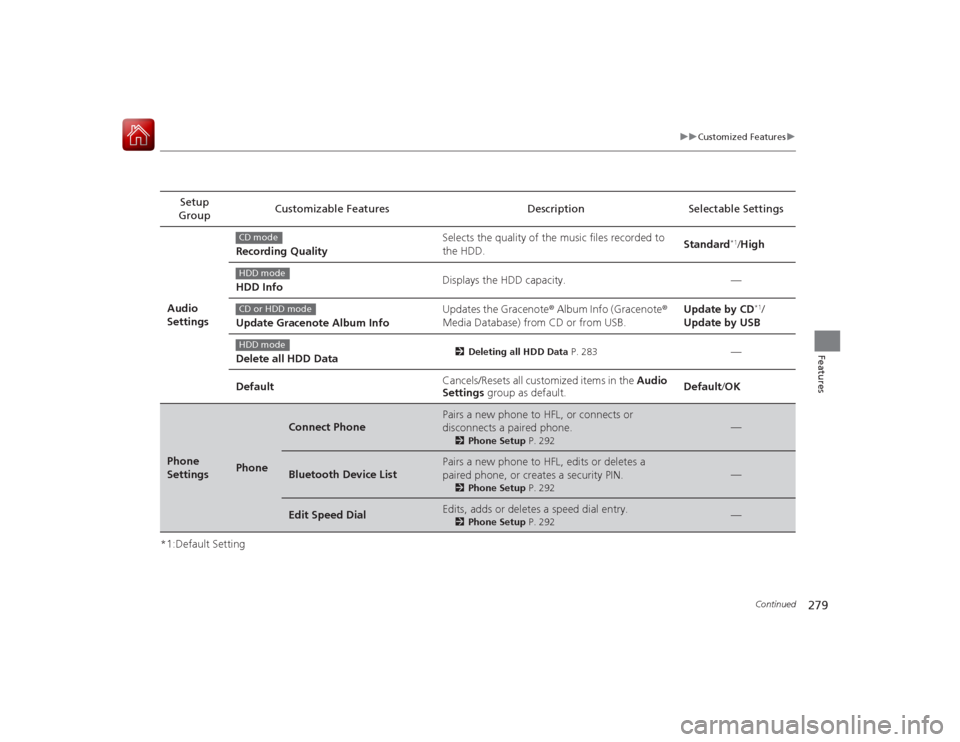
Settings Recording Quality
Selects the quality of the music files recorded to
the HDD.
Standard
*1/
High
HDD Info Displays the HDD capacity. —
Update Gracenote Album Info Updates the Gracenote
® Album Info (Gracenote ®
Media Database) from CD or from USB. Update by CD
*1/
Update by USB
Delete all HDD Data
2 Deleting all HDD Data P. 283
—
Default Cancels/Resets all customized items in the
Audio
Settings group as default. Default
/OK
Phone
Settings
Phone
Connect Phone
Pairs a new phone to HFL, or connects or
disconnects a paired phone.
2 Phone Setup P. 292
—
Bluetooth Device List
Pairs a new phone to HFL, edits or deletes a
paired phone, or creates a security PIN.
2Phone Setup P. 292
—
Edit Speed Dial
Edits, adds or deletes a speed dial entry.
2Phone Setup P. 292
—
CD modeHDD modeCD or HDD modeHDD mode